Smart Light Switch Troubleshooting Guide: Fix Flickering, Buzzing, Wi-Fi Drops, and More
Switch completely unresponsive
Last updated
Start with what you can see, hear, or smell. A smart light switch that will not respond is a different problem from one that powers up but makes LEDs flicker, and both are different from a switch that works locally but keeps disappearing from Wi-Fi.
Before touching the switch, stop troubleshooting if you notice arcing, a burning smell, a breaker that will not stay reset, melted plastic, scorch marks, or a switch that is hot to the touch. Turn the breaker off and call an electrician. Those are electrical warning signs, not app problems.
Match the symptom first
| What you’re seeing | Most likely place to look first | Do this before replacing the switch |
|---|---|---|
| Switch is completely dead | Breaker, line/load wiring, neutral, loose connection | Confirm power is off, reopen the box, and verify wiring against the install diagram |
| Light flickers, flashes, buzzes, or glows faintly | Bulb/dimmer compatibility, smart bulb on smart dimmer, low load, dimmer trim | Test with a compatible dumb LED or incandescent load if allowed by the switch rating |
| Switch works manually but drops Wi-Fi or will not pair | 2.4 GHz network, band steering, weak signal | Pair on a dedicated 2.4 GHz SSID near the router |
| Voice assistant stopped working | Alexa, Google Home, Apple Home, or app integration | Confirm the switch works in its own app before relinking the assistant |
| Wall switch and app disagree about on/off state | Firmware, cloud sync, failed pairing, reset state | Update firmware, re-pair, then factory reset only if needed |
The order matters. If the switch itself has no power, do not spend half an hour renaming devices in Alexa. If the switch works from the wall but not by voice, do not reopen the electrical box yet.
If the smart light switch is completely unresponsive
A dead smart light switch usually means one of three things: it is not receiving power, it is wired incorrectly, or it requires a neutral connection that is not present in the switch box. Treat those in that order.
1. Confirm the breaker and load are not fooling you
At the panel, make sure the breaker is fully on. A tripped breaker can sit halfway between on and off, so push it fully off first, then back on. If it trips again immediately, stop. Do not keep resetting it to “see what happens.”
If the breaker holds, check whether the light fixture itself has working bulbs. This sounds insultingly basic until you have spent twenty minutes diagnosing a switch that is feeding a dead lamp or an LED bulb that failed during the install.
2. Turn power off and recheck line, load, neutral, and ground
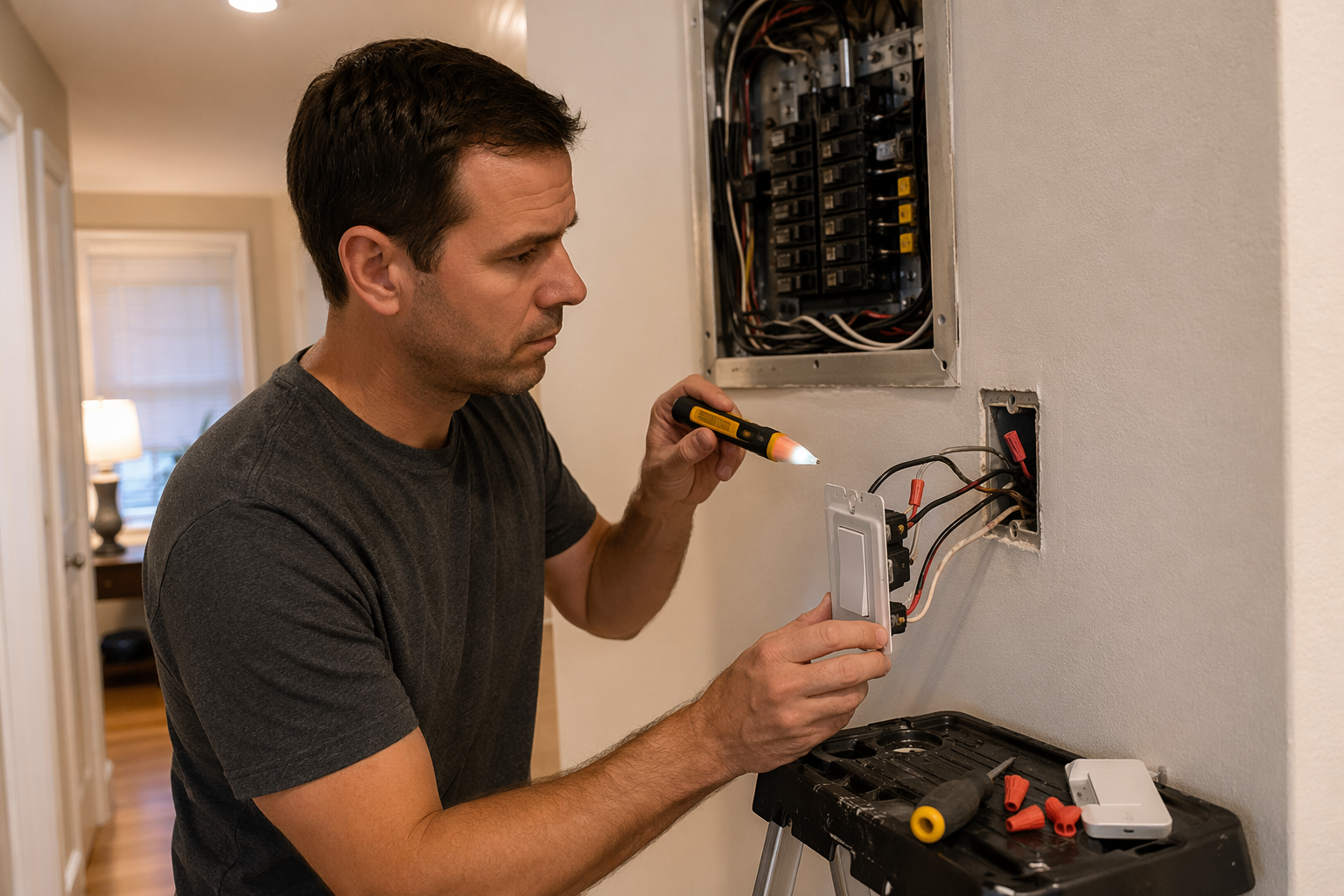
Turn the breaker off and verify the box is de-energized with a non-contact voltage tester before handling conductors. Then pull the switch forward and check the actual connections, not just whether the wires look tucked in neatly.
- Line and load reversed: many smart switches need the always-hot line conductor on the correct terminal. If line and load are swapped, the switch may never boot.
- Loose wire nut or back-wire clamp: tug each conductor gently with the breaker off. A wire can sit inside a connector and still not be electrically secure.
- Neutral bundle missed: many smart switches need a pigtail into the neutral bundle, not just the hot and load wires.
- Wrong switch type: a single-pole smart switch cannot always replace one switch in a 3-way circuit unless the product specifically supports that wiring method.
If you need to walk the wiring back from the beginning, use the smart light switch installation guide rather than guessing from wire color alone. Color helps, but it is not proof of function.
3. Check whether the box has a neutral
Neutral is the compatibility clue that saves people from blaming themselves. Older switch loops often brought only hot conductors to the wall box, with neutral staying up at the fixture. Homes built before around 1990 are more likely to lack a neutral in the switch box, and the 2011 National Electrical Code began requiring neutrals at many switch locations, though that does not mean every post-2011 home has one at every switch box in practice.[2]
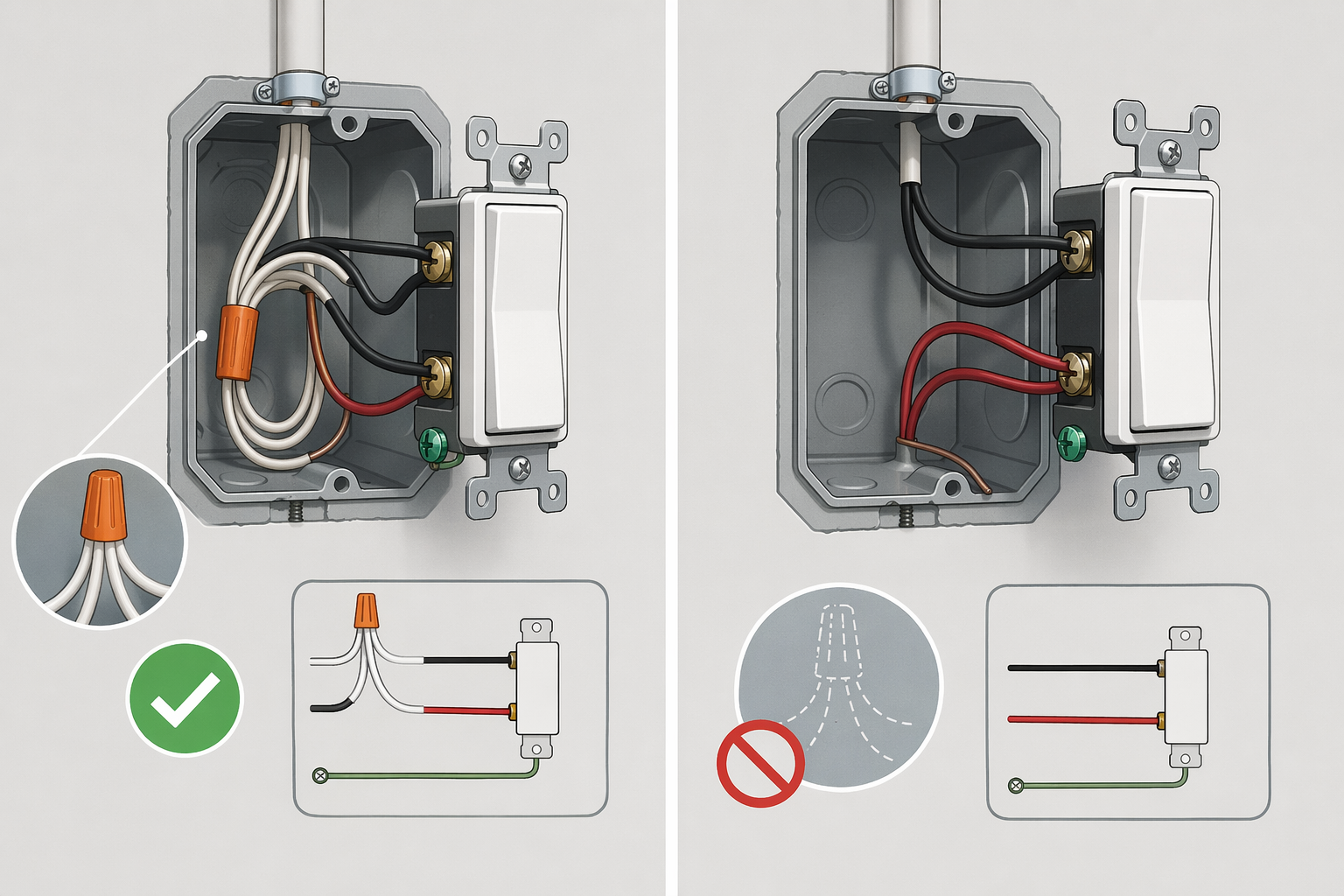
A neutral bundle is often a group of white wires tied together in the back of the box, but do not treat “white wire exists” as enough evidence. In older or modified wiring, a white conductor may be re-marked or used as part of a switch loop. If the switch is dead and you are unsure what you are looking at, step through a neutral wire identification guide before reconnecting anything.
If your switch requires neutral and your box does not have one, the clean fixes are limited: choose a no-neutral model designed for that circuit, run a neutral to the box, or use a different smart-lighting approach. Do not borrow neutral from another circuit. That is where a weekend smart-home project turns into a real wiring problem.
If the light flickers, flashes, buzzes, or glows when off
Flicker and buzz are where smart lighting gets messy because several different mistakes look almost identical from the hallway. First separate the switch from the load. Is the smart switch powered and responding? If yes, the next suspect is the bulb, fixture, dimmer setting, or no-neutral load behavior.
Remove smart bulbs from smart dimmers
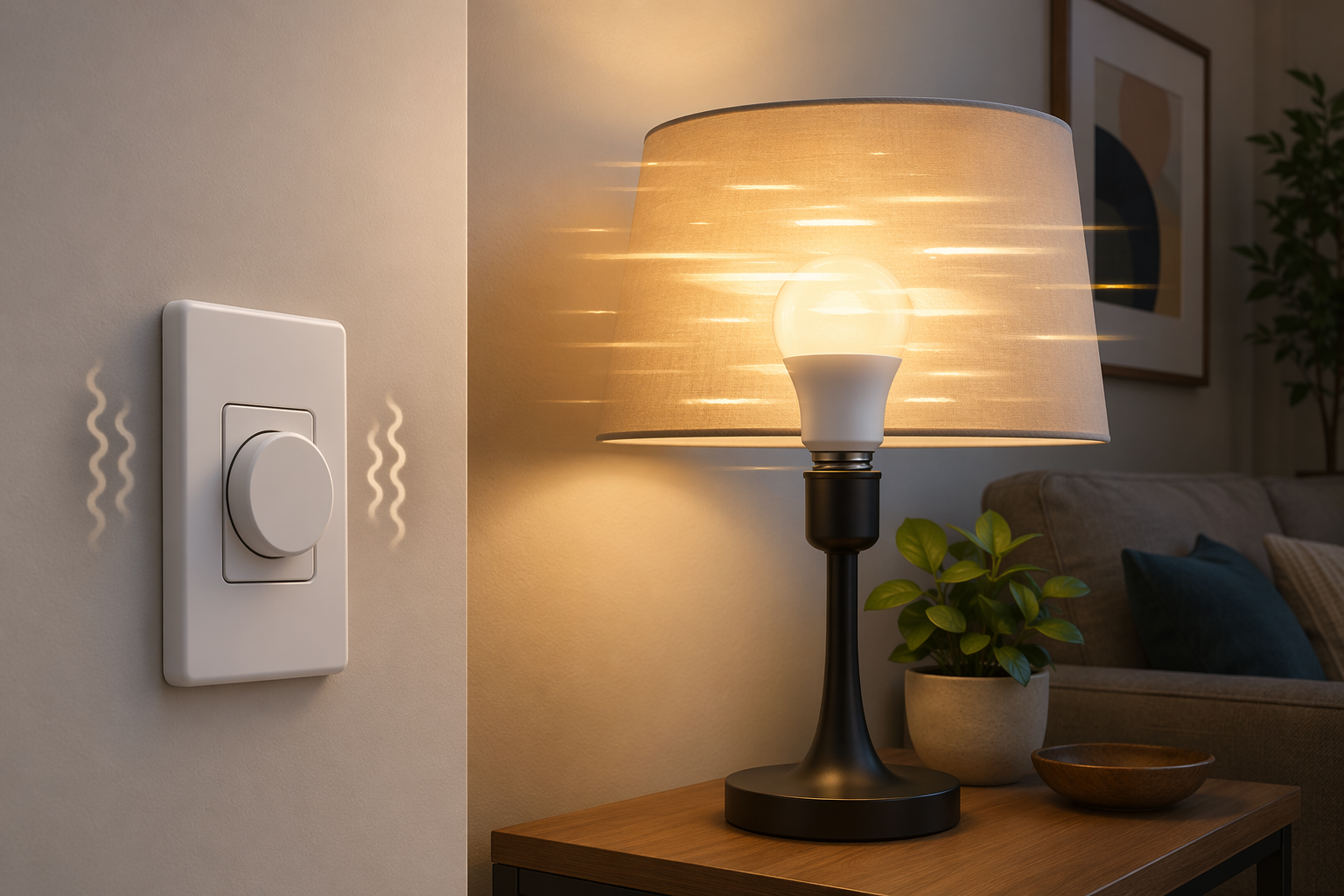
This is the one rule to check early: do not put a smart bulb on a smart dimmer. Wirecutter’s guidance is blunt: “Never pair smart bulbs with a smart dimmer. Most aren't compatible, so they will flicker, flash, strobe, or buzz.”[1]
A smart bulb expects steady power so its own electronics can manage brightness, color, and wireless control. A dimmer changes the power waveform feeding the bulb. Put both in charge and you can get strobing, buzzing, delayed turn-on, or a bulb that drops offline whenever someone dims it too far.
The fix is not to keep tweaking both apps. Use a regular dimmable LED bulb with the smart dimmer, or use a standard on/off switch or smart bulb mode if the switch supports it. If the bulb itself may be the failing part, move to the smart light bulb troubleshooting guide before replacing the wall control.
Check LED and dimmer compatibility
LEDs make dimmer problems more visible because their drivers respond quickly to small changes in the home’s electrical supply. Lutron’s Brent Protzman describes LED drivers as “quick and directly responsive to everyday fluctuations on a home's electrical supply,” which is why a setup that seemed quiet with incandescent bulbs can flicker or buzz after an LED swap.[1]
A dimmer does not make light lower by politely asking the bulb to glow less. It chops up the AC waveform very quickly. That switching can create electromagnetic vibration in the dimmer, bulb, or fixture, which you hear as buzzing.[3]
- If flicker happens only at low brightness, raise the minimum dim level or low-end trim.
- If buzz starts only with one bulb type, test a different dimmable LED listed as compatible by the switch maker.
- If multiple fixtures on the same dimmer buzz, check the dimmer’s load rating and total fixture wattage.
- If one fixture buzzes on several switches, the fixture or bulb is more suspicious than the smart switch.
Lutron Caseta and many Z-Wave dimmers let you adjust the low-end trim so the dimmer never drops below the point where the LED becomes unstable. Lutron’s own support material treats low-end flicker or flashing as an LED/dimmer adjustment problem before assuming the device has failed.[4]
For no-neutral switches, check the minimum load
No-neutral smart switches power their electronics by passing a tiny amount of current through the lighting load. With old incandescent bulbs, that was usually invisible. With efficient LEDs, the load can be too small, and the result may be flicker, glow when off, unreliable booting, or a relay that behaves inconsistently.
Do not turn one brand’s minimum into a universal law. The Aqara H2, for example, specifies a 5W minimum load when wired without neutral, while no-neutral thresholds across products are often discussed in the rough 3–10W range.[2] The useful move is to read your model’s stated minimum, then compare it with the actual bulb or fixture load.
If the connected LED load is below the switch’s minimum, the usual fix is a bypass capacitor installed at the fixture or load side when the manufacturer supports it. Some no-neutral products include one; others require a specific accessory. If you are at that point, use a no-neutral smart switch installation guide rather than improvising with random components.
No-neutral models also come with trade-offs that can look like failures if you expected full-feature behavior. They may not act as Zigbee or Z-Wave mesh routers, may disable energy monitoring when used without neutral, and draw a small standby load to keep their electronics alive.[2]
If Wi-Fi drops or the switch will not pair
When the wall switch works by hand but will not join the app, the wiring is probably not the first suspect. Most Wi-Fi smart switches support only 2.4 GHz Wi-Fi. Dual-band routers with band steering can push setup traffic toward 5 GHz, which the switch cannot use; troubleshooting guides identify this as a common reason new devices fail to pair.[5][6]
- Stand near the switch and confirm your phone has a strong Wi-Fi signal in that spot.
- Create a separate 2.4 GHz IoT SSID if your router allows it.
- Temporarily disable band steering or “smart connect” during pairing.
- Make sure your phone is on the same 2.4 GHz network you want the switch to join.
- Move the router, add a mesh node, or improve signal if the switch pairs near the router but drops in its installed location.
If the switch only fails after a router replacement, check the easy things first: the new network name, password, WPA mode, and whether the router merged 2.4 GHz and 5 GHz under one name. A dedicated IoT SSID is not elegant, but it keeps a lot of 2.4 GHz devices from being dragged through band-steering drama every time the router firmware changes.
For a shorter cause-based version of the same diagnosis—bulbs, no-neutral wiring, and weak Wi-Fi—the condensed flickering LED and connectivity troubleshooting guide is a useful detour.
If Alexa, Google Home, Siri, or another assistant stops controlling the switch
Voice failure comes after the switch has proved it can work. Test the physical switch first. Then test the manufacturer’s app. If both work, leave the electrical box alone.
- Open the switch maker’s app and confirm the device is online.
- Check whether the device name changed. Voice assistants are surprisingly literal about names.
- Relink the switch maker’s skill, service, or account inside the voice assistant app.
- Look for routine conflicts: one routine may turn the light on while another immediately turns it off.
- Check wake-word or room-name confusion if only spoken commands fail but app taps work.
A voice assistant is an integration layer. It can lose authorization, duplicate a device, or run an old routine long after the switch itself is behaving perfectly. Replace the switch only after it also fails locally or in its own app.
If the wall switch and app disagree
A physical/app mismatch usually means the switch’s reported state is out of sync, the firmware is stale, or the device pairing is corrupted. This is annoying, but it is usually not the same kind of problem as a dead switch or buzzing dimmer.
- Check the manufacturer’s app for firmware updates.
- Power-cycle the switch at the breaker once, then wait for the device to come fully back online.
- Remove and re-add the device in the app if state updates still lag or stick.
- Factory reset only after saving any automations or noting which routines will need to be rebuilt.
Reset timing varies by brand. TP-Link says Kasa smart switches can be reset by pressing and holding the reset or control button for about 10 seconds until the LED behavior changes.[7] Smartify’s troubleshooting guidance lists about 7 seconds for Leviton and about 10 seconds for Lutron Caseta.[5] Use your exact model’s manual when the button labels differ.
Do not reset repeatedly as a nervous habit. Each reset can erase network credentials, automations, scenes, and voice assistant links. One deliberate reset followed by clean re-pairing is useful; five resets in a row usually just make the house harder to put back together.
When replacement is reasonable, and when it is not enough
If the symptom matched a known category and the fix worked, stop. There is no prize for factory-resetting a switch that already behaves, and there is definitely no prize for reopening a live-looking box because an app still has an old device tile cached.
Replacement is reasonable after you have confirmed the breaker holds, wiring matches the product diagram, the neutral or no-neutral requirement is satisfied, the bulbs are compatible, load requirements are met, Wi-Fi is stable, firmware is current, and a clean re-pair did not fix the issue. At that point, compare a replacement model against the circuit you actually have, not the one you wish were in the wall; the smart light switch buyer’s guide is where to check neutral requirements, dimmer type, protocol, and load support before ordering another switch.
But replacement is not the next step for heat, arcing, a burning smell, scorch marks, or a breaker that will not stay reset. Turn the circuit off and bring in an electrician. Most smart light switch failures can be diagnosed by symptom; electrical warning signs are not content problems to solve with more scrolling.
References
- The 4 Best In-Wall Smart Light Switches and Dimmers of 2026 — Wirecutter / The New York Times
- The Pros and Cons of No-Neutral Smart Switches — SmartHomeScene
- Tips for Troubleshooting a Buzzing Dimmer Switch — Prairie Electric
- Flickering or Flashing LED Lights (Caseta) — Lutron Support
- Problems with your Smart Light Switch? Solutions and Tips — Smartify
- Smart Home Switch: Troubleshooting Issues in Electrical Lighting Systems — PacLights
- How to Reset a Kasa Smart Plug or Smart Switch — TP-Link Support
Corroborating context
For protocol background on why this failure happens, see Compatibility & Protocols.
Not currently linked to a known regression. Background on the underlying protocol lives in Compatibility & Protocols.