
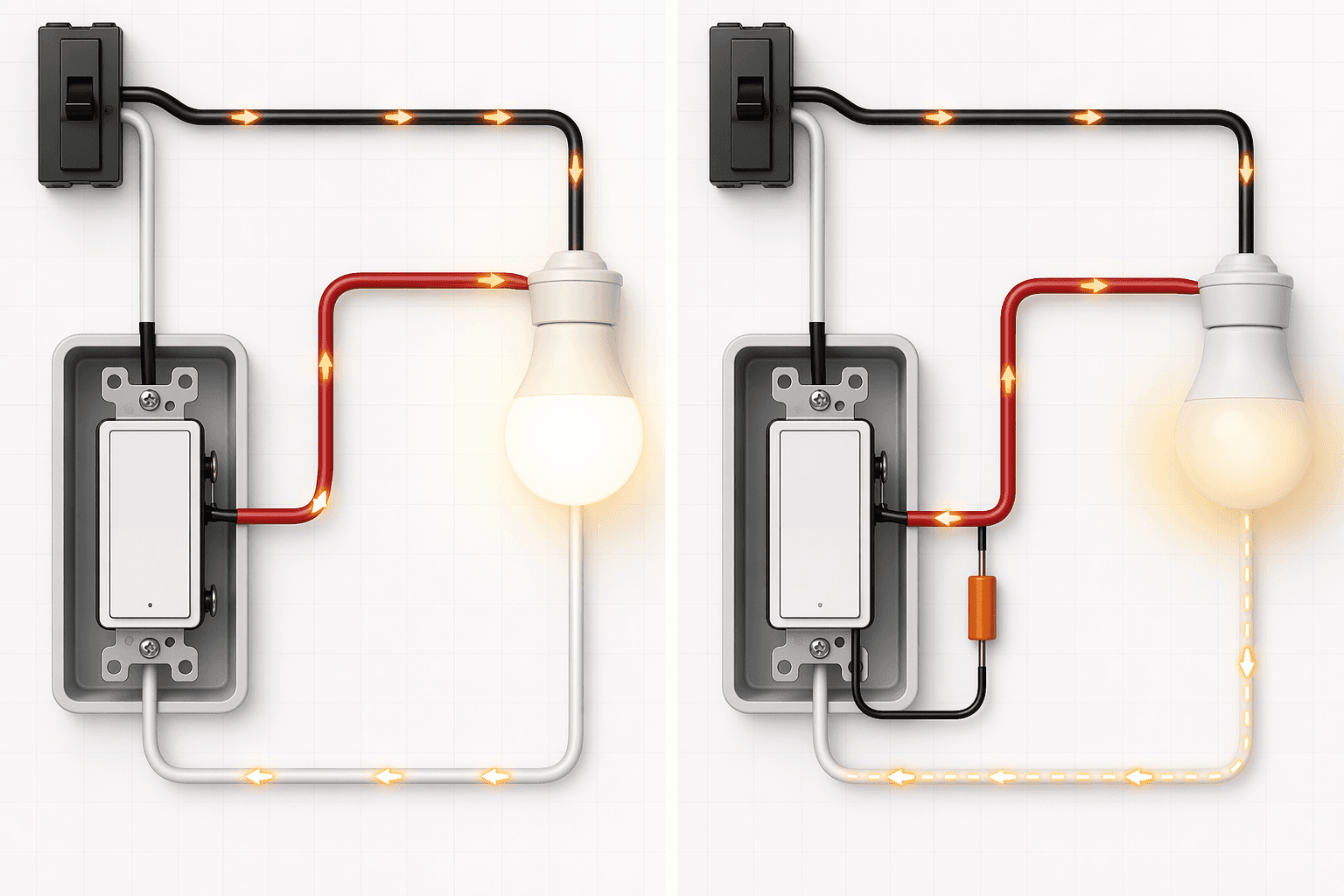
You installed a smart switch. Now the LED flickers.
You installed a smart switch. The ceiling light flickers, or glows faintly even when off. The first instinct is defective wiring or a bad switch. Usually not. Three causes explain nearly every complaint I see: incompatible bulb, missing neutral wire, or weak Wi‑Fi at the switch location.
The flicker and the ghost glow
First check: did you pair a smart dimmer with a non‑dimmable LED? That won’t work. The dimmer sends chopped power, the LED driver tries to smooth it, and you get flicker, strobe, or a quiet buzz. Wirecutter's testing has confirmed this incompatibility for years. The fix is simple: use a dimmable LED bulb, or replace the dimmer with a standard on/off switch if you don’t need dimming.
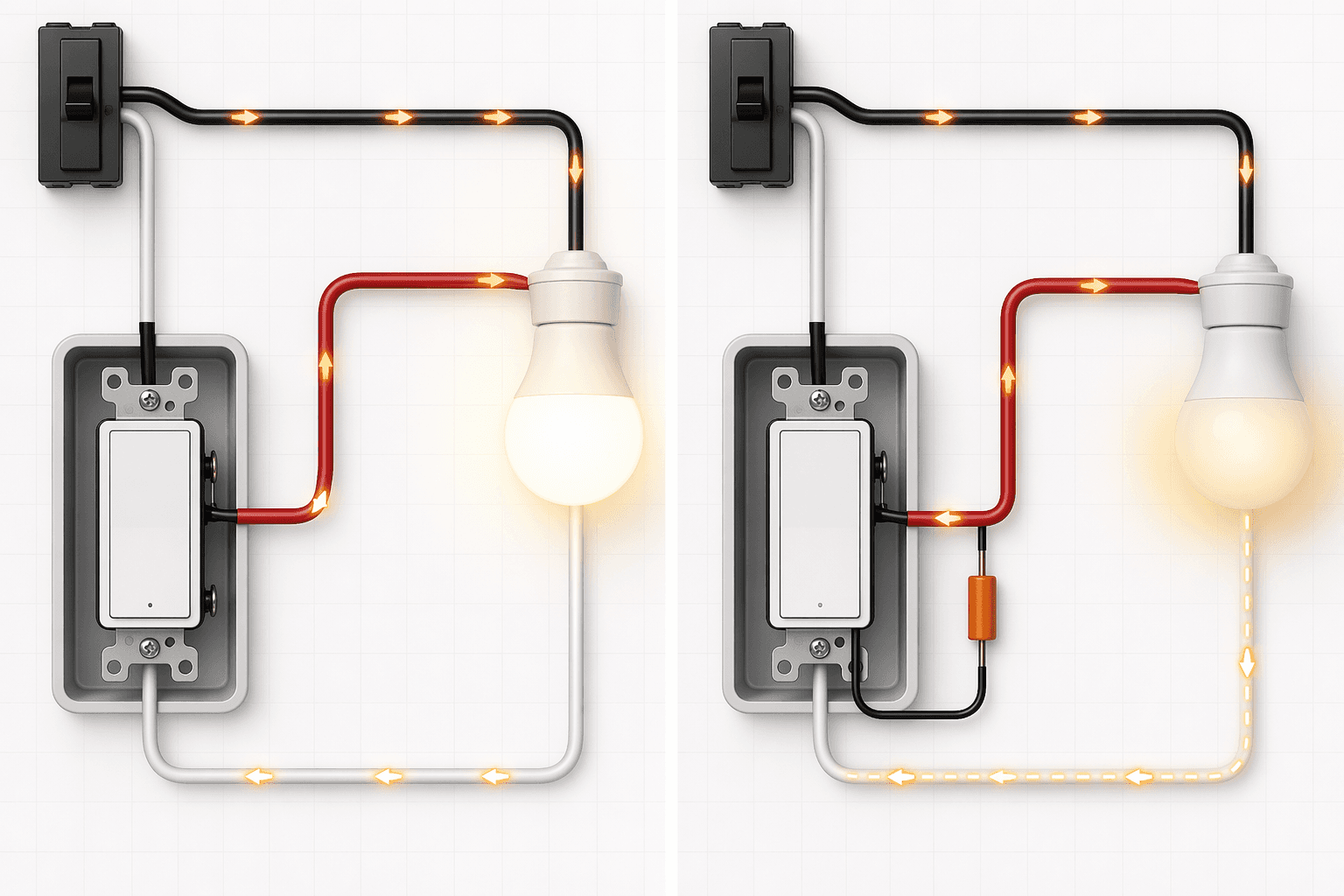
If the bulb is dimmable and it still flickers, the problem is often a no‑neutral switch. These switches draw a small current through the bulb to power their own electronics. That trickle current — described by SmartHomeScene as a design requirement, not a flaw — can make sensitive LEDs flicker, buzz, or glow faintly when off. The Aqara H2, for example, needs a minimum load of 5W to operate reliably without a neutral. If your bulb is below that, the switch will struggle.
Still flickering? The neutral wire is the real story
If the bulb swap didn’t fix it, you’re dealing with a deeper reality: no‑neutral switches never truly cut power to the bulb. That’s not a defect — it’s how they work. The switch needs a constant trickle to power its Wi‑Fi or Zigbee radio. The only ways around it are a bypass capacitor (which may buzz) or a neutral‑wired switch that provides a dedicated return path.
Neutral‑wired switches also act as routers in Zigbee and Z‑Wave mesh networks. No‑neutral switches are end devices — they cannot relay traffic. If your mesh is spotty, that limitation matters as much as the flicker. SmartHomeScene notes that no‑neutral switches cannot serve as mesh routers, which weakens the network instead of strengthening it.
If your home was built before the 1980s, the switch boxes likely have no neutral wire. You can either accept the compromises of a no‑neutral switch — flicker risk, capacitor hum, weaker mesh — or pay an electrician to run a neutral. That is not a small job. Expect $75–$200 per switch, and the switch box may need enlarging if there are several conductors.
That buzzing – from the bulb, the switch, or the capacitor?
Buzzing has three possible origins. Listen to where it comes from and when it happens.
- The bulb driver: LED bulbs contain a tiny switching power supply. When paired with a dimmer that chops the waveform, the driver vibrates and buzzes. Wirecutter explains that components in the LED driver vibrate at audible frequencies. Swap the bulb for a known dimmable model, or use the manufacturer's compatibility tool — Lutron's LED Compatibility Tool lists bulbs that work with its dimmers.
- The switch relay: Some smart switches produce a soft click or hum when the relay engages. That is normal. If the buzz is constant even when the light is off, it may be the power supply inside the switch, and you should check the manufacturer's forum for known issues.
- The bypass capacitor: If you installed a capacitor to fix flicker, and a new low hum started, that is the capacitor vibrating. SmartHomeScene flags this explicitly: bypass capacitors can hum. The hum is often faint but may bother you in a quiet room. There is no fix except to remove the capacitor and accept the flicker, or switch to a neutral‑wired switch.
Random disconnections and app dropouts
A switch that goes offline unpredictably is almost always a signal problem, not a hardware failure. Two factors at play. First, weak Wi‑Fi at the switch location. A retailer ( iotics ) notes that a weak signal makes the radio work harder, which can slightly increase standby power use — but the real consequence is dropped connections, not a noticeable electricity bill (standby draw is 0.5 to 1.5 watts). Move your router closer, add a mesh node, or use a Wi‑Fi extender.
Second, if the switch uses Zigbee or Z‑Wave and it’s a no‑neutral model, it is an end device. It cannot relay traffic. That means you need a router device — typically a neutral‑wired smart switch or a dedicated plug — within range for the mesh to work well. If the mesh has gaps, the switch will drop out. Adding a neutral‑wired switch nearby does double duty: it strengthens the network and eliminates the flicker issue.
Switch won't power on or won't fit in the box
If the switch appears completely dead — no lights, no response — the breaker may be off, or a neutral connection is loose. Check the breaker first, then use a non‑contact voltage tester to confirm power at the box. SONOFF's wiring guide walks through these steps in more detail.
The more common quibble is physical. Smart switches are bulkier than old toggle switches. If the switch box is cramped, Wirecutter recommends looking for switches with screw terminals instead of pre‑attached pigtails — terminals save space and are easier to connect in tight quarters. Forcing a switch into an overstuffed box can pinch wires, cause overheating, or damage the switch's circuit board.
When the switch works backwards
Press 'on' — the light turns off. That is disorienting but trivial to fix. SONOFF explains that you simply swap the S1 and S2 traveler wires on a three‑way setup, or toggle the switch type in the app between momentary and toggle mode. No wiring change needed for single‑pole switches — just flip the in‑app setting.
Pick your fix – what is actually straightforward
Three root causes cover nearly every problem with a smart light switch: incompatible bulbs, missing neutral, and weak Wi‑Fi. The fixes are not all equally simple.
- Bulb swap: genuinely straightforward. Buy a dimmable LED, check the manufacturer's compatibility list, and the flicker stops.
- Wi‑Fi fix: straightforward. Move the router, add a mesh node, or change the access point. The switch stays connected.
- No‑neutral fix: not straightforward. A bypass capacitor may add a hum. Running a neutral wire costs money and effort. Your tolerance for trade‑offs will decide which path you take.
There is no magic switch that makes all three issues disappear at once. But knowing which root cause you are dealing with — and what each fix actually costs in time, money, or new annoyances — gets you to a working setup faster than swapping parts at random.
Community Tips
Share platform-specific variations, steps that have changed after app updates, or tips that helped your installation succeed.
Comments
Join the discussion with an anonymous comment.