Smart Home Hub Troubleshooting: A Step-by-Step Diagnostic Guide
Smart home hub offline
Last updated
When a smart home hub suddenly shows offline, the tempting conclusion is that the box has died. Sometimes it has. More often, the hub is just the first device in the house honest enough to admit that power, routing, Wi-Fi, firmware, or an integration has gone sideways.
The fastest fix is not to poke every bulb, lock, plug, and sensor one by one. Start with a controlled diagnostic sequence. Each step should narrow the fault. If it does not narrow anything, it belongs later.
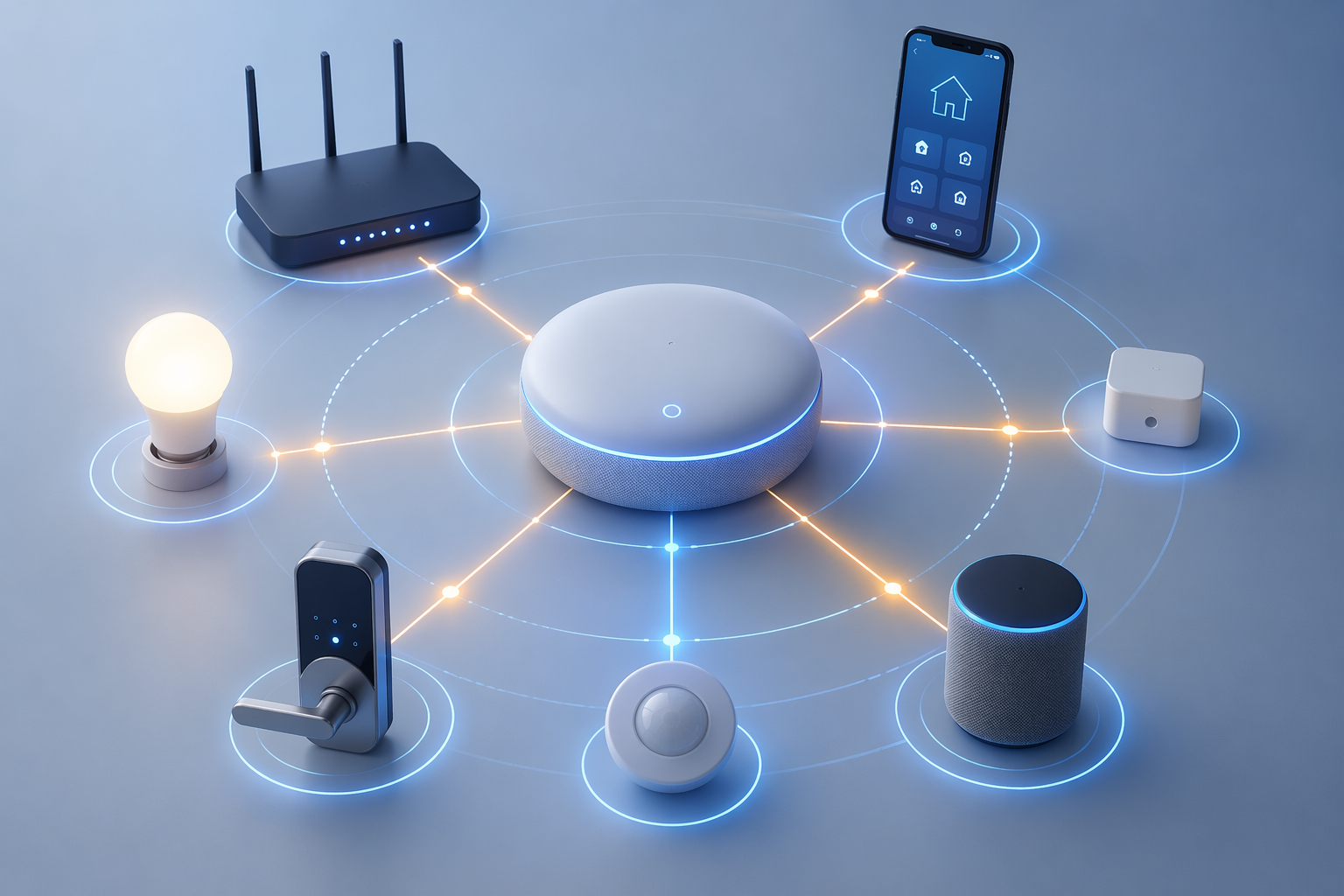
The troubleshooting flow before you replace the hub
| Stage | What you check | What it tells you |
|---|---|---|
| Controlled reboot | Modem, router, hub, and affected smart devices restarted in order | Whether the failure was stale power, routing, or a stuck local connection |
| Network check | Wi-Fi band, router changes, mesh nodes, QoS rules, IoT network, and signal path | Whether the hub is being blamed for an upstream network problem |
| Symptom matching | Offline hub, disappearing devices, failed voice commands, broken automations, slow response | Which part of the system is failing: hub link, device link, cloud link, or automation logic |
| Firmware and app state | Hub firmware, device firmware, phone app, integrations, and account sessions | Whether an update or stale app state left the system half-connected |
| Advanced recovery | Mesh healing, selective re-pairing, backup review, and factory reset only if needed | Whether the hub can recover without destroying the whole setup |
| Replacement decision | Repeated failure after power, network, firmware, re-pairing, and reset checks | Whether new hardware is finally the sensible next step |
Start with the reboot people usually do wrong
“Restart it” is good advice only when it means something specific. Pulling the smart home hub plug for a few seconds while the router is still confused is not a full test. Restarting the router while the hub is already trying to reconnect can also leave you with the same mess, just freshly rearranged.
Use this order:
- Power down the modem or internet gateway.
- Power down the router and any mesh nodes.
- Power down the smart home hub.
- If a group of devices is clearly affected, power down those devices too, especially smart plugs, bulbs, speakers, and bridges that have their own power adapters.
- Bring the modem or gateway back first and wait until it has a stable internet connection.
- Bring the router and mesh nodes back next and let the Wi-Fi settle.
- Power on the hub after the network is ready.
- Power on the affected devices last, then open the app and wait before tapping refresh repeatedly.
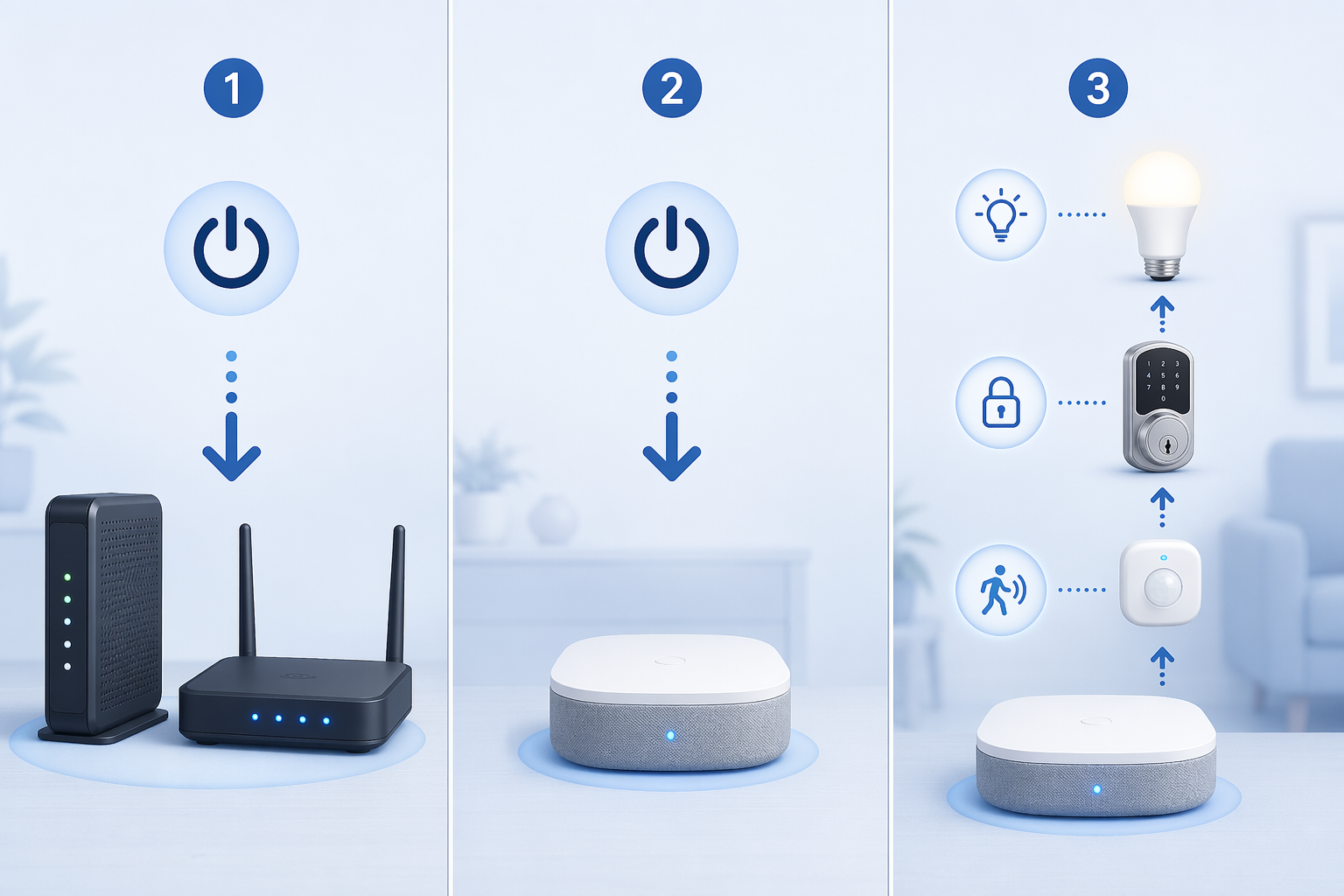
That order matters because the hub needs a working path back through the router before it can re-establish device status, voice services, cloud integrations, or automations. If the hub comes online after this sequence, the hub was probably not dead. The house was stuck in a bad network or power state.
Do not rush the last part. Some systems show “offline” briefly while the app, hub, and devices compare their current state. Give the system a moment, then test one simple action: turn on a nearby light, check one sensor, or run one known-good automation. You are not trying to prove every device works yet. You are checking whether the hub has regained control.
Check the boring power details
A hub that lights up is not always powered well. Loose USB adapters, overloaded power strips, failing cables, and wall outlets controlled by switches can create problems that look like software failure. If the hub uses a removable cable or power brick, reseat both ends. If you have a known-good compatible power adapter, test it before assuming the hub board has failed.
Also look for heat and placement. A hub wedged behind a TV, sitting on a warm receiver, or buried in a cabinet has a harder job than one sitting in open air. Heat and poor placement can create intermittent symptoms: it works in the morning, gets flaky later, then looks possessed by dinner.
If the hub is still offline, move upstream to the network
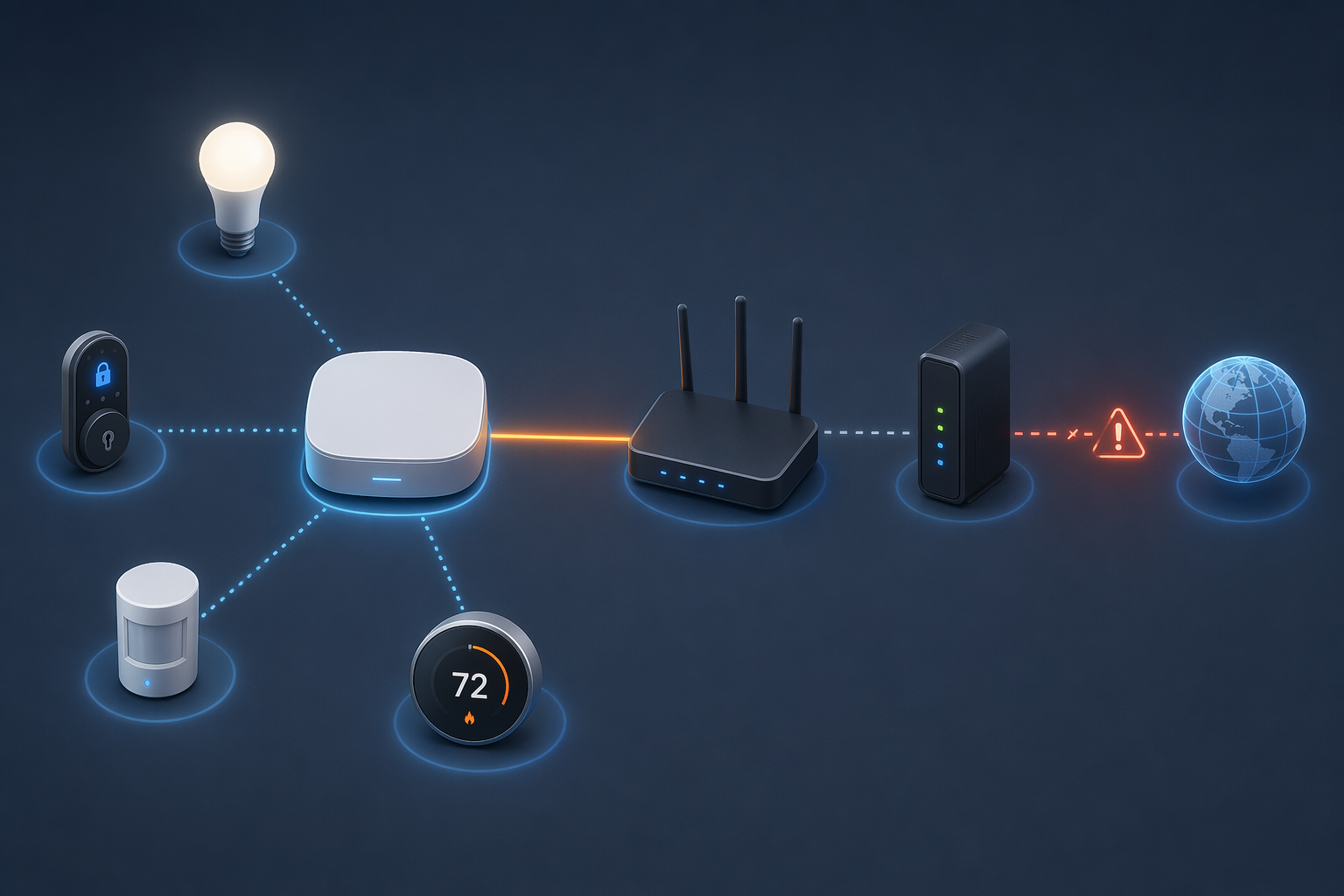
A smart home hub depends on the local network even when the devices around it are sitting a few feet away. The app may show the hub as offline because the hub cannot reach the router, because the phone is looking through the wrong network path, or because the router changed the rules after an update. The hub gets blamed because it is the thing you can see in the app.
Look for the change that happened before the failure
Router replacements, new mesh systems, changed Wi-Fi names, new passwords, guest network changes, parental-control profiles, and security settings can all strand a working hub. If everything worked until the router was swapped or renamed, treat the network as the suspect before you touch the hub reset button.
Start with the router’s device list. If the hub appears there, it is at least joining the network. If the hub does not appear, check whether it is trying to join a Wi-Fi name that no longer exists, a band it cannot use, or a network segment that blocks local device discovery.
Wi-Fi band mismatch is a classic fake hub failure
Many smart devices are picky about Wi-Fi bands. A phone may happily roam to a faster short-range band while a hub, plug, bulb, or bridge expects the longer-range band it was paired on. If the router combines bands under one Wi-Fi name, the app may show a device setup failure even though the password is correct.
For troubleshooting, temporary separation helps. Give the longer-range band a distinct name, connect the phone to that same network during setup, then try the hub or device again. If pairing suddenly works, the old problem was not a dead hub. It was a band steering or setup-path problem.
Mesh networks need time to settle
Mesh Wi-Fi is convenient until a hub clings to a distant node, a nearby node reboots, or devices scatter across access points in a way the app does not handle gracefully. After a router or mesh update, let the mesh finish rebuilding before you judge the hub. If your mesh app shows which node the hub uses, check whether it is connected to a sensible one.
If the hub is far from the main router, temporarily move it closer and test again. This is not a permanent design choice; it is a clean diagnostic. If the hub behaves near the router and fails in its usual location, you have a placement or mesh path problem, not a clear hardware failure.
QoS and security rules can quietly break smart devices
Quality-of-service settings, often labeled QoS, decide which traffic gets priority. Security features, device isolation, ad blocking, and parental controls can decide which devices are allowed to talk. Those features are useful until a hub lands in the wrong profile or local device traffic gets blocked.
Check whether the hub is assigned to a restricted profile, guest network, child profile, quarantine list, or blocked-device list. If you recently enabled a router security feature and the smart home hub went offline afterward, disable that feature briefly for testing. Make one change at a time. If you change five settings and the hub returns, you still do not know which setting mattered.
A dedicated IoT network can help, but only if it is not isolated
Putting smart devices on a dedicated IoT Wi-Fi name can make the house easier to manage. It also gives you one place to look when something fails. The catch is isolation. Some guest-style networks prevent devices from seeing each other, which can break setup, local control, voice assistant discovery, or automations that depend on local communication.
If you use a separate IoT network, confirm three things: the hub is actually on that network, the phone can reach the hub during setup, and local device communication is allowed where the ecosystem requires it. A tidy network that blocks the hub from its own devices is not tidy. It is just quiet.
Match the symptom to the right part of the ladder
Once power and the network have had a fair test, symptoms become useful. They are not separate mysteries; they are clues about which link is weak.
| What you see | Most useful next check | Why |
|---|---|---|
| Hub shows offline in the app | Router device list, Wi-Fi name, app account session, and hub power | The app may be unable to reach the hub even if the hub has power |
| Some devices disappear | Device power, distance, mesh route, and whether only one room or device type is affected | Partial failure usually points to device communication or placement, not the whole hub |
| Voice assistant hears you but cannot control devices | Integration status between voice platform and hub platform | Voice recognition and smart home control are related but separate paths |
| Automations fail but manual control works | Automation triggers, conditions, time rules, permissions, and scene logic | The hub can still control devices while the rule engine is wrong |
| Everything responds slowly | Wi-Fi congestion, router load, cloud service path, and mesh node choice | Slow response often means delay in the path, not total device failure |
Offline hub
If the hub is offline everywhere — app, router list, voice assistant, and device controls — return to power and network. Confirm the hub has a stable power source. Confirm the router sees it. Confirm it is not on a blocked or isolated network. If the router sees the hub but the app does not, sign out and back into the app before you do anything destructive.
Devices disappear or stop responding
When only a few devices vanish, leave the hub alone at first. Check whether the missing devices share a room, circuit, bridge, range problem, or device type. A hallway sensor, a porch lock, and a garage plug all failing after a router move may be telling you about coverage. A single brand disappearing may be telling you about that integration or bridge.
Power-cycle the affected device or its bridge before re-pairing it. Re-pairing should be targeted, not theatrical. Removing and rebuilding every device because three sensors are missing is how a half-hour problem becomes a weekend.
Voice assistant failure
A voice assistant can answer weather questions while failing to turn on the kitchen lights. That does not prove the hub is dead. It means the assistant’s internet path works, while the smart home integration, device naming, permission, or account link may be stale.
Open the voice assistant app and check whether the devices still appear there. If they appear in the hub app but not in the voice app, refresh or relink the integration. If they appear in both places but voice control fails, check for duplicate names, renamed rooms, disabled skills, or account changes.
Automations fail while manual control still works
This is the symptom that wastes the most hardware. If you can manually turn the light on from the app, the hub-to-device control path is probably alive. Now check the automation: trigger, conditions, schedule, presence state, sunset or sunrise rule, room assignment, and whether a device was renamed or replaced.
Disable the automation, duplicate it, or rebuild a simple version with one trigger and one action. If the simple version works, the original rule has logic rot. The hub did not forget how to be a hub; the automation became too clever or too stale.
Slow response
Slow response is harder because nothing is fully broken. Test local app control, voice control, and automation response separately. If local app control is quick but voice is slow, look at the voice integration or cloud path. If everything is slow, look at router load, Wi-Fi congestion, mesh placement, and whether the hub recently moved farther from the router.
Also check what changed in the house. New cameras, streaming devices, a router firmware update, a mesh node moved behind furniture, or a new appliance near the hub can change the network enough to make a previously stable setup feel tired.
Firmware and app state: fix the half-updated house
Firmware updates are supposed to improve reliability. They can also leave a smart home in an awkward middle state: router updated, hub not yet updated; hub updated, app outdated; device firmware current, integration stale. When the timing lines up with the problem, treat updates as a real suspect.
- Update the hub app on your phone.
- Check the hub firmware status in the hub’s app.
- Check firmware for bridges and affected devices, especially if only one device family is misbehaving.
- Review recently changed integrations, skills, services, or account permissions.
- Sign out and back into the app if the app shows stale status while devices still work locally.
Do not update everything at once if you are still diagnosing. Start with the phone app and hub status. Then move to the affected device family. If one update fixes the issue, stop and test. A clean diagnosis is worth more than the satisfaction of mashing every update button in sight.
When the app and the hub disagree
Sometimes the app says a device is offline while the device still responds to automations. Sometimes the voice assistant cannot find a device that the hub app controls perfectly. That disagreement matters. It means the physical device path may be fine, while the app cache, account link, or cloud integration is stale.
Force-close the app, reopen it, and check from another phone or tablet if one is available. If another device shows the correct status, the problem is local to the first phone or account session. That is a much better problem than a dead hub.
Use advanced recovery only after the basics have failed
This is where patience saves the setup. Advanced recovery can work, but it can also erase useful evidence or create new work. If power, router, Wi-Fi band, mesh placement, firmware, app state, and obvious automation logic have not been checked, a factory reset is not thorough. It is premature.
Let the mesh heal, then test close devices first
For hubs that manage a device mesh or rely on nearby repeaters, recovery may take longer than the app makes it feel. After a controlled reboot, test devices physically close to the hub first. Then test devices farther away. If close devices respond and far devices do not, the hub is working; the device network needs healing, repeaters, better placement, or targeted re-pairing.
Do not judge a whole home by the farthest lock or weakest sensor. Start with the easy path, then move outward.
Re-pair affected devices, not the entire house
If one device refuses to return after power and network checks, remove and re-pair that device. If a small group fails, re-pair one representative device first. If that works, continue with the rest of that group. If it fails, stop and look again at range, bridge status, firmware, or whether the device is already attached under a duplicate entry.
Before removing anything, check whether the platform warns that automations, scenes, or history will be deleted. Some systems preserve more than others. The warning screen is not decoration.
Factory reset is the last diagnostic step
A factory reset can clear corrupt state, bad pairings, or a hub that will not recover after an update. It can also wipe device associations, scenes, automations, room assignments, and integration links. Use it only after you have confirmed that the hub has stable power, the router and Wi-Fi path are sane, the app and firmware are current enough to communicate, and selective recovery has failed.
Before resetting, write down or screenshot the essentials: rooms, critical automations, bridges, device names, account links, and any special network settings. If the platform offers a backup or migration option, check it before pressing reset. The goal is recovery, not amnesia.
When replacement becomes reasonable
Replacing a smart home hub makes sense when the evidence points to the hub itself, not when the app is merely annoyed. Hardware replacement is reasonable if the hub will not power reliably with a known-good adapter, cannot be seen by the router after network checks, repeatedly drops offline while other devices remain stable, fails again after firmware and app recovery, or cannot survive a last-resort reset and reconfiguration.
Replacement is less convincing when the failure began immediately after a router change, affects only distant devices, appears only in a voice assistant, breaks only automations, or disappears when the hub is moved closer to the router. Those are still repair clues.
| Evidence | Replace the hub? | Better next move |
|---|---|---|
| Hub has no stable power even with a known-good compatible adapter | Likely reasonable | Replace or contact support if covered |
| Hub comes online after a controlled reboot | Not yet | Investigate router, Wi-Fi, power, or firmware state |
| Manual control works but automations fail | No | Audit triggers, conditions, schedules, and renamed devices |
| Voice control fails but hub app works | No | Refresh or relink the voice integration |
| Only far devices fail | No | Check mesh healing, placement, repeaters, or selective re-pairing |
| Hub fails after controlled reboot, confirmed network stability, firmware checks, selective re-pairing, and factory reset | Reasonable | Plan replacement or platform migration |
Prevent the next hallway refresh session
Once the system is stable, leave yourself a trail. The next outage is easier when you know what normal looks like.
- Keep the hub on a stable outlet and avoid switched power strips.
- Label the modem, router, hub, bridges, and critical power adapters.
- Record the Wi-Fi name used for smart devices and avoid renaming it casually.
- If you use a dedicated IoT network, document whether local device communication is allowed.
- After router or mesh changes, test the hub, one nearby device, one distant device, one voice command, and one important automation.
- Update hub and device firmware deliberately, then test before changing more settings.
- Screenshot important automations and room assignments before major changes.
- Keep a short note of what fixed the last outage.
A new hub is satisfying when the old one has genuinely failed. Before that point, it is often just a clean-looking replacement for an old network problem that will be waiting for the new box too.
Corroborating context
For protocol background on why this failure happens, see Compatibility & Protocols.
Not currently linked to a known regression. Background on the underlying protocol lives in Compatibility & Protocols.