The Complete Smart Light Bulb Troubleshooting Guide: Fix Connection Drops, Flickering, Buzzing & Unresponsive Bulbs
Wi-Fi pairing failure, disconnections, flickering, buzzing, and unresponsive bulb
Last updated
You spent an evening trying to pair a smart bulb. You flipped the switch the way the manual said. You downloaded the app. You typed the Wi‑Fi password three times. The bulb blinked once and then sat there, off and unreachable. You are not alone, and the bulb is probably not broken.
Four root causes account for nearly all smart bulb failures. In order of likelihood: Wi‑Fi band steering, a dimmer switch it should never touch, signal interference from metal or electronics, and a corrupted pairing state. Each has a fix that does not involve returning the bulb. This guide walks through each one with exact steps — switch counts, router settings, and brand-specific procedures. Where a claim lacks a hard source, I will say so.
The bulb won’t connect – band steering is the first thing to check
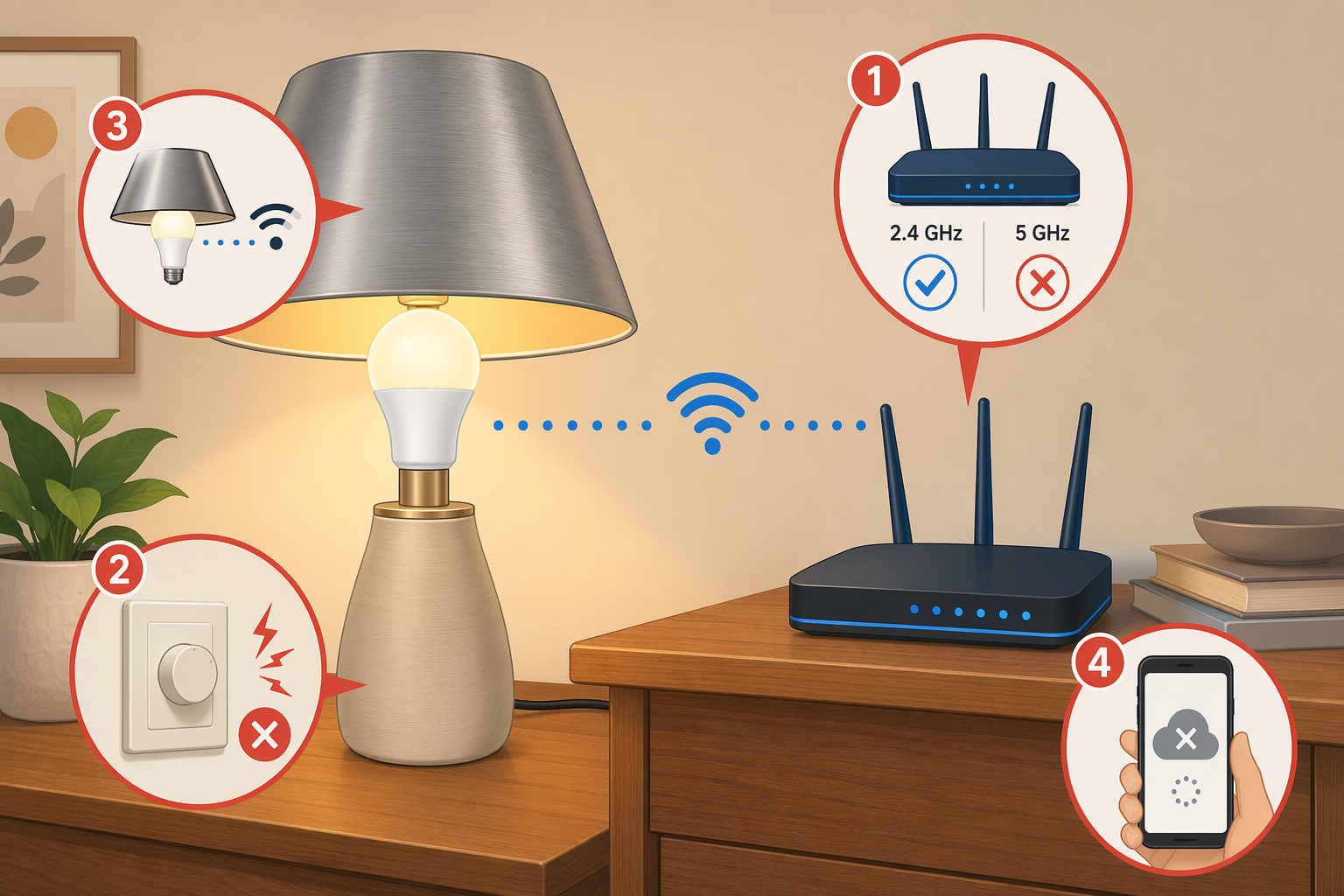
Most smart bulbs speak only 2.4 GHz. Your router, especially if it has a feature called “Smart Connect,” tries to put every device on 5 GHz for speed — and the bulb can’t hear it. The pairing fails silently. That is band steering, and it is the number one reason a bulb never makes it online.
Here is the fix that works across brands:
- Log into your router’s admin panel. Find the Wi‑Fi settings and disable band steering (look for “Smart Connect,” “band steering,” or “auto‑select band”).
- Create a dedicated 2.4 GHz SSID — name it something like “IoT” or “Home_2.4”. Use WPA2‑PSK (AES), set channel width to 20 MHz, and keep band steering off.
- In the app, connect the bulb to this new network.
- If it still fails, check your router’s device limit — some home routers cap the number of connected devices. Reduce the limit or remove old devices.
- Try AP mode (also called “compatibility mode” or “access point mode” in some apps).
- Force‑close the app, restart your smartphone, and try pairing again.
Feit Electric’s own troubleshooting confirms this pattern: the bulb must be on 2.4 GHz, the reset sequence is on/off/on/off/on, and the Wi‑Fi password cannot exceed 32 characters. If your router is a dual‑band unit, also check that WPS is enabled — some bulbs need it during initial pairing.
The bulb pairs but drops offline – check the environment first
If your bulb pairs and works for a while but drops offline regularly, the cause is rarely bad range. More often it is one of three environmental factors:
- Metal lamp shades or enclosures — they act like a Faraday cage. Quick test: move the bulb to a bare fixture or a plastic‑shaded lamp. If it stays online, the shade is the problem.
- Proximity to USB 3.0 hubs, TVs, or soundbars — these emit broadband noise in the 2.4 GHz band. Disconnect nearby USB 3.0 devices and move the bulb at least six feet away from the TV. If the offline episodes stop, that was the interference.
- DHCP lease renewal — your router assigns IP addresses temporarily. When the lease expires, the bulb may get a new IP that the app or voice assistant does not recognise. Assigning a static IP (also called DHCP reservation) in your router’s settings prevents this. It is a ten‑second change.
One more thing: after a power outage or router reboot, the order in which you power things back matters. Reboot the modem first, then the router, then wait two minutes before power‑cycling the bulbs — switch them off for ten seconds, then on. This way the network is fully up before the bulbs try to re‑associate.
Flickering or buzzing – the dimmer is the problem, not the bulb
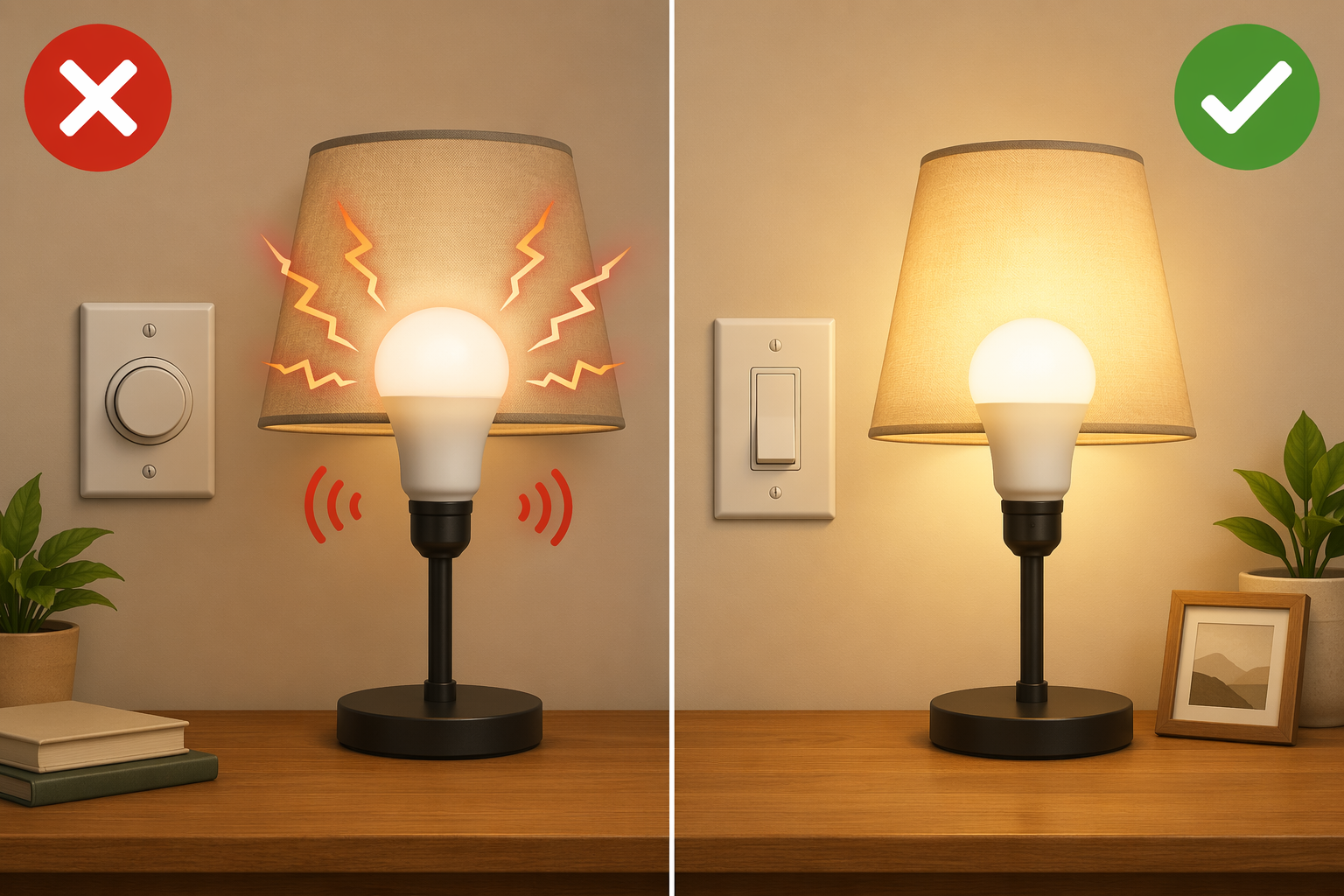
This one is final: smart bulbs and traditional phase‑cut dimmer switches do not mix. The dimmer chops the AC waveform, and the bulb’s LED driver interprets that as a signal to dim — but it also causes the flickering, buzzing, and sometimes permanent damage to the driver.
You have two options: replace the dimmer with a standard on‑off wall switch, or install a smart dimmer rated for the bulb model. Do not try to “turn the dimmer all the way up” — that is still a chopped waveform inside the switch, not a clean signal.
Bulb has power but app says offline – the pairing state is corrupted
Your bulb has power — it glows — but the app says offline, or Alexa says “device not responding.” The root cause is almost always a corrupted pairing state inside the bulb, not a dead driver. The fix is a factory reset, which wipes the saved SSID and password and puts the bulb into pairing mode again.
The exact reset procedure varies by brand and generation. Here are the verified procedures:
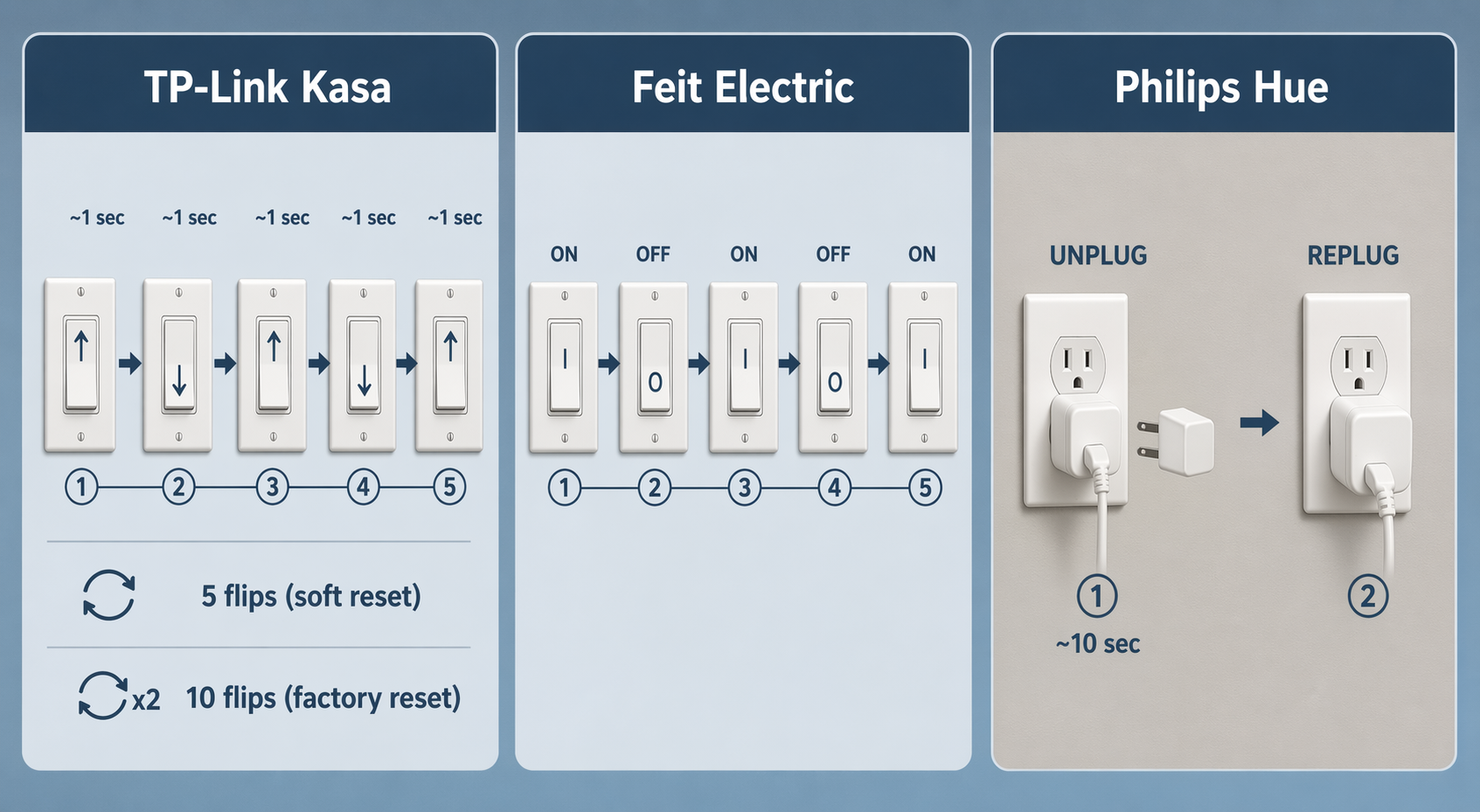
- TP‑Link Kasa: older models (LB130, KL110B 1.0, KL120, KL110 1.0) — flip the light switch 3 times for a soft reset, or 5 times for a factory reset. Newer models (KL50, KL110B 2.0, KL60, KL125, KL135 1.0) — flip 5 times for soft, 10 times for factory. One flip per second. No faster.
- Feit Electric: turn the bulb on/off/on/off/on. That is five toggles in sequence. If it does not enter pairing mode after one try, repeat the sequence.
- Philips Hue (Zigbee): if the bulb is unreachable in Google Home but the Hue app shows it online, do not reset the bulb. This is a cloud integration state issue. Unlink and relink the Philips Hue integration in Google Home. Then power‑cycle the Hue Bridge — unplug it for 30 seconds, plug it back in, and keep the bridge wired to the main router (not a mesh node). Move the bridge a few feet away from the Wi‑Fi router to reduce 2.4 GHz interference — Zigbee and Wi‑Fi share the same frequency band.
For deeper Hue‑specific setup and bridge specs, see the Philips Hue setup guide and the Hue Bridge device profile.
The reset didn’t work – it’s almost always the timing
You tried the reset sequence and nothing happened. Most of the time it is timing: flipping too fast. The TP‑Link FAQ explicitly says each interval should be about one second. Time it — one one‑thousand, two one‑thousand. If you still get no response, turn the bulb off for ten seconds, then retry the reset from scratch. For Feit, the on/off/on/off/on pattern may need to be done twice.
Prevention – a few minutes save the next evening
Once you have fixed the immediate problem, a few minutes of prevention will save you the next evening:
- Keep the dedicated 2.4 GHz IoT SSID active. It stops the band‑steering dance and isolates your bulbs from laptops and phones that might choke the network.
- Assign DHCP reservations for every smart bulb. The router settings page usually calls it “static lease” or “address reservation.” One static IP per bulb, and the app will never lose sight of it.
- Update firmware room‑by‑room, not all at once. Many bulbs reboot after an update. If you update twenty bulbs simultaneously, your router gets bombarded with reconnect requests and some may fail. Do one room, confirm they come back online, then move to the next.
- If you have a traditional dimmer switch controlling a fixture with a smart bulb, replace the switch. That is not a suggestion — it is the only way to stop the flicker.
When to replace vs. when to fix
True driver failure is rare. A smart LED bulb is rated for 15,000 to 30,000 hours — somewhere between 5 and 10 years of typical use. Most “dead” bulbs are actually network issues, especially if they still glow when powered on.
Replace the bulb only if:
- It does not light at all after a factory reset, and the fixture works with a regular bulb.
- There is visible physical damage — cracked glass, melted plastic, burnt smell.
- It has survived several power surges or years of use past the expected lifespan.
In every other case, go back through the problems above. The troubleshooting order matters: start with Wi‑Fi band steering, then rule out dimmers, then check for interference, then try the factory reset. Nine times out of ten you will be back online without spending a cent.
For a broader look at whether smart lighting pays for itself, see our energy savings comparison.
Corroborating context
For protocol background on why this failure happens, see Compatibility & Protocols.
Not currently linked to a known regression. Background on the underlying protocol lives in Compatibility & Protocols.