Smart Lock Not Pairing or Unresponsive After a Firmware Update? A Recovery Ladder That Works
Smart lock not pairing or unresponsive after firmware update
Last updated
Is Your Lock Unresponsive, Stuck in an Update Loop, or Won’t Pair?
When a firmware update goes sideways, the symptoms can be confusing. Some locks become completely unresponsive — no keypad beeps, no motor movement, no Bluetooth response. Others pair fine to the app but refuse to complete the update, stuck at 30% or 90%. Some finish the download but then disconnect from your hub or refuse new pairing requests. Each symptom points to a different root cause, but the recovery sequence is nearly identical across brands like August, Schlage, Yale, and Kwikset.
The steps below are arranged from least destructive to most destructive. Each level builds on the previous one. Most users will recover somewhere between Level 1 and Level 4 without losing a single user code or smart home integration.
| Symptom | Likely Cause | Start at Level |
|---|---|---|
| Lock powered but won't respond to app or keypad | Battery voltage dip during firmware write | Level 1 |
| Firmware update stuck percentage (e.g., 30–40%) | Phone BLE compatibility or background restrictions | Level 2 |
| Lock connects to app but update fails at 90–99% | Hub or integration interference | Level 5 |
| Lock won't appear in Bluetooth scan at all | App session corruption or dead battery | Level 4 |
| Lock works manually but app shows 'unresponsive' | Z-Wave/Matter/HomeKit hang after update | Level 5 |
Level 1: Start with the Basics – Fresh Batteries and a Clean Connection
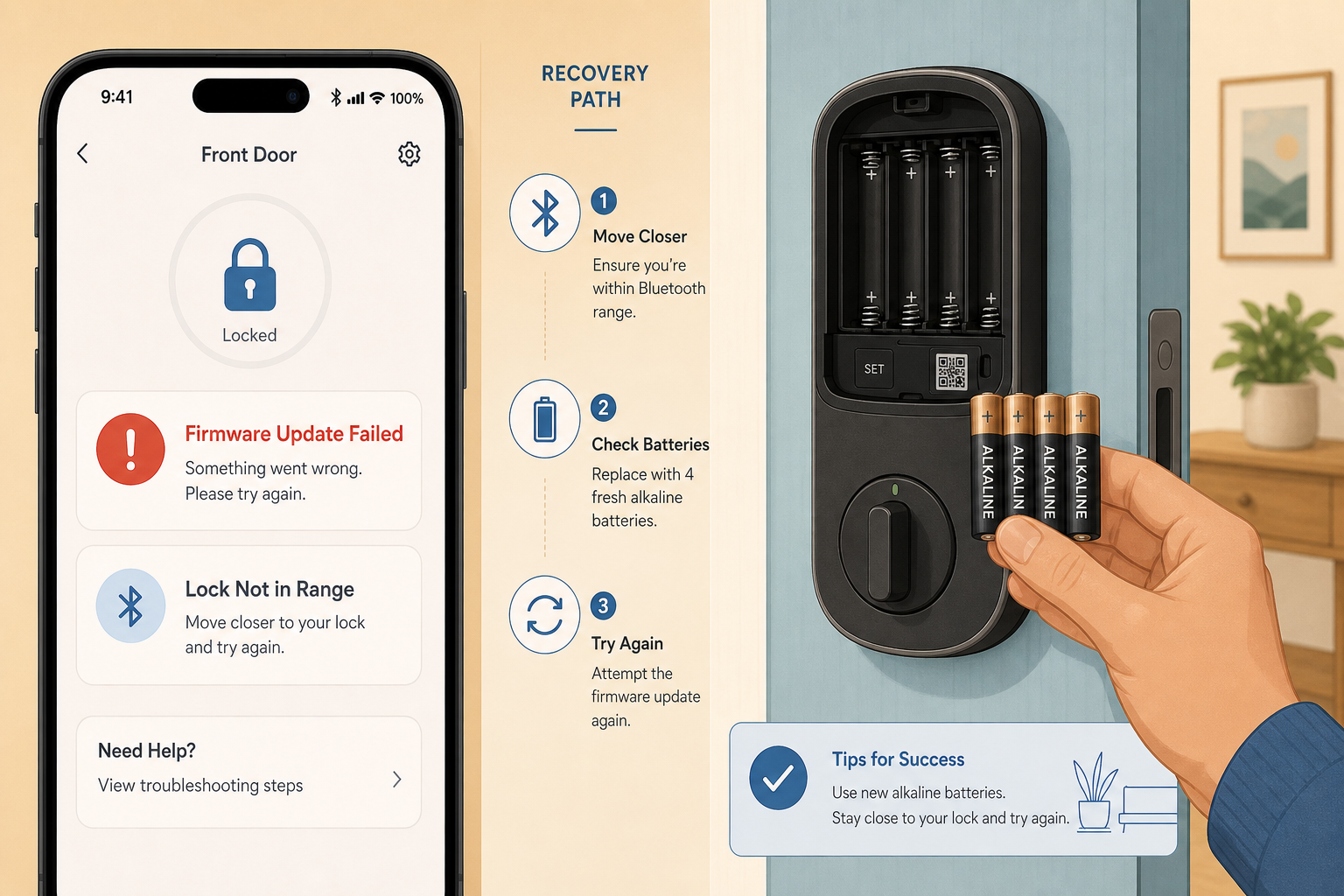
The single most common reason firmware updates fail is a voltage drop during the write phase. A smart lock that operates perfectly at 30–40% battery may suddenly lack the current to complete an OTA firmware install. According to Kwikset’s official requirements, the lock battery must be at least 40% and the phone battery at least 20% before an update can proceed safely. Yale technicians report that locks at 30–40% battery regularly fail the transfer stage, while fresh alkaline batteries resolve the issue immediately.
- Install fresh alkaline batteries in the lock. Do not use rechargeable NiMH — their lower voltage (1.2 V vs. 1.5 V) can cause instability during writes.
- Restart your phone to clear any stale Bluetooth cache.
- Toggle Bluetooth off, wait 10 seconds, then back on.
- Move within 1–3 feet of the lock. Do not walk away while the update is in progress.
- If the lock has a removable battery pack (e.g., August, Yale Assure), remove one battery for 30 seconds, then reinsert. This power-cycles the lock without a factory reset.
After fresh batteries and a phone restart, reopen the app and try the update again. If it still fails, move to Level 2.
Level 2: Clean Up Your Phone’s App Permissions and Power Settings
Modern smartphones aggressively kill background processes to save battery. The smart lock app may be prevented from maintaining the Bluetooth connection needed for a firmware transfer. This affects Android more severely than iOS, but both platforms have settings that block the update.
- Force-close the smart lock app completely, then reopen it.
- Disable Battery Saver / Low Power Mode on your phone.
- On Android: go to Settings → Apps → [lock app] → Battery → set to 'Unrestricted'. This prevents the OS from suspending the app during the update.
- Toggle Location permissions to 'While Using the App' (Android requires Location for Bluetooth scanning). If you previously granted 'Allow all the time' or 'Denied', switch to the correct setting.
- On iOS: ensure the app has Bluetooth permission enabled under Settings → Privacy → Bluetooth.
Once these settings are correct, try the firmware update again. Keep the app open and the screen awake — do not switch to another app. Yale's support documentation explicitly states that closing the app will cause the update to restart the next time you open it.
Level 3: Try a Different Phone – It Works 90% of the Time for Stubborn Cases
Some phone Bluetooth Low Energy (BLE) stacks have known compatibility issues with smart lock firmware updates. A well-documented case involved an August Smart Lock failing repeatedly on an iPhone 7 (iOS 10.0.1) — the lock would not progress beyond 50%. The fix was switching to a Galaxy Note 4, which completed the update in 15 minutes. August support confirmed the iPhone 7 BLE issue and recommended using a supported device from their compatibility list.
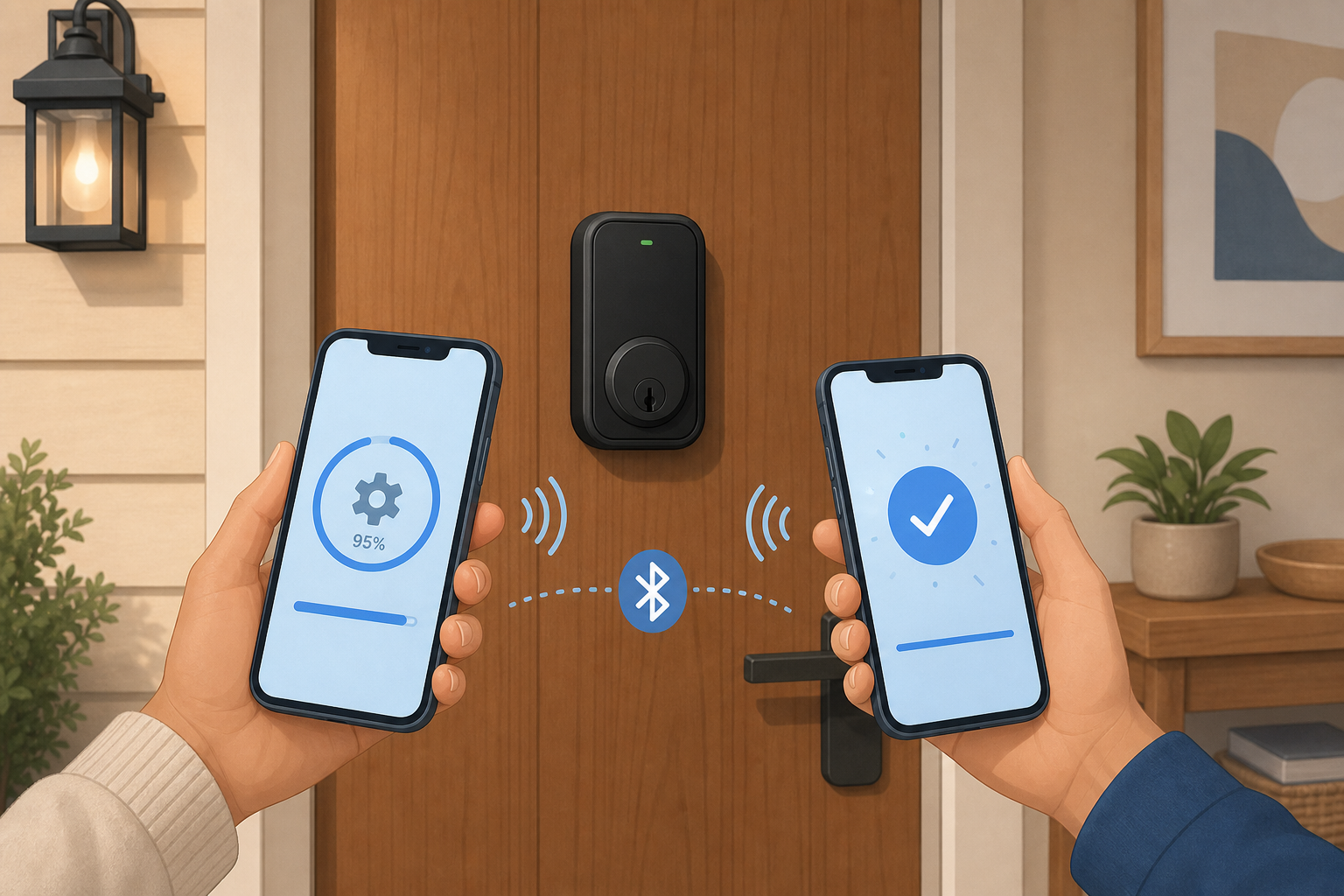
If you have access to another phone — preferably running a different operating system (Android vs. iOS) — install the lock’s app on that device, log in with your account, and attempt the firmware update. Troubleshooting experts who handle lock repairs daily report that this 'second phone method' resolves roughly 90% of stubborn cases that resist all other steps.
When using the second phone, also disable Wi-Fi before starting the update. August’s official support recommends this to ensure the Bluetooth channel has full bandwidth. Keep the phone within arm’s length of the lock and do not let the screen turn off.
Level 4: Remove and Re‑Add the Lock in the App (Not a Factory Reset)
If the update session is corrupted — for example, if the lock shows as 'paired' but the app cannot communicate — deleting the lock from the app and re-pairing it over Bluetooth often clears the session without losing user codes or smart home integrations.
- Open the smart lock app and go to the device settings for the problematic lock.
- Select 'Remove Device' or 'Delete Lock'. This removes the lock from your app account only — it does not factory reset the lock hardware.
- Re-pair the lock via Bluetooth: put the lock into pairing mode (usually by pressing a button inside the battery compartment or on the mounting plate). Complete the pairing process in the app. The lock should appear and connect.
- Once paired, attempt the firmware update from the app again. It will restart the update from the beginning.
Schlage’s official support describes a Bluetooth-only update path that requires deleting the lock from the app, factory resetting the lock, and then re-pairing over Bluetooth only (skip Wi-Fi) before updating. However, for most brands, simply removing and re-adding the lock in the app is sufficient — no hardware reset needed. Try this before resorting to Level 6.
Level 5: Isolate Your Hub or Bridge to Eliminate Integration Interference
Smart home protocols like Z‑Wave, HomeKit, and Matter operate on different frequencies than Bluetooth, but they can still interfere with firmware updates when the lock tries to maintain multiple connections simultaneously. A known example: August Smart Lock Pro 3rd Gen firmware 1.59.0-2.0.4 caused the lock to stop responding to Z‑Wave commands after inactivity. Users discovered that opening the August app over Bluetooth 'woke' the lock and restored Z‑Wave functionality — but the firmware update itself needed to be done over Bluetooth alone.
- Temporarily disconnect the lock from your Z‑Wave hub, HomeKit bridge, or Matter controller. This may involve removing the lock from the hub’s device list or simply unplugging the hub.
- Retry the firmware update using only the phone over Bluetooth. Disable Wi-Fi on the phone as well to ensure the lock does not attempt to download the update over the cloud.
- After the update completes, re‑pair the lock with your hub or bridge. Verify that it responds to commands from the platform.
Level 6: Factory Reset – The Last Resort
A factory reset should be your final option — it erases all user codes, fingerprints (if supported), Wi-Fi credentials, and smart home integrations. You will effectively have a fresh lock that needs full re‑installation. Before proceeding, confirm that you have a physical key or another way to operate the lock temporarily.
The factory reset procedure varies by brand:
- : Press and hold the reset button inside the battery compartment (or on the interior mounting plate) for 10–15 seconds until the lock beeps and the LED flashes. The lock will revert to factory defaults.
- : Remove the battery pack, press and hold the Program button (inside the battery compartment), reinsert batteries while holding the button. Wait for the lock to cycle. Release the button.
- : Press and hold the reset button (usually behind the battery cover) for 10 seconds. The lock will beep and the keypad will flash.
- : Press and hold the Program button (inside the battery compartment) for 15 seconds. The lock will reset and all codes will be deleted.
After the reset, follow the standard setup process: install fresh batteries, pair via Bluetooth in the app, and configure your user codes. For detailed re‑installation steps, see our smart lock installation guide. Then re‑connect your hub or bridge to restore automation and remote access.
After Recovery: Verify Firmware Version and Prevent Future Issues
Once your lock is functioning again and the firmware update is complete, take a few minutes to confirm the new version and restore any integrations you disabled during the process.
- in the app: look under Device Settings → About or Firmware. Compare it against the manufacturer’s latest version (e.g., August Smart Lock Pro 3rd Gen is currently at 2.0.8 as of July 2024; verify on the August support page).
- if you disconnected it. Follow the hub’s pairing process. Test lock/unlock commands from your smart home platform.
- : Operate the lock from the app, from the keypad, and from your hub. Verify that auto-lock and any schedules still work.
Going forward, follow these prevention guidelines to reduce the risk of future firmware mishaps:
- Always install fresh alkaline batteries before starting a firmware update — do not rely on the battery gauge reading above 40%.
- Use a phone you know works reliably with your lock. If you have experienced previous failures with a particular phone model, keep a secondary device handy for updates.
- Close all other Bluetooth-connected devices (headphones, speakers, fitness trackers) during the update.
- Do not multitask on the phone during the update — keep the app open, screen on, and stay near the lock.
- Keep a physical key backup. In 2017, LockState accidentally sent firmware meant for 7i locks to 500 6i units, bricking them. Affected users had to rely on physical keys while waiting for replacements. Always have a backup key, especially during an update window.
Corroborating context
For protocol background on why this failure happens, see Compatibility & Protocols.
Not currently linked to a known regression. Background on the underlying protocol lives in Compatibility & Protocols.