Zigbee Smart Home Hub Troubleshooting: Fix Connectivity, Pairing, and Dropout Issues
Zigbee hub devices dropping offline or failing to pair
Last updated
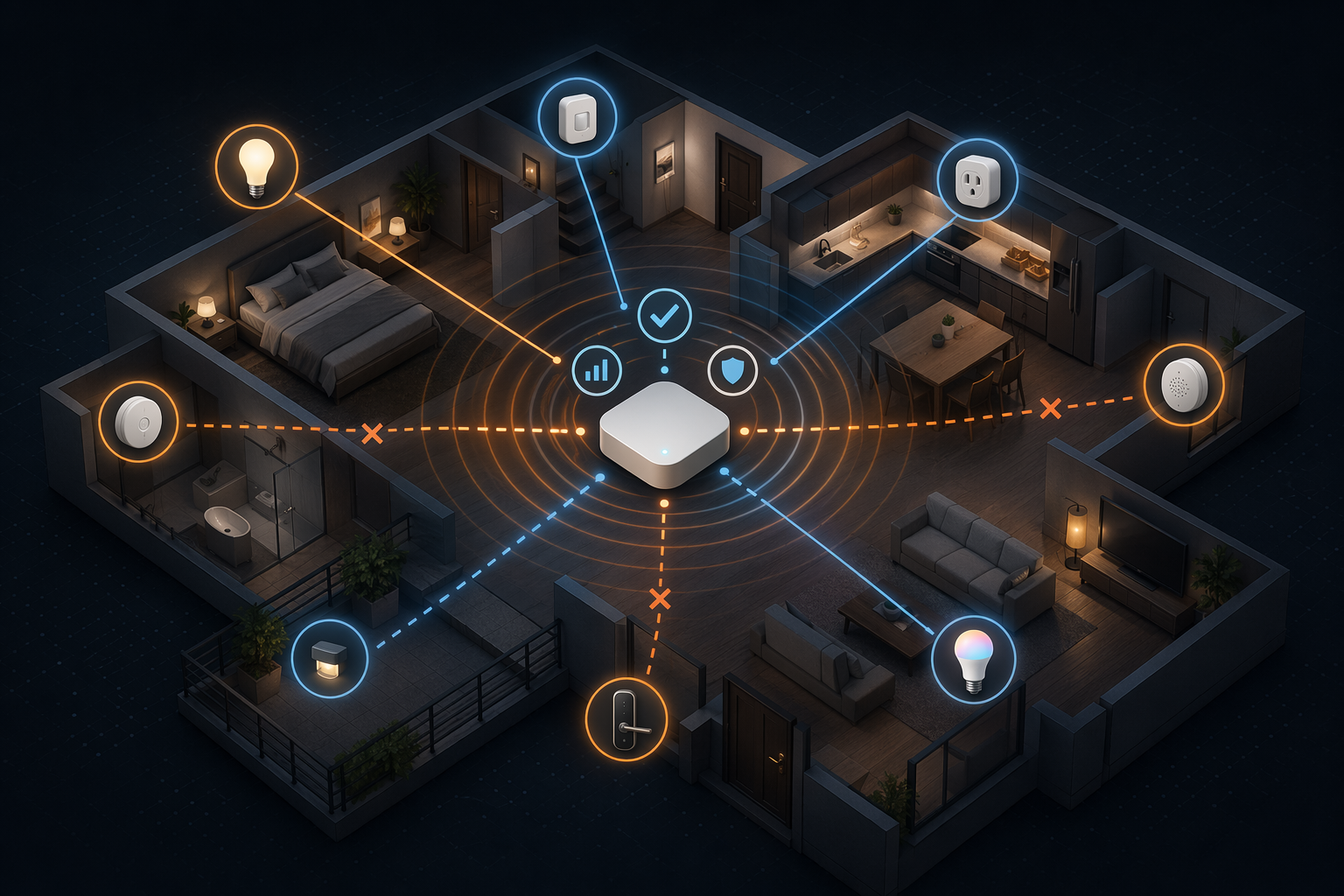
When a zigbee smart home hub starts misbehaving, the symptoms tend to look more mysterious than they are: sensors drop offline, a new switch refuses to pair, automations run late, one room becomes unreliable, or the hub itself appears to freeze. If the only thing happening is repeated intermittent dropouts, the deeper step-by-step version is here: Zigbee Device Drops Offline Repeatedly. For everything else — failed pairing, sluggish response, post-change instability, and hub lockups — the useful move is to stop guessing and test the five boring causes first.
Those causes are usually radio conflict, bad coordinator placement, a weak mesh, power or battery trouble, and stale hub or device software. None of those requires a factory reset as the first step. A reset destroys evidence: which devices were weak, which room failed, whether the problem began after a router changed channels, or whether only battery devices are affected.
Start with the symptom, not the brand
SmartThings, Hubitat, Aqara, Homey, Echo devices with Zigbee, and Home Assistant coordinators all expose different settings screens. The failure patterns underneath are less exotic. Before changing anything, write down what is failing and what changed shortly before it started.
| Symptom | Most likely first checks | What not to do first |
|---|---|---|
| Devices drop offline intermittently | Wi-Fi/Zigbee channel overlap, hub placement, weak mesh path, batteries | Do not delete and re-pair every device |
| New Zigbee device will not pair | Distance to hub or router, pairing mode, channel compatibility, hub software state | Do not assume the new device is defective immediately |
| Automations are slow | Mesh routing, overloaded or poorly placed routers, hub load, firmware | Do not blame the automation rule before checking network health |
| One room or floor is unreliable | Missing mains-powered router between that area and the coordinator | Do not move the hub randomly without noting the old position |
| Hub appears offline or locked up | Power, Ethernet or Wi-Fi backhaul, LED status, hub firmware, thermal or software state | Do not factory reset unless the vendor procedure specifically calls for it |
If you need a refresher on what Zigbee routers, end devices, and coordinators do, pause here and read the Zigbee protocol explainer. The rest of this guide assumes you already have a hub or coordinator running and are trying to restore a network that should be working.
Fix radio conflict before touching the mesh
Zigbee and 2.4 GHz Wi-Fi share the same crowded part of the air. The practical problem is not that they cannot coexist; they can. The problem is that a wide, auto-selected Wi-Fi channel can sit on top of the Zigbee channel your hub is using, especially after a router update, a new mesh Wi-Fi node, or a neighbor’s access point starts shouting nearby. Zigbee Guru describes Wi-Fi channel overlap as a common reason Zigbee devices lose connection, and its coexistence guidance points to fixed 20 MHz Wi-Fi channels and complementary Zigbee channel choices as a first-line repair path.[1]
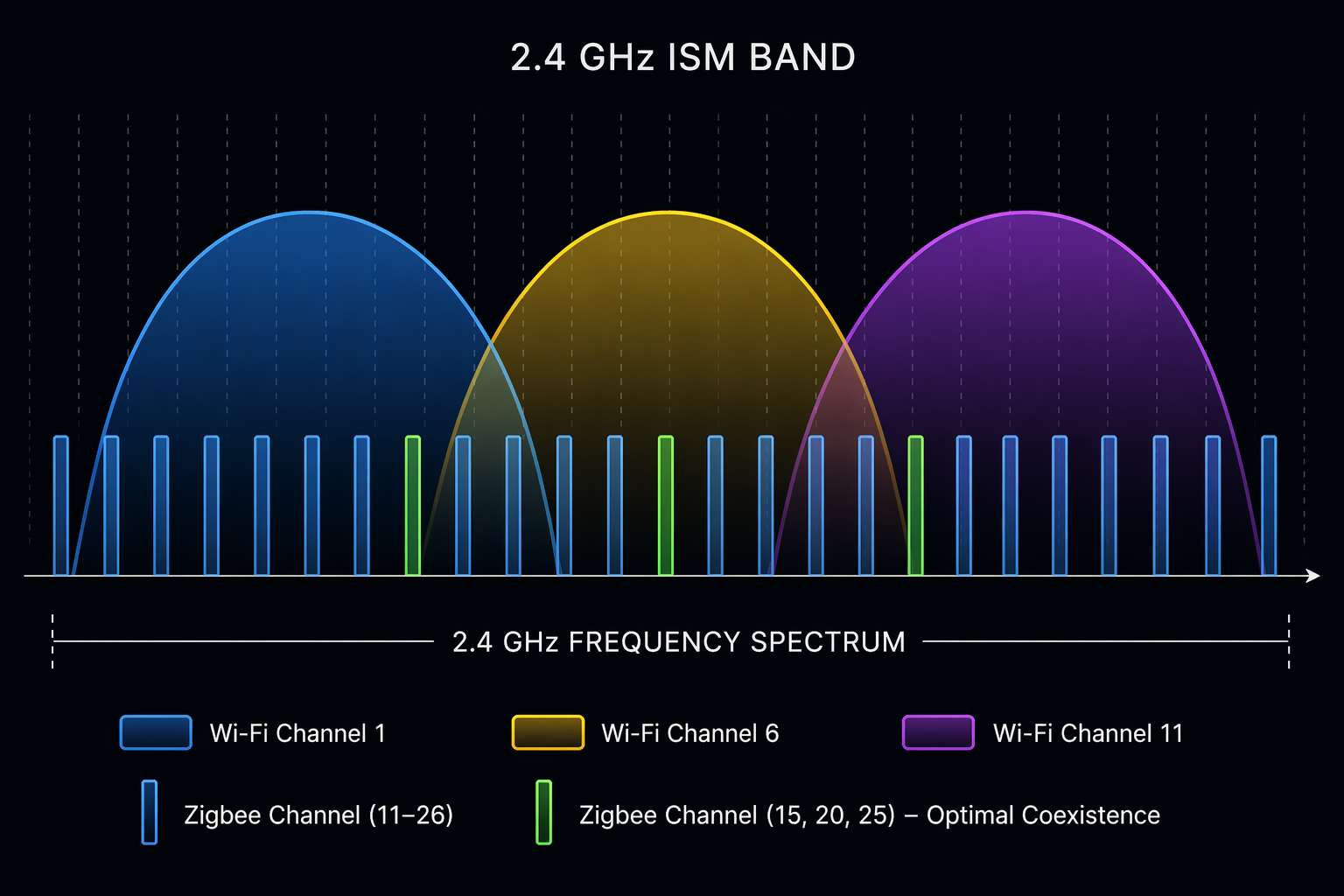
The cleanest household setup is usually this: force 2.4 GHz Wi-Fi to a fixed 20 MHz channel — commonly 1, 6, or 11 — then place Zigbee on a channel that is not buried inside that Wi-Fi traffic. Commonly recommended Zigbee choices include 15, 20, or 25, depending on where Wi-Fi is fixed and what the hub supports.[1]
That advice matters most when the failure pattern seems time-based. Devices work during the day, drop at night, and then recover; pairing works only when the device is right beside the hub; or the network became unstable after a Wi-Fi router moved from one “auto” channel to another. SmartThings and Home Assistant community cases describe this kind of overlap-driven instability, but those reports are best treated as field evidence, not universal proof that every dropout is interference.[2][3]
The safe channel-change sequence
- Open your Wi-Fi router settings and disable “auto” channel selection for the 2.4 GHz band.
- Set 2.4 GHz Wi-Fi to 20 MHz channel width, not 40 MHz.
- Choose a fixed Wi-Fi channel: 1, 6, or 11.
- Check your Zigbee hub’s current channel before changing it.
- If there is clear overlap, move Zigbee to a complementary supported channel, often 15, 20, or 25.
- Wait and observe. Do not reset devices just because they take time to settle.
Channel changes are platform-specific. Hubitat exposes Zigbee channel controls in Settings, Zigbee2MQTT uses configuration changes, SmartThings procedures have historically varied by hub generation and tooling, and Homey Pro has its own settings path.[4][5][2][6] Follow the instructions for your platform, not a random screenshot from another ecosystem.
If your problem is actually Wi-Fi devices disconnecting — cameras, plugs, speakers, or thermostats that are not Zigbee — use the separate Wi-Fi connectivity fix guide. Zigbee tuning will not rescue a bad Wi-Fi client.
Move the hub out of the punishment corner
The worst place for a Zigbee coordinator is often the place where it looks tidiest: behind a TV, inside a metal media cabinet, pressed against a Wi-Fi router, next to a NAS, or dangling from the back of a USB port. Zigbee2MQTT’s stability documentation recommends improving coordinator placement and separating the radio from interference sources; Homey’s Zigbee troubleshooting guidance likewise points users toward open, central placement rather than hidden or obstructed locations.[5][6]
Start with a modest move. Put the hub or coordinator in the open, above floor level, away from dense electronics, and at least 0.5–1 m from the Wi-Fi router when possible.[5][6] If the hub must remain wired to Ethernet, use a longer Ethernet cable. If it is a USB coordinator attached to Home Assistant, a NAS, or a mini PC, use a USB extension cable instead of plugging the radio directly into the machine.
For USB coordinators such as ConBee, Sonoff, or SkyConnect-style dongles, extension cables of at least 50 cm are commonly recommended to move the Zigbee radio away from USB 3.0 and computer noise. Zigbee2MQTT documents this placement issue, and Home Assistant community reports repeatedly describe improved stability after moving the dongle off the host’s USB port.[5][3]
Do not combine this with five other changes. Move the coordinator, give the mesh time, then test the same devices that were failing. If the problem area improves, you learned something useful. If nothing changes, the next suspect is usually not the hub itself; it is the path between the hub and the device.
A Zigbee mesh needs routers, not just sensors
Battery sensors are usually leaf devices. They wake, report, and sleep. They do not spend their coin cell helping a motion sensor in the hallway relay messages from a contact sensor in the garage. The devices that normally strengthen the mesh are mains-powered Zigbee devices: smart plugs, in-wall switches, some bulbs, and dedicated repeaters.
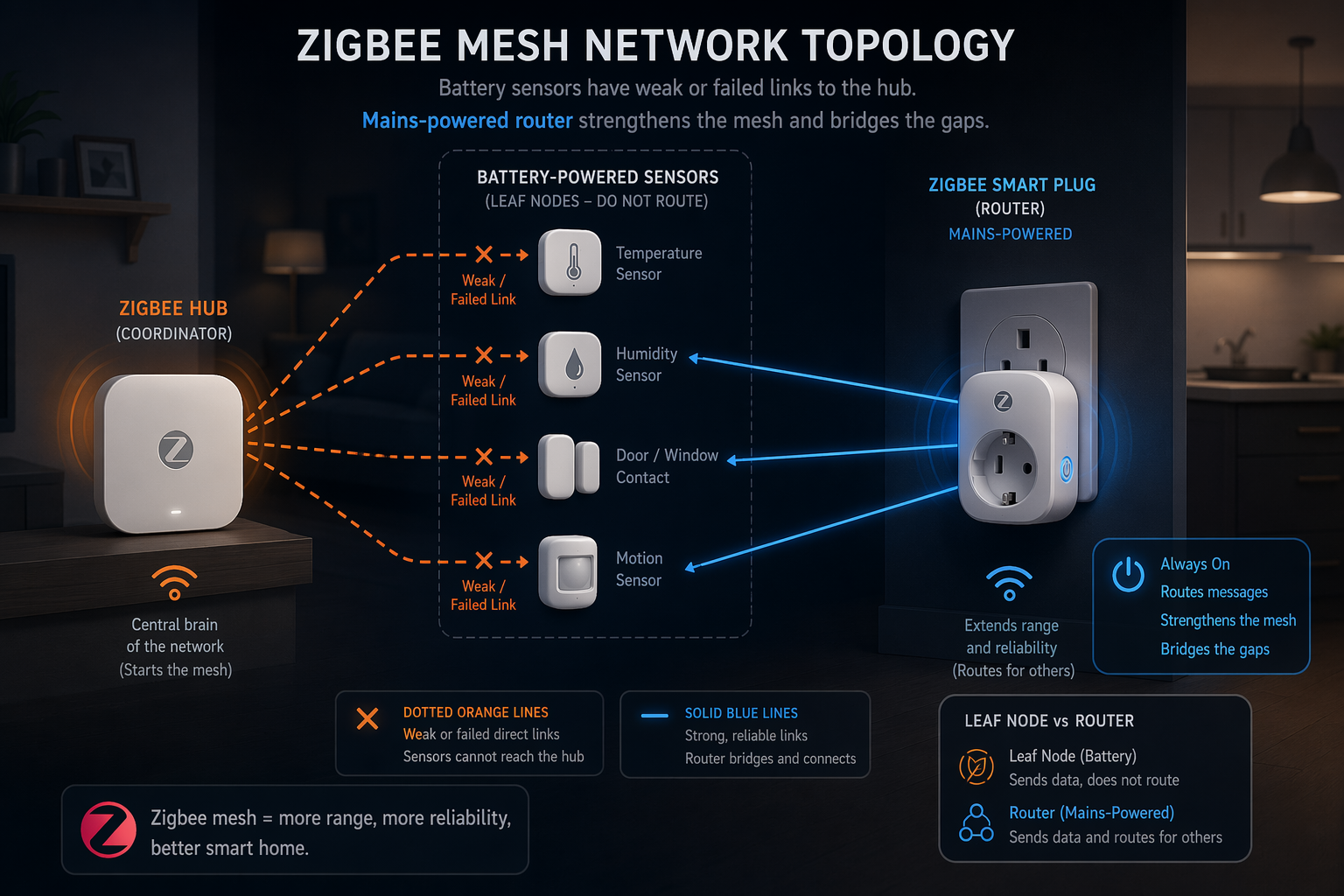
This is why a network can become unstable after a furniture move or after one smart plug is unplugged “temporarily.” The device that looked like an ordinary plug may have been the route for three sensors behind it. Homey’s troubleshooting guide, The Ambient’s SmartThings troubleshooting coverage, and Zigbee Guru’s mesh guidance all point toward adding or repositioning mains-powered Zigbee routers when a specific area of the home becomes unreliable.[6][7][1]
A useful target is one always-on Zigbee router every 6–8 m indoors, especially through walls, between floors, or across long hallways.[1][6][7] Treat that as a practical target, not a law of physics. A small apartment with open sightlines may need less. A house with brick, radiant barriers, appliances, mirrors, or a detached garage may need more.
The smallest meaningful mesh repair
If one sensor or one room keeps failing, add one known-good mains-powered Zigbee router between that weak device and the hub. Not beside the hub. Not in the same bad corner as the sensor. Between them. Pair the router where the hub can reach it, then move it to the midpoint if your platform and device behavior allow that cleanly.
Then wait. Zigbee meshes can take time to settle after a routing change. A common mistake is to add a router, immediately reset the failing sensor, then conclude nothing worked because the network was never given a quiet observation window.
Be careful with bulbs. Some Zigbee bulbs are excellent repeaters; others have caused routing headaches in mixed networks. If you are troubleshooting a fragile mesh, a smart plug from a reliable Zigbee line is often the cleaner test router because it is less likely to be switched off at the wall and easier to place halfway between the hub and the weak zone.
Check batteries and power before blaming pairing
A sensor can have enough power to blink during pairing and not enough power to behave reliably in the real installation spot. Coin cells also sag under load and in cold locations. Vesternet’s Zigbee setup guidance describes typical CR2032-powered device life in the 12–24 month range, and Zigbee Guru recommends replacing factory-supplied coin cells proactively when troubleshooting unstable devices.[8][1]
- Replace factory batteries in new sensors that pair once and then vanish.
- Replace batteries in devices that began failing after a year or more, even if the hub still reports a comfortable percentage.
- Check sensors in cold garages, mailboxes, sheds, or window frames earlier than indoor devices.
- Clean battery contacts if the device has been stored, shipped with a tab, or exposed to moisture.
For USB-based coordinators, power is not only about the radio. A weak USB port, a noisy hub, an overloaded mini PC, or a coordinator plugged directly beside high-speed peripherals can create failures that look like Zigbee range problems. That is another reason the USB extension cable test is worth doing early: it changes both placement and electrical noise exposure without rebuilding the network.[5][3]
When pairing fails, make the path boring
Pairing problems invite bad rituals: hold the button longer, reset the hub, delete unrelated devices, try ten times from the same weak location. A better test is to make the first pairing path deliberately boring.
- Put the new device near the hub or near a known-good Zigbee router.
- Use the exact reset or pairing sequence for that device model.
- Start pairing from the hub app, then trigger the device.
- If pairing succeeds nearby but fails in the final room, treat it as a mesh or interference problem, not a device identity problem.
- If pairing fails even beside the hub with a fresh battery, check compatibility and hub firmware before assuming the radio is dead.
This distinction saves time. A device that pairs at the hub and disappears in the final location is telling you the final location is weak. A device that never pairs anywhere may be unsupported, already bound to another network, running through a bad reset sequence, or genuinely faulty.
Do firmware and hub state checks after the physical layer is sane
Firmware matters, but it should not be used as a fog machine. If the coordinator is wedged behind a TV, the 2.4 GHz Wi-Fi band is on auto-width, and the garage sensor has no router within reach, a firmware update may only make the failure look different.
Once placement, channel conflict, mesh density, and batteries have been checked, update the hub, coordinator firmware, and device firmware where your platform supports it. Hubitat, Zigbee2MQTT, SmartThings, Homey, Aqara, Hue, and Home Assistant-based systems handle this differently, and some devices receive updates only through their native ecosystems. Follow the platform’s own path rather than mixing instructions.
If the entire hub is offline rather than individual Zigbee devices, read the hub’s status indicators before doing anything destructive. Aeotec’s Smart Home Hub troubleshooting uses LED color and behavior to separate states such as startup, connectivity problems, and failure conditions, and includes power-cycle-style recovery steps before hardware conclusions.[9] SmartThings hub owners comparing hub generations or reset behavior may also want the Aeotec Smart Home Hub V3 vs V4 guide before replacing equipment.
Do not get distracted by the 65,000-device headline
The theoretical Zigbee device limit is the least useful number in a normal home. Zigbee Guru notes the familiar headline of up to 65,000 devices, but practical performance depends on the hub, router capacity, device behavior, and network shape; its guidance places many real-world hub networks closer to the 50–200 device range before performance problems become likely.[1] Aqara forum discussion around higher ecosystem-specific limits is better treated as anecdotal unless it matches the official limits and behavior of the hub in front of you.[10]
If you are hitting limits in a Hue-heavy home, the relevant question is not what Zigbee can theoretically address. It is what that bridge, firmware, and device mix can handle reliably. Hue readers weighing bridge capacity can use the Philips Hue Bridge Pro vs Bridge comparison for that narrower decision.
A practical repair order that preserves evidence
Run the repair in this order unless a platform warning tells you otherwise:
- Record the symptom: which device, which room, which time pattern, and what changed recently.
- Stabilize 2.4 GHz Wi-Fi: fixed 20 MHz width on channel 1, 6, or 11.
- Check Zigbee channel overlap and move Zigbee only if your platform supports a safe change.
- Move the hub or coordinator into an open position, away from the Wi-Fi router and electronics.
- For USB coordinators, add a USB extension cable of at least 50 cm.
- Add or reposition one mains-powered Zigbee router between the weak zone and the hub.
- Replace suspect coin-cell batteries, especially factory cells and older CR2032s.
- Update hub, coordinator, and device firmware through the correct platform procedure.
- Only then consider re-pairing, device replacement, hub support, or hardware failure.
If several smart-home systems in the house keep failing at once, the broader network may be the real maintenance problem. The guide to why smart homes keep breaking is the better next stop. If you are rebuilding from scratch or deciding whether the hub belongs in the network at all, use the home automation controller setup guide or the hub-or-no-hub guide.
Where to stop troubleshooting
After the hub is away from the router, Wi-Fi and Zigbee channels are no longer fighting, the weak area has at least one always-on router in a sensible place, suspect batteries are replaced, USB coordinator placement is cleaned up, and firmware is current, the remaining failures become narrower.
One device still failing points to that device, its battery contacts, its location, or its compatibility. One platform still locking up points to hub logs, firmware, integrations, power, or vendor support. A hub that still will not boot, shows documented failure LEDs, or repeatedly drops its own network after basic recovery may have a real hardware fault. That happens. It is just not where a Zigbee repair should begin.
A Zigbee hub that drops devices is usually not wearing out. It is usually exposing a radio, placement, routing, power, or software-maintenance problem that can be isolated without erasing the network first.
References
- Why Zigbee Devices Lose Connection — Zigbee Guru
- SmartThings Community discussion on Zigbee channel and Wi-Fi overlap — SmartThings Community
- Home Assistant Community discussion on Zigbee coordinator placement and USB interference — Home Assistant Community
- Zigbee — Hubitat Documentation
- Improve network range and stability — Zigbee2MQTT
- Troubleshooting Zigbee — Homey
- How to fix Zigbee issues with SmartThings — The Ambient
- How to Set Up Your First Zigbee Smart Home System — Vesternet
- Aeotec Smart Home Hub troubleshooting — Aeotec Help Desk
- Aqara forum discussion on Zigbee device limits — Aqara Forum
Corroborating context
For protocol background on why this failure happens, see Compatibility & Protocols.
Not currently linked to a known regression. Background on the underlying protocol lives in Compatibility & Protocols.