Why Your Smart Home Keeps Breaking: The Network Is Usually the Problem
Intermittent device offline, slow response, automation failures
Last updated
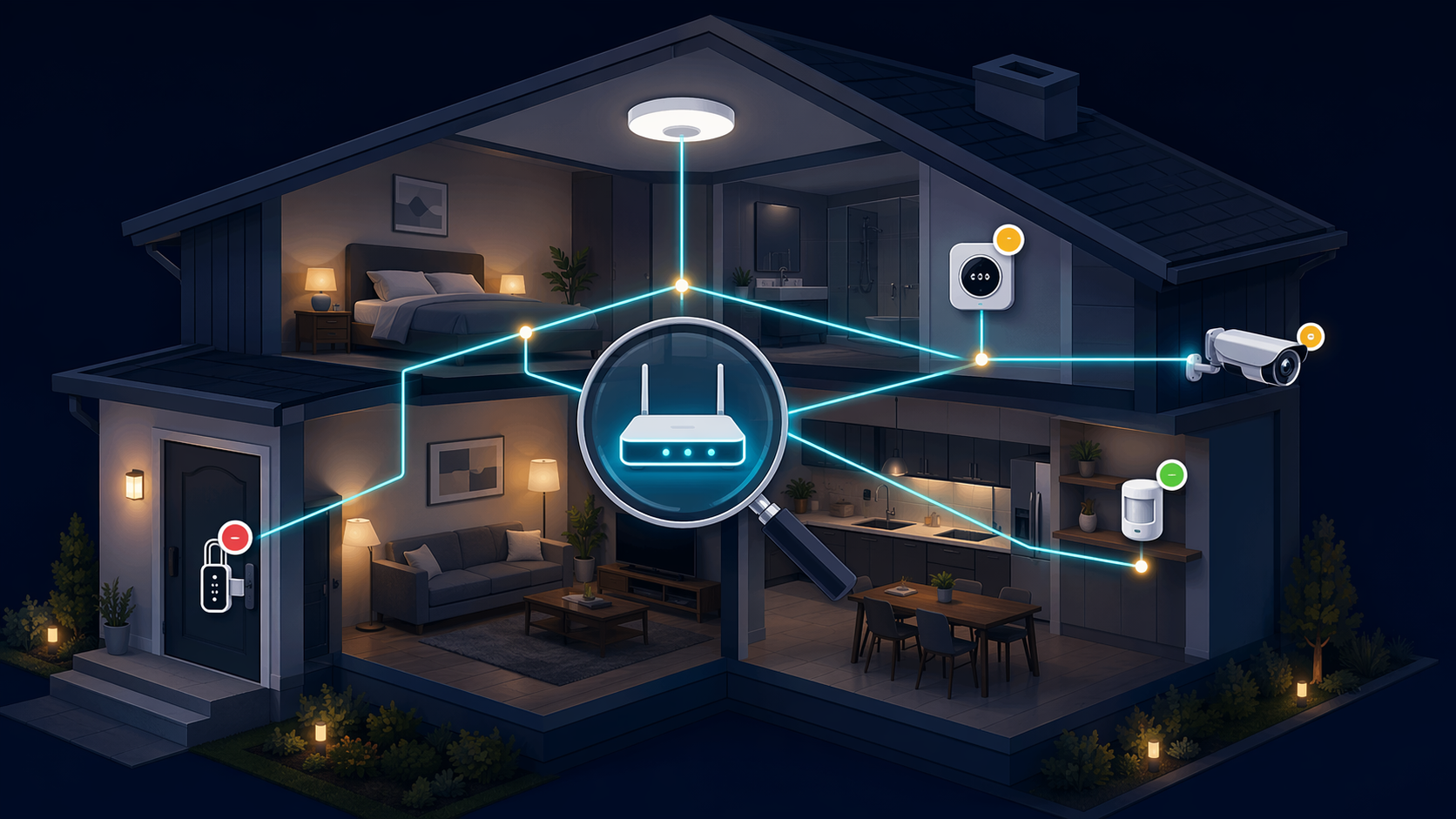
Your Smart Lock Isn't Broken – Your Network Is
Last week a reader told me his smart lock went offline three times in one afternoon. He had replaced the batteries, reset the lock, even bought a new hub. Nothing changed. The lock was fine. His network was the problem.
That story is not unusual. A Parks Associates survey found that 52% of people who installed a smart home device themselves reported difficulty during setup. The survey didn't break down the kind of difficulty, but in my years fixing other people's setups, the vast majority traced back to one thing: the network infrastructure underneath the devices. Not the hardware, not the app, not the brand.
If your smart home automation devices keep going offline, responding slowly, or failing to trigger routines, stop swapping batteries and start looking at your router, your band selection, and the way your Wi‑Fi and Zigbee networks are competing for the same airtime.
The 2.4 GHz Traffic Jam: Why 25+ Devices Break Everything
Most smart home devices that use Wi‑Fi still run on the 2.4 GHz band. That band has three non‑overlapping channels in most of the world — three lanes for everything your lights, locks, plugs, sensors, cameras, and thermostats need to say to your router. Now think about how many devices you have connected.
According to Vesternet's troubleshooting guide, keeping under 25 devices per network is ideal. That number is not arbitrary — it comes from how 2.4 GHz contention works. Every device has to listen for a clear channel before it transmits. When you have three dozen devices all trying to talk on the same two or three channels, wait time grows, collisions happen, and some devices simply time out and disconnect. That is why your smart plug that worked fine for weeks suddenly stops responding at 7 p.m. when everyone is home and streaming.
When Zigbee and Wi‑Fi Fight on the Same Radio
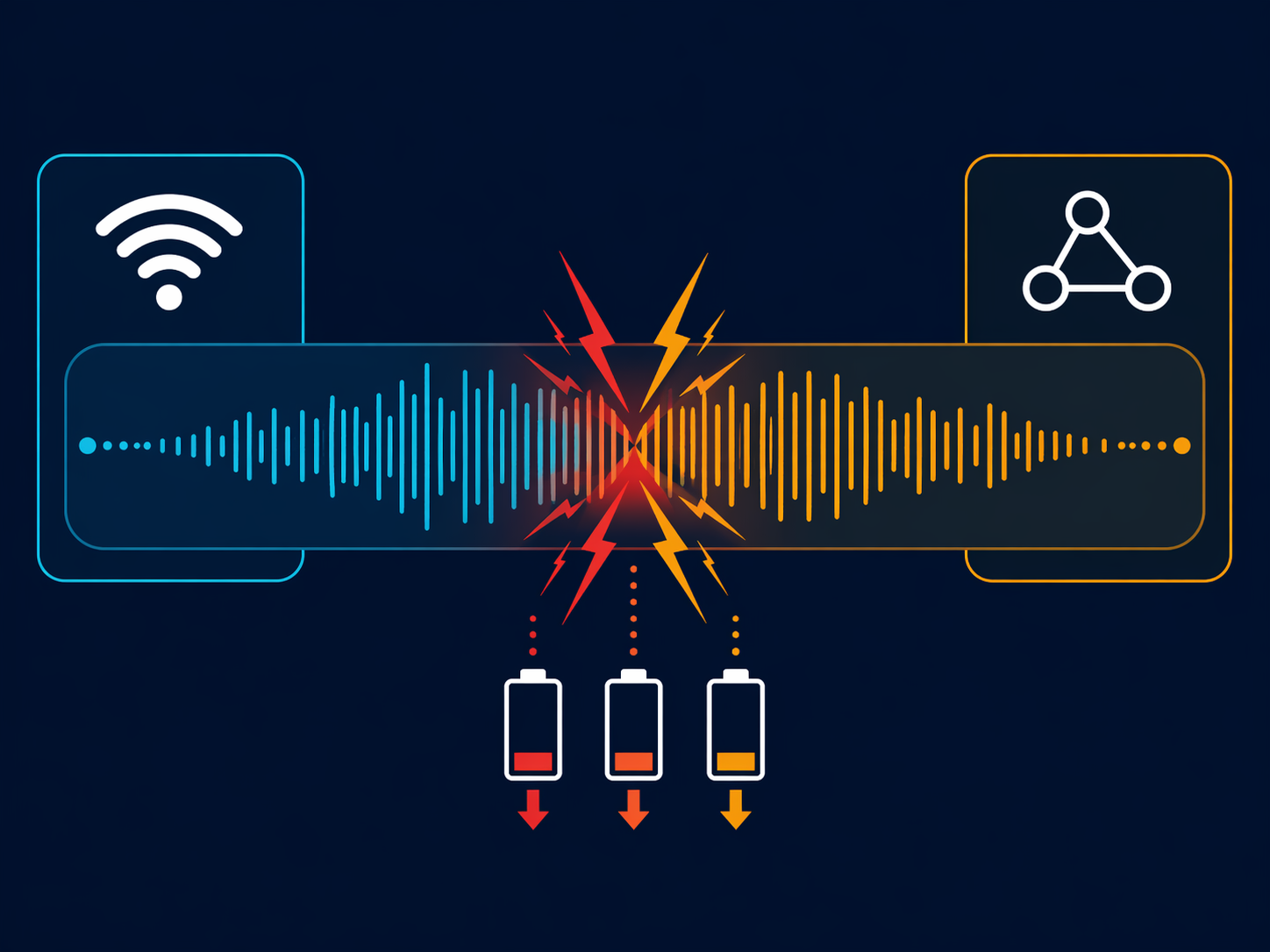
If you have a Zigbee hub (many smart hubs use it, including those from Amazon, Philips Hue, and Samsung SmartThings) sitting right next to your Wi‑Fi router, you are creating a physical conflict. As IoT For All explains, a smart home hub cannot receive on Zigbee while its Wi‑Fi radio is transmitting. The two protocols are both using 2.4 GHz, and when their frequencies overlap, the radio has to retransmit. That retransmission does two things: it makes your light bulb take an extra second to respond, and it drains the battery in your Zigbee temperature sensor.
The same article notes that Zigbee devices are designed for up to seven years of battery life based on short, infrequent transmissions. When interference forces constant retransmissions, that battery can die in months. I have seen this pattern repeatedly: a sensor that used to last two years stops reporting after three months. The owner blames the sensor. The real culprit is the 2.4 GHz congestion from the Wi‑Fi router sitting two feet away from the hub.
Vesternet's advice is simple: keep Z‑Wave and Zigbee devices at least a few feet away from your Wi‑Fi router. If your hub has both a Zigbee and a Wi‑Fi radio inside the same box (many do), moving the hub itself away from the router is not enough — try to place the hub in a location where the Wi‑Fi signal is weaker, or use a USB extension cable to get the hub's antenna away from the router.
Your Mesh Network Might Be Making It Worse
Mesh networking is a great concept — each device repeats the signal so the network can cover a whole house. But Wi‑Fi mesh and Zigbee/Z‑Wave mesh work very differently, and people often confuse the two.
Wi‑Fi mesh depends on your router nodes having good wireless backhaul between them. If the signal between two nodes is weak, you add latency or lose speed. Zigbee and Z‑Wave mesh, on the other hand, relies on mains‑powered devices (smart plugs, hardwired lights) to act as repeaters. Battery sensors cannot repeat. So if your Zigbee network uses only battery-powered devices, the mesh is essentially nonexistent — every device talks directly to the hub, and the range is terrible.
Vesternet recommends two things: schedule monthly network healing for Z‑Wave and Zigbee (most hubs have a command for this), and add powered devices — even a simple smart plug — to extend the mesh. A good rule: for every 200 square feet, have at least one mains‑powered Zigbee or Z‑Wave device. Without that, the mesh stays weak and devices drop offline for no obvious reason.
Matter and Thread: The New Frontier of Instability
Matter and Thread promise to solve a lot of these problems by giving us a single, local, IP‑based standard. In practice, they introduce a new failure mode: border router conflicts.
Thread creates a mesh network using its own border routers — any device that acts as a Thread border router (like an Apple TV, a HomePod, an Amazon Echo, or a Google Nest Hub) can become the exit point for your Thread devices. The problem? If you have more than one border router on your network, they can compete for control. Users on Thread forums report that disabling all but one border router often stabilizes a flaky Thread network. I have no hard numbers to back that up, but the pattern is consistent enough that I tell people to try it first when Thread devices start dropping.
Matter itself is not fully baked for reliability. CNET noted that Matter controllers typically expose only basic commands — on, off, brightness — and that advanced features like scenes or sensor details require the manufacturer's own app. That matters for reliability because if the controller cannot see the device's full capabilities, you are more likely to end up with a setup that works inconsistently across platforms.
For a deeper dive into what Matter can and cannot do in 2026, read our Matter 2026 status review.
The Simple Fix: Separate Your IoT Traffic
The most practical thing you can do — besides moving your hub away from your router — is to put all your smart home devices on a separate network segment. That does not have to mean buying expensive managed switches. The simplest first step: use the guest network that most routers already have.
Most routers let you set up a guest SSID that isolates devices from each other and from your main network. HowToGeek recommends this as the first line of defense because most IoT devices phone home constantly, and isolating them keeps their chatter from interfering with your work laptop or streaming TV while also improving security.
If you want stronger isolation, a VLAN (virtual local area network) is the next step. It creates a fully separate virtual network for your IoT gear. The tradeoff: setting up a VLAN usually requires managed networking hardware like Ubiquiti Unifi, TP‑Link Omada, or pfSense, and the configuration can be fiddly. HowToGeek found that some HomeKit devices refuse to pair from the main network to the IoT VLAN — you have to temporarily connect the phone to the IoT network during setup. Annoying, but manageable.
If you decide to go the dedicated controller route, our comparison of the best smart home controllers for 2026 can help you choose one that supports VLANs and local control well.
When to Upgrade Your Router (Hint: It’s Not About Wi‑Fi 7)
A common reflex when smart home devices start acting up is to buy the latest Wi‑Fi 7 router. That is almost never the right fix. The bottleneck for smart home reliability is 2.4 GHz capacity and device count, not raw throughput. Wi‑Fi 7 focuses on speed and low latency for streaming and gaming — things your thermostat does not care about.
Vesternet suggests upgrading routers older than three years, and I agree with the sentiment, but the real trigger should be when your router cannot handle the device count. A well‑configured Wi‑Fi 5 router with a clean 2.4 GHz channel and a reasonable device load will outperform a Wi‑Fi 7 router that is bogged down by fifty gadgets fighting for airtime.
Before you buy new hardware, check how many devices are connected to your 2.4 GHz band. If that number is above 25, your first step should be to move some devices to 5 GHz (or turn off the 2.4 GHz radio on non‑smart devices) before spending money on a new router.
The Increasing Outage Test: Diagnose Your Network in 30 Minutes
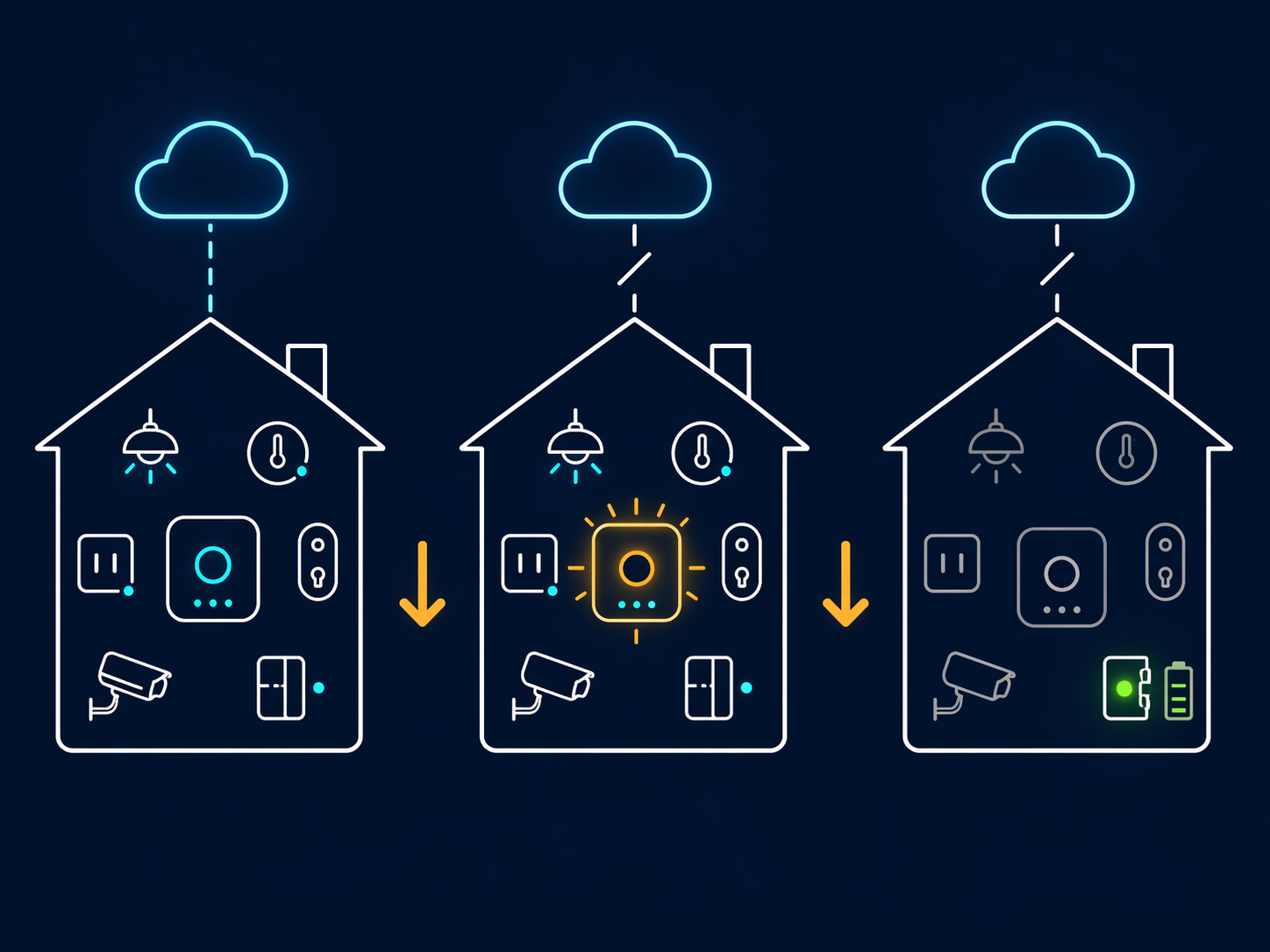
Here is the most useful diagnostic protocol I know. The Hook Up's increasing outage test walks you through three stages of isolation to find out exactly which devices in your home depend on the cloud, which depend on a local hub, and which can run completely offline.
Step one: disconnect your cable modem or internet connection. Watch what happens. Cloud‑dependent devices (most Wi‑Fi bulbs, many smart plugs) will stop responding completely. Devices that talk to a local hub but need the internet for app control may show as offline but still follow local automations. If your lights go out the moment the internet drops, you have a cloud‑reliability problem.
Step two: power down your smart home hubs (the Zigbee hub, the HomeKit hub, the smart speaker). Now only devices that can work without any hub should respond. Battery‑powered Zigbee sensors that rely on the hub will stop. But if a device like a Z‑Wave light switch that is directly paired to a controller still works, that is a good sign of local control.
Step three: turn off your router and access points. Now only devices that can operate completely offline without network infrastructure — perhaps a local smart lock that can still be opened via a keypad, or a thermostat that keeps its schedule — should work. The Hook Up notes that cloud‑only devices become completely non‑functional during internet outages. That test quickly shows you which devices to replace if reliability is your priority.
This test does not require any tools. It takes about half an hour and it will tell you exactly where your network is failing. If you want to understand more about the benefits of local control, our local vs. cloud home automation comparison goes deeper into the tradeoffs.
Building a Network That Doesn’t Break
Once you have run the increasing outage test and you know which devices need the cloud, which need a local hub, and which need nothing, you can design a network that minimizes failures.
Start with a separate guest SSID for your IoT devices. That single step will reduce interference and improve security. Then consider these next actions:
- Move your Zigbee/Z‑Wave hub at least three feet away from your Wi‑Fi router.
- Schedule monthly network healing in your Z‑Wave or Zigbee controller.
- Add at least one mains‑powered Zigbee/Z‑Wave device per 200 square feet to extend the mesh.
- Disable all but one Thread border router on your network.
- Use the increasing outage test to vet every new device before you fully install it.
- Choose platforms that support local control and VLANs — our ecosystem comparison for 2026 covers which platforms play well with network segmentation.
Most smart home unreliability is not a mystery. It is a consequence of putting twenty devices on a band that has room for ten, or putting a Zigbee hub next to a Wi‑Fi router, or relying on cloud servers for a light switch that should work when the internet goes down. The network is usually the problem. Fix the network, and your devices will stop pretending to be broken.
Corroborating context
For protocol background on why this failure happens, see Compatibility & Protocols.
Not currently linked to a known regression. Background on the underlying protocol lives in Compatibility & Protocols.