
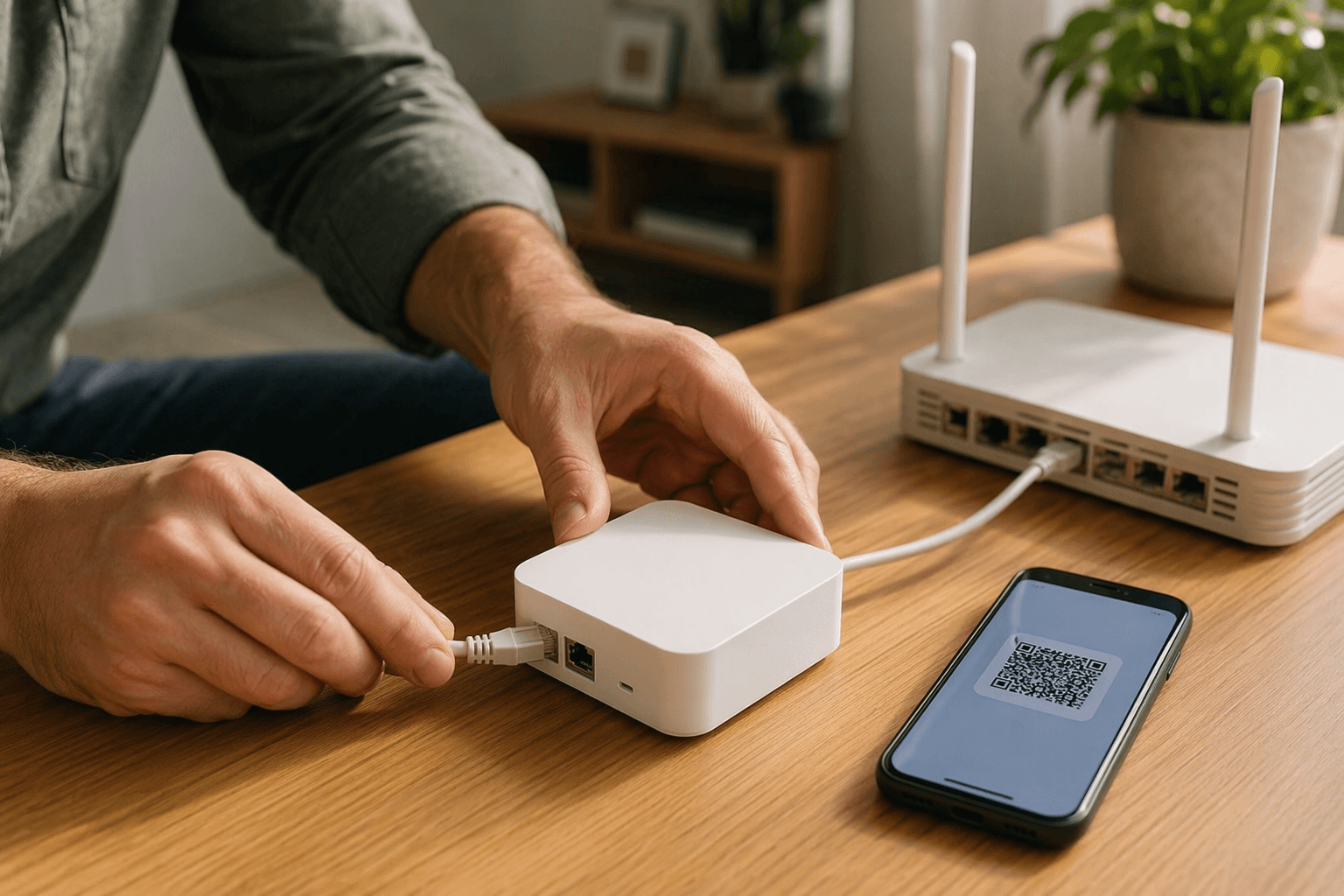
If your home automation controller is still in the box, do not start by pairing every bulb, plug, sensor, and lock you bought with it. Put the controller online first, prove that the app can find it, pair one easy device at close range, assign that device to a room, and only then create your first automation. That order sounds slow, but it prevents the usual beginner mess: devices that half-pair, rooms named three different ways, and automations built on hardware that was never reliably reachable.
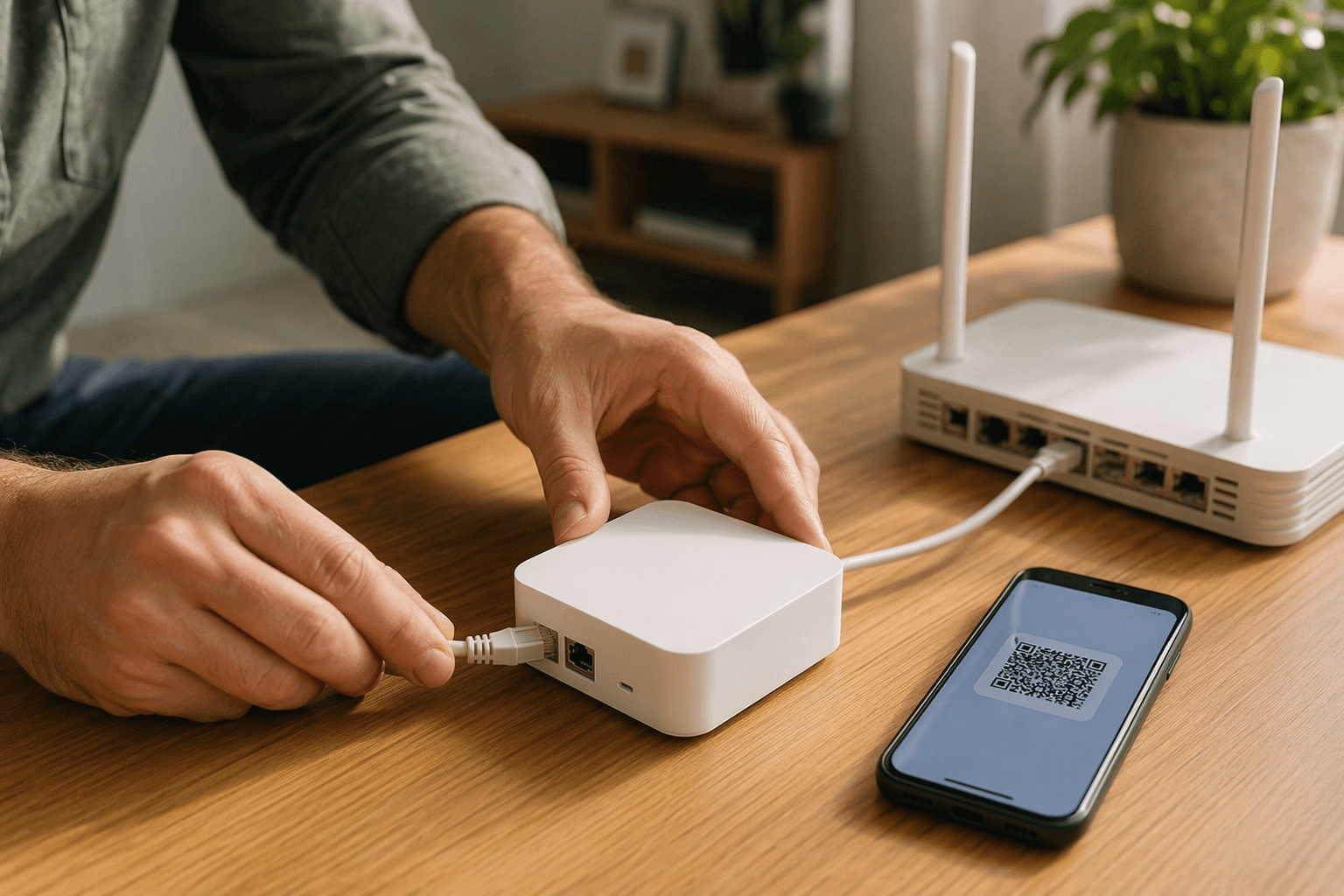
Before you start, check six dull things: you know which controller you bought, you have the correct app and account ready, your router has an open Ethernet port or you know the controller’s required network method, you have the home Wi-Fi name and password, Bluetooth is enabled on your phone, and each device you plan to add actually supports your controller. If you are still deciding whether a voice assistant, dedicated hub, or local-control box fits your home, pause here and read how to choose a home automation controller first. A SmartThings hub, an Echo with smart home radios, a HomePod mini, Homey Pro, Hubitat, and Home Assistant Green can all sit under the broad controller umbrella, but they do not ask the same amount from the person setting them up.
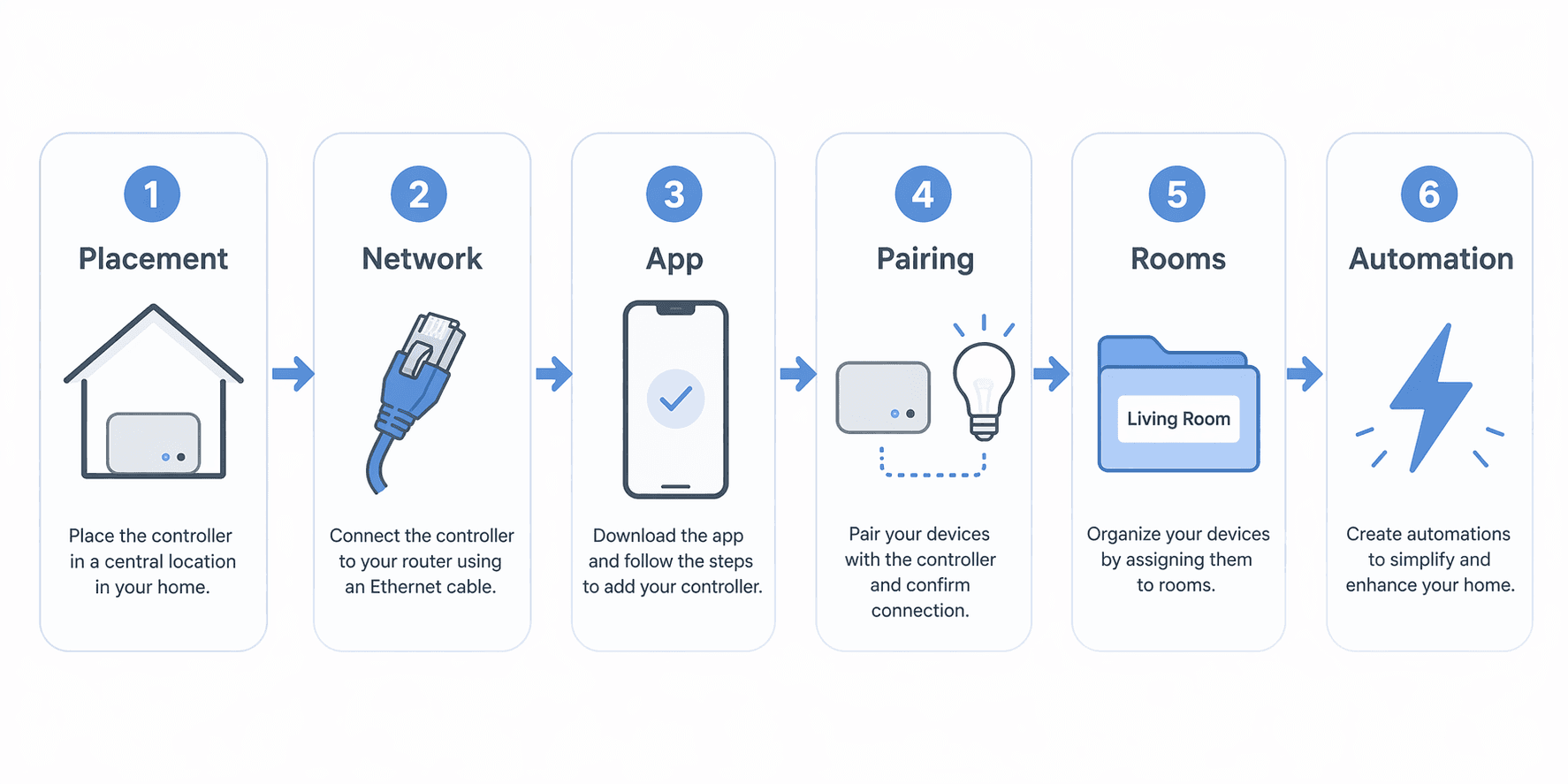
| Phase | What you do | What must be true before moving on |
|---|---|---|
| 1. Placement | Put the controller in a central, open location near the router for initial setup. | The controller is not buried in a cabinet, behind a TV, or at the far edge of the home. |
| 2. Network connection | Connect Ethernet if the controller supports or requires it, then power on. | The app or controller status light confirms the controller is online. |
| 3. App installation | Install the official app, sign in, grant required permissions, and update firmware. | The controller appears in the app and is running current firmware. |
| 4. Device pairing | Pair one nearby device first, not the whole pile. | The device responds manually from the app. |
| 5. Room organization | Name the device and assign it to the right room. | Room and device names are clear enough to use later in automations. |
| 6. First automation | Create one simple rule using the verified device. | The automation runs once under your supervision. |
Place the controller before you power through setup
A controller’s first location is not always its final location, but it should be a sensible one. Start near your router so you can use Ethernet during setup if available, but do not shove the controller inside a media cabinet and call it finished. Gateway hubs commonly use Ethernet for initial setup and stable performance, even when they later coordinate wireless devices over Zigbee, Z-Wave, Thread, Wi-Fi, or Bluetooth paths.[1]
For wireless reach, central and boring beats hidden and clever. A controller on an open shelf near the middle of the home has a better chance of reaching the first layer of devices than one sitting behind a metal rack, under a desk full of power bricks, or inside a closet at one end of the floor plan. Mesh networks can improve as you add powered repeaters, but the first few pairings still need a clean starting point. Z-Wave and Zigbee both use mesh topology, while Z-Wave is generally less exposed to 2.4 GHz congestion because it operates in sub-GHz bands; in the U.S., Z-Wave uses the 908.42 MHz region rather than the UK frequency discussed in some international guides.[1][2]
If your router lives in a basement, garage, or wiring closet, do the first setup there only long enough to get the controller online. After that, consider whether the controller belongs in a more central room with a wired backhaul, a nearby Ethernet jack, or a better line into the rest of the mesh. What you are trying to avoid is a controller that technically works while sitting in the worst possible radio location.
Use the most stable network path first
Connect Ethernet before power if your controller has an Ethernet port and the setup guide allows it. This is not old-fashioned advice; it is a way to remove one variable while the controller is registering, updating, and discovering devices. You can revisit placement later, but during first setup you want the app, router, and controller to agree on one thing: the controller is online and reachable.
Once the cable is connected, plug in the controller and wait for the status light pattern or app prompt your manufacturer documents. Do not reset it just because nothing happens for 40 seconds. Some controllers boot, request an IP address, check cloud registration, and look for firmware before the app shows anything useful. If the app cannot find it after the documented wait time, check the Ethernet cable, router port, and phone network before you touch the reset pin.
Wi-Fi-only controllers need the same patience, just with a different weak point. Keep your phone on the same home network, avoid guest Wi-Fi unless the manufacturer explicitly supports it, and make sure Bluetooth is on if the device uses a temporary Bluetooth setup session. Matter devices, for example, commonly begin onboarding with a QR code or numeric setup code over Bluetooth Low Energy, then move onto Wi-Fi or Thread after the first commissioning step succeeds.[3]
Install the app, update firmware, and let the controller finish being new
Install the official controller app from the app store, sign in, and grant the permissions the setup actually needs. Bluetooth permission is often required for discovery or onboarding. Local network permission may be required for the phone to see devices on your LAN. Camera permission is needed if you are scanning a Matter QR code or another setup label. You can tighten optional permissions later, but blocking setup permissions during the first run is a good way to make the app look broken when it is only blind.
When the controller appears in the app, look for firmware updates before adding devices. CEDIA recommends choosing controllers that support encryption, regular firmware updates, and data minimization, and those ideas matter during setup as much as during shopping.[4] A firmware update at this stage is annoying; a firmware update after you have paired 20 devices and built rules around them is worse.
This is also the point where controller type starts to affect the feel of setup. A consumer hub such as SmartThings or a voice-assistant controller such as an Echo may walk you through most choices. A HomePod mini depends heavily on Apple’s Home app and Apple account state. Homey Pro and Hubitat give more direct hub-centered control. Home Assistant Green, listed at $159 with over 1,000 integrations, is attractive for local and flexible setups but asks for more technical comfort than a simple speaker-based controller.[5] None of that changes the sequence; it changes how many screens you pass through while following it.
Pair one device close to the controller
Your first paired device should be boring: a smart plug, a bulb in a nearby lamp, or a simple sensor you can hold near the controller. Do not start with the front-door lock, the farthest outdoor plug, or a switch buried in a metal wall box. The first pairing is your baseline test. It proves that the controller, app, account, radio, and device can complete a clean join before distance and walls complicate the picture.
Put the device into pairing mode exactly as its manual says, then start discovery in the controller app. If you are pairing a Matter device, scan the QR code or enter the numeric setup code and keep the phone nearby while Bluetooth handles the first handshake. After that, the device may move onto Wi-Fi or Thread, depending on the product and your controller.[3] If you want the broader state of Matter compatibility before buying more devices, read Matter in 2026; for setup, the important part is simpler: do not interrupt the handoff just because the first screen disappeared.
For Zigbee and Z-Wave, keep the first device close unless your controller’s instructions say otherwise. Z-Wave networks support up to 232 devices, while Zigbee networks can support thousands in principle, but those limits do not help if the first device joins through a weak path or fails its interview.[2] Some apps show an interview, configuration, or initialization step after the device appears. Wait for that to finish before unplugging the device and moving it across the house.
After pairing, test manual control three times from the app. Turn the plug on and off. Change the bulb state. Open and close the sensor. If the device responds slowly once, wait and test again. If it fails repeatedly while sitting near the controller, do not add more devices yet. Remove it cleanly from the app, factory-reset the device according to its manual, and pair it again. If the failure continues, move to a broader smart home device troubleshooting guide before you build a larger broken network.
Name rooms before automations depend on them
Once the first device responds manually, give it a name you will still understand in six months. “Lamp” is not enough if there will be four lamps. “Living Room Lamp” is better. “LR Lamp 1” may be efficient for you and useless for everyone else in the home. Pick room names that match how people speak: Living Room, Kitchen, Bedroom, Hallway, Office. If your app supports both rooms and zones, use rooms first and save zones such as Upstairs or Main Floor for later.
This is not cosmetic. Voice control, dashboards, scenes, and automations all inherit your naming choices. If one bulb is in “Den,” another is in “Family Room,” and a third is in “TV Room” even though they share a space, you will eventually spend more time cleaning names than using the system. If your first device is a bulb and you want device-specific help, keep a separate smart light bulb setup guide nearby, but still assign it inside the controller before moving on.
Create one automation, then stop and verify
Your first automation should be almost embarrassingly simple. If you paired a smart plug, schedule it to turn on at a specific time and off a few minutes later. If you paired a motion sensor and lamp, have motion turn the lamp on, then turn it off after a short delay. Avoid sunrise conditions, presence detection, multi-person geofencing, security modes, and whole-home scenes for the first test. Those can come later, after you know the controller can execute one plain rule.
Watch the automation run once. Then trigger the device manually again from the app. That second manual test matters because a bad automation can leave a device in an unexpected state, and a beginner setup should end with confidence, not mystery. If the automation does not run, check whether the trigger condition was actually met, whether the device is still online, and whether the controller’s time zone is correct. If devices are reachable only some of the time, the problem is often the network path, not the automation logic; that is the moment to read why smart homes keep breaking at the network layer instead of adding more rules.
At this point, your home automation controller is doing the minimum job it must do before it deserves more devices: it is online, updated, physically placed with some radio sense, connected to one verified device, organized by room, and capable of running one basic automation. Add the next devices in small batches, starting with powered devices that can strengthen the mesh before you depend on distant battery sensors. The exciting part of a smart home is what it can do automatically; the useful part starts when each piece was added in an order that lets you tell what failed.
References
- The Complete Guide to Home Automation Controllers — Vesternet, 2025
- What Is a Smart Home Hub (And Do You Need One)? — PCMag, 2021
- What Is a Matter Controller? Complete Guide 2026 — Gearbrain, 2026
- Choosing The Right Smart Home Controller — CEDIA, 2024
- Best home automation systems 2026 — ZDNET, 2025
Community Tips
Share platform-specific variations, steps that have changed after app updates, or tips that helped your installation succeed.
Comments
Join the discussion with an anonymous comment.