Smart Home Devices Keep Disconnecting from Wi-Fi? A Complete Connectivity Fix Guide
Device repeatedly disconnects from Wi-Fi or fails to pair
Last updated
Your smart speaker goes offline twice a day. The outdoor camera drops out every hour. The smart bulb you just unboxed refuses to pair at all. After the third or fourth support chat with the same script — “Have you tried restarting the router?” — a conclusion starts to settle: the device must be defective.
It usually isn't.
Roughly 77 million U.S. homes now have at least one smart device, according to Mordor Intelligence. That means something like 77 million households have also breathed through a Wi-Fi dropout at some point. The common reflex is to blame the hardware, return it, or start shopping for a mesh system you might not need. But the actual cause is almost never the device itself. It is almost always the network architecture — and that is fixable without spending a dime on new hardware.
Your Device Is Not Defective. The Network Is.
Most smart home devices — bulbs, plugs, sensors, locks, most cameras — are built to run on the 2.4 GHz Wi‑Fi band. They are simple, cheap, and that band travels farther through walls. The 5 GHz band is faster but has terrible penetration: a 2.4 GHz signal drops about 70% going through drywall, compared to 90% for 5 GHz, according to IoT For All. (For brick walls, expect 63% loss on 2.4 GHz and 83% on 5 GHz.) So the devices you buy are engineered for the band that actually reaches the far corners of your house.
The problem is that modern dual‑band and mesh routers don't want you to think about bands at all. They present a single network name (SSID), decide which band each device should use, and quietly steer newer, faster clients to 5 GHz. This feature is called band steering, and it is the number one reason a perfectly good 2.4 GHz-only smart bulb can't stay connected.
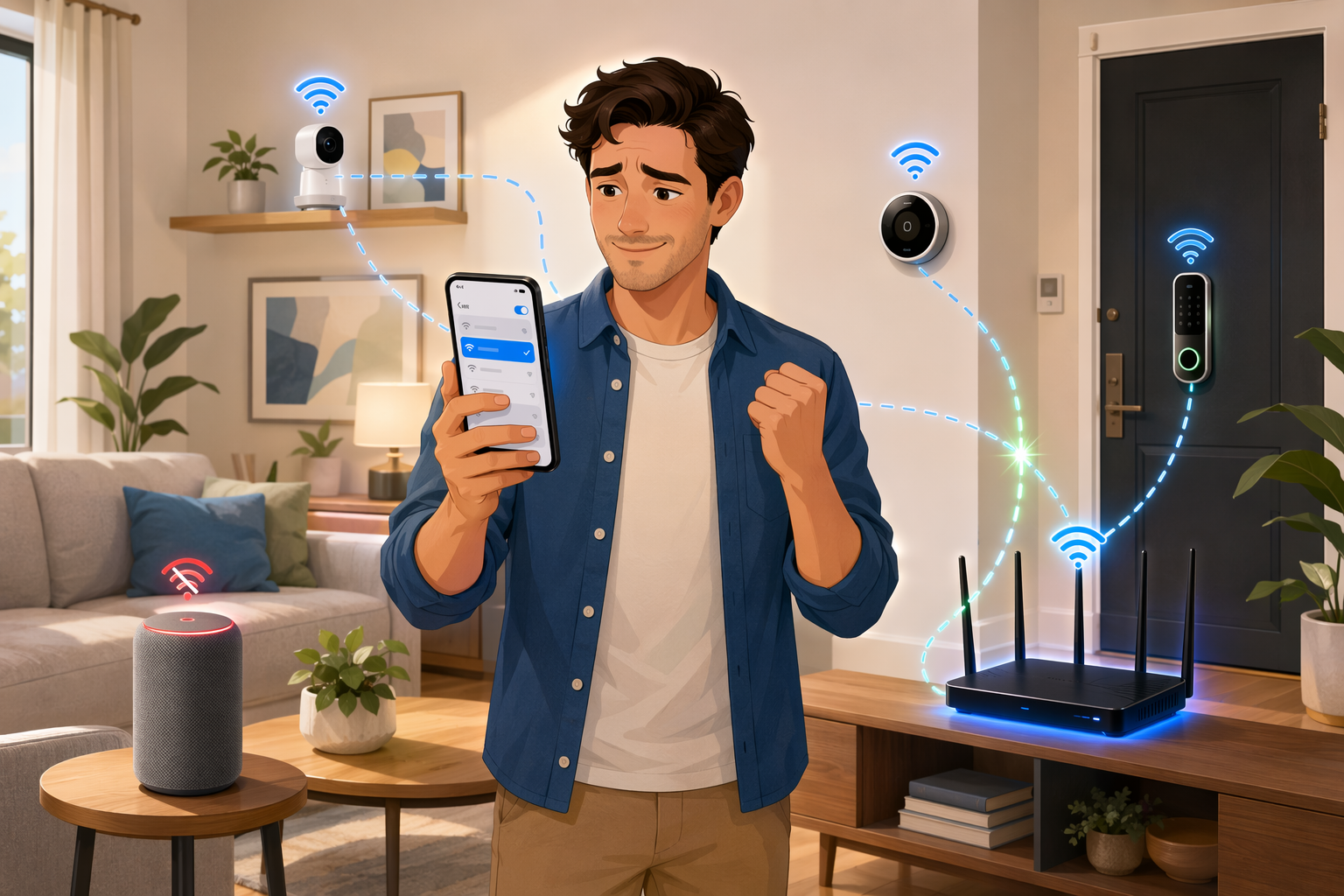
The router brands that make this easy to fix include TP‑Link, Asus, and Netgear — their admin panels typically have a checkbox or toggle to disable band steering or split the SSIDs. The brands that make it nearly impossible are many ISP‑locked gateways (Comcast Xfinity, AT&T, Verizon) that hide the toggle or don't offer it at all. If you have one of those, you are not stuck: the workarounds below will get you through.
How to Confirm It's a Network Problem
Before you start changing settings, check whether the symptoms actually point to the network. Here is what I look at first:
- Router logs. Log into your router and look for disconnect events. If you see multiple devices cycling on and off, that is almost always a network‑side issue, not a device defect.
- Signal strength at the device location. Use a Wi‑Fi analyzer app (Wi‑Fi Analyzer for Android, NetSpot for macOS, WifiInfoView for Windows) to measure the signal where the device sits. Below about -70 dBm, expect trouble.
- Patterns of failure. Does the dropout happen at a specific time every day? That could be interference from a microwave oven or a neighbor's network. Does it only happen when the microwave runs? Same cause.
- Device age and firmware. Check whether the device's firmware is up to date. CNET notes that most smart home firmware updates are rarely automatic — you have to initiate them in the app. An outdated device can introduce its own instability.
Fix 1: Give Your Smart Devices a Dedicated 2.4 GHz Lane
This is the fix that resolves an estimated 80% of persistent disconnection issues — a number I have seen repeated by Asurion and Vesternet, among others. I want to be honest with you: that number is not the result of a controlled study. It is a widely reported observation from tech support teams who see this pattern every day. The remaining 20% need deeper diagnosis, but starting here is still the right move.
- Log into your router's admin panel (typically 192.168.1.1 or 192.168.0.1, credentials on the sticker).
- Look for a setting called “Band Steering,” “Smart Connect,” or “Unified SSID.” Disable it.
- If you cannot find it, create a separate guest network that defaults to 2.4 GHz. Many ISP routers allow this even when band steering is locked.
- If neither option works, take your smartphone far from the router — think garage or back yard — and try to set up the device there. Phone will latch onto 2.4 GHz when the 5 GHz signal is too weak.
For a deeper walkthrough of the 2.4 GHz connection process, see our Smart Light Bulb Setup Guide, which covers the same band‑steering trap in detail.
Fix 2: Where to Put Your Router (and Where Not To)
If the dedicated 2.4 GHz lane didn't solve everything, the next suspect is physical placement. A router sitting in a corner, behind a TV, next to a metal cabinet, or on the floor is a router that is wasting most of its signal.
- Place the router centrally in your home, elevated — on a shelf, not the floor.
- Keep it at least three feet away from metal objects (file cabinets, appliances, foil‑backed insulation).
- Move it away from microwave ovens, cordless phone bases, baby monitors, and Bluetooth speakers — all share the 2.4 GHz band and can cause interference.
- Use a Wi‑Fi analyzer to scout the best spot. Walk around with the app open and find the location that gives the strongest average signal across the whole home.
Fix 3: Tame the Traffic Jam
Vesternet recommends keeping under 25 devices on a single Wi‑Fi network. That is a good rule of thumb, not a hard limit. A router can handle 30–40 devices if the traffic is light, but the moment a security camera starts streaming video, or a smart speaker answers a question, the load spikes.
How many devices do you actually have connected? Most router admin panels show a device list. If you are over 30 and seeing random dropouts, consider: turning off idle devices you no longer use, moving video cameras to a wired Ethernet connection (powerline or MoCA works), or upgrading to a router designed for high client counts — Wi‑Fi 6 routers handle 50+ clients better than older models.
The same source points out that routers more than three years old may struggle with modern device loads. If yours is that age and congested, an upgrade might be the right call — but only after you've exhausted the first two fixes.
Fix 4: Heal Your Zigbee or Z‑Wave Mesh
Not all smart home disconnections are Wi‑Fi problems. If you use Zigbee or Z‑Wave devices, those mesh networks can degrade over time. Adding a new device or moving furniture can create gaps. The mesh needs a “heal” — a controller‑initiated process that rebuilds the routing table.
- Open your hub controller (SmartThings, Hubitat, Aeotec, Home Assistant) and find the “Heal Network” or “Rebuild Routes” command.
- Run a heal after adding any new device, and schedule one monthly if your mesh is large.
- Make sure no device is more than 15–20 feet from another mesh node. Battery‑powered sensors can't act as repeaters — add a powered device (a smart plug, a wired light switch) to strengthen weak areas.
If you want to understand how Zigbee and Z‑Wave route signals, our Zigbee Explainer covers the protocol details.
Fix 5: When to Finally Replace Your Router
If you have tried everything above — you split the SSIDs, moved the router to the center of the house, counted your devices, healed the Zigbee mesh twice — and devices still drop, then it is time to consider new hardware. But only now.
- Your router is more than three years old and cannot disable band steering or support a guest network.
- You consistently have over 25 devices connected and see latency even on wired connections.
- Your home is over 2,000 sq ft and a single router can't cover it. A mesh system (Eero, Nest Wifi Pro, TP‑Link Deco) can help, but only if the placement and band steering issues are handled first.
- You are still on Wi‑Fi 5 (802.11ac) and see 5 GHz congestion. A Wi‑Fi 6 router handles dense client environments better and may reduce dropouts.
Which Protocol Should You Trust for Reliability?
Once you've stabilized your Wi‑Fi, you might wonder if you should have bought Zigbee or Thread instead. The short answer: each protocol has trade‑offs, and none is perfect.
| Protocol | Range | Interference | Battery use | Best for |
|---|---|---|---|---|
| Wi‑Fi | Short‑medium per node | High (2.4 GHz crowded) | High | Cameras, speakers, high‑bandwidth devices |
| Zigbee | Medium, mesh extends | Moderate (also 2.4 GHz) | Very low | Sensors, bulbs, plugs |
| Z‑Wave | Medium, mesh extends | Low (sub‑GHz) | Low | Locks, sensors, security |
| Thread | Medium, self‑healing mesh | Moderate (2.4 GHz but better coexistence) | Low | All‑around, Matter‑compatible |
None of these protocols will save you from a bad Wi‑Fi setup if you are using a mixed network. And if you are considering migrating to Matter, read our Matter in 2026 review to understand where it still has rough edges.
Preventative Maintenance: Keep It Stable
Once your devices are staying online, a few habits can keep them there:
- Restart your router once a month. Unplug, wait 30 seconds, plug back in. That clears the accumulated route table and gives everything a fresh start.
- Check for firmware updates on your router and on every smart device every couple of months. Asurion and CNET both note that automatic updates are not the norm.
- Select a non‑overlapping Wi‑Fi channel. On 2.4 GHz, only channels 1, 6, and 11 are clean. Your router probably auto‑selects, but if you are in a dense apartment building, setting a fixed channel can help.
Don't Buy New Devices – Fix Your Network
The next time a device goes offline, do not reach for your credit card. Reach for the router admin page. Start with Fix 1. If that doesn't work, move to Fix 2. The five‑fix pipeline covers the vast majority of persistent disconnections. The evidence is not a controlled study — it is the accumulated experience of thousands of people who struggled for months, then changed one setting and never had the problem again.
For a broader, more conceptual look at why smart home networks fail, see our earlier article Why Your Smart Home Keeps Breaking. This guide, though, is the one you bookmark for next time the camera goes dark.
Corroborating context
For protocol background on why this failure happens, see Compatibility & Protocols.
Not currently linked to a known regression. Background on the underlying protocol lives in Compatibility & Protocols.