
Smart Lock Troubleshooting Guide: Every Common Problem and How to Fix It
Smart lock unresponsive
Last updated
The Four-Step Diagnostic Order: Start with the Obvious
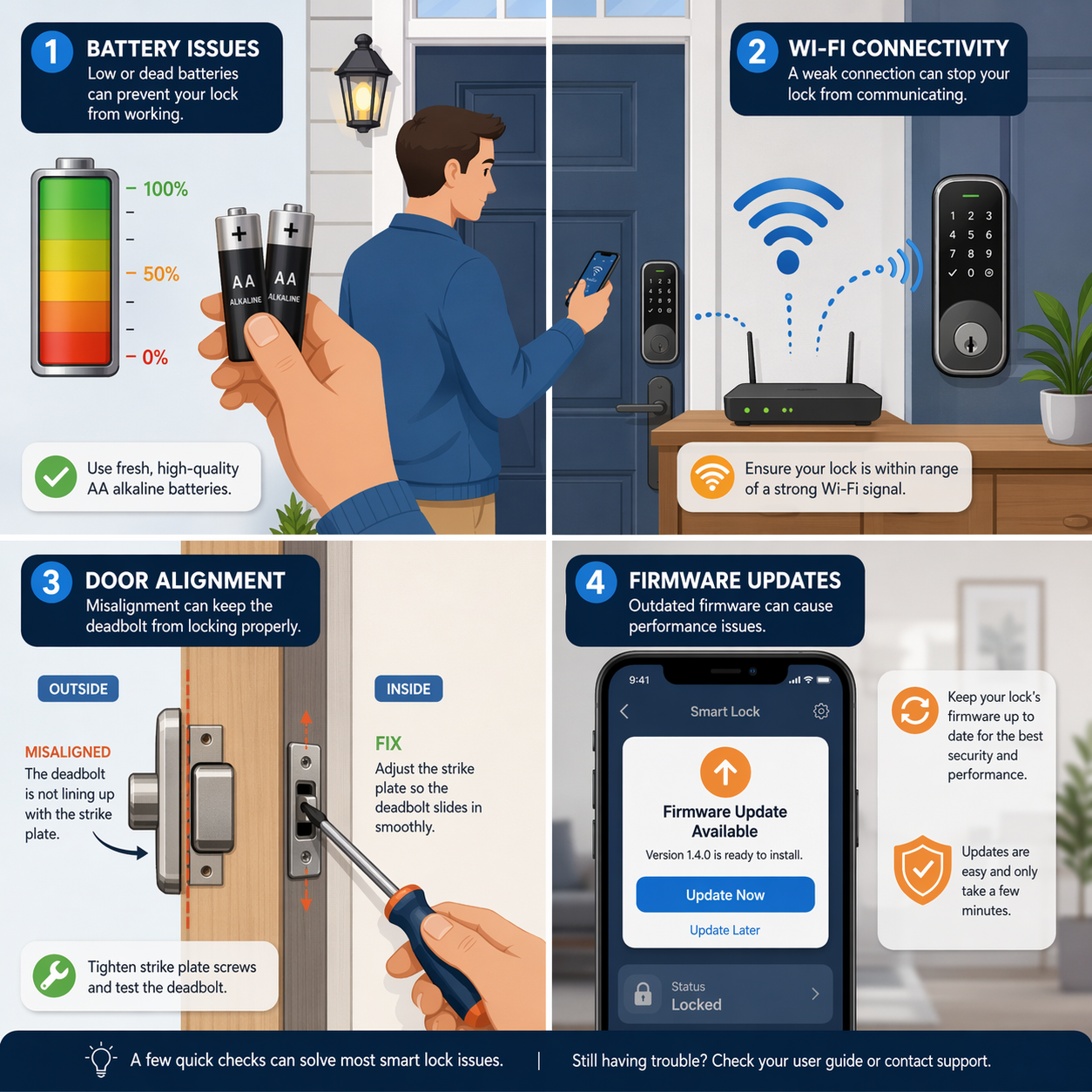
You reach for your phone to unlock the door. Nothing happens. You try the keypad — one beep, then silence. Maybe the app shows the lock as offline, or the deadbolt grinds halfway and stops. Before you call a locksmith or start shopping for a replacement, pause. The odds are you can fix this yourself in the next ten to twenty minutes, no special tools required.
Almost every smart lock problem belongs to one of four categories: battery, mechanical alignment, wireless connectivity, or firmware. Following them in that order resolves the vast majority of issues. The claim that 90% of smart lock problems are DIY-fixable comes from Veise, a lock manufacturer — a reasonable ballpark, though not independently verified. What matters is the method: check the obvious first, then work your way down.
| Symptom | Likely cause | Fix in one line |
|---|---|---|
| Lock unresponsive, no lights | Dead batteries | Replace with fresh alkaline batteries |
| Keypad works but deadbolt jams | Door misalignment | Adjust strike plate or lubricate latch |
| Lock offline in app, intermittent | Wi‑Fi / Bluetooth issue | Check router (2.4 GHz) or move lock/phone closer |
| Wrong status shown, update fails | Firmware glitch | Restart lock, then check for update in app |
| Motor runs but bolt does not move | Mechanical binding | Inspect latch alignment and lubrication |
| Cold weather -> slow performance | Battery voltage drop | Use fresh batteries; voltage recovers above freezing |
The rest of this article walks through each step. If you want a deeper dive into a specific area — network setup, firmware recovery, or installation details — the links within each section point to our focused guides.
Start with the Batteries
Weak or dead batteries cause more smart lock failures than anything else. Before you investigate alignment or wireless settings, replace the batteries with fresh alkaline cells. Do not use rechargeables — their lower voltage can cause intermittent problems even when they still show charge.
Most locks run on AA or AAA batteries and last between three and twelve months, depending on usage, Wi‑Fi polling frequency, and climate. Consumer Reports measured 3–6 months for the August Wi‑Fi Lock; LEROND cites 6–12 months as a typical range. The variance is wide enough that you should treat any published figure as a rough guide, not a guarantee. Cold weather matters a lot: extreme cold (below freezing) can temporarily reduce battery capacity by 30–50%, according to LEROND. If your lock struggles in winter, fresh batteries and a warm spell usually bring it back.
- Replace all batteries at the same time with new alkaline cells from a trusted brand.
- Check the polarity markings in the battery compartment — reversed batteries cause total silence.
- Clean the metal contacts with a dry cloth; corrosion or dust can block power.
The Overlooked Problem: Door Alignment
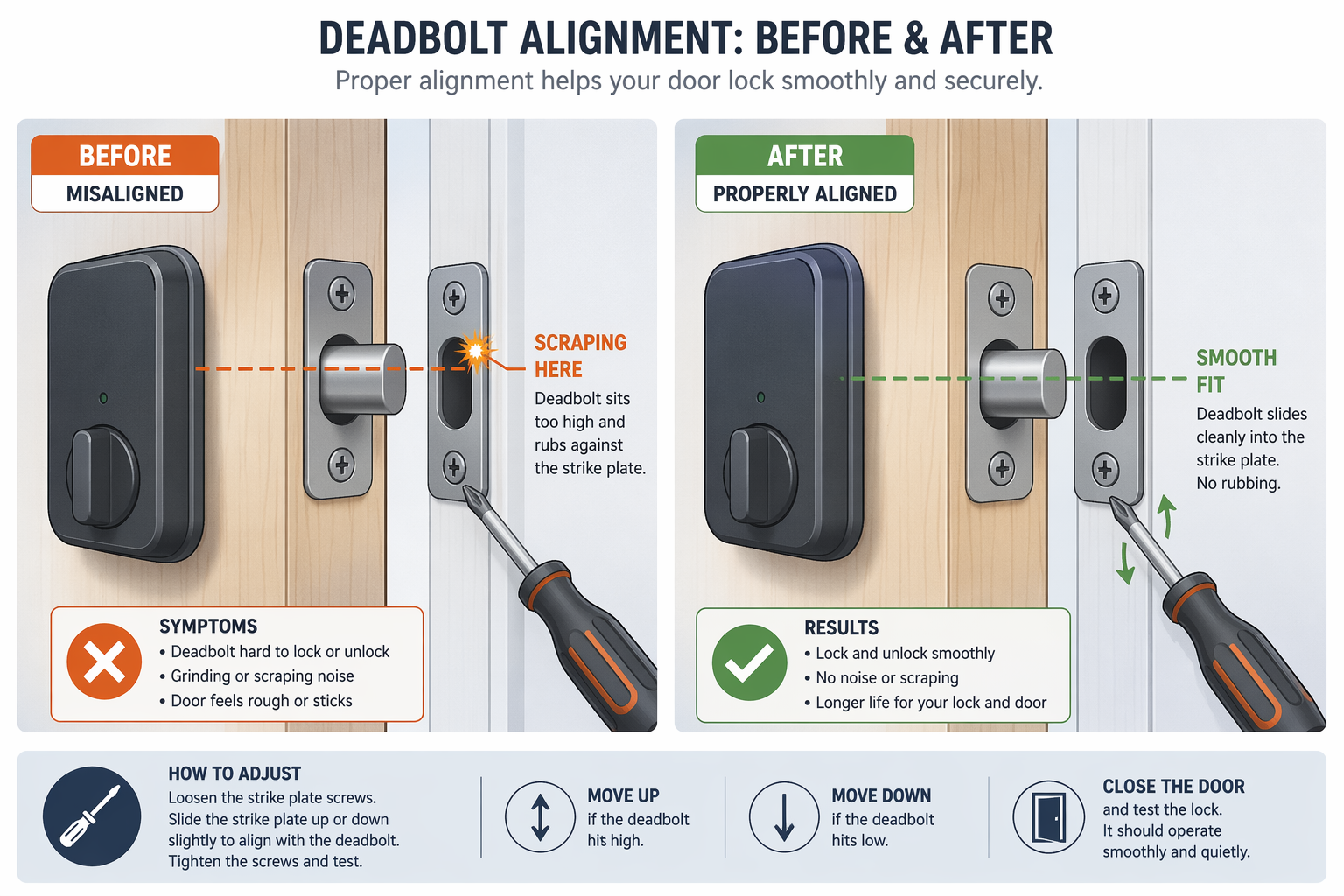
If the lock has fresh batteries but the motor struggles or a false jam alert appears, the door itself is likely the problem. When a deadbolt does not slide cleanly into the strike plate — because the door has shifted with the seasons, or the original installation left a few millimetres of friction — the motor has to work harder. That extra load drains batteries faster and can make the lock report a jam even when nothing is physically blocked.
Costello Carpentry notes that fixing alignment friction can significantly extend battery life. The exact improvement depends on how much friction you remove, but the symptom is unmistakable: the bolt scrapes or sticks when you operate the lock manually with the door closed. Here is how to check and fix it.
- Close the door and use the manual turn (or key) to extend the deadbolt. Does it go in and out smoothly? If you hear scraping or feel resistance, alignment is the issue.
- Loosen the two screws on the strike plate (the metal plate on the door frame) slightly. Tap it a millimetre or two in the direction where the bolt meets less resistance, then retighten.
- Test again. If the scraping persists, you may need to file the strike plate opening slightly wider — a five-minute job with a metal file.
- Lubricate the latch with a dry lubricant like powdered graphite. Do not use oil or WD‑40 — they attract dust and gum up over time.
For a full walkthrough of proper installation to avoid alignment issues from the start, see our smart lock installation guide. It covers the exact measurements and strike plate adjustments that renters and DIY homeowners need.
When Your Lock Won’t Talk: Connectivity Problems
Batteries good, bolt moves freely, but the app says the lock is offline, or commands take forever to reach it. This is almost always a network issue, not a defective lock.
The single most common cause: the lock is trying to connect to a 5 GHz Wi‑Fi network that it cannot use. Most smart locks support only 2.4 GHz. If your router broadcasts both bands under the same SSID, the lock may pick the wrong one and fail. Fix: either separate the bands in your router settings, or move the lock within range of a dedicated 2.4 GHz access point.
Bluetooth-based locks have a shorter reach — Lockly cites a typical maximum range of about 25 feet — and walls, metal doors, and large appliances can block the signal. If the lock only responds when you are standing right next to it, the Bluetooth connection is simply too far. A Wi‑Fi bridge or a smart hub (if the lock supports Z‑Wave or Zigbee) can extend the range.
- Restart the router and the lock. This clears temporary routing glitches.
- Confirm the lock is connected to a 2.4 GHz network (check router settings or your lock app).
- Move the router closer to the lock, or add a Wi‑Fi extender. A distance of 15–25 feet with one interior wall is usually fine; more walls or metal doors degrade the signal rapidly.
For a deeper look at Wi‑Fi interference, band steering, and router placement, read our guide Why Your Smart Home Keeps Breaking: The Network Is Usually the Problem.
Software and Firmware: The Last Step
If all hardware checks pass — fresh batteries, smooth bolt, solid network connection — and the lock still shows wrong statuses, fails to sync, or became unresponsive after an update, the culprit is likely firmware or app software. These issues are less common but can produce the most confusing symptoms because the lock behaves normally until you look at the app.
- Open the lock's app and check for a firmware update. If one is available, install it while the lock is nearby and on good battery power.
- Power-cycle the lock by removing the batteries for 30 seconds, then reinserting. This clears transient glitches without losing settings.
- If the lock is still unresponsive, perform a factory reset (usually a pinhole button or a series of keypad presses). You will need to reconnect it to the app and reconfigure schedules.
For a detailed recovery ladder when a lock fails after a firmware update — including how to re-pair when the app no longer sees it — see Smart Lock Not Pairing or Unresponsive After a Firmware Update.
One more thing: a smart lock lives outdoors. Direct sunlight can overheat the keypad, making buttons unresponsive until it cools. Humidity and rain can cause condensation inside the battery compartment — dry it before replacing the cover. Seasonal door expansion can shift alignment. If the lock worked smoothly six months ago and now sticks, check the door first.
Preventive Maintenance: Keep It Running
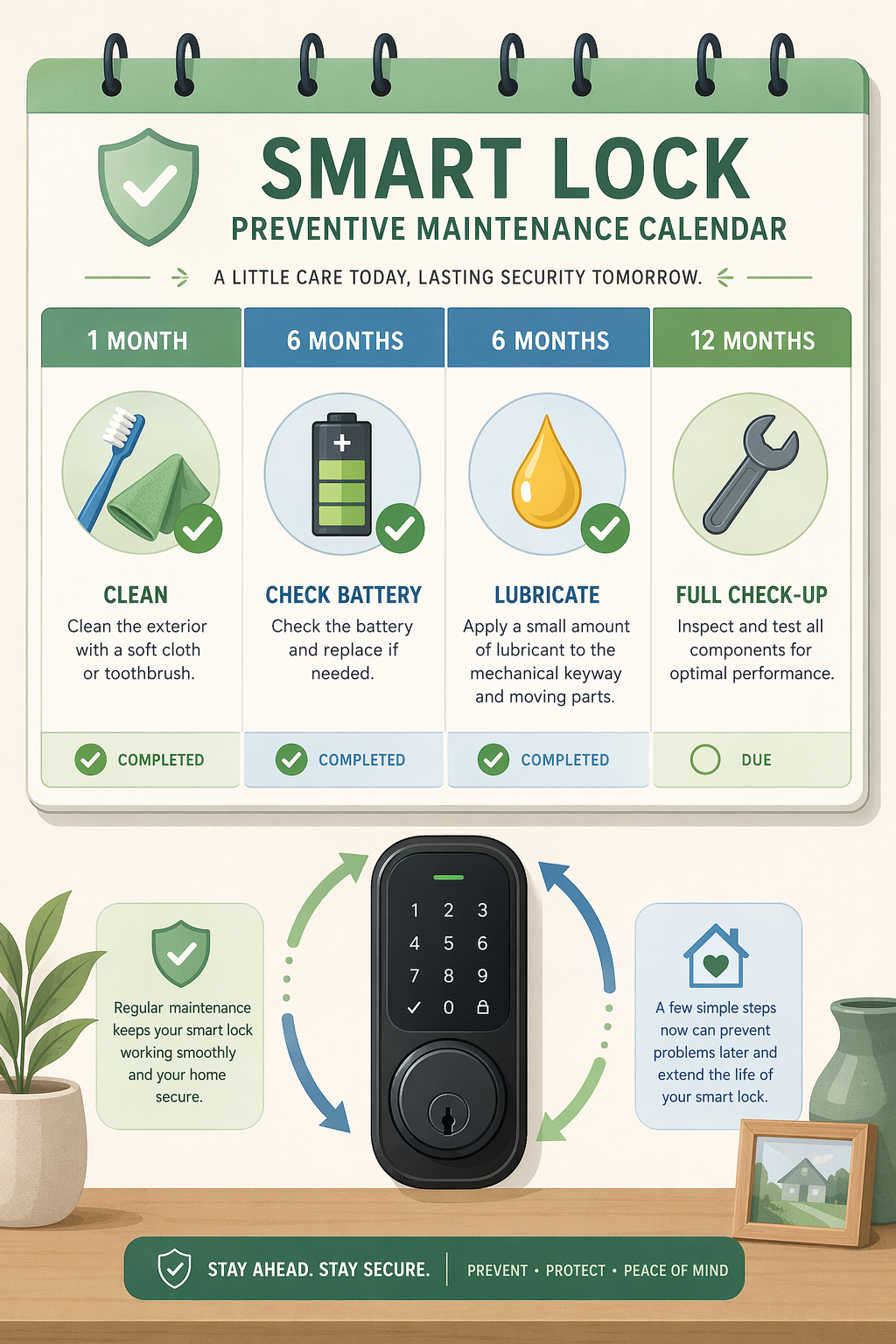
Most smart lock breakdowns are slow — batteries fade, alignment shifts, dust builds up. A simple maintenance schedule prevents most of the surprises. I would not put a number on it, but experience backs the routine.
- Every 6 months: replace batteries with fresh alkaline. Mark it on your calendar.
- Every 6 months: lubricate the latch with a small amount of powdered graphite.
- Every 12 months: check door alignment by cycling the deadbolt manually and looking for scraping. Adjust the strike plate if needed.
- As needed: wipe the keypad and sensor with a dry microfiber cloth, and blast out dust from the deadbolt hole with canned air.
When to Accept It’s Time for a Replacement
The diagnostic order works on the vast majority of cases, but some locks genuinely need replacing. Signs: physical damage (cracked housing, snapped bolt), persistent firmware corruption that a factory reset cannot fix, or a motor that sounds sick even with a perfectly aligned door. If your door thickness is outside the 1‑⅜ to 2‑inch range that most smart locks require (Veise, among others, states this limit), the lock was never a good fit and may keep failing.
If you decide to replace, our Best Smart Lock Buyer Guide 2026 covers installation type, ecosystem, and protocol — so the next lock is chosen with troubleshooting already in mind.
Corroborating context
For protocol background on why this failure happens, see Compatibility & Protocols.
Not currently linked to a known regression. Background on the underlying protocol lives in Compatibility & Protocols.