Smart Home Device Troubleshooting: A Complete Step-by-Step Fix-It Guide for 2026
General smart home device failures including offline, automation failures, connectivity drops
Last updated
Don't Blame the Hardware Yet
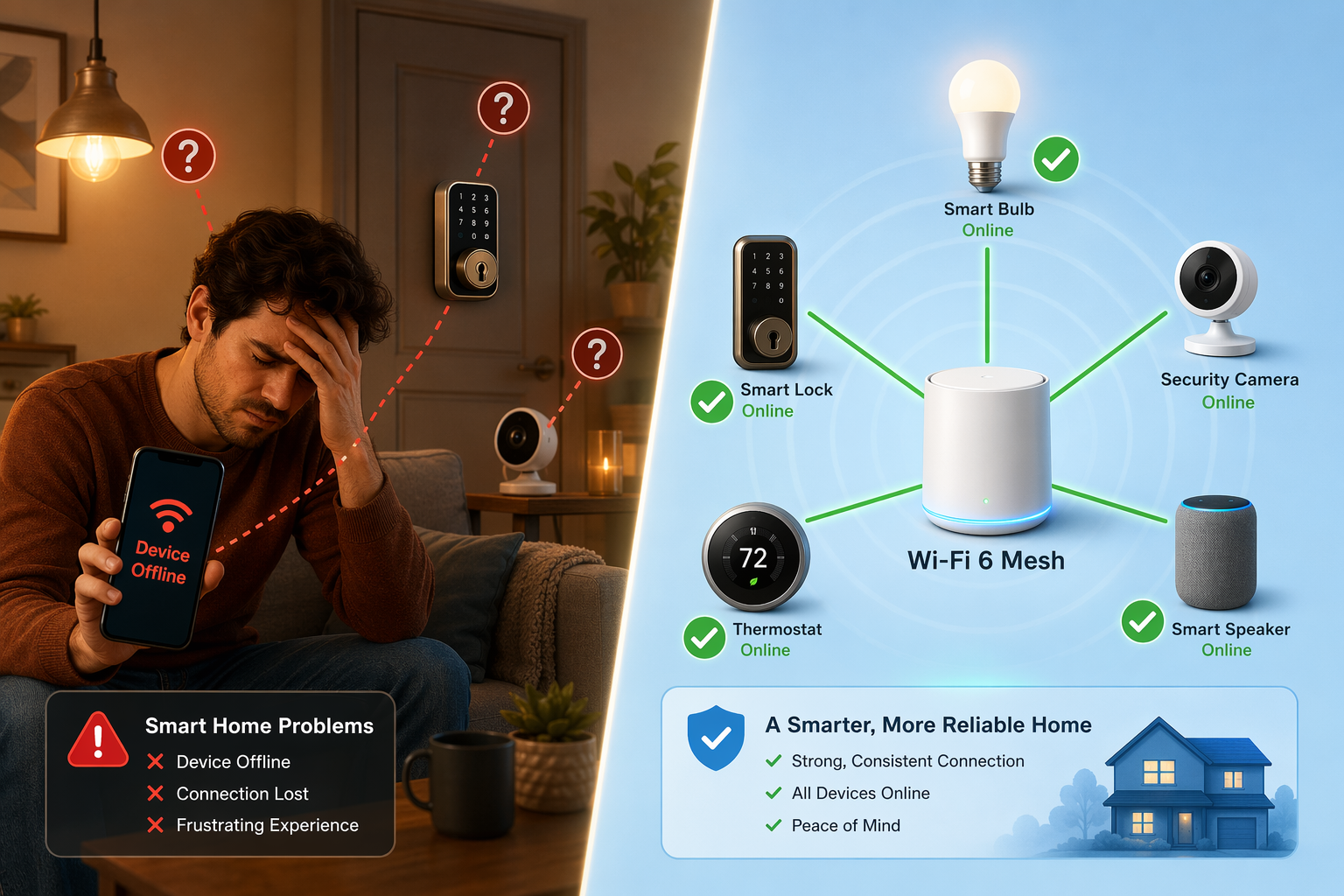
You just installed a new smart bulb, a video doorbell, and a smart lock. Within a week, one is unresponsive, the doorbell feed drops every hour, and the lock refuses to auto-lock when you leave. Your first thought: the hardware is defective. Replace it. But I've been through this cycle enough times to know: the device is usually fine. According to Parks Associates data cited by SQ Magazine, 52% of DIY smart home installers report setup or connectivity issues. That figure doesn't count problems that develop later, but it points in the same direction: connectivity—not broken silicon—causes the majority of frustrating failures. The device itself is probably fine.
The Four-Layer Model: A Map, Not a Protocol
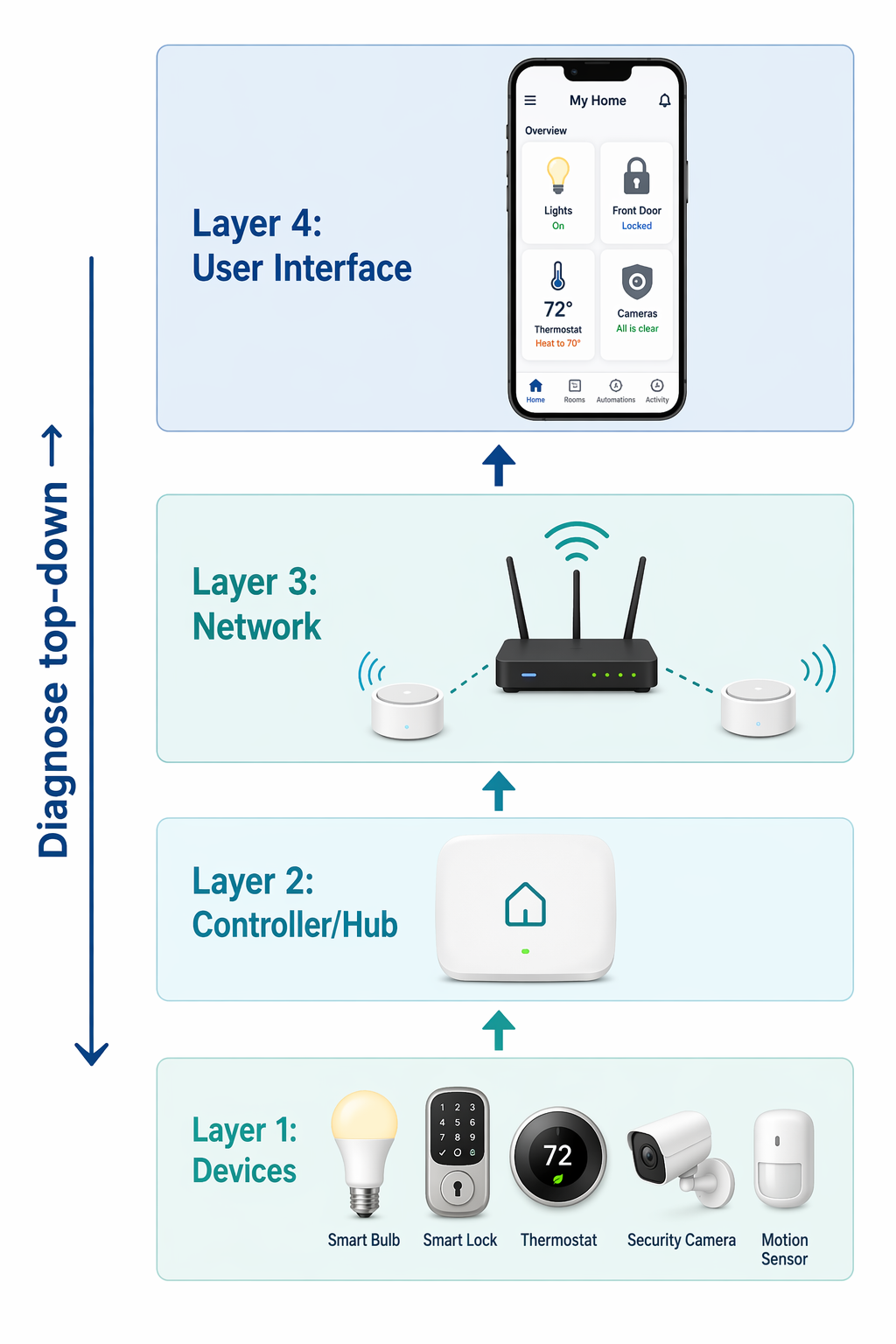
Instead of guessing, use a repeatable sequence. Think of your whole system in four layers:
- Devices – the physical hardware (lights, locks, cameras, sensors)
- Controller / Hub – the brain that processes automations and coordinates protocols (Echo, HomePod, SmartThings hub, Home Assistant server)
- Network – the Wi‑Fi, Zigbee, Z‑Wave, or Thread mesh that carries signals
- User Interface – the app, voice commands, automation logic, and account subscriptions
These layers are presented in the order you should diagnose: start at the network, because that's the most common culprit, then work up or down as needed. But don't treat them as cleanly separable. A network fix (Layer 3) may require re‑pairing a device (Layer 1), and a hub reboot (Layer 2) often resolves automation failures that look like app bugs (Layer 4). The model is a starting map, not a rigid protocol. And if you have a mixed‑brand, multi‑protocol household with 15+ devices, expect that the clean sequence will blur.
Start with the Network
If more than one device is acting up, here's where I start. A single weak Wi‑Fi signal or a crowded 2.4 GHz band can make half your smart home devices unreliable. Here's what to check:
- Router placement. Put the router near the center of your home, away from thick walls, large furniture, and Bluetooth devices that share the 2.4 GHz band.
- Band selection. Use 5 GHz for video cameras and 2.4 GHz for less demanding devices like sensors. Many IoT devices only work on 2.4 GHz—if they drop, your phone might be forcing them onto 5 GHz. Check the app settings.
- Device count. Vesternet recommends keeping each Wi‑Fi network under 25 devices. If you're approaching that, consider splitting bands or adding a mesh node.
- Mesh spacing. For Zigbee or Z‑Wave, keep devices within 15–20 feet of each other. A single thermostat too far from the rest can break the whole mesh chain.
- IoT isolation. A dedicated guest network or VLAN keeps smart home traffic from competing with streaming and work traffic. Forbes recommends this as a stability—and security—upgrade.
| Fix | When to try |
|---|---|
| Restart the router | When all devices are slow or dropping |
| Switch bands (2.4 ⇄ 5 GHz) | When one device keeps disconnecting |
| Move router / mesh node | When dead zones are obvious |
| Reduce device count per network | When you have >20 Wi‑Fi devices |
If you've done all that and still have trouble, a new router with Wi‑Fi 6 or Wi‑Fi 6E can transform responsiveness—but only after you've ruled out placement and congestion. Don't buy hardware until you've verified the problem is the hardware.
When One Device Acts Up: Reboot, Firmware, Batteries
When the network is solid but a single device acts up, go to Layer 1. CNET's eight‑step cure‑all recommends a full power‑cycle sequence: device → app → phone → router. My experience: a partial restart often works faster. The most impactful step is restarting the hub or voice assistant, because that's what processes automations. If that doesn't help, do the full cycle.
- Check firmware updates. Most devices do not auto‑update without permission. Open the app and look for a firmware version—if it's older than a few months, update and wait 10 minutes.
- Try a different power adapter. A dying charger can make a camera or sensor appear dead. Use the one that came in the box, or a high‑quality alternative.
- Forget and re‑pair. Remove the device from the app, reset it (see manufacturer instructions), and add it again. This often clears sticky connection states.
- Check batteries. Weak batteries cause dropouts that look like network problems. Replace them with fresh, brand‑matched cells.
The Hub: The Hidden Brain That Needs Its Own Reset
Automations that stop firing for no obvious reason often trace back to the controller. Your Alexa, Google Hub, HomePod, or SmartThings hub is running routines, processing voice commands, and coordinating multiple protocols. A hung hub will keep Wi‑Fi alive but break every routine.
Restart the hub first—before you touch individual devices. Power it off for 30 seconds, then back on. Wait two minutes. Test. If automations still fail, check whether the hub is processing locally or in the cloud. Apple HomeKit and Home Assistant process locally by default, which reduces latency and dependency on internet (Security.org). If your setup depends heavily on cloud processing (most Alexa and Google routines), an internet outage will break everything.
Matter was supposed to erase these boundaries, and version 1.6 arrived in June 2026. But a Matter‑certified device is only as good as the firmware on every device in the chain. Matter certification does not guarantee seamless cross‑platform behavior until all devices—especially the hub—run the latest version. Check each manufacturer's release notes.
Last Check: Automations, Voice, and Billing
The final layer is the one most people miss. Your devices, network, and hub are all healthy, but the automation doesn't fire, the voice command is ignored, or a feature is missing. Before you declare the system broken, check these:
- Overly complex automations: If a routine depends on five sensors, a time range, and a specific mode, simplify it. Use multiple triggers (e.g., two motion sensors) so a single failure doesn't kill the whole routine.
- Network outages broke the routine: After a router restart, delete and recreate the automation. Some platforms don't automatically re‑sync after connectivity changes.
- Voice command phrasing: Be direct. 'Turn on the kitchen lights' works better than 'Let there be light in the kitchen.' Avoid slang and unusual vocabulary.
- Subscription gates: Many security cameras lock AI alerts, cloud storage, and advanced automations behind monthly fees. Check your billing before assuming the camera is faulty. Same for smart locks that lose geofencing when connected through a different platform's app (CNET).
What the Model Can't Fix
The four‑layer model solves the majority of simple, single‑ecosystem setups. For a mixed‑brand, multi‑protocol household with 15+ devices, the 80% success claim is too optimistic. Some problems are genuinely not fixable with a reboot:
- Hardware failures (blown fuse, melted capacitor, dead battery controller) are not end‑user repairable. If the device won't power on after trying a known‑good power source, it's time for an RMA (IoT For All).
- Incompatible firmware versions across the chain. A matter‑certified hub may be on 1.6, the lock on 1.5, and the bridge still on 1.4. Nothing you do in the app will fix that mismatch until all vendors push updates.
- Some connectivity problems require a new router or a mesh upgrade. If your home has thick concrete walls, no amount of rebooting will fix a dead zone.
- If none of the above works, escalate to the manufacturer's support or return the device. A warranty replacement is faster than days of guesswork.
Maintenance That Won't Overwhelm You
Monthly network healing and firmware checks are ideal, but few households actually do them. Here's a realistic version:
- Quarterly (for everyone): Restart your main router and hub. Check firmware on the three most critical devices (router, hub, camera). Re‑pair any device that has been acting up.
- Monthly (for homes with >20 smart home devices): Run Zigbee/Z‑Wave network healing from the hub app. Update all firmware. Restart the router even if nothing seems broken.
- Every six months: Review your subscription plans. Cancel any you're not using. Check for new automation recipes that simplify old routines.
Your Smart Home Is Probably Fine
Most smart home frustrations are not caused by broken hardware. They come from weak Wi‑Fi, outdated firmware, a hung hub, a misconfigured automation, or a forgotten subscription. The four‑layer model gives you a structured way to find which layer is the bottleneck—and a repeatable sequence to fix it without starting over.
When it works, great. When it doesn't, you'll know whether the real fix needs a factory reset, a new router, or a call to support. And that knowledge alone saves the hours of frustration that normally follow the first 'Device Offline' message.
Corroborating context
For protocol background on why this failure happens, see Compatibility & Protocols.
Not currently linked to a known regression. Background on the underlying protocol lives in Compatibility & Protocols.