Smart Home Automation System Troubleshooting: Diagnose Failures Layer by Layer
Smart home automation system unresponsive or failing intermittently
Last updated
If your smart home automation system is failing, the first useful thing to know is that this is not a personal competence test. One industry statistic, cited by SQ Magazine from Parks Associates’ Q2 2025 Smart Home Tracker, says 52% of DIY smart home installers report setup or connectivity issues.[1] The sourcing matters: this is a secondary citation, not the original Parks report in front of us. Still, it matches what most households eventually discover after the exciting setup phase ends: the system may have worked beautifully for months, then one evening a hallway light ignores its motion sensor, a lock spins in the app without responding, or an automation runs only when someone opens the app and stares at it.
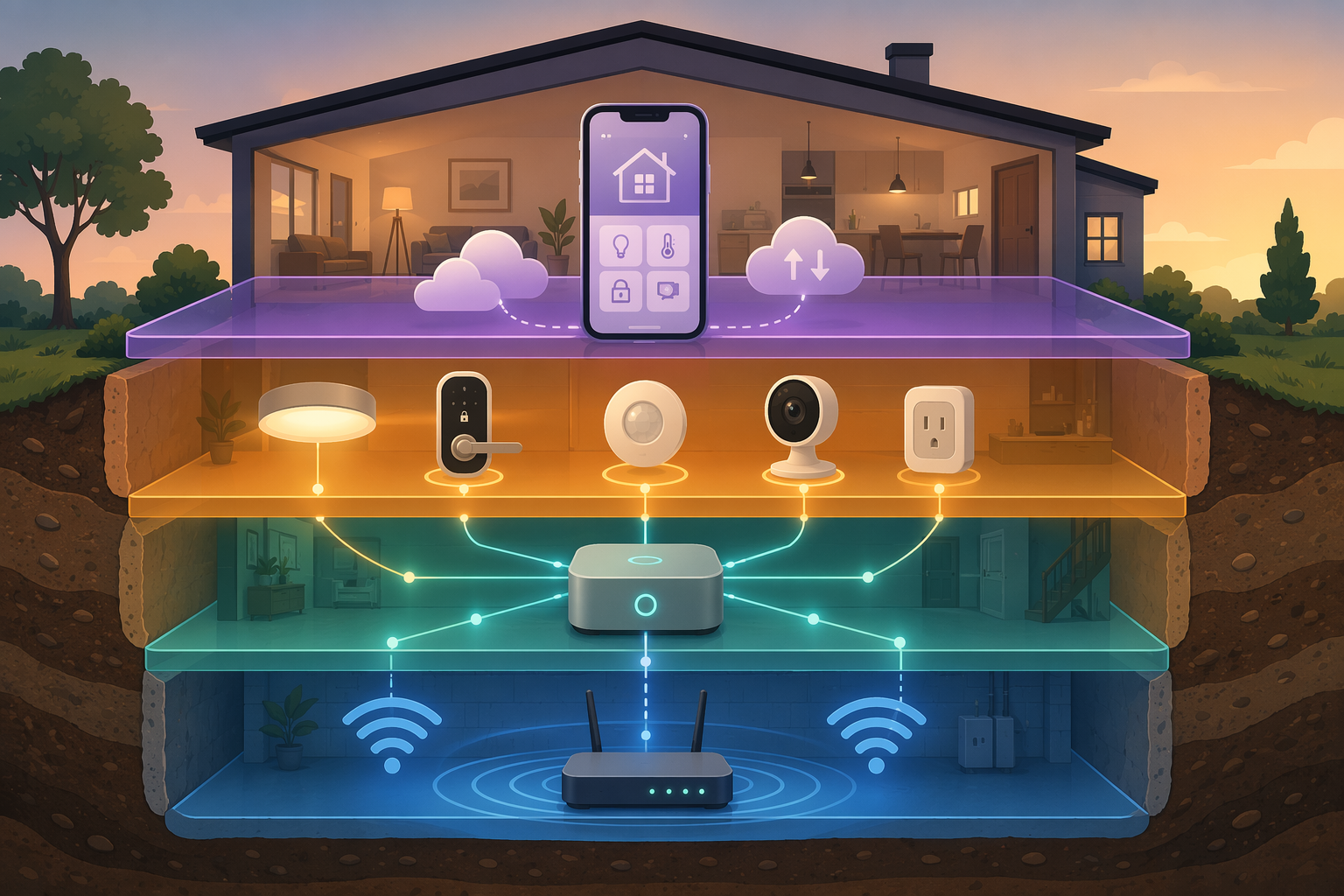
The mistake is treating every failure as a device failure. A smart bulb can look guilty when the router is overloaded. A sensor can look dead when the hub has lost its mesh route. A lock can seem broken when the app account no longer has the right permission. The faster path is to find which layer failed: network, hub or controller, individual device, or app and cloud.
Start With the Failure Pattern
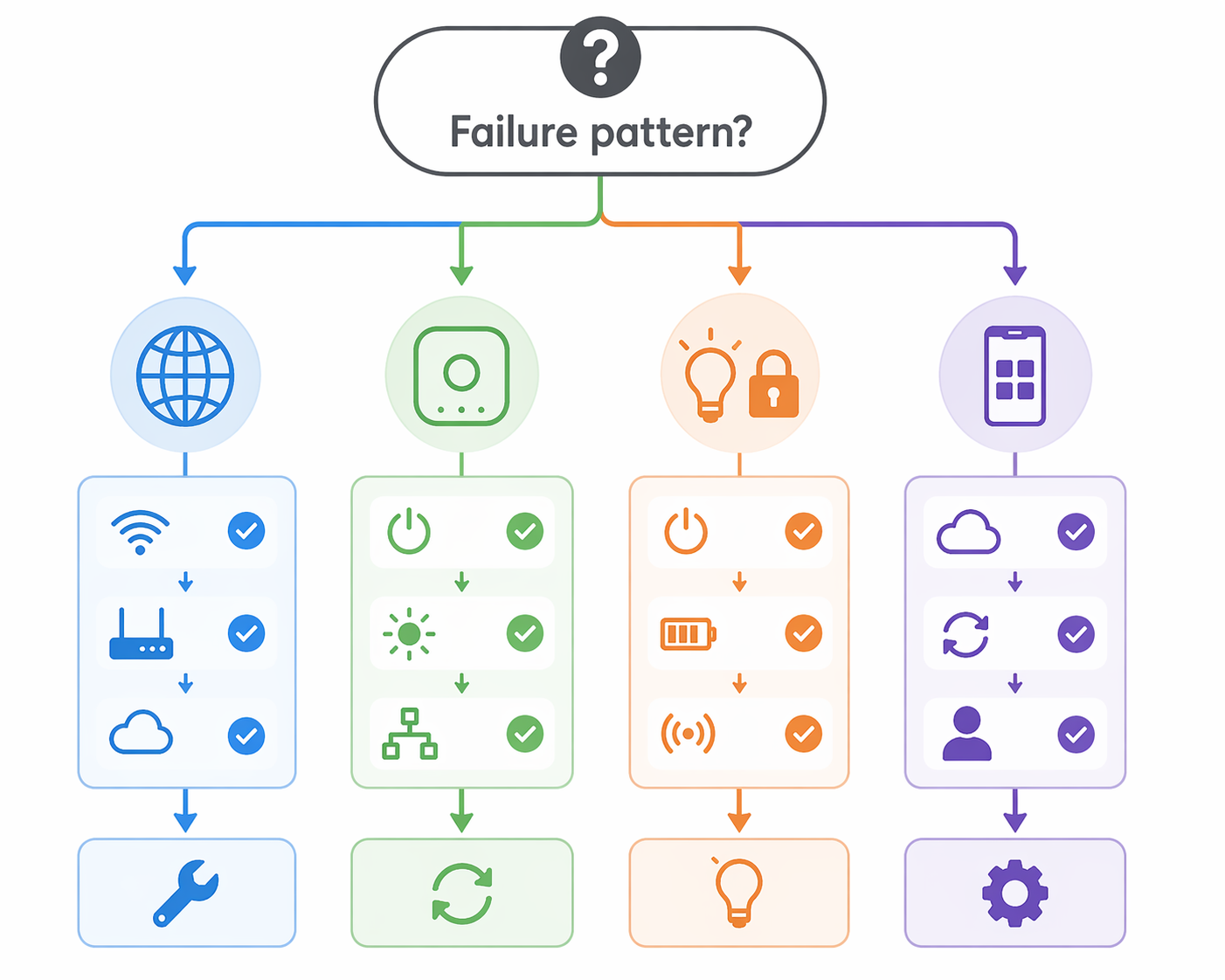
Before restarting anything else, sort the problem by its shape. This preserves evidence. A dramatic factory reset may feel decisive, but it often erases the pairing, logs, route history, and settings that would have told you where the real fault was.
| What you see | Most likely layer to check first |
|---|---|
| Everything is slow or offline, including devices from different brands | Network, then internet/cloud |
| One room or one side of the house is unreliable | Wi-Fi coverage or Zigbee/Z-Wave mesh path |
| Only Zigbee, Z-Wave, Thread, or hub-managed devices fail | Hub/controller or protocol mesh |
| Only one bulb, lock, sensor, camera, or plug fails | Individual device |
| Manual control works, but automations do not | Hub/controller logic, schedules, modes, or permissions |
| The app behaves differently for different household members | App account, permissions, cache, or cloud state |
The Hook Up describes a useful “increasing-outage” way to understand a smart home’s dependency chain: test what still works when the cloud is unavailable, then when the hub is unavailable, then when the broader network is unavailable.[2] You do not need to damage anything or pull cables wildly. The point is to observe which controls survive each outage. If an automation still runs without internet, it has some local control. If it dies the moment the cloud is unreachable, you have learned something more useful than “the device is flaky.”
Check the Network Before Blaming the Device
The network layer deserves first attention when failures are broad, intermittent, or strangely selective. Wi-Fi devices, hubs, phones, tablets, cameras, speakers, TVs, and laptops all ask the same home network to keep track of them. The fact that your laptop streams video does not prove the smart plug in the laundry room has a stable path back to the router.
Vesternet recommends keeping devices per Wi-Fi network under 25 as a general smart home best practice.[3] Treat that as a warning sign, not as a universal router limit. A newer router with modern Wi-Fi standards and a light mix of traffic may handle more. An older ISP-supplied router, especially one managing cameras and many always-connected devices, may struggle earlier. The practical question is not “Am I over exactly 25?” but “Did reliability decline as the device count grew?”
When several Wi-Fi devices fail at once, look for three things: address exhaustion, weak coverage, and router load. Address exhaustion is less common in ordinary homes but can appear when networks have been customized carelessly. Weak coverage is more common: a phone may show two bars in a corner, while a small embedded Wi-Fi radio inside a plug or camera performs worse from the same outlet. Router load is the quiet one. The router may still “work,” but smart devices begin missing commands, dropping from the app, or taking long enough to respond that automations feel broken.
Do the boring checks in an order that tells you something. First, confirm whether internet access itself is unstable by testing from a phone and a computer. Then check whether local control works for any device from inside the home. After that, look at the router’s connected-device list. If devices are rapidly disconnecting and reconnecting, the problem is probably not one bad lamp.
Wi-Fi Mesh Placement Is Not Decoration
A mesh Wi-Fi node belongs where it can still hear the main router well, not at the exact dead spot you are trying to rescue. If you place the node in the dead spot, it may faithfully repeat a weak connection. Move it halfway back toward the router and retest the failing device. This is especially important for cameras, outdoor plugs, garages, and detached spaces, where a device can appear online during setup and then fail later under normal household interference.
If only one distant Wi-Fi device fails, temporarily move it close to the router. If it behaves normally there, you have a coverage problem or interference problem, not proof that the device is defective. If it still fails beside the router, the device, app, account, or firmware becomes more suspicious.
Zigbee and Z-Wave Meshes Need Powered Neighbors
Zigbee and Z-Wave are not Wi-Fi, and their mesh behavior is often misunderstood. Many powered devices can relay messages. Battery endpoints usually cannot. A house full of battery sensors does not automatically create a strong mesh; it may create a lot of quiet little endpoints waiting for a route through a few powered plugs, switches, dimmers, or repeaters.
Vesternet’s guidance places Z-Wave and Zigbee devices within about 15 to 20 feet of each other for healthy mesh behavior, and it also recommends network healing for Z-Wave/Zigbee systems as part of maintenance.[3] Walls, appliances, metal boxes, masonry, and floor changes can make that distance optimistic. The number is still useful because it reminds you that a hub in a utility closet and a sensor at the far end of the house are not in a relationship just because an app page says they belong to the same system.
- If one room is unreliable, add or reposition a powered repeater between that room and the hub.
- If battery devices fail after furniture, appliances, or the hub moved, suspect the route before replacing the sensor.
- If a powered repeater was unplugged, removed, or replaced, let the mesh rebuild and then run the platform’s repair or heal process if available.
- If the hub sits beside a Wi-Fi router, USB drive, or dense electronics cluster, move it slightly away and retest.
When the Hub Is the Bottleneck
The hub or controller is where many people lose patience because its failures impersonate everything else. A controller that is overloaded, stale after months of uptime, stuck after an update, or struggling with a weak protocol mesh can make individual devices look unreliable. This is where a careful restart helps. It is not magic; it clears a controller state that may have become confused while preserving the system structure.
Vesternet recommends monthly controller restarts as preventative maintenance.[3] That cadence is reasonable for many homes because it treats the controller like infrastructure, not like a decorative gadget you only notice when it fails. If your hub has not restarted since the last major firmware update or power outage, restart it from the official interface if possible, then wait for devices to check back in before judging the result.
After the restart, avoid immediately re-pairing everything. Watch the pattern. Do hub-connected devices recover together? Do automations resume? Does only one protocol group remain broken? A clean pattern after restart points toward controller state. A partial recovery points toward mesh health, device state, or an integration problem.
Z-Wave, Zigbee, and Thread Each Fail Differently
For Z-Wave and Zigbee, inspect the network map, route table, or device health page if your platform exposes one. A device that still exists in the hub but has no reliable route is not the same as a device that has been excluded or reset. Run the platform’s repair, heal, or rediscovery tool when the mesh has changed: after moving the hub, unplugging repeaters, replacing switches, or adding a cluster of new devices.
Thread adds another wrinkle: the border router. A Thread device may depend on an Apple, Google, Amazon, or other compatible border router to connect the Thread mesh to the rest of the home network. If a group of Thread devices fails together, check whether the border router is powered, on the same home network, updated, and still recognized by the platform. Do not start resetting tiny sensors until you know the bridge between Thread and the rest of the system is alive.
Controller choice can also become the root problem. If you have outgrown a cloud-first bridge, need stronger local automation, or are juggling multiple protocol islands, troubleshooting may keep returning to the same limitation. At that point, a controller decision is more useful than another evening of patching symptoms; a structured guide such as How to Choose a Home Automation Controller in 2026 or a broader comparison of smart home automation systems can save time.
Use Device Fixes Only After the Pattern Narrows
Once the failure has narrowed to one device or one device category, ordinary remedies become much more useful. Reolink and ExcalTech both cover common smart home issues such as camera connectivity problems, unresponsive locks, lighting failures, app trouble, and re-pairing steps across device categories.[5][6] The important part is sequencing. Resetting one camera after you have proven only that the entire network is unstable is just busywork.
| Device type | What to check before factory reset |
|---|---|
| Smart bulbs and switches | Power state, neutral-wire or switch behavior, hub route, recent automation changes |
| Locks | Battery level, door alignment, motor strain, hub distance, user permissions |
| Sensors | Battery, mounting position, contact alignment, mesh route, wake interval |
| Cameras | Wi-Fi signal, upload bandwidth, power supply, app permissions, storage or cloud status |
| Smart plugs | Outlet power, load type, Wi-Fi or mesh route, schedule conflicts |
| Control panels | Network connection, account state, wall power, assigned dashboard or room permissions |
Lighting deserves special caution because the physical switch still matters. A smart bulb with its wall switch turned off is not offline in a mysterious way; it has no power. A smart switch controlling incompatible bulbs may behave inconsistently. If lighting problems keep returning, it may be worth stepping back and comparing whether your home should use smart bulbs, switches, or a whole-home lighting approach instead of treating each lamp as a separate mystery.
Locks deserve patience for a different reason. A lock may report low battery late, or it may have enough battery to report status but not enough to drive the motor reliably. Door alignment also matters. If the bolt rubs the strike plate, the motor works harder and the app may show a connectivity-style delay even though the mechanical problem is at the door.
Cameras are often blamed as smart home devices when they are really bandwidth and signal tests wearing plastic housings. A camera at the edge of Wi-Fi coverage may connect during setup, then fail during night vision, recording, or live view. Before resetting it, test it closer to the router and verify power. If it improves, fix placement or coverage. If it does not, then firmware, account, storage, or hardware becomes more plausible.
Control panels and wall tablets sit between device and app troubleshooting. If a panel shows stale device states while the phone app works, check whether it is on the correct Wi-Fi network, whether the dashboard still has permission to control those rooms or devices, and whether the panel app needs a refresh. A buying or configuration checklist such as the Smart Home Control Panel Buyer’s Checklist is more relevant when the panel itself is the weak daily interface.
When Manual Control Works but Automations Fail
This pattern is easy to misread. If you can turn on a light from the app but the motion automation no longer triggers it, the light is probably not the first suspect. The automation depends on the trigger, conditions, schedule, mode, controller, and target device. Any one of those can break while manual control remains fine.
- Check the trigger first: motion, contact, time, presence, button press, voice command, or external service.
- Check conditions next: household mode, time window, lux level, occupancy state, security state, or “only if” rules.
- Check the action target: the device, scene, group, or room the automation is trying to control.
- Check recent changes: renamed devices, moved rooms, deleted scenes, firmware updates, app updates, or changed permissions.
A common household example is a motion sensor that still reports motion, a light that still turns on manually, and an automation that stopped after someone renamed the room or changed the mode schedule. Nothing is broken in the dramatic sense. The rule is pointing at the wrong state, running under the wrong condition, or waiting for a trigger that no longer arrives.
For presence automations, be especially suspicious of phones. Operating system battery settings, location permission changes, and app background restrictions can make “arrived home” and “left home” unreliable. If only one household member’s presence breaks, that is not a whole-home automation failure. It is probably a phone permission, app login, or account-level issue.
App and Cloud Problems Usually Leave Clues
The app/cloud layer becomes the leading suspect when different users see different device states, when the vendor app fails but local automations still run, or when a voice assistant says a device is unavailable even though the hub controls it normally. This layer includes phone app cache, account permissions, integrations between platforms, vendor cloud outages, and cloud-to-cloud links.
Start gently: force-close the app, reopen it, and compare with another household member’s phone. If the other phone works, check permissions, home membership, room access, and whether your account has been demoted from owner to member. Then clear the app cache if the platform supports it, sign out and sign back in, and reinstall only if the app continues to show stale state.
Cloud outages need a different response because nothing inside your house may be broken. Check the vendor’s status page if available, then test local control. The Verge’s smart home hub guide notes that platforms such as Home Assistant, Hubitat, and Homey Pro can maintain automation functionality when the internet goes down, depending on setup and device choices.[4] That is not a guarantee that every integration remains local, but it is a real advantage when reliability matters more than remote convenience.
Voice assistants can confuse the picture because they often sit on top of another system. If Alexa, Google Home, or Apple Home cannot control a device, but the device’s main app or local hub can, the voice layer is the problem. Re-link the skill or integration, sync devices, check duplicate device names, and confirm the assistant account still has access to the right home.
A Practical Layer-by-Layer Diagnostic Flow
When someone is standing in the hallway tapping an app, the perfect diagnostic chart is less helpful than a short sequence that prevents damage. Use this order when the failure is active.
- Name the pattern: everything, one room, one protocol group, one device, automations only, or one user account.
- Check network health: internet, local Wi-Fi, router connected-device list, mesh node placement, and overloaded device count.
- Check the hub/controller: restart from the official interface, inspect protocol health, and repair or heal the mesh if routes changed.
- Check the affected device: power, battery, physical placement, route, firmware, and category-specific behavior.
- Check app/cloud state: account permissions, app cache, integration status, vendor outages, and local-control behavior.
- Reset or re-pair only after the evidence points to that device or integration.
This order is not about being tidy. It is about avoiding the most expensive kind of troubleshooting: changing several things at once and then not knowing which change mattered. If you restart the router, factory-reset the lock, reinstall the app, rename the room, and reauthorize the voice assistant in one burst, the system may come back, but you have learned almost nothing for the next failure.
Maintenance Prevents the Slow Failures
Smart homes often decay quietly. A router gains more clients. A hub goes months without a restart. A powered plug that was helping the mesh gets moved for holiday lights and never returns. Batteries fade. Apps update. Cloud services change behavior. Permissions drift as household members change phones or accounts.
| Cadence | Maintenance task |
|---|---|
| Monthly | Restart the controller or hub through its official interface; review obvious offline devices. |
| Monthly | Look for router or Wi-Fi mesh nodes that are overloaded, misplaced, or offline. |
| Quarterly | Sweep batteries in locks, sensors, remotes, buttons, and other endpoints. |
| Biannually | Run a Z-Wave/Zigbee repair, heal, or health check after confirming powered repeaters are in their intended places. |
| After major changes | Recheck automations, room assignments, permissions, and voice assistant integrations. |
If you are rebuilding rather than repairing, the setup choices matter. A guide on how to build a smart home automation system that works together is more useful before the next device purchase than after the next outage. For households moving toward Matter or Home Assistant hardware, a guide to Matter hubs and Home Assistant hardware can help separate controller capability from device marketing.
Know When It Is Not a DIY Problem
A layer-by-layer process resolves many ordinary failures, but it should not turn into stubbornness. Faulty hardware, incompatible firmware versions, ISP-level problems, vendor-side outages, damaged wiring, weak electrical boxes, and failed power supplies can all sit outside what a homeowner should keep poking at. If a mains-powered switch is involved and the wiring is uncertain, stop and call a qualified professional. If a lock will not secure reliably, treat that as a security problem, not a hobby project.
The goal is not to prove that smart homes are simple. They are layered systems living in busy houses. Troubleshooting gets easier when you stop restarting randomly and start asking which layer actually failed.
References
- Smart Home Statistics, SQ Magazine, https://sqmagazine.co.uk/smart-home-statistics/
- 7 Common Smart Home Fails and How to Avoid Them, The Hook Up, https://www.thesmarthomehookup.com/7-common-smart-home-fails-and-how-to-avoid-them/
- Troubleshooting Common Smart Home Issues: A Comprehensive Guide, Vesternet, https://www.vesternet.com/blogs/smart-home/troubleshooting-common-smart-home-issues-a-comprehensive-guide
- The best smart home hubs of 2024, The Verge, https://www.theverge.com/24087882/smart-home-hub-apple-google-alexa
- Top 7 Smart Home Issues and Solutions, Reolink, https://reolink.com/blog/smart-home-frequent-issues/
- 10 Most Common Smart Home Issues and How to Fix Them, ExcalTech, https://www.excaltech.com/10-most-common-smart-home-issues-and-how-to-fix-them/
Corroborating context
For protocol background on why this failure happens, see Compatibility & Protocols.
Not currently linked to a known regression. Background on the underlying protocol lives in Compatibility & Protocols.