
When a smart WiFi light switch is not working right, the first job is not to reset it. The first job is to name the failure. A switch that will not join the app, a switch that powers up but will not control the light, a switch that flickers with LEDs, a switch that keeps dropping offline, and a switch that works in the app but not with Alexa or Google Assistant are different problems. Treating them all as “bad switch” problems is how people lose an evening and sometimes replace a perfectly good device.
Start with the least invasive checks. WiFi settings, router behavior, app pairing, bulb type, and load requirements can be tested before you open the wall box. If you do open the box, turn off the breaker first and verify the circuit is dead with a tester. Wire color is not proof. A label on the old switch is not proof. Only a verified dead circuit should be handled.
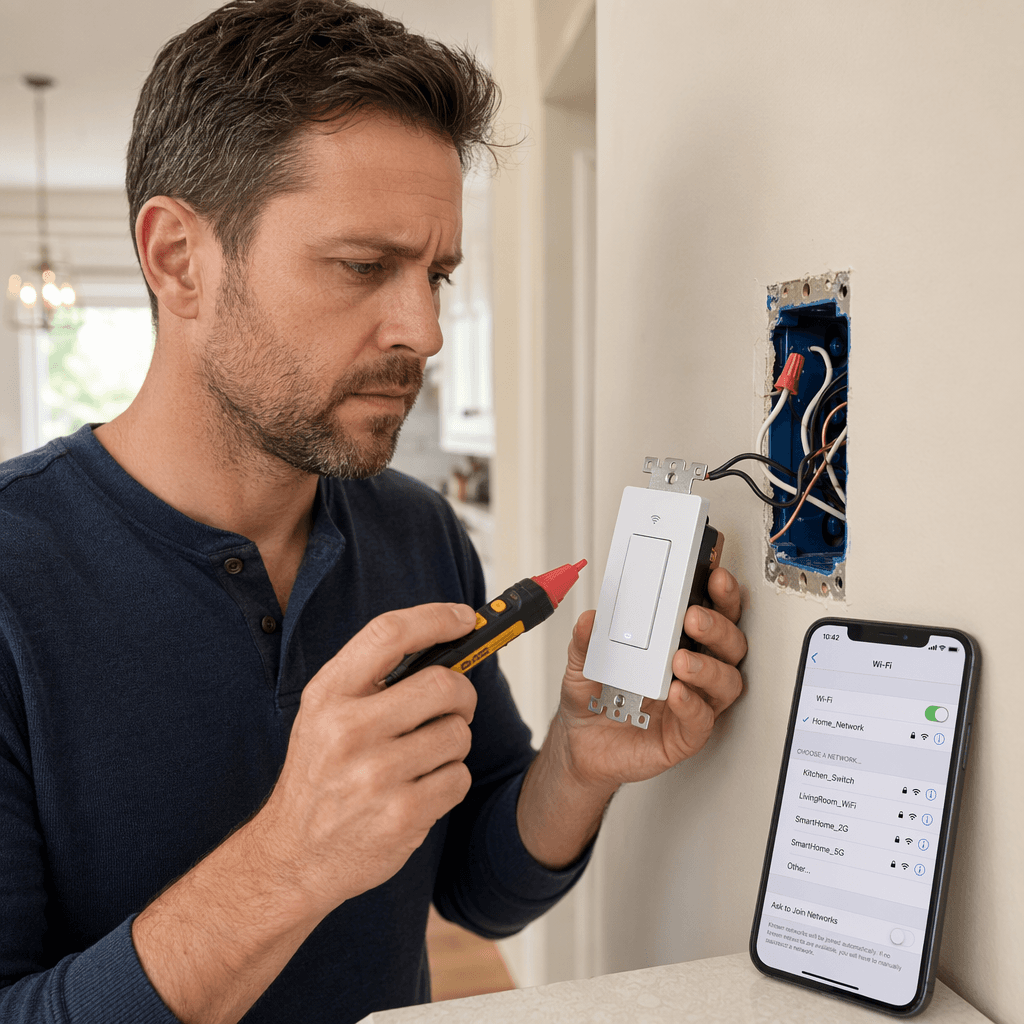
Match the Symptom Before You Change Anything
| What you see | Most likely category | First diagnostic test | Stop DIY troubleshooting when |
|---|---|---|---|
| Switch will not pair in the app | WiFi setup or router configuration | Confirm the phone and switch are on a 2.4GHz network, then try a separate 2.4GHz SSID or mobile hotspot | The switch will not power on, or pairing fails on multiple known-good 2.4GHz networks |
| Switch powers up but the light will not turn on or behaves unpredictably | Line/load, neutral, or no-neutral load issue | With the breaker off and verified dead, compare the box wiring to the switch requirements | You cannot identify line, load, neutral, or ground with confidence |
| LED bulb flickers, glows when off, buzzes, or will not dim correctly | Bulb compatibility or minimum-load issue | Test with a known dimmable LED or a higher-load bulb that matches the switch type | The switch itself buzzes, heats up, trips the breaker, or the fixture wiring is unclear |
| Switch works for a while, then shows offline | Weak signal, router limit, DHCP/router behavior, or cloud reconnection problem | Check signal strength near the switch and reboot both router and switch before resetting | It goes offline on a clean test network or loses power locally |
| Switch works in its own app but not by voice | Account linking, naming, room assignment, or assistant discovery | Rename the device clearly, relink the skill/service, and rediscover devices | The switch is also unstable in its own app |
That table is the useful fork in the road. If the switch cannot connect to WiFi, there is no reason to pull the switch out of the wall yet. If the switch has power but the light flickers or stays faintly lit, router settings are probably not the first suspect. The work gets easier once the symptom stops being vague.
If the Switch Will Not Pair, Prove the WiFi Network First
Most smart WiFi light switch pairing failures are boring WiFi failures. Many WiFi smart switches support 2.4GHz WiFi and will not join a 5GHz-only network. TP-Link’s Kasa support guidance also points to weak signal as a major cause of intermittent connectivity, with RSSI weaker than -70 dBm treated as poor, -50 to -70 dBm as good, and stronger than -50 dBm as strong.[1]
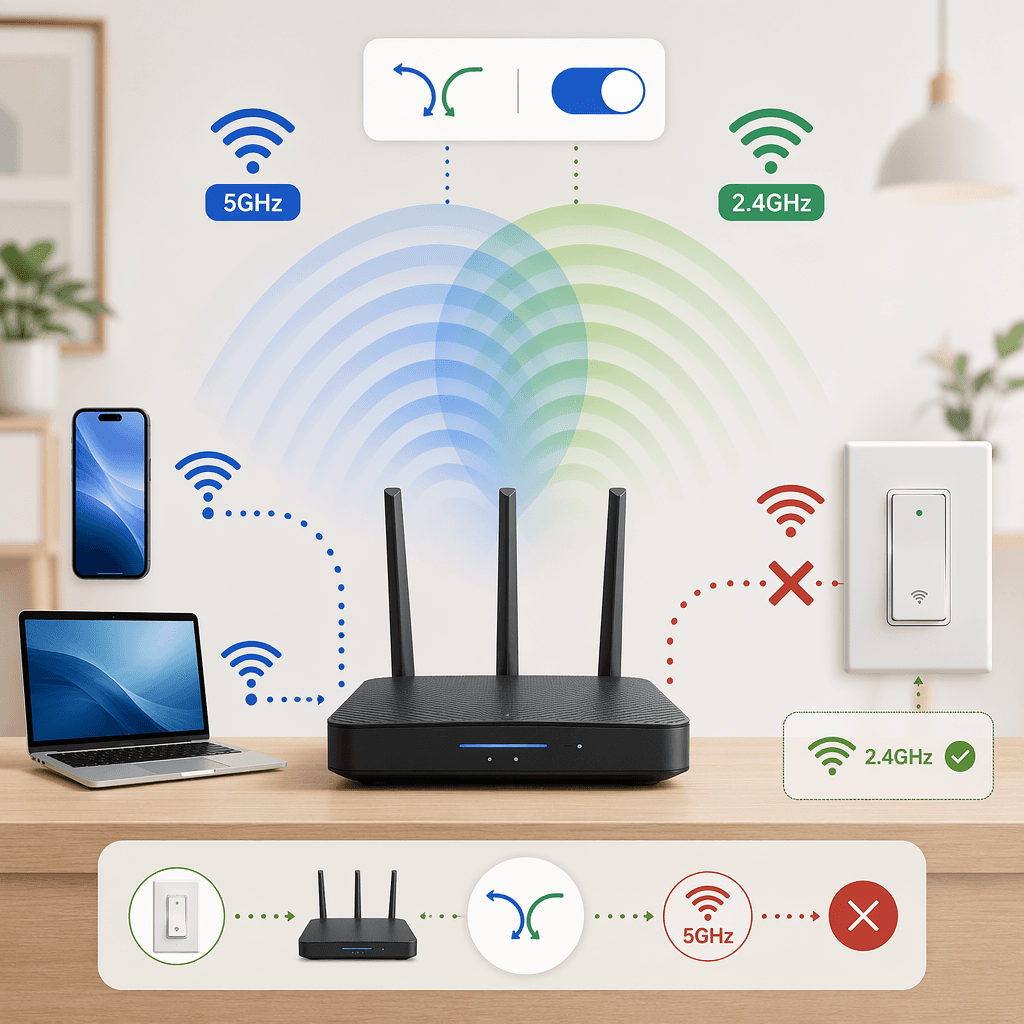
The annoying part is that your phone may be connected perfectly while the switch is not. Phones move between 2.4GHz and 5GHz without making much noise about it. A wall switch cannot negotiate around every router feature. Combined SSIDs, band steering, and “Smart Connect” settings can put the phone and switch in a pairing state that looks right in the app but fails at the device.
Do this before resetting the switch:
- Confirm the switch model supports the network you are trying to use. If it is 2.4GHz-only, connect your phone to 2.4GHz during setup.
- If your router uses one shared WiFi name for both bands, temporarily split the bands into separate SSIDs or turn off band steering during pairing.
- Check signal strength near the switch location. A hallway switch on the far side of plaster, brick, metal boxes, or appliances can be a weak-signal device even when the living-room laptop looks fine.
- Reboot the router and the switch. This is not elegant, but it clears temporary router and device states before you start deleting things.
- Try pairing the switch to a different 2.4GHz network, such as a mobile hotspot, if your switch/app supports that setup. If it pairs there, the switch has just told you to look back at the router.
The hotspot test is one of the cleanest isolation tests because it separates “this switch cannot connect” from “this router will not let it connect.” It does not prove the final installation is fixed, but it can save you from opening a wall box when the real problem is band steering.
Also look at device count if the switch pairs once and then behaves randomly after more devices join the network. One smart-home troubleshooting source describes older routers as sometimes supporting around 50 connected devices while newer routers may support 240 or more; those figures are approximate and router-dependent, but the practical point is real enough: a busy IoT network can run into capacity and stability limits before any single switch is defective.[2]
If the switch will not pair on a separated 2.4GHz SSID, will not pair near the router, and will not pair on another suitable 2.4GHz network, then a reset or replacement starts to make sense. Until then, factory reset is usually just a way to erase clues.
If It Powers Up but the Light Acts Wrong, Look at Neutral and Load
A smart switch is not just a prettier toggle. It needs a small amount of power for its radio and electronics even when the light is off. Many standard smart switches get that power from a neutral wire in the switch box. In older switch-loop wiring, especially in homes built before the 1980s–1990s, the neutral may be at the light fixture instead of in the wall box.[3][4]
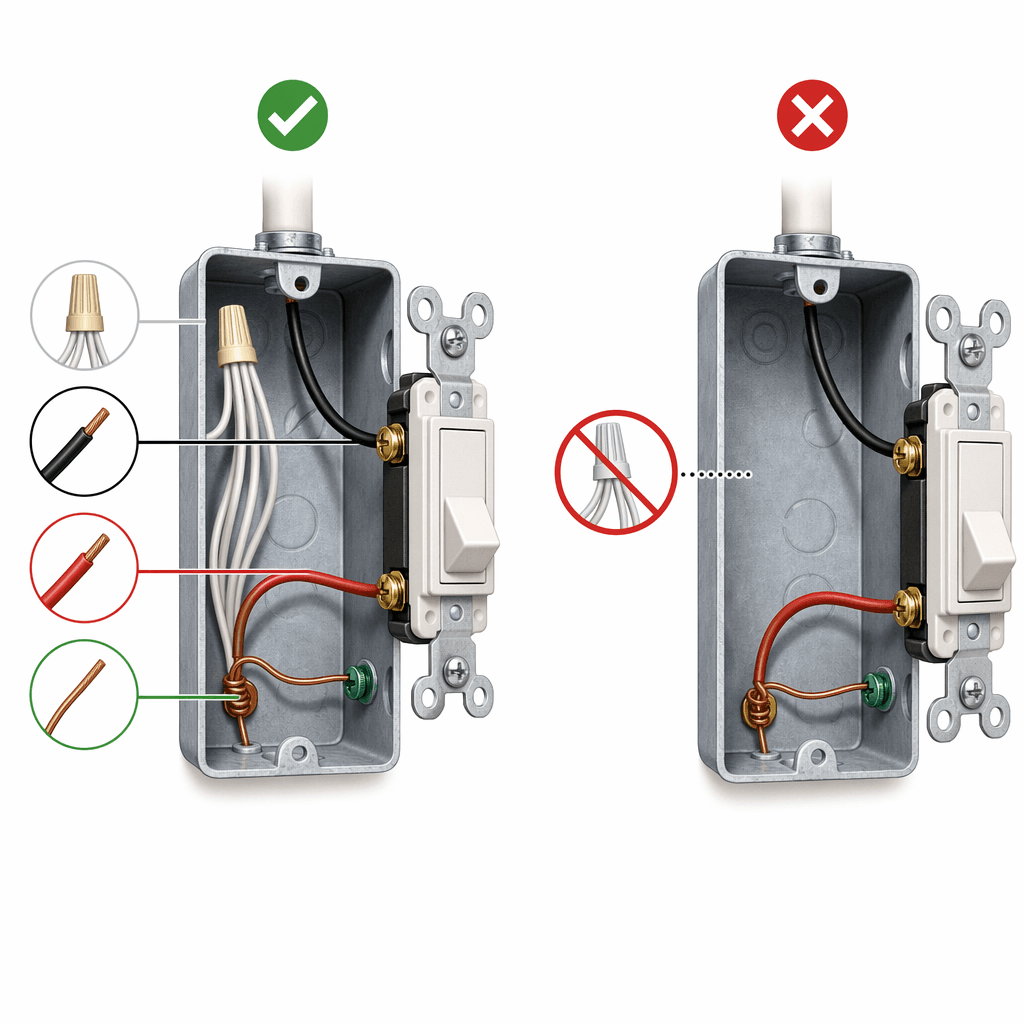
This is where people get into trouble by assuming white means neutral. In many boxes, a bundle of white wires tied together in the back is a neutral bundle. In some older or reworked boxes, a white wire may be used as a hot conductor. Before you move wires around, turn off the breaker and verify the circuit is dead. If you do not know which conductor is line, load, neutral, and ground, stop and use an electrician or go back to an installation guide such as this smart light switch installation guide.
If your switch box has no neutral, a no-neutral smart switch may still work, but it is not magic. No-neutral designs usually pass a tiny amount of current through the lighting load to power the electronics. That makes the bulb and the total connected load part of the switch’s power supply. MOES, for example, lists a 5W minimum load for one non-neutral smart switch line; other products may specify different minimums, so the number belongs to the product, not to all smart switches.[5]
Low-wattage LEDs are where this often shows up. A single efficient LED in a closet or hallway may not draw enough load for a no-neutral switch to behave cleanly. The result can be flicker, ghosting, dim light when off, or a switch that resets itself. Some no-neutral setups use a bypass capacitor at the fixture when the load is too low; no-neutral guides also note tradeoffs such as reduced energy monitoring and, for some mesh-based products, loss of routing behavior compared with neutral-equipped switches.[3]
A careful wiring diagnosis looks like this:
- Turn off the breaker and verify the circuit is dead at the switch.
- Remove the wall plate and gently pull the switch forward without disconnecting wires.
- Look for a neutral bundle, usually white wires tied together and not attached to the old mechanical switch.
- Compare the actual wires in the box with the wiring diagram for your exact switch model.
- If using a no-neutral switch, check the manufacturer’s minimum-load requirement and whether your bulb or fixture load meets it.
Do not guess line and load by position on the old switch. A mechanical switch may have worked for years with two conductors because it only opened and closed a circuit. A smart switch may need line, load, neutral, and ground in the correct places. If the switch has power but the light does not respond, line and load may be reversed, the neutral may be missing or misidentified, or the switch may not be compatible with that circuit.
For a deeper neutral-wire decision path, use a dedicated smart light switch neutral wire guide or, in older homes, a no-neutral smart switch installation guide. That is the part of the job where a wrong assumption can turn a setup problem into an electrical problem.
Flickering and Buzzing Usually Come From Compatibility, Not “LEDs” in General
The phrase “smart switches do not work with LEDs” is too broad to be useful. A better question is whether the bulb is dimmable, whether the switch is a dimmer or on/off switch, whether the connected load is high enough, and whether a no-neutral circuit needs a bypass.
CE Smart Home’s support guidance for smart dimmer light bulb issues points to familiar causes: non-dimmable LEDs, incompatible bulbs, insufficient minimum load, and cases where a bypass is needed for bulbs that flicker, buzz, or glow dimly when off.[6]
Separate the sound source before you keep troubleshooting. A faint buzz from a bulb or fixture under dimming is one category. Buzzing from the switch itself is another. Heat at the switch, a burning smell, repeated breaker trips, or a switch that feels wrong under the hand is not a bulb-selection puzzle. Turn the circuit off and stop.
For flicker or glow with LED bulbs, the useful tests are simple:
- Replace one bulb with a known dimmable LED that appears on the switch maker’s compatibility list, if one is provided.
- If the switch is a dimmer, confirm the bulb is dimmable. Non-dimmable LEDs can turn on and off acceptably in some fixtures but misbehave badly on a dimmer.
- If the circuit has only one very low-wattage LED, test whether a higher compatible load changes the behavior.
- For a no-neutral installation, check whether the manufacturer calls for a bypass capacitor at low load.
- Set the dimmer’s minimum brightness trim higher if the light flickers only at the low end.
For example, a hallway has one low-watt LED on a no-neutral dimmer. The switch powers up, the app works, but the bulb glows faintly when off. Replacing the app, changing the device name, or relinking Alexa will not touch that failure. The circuit is telling you to check load, bulb type, and bypass requirements.
When the Switch Keeps Going Offline
An offline switch is not the same as an unpowered switch. Stand at the wall and press it. If the light responds locally but the app says offline, you are looking at network or cloud communication. If the switch does not respond locally, go back to power, wiring, load, and breaker checks.
For a switch that works locally but keeps dropping from the app, use the same discipline as pairing, but add time. A weak 2.4GHz signal may let the device pair when the router is quiet and then fail later. TP-Link’s support guidance treats RSSI below -70 dBm as poor and recommends checking signal, rebooting the router and device, and testing on another 2.4GHz network to isolate device and network causes.[1]
Work through this in order:
- Confirm the switch still works at the wall. If not, this is not primarily an app problem.
- Check whether several IoT devices are dropping offline at the same time. If they are, look at router load, DHCP behavior, or internet outages before blaming one switch.
- Move a mesh node or access point closer only if the switch is actually weak at that location. Adding WiFi gear without checking signal can create roaming and band-steering confusion.
- Give the 2.4GHz band a stable SSID and password. Avoid changing WiFi names casually; every change creates setup work for fixed devices.
- Reboot the router and switch, then watch whether the switch stays online over normal use.
- If it still drops, test on another 2.4GHz network. A switch that remains stable there is pointing back to the home network.
One switch going offline at the edge of the house is usually a different problem from ten smart devices going offline after a router firmware update. The symptom may look the same in the app, but the repair path is not the same.
Voice Assistant Problems Come After the Switch Is Stable
If the smart WiFi light switch works from its own app and at the wall, but Alexa, Google Assistant, or another assistant cannot control it, leave the wiring alone. Voice failures are usually naming, room, permission, discovery, or account-linking problems.
Give the switch a plain, distinct name. “Lamp,” “light,” and “switch” are easy names to say and easy names for an assistant to confuse, especially when several rooms contain similar devices. “Hall ceiling” or “Kitchen island” is less charming and more useful.
- Confirm the switch works in the manufacturer’s app.
- Rename it clearly in that app.
- Open the voice assistant app and check whether the old name still exists as a duplicate.
- Disable and re-enable the relevant skill, service, or integration if discovery is stale.
- Rediscover devices and place the switch in the correct room.
Only reset the switch if the device is stable at the wall, the network checks are clean, and the account/app state is clearly corrupted. TP-Link’s reset guidance, for example, describes holding a reset or control button for a model-specific time until the LED changes behavior; exact timing varies by model, so use the manufacturer’s procedure for your switch rather than copying a random button-hold length from a forum.[7]
When Factory Reset Makes Sense
Factory reset is useful when the switch has the wrong WiFi credentials, belongs to an old account, refuses rediscovery after a router change, or has duplicated itself across apps. It is not a wiring test, and it is not a bulb-compatibility test. If the switch is flickering because a no-neutral load is too low, a reset will only make you pair the same problem again.
Before resetting, write down the current device name, automations, schedules, and room assignment. A reset can remove the switch from scenes and voice routines. After reset, pair it on the correct 2.4GHz network, give it a clear name immediately, then rebuild only the automations that still make sense.
The Point Where You Stop
A homeowner can reasonably check WiFi band, signal strength, router behavior, app account linking, bulb type, dimmer compatibility, and whether a visible neutral bundle appears to be present with the breaker off. That is already a useful amount of troubleshooting.
Stop and call an electrician when any of these show up:
- You cannot positively identify line, load, neutral, and ground.
- The box contains unexpected splices, damaged insulation, aluminum wiring, or crowded wiring you cannot inspect safely.
- The breaker trips repeatedly after installation.
- The switch feels hot, smells burnt, or buzzes from inside the wall box.
- The light works only when wires are arranged in a way that does not match the manufacturer’s diagram.
- You are working in a multi-gang box, three-way circuit, or older switch loop and are no longer sure which conductor does what.
If the switch passes WiFi tests, has correct wiring, meets neutral or no-neutral requirements, uses compatible bulbs, and still fails across clean setup attempts, then replacement is reasonable. Until those checks are done, the switch is only one suspect among several. For a broader symptom catalog, use this smart WiFi light switch troubleshooting resource or the more general smart light switch troubleshooting guide while you narrow the cause.
References
- TP-Link Kasa FAQ, TP-Link, updated April 2026.
- WiFi Smart Switch Troubleshooting: Getting Back on Track, Lykalyte.
- The Pros and Cons of No Neutral Smart Switches, SmartHomeScene.
- How to Install Smart Lights, Security.org.
- Neutral vs Non-Neutral Smart Switches, MOES.
- Smart Dimmer Light Bulb Issues: Flickering Bulbs, Buzzing or Dim Light When Off, CE Smart Home.
- How to reset Kasa smart switch and plug, TP-Link.
Community Notes & Edge Cases
Has this fix worked for you? Is it still valid after a recent firmware or app update? Share firmware-specific variations, platform quirks, or edge case solutions below. Substantive corrections can also be submitted via the contact page for editorial review.
Comments
Join the discussion with an anonymous comment.