
Set up smart home control on the Galaxy M56 5G
A dated, step-by-step guide to setting up and controlling smart home devices from the Samsung Galaxy M56 5G with SmartThings — what to install, what to tap, and the hub hardware you need before every device type responds. Each step carries a Confirmed, Workaround, or Investigating status so you can tell what is verified on this phone versus assumed.
Status as of August 25, 2026: the Galaxy M56 5G can be your SmartThings control phone, but it should not be treated as the radio hub for the house. Samsung’s published Galaxy M56 5G specs list Android 15, Wi-Fi 6 dual-band, and Bluetooth 5.3 LE, but they do not list 802.15.4, Thread, Zigbee, Z-Wave, or UWB hardware; that missing-radio point is a spec-sheet inference, not a teardown finding [1].
That distinction decides whether your setup finishes cleanly. A Wi-Fi smart plug can usually be added from the phone once SmartThings supports the brand. A Zigbee motion sensor will not pair directly to the M56 just because the SmartThings app is open. A Matter device can be commissioned from the app only when the current SmartThings Matter requirements and the required controller or hub path are satisfied.
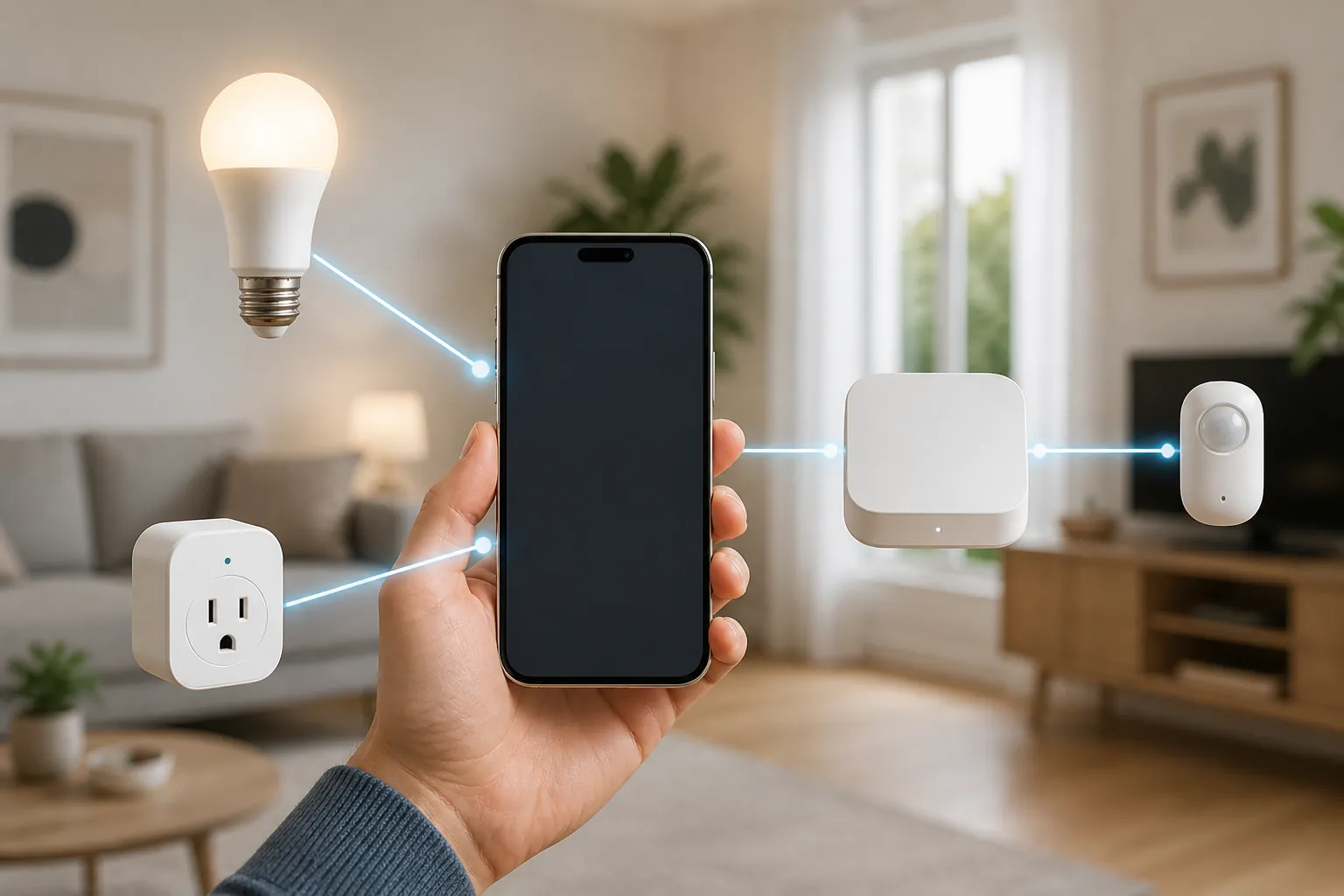
Before you install anything, sort your devices into the right path
Use this as the pre-pairing check. It is much better to find the hub problem here than after you have reset a sensor and are staring at a pairing screen.
| Device in your hand | Can the Galaxy M56 5G handle setup without extra hub hardware? | Status |
|---|---|---|
| Wi-Fi smart bulb, plug, switch, camera, TV, AC, or appliance supported by SmartThings | Usually yes. The M56 provides the app, account, Wi-Fi network access, and control surface. The device or its brand cloud still has to support SmartThings. | Confirmed for the SmartThings path; device-by-device compatibility still matters. |
| Bluetooth or Bluetooth LE device supported by SmartThings | Possibly, if SmartThings supports that device type and the product’s setup flow uses Bluetooth. The M56 has Bluetooth 5.3 LE in its published specs [1]. | Confirmed radio capability; product support varies. |
| Samsung TV, monitor, soundbar, appliance, or Galaxy-adjacent device | Often yes through Samsung account discovery, nearby scan, QR code, or account-linked setup, depending on the product. | Confirmed for SmartThings generally. |
| Partner-brand device that says Works with SmartThings | Usually yes through brand linking or an in-app add-device flow. You may be signing in to the partner account, not pairing the radio directly to the phone. | Confirmed for SmartThings generally; verify the exact model. |
| Matter device | The M56 can run the SmartThings app and initiate commissioning, but SmartThings Matter support has controller and app-version requirements. SmartThings’ Matter documentation lists Android app 1.7.91+ and supported Matter controllers such as the SmartThings 2018 Hub or Aeotec Smart Home Hub on firmware 45.9+; re-check this at publish/setup time because Matter support evolves [5]. | Confirmed for SmartThings generally; hub/controller baseline must be checked. |
| Zigbee sensor, Zigbee bulb, Zigbee button, Thread sensor, or Z-Wave device | No direct phone pairing should be expected. Add a compatible hub or border-router path first, then use the M56 as the app controller. | Workaround: separate hub required. |
| Anything relying on NFC tap-to-pair | Do not make NFC the plan. GSMArena lists NFC as “No” for the M56, while some retailer material has conflicted; this guide treats NFC as unresolved and unnecessary for SmartThings setup [1]. | Investigating for M56-specific NFC behavior. |
For this guide, Confirmed means the M56 meets the stated platform requirement or the feature is documented for SmartThings/Galaxy use in a way that fits this phone. Workaround means the phone can control the result, but another box must do the radio or controller work. Investigating means the generic Samsung path exists, but M56-specific documentation is not enough to promise it.
Install or open SmartThings
Status: Confirmed. SmartThings requires Android 8.0 or later, and Samsung documents a Samsung account as mandatory for first-run setup on Galaxy phones [2]. The M56 ships well above that baseline with Android 15 / One UI 7 in the published phone specs [1].
- Open SmartThings if it is already installed. If it is not, install it from the Galaxy Store or Google Play.
- Sign in with the Samsung account you want to use for the home. Do not use a temporary account unless you want to redo sharing, automations, and device ownership later.
- Allow the permissions SmartThings asks for during setup, especially local network, Bluetooth, camera for QR scanning, and location when the device flow needs nearby discovery or presence-based routines.
- When SmartThings asks for a location, create one for the home or choose the existing one. Then create rooms such as Living Room, Bedroom, Kitchen, and Entrance.
One regional note matters here. The Galaxy M56 5G is India/emerging-market hardware, not a US retail Galaxy model. It was announced in India in April 2025, with sale dates and launch pricing reported for that market, and Samsung India maintains the official SM-M566BZKAINS support page [3][4]. Samsung’s US SmartThings support pages are still useful for the app flow, but they are generic Galaxy/SmartThings material rather than M56-only verification.
Decide whether you need a hub before you tap Add device
Status: Confirmed for Wi-Fi/Bluetooth control; Workaround for Zigbee, Thread, Z-Wave, and some Matter paths. The M56 can be the screen, the app runner, and the phone that starts setup. It is not documented as the box that speaks Zigbee, Thread, or Z-Wave to sleepy sensors, locks, buttons, and bulbs.
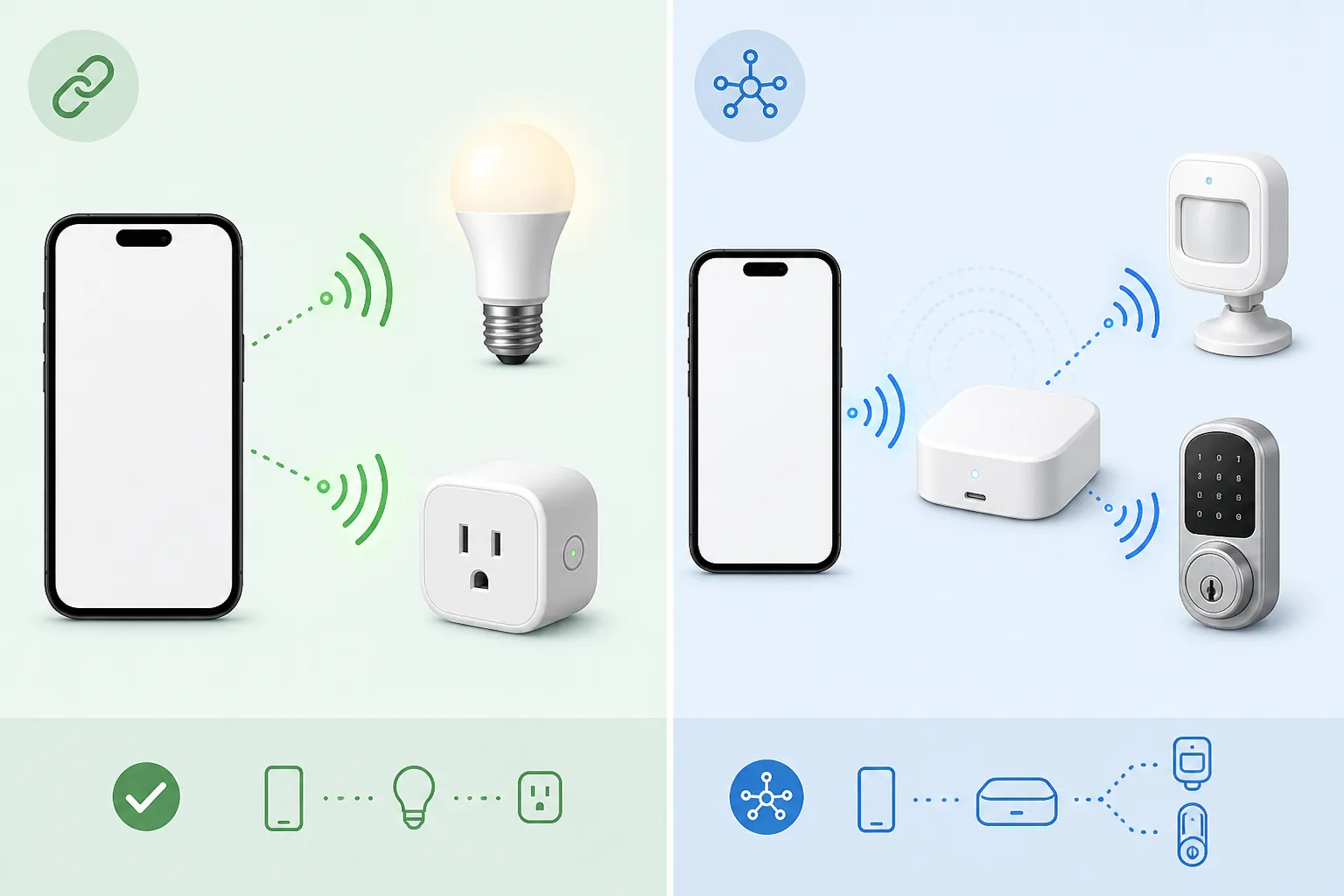
The language gets messy because smart-home setup uses three similar-sounding roles. A controller can be the app or platform you use to command devices. A commissioner starts secure setup, such as scanning a Matter QR code. A hub or border router keeps another network running and gives low-power devices a radio path into SmartThings. Your Galaxy can be very good at the first two jobs and still be the wrong hardware for the third.
Samsung’s broader SmartThings Hub Everywhere program reinforces that point. A third-party catalog of Samsung devices with integrated SmartThings hubs lists 137 TVs, more than 40 Family Hub refrigerators, monitors, soundbars, projectors, and standalone hubs; Galaxy phones are not listed as integrated SmartThings hubs there [6]. That is consistent with the M56 spec-sheet problem: there is no documented 802.15.4/Thread/Zigbee/Z-Wave radio to lean on [1].
If you are in India with an M56, hub shopping needs an extra check. Do not assume every US SmartThings hub, Station, or bundled controller path is locally sold, locally warrantied, or regionally appropriate. For setup purposes, the safe order is: choose the device type, confirm the exact hub or controller SmartThings currently supports in your region, then buy or reset the device.
| If the box says | What to prepare first | What the M56 does |
|---|---|---|
| Wi-Fi | 2.4 GHz or 5 GHz Wi-Fi as required by the device, plus the brand’s SmartThings support path. | Runs SmartThings, discovers or links the device, and controls it after setup. |
| Bluetooth / BLE | The device must support SmartThings setup or a Samsung-supported nearby flow. | Uses Bluetooth during setup or control when the product flow supports it. |
| Zigbee | A SmartThings-compatible Zigbee hub already added to your home. | Starts and manages setup in the app; the hub performs the Zigbee join. |
| Thread | A supported Thread border router or SmartThings hub path. The M56 itself has no documented Thread radio. | Scans or starts setup; the Thread network must be provided by other hardware. |
| Z-Wave | A SmartThings-compatible Z-Wave hub appropriate for your region and device. | Controls through SmartThings after the hub includes the device. |
| Matter | The current SmartThings Matter requirements, including app version and supported controller/hub where required. | Can initiate commissioning from the app, but should not be treated as a full local hub. |
A practical example: if you bought a Zigbee contact sensor for the front door, add the hub first. Power it, connect it, add it to SmartThings, and only then put the sensor into pairing mode. If you skip that step, the M56 is not hiding a Zigbee radio that will rescue the setup.
For the same controller-versus-hub distinction on other phones, see Galaxy Z Fold 8 Ultra is a smart home controller, not a hub and Can the iPhone 17 Pro replace your smart home hub?.
Add devices in SmartThings
Status: Confirmed for SmartThings generally. Samsung documents Add device flows for Samsung devices, partner devices, QR scanning, nearby search, and device management in SmartThings [7]. On the M56, the important part is choosing the path that matches the product, not tapping every option until something appears.
Path A: Samsung device discovery
- Put the Samsung TV, appliance, monitor, soundbar, or other supported device into its normal setup state. Keep it powered on and near the same home network when the product requires Wi-Fi.
- Open SmartThings on the M56.
- Tap Devices, then tap + or Add device.
- Use Scan nearby if the device is awake and discoverable, or choose the device type/brand from the list.
- Follow the on-screen steps, assign the device to the correct location and room, and wait for the tile to appear.
What should happen on screen: SmartThings should show the product name or category, ask for any device-specific confirmation, and then place a device tile in your selected room. If the app asks you to sign in again, use the same Samsung account that owns the home unless you are intentionally transferring ownership.
Path B: Partner-brand linking
- Set up the device in the manufacturer’s own app if the product requires that first.
- In SmartThings, tap Devices > + > Add device.
- Choose the brand from the partner list or search for it.
- Sign in to the partner account when SmartThings sends you to the brand login.
- Select which devices to authorize, then return to SmartThings and assign them to rooms.
This is the common path for many Wi-Fi plugs, lights, cameras, robot vacuums, and AC controllers. The M56 is not joining those devices by Zigbee or Thread; it is linking SmartThings to a device or cloud service that already knows about them.
Path C: Matter QR or setup code
Status: Confirmed as a SmartThings Matter path; re-verify requirements. SmartThings’ Matter integration page documents Android commissioning with app 1.7.91+ and supported Matter controllers including the SmartThings 2018 Hub IM6001-V3P01 or Aeotec Smart Home Hub on firmware 45.9+; those details are from the October 2022 baseline and should be checked again before you depend on them [5].
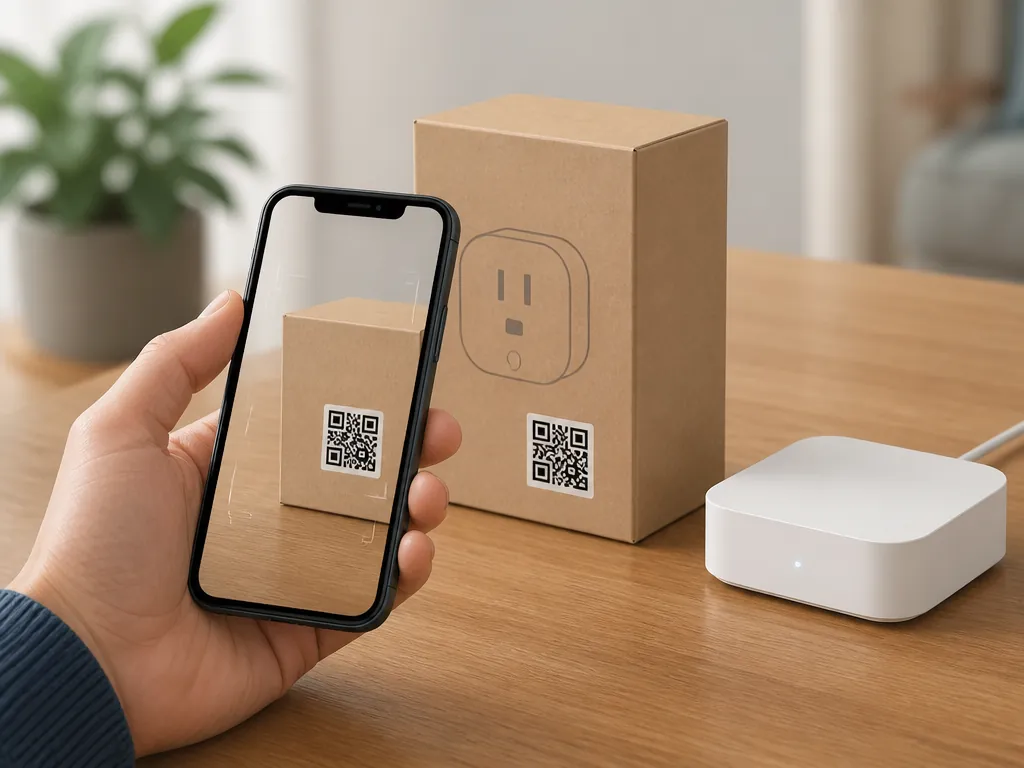
- Keep the Matter QR code or numeric setup code visible. It may be on the device, inside the battery cover, on the box, or in the manual.
- Open SmartThings and tap Devices > + > Add device.
- Choose the QR scan or Matter setup option when offered.
- Scan the QR code with the M56 camera, or enter the setup code manually if scanning fails.
- If SmartThings asks for a hub, controller, or border router, stop and satisfy that requirement first. Do not keep resetting the device; the missing piece is hardware, not patience.
- Finish naming the device and place it in the right room.
A Matter-over-Wi-Fi plug and a Matter-over-Thread sensor are not the same setup problem. The QR code may look similar, but the radio path underneath is different. The M56 can scan both; it does not become a Thread border router for the second one.
Path D: Zigbee, Thread, or Z-Wave through a hub
- Add the hub to SmartThings first. Complete its Wi-Fi/Ethernet setup, firmware prompts, account ownership, and room assignment.
- Only after the hub is online, put the sensor, bulb, lock, button, or switch into pairing mode.
- In SmartThings, tap Devices > + > Add device, then choose the brand, category, QR code, or scan option the hub flow asks for.
- Wait for the hub to include the device. The app may stay on the M56 screen, but the radio join is happening between the hub and the accessory.
- Rename the device immediately. “Motion Sensor 3” is fine for five minutes and annoying for five years.
If your home internet is also changing, settle the router side before adding dozens of Wi-Fi accessories. The network-prerequisite discussion in Which 5G home internet plan works for smart home devices? is the better place for that planning; the M56 cannot compensate for an unstable home network.
Check that each device can actually be controlled
Status: Confirmed for SmartThings generally. Once a device is added, SmartThings organizes it by location, room, and device tile, with app controls available from the device screen [8]. Do not call setup finished until you have tested the command you care about.
- For a bulb or plug, tap the tile once and confirm the physical device turns on or off.
- For a TV, AC, appliance, or camera, open the tile and check the main controls SmartThings exposes. Some partner integrations expose fewer controls than the brand’s own app.
- For a sensor, open the tile and trigger it physically: open the door, walk past the motion sensor, or press the button.
- For a lock or security-related device, test while standing beside it. Do not discover a failed command from outside the house.
- If the tile appears but control fails, check whether the device is cloud-linked, hub-linked, or locally connected. That tells you whether to troubleshoot the partner account, the hub, or the Wi-Fi network.
SmartThings also has scale limits that matter once relatives start asking to add every switch in the house. The documented boundaries include 300 devices per location, 10 locations, 20 rooms, and 20 members per account [8]. Most M56 owners will hit naming confusion long before those limits, but they are worth knowing before you split one home into several fake homes.
Make the M56 useful after pairing
Pairing is only the first half. The phone becomes useful when the lights, plugs, TV, and routines are reachable without hunting through rooms each time.
Favorites
Status: Confirmed for SmartThings generally. Put the devices you touch daily into Favorites: main lights, geyser plug, TV, AC, entry sensor, and any routine you run manually. SmartThings documents Favorites as part of its main app control experience [8].
- Open SmartThings.
- Go to the Favorites area or open the device options from the room/device view.
- Add the devices and scenes you actually use, not every device you own.
- Reorder them so the first screen matches the way the house works: entrance, living room, kitchen, bedrooms.
Widgets
Status: Confirmed for SmartThings generally; M56-specific layout may vary. Use a home screen widget for the one or two actions that should be available without opening the full app. Good widget candidates are “All lights off,” “Evening,” “TV time,” or a single plug that must be checked often.
Long-press an empty area on the M56 home screen, choose Widgets, find SmartThings, and place the widget style One UI offers on your phone. If the widget does not show the control you expected, make the action a manual routine first, then add that routine to the widget.
Routines and automations
Status: Confirmed for SmartThings generally. SmartThings routines use IF/THEN logic with triggers such as time, device state, and mobile presence, and SmartThings also supports manually run routines [9]. Samsung’s automation documentation covers creating automations from conditions and actions inside the app [10].
| Use case | Better control surface | Why |
|---|---|---|
| Turn one device on or off | Device tile or widget | Fastest path; no automation logic needed. |
| Run several commands together | Manual routine | One tap can set lights, plugs, and TV state together. |
| Repeat action by time or state | Automation | Useful for sunset lights, appliance reminders, and sensor-triggered actions. |
| Control from another family member’s phone | Shared SmartThings home/member access | Avoids putting everyone on the owner’s Samsung account. |
| Control from a wearable | Watch or phone-linked control surface | Useful for quick commands, but still depends on the same SmartThings home. |
For deeper One UI control-panel ideas, Turn Your Galaxy Z Fold 8 Into a Smart Home Control Panel is more focused on Device Control and Modes & Routines. If you also want wrist control after the M56 is set up, see Can the Galaxy Watch Ultra 2 control your smart home?.
What remains undocumented for the Galaxy M56 5G
- Quick Panel Device Control: Investigating. Samsung notes that some SmartThings control surfaces are not available on all phones, and M56-specific availability is not documented enough to promise it here [8]. Use the SmartThings app, Favorites, and widgets as the reliable control route.
- Matter requirements: Re-verify at setup time. The cited app and hub firmware requirements are a documented baseline, but Matter support changes. Check the current SmartThings Matter page before buying a hub or resetting a Matter device [5].
- Zigbee, Thread, and Z-Wave: Separate hardware still required. Nothing in the published M56 specs documents the radios that would let the phone itself replace a hub [1].
- NFC: Do not depend on it. Because public materials conflict and GSMArena lists NFC as “No,” this setup guide avoids NFC as a required step [1].
References
- Samsung Galaxy M56 - Full phone specifications — GSMArena
- Set up the SmartThings app on your Galaxy phone — Samsung Support
- Samsung Galaxy M56 Price in India — 91mobiles
- SM-M566BZKAINS — Samsung Support India
- SmartThings x Matter Integration — SmartThings
- Samsung Devices with Integrated SmartThings Hubs — matter-smarthome.de
- Add and manage devices and appliances in SmartThings — Samsung Support
- Using the SmartThings App — SmartThings
- Routines in SmartThings — SmartThings
- Use automations in SmartThings — Samsung Support