
Turn Your Galaxy Z Fold 8 Into a Smart Home Control Panel
Set up your Galaxy Z Fold 8 as a smart home control panel with a layered, app-by-app approach: One UI Device Control, SmartThings and Google Home dashboards, Modes & Routines, and Home Assistant. See what works as of One UI 9, where foldable app support still falls short, and why the phone controls devices rather than acting as a hub.
If you bought a Galaxy Z Fold 8 for smart home control, the useful answer is not “install one app and call it a hub.” As of One UI 9, Android 17, and Q3 2026 app behavior, the better setup is layered: use One UI Device Control for the fastest hallway controls, keep SmartThings and Google Home ready as everyday dashboards, add Modes & Routines or Bixby for phone-side shortcuts, and only move to Home Assistant if you want to build a dashboard instead of accept one.
The Galaxy Z Fold 8’s 7.6-inch inner screen is large enough to feel more like a small wall panel than a stretched phone, which is exactly why it is tempting for smart-home use. The boundary matters, though: it is a control surface and a Matter commissioner, not a replacement for a hub, a Thread border router, or whatever bridge your devices already depend on. If you need the protocol-role version of that distinction, start with why the Galaxy Z Fold 8 is a smart home controller but not a hub or the broader Matter commissioner, controller, and Thread border router explainer. This guide stays focused on getting devices controlled faster.
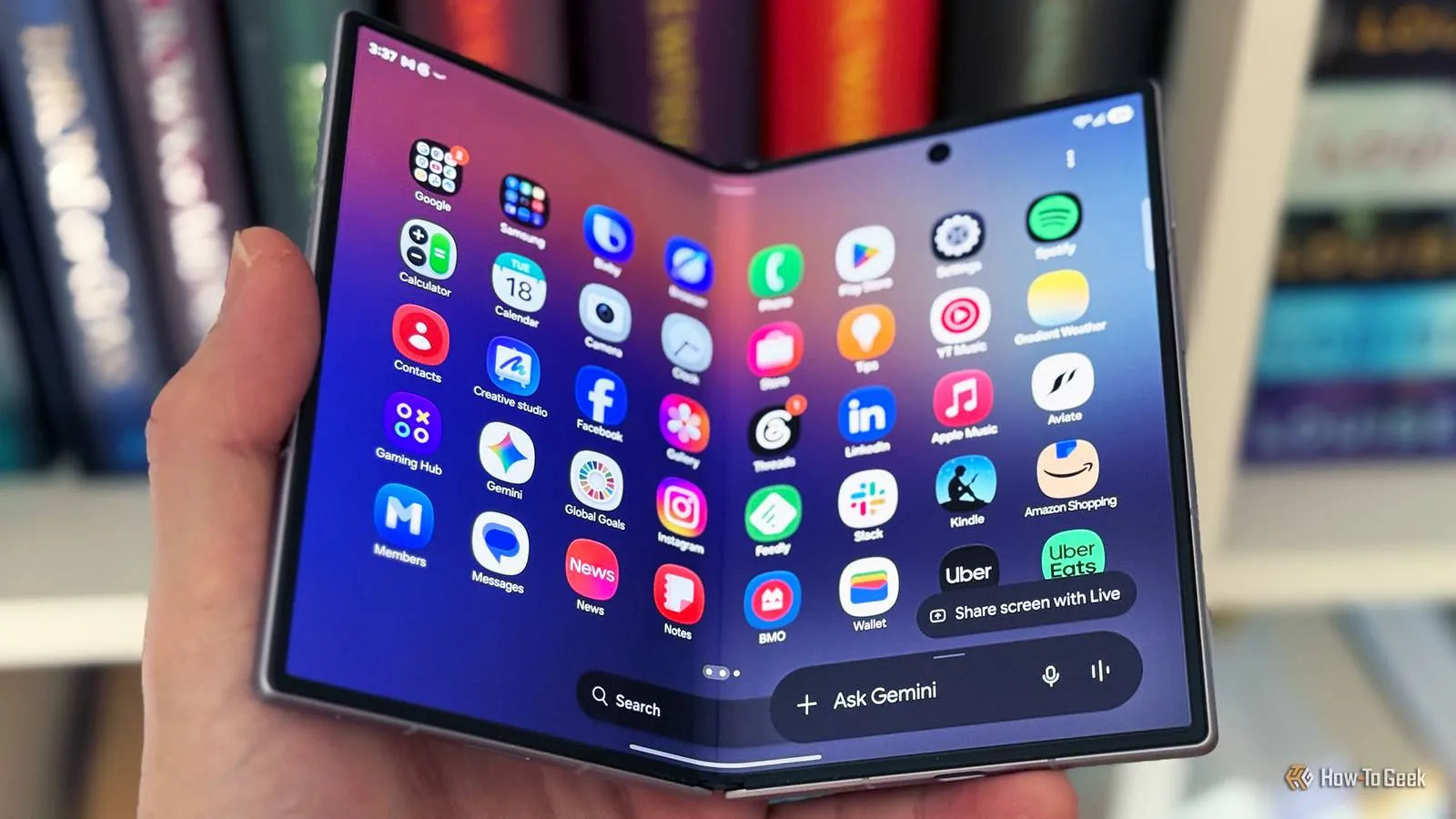
Start with the fastest control: One UI Device Control
The first thing to set up is not a full dashboard. It is the shortcut you can reach while standing at the door with one hand on the phone.
- Swipe down twice from the top of the screen to open the expanded Quick Panel.
- Look for Device Control. If it is visible, open it and check which smart-home provider is active.
- If Device Control is hidden, open the Quick Panel layout controls and look for the setting that controls whether Device Control and media output buttons are shown.
- If One UI 9 offers a “show always” or equivalent placement option on your Fold 8 build, enable it.
- From Device Control, switch between SmartThings and Google Home controls if both providers are available.
Samsung’s older accepted Community answer is useful as lineage for the feature, but it comes from the One UI 4 era, so treat the exact menu labels as a verification point on One UI 9 rather than as timeless instructions.[1] SmartThings has also documented the ability to switch between SmartThings and Google Home from the phone’s Quick Settings menu, which is the important behavior here: the panel can serve more than one ecosystem without forcing you to open a full app first.[2]
This layer is for simple, high-frequency actions: toggling a light, checking whether a lock is available, changing a thermostat mode, or launching a scene. It is not where you should expect careful room-by-room browsing. The point is that Device Control cuts out the home-screen hunt, the app choice, and the first navigation tap.
Then set up SmartThings and Google Home as parallel dashboards
Once the Quick Panel shortcut is in place, the Fold 8’s inner screen starts to matter. A full dashboard gives you room for rooms, tiles, scenes, cameras, and status checks without the cramped feeling of a normal phone. The catch is that you should not expect one Android smart-home app to fully honor the foldable canvas yet.
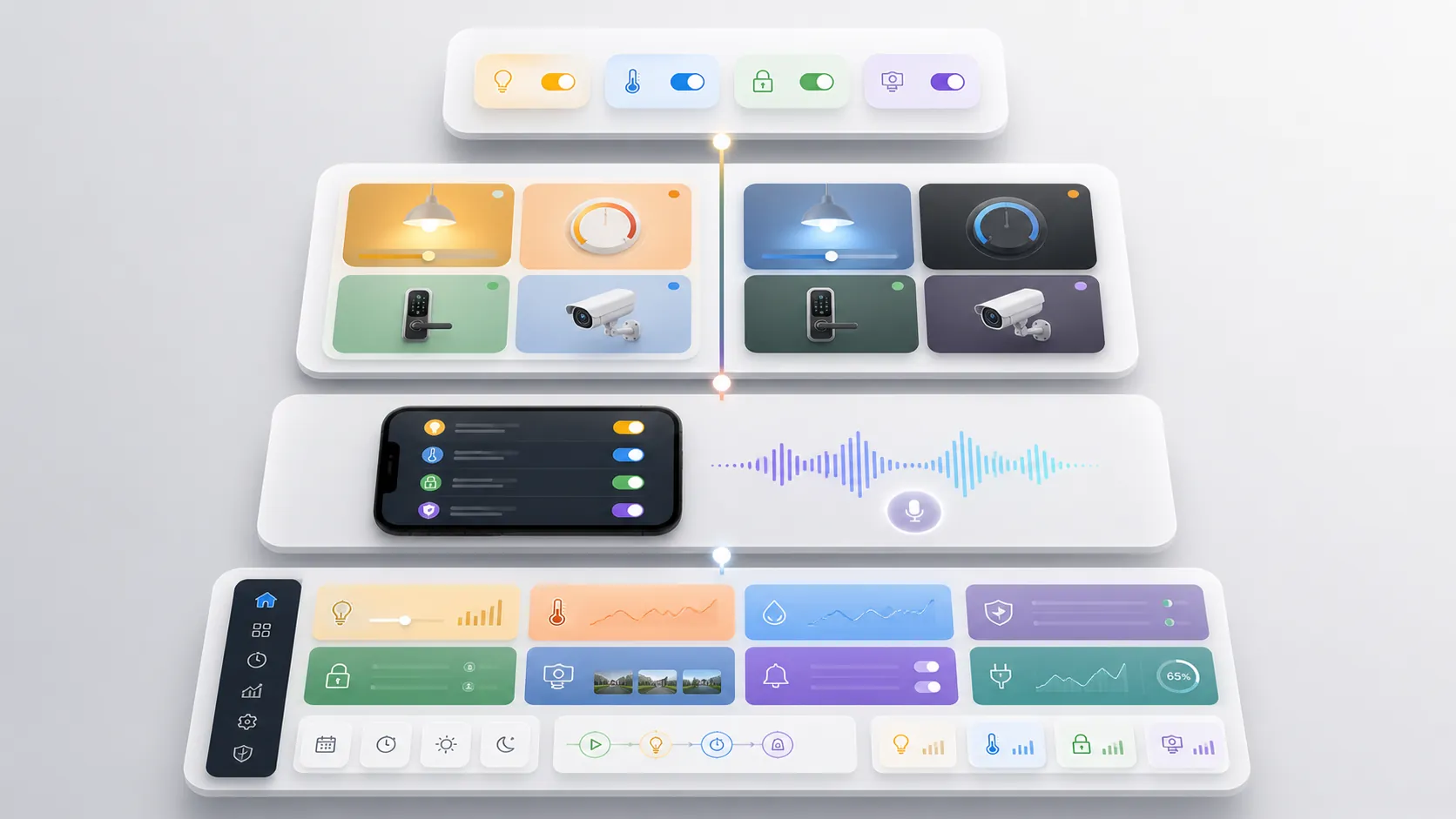
SmartThings: use it, but do not expect a true Fold layout yet
If your devices already live in SmartThings, make it your first full dashboard. Put the devices and scenes you actually touch near the top, organize by real rooms instead of manufacturers, and keep the most urgent controls out of buried device pages. On the Fold 8, the practical goal is a dashboard you can open and act on, not a museum of every sensor you own.
The current caution is layout, not basic usefulness. A July 9, 2026 SamMobile opinion piece criticized the SmartThings Android app for not offering a proper multi-pane foldable layout: in landscape, the bottom tab bar moved to the left, but tapping a device did not open its controls in a second pane on the same screen.[3] That is an author assessment with screenshots, not a Samsung specification, and it should be rechecked against the app version on your Fold 8. Still, it describes the exact waste that makes a large inner display feel underused.
That limitation changes how you arrange SmartThings. Favor the Favorites view and scenes that perform a complete action. If turning on movie mode requires opening three separate devices, make it a scene. If a lock, light, or thermostat is something you touch daily, it belongs on the first view, not inside a room you have to scroll to find.
Google Home: keep it as the other daily-control surface
Google Home earns a place even if SmartThings is your main ecosystem because the Quick Panel can expose controls from both sides. If some lights, speakers, thermostats, or cameras are more natural in Google Home, do not force them into a single dashboard just for tidiness. Let Device Control handle the fast entry point, then use the app that gives you the better tile for the device in front of you.
Do keep any visual claims dated. In January 2025, SamMobile reported that Google Home’s Android app was testing or rolling out Material You dynamic color theming on Android 13 and newer.[4] By Q3 2026, that detail may have shipped, changed, or become unremarkable. What matters for the Fold 8 setup is not the color treatment; it is whether the current app version gives you a clean, readable control grid on the inner display.
| Job | Use first | Why |
|---|---|---|
| Turn a common device on or off | One UI Device Control | Fewest taps from anywhere on the phone |
| Run a scene or control SmartThings-native devices | SmartThings | Best fit when your rooms, scenes, and Samsung-connected devices already live there |
| Control Google-linked devices | Google Home | Useful as a parallel dashboard and available from the same Quick Settings control flow |
| Launch a repeated phone-side action | Modes & Routines or Bixby | Better for actions that start from the phone rather than from a room dashboard |
| Build a custom wall-panel-style interface | Home Assistant | Most flexible, but also the most work |
Use Modes, Routines, and Bixby for phone-side shortcuts
Modes & Routines are not a replacement for SmartThings or Google Home. They are useful when the phone itself is part of the control flow. Think of actions such as opening your preferred dashboard when you arrive home, changing phone settings when you start a bedtime routine, or putting a smart-home app where you can reach it quickly when the Fold 8 is open.
Keep this layer small. A routine that merely saves a tap is worth having. A routine that hides the actual device state behind three assumptions will be harder to trust than a visible dashboard. For voice, Bixby is most useful for commands you can say cleanly without looking at the screen. If you are already holding the Fold 8 open, the screen is the advantage; use voice for moments when your hands are occupied or the phone is nearby but not in your hand.
If SmartThings starts misbehaving after a One UI 9 update, do not rebuild your entire smart home around a temporary failure. Check the current status and workarounds in the SmartThings One UI 9 troubleshooting guide before treating an app bug as a Fold 8 limitation.
Home Assistant is the power-user panel, not the default answer
Home Assistant is where the Fold 8 can feel closest to a real custom panel. The companion app can show dashboards designed around your rooms, entities, camera cards, and scripts instead of whatever hierarchy a vendor app prefers. If you already run Home Assistant, build a Fold-friendly dashboard with large touch targets, room sections, and only the controls you would want on a shared household panel.
The Fold 8’s shape can influence the dashboard design, but do not build the whole setup around a promised open-or-closed fold-state trigger. Unless the current Home Assistant companion app on your device exposes a reliable fold-state entity or sensor, treat fold posture as something you respond to manually with layout choice, not as a native automation condition.
For a phone you plan to leave docked, the better reference is the old-phone panel approach: decide where the panel lives, keep power and screen behavior predictable, and design the dashboard for glances and taps. The Fold 8 adds a better screen and a more premium device; it does not remove the work of designing a dashboard people can actually use. If that is the route you want, use the old phone Home Assistant panel recipe as the deeper setup path.
Be careful with Thread and Matter claims
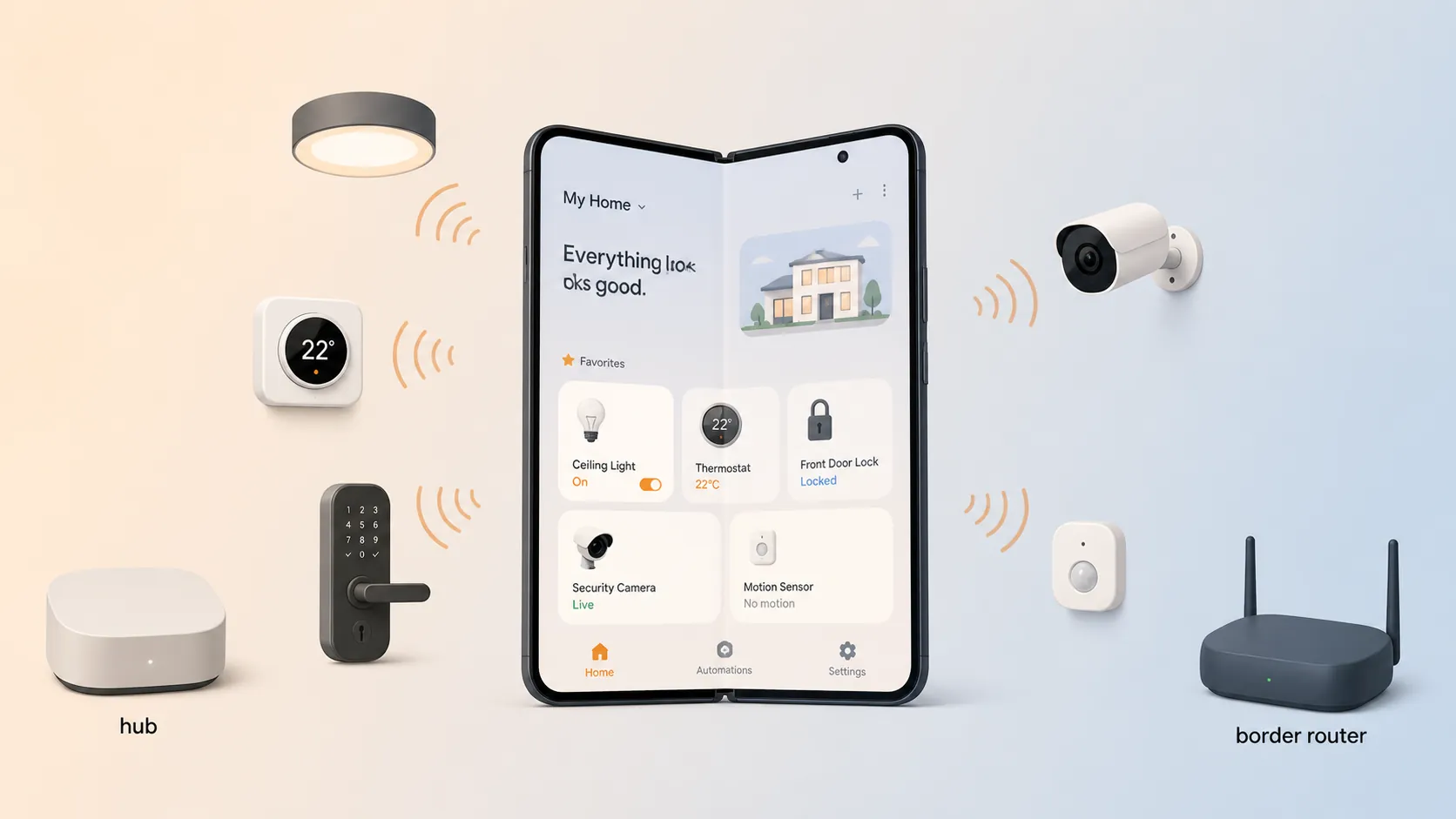
This is where a lot of smart-home phone advice gets sloppy. The Fold 8 can be part of commissioning and control flows, but your Thread and Matter-over-Thread devices still need the right network hardware elsewhere. If a device requires a hub, bridge, or Thread border router, opening a larger phone screen does not make that requirement disappear. For the practical test of what still works without a hub, see whether the Galaxy Z Fold 8 can control your smart home without a hub.
If you already have Thread border-router hardware in the home, Thread network credential sharing can help reduce fragmentation. The Thread 1.4 direction supports credential sharing between border routers, including flows that use an OTPC or QR code from another border router.[5] In SmartThings, look for Settings > Manage Thread Network > Unify Thread network if that option is available in your current app version and region.
That step is conditional. It is not evidence that the Fold 8 has become a Thread border router. The phone is helping you administer or control the setup; the mesh still depends on the border-router hardware that actually participates in the Thread network.
Where the base Fold 8 fits
This guide is for using the base Galaxy Z Fold 8 as a manual dashboard: open the phone, use the large inner display, and move between fast controls and full dashboards. If you are comparing hands-free propping, Flex Mode behavior, or the Fold 8 Ultra’s dashboard advantage, that is a different question covered in the Fold 8 Ultra smart-home dashboard comparison.
For the base Fold 8, the strongest setup in Q3 2026 is simple: Quick Panel first, SmartThings and Google Home second, phone-side routines only where they remove friction, and Home Assistant only when you want to build a tailored panel. That gives the inner screen real work without pretending one app has already solved the whole foldable smart-home dashboard problem.
References
- Solved: How to do we open the Smart Home UI, Samsung Community
- Easily Switch Between SmartThings and Google Home From the Quick Settings Menu of Your Phone, SmartThings Blog
- Samsung has neglected SmartThings far too long, and it needs a complete makeover, SamMobile
- Google Home and its Android app are getting new features, SamMobile
- Thread Network Credentials Sharing, Espressif Developer Portal, January 2026