
How to Set Up SmartThings on Your Galaxy Z Fold 8
Step-by-step SmartThings setup for a new Galaxy Z Fold 8: Samsung account, app install, device onboarding, and the One UI 9 control surfaces that actually work. Every step is dated and labeled Confirmed, Workaround, or Investigating, with the hub-versus-hubless boundary spelled out before you start.
Published: August 25, 2026. Verified against available Samsung and SmartThings documentation on August 25, 2026. Phone context: Galaxy Z Fold 8, One UI 9 launch-window software. App context: current SmartThings app, with SmartThings app version 1.7.91 or later required for Matter device commissioning on Android; SmartThings’ own support page lists Android 8.0 or later as the app requirement, but store listings should still be checked at publication because Android requirement summaries can conflict across surfaces. [1]
- Confirmed: Documented by Samsung or SmartThings support and safe to use as the main setup path.
- Workaround: A documented alternate route or practical fallback when the first route is missing on your unit.
- Investigating: Reported, expected, or borrowed from adjacent Samsung documentation, but not treated here as a launch-day Fold 8 instruction until reproduced on the actual device.
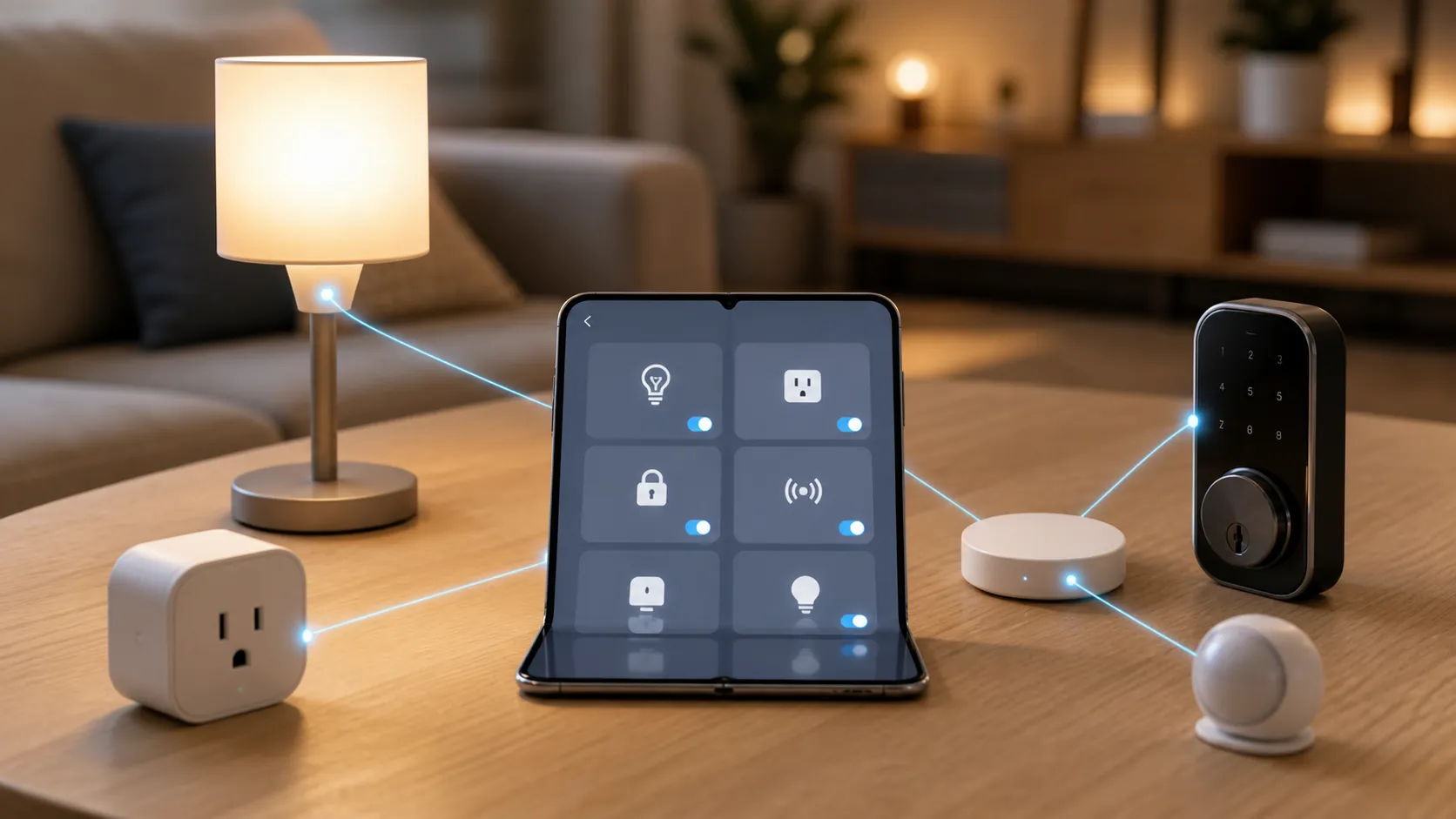
Before you tap anything: decide whether the Fold 8 can replace a hub
For a first-weekend Galaxy Z Fold 8 SmartThings smart home setup, the important split is not Samsung versus non-Samsung. It is radio path. Wi-Fi devices and Matter-over-Wi-Fi devices can be added through the SmartThings app with a Samsung account and the official add-device flow. Zigbee, Z-Wave, and Matter-over-Thread devices need a hub, bridge, or Thread border router because the phone is the controller you hold, not the low-power radio layer those devices talk to.
That boundary is where most bad setup guides waste an afternoon. A Fold 8 can be an excellent control surface, especially opened on a table while you name rooms and test devices. It still does not make a Zigbee contact sensor pair directly to a phone just because the app is installed. If you are not sure which side your device is on, check the protocol on the box, in the old app it came from, or in the manufacturer’s spec sheet before you reset anything. For the compatibility details behind that boundary, use Galaxy Z Fold 8 is a smart home controller — but not a hub before onboarding.
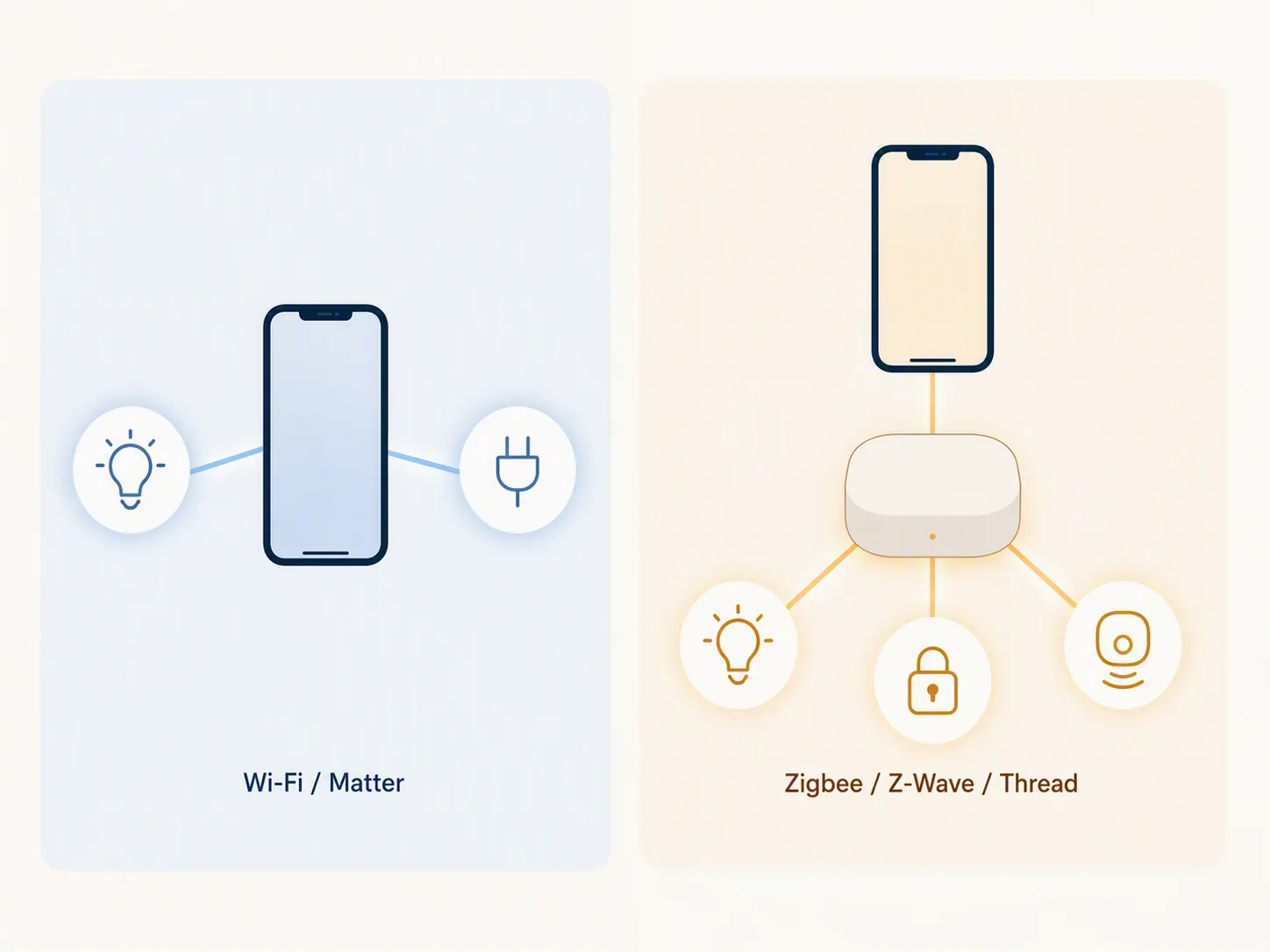
| Device type you own | Can the Fold 8 add it with only the app? | Status | What to do before setup |
|---|---|---|---|
| Wi-Fi plug, bulb, camera, appliance, or lock supported by SmartThings | Yes, if the device is compatible and on a reachable network | Confirmed | Install or open SmartThings, sign in, then add from the Devices tab. |
| Matter-over-Wi-Fi device | Yes, with SmartThings app version 1.7.91 or later for Matter commissioning | Confirmed | Update SmartThings first, then use QR or manual pairing from the app. |
| Zigbee or Z-Wave sensor, switch, lock, or bulb | No, not directly from the phone | Confirmed | Keep or buy the correct SmartThings-compatible hub or bridge before pairing. |
| Matter-over-Thread sensor, bulb, lock, or button | No, not from the Fold 8 alone | Confirmed | Use a Thread border router or compatible hub, then add through SmartThings. |
| Feature shown in a One UI 9 or SmartThings redesign leak | Do not depend on it for setup | Investigating | Finish the device pairing first; check redesigned controls only after devices already work. |
The first-weekend setup flow
Use this order. It keeps the phone setup, device compatibility check, physical pairing, and One UI controls separate enough that you can tell where a failure actually happened.
- Prepare the Fold 8: Samsung account, SmartThings app, permissions, and app update.
- Check whether each device is SmartThings-compatible and whether it needs a hub.
- Add the device from SmartThings > Devices using scan nearby, QR code, or brand/manual selection.
- Name the device, assign it to the correct location or room, and test it inside SmartThings.
- Expose working devices to the Fold 8’s phone-level controls, starting with Quick settings Device control.
- Only after that, test any One UI 9 widgets, cover-screen surfaces, or redesigned SmartThings screens available on your unit.
Step 1 — Prepare the Fold 8 and SmartThings
Status: Confirmed for the Samsung account, app launch, and permission flow. Samsung’s setup documentation says the SmartThings app may already be installed on Galaxy phones. If it is not, install it, open it, select Continue, sign in with your Samsung account if prompted, and allow the permissions the app needs for setup and discovery. Samsung’s same setup page also documents Virtual Home, which lets you simulate SmartThings devices inside the app before adding real hardware. [2]
On the Fold 8, I would do this with the phone open for the first run. The larger inner display is useful when Samsung asks for account, location, permission, and device choices in a row. Once the app is ready and your home is organized, the cover screen is fine for quick toggles.
- Open SmartThings.
- Tap Continue if this is your first launch.
- Sign in with your Samsung account.
- Accept the permissions needed for device discovery, setup, notifications, and local control prompts.
- Update SmartThings before adding Matter devices; SmartThings lists version 1.7.91 or later as required for Matter commissioning. [1]
If you only want to learn the app without touching a working household device yet, use Virtual Home as a safe sandbox. That is useful for seeing how tiles, rooms, and automations feel on the Fold 8’s inner screen. It is not proof that your real lock, lamp, sensor, or plug will pair without the correct radio path.
Step 2 — Check compatibility before resetting a device
Status: Confirmed for the in-app compatible-device check; hub requirement still depends on the device protocol. Samsung has a dedicated SmartThings compatible-devices support path, and its add-device documentation points users through the app’s compatibility check before adding devices. [3][4]
Do this while the old setup is still intact. A plug that already works in a manufacturer app, a Zigbee bulb already joined to a hub, or a lock already paired to a bridge should not be factory reset just because you have a new Fold 8. First confirm whether SmartThings supports the device, then confirm whether SmartThings reaches it directly, through the manufacturer cloud, or through a hub.
- Open SmartThings.
- Go to Devices.
- Tap Add, the plus button, or Add device, depending on the app layout shown on your unit.
- Search or browse for the device brand and category before putting the physical device into pairing mode.
- If SmartThings shows a hub, bridge, or account-linking requirement, stop and satisfy that requirement before resetting the device.
This is the point where “no hub required” needs a footnote in your head. For a Wi-Fi smart plug, it may mean exactly what it sounds like. For a Zigbee contact sensor, it usually means no additional phone accessory, not no hub anywhere in the system.
Step 3 — Add the device from the Devices tab
Status: Confirmed for Samsung’s documented add-device paths. Samsung’s add-and-manage devices page gives three practical routes from the Devices tab: scan nearby devices over Bluetooth, scan a QR code, or add manually by selecting Samsung devices or partner-brand devices after the compatibility check. [4]
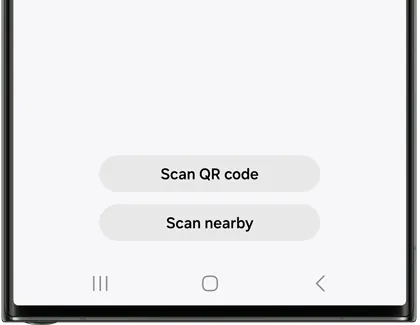
| Add path | Use it when | What usually matters |
|---|---|---|
| Scan nearby | The device advertises nearby setup over Bluetooth or local discovery | Keep the Fold 8 near the device and leave Bluetooth enabled. |
| Scan QR | The device has a Matter QR code, setup code, or Samsung-supported QR setup label | Use a clean, well-lit code and update SmartThings first for Matter commissioning. |
| Manual brand/category selection | The device is supported but not found automatically | Pick the exact brand and model path shown inside SmartThings. |
| Hub or bridge route | The device is Zigbee, Z-Wave, Thread, or otherwise hub-dependent | Pair the device to the correct hub or border router, then let SmartThings expose it. |
A clean first add should look boring: SmartThings finds the device or asks you to choose it, the app walks you through pairing mode, you assign a name and room, and the device tile appears under Devices. If the app asks for a manufacturer account, that is not automatically a problem; many Wi-Fi devices still use account linking. If the app asks for a hub, do not keep tapping around the phone hoping the Fold 8 will become one.
A practical tap order for the first real device
- Open the Fold 8 to the inner screen.
- Open SmartThings.
- Tap Devices.
- Tap Add device.
- Try Scan nearby if the device is powered on and in pairing mode.
- If that fails or the device came with a setup code, use Scan QR.
- If the code route is not available, choose the device by brand or category.
- Follow the manufacturer-specific prompts, including account linking if SmartThings requests it.
- Assign the device to the correct location and room.
- Rename it with a spoken-control-friendly name before adding the next device.
For the first device, pick something low-consequence: a plug or lamp is better than a front-door lock. You want to test the Fold 8-to-SmartThings path, not debug your most annoying security device while standing in a hallway.
Step 4 — Verify control inside SmartThings before moving to One UI controls
Status: Confirmed for app-level device management; device behavior depends on the device and integration. Samsung’s add-and-manage documentation covers adding and managing devices inside SmartThings, but it also notes that the Device control panel is not available on all phones. That caveat matters: the SmartThings app is the first place to prove the device works before you blame a Fold 8 control panel. [4]
- Turn the device on and off from its SmartThings tile.
- Open the tile and check whether expected controls appear, such as brightness, lock state, mode, or sensor status.
- Confirm the device is in the right room.
- Wait long enough to see whether the tile state updates after a physical change.
- Only then add the next device.
The Fold 8’s inner screen makes this part less cramped than a slab phone. You can keep the device list visible, open individual controls, and rename rooms without feeling like every dialog is stacked on top of the last one. That does not change compatibility, but it does make the first cleanup pass less irritating.
Step 5 — Put working devices in Quick settings Device control
Status: Confirmed for the documented route; availability can vary by phone and build. A Samsung Community solved answer describes opening the smart-home UI by swiping down twice from the top of the screen and tapping Device control. The same thread points to Quick panel layout, where “Device control and media output buttons” can be set to show always. [5]
- Swipe down twice from the top of the Fold 8 screen.
- Look for Device control.
- Tap Device control.
- If the button is missing, open the Quick panel edit or layout settings and set Device control and media output buttons to show always, if that option is present on your software build.
- Choose SmartThings as the control provider if more than one smart-home service is available.
SmartThings has also documented switching between SmartThings and Google Home from the phone’s quick-settings panel. That is useful if you run both ecosystems: the Fold 8 can be the front door to either panel, but the devices you see there still depend on which service has successfully added them. [6]
After your devices are visible in Quick settings, the next layer is placement: which controls belong on the cover screen, which belong on the inner screen, and which should stay inside the app. For that, use Turn Your Galaxy Z Fold 8 Into a Smart Home Control Panel after this setup flow is working.
What to treat as Investigating on One UI 9
Status: Investigating for launch-day Fold 8 setup instructions. SamMobile reported an upcoming SmartThings redesign for One UI 9 with a pill-shaped tab bar, dynamic Home wallpapers, a SmartThings Now card, new Device Control, Screen Device Control, and Routines widget types, plus a Discover and My Routines split. The report was dated August 4, 2026, and did not provide a release date, so those details are worth watching but should not be written into your Saturday setup plan as if every Fold 8 already has them. [7]
The same caution applies to cover-screen SmartThings widget assumptions. Some Samsung cover-screen widget documentation is written for the Z Flip series, not the Fold 8’s cover display. Until the Fold 8 behavior is checked directly, use the cover screen for controls you can actually see on your unit, and keep the inner screen as the reliable setup surface.
| Surface | Use now? | Status | How to treat it |
|---|---|---|---|
| SmartThings app Devices tab | Yes | Confirmed | Primary setup and verification surface. |
| Quick settings Device control | Yes, if present on your phone | Confirmed | Use after devices work in SmartThings; availability can vary. |
| Switching SmartThings / Google Home from Quick settings | Yes, if the panel appears | Confirmed | Useful for mixed homes after onboarding. |
| One UI 9 redesigned SmartThings tabs and SmartThings Now card | Not as a required setup step | Investigating | Check after app updates; do not depend on it for first pairing. |
| Fold 8 cover-screen SmartThings widget behavior | Only if visible on your unit | Investigating | Do not assume Z Flip instructions map exactly to Fold 8. |
If controls worked yesterday and fail after a One UI 9 beta or launch-window update, do not rebuild the whole home first. Use SmartThings Not Working After One UI 9 Beta? Fix Order only after you have confirmed the device still appears in SmartThings and the failure is really at the phone-control layer.
A clean weekend result
By the end of the first pass, a realistic win is simple: your Wi-Fi and Matter-over-Wi-Fi devices are added in SmartThings, named clearly, assigned to rooms, and visible from the Fold 8’s main app surface. If Quick settings Device control is available on your build, your most-used tiles are reachable without opening the full app.
If your remaining devices are Zigbee, Z-Wave, or Matter-over-Thread, the missing piece is not another hidden phone setting. It is the correct hub, bridge, or Thread border router. Buy that deliberately, not because a vague “hubless” promise blurred Wi-Fi devices together with every smart-home protocol in the house.
After publication, recheck five things on your own Fold 8 before making permanent decisions: the installed SmartThings app version, the Play Store or Galaxy Store Android requirement listing, One UI 9 control-surface availability on your unit, regional Samsung account or device limits, and whether the reported SmartThings redesign has actually rolled out to your region.
References
- Using the SmartThings App, SmartThings Support
- Set up the SmartThings app on your Galaxy phone, Samsung
- SmartThings compatible devices, Samsung
- Add and manage devices and appliances in SmartThings, Samsung
- How to do we open the Smart Home UI?, Samsung Community
- Easily switch between SmartThings and Google Home from the Quick Settings menu of your phone, SmartThings Blog
- Massive Samsung SmartThings update One UI 9 early look, SamMobile, August 4, 2026