
How to set up SmartThings on the Galaxy F70 Pro 5G
Step-by-step SmartThings setup for the Galaxy F70 Pro 5G (SM-E476B/DS). Covers the official add-device flow for Wi-Fi, Bluetooth, and cloud devices, and flags which devices require a separate SmartThings hub the phone doesn't contain.
| Galaxy F70 Pro 5G setup status | What it means today |
|---|---|
| Exact phone | Galaxy F70 Pro 5G, model SM-E476B/DS; India-market listing, released Aug. 8, 2026. NestGrid status: Investigating, not yet hands-on reproduced on this exact unit. |
| SmartThings support | Samsung India lists SmartThings Support: Yes for the F70 Pro 5G. That means the phone is eligible to run and control through SmartThings, not that it contains every smart-home radio. |
| App-level eligibility | The phone’s Android 16 / One UI 8.5 software, 6–8GB RAM range, Bluetooth 5.1, NFC, and dual-band Wi-Fi 5 clear Samsung’s stated SmartThings app minimums. |
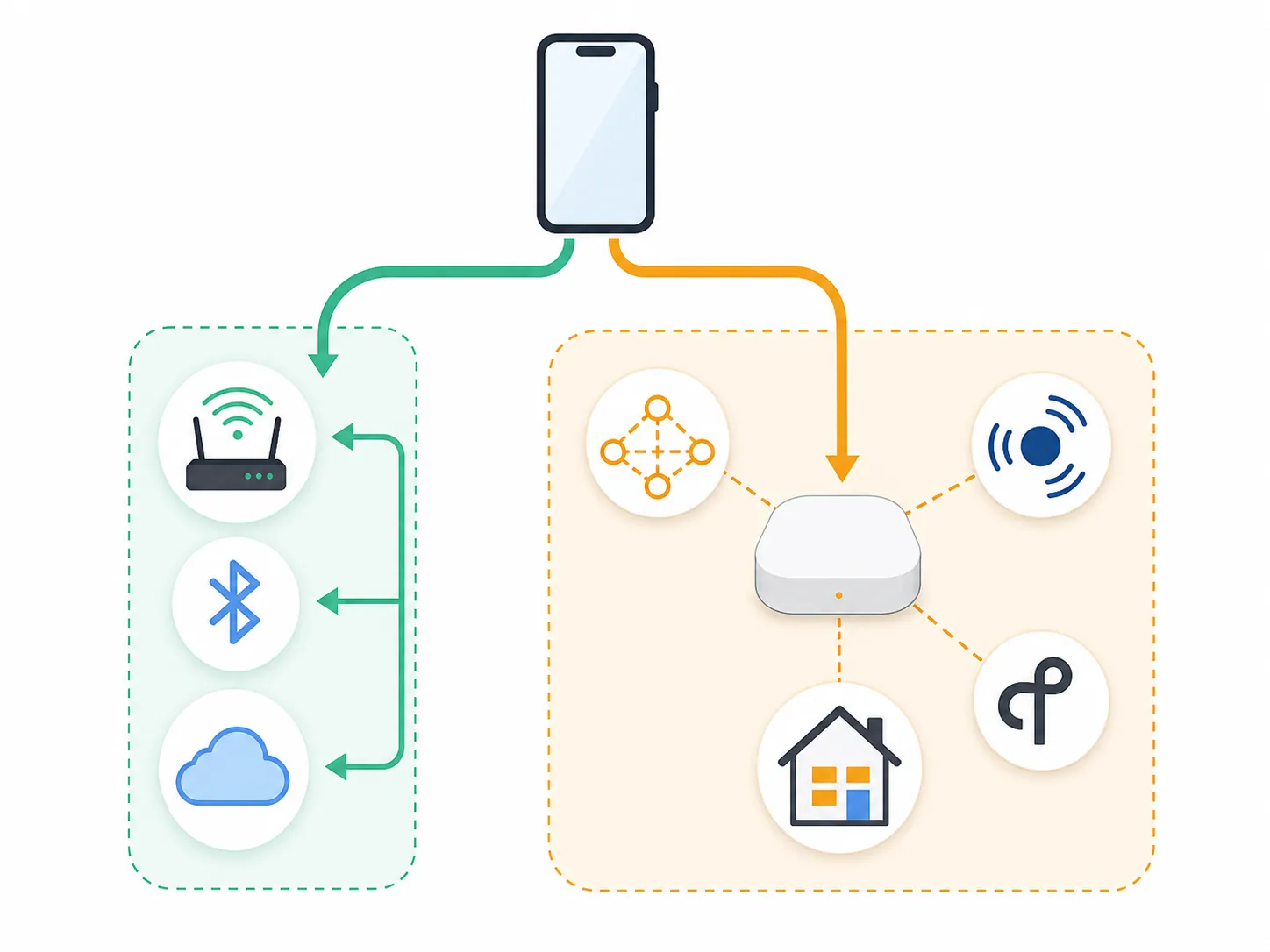
| Direct-connect path | Wi-Fi, Bluetooth, and cloud-linked devices can be added from the phone through the SmartThings app when the device, region, account, and app version line up. |
| Hub-required path | Zigbee, Z-Wave, Thread, and many Matter setups require a separate SmartThings-compatible hub. The phone can participate in setup, but it does not replace that hub. |
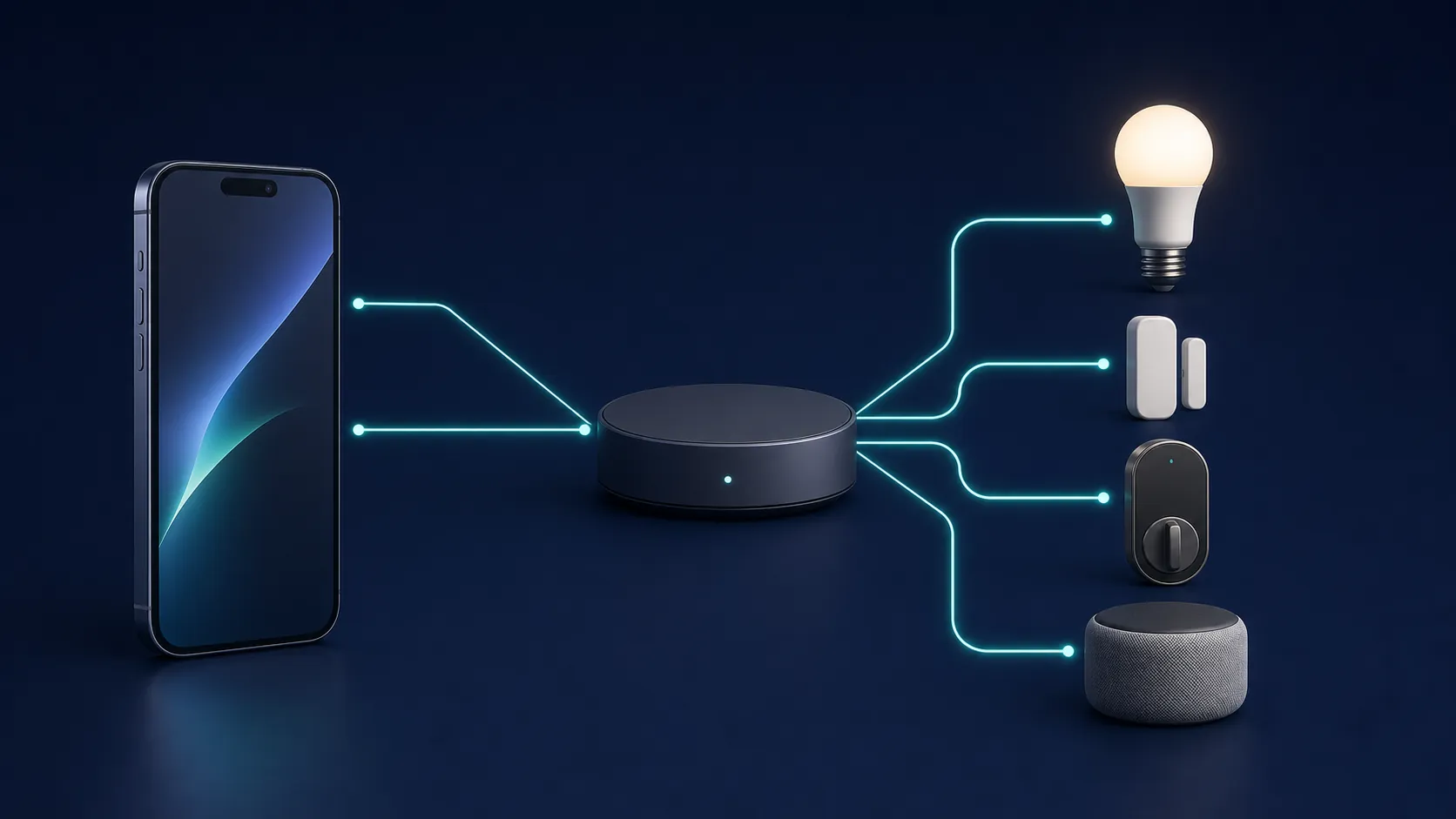
Yes, you can start SmartThings setup from the Galaxy F70 Pro 5G. The catch is the word “start.” A Wi-Fi plug, a Bluetooth accessory, a Samsung appliance, or a cloud-linked partner device may finish directly from the phone. A Zigbee sensor, Z-Wave lock, Thread device, or Matter device that expects a Matter-capable hub needs more than the phone in your hand.
That distinction matters more on a new model like the SM-E476B/DS because, as of Aug. 25, 2026, NestGrid has not independently reproduced SmartThings pairing on this exact 17-day-old phone. The steps below use Samsung’s published requirements and setup flow, then mark the point where the phone stops being enough.
For the deeper controller-versus-hub verdict on this phone, use Can the Galaxy F70 Pro 5G control your smart home?. This recipe stays with the setup job: get SmartThings running, sort the device before pairing, add what the phone can add, and hand off hub devices before you burn an hour tapping “Scan nearby.”
Before you tap Add, sort the device
The most useful SmartThings setup step happens before the app opens. Look at the device you are trying to add and place it into one of two paths.
| Device type | Use this setup path on the Galaxy F70 Pro 5G |
|---|---|
| Samsung appliances, TVs, Wi-Fi plugs, Wi-Fi bulbs, Wi-Fi cameras, Bluetooth devices, cloud-linked partner devices | Start in the SmartThings app on the phone. These are the direct-connect or account-linking candidates. |
| Zigbee sensors, Zigbee bulbs, Z-Wave locks, Z-Wave switches | Add or verify a SmartThings-compatible hub first. The phone does not list Zigbee or Z-Wave radios in its published wireless specs. |
| Thread devices | Use a hub or Thread border router path. The F70 Pro 5G’s listed radios do not include Thread; that is a synthesis from the published phone specs, not a separate Samsung “no Thread” statement. |
| Matter devices | Use the phone for commissioning where supported, but expect a Matter-compatible hub when the device needs one. Samsung’s own SmartThings page says a Matter-compatible hub is required for connecting Matter devices to SmartThings. |
The F70 Pro 5G clears the ordinary app gate: Samsung’s India page lists SmartThings Support: Yes, while the published device details for the SM-E476B/DS line include Android 16 / One UI 8.5, 6–8GB RAM, Bluetooth 5.1, NFC, and Wi-Fi 5 hardware; Samsung’s SmartThings app requirement is Android 12 or higher with at least 3GB RAM, and the Google Play listing was updated June 4, 2026 [1][2][3][4].
Those specs prove the app case. They do not prove hub replacement. The phone’s published wireless list covers Wi-Fi, Bluetooth, and NFC, but not Zigbee, Z-Wave, or Thread; that is why a failed Zigbee sensor pairing should not be treated as user error just because the phone says SmartThings is supported [1][2].
Get the phone and account ready
Start with the parts Samsung’s own setup flow assumes are already in place. Sign in to a Samsung account from Settings or from inside SmartThings, keep the phone on a stable Wi-Fi connection, turn on Bluetooth, and install or update SmartThings before pairing [5].
- Open Settings on the Galaxy F70 Pro 5G and confirm the Samsung account is signed in. If it is not, add it before pairing devices.
- Open the Galaxy Store or Google Play and update SmartThings.
- Enable Bluetooth and connect to the Wi-Fi network you want Wi-Fi smart-home devices to use.
- If this is an imported India-market phone used in the US, expect some regional differences in app availability, partner lists, device names, or service behavior.
Version drift is worth checking, not obsessing over. Samsung’s Matter support materials set Android Matter commissioning at SmartThings app version 1.7.91 or later, while public APK tracking showed SmartThings builds already in the 1.8.47.x line by July 15, 2026 [6][7]. If the app behaves differently from screenshots in an older guide, the app may simply have moved.
Add a Wi-Fi, Bluetooth, Samsung, or cloud device from the phone
For a device that belongs on the direct path, use Samsung’s official add-device route rather than hunting through phone settings. SmartThings is the setup surface; the Galaxy F70 Pro 5G is the controller screen.
- Open SmartThings on the Galaxy F70 Pro 5G.
- Tap the Devices tab.
- Tap Add, shown as the plus button.
- Choose Scan nearby if the device is powered on and advertising itself over a supported setup method.
- Choose Scan QR code if the device, packaging, or manual provides a SmartThings or Matter QR code.
- If scanning does not find it, add manually from the Samsung device list or the Partner devices list.
- Follow the device-specific prompts, including account linking for partner cloud devices when SmartThings asks for it.
- Assign the device to the correct location and room before you test control.
That sequence—SmartThings, Devices, Add, then Scan nearby, QR scan, or manual Samsung/Partner selection—is Samsung’s documented add-device flow [5]. It is also the point where the friendly word “support” can mislead people: the phone can run the flow, but the device still has to speak a path SmartThings can complete from that phone or through an available hub.
If Scan nearby finds nothing
Do not keep rescanning indefinitely. Check three things in this order: whether the device is in pairing mode, whether it is actually a Wi-Fi/Bluetooth/cloud device rather than Zigbee/Z-Wave/Thread, and whether its brand appears under Samsung or Partner devices in manual add. If the label, box, or manual mentions Zigbee, Z-Wave, Thread, “requires hub,” or “works with Matter via hub,” move to the hub path.
Samsung maintains a SmartThings compatible-devices support page, but the practical check inside the app is often faster because the list you see is tied to the app build, region, and device category available to your account [8].
Use the Galaxy Device panel only after the device exists in SmartThings
On supported Galaxy phones, Samsung’s Quick settings Device panel can show connected SmartThings devices so you can control lights, plugs, scenes, and other linked devices without opening the full app. Samsung also says this panel is not available on all phones [5].
After a device is added, swipe down from the top of the screen to open Quick settings and look for Device control or Devices. If it appears, use it as a shortcut. If it does not appear on the F70 Pro 5G build you have, that does not by itself prove SmartThings failed; open the SmartThings app and test from the Devices tab instead.
When the device needs a hub
This is the part to slow down on. Matter setup in SmartThings can involve the phone, but that does not make the phone a Matter hub. Samsung states that a Matter-compatible hub is required for connecting Matter devices to SmartThings, and SmartThings’ Matter support page describes Android commissioning through the app with version and hub firmware requirements [9][6].
Think of the Galaxy F70 Pro 5G as the screen that starts the interview. The hub is the device that stays behind to speak the home-network language the accessory needs. For a Wi-Fi plug, the phone and app may be enough. For a Thread sensor or Zigbee bulb, the missing radio is not fixed by reinstalling SmartThings.
| SmartThings hub option | Protocol coverage supported by the research |
|---|---|
| SmartThings Station | Listed by Samsung among built-in hub options; relevant for SmartThings hub and Matter/Thread-style setups where supported. |
| 2018 SmartThings Hub v3, IM6001-V3P01 | Listed by SmartThings Matter support as a supported controller class; requires hub firmware 45.9 or higher for Matter support. |
| Aeotec Smart Home Hub | SmartThings-compatible hub option; Aeotec describes Matter support, and the research notes a built-in Thread border router. |
| 2015 SmartThings Hub STH-ETH | Matter over Wi-Fi/LAN only; no Thread radio in the research brief. Matter support requires hub firmware 45.9 or higher. |
| Samsung TVs from 2022 onward, Q60 and above | Samsung US lists built-in hub support with Matter, Thread, and Zigbee coverage for eligible models. |
| Other Samsung built-in hub products | Samsung Canada’s footnote also lists eligible Smart Monitors M50* and above, soundbars HW-Q990* and HW-LS60*, Family Hub refrigerators, and SmartThings Station. |
Samsung’s own “Hub Everywhere” messaging is useful here because the hub list is full of hubs, TVs, monitors, soundbars, appliances, and Station-style devices—not Galaxy phones [10]. That lines up with the F70 Pro 5G spec synthesis: the phone is a SmartThings controller and setup surface, not a Zigbee/Z-Wave/Thread radio box.
If you already own Apple or Google Thread gear, do not assume you must tear the network down. SmartThings announced two-way Thread network unification on Oct. 1, 2025, allowing newer SmartThings hubs to join existing third-party Thread networks using QR code or OTP flows [11]. That changes the handoff plan for some homes: you may be adding a SmartThings hub into an existing Thread fabric rather than replacing everything.
There is one more Matter wrinkle for this specific phone. SamMobile reported on June 23, 2026 that Matter 1.6 Thread Direct setup needs a phone with a Thread radio; the F70 Pro 5G’s published radios do not include Thread [12][1]. That does not block every Matter route, but it is exactly the kind of dated app-and-radio mismatch that makes a setup fail in a way the app may not explain clearly.
Hub setup order that avoids wasted pairing attempts
- Add the SmartThings-compatible hub to the same SmartThings location you intend to use for the accessories.
- Update hub firmware before Matter pairing if the hub model requires it.
- Then return to SmartThings on the Galaxy F70 Pro 5G and add the Zigbee, Z-Wave, Thread, or Matter device through the app.
- If the device offers a QR code, scan it from SmartThings rather than from a random camera or browser prompt.
- After pairing, test control from the phone while standing near the hub first, then test from the normal room location.
For hub-specific failures—hub offline, Zigbee join failures, mesh devices dropping, or a sensor that pairs only when it is inches from the hub—move to the Zigbee smart-home hub troubleshooting index instead of repeating the phone setup.
About SmartThings device limits
Device limits are not the first setup blocker for most F70 Pro 5G owners, but Samsung’s documentation is not perfectly consistent. Samsung’s US SmartThings page and Samsung Canada app page state a 300-device-per-location limit, while Samsung’s US Samsung SmartThings page states 200 devices per location [13][3][9]. Treat that as a dated documentation conflict, not something the phone itself resolves.
Verify control from the F70 Pro 5G
Once the device appears in SmartThings, test the simple action first: turn the plug on and off, toggle the light, lock and unlock only when the door is safely open, or refresh the sensor state. Watch where the delay happens. A cloud device may pause while the partner account responds. A hub device may show a mesh or hub problem. A Wi-Fi device may expose a router or band issue.
- If the device works in SmartThings but not in the Quick settings Device panel, use the app and treat the panel as unavailable or unsupported on that build.
- If a Wi-Fi or cloud device appears but will not respond, check the partner account link, device power, and Wi-Fi connection.
- If a Zigbee, Z-Wave, Thread, or Matter device will not add, verify the hub path before blaming the F70 Pro 5G.
- If the app UI differs from older screenshots, update SmartThings first and then follow the current Devices and Add flow.
The sibling Galaxy A27 5G SmartThings setup recipe follows the same controller-first pattern on a different phone. The broader Galaxy-controller boundary is also covered in Galaxy Z Fold 8 as a smart-home controller and Galaxy Z Flip and Fold smart-home hub compatibility. If you are comparing ecosystems rather than setting up this phone today, use the best Android phones for smart homes in 2026 guide.
The practical verdict for this setup is narrow and useful: the Galaxy F70 Pro 5G is a valid SmartThings controller and setup phone. The number of devices it can actually control depends on the protocol map you make before pairing.
References
- Galaxy F70 Pro 5G, Samsung India, https://www.samsung.com/in/
- Samsung Galaxy F70 Pro 5G, GSMArena, https://www.gsmarena.com/
- SmartThings, Samsung Canada, https://www.samsung.com/ca/apps/smartthings/
- SmartThings, Google Play, June 4, 2026, https://play.google.com/store/apps/details?id=com.samsung.android.oneconnect
- Use SmartThings to control your connected devices, Samsung Support, https://www.samsung.com/us/support/answer/ANS10002639/
- SmartThings x Matter Integration, SmartThings Support, https://support.smartthings.com/
- SmartThings 1.8.47.x, APKMirror, July 15, 2026, https://www.apkmirror.com/apk/samsung-electronics-co-ltd/samsung-connect/
- Find compatible devices for SmartThings, Samsung Support, https://www.samsung.com/us/support/answer/ANS10002638/
- Samsung SmartThings, Samsung US, https://www.samsung.com/us/samsung-smartthings/
- Samsung Electronics Advances the Smart Home With Hub Everywhere, Samsung Newsroom, April 24, 2025, https://news.samsung.com/global/
- SmartThings Enables Two-Way Thread Network Unification, SmartThings Blog, October 1, 2025, https://blog.smartthings.com/
- SmartThings Matter 1.6 support adds Thread Direct setup, SamMobile, June 23, 2026, https://www.sammobile.com/
- SmartThings, Samsung US, https://www.samsung.com/us/smartthings/