
Set up SmartThings on Galaxy A27 5G
A step-by-step beginner recipe for setting up the SmartThings app on your Galaxy A27 5G, adding devices, and creating your first routine – with clear guidance on which devices need a hub and which work phone-only.
Status as of August 4, 2026: workaround-free, source-verified, not yet independently reproduced by NestGrid. If you bought a Galaxy A27 5G and want to start a SmartThings smart home setup today, the phone itself is not the problem. Samsung’s U.S. launch materials put the A27 5G comfortably above the current SmartThings Android requirements: Android 16, One UI 8.5, and 6GB or 8GB of RAM, with U.S. availability beginning July 14, 2026 at $349.99.[1] SmartThings’ current app requirement page lists Android 12 or higher and at least 3GB of RAM, and the SmartThings community notice dates the Android 12 floor to December 22, 2025.[2][3]
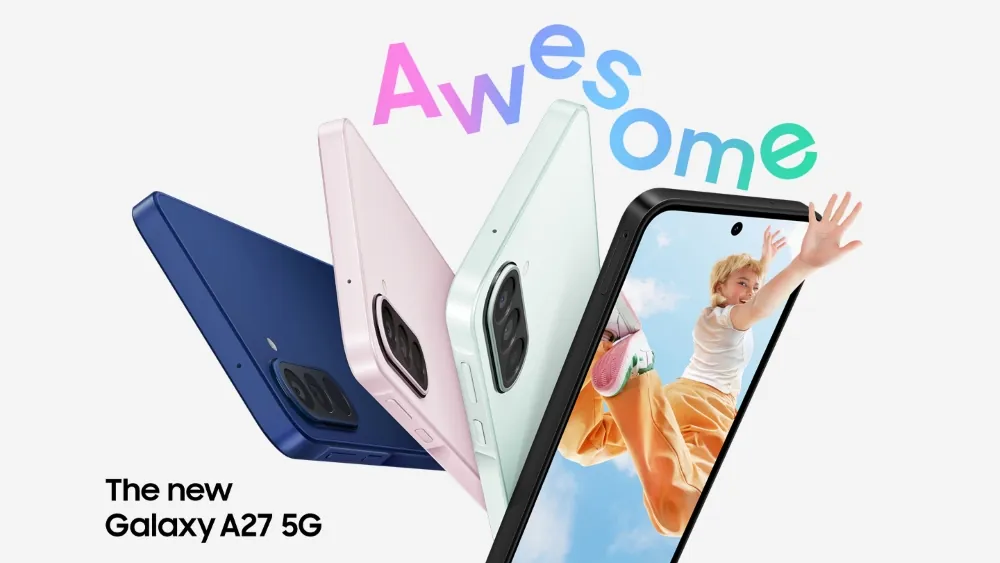
There is one annoying paperwork wrinkle, but it does not change the setup answer. Samsung Newsroom is the primary source here for the U.S. launch timing, while GSMArena lists the phone as announced on June 10 and released on July 3.[4] GSMArena also lists dual-band 802.11 a/b/g/n/ac Wi-Fi and market-dependent NFC; neither blocks SmartThings setup on the A27 5G.[4]
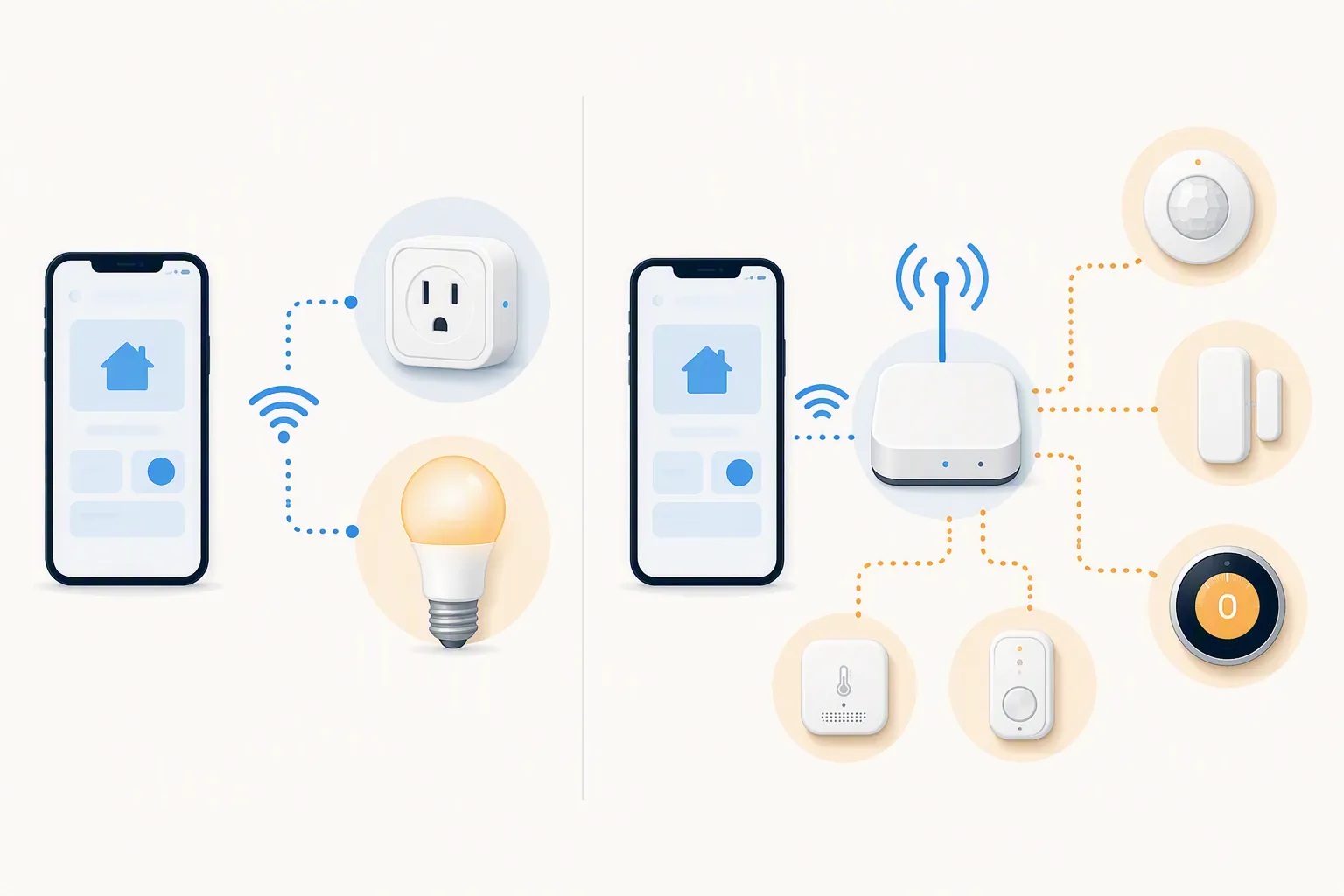
The real first-Saturday decision is not “Is the A27 powerful enough?” It is “What kind of smart-home device am I trying to add?” A phone can run the SmartThings app, sign you in, show controls, help onboard supported devices, and trigger cloud-based routines. It cannot become a Zigbee, Z-Wave, Thread, or Matter controller just because the app is installed.
Before you tap Add device, check the protocol
This is the split that prevents the surprise hub purchase. Look at the product box, listing, or manual for the words Wi-Fi, Zigbee, Z-Wave, Thread, Matter, “hub required,” or “works with SmartThings.” Those words decide whether your Galaxy A27 5G plus the app is enough.
| Device or protocol on the box | Can the Galaxy A27 5G set it up phone-only? | What you need to know before buying |
|---|---|---|
| Wi-Fi smart plug, bulb, camera, appliance, or other cloud-connected device | Usually yes, if SmartThings supports that brand or device path | The A27 5G runs the app and connects over your home Wi-Fi. No SmartThings hub is normally needed for basic cloud control. |
| Matter over Wi-Fi | The phone can participate in onboarding, but SmartThings Matter control depends on a Matter controller | SmartThings describes the phone as part of commissioning, while ongoing Matter control uses controller hardware in the SmartThings ecosystem.[6] |
| Matter over Thread | No, not as a phone-only setup | Thread needs border-router/controller support. Do not buy a Thread sensor expecting the A27 5G by itself to be the radio. |
| Zigbee | No | You need compatible SmartThings hub hardware or a Samsung product with a built-in hub radio path.[7] |
| Z-Wave | No | You need compatible SmartThings hub hardware. The phone does not contain a Z-Wave radio.[7] |
Samsung’s current U.S. SmartThings page lists hub options such as SmartThings Hub v2/v3, Aeotec Smart Home Hub, SmartThings Station, and built-in hub support in certain 2022 and newer Samsung TVs, M50 and newer monitors, selected soundbars, and Family Hub refrigerators.[7] Naming can drift across SmartThings Matter articles and Samsung product pages, so check the actual model list before assuming an older “hub” mention is the same device currently being sold.
If an older SmartThings support page still says Android 8.0 or higher, treat that as stale requirement language for a new 2026 setup, not the safer floor to plan around.[5] The A27 5G clears the current Android 12 and 3GB RAM requirements anyway, so this mismatch should not send you shopping for a different phone.[2][3]
What to have ready
- Your Galaxy A27 5G, charged and connected to your home Wi-Fi.
- A Samsung account. SmartThings setup starts with signing in, not with pairing hardware.
- The SmartThings app, downloaded from Galaxy Store or Google Play if it is not already installed.
- The smart device in pairing mode, with its QR code or setup code nearby if it has one.
- A compatible SmartThings hub only if your device is Zigbee, Z-Wave, Thread, or needs SmartThings Matter controller support.
For a first setup, the platform limits are not likely to matter, but they are useful guardrails: Samsung lists limits of 300 devices per location, 10 locations, 20 rooms, and 20 invited members.[7] If this is your first plug, bulb, or sensor, you are nowhere near the ceiling.
Install and open SmartThings on the Galaxy A27 5G
- Open Galaxy Store or Google Play on the A27 5G.
- Search for SmartThings.
- Install or update the app.
- Open SmartThings.
- Sign in with your Samsung account.
- Tap Continue when SmartThings shows its first-run screen.
Samsung’s own Galaxy-phone setup flow begins this way: download or open SmartThings, sign in with a Samsung account, continue through the first screen, grant requested permissions, and then add a device.[8] If you are setting this up for someone else, do not skip the Samsung account step and assume you can “just pair the bulb.” The account is what ties the location, rooms, devices, and routines together.
The permission prompts that actually matter
When SmartThings asks for permissions, allow the ones needed for the setup path you are using. Location is the permission beginners most often second-guess. If you want SmartThings to use your phone for mobile presence — for example, “when I arrive home” or “when everyone leaves” — location access is part of that setup path.[8] If you only want to turn a Wi-Fi plug on from the app while sitting on the couch, location is less central to that first test, though the app may still request it during setup.
Bluetooth or nearby-device prompts can appear during discovery or onboarding. If you deny something and the app immediately stops finding the device, do not factory-reset the plug yet. Go to Android settings, reopen SmartThings permissions, allow the requested access, and try Add device again.
Add your first device
Use this path for a device that your protocol check says can be added without extra hub hardware. A simple Wi-Fi plug or Wi-Fi bulb is the cleanest first test because it proves the app, account, Wi-Fi, room, and routine layers without introducing Zigbee or Thread radio questions.
- Put the smart device in pairing mode using the manufacturer’s instructions.
- Open SmartThings on the Galaxy A27 5G.
- Go to Devices.
- Tap the plus button.
- Choose Add device.
- Use the QR code, scan nearby, or search by brand, depending on what SmartThings offers for that device.
- Follow the pairing prompts until the device appears in your SmartThings location.
Samsung’s setup documentation uses the same general flow: open SmartThings, add a device, select or scan the device, and follow the on-screen prompts.[8] SmartThings’ app documentation also organizes devices under locations and rooms, which is why the next screen is not busywork.[5]
Put the device in a room
When SmartThings asks where the device belongs, choose a room you will recognize later: Living room, Bedroom, Kitchen, Office. If the right room does not exist, create it. Rooms keep the Devices tab from becoming a junk drawer, and they make routine building less error-prone because you can tell whether “Lamp” means the lamp by the sofa or the lamp in the bedroom.
For a one-device test, favoriting is optional. Favorite the device if you expect to tap it often from the SmartThings home screen. Skip it if the device is a sensor you only want routines to use in the background.
If your device needs a hub, add the hub first
For Zigbee, Z-Wave, Thread, and SmartThings Matter controller paths, the order matters. Add the hub or hub-capable Samsung product to SmartThings first, wait until it is online, and then add the sensor, switch, lock, thermostat, or Matter device through that hub path. The Galaxy A27 5G is still the screen you use, but it is not the radio doing the home-network work.
This distinction is easy to miss because the app experience can look similar from the couch. The consequence is not similar. A Wi-Fi plug can usually join through your router and account. A Zigbee contact sensor is waiting for a Zigbee coordinator. A Z-Wave lock is waiting for a Z-Wave controller. A Thread device is waiting for Thread border-router support. Tapping Add device harder on the A27 5G will not create those radios.
Create one routine that proves the setup works
Do not start with a complicated “good night” scene that touches half the house. Start with one routine you can test immediately, then edit or delete it. SmartThings supports routines built from an If condition and a Then action, and Samsung’s routine guide shows this trigger-and-action structure inside the app.[9]

A safe first routine for a plug or lamp
- Open SmartThings.
- Go to Routines.
- Tap the plus button to create a new routine.
- Under If, choose a time condition a few minutes from now.
- Under Then, choose your newly added plug or lamp.
- Set the action to turn it on.
- Name the routine something obvious, such as Test lamp on.
- Save it, wait for the scheduled time, and confirm the device responds.
Once it works, edit the time to something useful or delete the test routine. The point of this first routine is not to automate your home perfectly. It is to prove that the A27 5G, SmartThings account, device connection, room assignment, and routine engine are all talking to each other.
If you want an arrival routine
For a presence-based routine, use your phone only after you have allowed the needed location access. A simple version is: If member arrives home, Then turn on entry lamp. This is where the earlier permission decision shows up. If location access was denied, the routine may not have the phone presence information it needs.
What this setup does not prove yet
This article is not marked Confirmed because NestGrid has not yet performed its own hands-on A27 5G plus SmartThings reproduction with app version, hub model, firmware, and device metadata. The practical answer is still strong: the A27 5G clears the published phone requirements, and the setup path is the standard Galaxy-phone SmartThings path. The unverified part is not whether the phone is underpowered; it is the site’s own reproduction record.
So stop troubleshooting the phone first. If SmartThings installs, signs in, and opens normally on the Galaxy A27 5G, the next failure point is usually the device path: wrong Wi-Fi band or pairing mode for a Wi-Fi device, unsupported brand integration, missing Matter controller, or no Zigbee/Z-Wave/Thread hub where the product expected one.
At this point, your A27 5G is ready to be the SmartThings controller in your hand. Just do not ask it to be the hub in the closet. For phone-only setup, stay with supported Wi-Fi and cloud-connected devices. For Zigbee, Z-Wave, Thread, and ongoing Matter controller duties, add the right SmartThings hub hardware before you blame the phone.
References
- Samsung Galaxy A27 5G Brings an Immersive Display and Awesome Intelligence to More Users — Samsung Newsroom, June 25, 2026
- SmartThings App — Samsung Canada
- Older OS support — SmartThings Community
- Samsung Galaxy A27 - Full phone specifications — GSMArena
- Using the SmartThings App — SmartThings Support
- SmartThings x Matter Integration — SmartThings Support
- SmartThings — Samsung US
- Set up the SmartThings app on your Galaxy phone — Samsung Support
- How to use Routines feature in SmartThings app — Samsung Levant Support