
Set Up Smart Home Control on Your Galaxy A27 5G
A dated, status-labeled SmartThings setup path for the Galaxy A27 5G: pair Wi-Fi and Bluetooth devices directly, organize them into rooms, and control them from Quick Settings and Bixby — with the Matter/Thread/Zigbee hardware boundary stated up front so your setup doesn't stall at a failed pairing.
Q3 2026 setup status for the Galaxy A27 5G
For a Samsung Galaxy A27 5G smart home control setup, the useful answer is not simply “yes, it works with SmartThings.” The useful answer is this: the A27 5G can be your day-to-day SmartThings remote for Wi-Fi and Bluetooth cloud devices, but it is not listed as a SmartThings hub. If the device you are trying to add needs Matter, Thread, or Zigbee infrastructure, choose that controller or hub path before you start pairing.
| Item | Q3 2026 status | What it means before pairing |
|---|---|---|
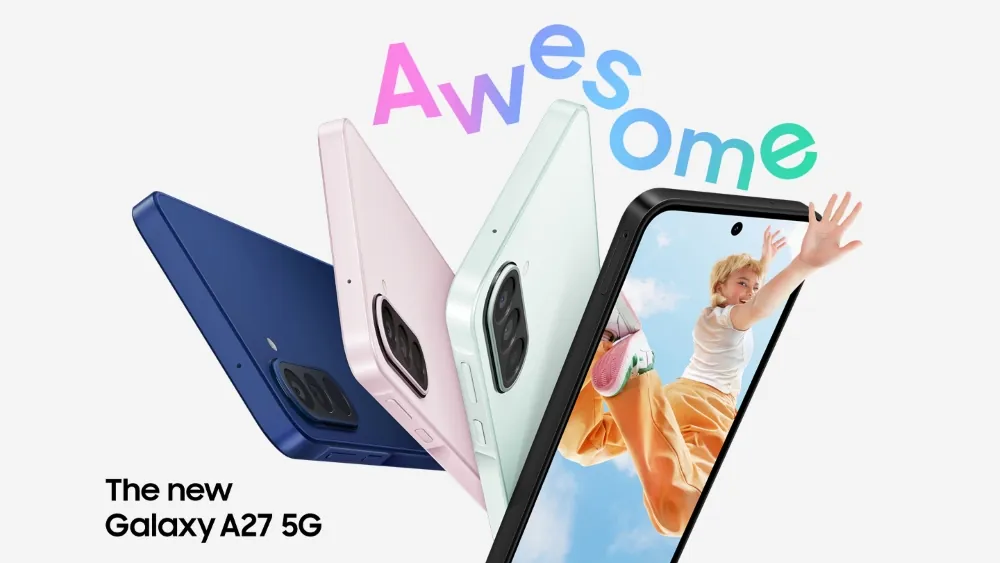
| Galaxy A27 5G baseline | Documentation-supported, not yet NestGrid hands-on confirmed | Samsung says the A27 5G launched with Android 16 and One UI 8.5, with SmartThings preinstalled; global launch was July 3, 2026, and the U.S. launch was July 14 at $349.99. [1] |
| SmartThings app eligibility | Documentation-supported | Samsung’s current SmartThings page lists Android 9+ and 3GB RAM as app minimums, so the A27 5G exceeds the documented baseline. [2] |
| SmartThings first-run setup | Documentation-supported | Samsung’s setup path starts with opening SmartThings, signing in with a Samsung account, and allowing the app permissions it needs. [3] |
| Phone radios | Third-party spec data | GSMArena lists Wi-Fi 5 dual-band and Bluetooth 5.1 for the A27 5G; useful for pairing expectations, but not a Samsung spec-page confirmation. [4] |
| Phone as SmartThings hub | Not on current hub list | The current integrated SmartThings hub lists cover TVs, Family Hub refrigerators, monitors, soundbars, projectors, and standalone hubs; Galaxy phones are not listed as built-in hub models. [5] |
| Matter commissioning | Documentation-supported, controller still required | SmartThings documents Matter commissioning and multi-admin sharing, but the phone is the commissioning surface, not the hub-class device named in Samsung’s built-in-hub lists. [6] |
| Android 16 SmartThings app stability | Dated known issue; A27 retest pending | Android app version 1.8.45.24 had Android 16 crash reports in April 2026, and 1.8.47.24 was reported as addressing them in June 2026; verify the current app build before treating A27 behavior as confirmed. [7] |
That last boundary is the one that saves the most time. A bulb, plug, camera, or appliance that joins by Wi-Fi through its cloud account can usually be added from the A27 itself. A nearby Bluetooth device can also be discovered from the phone when the product supports that path. A Matter, Thread, or Zigbee device is different: the A27 can help start setup in SmartThings, but the home still needs the right controller, border router, or hub already present.
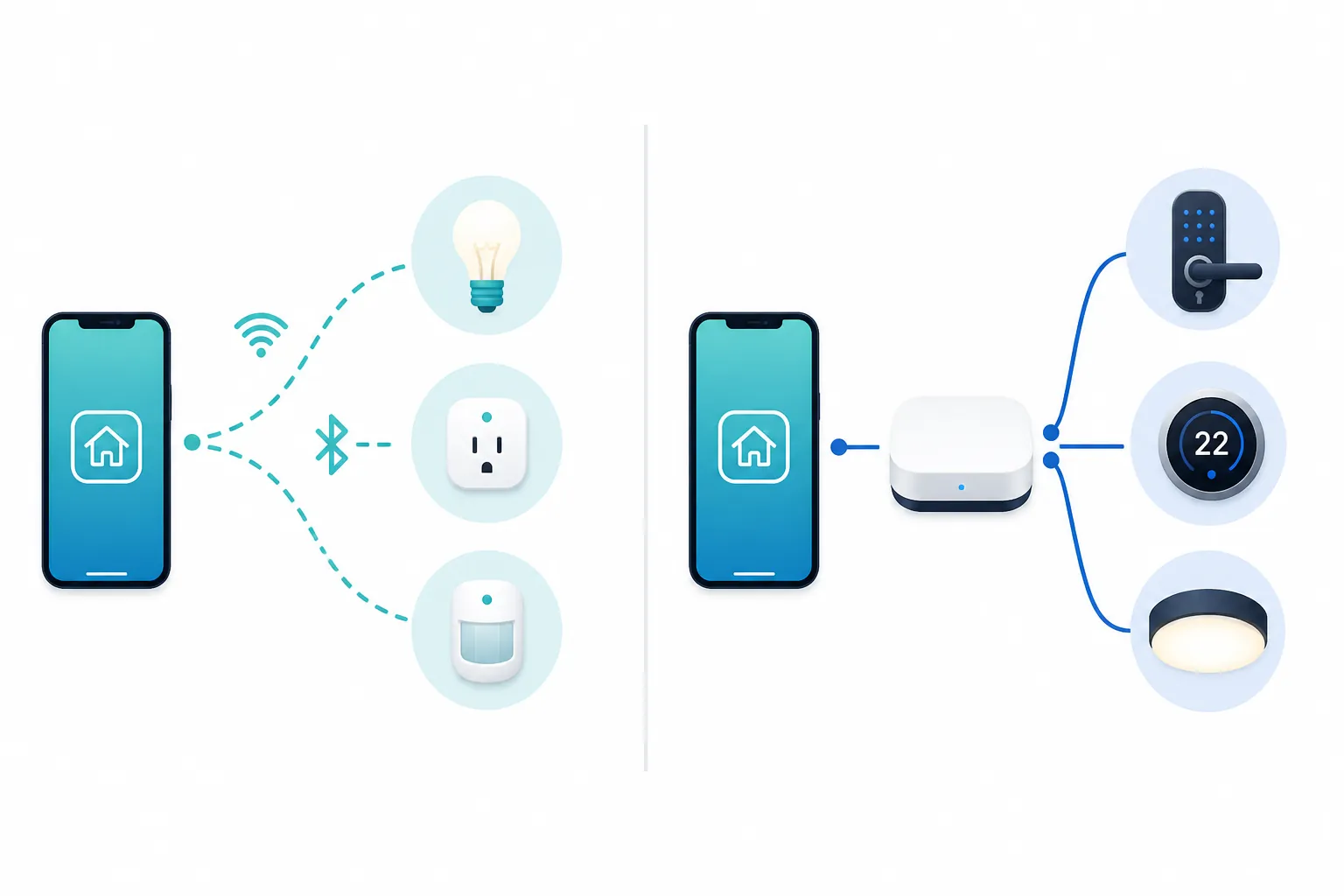
Before you tap Add, sort the device by protocol
Do this before opening the pairing screen. Look at the box, the back label, the product page, or the existing app for the device you want to add. You are trying to answer one plain question: does this device join directly through Wi-Fi or Bluetooth, or does it require a SmartThings-compatible hub path?
| Device label or behavior | Pairing path from the Galaxy A27 5G | Extra hardware to confirm first |
|---|---|---|
| Wi-Fi device with a manufacturer cloud account | Add from SmartThings on the A27, often through Scan QR, Samsung device, or Partner device. | Usually none beyond working home Wi-Fi and any required partner account. |
| Bluetooth device that advertises nearby setup | Use SmartThings nearby scanning from the A27 while the device is in pairing mode. | Usually none, unless the product’s own instructions say otherwise. |
| Matter device | Use the A27 as the setup surface, but only after a Matter controller exists in the SmartThings home. | SmartThings Station, Aeotec hub, or supported Samsung TV with built-in hub. |
| Thread device | Do not keep retrying from the phone alone; Thread needs a border-router-capable path. | A SmartThings-compatible controller/hub that supplies the required Thread border-router role. |
| Zigbee device | Do not expect the A27 to discover it directly as a Zigbee radio. | A SmartThings-compatible Zigbee hub path, such as an Aeotec hub or another supported hub-class device. |
Samsung’s “Hub Everywhere” direction can make this feel blurrier than it should. Some Samsung TVs and appliances can act as built-in SmartThings hubs, and Samsung’s SmartThings page points to supported 2022-or-newer Q60 and higher TVs for built-in hub support. That is useful if you own one already; it does not turn the A27 itself into the hub. [2][5]
If you want the deeper phone-versus-hub distinction before buying hardware, NestGrid’s related Galaxy phone SmartThings compatibility guide and Galaxy controller setup recipe use the same commissioner-not-a-hub boundary. The A27 belongs on the same side of that line unless Samsung adds Galaxy phones to its hub list later.
Get the A27 ready
On the Galaxy A27 5G, SmartThings should already be present. If it has been removed, reinstall it from the Galaxy Store or Google Play, then open it and sign in with the Samsung account you want attached to the home. Samsung’s support path also expects the usual phone permissions, because discovery, nearby scanning, and account-based device control depend on them. [3]
- Update SmartThings before pairing, especially on Android 16. For Matter commissioning, use an app version at or above Samsung’s documented Matter minimum of 1.7.91; current builds should be newer, but the exact installed version still matters when a setup flow fails. [6]
- Connect the phone to the home Wi-Fi network you expect the device to use. Many smart plugs, bulbs, and sensors still require 2.4GHz setup even when the phone itself supports dual-band Wi-Fi.
- If the device is Matter, Thread, or Zigbee, add or confirm the hub-class device first: SmartThings Station, Aeotec hub, or a supported Samsung TV with built-in hub.
- Keep the device’s original app login handy if SmartThings will add it through a Partner device integration.
One more practical note belongs here, not after an hour of failed attempts: Samsung’s troubleshooting guidance says setup failures stuck between 33% and 80% point to the home network, and some devices accept only 2.4GHz. If the A27 sees the device but setup stalls in that range, check the router band, signal strength, VPN/private DNS settings, and whether the device was reset into pairing mode before blaming SmartThings. [8]
Add a Wi-Fi or Bluetooth device from SmartThings
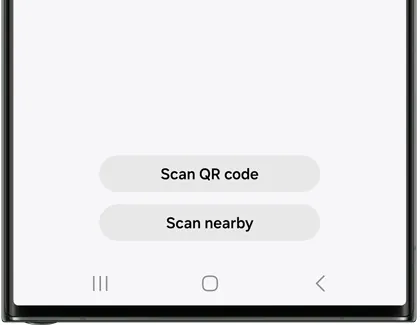
For direct Wi-Fi and Bluetooth cloud devices, the A27 is enough to run the setup flow. Open SmartThings, go to Devices, tap Add, and choose the method that matches the product in front of you. Samsung’s current support guide names the useful branches: Scan QR code, Scan nearby for Bluetooth devices, Samsung device, and Partner device. [9]
- Put the device into pairing mode. For a used bulb, plug, or sensor, this often means a factory reset first; follow that product’s reset sequence rather than relying on SmartThings to rescue a half-paired device.
- Open SmartThings on the A27 and choose Devices > Add.
- Use Scan QR code if the device or its manual gives you a SmartThings/Matter-style QR code and the required controller path is already ready.
- Use Scan nearby when the device is a Bluetooth-discoverable product and is close to the phone.
- Use Samsung device for Samsung appliances, TVs, and other Samsung products that SmartThings can identify by category.
- Use Partner device when the device is controlled through another brand’s cloud account. Sign in to that partner account when SmartThings asks.
- When SmartThings asks for a location and room, assign them now. It is much easier to fix one device name during pairing than to clean up a flat list of “Plug,” “Plug 2,” and “Light” later.
After the device appears, test the simplest control before building anything around it: turn the plug on and off, dim the bulb, lock or unlock if the device supports it and you are physically present, or refresh the sensor state. A device that shows up in SmartThings but does not respond should be fixed before it becomes part of a Mode or Routine.
For Matter, Thread, and Zigbee, add the controller path first
This is where the A27 setup either feels easy or becomes a loop of retries. SmartThings can use the phone during Matter onboarding, and Matter’s multi-admin model lets a Matter device be shared with up to five services, but that does not remove the need for controller hardware in the SmartThings home. [6]
If you own a SmartThings Station or Aeotec hub, get that hub online in SmartThings first. If you plan to use a Samsung TV as the built-in hub, confirm it is one of the supported 2022-or-newer Q60 or higher models and that its SmartThings hub function is enabled. If none of those exists, stop shopping for Thread sensors and Zigbee buttons until the controller question is solved.
A Matter-over-Wi-Fi device and a Thread device may both carry a Matter logo, but their network needs are not identical. Thread adds the border-router requirement. Zigbee is separate again and needs a Zigbee-capable hub path. The phone’s Bluetooth and Wi-Fi radios are not substitutes for those always-on home roles.
For sensor-heavy setups, the same pairing-path check applies before buying. A flood sensor, contact sensor, or button that looks like a simple accessory may be a hub-required device; NestGrid’s sensor hub compatibility guide is a useful way to think through that choice.
Organize locations and rooms before adding shortcuts
SmartThings can hold more than a casual apartment’s worth of devices, but Samsung’s own support materials are not perfectly aligned on the per-location limit: one page states 300 devices, while another states 200. Treat that as a documented range rather than a promise to design against the larger number. [3][9]
For normal A27 control, the more immediate problem is not the limit; it is the room list. Put lights, plugs, thermostats, locks, and sensors into the rooms where you will actually look for them. Use names a person in the house would say out loud: “Entry lamp,” “Kitchen counter plug,” “Bedroom fan.” If you plan to use Bixby later, avoid duplicate names across rooms.
After each room is populated, test control from the Devices tab again. This catches the boring but common mistake where a device was added successfully but filed into the wrong location, especially if you have an older SmartThings home, a shared family home, or a second property.
Put SmartThings controls in Quick Settings
Once the devices respond inside SmartThings, move the controls closer to your thumb. Samsung’s support guide describes opening the Quick Settings panel with a two-finger swipe from the top of the screen, then using the Device control panel to access connected SmartThings devices. [9]
- Swipe down from the top of the A27 screen with two fingers.
- Open the Device control or Devices panel shown in Quick Settings.
- Choose SmartThings if the panel asks which home-control provider to show.
- Pin or surface the devices you actually use from the lock screen or shade: entry lights, a coffee plug, fan control, thermostat, or cameras that the household checks often.
The exact One UI 8.5 wording still needs A27 hands-on verification, because Samsung’s support language and Google’s Android home-control tile naming can vary by phone, region, and software build. The setup idea is still the same: SmartThings is where you add and organize; Quick Settings is where you make frequent controls less buried.
Use Bixby, Modes, and Routines after the devices work
Bixby is not the pairing fix. Samsung’s A27 launch materials describe Bixby and other AI features, but the SmartThings footnote is the important part for smart-home use: devices need to be connected in SmartThings first. [1]
After that, Bixby can be useful for commands that match your room and device names: turn off the bedroom lamp, start the living room TV, or run a scene that SmartThings already understands. If Bixby misunderstands a command, fix the room/device name before creating more routines around it.
Modes and Routines are the next layer. Samsung’s support materials cover using Bixby Routines and Modes for automated behavior, and the cleanest A27 setup is to build those only after the individual devices respond reliably. [10]
- Use a Mode when the house state matters: Away, Sleep, Home, Movie night.
- Use a Routine when a trigger should cause an action: time of day, phone location, sensor state, or device state.
- Keep the first automation boring. A lamp schedule or “turn off plugs when I leave” routine is easier to debug than a chain that touches lights, locks, thermostat, and TV at once.
What the A27 is enough for
The Galaxy A27 5G is enough to run SmartThings control for direct Wi-Fi and Bluetooth cloud devices, organize those devices into locations and rooms, expose frequent controls through Quick Settings, and use Bixby or Modes once the devices are already connected. That is a real smart-home control setup, not a consolation prize.
It is not enough by itself for Matter, Thread, or Zigbee onboarding when the missing piece is a Matter controller, Thread border router, or Zigbee hub. Before buying or pairing the next device, read the protocol label first. If it is Wi-Fi or Bluetooth cloud-controlled, pair it from the A27. If it says Matter, Thread, or Zigbee, make sure the controller path is already in the home, then use the A27 as the setup and control surface.
References
- Samsung Galaxy A27 5G Brings Immersive Display and Awesome Intelligence to More Users — Samsung Newsroom U.S., June 25, 2026
- Samsung SmartThings — Samsung
- Set up the SmartThings app — Samsung Support
- Samsung Galaxy A27 5G — GSMArena
- Samsung devices with integrated SmartThings Hubs — matter-smarthome.de
- SmartThings x Matter Integration — SmartThings Support
- SmartThings Android app crash reports and 1.8.47.24 update discussion — SmartThings Community, April–June 2026
- SmartThings setup is stuck between 33% and 80% — Samsung Support
- Add and manage devices and appliances in SmartThings — Samsung Support
- Use Modes and Routines in SmartThings — Samsung Support