
Set Up Your Galaxy Z Fold 8 as a Smart Home Controller
A dated, settings-level setup path for turning a Galaxy Z Fold 8 into a working SmartThings and Google Home controller — required hub hardware, Matter commissioning steps, and the IPv6, hub-firmware, and phone-side failures that surface first.
Last updated
Status before you start
Current as of July 31, 2026: the Galaxy Z Fold 8 smart home controller setup below is written for Android 17 and One UI 9, but retail-device verification is still pending because the phone’s listed release date is August 7, 2026.[1][2] Samsung and Google platform requirements are documented; Fold 8-specific behavior should stay labeled until tested on shipping hardware.
This is a controller setup. It does not try to turn the Fold 8 into a Zigbee, Z-Wave, or Thread hub. If you still need the compatibility layer, keep NestGrid’s Fold 8 hub-replacement guide and no-hub Fold 8 test open. This page starts after that decision: you have, or are about to have, the Fold 8, and you want the controls to work from SmartThings, Google Home, and the phone’s quick control surface.
| Setup item | Status on July 31, 2026 | What to do |
|---|---|---|
| Fold 8 on-device behavior | Pending retail verification | Use documented Samsung and Google setup paths, then verify on shipping hardware after August 7. |
| SmartThings controller use | Platform-documented | Sign in to the preinstalled SmartThings app and add devices or hubs that match your hardware. |
| Google Home Matter setup | Platform-documented | Confirm IPv6, Google Home hub hardware, BLE, and Play services before scanning a Matter QR code. |
| Hub replacement | Out of scope here | Use a compatible hub or bridge for devices that require one. |
What must already be true
Do this pass before scanning anything. It is faster than pairing the same plug three times and learning, too late, that the phone was never the missing piece.
- Your Fold 8 is signed in with the Samsung account you want attached to SmartThings.
- SmartThings is available on the phone. Samsung says the SmartThings app is preinstalled on Galaxy phones, and compatible devices can be checked in the app by search, brand list, QR scan, or nearby scan.[3]
- Your home Wi-Fi is stable where the device, hub, and phone are being set up.
- Your router has IPv6 enabled if you are setting up Matter through Google Home. Do not leave this for later.
- Your hub or bridge exists for the protocol you are actually using. Thread, Zigbee, Z-Wave, and many bridged ecosystems still depend on suitable hub hardware.
- Your hub firmware is current before commissioning Matter devices or exposing bridged devices to another app.
- Your Android-side services are current, especially Bluetooth Low Energy support and Google Play services if Google Home is part of the setup.
The phone is the surface you touch. The hub is the hardware that talks to devices the phone cannot talk to directly. SmartThings’ Matter partner documentation points users to compatible hub hardware, including standalone SmartThings hubs and hubs built into Samsung TVs, Smart Monitors, Family Hub refrigerators, SmartThings Station, and soundbars.[5] That is the clean line: buy or use the hub that matches the devices, then let the Fold 8 control the home through the app.
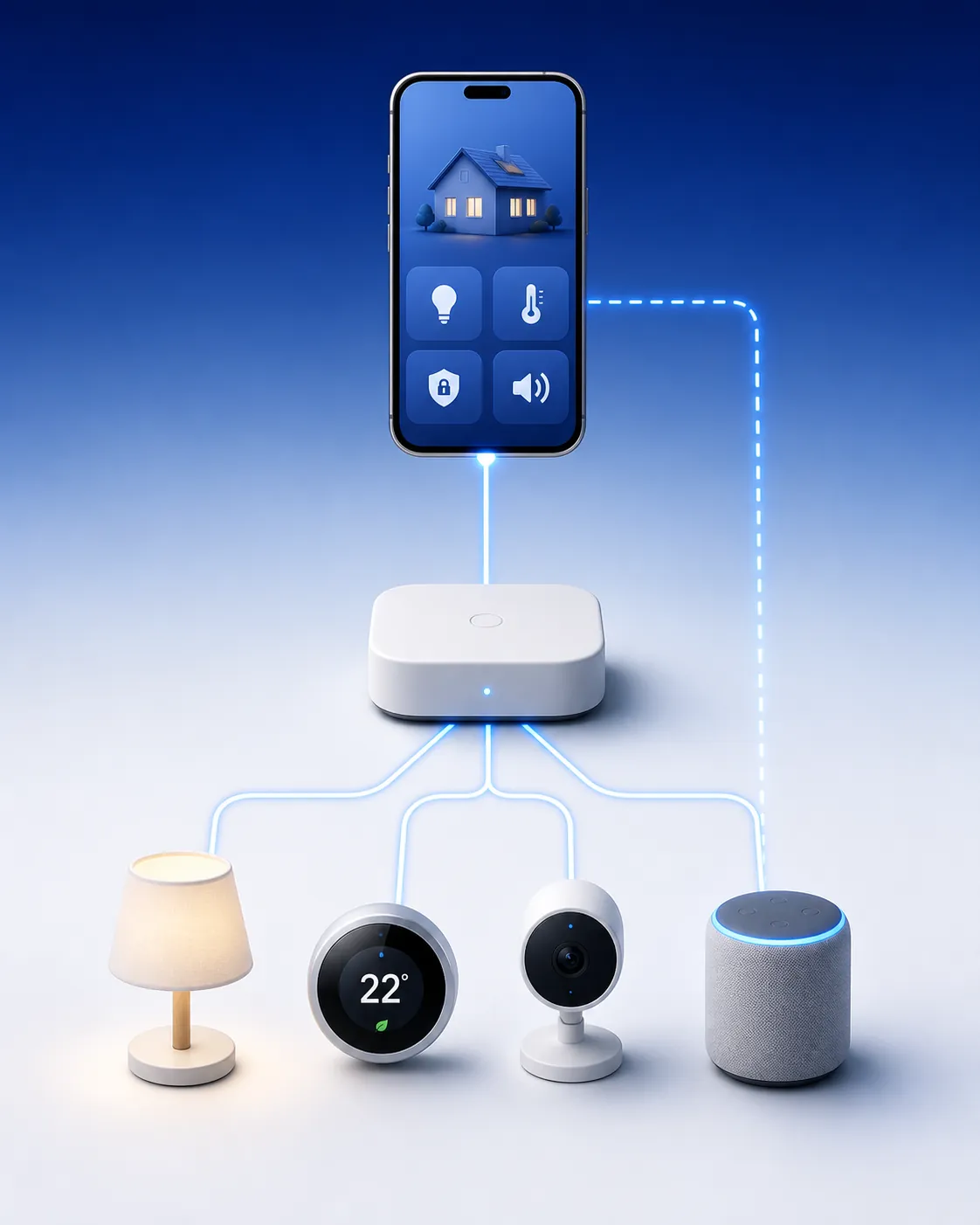
If you are still buying hardware, the useful question is not whether the phone is powerful enough. It is whether your bundle includes the hub or bridge your lights, sensors, locks, plugs, shades, or thermostat require. NestGrid’s Fold 8 smart-home deal guide belongs there, not in the middle of pairing.
Start in SmartThings
On a Galaxy phone, SmartThings is the short path. Open SmartThings, sign in, choose the correct Home and Room, then add devices from inside the app. Use the in-app compatibility checks first: search by device name, browse by brand, scan the device QR code, or scan nearby devices.[3]
For Wi-Fi devices that SmartThings supports directly, the Fold 8 can usually stay in the middle of the setup: phone on the same home network, app open, device in pairing mode, then follow the app’s prompts. For hub-based devices, add or confirm the hub first. A Zigbee bulb, a Z-Wave sensor, or a Thread accessory does not become phone-native because the screen folds.
| What you are adding | What the Fold 8 does | What must exist besides the phone |
|---|---|---|
| SmartThings-compatible Wi-Fi device | Runs the SmartThings setup and becomes the controller surface | Home Wi-Fi and the device’s supported SmartThings integration |
| Matter-over-Wi-Fi device | Scans the Matter QR code and commissions through a supported ecosystem | A Matter-capable setup path, plus network requirements such as IPv6 where required |
| Thread Matter device | Starts setup and later controls the device through the ecosystem | Compatible Thread border router or hub hardware |
| Zigbee or Z-Wave device | Controls the device after it is exposed through SmartThings or another platform | Compatible Zigbee or Z-Wave hub or bridge |
| Bridged device ecosystem | Controls the exposed device from SmartThings or Google Home | Vendor bridge or hub, current firmware, and account linking where required |
The hub-selection pass is also where you avoid a quiet mismatch. A Samsung TV with a built-in hub may be useful in one home; a standalone hub may be the right choice in another. Do not guess your protocol mix from the phone model. Check the actual devices you own, then pick the hub category that supports them.
Put the controller where your thumb already goes
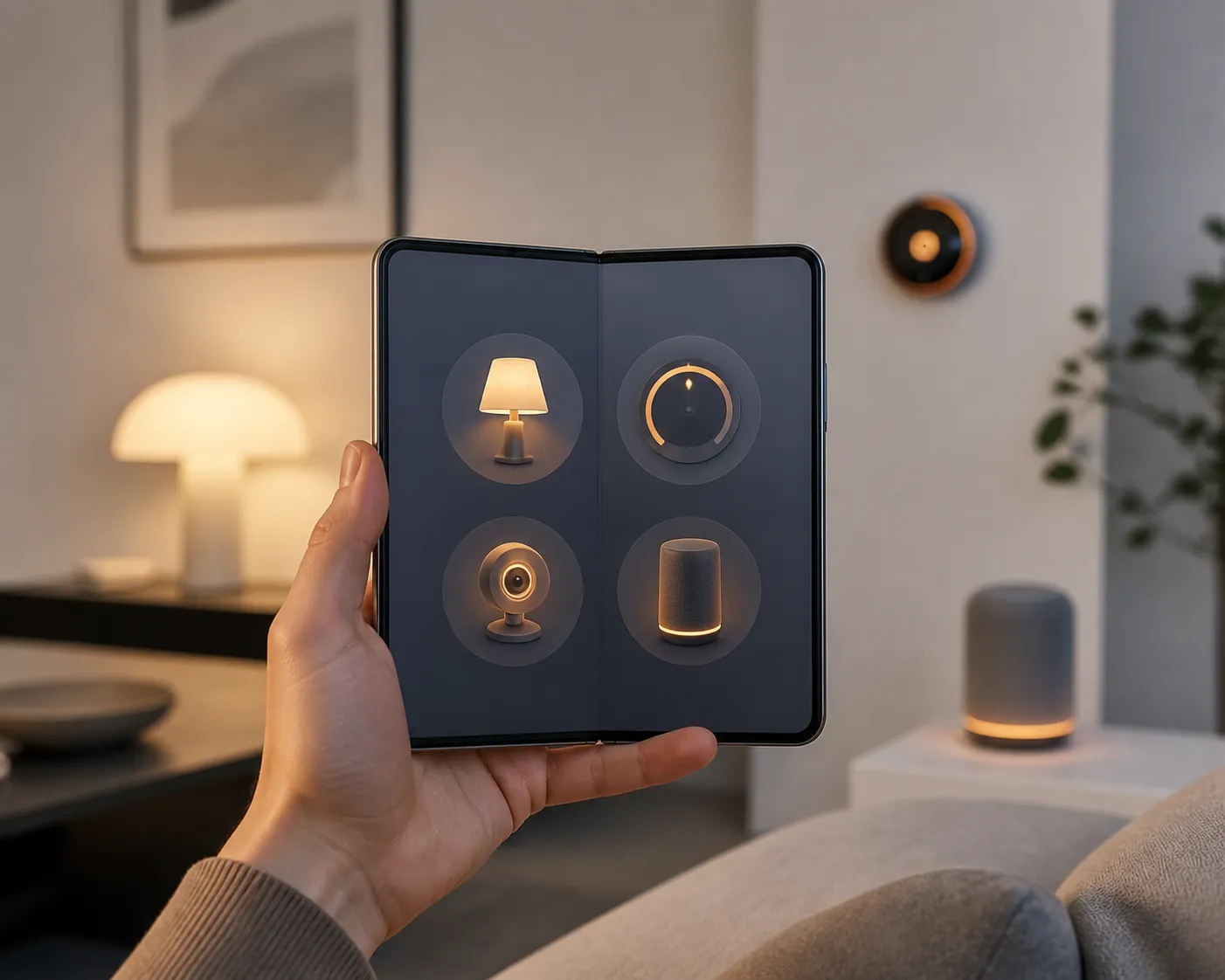
Once devices show in SmartThings, move the daily controls out of the app drawer. Galaxy phones have had a Device control panel in Quick Settings since One UI 3.1 on Android 11, and SmartThings documented switching between SmartThings and Google Home from that same panel.[4] On the Fold 8, this is the control surface that matters during normal use: swipe down, open Device control, choose the service, then tap the device tile.
- Swipe down from the top of the Fold 8 screen to open Quick Settings.
- Open Device control.
- Choose SmartThings if your devices are already there.
- If Google Home is also configured, switch the panel source to Google Home when you want those tiles instead.
- Pin or arrange the controls you use most often, such as entry lights, thermostat, cameras, speakers, and plugs.
This is the moment the Fold 8 stops being a setup tool and becomes the smart-home controller. If the device only works when you dig through three app screens, the setup is unfinished.
Add Google Home only after its Matter requirements are true
Google Home is not hard to add, but its Matter requirements are where a lot of bad setup sessions begin. Google lists the required pieces as a Google account, home Wi-Fi, IPv6 enabled on the router, a Matter-enabled Google Home hub, and an Android 8.1 or later phone with Google Play services 22.48.14 or later and Bluetooth Low Energy 4.2 or later.[6]
| Google Home requirement | Why it matters during setup | Check before scanning? |
|---|---|---|
| Google account | Owns the Home structure and device access | Yes |
| Home Wi-Fi | Keeps the phone, hub, and Matter device on the setup network | Yes |
| IPv6 enabled on router | Matter control can fail later if IPv6 is missing | Yes, especially before repeating QR setup |
| Matter-enabled Google Home hub | Provides the required Google Home Matter controller environment | Yes |
| Android 8.1+ phone | Meets Google Home’s Android phone requirement | Already satisfied by the Fold 8 platform, pending retail verification |
| Google Play services 22.48.14+ | Supports Matter setup services on Android | Yes |
| BLE 4.2+ | Supports the phone-side nearby commissioning step | Yes |
The tempting mistake is to treat the QR code as the whole test. It is not. Google’s Nest help material is explicit that without IPv6, Matter setup may appear to succeed but control can fail later.[7] That is why IPv6 belongs in the preflight check, not in a footnote after the third reset.
Commission Matter devices by QR, then decide whether to share them
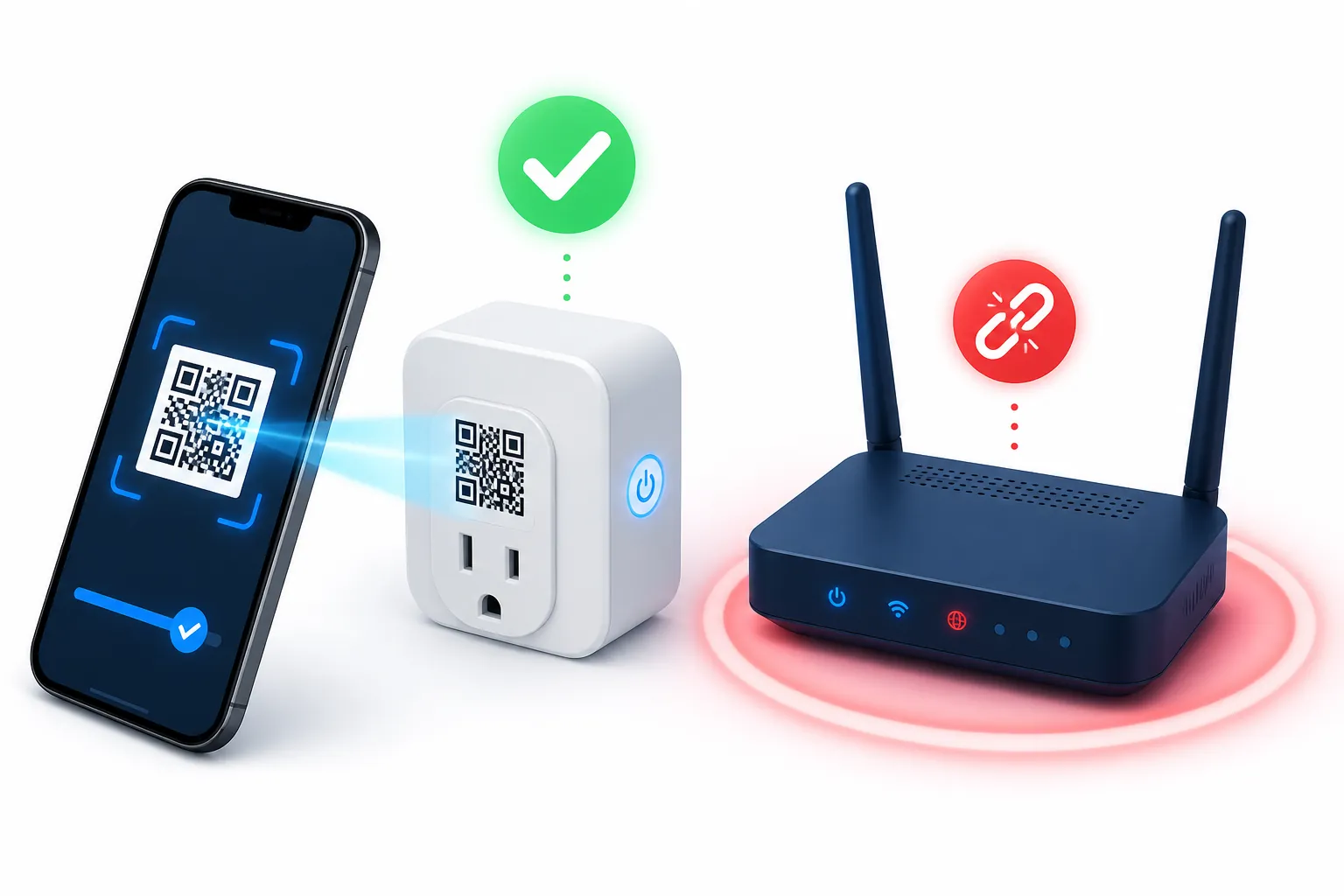
Put the Matter device in setup mode, keep the Fold 8 near it for the first pass, then scan the Matter QR code from the ecosystem you want to own the initial setup. If SmartThings is your primary home, start in SmartThings. If Google Home is your primary dashboard, start in Google Home. The first ecosystem matters less than having the requirements true before you begin.
- Update the hub, bridge, and app you plan to use.
- Confirm the phone is on the intended home Wi-Fi.
- Confirm router IPv6 if Google Home is involved.
- Open SmartThings or Google Home.
- Choose the app’s add-device flow and scan the Matter QR code.
- Assign the device to the correct home and room.
- Test control from inside the app.
- Test control from the Fold 8 Device control panel.
If the device supports Matter multi-admin and you want both SmartThings and Google Home, add it to the first ecosystem, then use that ecosystem’s sharing or linked-app flow to generate the setup path for the second controller. Do not factory-reset the accessory just to move from SmartThings to Google Home unless the device or app leaves you no other route. Multi-admin exists to avoid that kind of wipe-and-repeat setup.
After sharing, check the boring part: does the plug turn on from SmartThings, from Google Home, and from the Quick Settings Device control panel? If yes, the setup is done. If it appears in one app but not the other, treat that as a sharing or controller issue. If it appears everywhere but does not respond, stop looking at the QR code and inspect the network and hub.
What breaks first, and what to check before resetting
Resetting the device is the last move, not the first one. Google’s Matter troubleshooting ladder starts with restarting the device, closing the app, clearing the app cache, restarting the phone, and only then factory-resetting the Matter device.[6] That order protects you from turning a phone-side or router-side problem into a new pairing problem.
| Symptom | Most useful first check | Next move |
|---|---|---|
| Matter setup appears to finish, but control fails later | Router IPv6 | Enable IPv6, restart the router and hub as needed, then retest before resetting the device. |
| Google Home cannot start or complete Matter setup | Matter-enabled Google Home hub, Play services version, BLE, and home Wi-Fi | Restart the device, close Google Home, clear the app cache, restart the phone, then consider factory reset. |
| SmartThings cannot find a device | In-app compatibility path: search, brand list, QR scan, or nearby scan | Confirm the right hub or bridge is online and current. |
| Zigbee, Z-Wave, or Thread device does not respond | Hub or border-router hardware and firmware | Fix the hub layer before changing Fold 8 settings. |
| Device works in an app but not in Quick Settings | Device control panel source | Switch between SmartThings and Google Home in the Device control panel and reselect the expected tile set. |
| Device disappeared after a router or power event | Hub online status and network recovery | Use a protocol-sorted recovery path rather than rebuilding the whole home. |
For the specific Google Home case where a Matter device does not show up or fails after setup, use NestGrid’s Matter device not showing in Google Home guide before wiping the accessory. If the failure follows a power outage or router restart, the smart-home reconnect guide is the better next stop.
The finished state is simple: SmartThings shows the devices it owns, Google Home shows the devices it owns or shares, and the Fold 8 Device control panel can operate the tiles you actually use. If Matter added cleanly but later refuses to respond, check IPv6 before scanning the QR code again. If pairing fails at the phone, move through app restart, cache clearing, and phone restart before factory reset. If hub-based devices fail, update and inspect the hub layer first.
When the network, hub firmware, and phone-side services are current, the Fold 8 setup should be short: sign in, add the right hub, expose the controls, scan the Matter code, and test the panel. Matter is the reason the preflight checks are not optional.
References
- Galaxy Z Fold8 features/specs — Samsung AU
- Galaxy Z Fold8 — Samsung US
- Samsung Support answer ANS10002638 — Samsung Support
- Easily Switch Between SmartThings and Google Home From the Quick Settings Menu of Your Phone — SmartThings Blog
- Matter — SmartThings Partners
- Set up and manage Matter-enabled devices in the Google Home app — Google Home Help
- Google Nest Help answer 12391458 — Google Nest Help
Known issues with this device / protocol
Spec-version history
For active regressions on this protocol, see Update Watch.
No linked Update Watch entries yet.