
Smart Home Won't Reconnect After Power Outage? Fix It by Protocol
Smart home devices fail to reconnect after power outage
Last updated
Power is back, but the house is only half awake. A few Wi-Fi plugs are online, one lamp is flickering through its startup routine, battery sensors have gone quiet, and the Z-Wave page says “Dead” even though the wall paddle still turns the light on. This is the point where a full reset starts to look tempting. Do not do that first.
The fastest fix is not one big fix. It is sorting the failed devices by protocol, then touching only the layer that is likely broken: hub, radio, mesh route, device power, Matter session, or cloud/app status.
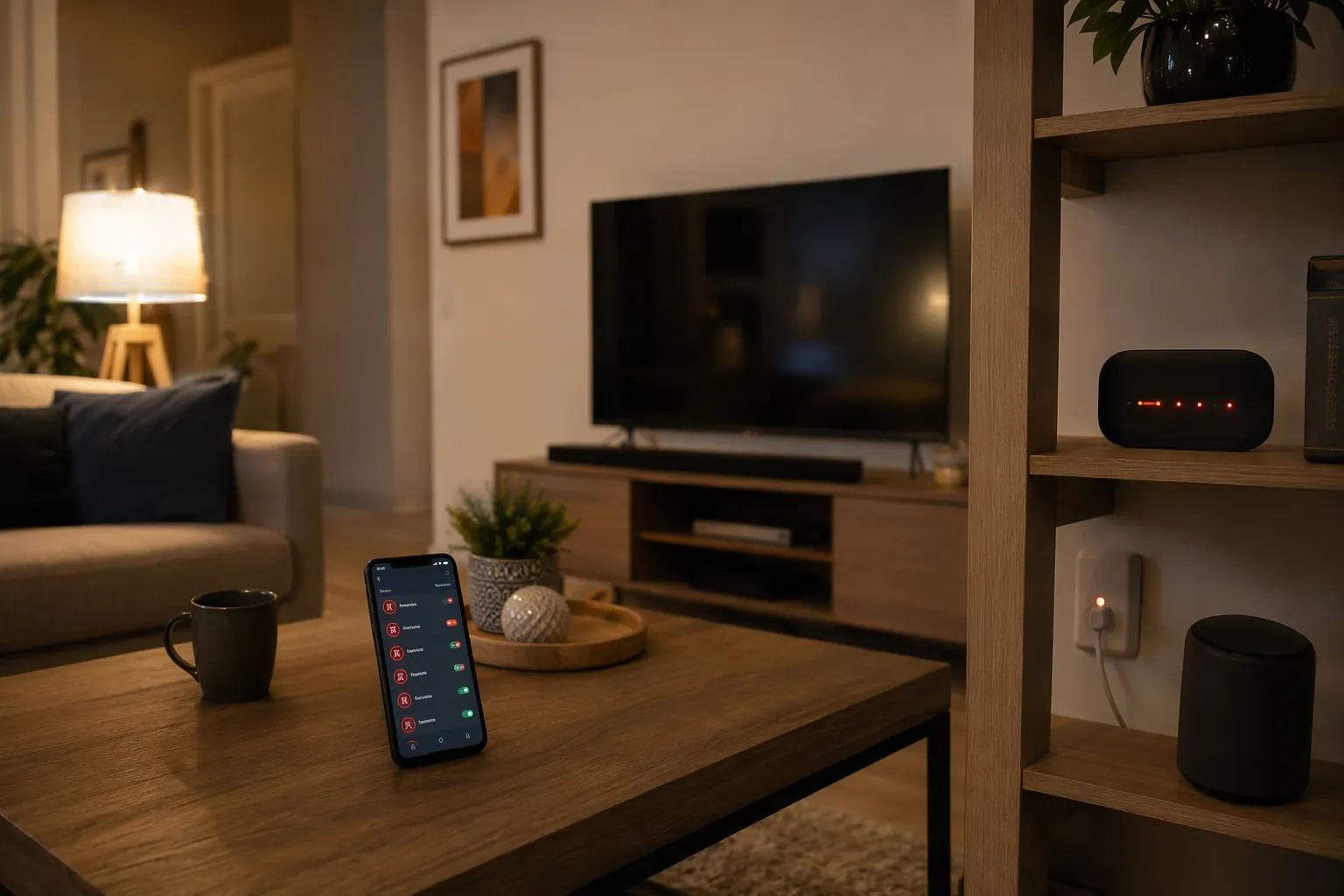
First, Separate the Devices Instead of Resetting the House
Before changing anything, make a quick list of what is offline and what still works locally. A switch that still controls the load from the wall is in a different condition from a plug that has no LED and will not respond physically. A sensor that has not reported motion yet may not be broken at all. A Matter device that shows “unavailable” while the Thread network looks alive may be failing at the session layer, not at basic radio reachability.
If you do not know the protocol for each device, use these recognition cues before you start repairing things.
| What you see | Likely protocol | Do first |
|---|---|---|
| Tiny battery sensor, button, contact sensor, or many bulbs paired through a hub | Zigbee | Wait for sleepy battery devices; check hub Zigbee radio before re-pairing |
| In-wall switch, dimmer, lock, or module listed as Z-Wave, often with “Dead” or interview status | Z-Wave | Test physical control; re-interview nearby powered devices first |
| Newer device added through Matter, often using a Thread border router such as a smart speaker, display, hub, or Apple/Google/Amazon device | Matter/Thread | Restart the border router and Matter server; watch for session errors |
| Plug, strip, bulb, camera, or appliance connected directly to your router SSID | Wi-Fi | Restart router/AP first, then physically reseat the device |
If the word “hub” is already getting slippery, it is worth pausing on the role of the controller before you make changes. A smart home hub may be doing several jobs at once: app gateway, automation engine, Zigbee coordinator, Z-Wave controller, Thread border router, or Matter controller. After an outage, one of those jobs can fail while the rest of the box still looks alive.
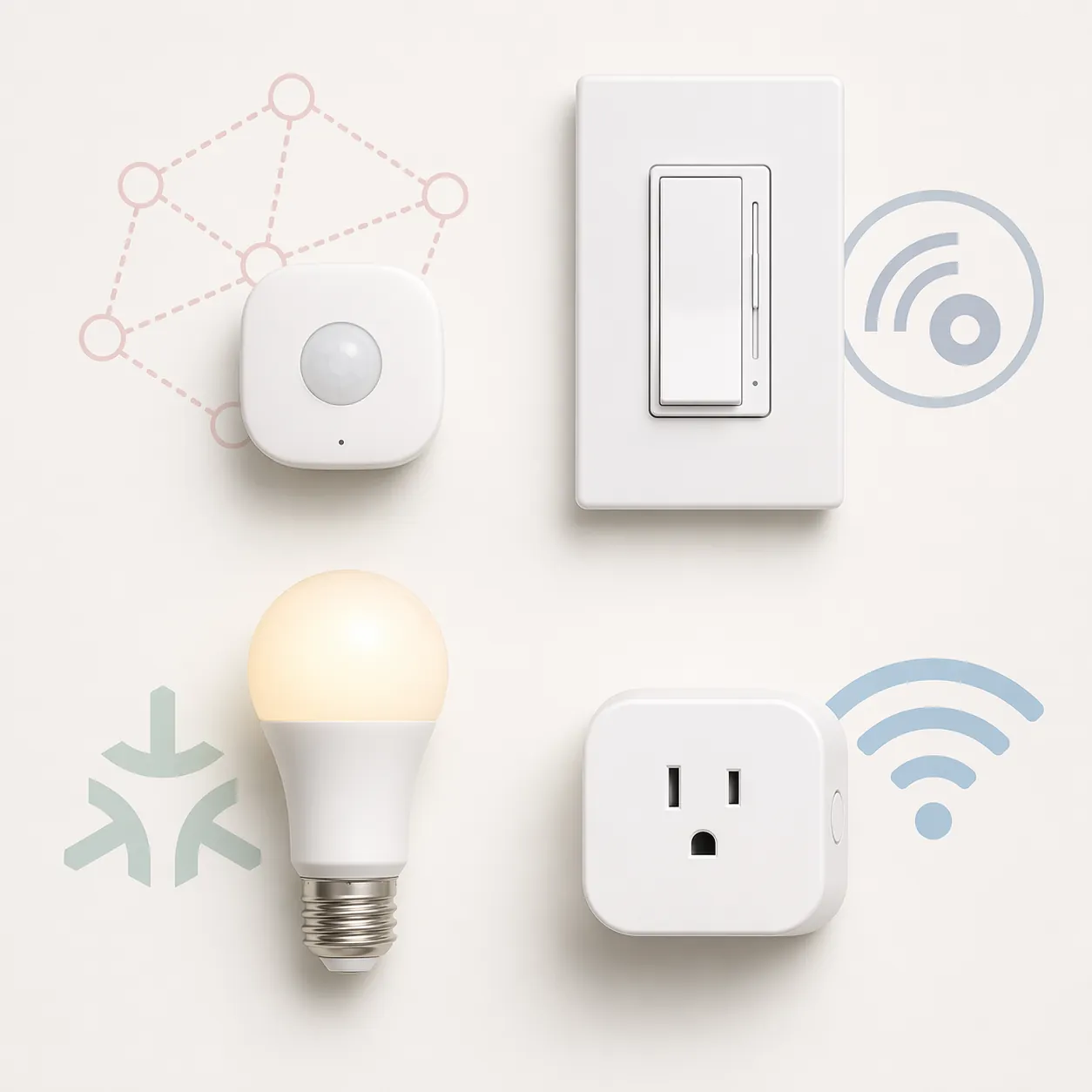
Zigbee: Wait for Sleepy Devices Before You Blame the Network
Zigbee is often the least dramatic branch if the coordinator and powered repeaters are healthy. A technical walkthrough of Zigbee rejoin behavior describes encrypted rejoin requests completing in under half a second in the referenced implementation, but that does not mean every battery sensor will visibly report back in half a second in your app.[1]
The practical trap is sleepy end devices. Battery sensors conserve power and may not announce themselves until their own polling or keepalive schedule comes around. Community reports after power cuts include Xiaomi and Tuya Zigbee devices taking 1–2 hours to appear normal again, even when the wider Zigbee network is recovering.[2]
So the Zigbee order is boring, and boring is good here:
- Confirm the hub is online and the Zigbee radio is enabled, not merely that the app opens.
- Check powered Zigbee routers first: smart plugs, wired switches, bulbs that act as repeaters, and mains-powered modules.
- Leave battery sensors alone for at least one normal reporting window if powered devices are already returning.
- Wake a battery device manually only if the manufacturer gives a safe wake button sequence.
- Re-pair only the device that remains missing after the coordinator and nearby routers are confirmed healthy.
This is also where coordinator placement and power quality matter. If every Zigbee device disappears after the hub restarts, that is not the same problem as two sleepy sensors staying quiet. For Home Assistant users, the choice between a USB stick and a networked coordinator can affect how recoverable the system feels after power events; the coordinator stability tradeoffs are covered separately in the USB Zigbee dongle vs PoE coordinator comparison.
There is one documented Zigbee exception worth treating seriously without turning it into a universal warning. SmartThings Station users reported a failure mode after power loss where the Zigbee radio did not reactivate and the hub showed “Zigbee Functional: false”; in some documented cases, replacement was required.[3] That points to a hardware- or device-specific failure mode, not proof that every SmartThings hub is doomed after an outage.
When to Stop Waiting on Zigbee
Stop waiting when the coordinator reports that its Zigbee function is down, powered routers never return, or the same device fails after a manual wake and a nearby router check. At that point, the next move is targeted: restart the hub or coordinator, power-cycle the nearest Zigbee router, or re-pair that one device. A factory reset of the whole Zigbee network is still the last card, not the first one.
Z-Wave: Go Slow, Because “Dead” Does Not Always Mean Dead
Z-Wave is where an outage can burn the most time if you start pressing exclusion and reset buttons. Community recovery threads describe devices marked “Dead” in the hub while still responding to local physical controls, which means the device, load, and local power are not necessarily the failed parts.[4][5]
Treat the hub UI as a clue, not a verdict. A Z-Wave switch that turns the light on from the paddle but does not respond from the app may need route repair, rediscovery, or re-interview. If you exclude it immediately, you have turned a routing problem into a pairing problem and may have broken automations that were still attached to the original node.
Use this order:
- Test physical control at the device. If the switch or module works locally, do not factory reset it.
- Confirm the Z-Wave radio/controller is online in the hub, not only that the hub has network access.
- Start with mains-powered Z-Wave devices closest to the hub. Re-interview or refresh those first.
- Move outward through the mesh instead of randomly repairing the farthest lock, sensor, or garage device.
- Give the mesh time after repair. Hubitat community guidance notes that a full Z-Wave mesh heal can take over 24 hours.[4]
- Only exclude and include a device again when targeted refresh, re-interview, and route repair fail.
The “closest powered device first” part is not superstition. Z-Wave routing depends on a mesh of repeating nodes. If the first few repeaters near the controller are confused, a battery lock at the edge of the house may look like the problem only because its path back is broken. Re-interviewing edge devices before the repeaters can waste a lot of button presses.
Locks deserve extra patience. They are often battery-powered, security-sensitive, and slow to recover when routing changes. If a lock remains unresponsive after the mesh is healthy, use lock-specific troubleshooting rather than general Z-Wave panic; pairing and firmware symptoms overlap enough that the smart lock unresponsive troubleshooting guide is a better next stop than a whole-network reset.
When Z-Wave Really Is a Controller Problem
There are uglier cases. A Hubitat community thread describes Z-Wave radio corruption after improper shutdown where recovery required a factory reset, with community advice pointing to UPS protection as the primary prevention.[6] That is an extreme path. You should suspect it only after the controller cannot operate its Z-Wave radio normally, many known-good powered devices fail close to the hub, and ordinary re-interview or repair steps do not change the condition.
If you reach that point, preserve what you can before resetting: screenshots of node IDs, device names, room assignments, automations, and security keys if your platform exposes backup/export options. A clean factory reset can rebuild a broken radio state, but it also erases context the rest of your smart home still depends on.
Matter and Thread: Restart the Right Controllers, Then Watch for CASE Failures
Matter over Thread can be the least satisfying outage branch because the visible network may come back while the secure application session does not. Reported Home Assistant Matter cases after full power cycles include the Matter server failing to establish CASE sessions with nodes and logging “Network is unreachable” errors; in those reports, ordinary checks did not always restore control and full re-pairing was often required.[7][8]
That does not mean every Matter device that disappears after a blackout needs to be deleted. Matter and Thread software has been moving quickly, and the specific reports reflect particular firmware and software states from the period in which they were filed. The useful lesson is narrower: if Thread looks present but the Matter server cannot establish sessions, you may not be dealing with a simple Wi-Fi or power problem.
Work through the layers in this order:
- Bring the main network back first: router, switches, access points, and DNS if your controller depends on them.
- Restart the Thread border router, such as the hub, speaker, display, or controller that provides Thread connectivity.
- Restart the Matter controller or Matter server separately if your platform exposes it as its own service or add-on.
- Check whether the device is missing from Thread entirely or present but unavailable to Matter.
- If logs show repeated CASE/session establishment failure after the network is healthy, prepare for a targeted re-pair of that device.
The important distinction is restart versus re-pair. Restarting a border router or Matter server preserves the fabric and device identity. Re-pairing may create new device entries, break automations, or require cleanup of stale nodes. When CASE sessions are the failing part, though, waiting through another router reboot may not change anything.
A Practical Matter/Thread Decision Point
If one Matter bulb is unavailable but other Thread devices work, target that bulb. If every Thread device is unavailable, look at the border router first. If Thread diagnostics show the device present but Matter keeps failing secure sessions, treat re-pairing as a likely repair path rather than as a moral failure. Delete and re-add only the devices that need it.
Wi-Fi Devices: Restore the Router Path, Then Reseat the Stubborn Plug
Wi-Fi smart devices are simpler to reason about, but less consistent across brands. Some smart plugs and switches reconnect cleanly once the router and internet path are stable. Others sit there with a blinking LED until you physically remove and restore power at the device. General outage guidance for smart plugs includes unplugging and replugging devices that do not auto-reconnect, and Leviton support guidance emphasizes reconnection order after a power outage: network equipment first, then the smart devices.[9][10]
Use this shorter sequence:
- Wait for the modem, router, and access points to finish booting before judging the devices.
- Confirm the SSID is broadcasting on the band the device uses.
- Power-cycle the individual plug, bulb, or switch by physically reseating it where safe.
- Check the vendor app only after the device has had a clean chance to join Wi-Fi.
- Reserve factory reset for devices that will not join after router recovery, device reseating, and vendor-specific pairing checks.
Do not read too much into one brand’s behavior. A Wyze-style plug that needs to be pulled from the wall and a Kasa-style plug that rejoins on its own can live on the same network. The fix is still local: if the router is healthy and the device’s LED says it is stuck, reseat that device instead of reinstalling the whole app.
Use the Smallest Fix That Matches the Failure
At this point, the recovery path should be narrower than it felt when everything was flashing offline. The right action depends on what survived the outage.
| Symptom after power returns | Most likely next action |
|---|---|
| Zigbee battery sensors quiet, but powered Zigbee devices are back | Wait through the sensor reporting window before re-pairing |
| All Zigbee devices offline and hub reports Zigbee radio disabled or nonfunctional | Restart hub/coordinator; suspect hardware only if the radio stays down |
| Z-Wave switch marked Dead but works from the paddle | Re-interview or refresh nearby powered Z-Wave nodes first |
| Many Z-Wave nodes fail close to the hub | Check Z-Wave radio/controller health before excluding devices |
| Thread network appears alive but Matter devices cannot establish sessions | Restart Matter server/controller; targeted re-pair may be needed |
| Wi-Fi plug has power but will not reconnect after router is stable | Physically unplug/replug or reseat the device |
Once the house is stable again, the useful prevention work is not a lecture about buying better gear. It is arranging restart order and recovery checks so the same outage does not become the same evening of manual repair. The next project is an automated smart home power-outage recovery routine that brings routers, hubs, radios, and selected devices back in a controlled sequence.
For the current outage, stop when the smallest matching fix works: wait for Zigbee sensors, re-interview Z-Wave nodes, reseat stubborn Wi-Fi plugs, restart the Matter server or border router, re-pair only the Matter or end device that truly needs it, and suspect hardware only after the radio or controller proves it is not coming back.
References
- Hello Zigbee World, Part 12 — Rejoining End Devices, Medium
- Zigbee lost connections for some devices after power cut, Home Assistant Community
- SmartThings issue with Zigbee after power failure, SmartThings Community
- [SOLVED] Z-Wave network isn't working after power cut, Hubitat Community
- After power outage many ZWave devices are marked dead but will update GUI when used manually, Home Assistant Community
- Help: Hubitat Zigbee not working anymore after power outage, Hubitat Community
- Matter Server: Cannot establish CASE session after full power cycle, Home Assistant Add-ons GitHub
- Matter devices unavailable after power cycle, Home Assistant Community
- Smart Hub Not Syncing After Power Outage, Whizz Experts
- My Leviton Devices Did Not Reconnect After a Power Outage, Leviton
Corroborating context
For protocol background on why this failure happens, see Compatibility & Protocols.
Not currently linked to a known regression. Background on the underlying protocol lives in Compatibility & Protocols.