
How to Fix Smart Home Devices After a Spectrum Outage
Smart home devices offline after Spectrum internet outage
Last updated
Do not factory reset your bulbs, plugs, switches, or hub just because Spectrum internet came back and the smart home did not. Start with the network state, then move through Wi-Fi pairing, IP leases, and hub mesh recovery. Factory reset belongs at the end of the ladder, because it can turn a temporary outage into an evening of rebuilding rooms, scenes, automations, and device identities.
The awkward part is that “the internet is back” and “the smart home is recovered” are not the same checkpoint. Your phone may load a web page while a 2.4 GHz-only plug is still stranded by band steering, a hub is still rediscovering routes, or Zigbee and Z-Wave devices are still coming back through repeaters that also rebooted.
Start with the Spectrum router light
Before opening every device app in the house, look at the Spectrum router or gateway. Spectrum’s own support pages were not accessible without cookie or JavaScript barriers, so the LED meanings below are taken from secondary coverage rather than treated as first-party Spectrum documentation. PC Guide identifies Spectrum Advanced WiFi router models including SBE1V1K and SBE1V1R, with Wi-Fi 7, Thread 1.4, and BLE 5.4 support, and lists the following status-light meanings for Spectrum equipment: solid white means online, blinking white means booting or updating, solid amber means no downstream connection, blinking amber means weak signal, and solid red means no upstream connection.[1]
- Solid white: treat the Spectrum connection as online, then move to smart-home recovery.
- Blinking white: wait. The router may still be booting or updating; restarting devices now adds noise.
- Solid amber or solid red: the internet link is not healthy enough yet. Do not reset bulbs, plugs, switches, or hubs.
- Blinking amber: the signal may be weak. Smart-home symptoms can be downstream of the ISP link, not a device problem.
If the light is not solid white, keep the repair at the Spectrum layer. A smart switch in the hallway cannot fix a router that is still negotiating service. If the router is solid white and your phone or laptop can browse normally, then it is reasonable to start separating the smart-home symptoms.
Use one clean network restart if the connection never settles
If the Spectrum equipment is stuck in a bad light state, do one orderly restart instead of a series of impatient power pulls. Power down the modem or gateway first, then the router if it is separate. Bring the modem or gateway back first and let it fully come online. Then bring the router back. After that, stop touching things for a few minutes and let clients ask for addresses again.
That pause matters because smart-home devices do not all reconnect at the same speed. A phone is aggressive about finding Wi-Fi again. A sleepy sensor, an older plug, or a hub integration waiting on a local IP address can lag behind. If you keep rebooting the router every time one device looks offline, you keep moving the floor under everything else.
| What you see after Spectrum is back | Most likely recovery lane | First safe action |
|---|---|---|
| Only Wi-Fi bulbs, plugs, or switches are offline | 2.4 GHz band steering or Wi-Fi rejoin problem | Use the My Spectrum App smart-device setup path before resetting devices |
| SmartThings, Hubitat, or Home Assistant hub is online, but Zigbee/Z-Wave devices are slow or patchy | Mesh routes are rebuilding | Leave the hub and repeaters powered and wait through the rebuild window |
| Local dashboards or integrations cannot find devices by address | DHCP leases changed after the router restart | Let leases settle, then check reservations or local integration settings |
| Devices keep flipping online/offline long after the normal rebuild period | Possible hub or mesh database problem | Move to hub-specific recovery instead of mass factory resets |
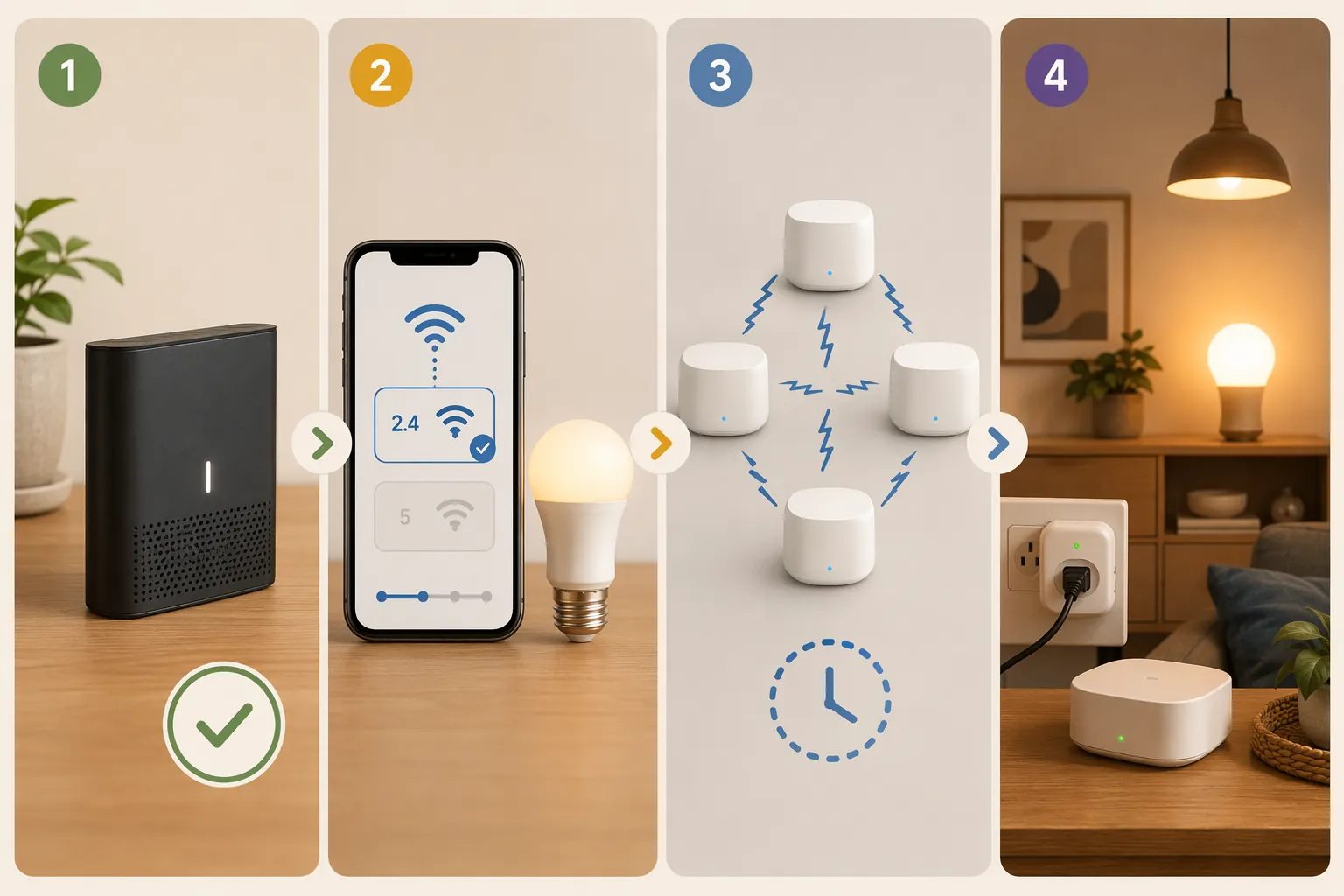
If only Wi-Fi smart devices are offline, fix the 2.4 GHz problem first
A very common post-outage pattern is this: laptops, phones, and TVs work, but cheap bulbs, plugs, light strips, switches, and some appliances stay offline. That points away from “Spectrum is still down” and toward the way many smart-home devices depend on 2.4 GHz Wi-Fi.
Spectrum routers commonly use band steering, where one Wi-Fi name can serve both 2.4 GHz and 5 GHz clients. That is convenient for phones, but it can confuse devices that only know how to join 2.4 GHz. PC Guide describes a My Spectrum App option called “Setup Smart Device (2.4 GHz)” that temporarily disables band steering for pairing, and HighSpeedInternet.com also describes this as a practical path when smart devices will not connect after a Spectrum outage or router restart.[1][2]
- Open the My Spectrum App.
- Go to the Wi-Fi or router area where Spectrum exposes device setup controls.
- Choose “Setup Smart Device (2.4 GHz)” if it is available.
- Power cycle one offline Wi-Fi device, such as one plug or one bulb, and try reconnecting it in its manufacturer app.
- If that one device returns, repeat carefully with the remaining Wi-Fi-only devices. Do not reset twenty devices just to test a theory.
This is a better first move than splitting SSIDs, renaming networks, or factory resetting devices. It is reversible, it preserves the existing Wi-Fi name and password, and it tests the most Spectrum-specific failure point without deleting anything.
Use the Wi-Fi device recovery ladder, not the reset button
For Wi-Fi devices, work from softest to most destructive. Leviton support materials acknowledge that a power outage can leave Wi-Fi smart devices unable to reconnect automatically, and the support sequence fits the same ladder: restart or power cycle first, re-pair if needed, and reserve factory reset for the end.[3]
- Power cycle the individual device once. For a plug, unplug it and plug it back in. For a wall switch, use the air-gap tab or breaker only if the manufacturer’s instructions allow it.
- Try the manufacturer app while the My Spectrum App 2.4 GHz setup mode is active.
- If the device is still offline, use the app’s normal re-pair or reconnect flow before resetting.
- Factory reset only when the device cannot be reached, cannot be re-paired, and you are prepared to rebuild its name, room, scenes, and automations if the platform creates a new device identity.
Do this with one representative device first. If one 2.4 GHz plug reconnects through the Spectrum smart-device path, the others probably need the same network nudge, not a destructive reset.
Hub devices are a different recovery problem
SmartThings, Hubitat, Home Assistant, Zigbee, and Z-Wave devices should not be treated like Wi-Fi bulbs. A Zigbee contact sensor does not join the Spectrum router directly. It talks through a coordinator or hub, often by way of mains-powered repeaters such as plugs, in-wall switches, and bulbs. After an outage, that whole route map may need to settle.
First check the hub itself. If the hub app says the hub is offline, keep the focus on the hub’s Ethernet or Wi-Fi connection and its power supply. If the hub is online but individual Zigbee or Z-Wave devices are missing, slow, or uneven, stop rebooting the hub every few minutes. That is exactly how a temporary mesh rebuild turns messier.
| Symptom | Do this | Avoid this |
|---|---|---|
| Hub is offline in its own app | Check hub power, Ethernet or Wi-Fi connection, and router status | Resetting individual sensors |
| Hub is online, but many Zigbee/Z-Wave devices are offline | Leave the hub and repeaters powered while the mesh rebuilds | Repeated hub power cycles |
| Only one distant device is offline | Check the nearest repeater or powered node first | Deleting and re-adding the distant device immediately |
| Battery sensors are slow to report | Trigger one sensor gently after the mesh has had time to settle | Assuming every sleepy device has failed |
Let Zigbee and Z-Wave rebuild before you touch the hub again
The most useful thing you can do for a hub-based mesh after a Spectrum outage may look like doing nothing. A Home Assistant community discussion on Zigbee connections after a power cut states that Zigbee mesh recovery after a coordinator reboot can take at least 20–30 minutes, and that power-cycling the hub during that window can extend the outage instead of shortening it.[4]
That 20–30 minute window is not a universal timer. It comes from community experience, and the real recovery time depends on hub model, mesh size, repeaters, device firmware, and placement. Still, it is a good practical boundary: if the hub is online and the router is stable, give the mesh a full rebuild period before deciding it has failed.
The reason is simple enough. Mains-powered repeaters often come back first, battery devices wake on their own schedules, and route tables may be stale after everything lost power together. If you reboot the hub again while devices are trying to find paths, you force another coordinator restart and make the household wait through another round.
- Keep the hub powered.
- Keep mains-powered repeaters, smart plugs, and in-wall switches powered.
- Do not exclude, reset, or re-add battery sensors during the rebuild window.
- Watch for gradual improvement: first repeaters, then nearby devices, then sleepy or distant devices.
- If you need to test, test one device near the hub or a known repeater, not the hardest device in the house.
Community reports also show the cost of assuming the mesh is dead too early. In a March 2020 SmartThings community thread, a user with a v2 hub on firmware 29.8 reported that a 10–15 minute power outage left 20 Zigbee devices without mesh connectivity, with about half of them SmartThings-branded sensors.[5] That is one self-reported case, not population-level evidence, but it is exactly the kind of failure mode that makes mass resetting a bad first move.
Give DHCP leases time to settle
After the Spectrum router restarts, devices may receive new local IP addresses. Cloud-controlled bulbs and plugs often hide that from you. Local systems do not always hide it. Home Assistant dashboards, local integrations, bridges, cameras, and some hubs may keep looking for an address that changed during the outage recovery.
Do not start by renaming the Wi-Fi network or rebuilding the smart home. First, let the router finish handing out leases. Then check whether the hub, bridge, or controller is visible on the router’s device list. If a local integration depends on a fixed address, repair that mapping after the network is stable. Later, when the crisis is over, reserve IP addresses for hubs, bridges, and local controllers so the next outage has fewer moving parts.
When re-pairing is reasonable
Re-pairing is not the same as factory resetting, but it still deserves caution. Some platforms recognize the existing device when you reconnect it. Others may create a new copy, which leaves the old one stranded in automations. Before you re-pair, check whether the app offers a reconnect, repair, or Wi-Fi update flow that preserves the device.
- For Wi-Fi bulbs, plugs, and switches: re-pair one device only after the Spectrum 2.4 GHz setup path and a single power cycle fail.
- For Zigbee devices: wait through the mesh rebuild period before putting anything into pairing mode.
- For Z-Wave devices: avoid exclusion and inclusion until you know the hub is stable; Z-Wave repair tools are hub-specific and should be used deliberately.
- For hubs and bridges: check for backups before any recovery step that can alter the device database.
Factory reset becomes reasonable only after the softer path has failed and the device is truly unreachable. At that point, reset one device, prove that the recovery works, and then decide whether the rest need the same treatment. The reset button should never be the diagnostic tool for the entire house.
When the problem is no longer normal outage recovery
There is a point where waiting is no longer the fix. A January 2026 SmartThings community report described Zigbee and Z-Wave devices stuck in an online/offline flip-flop for 8 days after an internet outage, suggesting a hub or node-table problem rather than ordinary reconnection delay.[6] Again, that is a single community-documented case, not proof that this happens often. It is useful because it marks a different class of symptom.
If the Spectrum router is stable, Wi-Fi devices have been tested through the 2.4 GHz setup path, DHCP has settled, and hub-based devices still flip online and offline long after the normal mesh rebuild period, stop doing broad household resets. Export or confirm hub backups if your platform supports them, collect hub logs, note which protocols are affected, and use the hub vendor’s recovery process or support channel. A corrupted hub state is not repaired by blindly deleting every endpoint attached to it.
Most post-outage smart-home failures can be recovered without factory resets: verify the Spectrum light, use the 2.4 GHz smart-device setup path for Wi-Fi gear, let leases settle, and give Zigbee or Z-Wave time to rebuild. If the system is still unstable after those boundaries, escalate at the hub or platform level instead of erasing devices that may not be the real problem.
References
- Spectrum modem lights – meaning and how to fix them — PC Guide.
- HighSpeedInternet.com outage article — HighSpeedInternet.com.
- Leviton Support — Leviton Support.
- Zigbee lost connections after power cut — Home Assistant Community.
- Half of my devices gone after power outage — SmartThings Community, March 2020.
- V2 Hub No Longer Properly Responding After Internet Outage — SmartThings Community, January 2026.
Corroborating context
For protocol background on why this failure happens, see Compatibility & Protocols.
Not currently linked to a known regression. Background on the underlying protocol lives in Compatibility & Protocols.