
Recover Your Smart Home After a Spectrum Fiber Line Cut
Devices offline after Spectrum fiber cut; need correct recovery order
Last updated
If Spectrum says the fiber line cut is repaired but your smart home app still looks like a wall of offline tiles, pause before doing the dramatic thing. Do not factory-reset the hub. Do not delete the old lock, thermostat, sensors, bulbs, or scenes from the app just to make the screen look cleaner. If the old device entries are still there, the system may still remember them; it may only be waiting for the internet, router, hub, and mesh network to come back in the right order.
The safe fix for a Spectrum fiber line cut smart home not connecting problem is a recovery ladder: ONT first, router second, hub third, devices last. That order matters because each layer depends on the one before it. A smart lock cannot rejoin a hub that has no stable network path. A hub cannot sync properly if the router is still negotiating its connection. A router cannot solve a missing optical signal from the street.
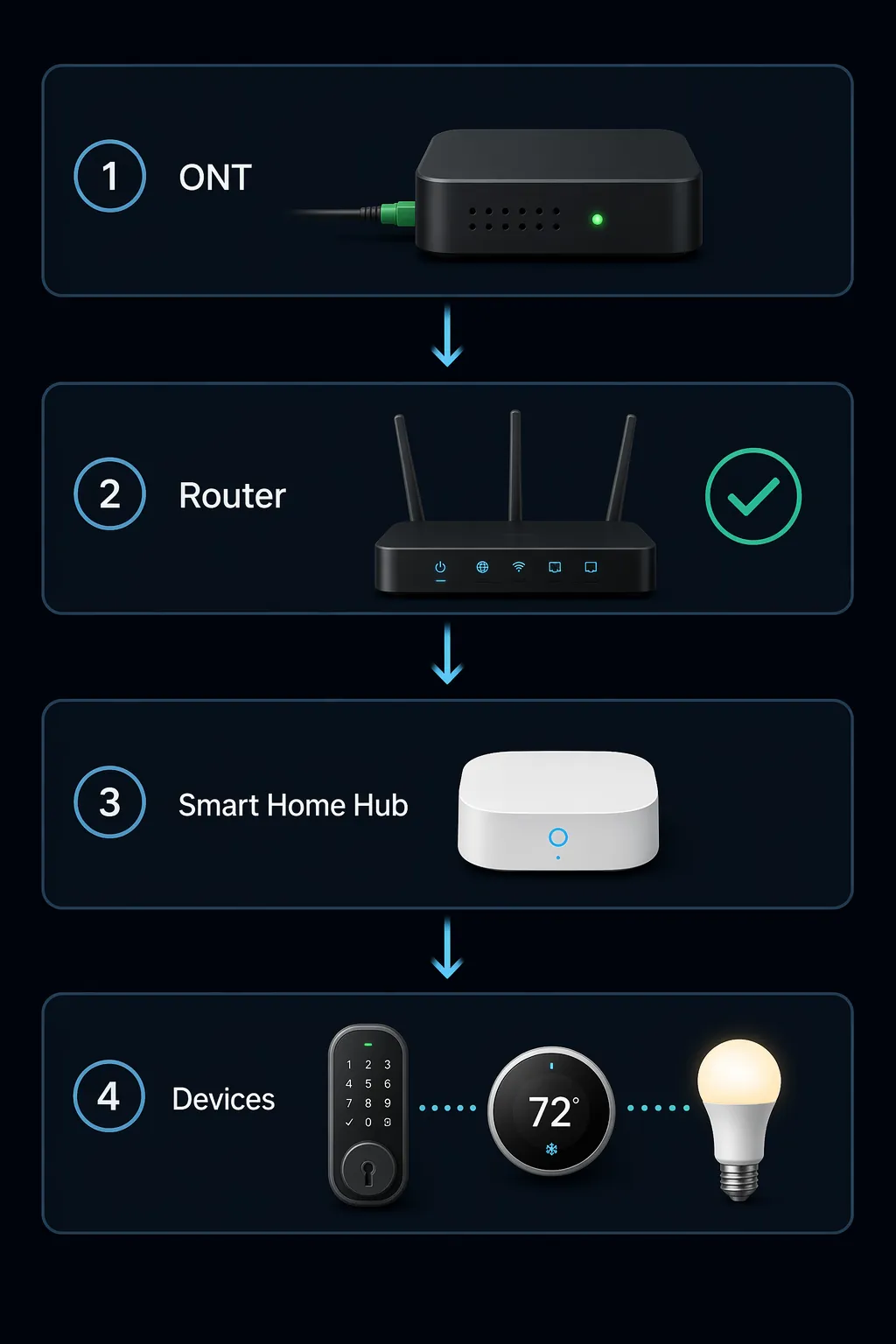
| Recovery layer | What to verify before moving on | What not to do yet |
|---|---|---|
| 1. ONT / fiber signal | Optical light is solid green, or the equivalent normal optical indicator for your ONT model. Fiber ONT labels vary, but a green optical signal commonly means light is reaching the premises.[1][2] | Do not troubleshoot Zigbee, Z-Wave, Matter, or Wi-Fi devices while the ONT still shows a red or missing optical signal. |
| 2. Router | Router has finished booting and shows its normal online state. Give the ONT a few minutes first, then bring up the router and wait for a stable online light.[3] | Do not judge the hub while the router is still rebooting, changing status, or handing out new network leases. |
| 3. Smart home hub | Hub is connected by Ethernet or Wi-Fi and appears online in its app or controller. A hub that booted too early may need a clean restart after the router is stable.[3] | Do not factory-reset the hub if the old devices, rooms, scenes, or automations still exist. |
| 4. Devices and mesh | Check devices by protocol: Wi-Fi, Zigbee, Z-Wave, and Matter. Zigbee-style mesh recovery can take 30–60 minutes after a full disruption, with powered repeaters typically returning before battery sensors.[4] | Do not mass-delete offline devices during the mesh rebuild window. |
Start at the ONT, not the thermostat
After a physical fiber cut, the first honest test is the ONT optical light. The ONT is the box where the fiber service enters the home and becomes usable home networking. If the optical indicator is red, dark, or otherwise showing loss of signal, the repair is not complete from the house’s point of view. At that point, the smart home has no stable path to recover through.
A solid green optical light is the handoff point. It does not mean every smart device is healthy. It means the fiber side is no longer the first problem to solve. ONT indicator names and colors can vary by Spectrum ONT model, so match the label on your unit, but the practical rule holds: no optical signal, no indoor smart-home recovery yet.[1][2]
Physical fiber repairs are often discussed in terms of fusion splicing because the broken strand must be restored before optical signal returns. Community reports sometimes describe mainline fiber cut repairs taking roughly 8–16 hours, but that is not a Spectrum guarantee and should not be treated as a service-level promise. Use it only as context for why a red or absent optical light is still an outside-line problem, not a reason to start rebuilding your smart home.
Bring the router up cleanly before judging the hub
Once the ONT shows normal optical signal, give it a short settling period before restarting or reconnecting the router. Practical outage-recovery guidance commonly uses a few minutes for the ONT to stabilize before the router is brought back online; the important part is not the exact ritual, but avoiding a race where the router and hub are both trying to recover while the WAN side is still changing.[3]
- Confirm the ONT optical light is normal.
- Power up or restart the router only after that.
- Wait until the router shows its normal online state, such as a solid online or blue indicator depending on the model.
- Check that a phone or laptop can actually load websites over the home Wi-Fi, not just show connected bars.
- Only then restart or inspect the smart home hub.
This is where vague advice like “restart everything” causes trouble. The ONT, router, and hub are not interchangeable boxes. If the hub boots before the router is fully stable, it can miss the normal network handoff and sit in an awkward state: visible in the app, but not syncing properly, or flipping between online and disconnected. Practical hub-recovery guidance treats that pattern as a network-link problem first, not proof that the hub has failed.[3]
If your hub is Ethernet-connected, check the cable and the router port before doing anything destructive. If it is Wi-Fi-connected, move it out of cabinets, away from dense electronics, and closer to the router long enough to verify recovery. A hub that was barely connected before the outage may look dead after the router comes back with slightly different radio behavior.
If the hub app still shows your old devices, protect that database
Offline tiles are annoying. They are also evidence. If the old device entries still appear in the hub or smart home app, the pairings and automation references may still exist. Deleting those entries can break scenes, routines, dashboards, voice-assistant room assignments, and automations tied to those exact device records.[3]
A factory reset should be reserved for a hub that is genuinely unrecoverable, not for a system that is halfway through reconnecting. Before you even consider it, check three things: the ONT is normal, the router is online, and the hub itself has network access. If those are true and the old devices are still listed, the next job is protocol-specific recovery, not wiping the system.
Now split the problem by device protocol
Once the hub is online, stop treating the whole smart home as one failure. A Wi-Fi plug, a Zigbee motion sensor, a Z-Wave lock, and a Matter bulb can all show “offline” for different reasons. The fix depends on what kind of connection each device uses.
Wi-Fi devices: check the 2.4 GHz path
Phones and laptops coming back online do not prove that every Wi-Fi smart device can reconnect. Many smart plugs, bulbs, cameras, and appliances depend on 2.4 GHz Wi-Fi. After a router reboot, the 5 GHz side may appear usable before the 2.4 GHz side is fully available, and band-steering can push setup devices toward the wrong radio behavior.[3]
- Confirm the router is broadcasting the same Wi-Fi name and password the devices used before the fiber cut.
- Check whether 2.4 GHz is enabled and stable.
- If a device must be re-added through an app, temporarily separate or disable 5 GHz only if your router allows it safely and you know how to restore the setting afterward.
- Power-cycle one stubborn Wi-Fi device at a time instead of cutting power to the whole house again.
If the Wi-Fi name or password changed during router replacement or troubleshooting, Wi-Fi devices may need normal Wi-Fi reconfiguration. That is different from resetting the smart home hub. Keep the scope narrow: fix the Wi-Fi credential problem for the affected devices, not the entire automation system.
Zigbee devices: let the powered repeaters rebuild first
Zigbee recovery is where patience saves the most damage. After a full outage or a hub/router recovery sequence, the mesh may need 30–60 minutes to rebuild routing. Mains-powered Zigbee devices such as smart plugs, in-wall switches, and some bulbs tend to return first because they can act as repeaters. Battery sensors, buttons, and contact sensors may lag because they wake and report on their own schedules.[4]
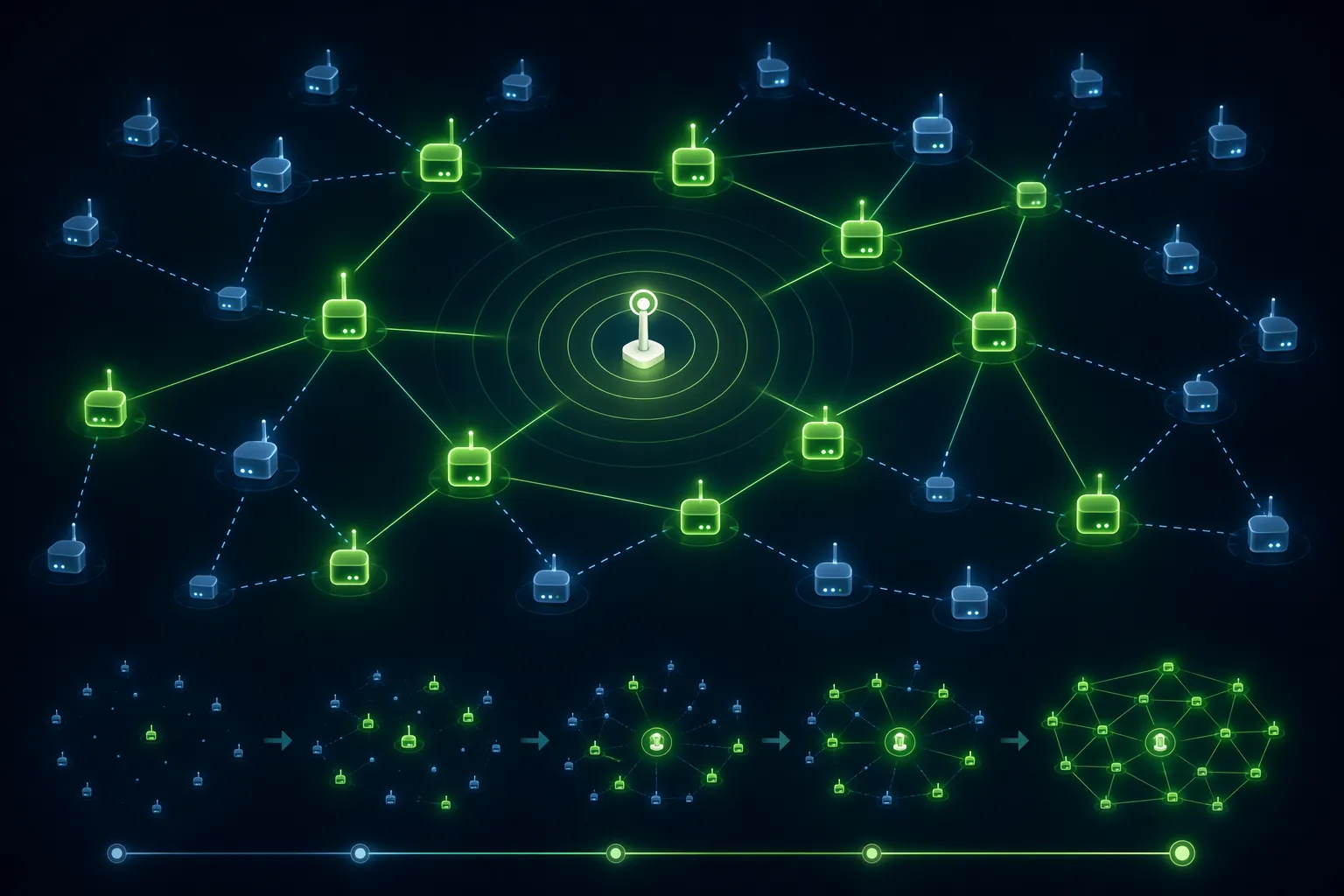
During that window, resist the urge to remove every offline sensor. If the hub still lists the sensor, the pairing may still be intact. The sensor may simply not have found a route through the mesh yet.
What you can safely touch: one or two mains-powered repeaters near the hub. Power-cycle a smart plug or switch that normally acts as a strong router node, wait, and then watch whether nearby battery sensors begin to report. Do not walk around the house resetting every sensor with a paperclip. That turns a routing delay into a re-pairing project.
If the same Zigbee devices keep dropping after the outage recovery period, move into root-cause troubleshooting: weak repeaters, bad bulb behavior, crowded 2.4 GHz channels, or poor hub placement. A deeper Zigbee-only path belongs in a separate diagnosis, such as a Zigbee device drops offline troubleshooting guide, not in the first minutes after Spectrum service returns.
Z-Wave devices: give the mesh time, then repair the route
Z-Wave devices also depend on a mesh, so the first move is similar: wait for the hub and powered nodes to stabilize before blaming the lock or sensor. Powered Z-Wave switches, plugs, and repeaters are more important to recovery than battery locks and sensors because they help carry routes across the house.
After the 30–60 minute recovery window, a single stubborn Z-Wave device may need a targeted repair, wake-up, or route refresh through your hub’s tools. A battery lock may also need to be manually awakened according to its manufacturer’s procedure before the hub can update it. That is still a targeted repair. It is not a reason to exclude and re-include the entire Z-Wave network.
For locks especially, avoid casual deletion. Removing and re-adding a lock can affect automations, access routines, and security-related scenes. If you need a refresher on how Z-Wave locks depend on range and network inclusion, the same fundamentals covered in a Z-Wave smart lock setup guide help explain why powered repeaters near the lock matter after an outage.
Matter devices: be ready for recommissioning, but do not assume defect
Matter deserves a more careful call. Some Matter devices can become permanently unavailable after a power cycle depending on the controller, firmware, and commissioner behavior. A Home Assistant Matter controller issue documented in early 2025 describes devices becoming unavailable after power cycling and requiring manual recommissioning through the Matter commissioner.[5]
That does not prove every Matter device is defective, and it does not mean every Matter system in 2026 behaves the same way. Controller firmware and Matter implementations continue to change. The practical distinction is this: a Zigbee contact sensor may simply be waiting for the mesh to rebuild, while a Matter device that remains unavailable after the controller is stable may need a recommissioning path inside the controller app.
Before recommissioning, check for controller and device firmware updates if the app allows it. Then follow the controller’s Matter repair or recommissioning flow for the affected device only. Do not clear the whole home unless the controller vendor’s recovery procedure explicitly requires it.
A practical recovery pass, in the order I would actually run it
Start with the boring visible facts. Look at the ONT. If optical is not normal, stop indoors and deal with Spectrum service status. If optical is normal, bring the router to a stable online state. Confirm ordinary internet access from a phone or laptop. Then restart the smart hub once, after the router is already online.
Open the smart home app and look for preservation clues. Are the rooms still there? Are device names still there? Are scenes and automations still listed? If yes, treat the system as recoverable. Offline does not mean erased.
- For Wi-Fi devices, verify the SSID, password, 2.4 GHz availability, and band-steering behavior.
- For Zigbee, wait 30–60 minutes, then power-cycle one or two known powered repeaters if the mesh is still thin.
- For Z-Wave, wait for powered nodes first, then use targeted repair, wake-up, or route-refresh tools for individual devices.
- For Matter, check controller status and firmware, then recommission only the affected device if it remains unavailable.
If you want a broader outage checklist for the same recovery discipline, keep a separate smart home power outage recovery guide handy. The Spectrum fiber cut adds the ONT optical-signal gate at the beginning; after that, the smart-home side behaves much like any full network interruption.
When it is finally safe to repair individual devices
Individual repair becomes reasonable only after the upstream pieces are stable. The ONT has normal optical signal. The router is online. The hub is connected. The old device entries still exist. Zigbee and Z-Wave networks have had their 30–60 minute rebuild window. At that point, a device that remains offline is no longer just part of the whole-house recovery fog.
Then you can work one device at a time. Reconnect a Wi-Fi plug to the correct 2.4 GHz network. Wake a Z-Wave lock. Power-cycle a Zigbee repeater. Recommission a Matter device if the controller requires it. What you should not do is mass deletion, mass exclusion, or a hub factory reset while the original configuration is still visible and partly alive.
References
- ONT guide, Norwood Light Broadband
- ONT guide, Surf Internet
- Smart Hub Not Syncing After Power Outage, Whizz Experts
- Zigbee lost connections after power cut, Home Assistant Community
- home-assistant/core #161886, GitHub, early 2025
Corroborating context
For protocol background on why this failure happens, see Compatibility & Protocols.
Not currently linked to a known regression. Background on the underlying protocol lives in Compatibility & Protocols.