
Smart Home Devices Not Working After Internet Outage? Here's the Fix
Smart home devices unresponsive during internet outage
Last updated
First, do not reset everything.
When an internet outage makes smart home devices stop working, the fastest fix is usually not a factory reset, a new Wi-Fi name, or deleting devices from an app. Start with what still works: physical switches, buttons on plugs, lock keypads, thermostat controls, and any local hub automations that do not need the cloud. Then bring the network back in order: modem, router, hub, individual devices, with about two minutes between each stage.
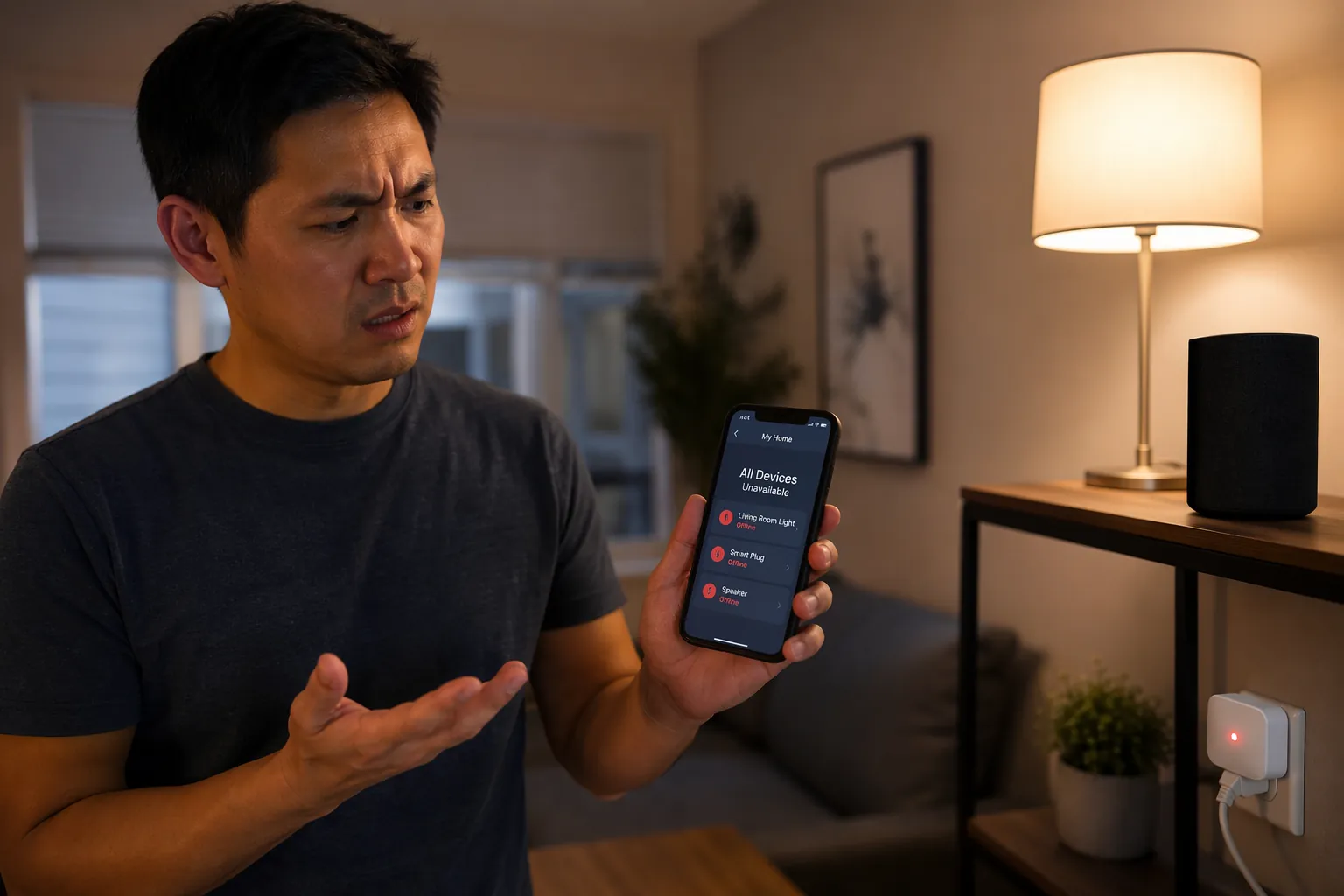
That sounds too plain until you are standing in a hallway tapping a dead app while a lamp is sitting three feet away with a perfectly good switch. Smart homes fail in confusing ways because power, Wi-Fi, internet service, cloud platforms, and device firmware can all be different layers. A bulb can be powered and connected to Wi-Fi yet still ignore the app. A camera can be online locally but unreachable from a vendor account. A voice assistant can hear you and still be unable to carry out the command.
Here is the short triage before touching cables:
- Use physical controls first: wall switches, plug buttons, lock keypads, manual thermostat controls, and camera privacy switches.
- Check whether the outage is internet-only or power-related. Local smart devices still need electricity, and hubs need power unless they are on a UPS.
- Do not factory-reset bulbs, plugs, locks, cameras, or hubs while the internet is still down.
- If you use Alexa, Google Home, Ring, cloud Wi-Fi bulbs, or cloud cameras, assume app and voice control may be unavailable until the vendor cloud is reachable again.
- If you use a local hub or controller, test local controls from the same home network before assuming every automation is broken.
Why The App Is Dead But The Device Is Not
Many smart home commands do not travel straight from your phone to the device across your home network. The route is often phone to vendor cloud, vendor cloud back to your home, then device. If the broadband line is down, or the vendor’s cloud platform is having trouble, that loop breaks even though the device is sitting right there with power.
The October 2025 AWS outage made that painfully visible. HowToGeek reported that the roughly 15-hour incident involved a DNS failure in AWS US-East-1 and affected services including Alexa and Ring, while users with locally controlled Home Assistant setups reported no disruption to those local controls.[1]
The harsher version is when the cloud service itself becomes the product’s weak point. A Serenity Smart Homes NJ blog post described a Sengled cloud outage from June 18 to June 22, 2025, that left many Wi-Fi bulb owners unable to control bulbs through the cloud, and it also reported that Sengled’s Alexa skill was shut down on August 1, 2025.[2] Those dates and the shutdown claim should be treated as reported by that consultancy source unless confirmed by Sengled or a second primary source, but the lesson is still familiar: a low-cost Wi-Fi bulb can become a dependency on a remote account system the homeowner does not control.
This is not a purity test about being a “real” smart home person. Most people bought devices labeled “works with Alexa” or “app controlled” and were not told that a basic light command might need a round trip through a cloud service. The practical question is simpler: what can still be operated now, and what should wait until the network is stable?
What Usually Still Works During An Internet Outage
| Device or control path | What to expect during an internet outage | What to try first |
|---|---|---|
| Wall switches and manual lamp switches | Usually work if power is available. Smart status in the app may be wrong. | Use the physical switch. Leave factory resets alone. |
| Smart plugs with a physical button | Often still toggle from the button even if app control is unavailable. | Press the plug button for essential lamps or appliances. |
| Wi-Fi smart bulbs | May keep their last state, but app and voice control often fail if cloud-dependent. | Use the wall switch if safe. Avoid rapid repeated power cycling. |
| Voice assistants | Local wake word may work, but device control often fails when cloud services are unreachable. | Use the device’s physical controls or the original switch instead. |
| Cloud cameras and video doorbells | Live view, notifications, recordings, and remote access may fail. Some models may keep limited local functions. | Check local indicators and physical security first. Do not assume recordings are being uploaded. |
| Smart locks | Keypads, keys, thumb turns, and Bluetooth may still work depending on the model. Remote lock control may fail. | Use the keypad, key, or inside thumb turn. Preserve battery. |
| Smart thermostats | Manual temperature control often still works at the thermostat. App scheduling and remote changes may fail. | Set temperature at the wall unit. |
| Zigbee, Z-Wave, Thread, or Matter devices on a local controller | May continue working locally if the hub, router, and controller have power and the local network behaves normally. | Use the hub’s local app or local dashboard if available. |
The phrase “if power is available” is doing real work here. Internet outages and power outages overlap often enough that they get mentally blended together. A Zigbee bulb on a local hub is still useless if the lamp has no electricity. A Home Assistant box is beautifully local until the mini PC, router, or access point loses power. If you want smart home survivability during a power outage too, the router, primary hub, and any required access point need battery backup.
Local does not mean magic, either. SmartThings community users have documented cases where some routers stopped handling local LAN traffic properly when the WAN link was down, so local access to a hub failed until the internet connection returned.[3] That is why the recovery sequence matters: get the upstream network pieces calm before you start blaming every bulb in the house.
The Recovery Order: Modem, Router, Hub, Devices
When service comes back, restart in this order:
- Modem or fiber gateway.
- Router or mesh system.
- Smart home hub or controller.
- Individual smart devices that still show offline.
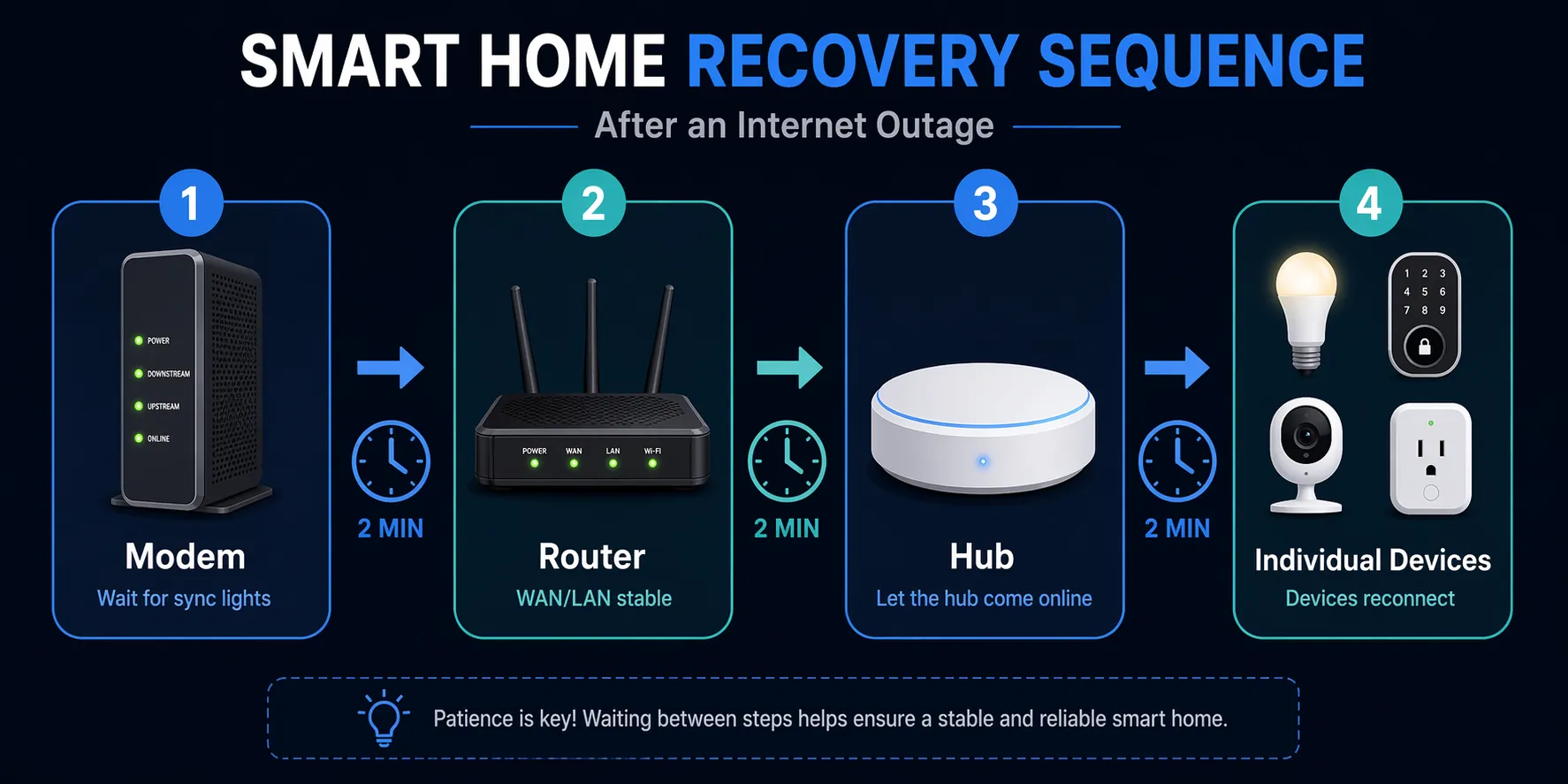
Give each stage about two minutes before moving to the next. That pause is not superstition. The modem needs time to sync with the ISP. The router needs a stable WAN connection and a clean LAN state. Mesh nodes need time to settle. Hubs need to reconnect after the network is real again. Only then should individual devices be power-cycled.
The common mistake is restarting everything in a pile: modem, router, hub, bulbs, cameras, plugs, all at once. That creates a noisy recovery where devices ask for addresses before the router is ready, hubs come up before the LAN is stable, and cloud devices start failing login attempts while the WAN is still half-restored. It feels active, but it often adds another round of waiting.
1. Restart The Modem Or Gateway
Unplug the modem or fiber gateway, wait briefly, plug it back in, and watch for the normal service lights. Do not move on just because the power light is on. You want the connection indicators to look settled, not still hunting.
If your ISP is AT&T and the line still looks down after the modem has had time to recover, use the targeted checks in our AT&T outage troubleshooting guide before you start tearing apart the smart home side. A provider outage cannot be fixed by re-pairing bulbs.
2. Restart The Router Or Mesh System
Once the modem is stable, restart the router. If you have a mesh system, give the main router time to come up before judging the satellite nodes. Wait for the Wi-Fi network to reappear, then give it another minute. Smart devices are not helped by a Wi-Fi network that exists for five seconds, disappears, and comes back under load.
Check one ordinary device before moving on: a phone or laptop connected to Wi-Fi should be able to load a normal website. If it cannot, your smart plugs are not the problem yet.
3. Restart The Smart Home Hub
Now restart the smart home hub, bridge, or controller: SmartThings hub, Hue Bridge, Home Assistant server, Aqara hub, Hubitat hub, or any other box that coordinates devices. A hub that boots before the network is stable may sit in an odd half-connected state. Give it a clean chance after the router is ready.
If your local dashboard works, test a local device from that dashboard before opening every vendor app. For Home Assistant users, this is where local control earns its keep. XDA Developers reported local Home Assistant response times around 0.2 to 0.4 seconds versus roughly 1 to 3 seconds for cloud-dependent control in the author’s testing; that is not a controlled universal benchmark, but it matches the everyday feel of local commands avoiding the cloud round trip.[4]
4. Restart Only The Devices Still Offline
After the modem, router, and hub are stable, look for the devices still offline. Restart those individually. For a smart plug, unplug it and plug it back in. For a camera, remove power and restore it. For a bulb, turn power off and back on once unless the manufacturer’s instructions say otherwise.
Do not factory-reset a stubborn device unless you are ready to re-add it from scratch. A device that says “offline” after an outage may simply be holding stale network state, waiting on a cloud login, or sitting behind a hub that has not fully recovered. Factory reset is the last lever, not the first.
If Cloud Devices Still Will Not Respond
When the internet is technically back but Alexa, Google Home, vendor apps, or camera feeds still fail, separate the paths. Can your phone browse the web on Wi-Fi? Can the vendor app log in? Does the device work from its own app but not from Alexa? Does the physical button work? Those answers tell you whether the problem is the ISP, the vendor cloud, the voice integration, or the device itself.
Voice assistants are often the last thing to trust during recovery. They depend on the assistant platform, the device vendor integration, your account link, and the device connection. If a lamp works from its original app but not by voice, do not reset the lamp. Recheck the voice integration later.
Cameras and doorbells deserve a separate caution. A camera can look normal on the wall while cloud recording, push notifications, or live view are down. If the camera is part of your security routine, verify what it is actually doing after the outage rather than assuming the app will tell you later.
Emergency Hotspot Option
A phone hotspot can sometimes bring a cloud-dependent smart home partly back, especially if the hotspot feeds a travel router or a router with USB tethering or backup-WAN support. The goal is not to reconnect every device directly to your phone. It is to give the home network temporary internet so cloud services, hubs, and account links can talk again.
This is useful for a house that depends on cloud cameras, remote lock checks, or voice control, but it is not universal. Some routers do not support hotspot failover. Some cloud devices dislike network changes. A hotspot also depends on cellular coverage, battery, data limits, and the phone staying nearby. Treat it as an emergency bridge, not a real substitute for local control.
Stubborn Wi-Fi Bulbs: The Long Power-Off Trick
Some Wi-Fi bulbs and plugs refuse to rejoin after the router is back even when everything else works. For Sengled, Tuya, and Smart Life-style devices, users in community forums have reported that leaving the bulb powered off for 30 to 60 minutes can clear a stale state better than short power cycles.[5][6]
That is a community-reported workaround, not a manufacturer-confirmed law. It is still worth trying before a factory reset because it is low risk: turn the bulb off at the switch or lamp, leave it off for the longer interval, then restore power after the router and internet are stable. Do not rapidly toggle the switch unless you are intentionally trying to trigger pairing mode; many bulbs use repeated power toggles as a reset pattern.
If the device returns after a long power-off, leave it alone for a while. Opening three apps, unlinking Alexa, and renaming the device while the vendor cloud is still recovering is how a simple outage becomes a weekend project.
What To Change After The House Is Working Again
The best time to improve outage behavior is after the lights are back and nobody is waiting in the dark. Start with the devices that matter most: entry locks, hallway lights, bedroom lamps, thermostats, leak sensors, security cameras, and anything used by guests, kids, or older family members.
- Know the physical fallback for every essential device. If a guest cannot turn on a light without an app, the setup is not finished.
- Favor local-control devices where failure matters. Zigbee, Z-Wave, Thread, Matter, and local hubs can reduce dependence on a vendor cloud when configured for local operation.
- Put the modem, router, and primary hub on a UPS if outages include power loss. Local control still needs powered infrastructure.
- Keep a hotspot or backup-WAN plan if the home depends on cloud cameras, remote access, or voice assistants.
- Avoid buying critical devices that only make sense through a vendor app and have poor manual controls.
For a longer-term rebuild, use our local-control smart home device guide as the migration path. You do not have to replace everything at once. Move the boring, important controls first: the lights people expect to work, the lock you cannot afford to lose access to, and the thermostat nobody wants trapped behind a login screen.
Cloud-dependent smart homes are fragile during outages, but the fix is usually less dramatic than it feels in the moment. Use the controls that still exist, restore the network in the right order, wait between stages, and only then deal with stubborn devices one by one.
References
- Why Your Smart Home Went Dumb Last Night — HowToGeek
- Sengled Smart Bulbs Cloud Outage & Alexa Skill Shutdown — Serenity Smart Homes NJ
- Lessons learned from an internet outage — SmartThings Community
- Home Assistant local-vs-cloud latency benchmark — XDA Developers
- Community reports on Sengled Wi-Fi bulbs requiring extended power-off recovery — Reddit
- Community reports on Smart Life and Tuya device recovery after router restart — Apilio Community
Corroborating context
For protocol background on why this failure happens, see Compatibility & Protocols.
Not currently linked to a known regression. Background on the underlying protocol lives in Compatibility & Protocols.