Fix Smart Home Schedules After Daylight Saving Time
Your smart home schedules — lights, thermostat, plugs, routines — are firing an hour early or late after a DST transition. This guide identifies the platform-specific causes and provides step-by-step fixes with confidence levels, so you can apply the right solution now.
- Symptom
- Smart home schedules off by exactly one hour after daylight saving time transition
- Affected ecosystem
- Apple Home, Google Home, Alexa, SmartThings, Home Assistant
- Hub requirement
- Yes, multiple hubs discussed (e.g., Hue Bridge, SmartThings hub, Aqara hub)
- Status
- Workaround
- Difficulty
- Moderate
- Last verified
If your smart home schedules are exactly one hour early or late after daylight saving time, do not delete every routine yet. The useful first question is not “Did daylight saving time happen?” It is: which platform owns the clock for this automation?
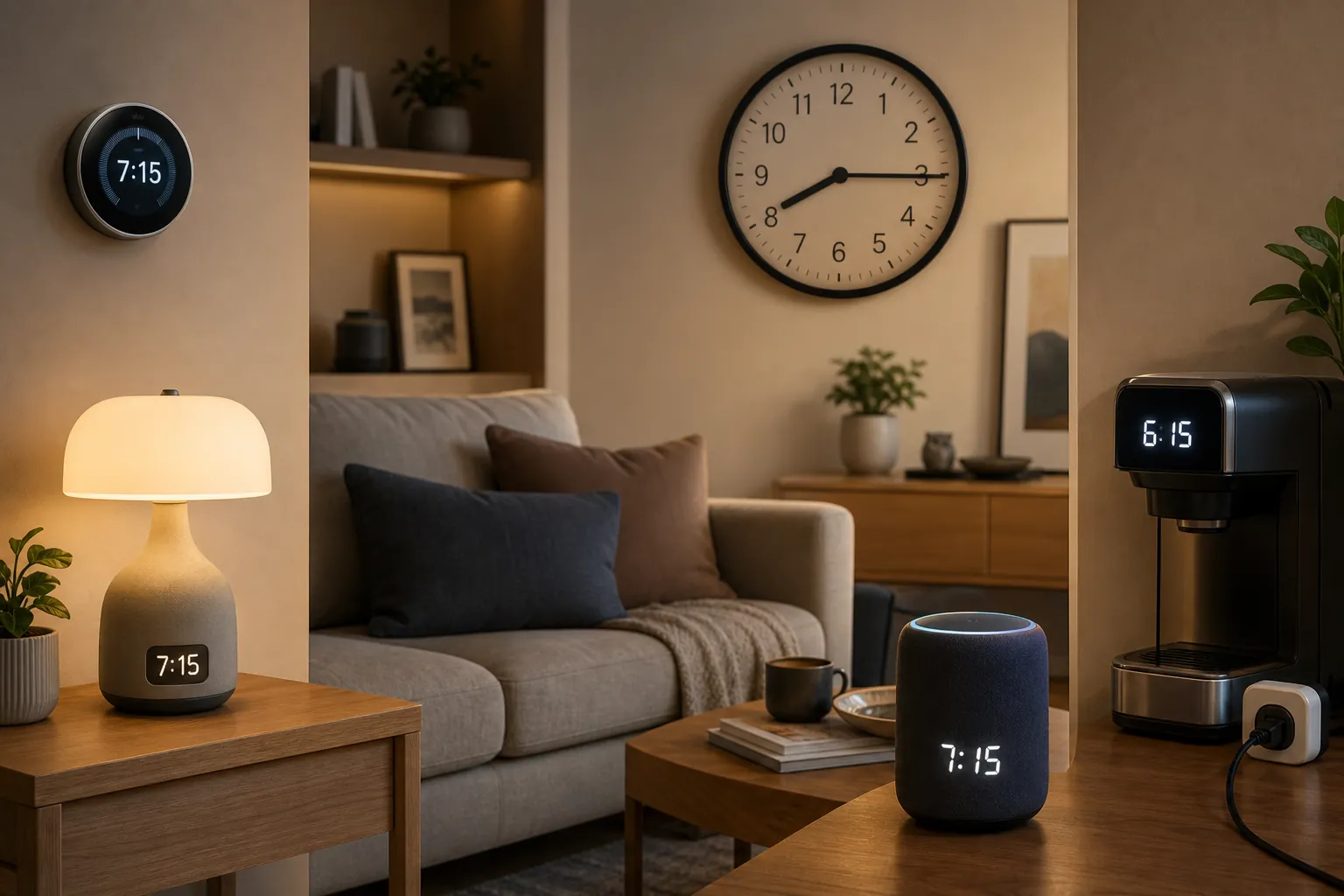
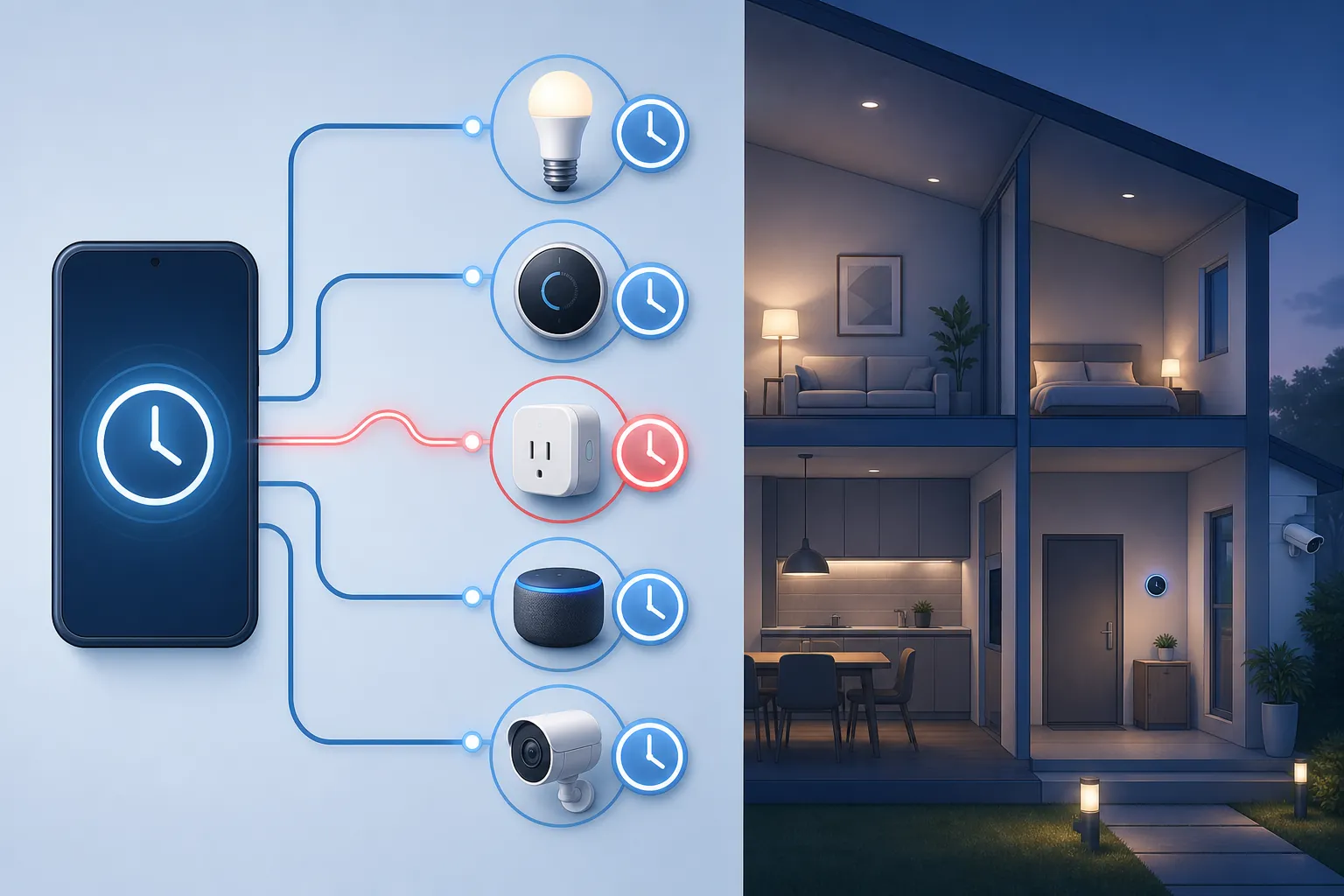
A light routine, thermostat schedule, smart plug timer, and sunrise automation can all look like the same failure from the hallway. Underneath, one may be using a cloud scheduler, another the hub location, another device firmware, and another a bridge timezone. Fix the wrong clock and you can spend the evening recreating automations that were never broken.
Quick DST Fix Matrix
| Platform or device | Most likely clock problem | Fix to try first | Confidence |
|---|---|---|---|
| Aqara | Cloud automations appear to mishandle DST for some users | Recreate the affected automation as a local automation where possible | Workaround: strong community reports, no official Aqara confirmation [1] |
| Honeywell Home VisionPRO made before 2007 | Old firmware uses pre-2007 U.S. DST rule timing | Disable auto-DST and adjust the clock manually | Confirmed by Honeywell Home support [2] |
| TP-Link Kasa or Tapo | Device time sync may be stale or blocked | Re-sync device time in the app; if it keeps failing, try DNS 8.8.8.8 | Confirmed for time-sync recovery; not necessarily a DST-only bug [3] |
| SmartThings | Location, timezone, or routine state may not refresh cleanly | Re-save location/timezone, then re-save affected routines | Workaround/investigating: useful community fix, but from older app-era reports [4] |
| Philips Hue | Hue Bridge timezone is wrong | Correct the bridge timezone, then check sunrise/sunset routines | Confirmed by Hue guidance [5] |
| Home Assistant with ecobee | ecobee DST mode may need to be set explicitly | Use ecobee.set_dst_mode to toggle automatic DST handling | Confirmed action exists in Home Assistant docs [6] |
| Google Nest thermostat | Thermostat is not connected to Wi-Fi or has not updated time | Reconnect to Wi-Fi and let the thermostat auto-adjust | Confirmed by Google Nest support [7] |
| Geeni | Schedules do not auto-adjust for DST | Delete and recreate the affected schedules | Confirmed by Geeni support [8] |
Use the status column literally. “Confirmed” means a first-party support page or documentation points to the behavior or fix. “Workaround” means users have found a repeatable repair path, but the manufacturer has not confirmed the root cause. “Investigating” means the fix may still be worth trying, but the available evidence is old or not specific enough to treat as settled.
Aqara: Move Suspect Cloud Automations Local
For Aqara, start with the automations that fired exactly one hour off and check whether they are cloud-based. A community guide posted in October 2025 describes Aqara cloud automations breaking around daylight saving time, while local automations continue to behave correctly; multiple users corroborated the pattern in March 2026 [1].
- Open the Aqara app and find the automation that fired at the wrong time.
- Check whether the trigger and actions can run locally through your hub instead of through Aqara cloud processing.
- Recreate the schedule as a local automation, using the same time and devices.
- Disable, rather than delete, the original cloud automation until the replacement has fired correctly.
- Test with a near-term time trigger before trusting the next overnight or early-morning schedule.
This is one of the more useful current fixes because it gives you a concrete thing to change: where the automation runs. It is not the same as an official Aqara defect notice. The same forum thread includes moderator pushback over whether the behavior is truly a platform bug or a misunderstanding, so the right label is still workaround [1].
That distinction matters. If local automation fixes your lights before dawn, use it. Just do not document it as “Aqara confirmed DST bug fixed by local mode.” Document it as “cloud schedule moved local after DST offset,” because that is the part you can verify in your own home.
Honeywell VisionPRO: Check the Manufacturing Era
Honeywell’s older VisionPRO case is cleaner than most smart-home DST problems because the cause is narrow. Honeywell Home support says VisionPRO thermostats manufactured before the 2007 daylight saving time law change must have auto-DST disabled and be adjusted manually [2].
- Confirm that the affected thermostat is a VisionPRO model and whether it was manufactured before 2007.
- Open the thermostat settings and turn off automatic daylight saving time adjustment.
- Set the clock manually after the seasonal change.
- Check the programmed heating and cooling periods against the displayed time.
This is not a general “old thermostats are bad” diagnosis. It is specifically about firmware that cannot know the post-2007 DST schedule. If the thermostat is newer or cloud-connected under a different product line, do not apply this fix blindly.
TP-Link Kasa and Tapo: Treat It as Time Sync First
With TP-Link Kasa and Tapo devices, the first repair path is device time synchronization. TP-Link’s July 2026 FAQ for schedules showing the wrong time after daylight saving time says to re-sync the device time in the app; if the time still does not sync, it points users to change DNS to 8.8.8.8 [3].
- Open the Kasa or Tapo app and check the device’s current time or timezone setting where available.
- Use the app’s device time re-sync option.
- Power-cycle the affected plug, switch, or bulb if the app still shows stale time.
- If time sync keeps failing, try the DNS change TP-Link recommends: set DNS to 8.8.8.8 on the relevant network path.
- After the device shows the correct time, check the schedule itself before recreating it.
The DNS step deserves a slower hand. It may fix the device’s ability to reach the time service; that does not prove a DST-specific bug in the schedule engine. In practice, that means you should verify the clock first, then the routine. If the clock is still wrong, recreating a schedule only builds on bad time.
SmartThings: Refresh Location, Then Routines
SmartThings reports are harder to label with confidence because the most direct geolocation workaround comes from a March 2022 community thread. Users described changing timezone or location settings, saving, restoring the correct location, and then re-saving each routine [4]. Another SmartThings community thread described Smart Lighting and sunset-related automations misbehaving around time changes [9].
- Open your SmartThings location settings and confirm the home location, timezone, and geolocation pin.
- If the app allows it, make a harmless location or timezone edit, save it, then restore the correct value and save again.
- Open each affected routine and save it again without changing the logic.
- For sunset or sunrise automations, check both the trigger and any offset such as “30 minutes before sunset.”
- If only one automation is wrong, duplicate or recreate that one after the location refresh.
A location refresh is a reasonable workaround because SmartThings automations depend heavily on the home location context. But the evidence is not current enough to promise the same app behavior in 2026. If this fixes the issue, record the exact app version and the steps you used; that note will be more useful next season than a vague memory that “SmartThings needed a reset.”
Philips Hue: Correct the Bridge Timezone
Hue is usually more direct: check the Hue Bridge timezone. Philips Hue says its system auto-adjusts through bridge time synchronization and that sunrise and sunset routines depend on the bridge using the correct timezone [5].
- Open the Hue app and go to bridge or home settings.
- Confirm the bridge timezone and location.
- Correct the timezone if it is wrong, then let the bridge sync.
- Check time-based routines first, then sunrise and sunset routines.
If the bridge timezone is wrong, the individual bulbs are not the interesting suspect. The bridge is the clock owner, so fix it before touching room scenes.
Home Assistant and ecobee: Set DST Mode Explicitly
If Home Assistant is managing an ecobee thermostat, there is a specific action available: ecobee.set_dst_mode. Home Assistant documents this action for toggling ecobee’s automatic daylight saving time mode [6].
Use that when the thermostat’s DST behavior is the part you need to control. If a Home Assistant automation fired an hour off but the thermostat clock is correct, look at Home Assistant’s own system timezone, container timezone, and automation trigger logic before changing ecobee settings.
Google Nest: Get the Thermostat Back Online
Google Nest thermostats are supposed to adjust automatically when connected to Wi-Fi [7]. If the displayed time or schedule behavior is wrong after daylight saving time, start with connectivity rather than schedule surgery.
- Confirm the thermostat is connected to Wi-Fi.
- Check that the home location and timezone in the Google Home or Nest setup are correct.
- Wait for the thermostat to update time, then compare the displayed time with the app.
- Only edit the temperature schedule after the thermostat clock is correct.
Geeni: Recreate the Schedule
Geeni’s answer is blunt: schedules do not automatically adjust for daylight saving time, so affected schedules need to be deleted and recreated [8]. This is the rare case where schedule recreation is not a last resort; it is the documented repair.
- Write down or screenshot the current schedule before deleting it.
- Delete the schedule that is firing one hour off.
- Create a new schedule at the correct local time.
- Run a same-day test if the device controls heat, lighting needed for safety, or anything time-sensitive.
When Sunrise or Sunset Is Wrong, Check the Pin
Not every daylight saving complaint is a one-hour clock offset. If sunrise or sunset routines are drifting in a way that is not exactly one hour, check the home location pin. A technician case study from Whizz-Experts describes location pin accuracy affecting sunset calculations [10].
That is a different failure shape. A wrong timezone often gives you a clean one-hour error after DST. A bad location pin can make sun-based automations feel “off” without lining up neatly to the clock change. Fix the home location before rewriting offsets.
Do This Before the Next Time Change
Once the house is back on time, leave yourself a short verification trail. You do not need a full smart-home audit; you need enough notes to avoid repeating the same hallway tour after the next DST transition.
- Confirm the home location, timezone, and location pin in each major ecosystem you use.
- Force a device time sync where the app provides one, especially for plugs, switches, and bulbs that missed a schedule.
- Prefer local automations when a platform’s cloud scheduler is the suspect and local execution is available.
- Mark community fixes as workarounds in your notes instead of treating them as manufacturer-supported behavior.
- Test one near-term schedule after changing clock, timezone, DNS, or location settings.
DST smart-home failures feel random because the house contains several clocks. Once you identify the clock that owns the automation — cloud, firmware, hub location, bridge timezone, or device time sync — the fix gets much less mysterious.
References
- Guide to solving DST issues, Aqara Forum, Oct 2025.
- All New VisionPRO Thermostats, Honeywell Home, Sep 2025.
- What should I do if Kasa/Tapo device schedule shows wrong time after daylight saving time?, TP-Link, Jul 2026.
- Daylight Savings Time Issues, SmartThings Community, Mar 2022.
- Daylight savings time tips, Philips Hue, Oct 2019.
- ecobee.set_dst_mode, Home Assistant.
- Learn about Seasonal Savings, Google Nest Help.
- How do I adjust schedules to account for Daylight Savings Time?, Geeni Support.
- Smart Lighting app and automation problems with time changes, SmartThings Community.
- Home Automation Schedules Not Working, Whizz-Experts.
Did this fix work for you?
Report whether this fix resolved your case, or flag a correction if firmware or app behavior has since changed.