
Check Your Smart Home Assistant Data Privacy in 2026
Privacy concerns; settings outdated after 2025 changes
Last updated
Verified for Q3 2026, using the public app and account paths available as of July 24, 2026. Treat that date as part of the instruction, not decoration: Amazon removed a major Echo privacy option in March 2025, and Google’s Gemini controls now sit in places many older Assistant guides do not mention.[1][2]
If you came here to check smart home assistant data privacy because you heard something changed, start with the assistant you actually use most. Then come back for the others. Shared homes usually have more than one account, more than one speaker, and at least one old setting someone swears they already fixed.
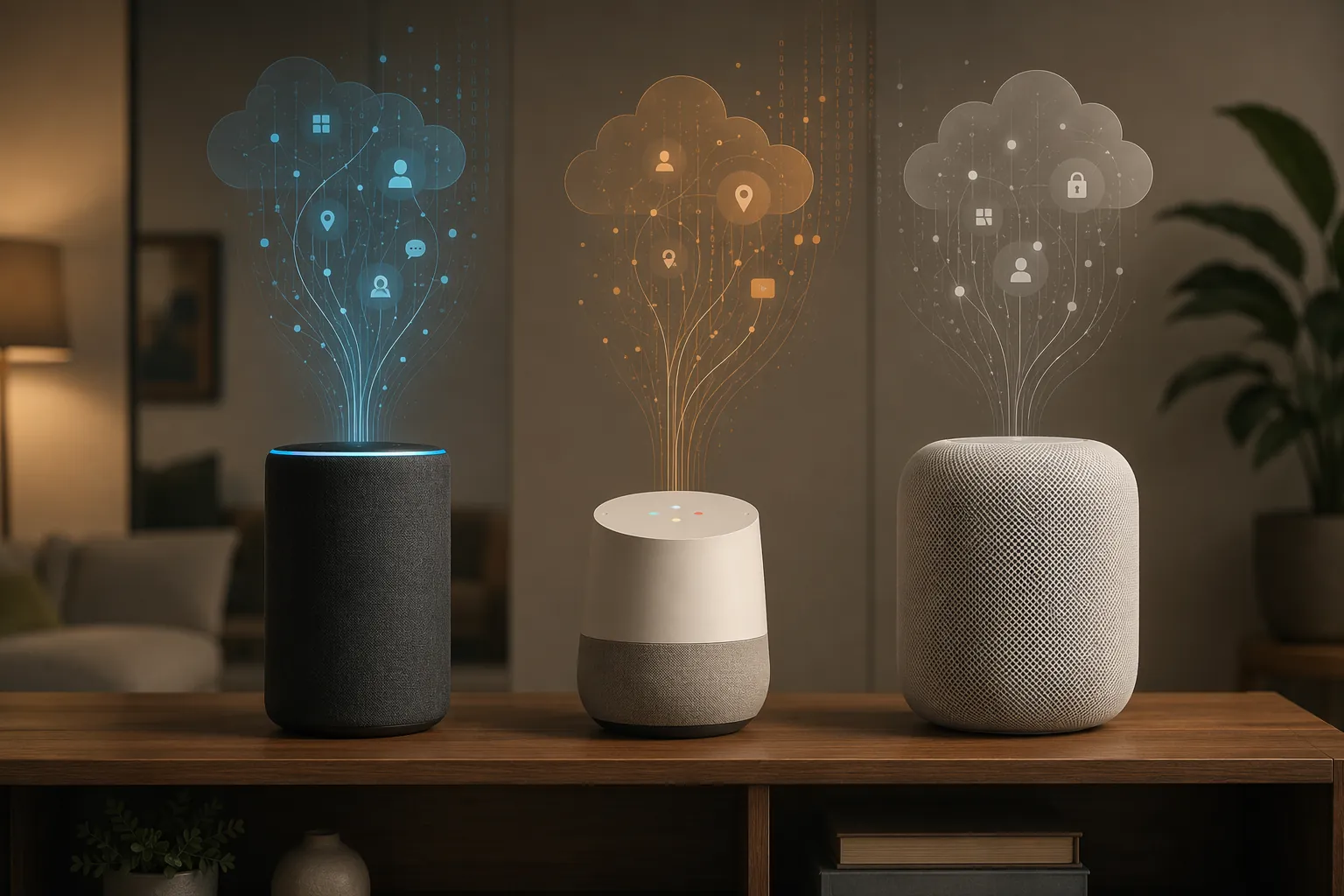
| If you use | Check first | Why it matters in 2026 |
|---|---|---|
| Amazon Alexa / Echo | Alexa Privacy: voice history, deletion schedule, human review, Sidewalk, skills | Echo voice commands now go to Amazon’s cloud after Amazon disabled “Do Not Send Voice Recordings” on supported devices on March 28, 2025.[1][2] |
| Google Assistant / Gemini for Home | Google My Activity, Gemini Apps Activity, Home History, Personal Context, Ad Settings | Gemini-related privacy controls are split outside the traditional Assistant settings path, including pages that do not appear in the main Google Account privacy controls.[6] |
| Apple Siri / HomePod | Siri & Dictation history, analytics, Siri personalization, app access | Most Siri requests are processed on-device on supported Apple hardware, but Siri history and personalization settings still deserve a manual check.[9] |
The reason to do this now is not that every assistant is equally bad or that the only safe smart home is an unplugged one. The problem is more ordinary: 45% of Americans said they have never adjusted smart home device privacy settings, while 56% of smart assistant users said they worry about data collection.[3] That is the exact gap this audit is meant to close.
Before You Tap Anything: What This Audit Can and Cannot Fix
This walkthrough focuses on voice assistant data: recordings or transcripts, activity history, review programs, personalization, advertising use, third-party skills or apps, and device-level privacy toggles. It does not replace a full smart home security audit for cameras, locks, routers, TVs, or cloud subscriptions. If you want the broader pass after this, use NestGrid’s whole-home privacy settings checklist.
Separate three things while you work. A privacy setting only helps if it applies to the account and devices you actually use. A company policy is not the same as independent verification. And deleting old activity is different from preventing future retention.
- Use the phone where the assistant app is already signed in.
- Check every adult account that controls the home, not just the person who bought the speaker.
- After changing a setting, close and reopen the app or page to confirm it stuck.
- If a menu name has moved, search inside the app for the exact setting name before assuming the option disappeared.
Amazon Alexa and Echo: The Old Local-Recording Advice Is Obsolete
Start with Alexa if you have Echo speakers, Echo Show displays, Fire TV voice control, Ring-linked routines, or Alexa built into a thermostat, soundbar, car, or appliance. This is the assistant where 2025 broke the most old guides.
On March 28, 2025, Amazon disabled the “Do Not Send Voice Recordings” feature on every Echo device that supported it. Amazon said less than 0.03% of customers used the feature, and coverage at the time reported that all Echo voice commands would now be sent to Amazon’s cloud for processing.[1][2] Amazon’s stated policy is that recordings remain encrypted in transit and are deleted after transcription, but that is still a vendor-stated policy rather than something you can verify from inside the app.[2]
1. Open Alexa Privacy, Not Just Device Settings
In the Alexa app, go to More, then Settings, then Alexa Privacy. If the app layout has shifted, search the app for “Alexa Privacy.” Do not stop in an individual Echo device page; the account-level history controls live under Alexa Privacy.
- Open Review Voice History.
- Filter by date range and device.
- Look for unexpected devices, old rooms, guest-triggered commands, and voice interactions from children’s spaces.
- Delete individual entries if you need to preserve recent history, or use the broader deletion controls if you want a clean reset.
This is the place where the household argument usually ends. If the history is still there, the setting was not as locked down as someone remembered.
2. Set Future Voice History to Auto-Delete
Still under Alexa Privacy, open Manage Your Alexa Data. Look for the setting that controls how long voice recordings are saved. Current Alexa privacy guidance still points users to auto-delete options, including 3 months or 18 months.[4]
| Alexa choice | Practical effect |
|---|---|
| Delete manually | You remain responsible for remembering to clean up history. |
| Auto-delete after 18 months | Keeps a long history window; better than indefinite retention, but still generous. |
| Auto-delete after 3 months | The cleaner default for most households that do not rely on old voice history. |
Choose the shortest retention period you can live with. Then leave the page, reopen it, and confirm the same option is still selected.
3. Turn Off Human Review of Alexa Recordings
In Manage Your Alexa Data, find Help Improve Alexa or a similarly worded review/improvement setting. Disable the option that allows use of your voice recordings to improve Amazon services, including human review where offered. CNET’s Alexa privacy guidance continues to list this as one of the core settings to disable for privacy-conscious users.[4]
The wording may frame this as helping Alexa get better. That may be true at a product level, but it is not required for a household that mainly wants timers, lights, weather, and routines to work.
4. Check Smart Home Device History and Detected Sounds
Alexa privacy is not only spoken commands. In the same privacy area, review Smart Home Device History if available. Then check any sound detection, guard, hunches, occupancy, or routine-triggering features your household uses. The setting names vary by device and subscription, but the question is consistent: is Alexa using ambient events to infer what is happening at home?
If you use Echo devices mostly for direct commands, turn off features that listen for or infer extra household context. If you rely on sound detection for safety routines, keep only the routines you can explain to another adult in the house.
5. Disable Amazon Sidewalk If You Do Not Need It
In the Alexa app, go to More, Settings, Account Settings, then Amazon Sidewalk. If Sidewalk is on and you do not knowingly use devices that benefit from it, turn it off. CNET includes Sidewalk among Alexa settings privacy-minded users may want to disable.[4]
Sidewalk is not the same as voice history, so do not treat it as the main Alexa privacy switch. It is a separate neighborhood network feature, and it belongs in the same audit because many Echo owners never intentionally enabled or reviewed it.
6. Audit Skills and Their Permissions
Go to More, Skills & Games, then Your Skills. Remove anything you do not recognize or no longer use. For the skills you keep, open permissions and check whether they can access location, address, email, phone number, lists, or connected smart home devices.
Skills are where an otherwise tidy Alexa setup can get messy. A forgotten white-noise skill or old delivery skill may not matter; a skill with address or list access deserves more attention.
7. Check Children’s Profiles and Shared Devices
If children use Echo devices, check Amazon Kids settings, child profiles, and any Echo speakers in bedrooms or playrooms. This is not just theoretical caution: Amazon paid $25 million in 2023 to settle FTC allegations involving children’s privacy and retention of Alexa voice and geolocation data.[5]
Keep the task narrow. You are not rebuilding the whole family account right now; you are confirming whether children’s voice data, location-linked features, and device access match what the adults in the house believe is happening.
Alexa Confirmation Pass
- Voice history reviewed and old entries deleted or scheduled for deletion.
- Auto-delete set to the shortest workable period, preferably 3 months.
- Human review or improvement-use setting disabled where available.
- Sidewalk reviewed and disabled if unnecessary.
- Skills removed or permission-limited.
- Child profiles and children’s devices checked.
Google Assistant and Gemini: Check More Than Assistant Activity
Google is the section to take slowly, because the old mental model — open Assistant settings, turn off activity, done — is no longer enough for many homes. Gemini for Home introduced or emphasized separate controls for Gemini Apps Activity, Home History, memory, and Personal Context. Ars Technica reported in April 2026 that Gemini privacy toggles were absent from Google’s main account privacy settings and required navigation to myactivity.google.com/product/gemini or the Gemini app’s Activity menu.[6]
That split matters because a user can clean up one Google history page and still leave another assistant-adjacent system retaining useful context. It is not enough to search your Google Account for “privacy” and assume the result covers Gemini.
1. Review Assistant and Voice Activity in My Activity
Start at myactivity.google.com while signed into the Google account that controls your home. Filter for Assistant, Voice and Audio, or related product activity if those filters appear. Review recent commands, speaker interactions, and household routines.
- Delete old Assistant activity you do not need.
- Check whether voice and audio activity is being saved.
- Review every Google account linked to the home, especially if multiple people can control Nest devices.
- Confirm changes by refreshing My Activity after deletion.
If you have Nest speakers and displays, also open the Google Home app and check the activity or history views available for the home. CNET’s Google Home and Nest privacy guidance points users toward reviewing activity, account settings, and connected-device access rather than treating the speaker as a standalone appliance.[10]
2. Open Gemini Apps Activity Separately
Now check Gemini directly. Go to myactivity.google.com/product/gemini, or open the Gemini app and look for Activity. This is the path older Google Assistant articles often miss. Review Gemini prompts, assistant-style exchanges, and anything that appears connected to home control or personal context.
Disabling Gemini Apps Activity has a product consequence: reporting in 2026 noted that turning it off can also disable chat history persistence.[6][8] That is exactly the kind of tradeoff worth pausing over. If you rely on Gemini chat history, you may prefer a shorter auto-delete period. If you do not care about chat continuity, disabling activity is the cleaner privacy move.
| Gemini setting choice | What you gain | What you may lose |
|---|---|---|
| Keep Gemini Apps Activity on | Chat continuity and saved activity | More retained Gemini history |
| Use shorter auto-delete if available | Less long-term retention | Some history still exists during the retention window |
| Turn Gemini Apps Activity off | Stronger limit on retained Gemini activity | Chat history persistence may stop working |
3. Check Google Home History
Open the Google Home app and review Home History. Google’s Home and Nest Privacy Hub says Home History is set by default to auto-delete after 18 months, and users can change it to 3 months.[7] If you do not need a year and a half of household history, change it to 3 months.
Home History is easy to underestimate because it sounds less intimate than a voice recording. In practice, it can describe who adjusted devices, when routines ran, and what the home did over time. That is still household behavior data.
4. Review Personal Context and Gemini Memory
Look in the Gemini app, Google Home app, and Google Account surfaces for Personal Context, memory, or personalization controls. The exact placement may shift, which is why the setting names matter more than a single screen path. Disable memory or personal-context features you do not intentionally use.
A practical test helps here: if another adult in the home would be surprised that the assistant can use that context, turn it off until you have a household reason to keep it.
5. Turn Off Ad Personalization Inputs From Assistant Transcripts
Open Google Ad Settings for the same account. Google’s privacy materials state that voice interactions can inform ad personalization through text transcripts, so users who want to limit that use need to disable the relevant ad personalization setting rather than only deleting recordings.[7]
This is one of the most common cleanup misses. Voice privacy and ad personalization are not always located in the same menu, but the consequence lands in the same household.
6. Audit Works With Google and Third-Party Access
In the Google Home app, check linked services, Works With Google connections, and household members. Remove integrations you no longer use. Then open your Google Account security settings and review third-party access for services connected to home control.
Do not judge by brand familiarity alone. A known smart plug account you stopped using two apartments ago is still unnecessary access.
Google Confirmation Pass
- Assistant and Voice activity reviewed in My Activity.
- Gemini Apps Activity checked separately at the Gemini activity page or in the Gemini app.
- Gemini activity retention or disabling choice made with the chat-history tradeoff understood.
- Home History changed from 18 months to 3 months if long retention is unnecessary.
- Personal Context, memory, and ad personalization reviewed.
- Works With Google integrations and household members cleaned up.
Apple Siri and HomePod: Better Baseline, Still Worth Checking
Siri starts from a different architecture than Alexa in particular. Consumer privacy guidance has credited Apple’s on-device Siri processing on supported devices as a meaningful baseline difference, with many requests handled locally through Apple hardware rather than being sent as recordings to cloud servers by default.[9] If you want the bigger architecture comparison, NestGrid’s guide to local versus cloud AI processing in smart home devices is the better place to go deeper.
Give Apple credit for that design, but do not treat “on-device” as a magic eraser. Siri history, analytics sharing, personalization, Home access, and app permissions can still expose more than a household expects.
1. Delete Siri and Dictation History
On iPhone or iPad, open Settings, then Siri, or Siri & Search depending on your current iOS wording. Look for Siri & Dictation History, then choose Delete Siri & Dictation History if you want to clear what Apple allows you to delete from that device/account context.
For HomePod, also check the Home app. Open the HomePod settings and review Siri-related options, especially if multiple people can make personal requests through the same speaker.
2. Turn Off Siri Analytics Sharing
Open Settings, Privacy & Security, then Analytics & Improvements. Turn off Improve Siri & Dictation if it is enabled. If other analytics sharing options are on, decide whether you actually want to contribute device and usage data.
This is a low-drama setting. Most households will not notice a day-to-day feature loss from disabling Siri improvement analytics.
3. Review Siri Personalization and App Access
In Siri settings, review app-level Siri access. Turn off Siri suggestions or Siri access for apps where voice shortcuts, search suggestions, or lock-screen suggestions would expose sensitive habits. Pay closer attention to messaging, health, finance, calendar, maps, and smart home apps.
Then check Home settings for household members and personal requests. Personal Requests can be convenient on HomePod, but it also means the speaker can connect a voice interaction to messages, reminders, notes, calendar items, or other personal data depending on your setup.
4. Check HomeKit and Third-Party App Permissions
Open the Home app and review who has access to the home. Remove old household members, guests, contractors, or secondary Apple IDs that no longer need control. Then check Settings, Privacy & Security, HomeKit, and review which apps can access Home data.
This is where Apple homes often get loose over time. The voice assistant may be comparatively restrained, while the home graph itself still has stale people and apps attached.
Siri Confirmation Pass
- Siri & Dictation history deleted if you do not need it.
- Improve Siri & Dictation disabled in Analytics & Improvements.
- Siri app access and suggestions limited for sensitive apps.
- HomePod Personal Requests reviewed.
- Home members and HomeKit app permissions cleaned up.
How the Three Assistants Compare After the Audit
A cross-platform survey-based comparison reported that Alexa collected 37 of 48 tracked data points, Siri collected 30, and Google Assistant collected 28.[11] Those rankings are useful as a signal, not as a complete privacy verdict. They do not tell you whether your account has old recordings, whether your child’s speaker is linked to the wrong profile, or whether Gemini history is still on.
The more practical difference in 2026 is control shape. Alexa lost a local voice-recording path and now demands a cloud-processing assumption. Google splits Assistant, Gemini, Home History, Personal Context, and ads into separate checks. Apple has the strongest on-device baseline, but the remaining settings still affect history, analytics, and personal access.
If you are choosing a platform from scratch, NestGrid’s smart home platform privacy comparison looks at the ecosystem-level tradeoffs. If you already own the speakers, the better move today is to finish the account cleanup rather than debate an ideal platform you are not actually using.
What to Check Next
After the assistant audit, move to the devices that record or infer the most about the home: cameras, video doorbells, security systems, smart TVs, thermostats, and routers. Voice history is only one part of the household data trail.
- For cameras and doorbells, check clip retention, sharing, facial recognition, and cloud subscription settings in NestGrid’s camera data retention privacy guide.
- For the wider home, use the smart home security and privacy 2026 guide to check networks, accounts, updates, and access.
- For AI features, separate local processing from cloud processing before deciding whether a feature belongs in a bedroom, office, or child’s space.
In 2026, smart assistant privacy is less about finding one master switch and more about checking several moving controls. If you completed the Alexa, Google, or Siri pass, you reduced unnecessary retention and personalization exposure today. If one of these companies moves the setting again, the Q3 2026 label is the reminder to re-check the path instead of trusting an old screenshot.
References
- Alexa Just Became Less Private — What The March 28 Amazon Changes Mean, Forbes, March 2025
- Amazon smart speakers disable a privacy setting that allowed local storage of voice recordings, NPR, March 2025
- 45% of Americans Have Never Touched Their Smart Device Privacy Settings, Reviews.org, 2026
- 8 Alexa Settings to Disable if You're Worried About Privacy, CNET
- Hey, Alexa! What are you doing with my data?, FTC Business Blog, 2023
- The hidden cost of Google's AI defaults and the illusion of choice, Ars Technica, April 2026
- Google Home & Nest Privacy Hub, Google Home & Nest Privacy Hub
- I reset my Google Account privacy settings for 2026, Android Police, 2026
- How to Set Up a Smart Speaker for Privacy, Consumer Reports
- Is your Google Home or Nest secure?, CNET
- How to Make Siri, Alexa, and Google Assistant More Private, ProPrivacy
Corroborating context
For protocol background on why this failure happens, see Compatibility & Protocols.
Not currently linked to a known regression. Background on the underlying protocol lives in Compatibility & Protocols.