
Smart Home Down? How to Check if It's Spectrum
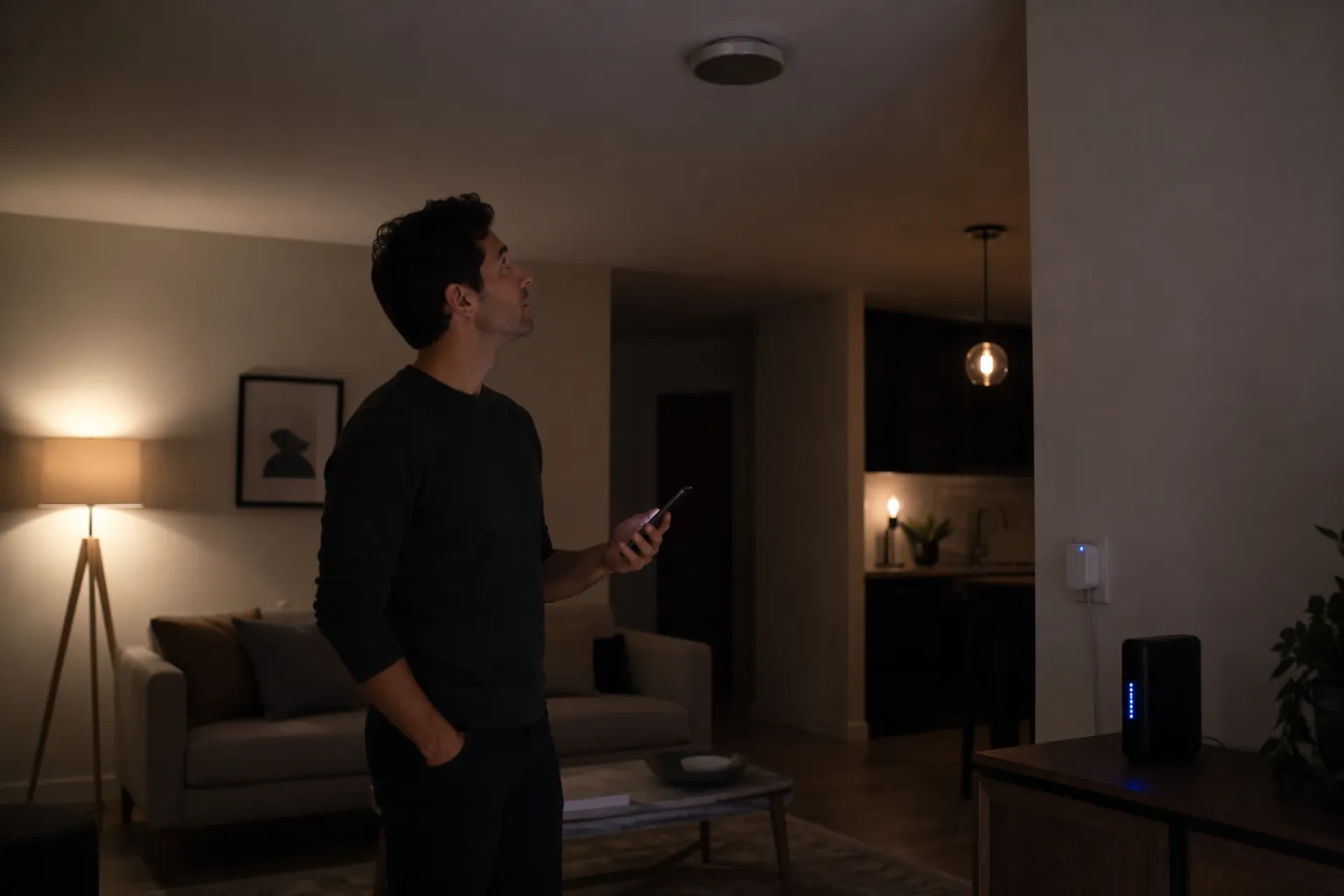
Multiple smart home devices unresponsive or offline simultaneously
Last updated
When three rooms go dumb at the same time, do not start by deleting bulbs from apps, factory-resetting plugs, or rebooting the hub because Alexa sounded offended. Here is how to check whether Spectrum internet is down when smart home devices fail together: start at the modem, then prove the router and Wi-Fi layer, then look at the hub and protocols, and only then inspect individual devices.
That order matters. A hub reboot during a WAN outage can leave you waiting on mesh devices to rediscover routes. A bulb reset can turn one outage into a re-pairing chore. The goal is not to restart everything. The goal is to find the first broken layer and stop touching the layers below it.
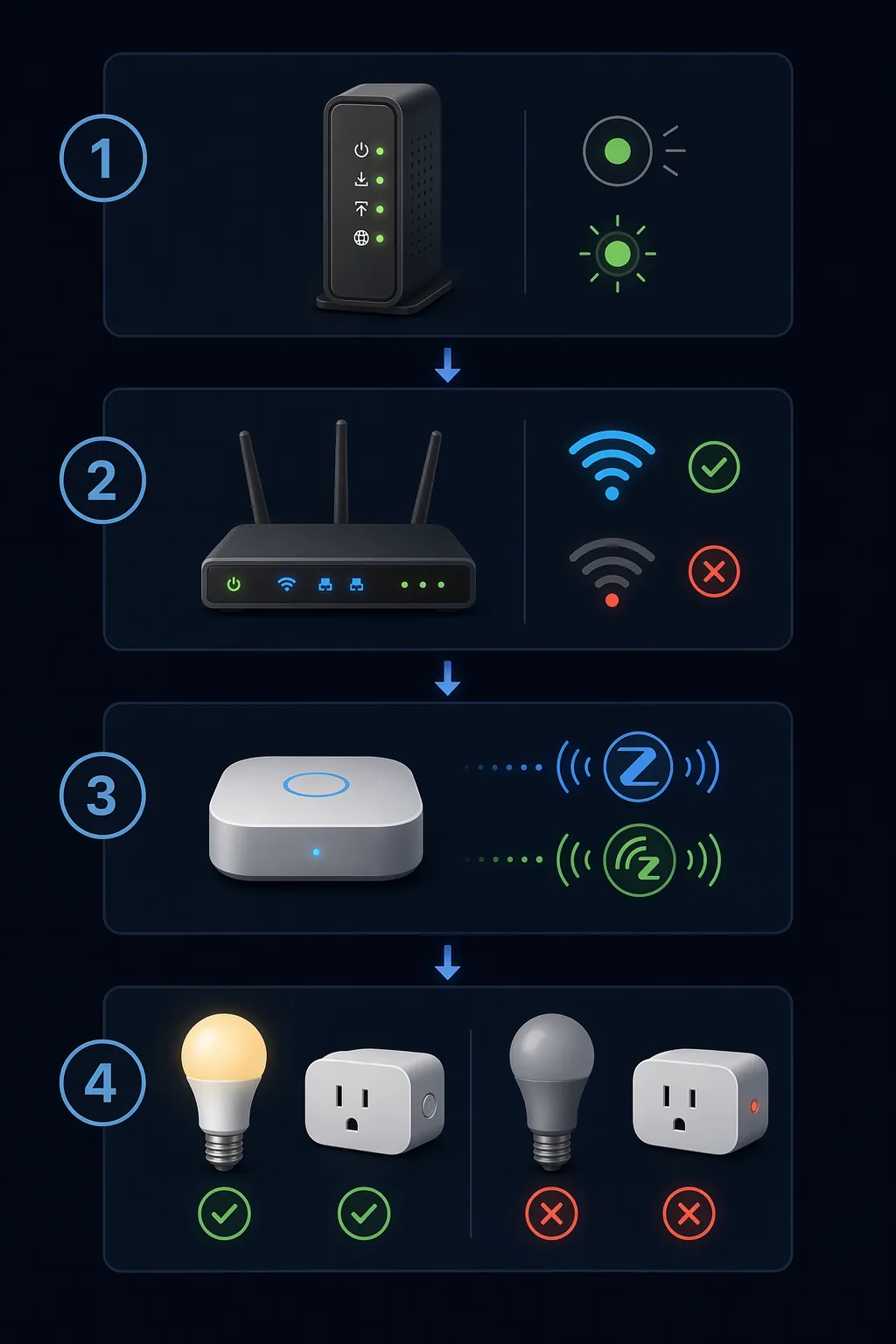
The four-layer check
Use the smart home like a witness. If Wi-Fi bulbs, cloud routines, and voice commands all fail together, that says something different than one dead plug. Work from the outside in:
| Layer | What to check | If it fails | What not to touch yet |
|---|---|---|---|
| 1. Spectrum / modem | Online light, My Spectrum App equipment status, regional reports | Wait on Spectrum or confirm service trouble | Router, hub, bulbs, plugs, app device lists |
| 2. Router / Wi-Fi | Phone or laptop Wi-Fi, local network name, internet access | Fix router or Wi-Fi before blaming devices | Smart hub and individual smart devices |
| 3. Hub / protocol | Hub online status, local Zigbee/Z-Wave/Matter behavior, cloud-only failures | Restart or recover the hub only after network is stable | Factory resets and device deletion |
| 4. Individual devices | Power, wall switch, batteries, one room or one brand failing | Troubleshoot the actual device group | Whole-network resets |
Layer 1: check Spectrum at the modem first
Go to the cable modem before you open six smart-home apps. You are looking for the Online light, not the prettiest app error message. On many Spectrum-provided modems, a solid Online light usually means the modem has completed its upstream connection. A blinking blue or white Online light is widely used in community and third-party Spectrum troubleshooting as a sign that the modem has not established service, often because the problem is outside your smart-home stack. That blinking-light rule is useful triage, but it should be treated as independent guidance rather than Spectrum’s official published wording. Customer-owned modems may also label or display lights differently. [1]
If the Online light is blinking and several smart devices failed at once, stop there for a moment. Do not reboot the hub. Do not remove the dead-looking bulbs from Apple Home, Google Home, Alexa, SmartThings, Hubitat, or Home Assistant. A smart bulb cannot repair a modem that has not come online.
Next, check the My Spectrum App if your phone has cellular data. Spectrum’s support page for equipment status points customers to the app to check modem status and connection information for their account equipment. That is the official account-side check, and it is more useful than guessing from a voice assistant saying a device is not responding. [2]
Then use Downdetector as corroboration, not as a verdict. Downdetector’s Spectrum page shows user-submitted outage reports and regional activity, which can help confirm that neighbors or nearby users are seeing the same trouble. It does not know the condition of your modem, your coax drop, or your router, so it belongs after the physical modem check and the Spectrum account check. [3]
| What you see | Most useful conclusion | Next move |
|---|---|---|
| Online light blinking blue or white on a Spectrum-provided modem | Treat Spectrum service or signal as the likely failure layer | Wait, check My Spectrum App, corroborate regionally, leave smart-home gear alone |
| Online light solid, My Spectrum App shows equipment connected | Spectrum may be up; move inward | Check router and Wi-Fi |
| Online light solid, but Spectrum app reports equipment trouble | Account-side or equipment status needs attention | Follow Spectrum app guidance before resetting smart-home devices |
| Modem lights look normal but Downdetector reports spike nearby | Possible broader service issue, not proof | Continue local checks while avoiding device resets |
The practical dividing line is simple: if the modem is not online, everything below it is innocent until proven otherwise. If the modem is online, the smart home is still not the next suspect. The router gets its turn first.
Layer 2: prove the router and Wi-Fi are actually usable
Stand near the router with a phone or laptop that normally uses your home Wi-Fi. Turn cellular data off for this test if you can, because phones are very good at quietly rescuing you with mobile data and making the home network look healthier than it is.
- If your Wi-Fi network name does not appear at all, this is a router or access-point problem before it is a smart-home problem.
- If the phone connects to Wi-Fi but says there is no internet, the router may be working locally while the WAN path is still broken.
- If the phone connects to Wi-Fi and loads several normal websites, the basic internet path is alive. Move to the hub and protocol layer.
- If only one corner of the house has weak Wi-Fi, do not generalize that into a Spectrum outage. That points toward coverage, mesh node, or access-point trouble.
This layer catches a very common false alarm: the modem came back, but the router did not. In that state, your smart devices may look just as dead as they did during the outage, but the fix belongs at the router. A cloud bulb cannot reconnect to a Wi-Fi network that is not being broadcast.
Layer 3: let the hub and protocols tell you what kind of outage this is
This is where a smart home gives better evidence than a generic internet outage checklist. Different devices depend on different paths. During the same Spectrum outage, a Wi-Fi bulb, a Zigbee motion sensor, a Z-Wave switch, a Matter device, and an Alexa routine may not fail the same way.
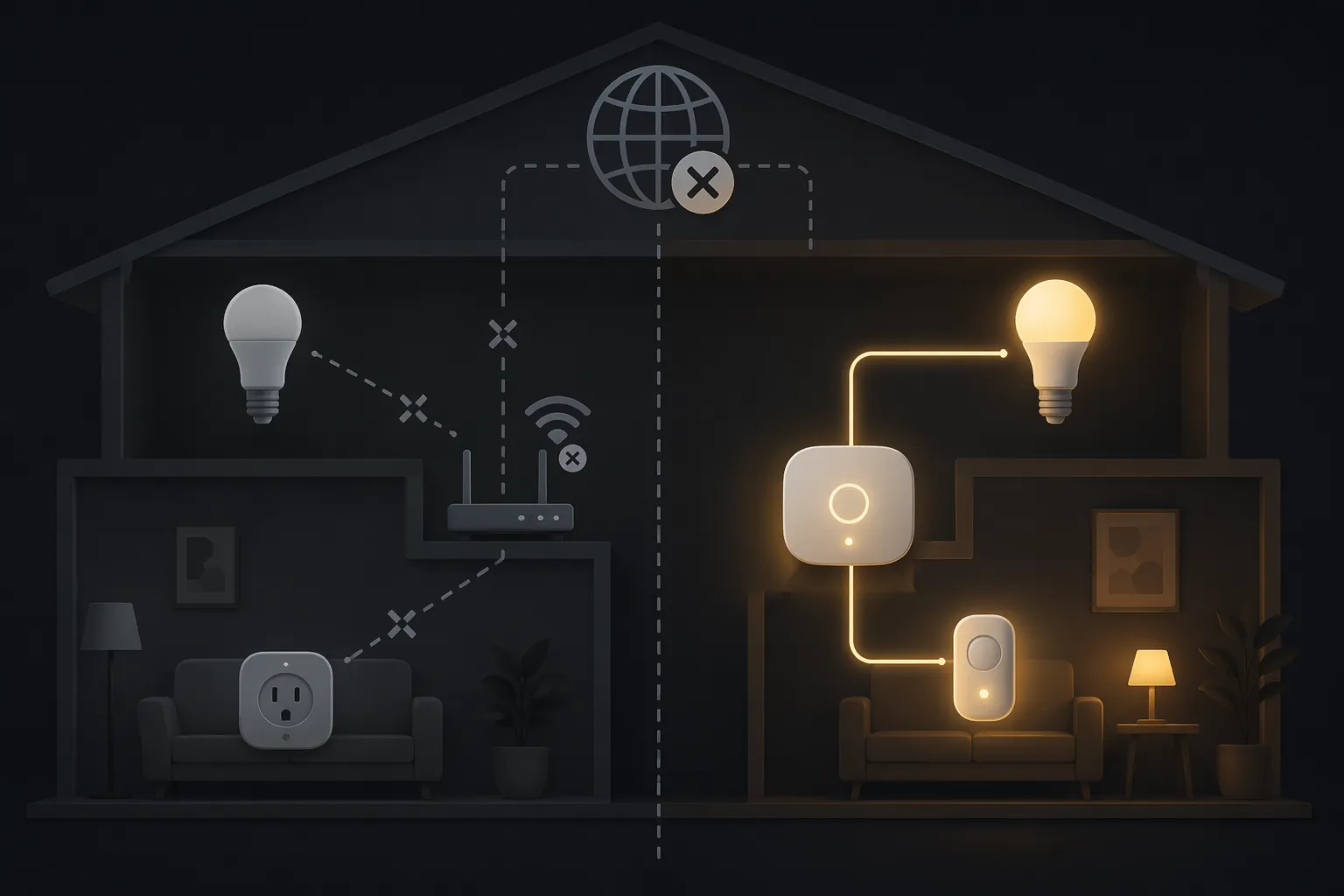
Typical Wi-Fi smart bulbs and plugs from cloud-first product lines depend on your home Wi-Fi and often on the vendor’s cloud. If Spectrum is down, the wall switch may still turn the lamp on, but the app, voice control, remote access, and cloud automations can fail. Some Wi-Fi devices have partial local APIs or local-control modes, so do not turn this into a law of physics, but as a first diagnostic clue it is useful. [4][5][6]
Zigbee and Z-Wave devices are different because they talk to a hub over a local mesh instead of joining your Wi-Fi as ordinary clients. If your hub supports local processing, some switches, sensors, and automations may continue working even when Spectrum is out. Hubitat and many Home Assistant setups are built around this local-control idea. SmartThings can run some behavior locally, but cloud dependencies still vary by device, driver, automation type, and account setup. [4][5][6]
Matter adds another conditional clue. A local Matter command can keep working if the controller and device are on the same local network and the command does not need the cloud. An Echo that is acting as a Matter controller may handle some basic local commands, while Alexa skills, music, remote routines, and cloud-only integrations still fail during an internet outage. That split is annoying in the hallway, but diagnostically valuable. [7][5]
| Observed behavior | Likely meaning | What to do next |
|---|---|---|
| Wi-Fi bulbs and cloud routines fail, but Zigbee/Z-Wave switches still respond locally | Internet or cloud path is likely broken; hub mesh may be fine | Go back to modem, Spectrum app, router WAN status |
| Phone internet works, but hub app says the hub is offline | Hub connection or hub service may be the failure layer | Check hub power, Ethernet/Wi-Fi connection, and vendor status before rebooting |
| Hub is online, local automations run, but Alexa voice routines fail | Voice assistant cloud path or skill integration may be the problem | Test the device from its native hub/app before resetting devices |
| Nothing local works, including Zigbee/Z-Wave devices that usually work without internet | Hub power, hub network link, or mesh recovery may be involved | Inspect the hub layer before touching individual devices |
For a hub, look for boring physical evidence first: power light, Ethernet link light if it is wired, whether the hub appears as a client in your router, and whether the hub’s own app reports it online. If the router just recovered, give the hub room to settle. Zigbee and Z-Wave meshes can take several minutes to look normal again after the internet and router path return; a practical recovery window is 5 to 15 minutes before you assume the mesh is broken. Rebooting the hub inside that window can create a second recovery cycle instead of finishing the first one. [5][6]
Layer 4: inspect individual devices only after the shared layers pass
Device-by-device troubleshooting belongs at the end because the premise is simultaneous failure. Three bulbs, two plugs, and a hub do not usually develop separate personalities at 7:42 p.m. If the modem is online, Wi-Fi works, the hub is connected, and most local controls behave normally, then it is fair to look at individual devices.
- Check whether a wall switch cut power to a smart bulb or smart switch.
- Check batteries in sensors and locks.
- Look for one brand’s app or cloud service failing while other brands work.
- Check whether one room lost power at a breaker or GFCI outlet.
- For one misbehaving device, try a normal power cycle before any factory reset.
Factory reset is the last tool, not the first one. Use it when you have evidence that the individual device is orphaned, corrupted, or unrecoverable in its app — not because Spectrum blinked and the whole house got quiet.
After Spectrum comes back, recover in the right order
The power-cycle sequence belongs after diagnosis. If you already proved that the Spectrum/modem layer failed and service has returned, then a controlled restart can clean up stale addresses and half-open connections. One independent Spectrum troubleshooting guide describes a modem-to-router-to-device power-cycle order and says that sequence clears a large share of post-outage connectivity issues; the useful part is the order, not the urge to restart everything immediately. [1]
- Modem first: unplug power for about 60 seconds, reconnect it, and wait for the Online light to return to its normal solid state.
- Router second: restart it only after the modem is online, then wait for the Wi-Fi network to appear and for a phone or laptop to load websites over Wi-Fi.
- Hub third: restart the smart hub only if it still shows offline or local devices are not recovering after the network is stable.
- Devices last: power-cycle individual bulbs, plugs, locks, or sensors only if they remain offline while the hub and network are otherwise healthy.
The router-after-modem order prevents a common mess: the router or hub comes up while the upstream path is still unstable, grabs bad timing, and then smart-home clients sit around with stale assumptions. The slower sequence feels less heroic. It also creates less cleanup.
When outage maps and support pages are worth your time
Outage pages are useful once you have a physical clue. If the modem Online light is blinking and the My Spectrum App reports equipment or service trouble, a regional report page can tell you whether this is likely bigger than your house. If the modem is solid online and your phone browses normally over Wi-Fi, a giant outage map is less helpful than checking your hub, voice assistant integration, or one vendor’s cloud.
If you contact Spectrum, bring the layer evidence: Online light behavior, My Spectrum App status, whether a laptop works on Wi-Fi, and whether the issue affects all devices or only smart-home control. “The internet is down” makes everyone start from zero. “The modem Online light is blinking and the Spectrum app shows the modem offline” gets to the point.
Billing credits and outage policies can vary by account, region, and current Spectrum terms, so treat them as a separate account question after service is restored. They should not distract from the immediate job: keep the smart-home stack intact while you prove which layer actually failed.
The smallest fix that matches the failed layer
If many smart devices fail together, assume a shared layer failed until the evidence says otherwise. A blinking modem Online light points upstream. A missing Wi-Fi network points at the router or access point. Wi-Fi devices failing while local Zigbee or Z-Wave devices keep responding points toward internet or cloud dependency, not a dead mesh. One room or one device failing after all shared layers pass is finally a device problem.
Start with visible modem behavior, confirm the router, read the hub and protocol clues, and save device resets for the rare moment when the evidence has narrowed that far.
References
- Spectrum Internet Troubleshooting 2026 – Fix No Connection, Slow WiFi, Modem & Router Issues — spectrumoutage.org
- Checking the Status of Your Modem — Spectrum Support
- Spectrum outage or service down? — Downdetector US
- Does Your Smart Home Still Work When the Internet Goes Down? — Tech Frontier
- My smart home still works without the internet, and it's all thanks to one app — XDA
- Smart Home Without Internet: What Works Offline (2026) — Home Auto Central
- Offline Is the New Smart: Why Local Control Matters More Than Ever — How-To Geek
Corroborating context
For protocol background on why this failure happens, see Compatibility & Protocols.
Not currently linked to a known regression. Background on the underlying protocol lives in Compatibility & Protocols.