
Set Up Samsung Galaxy Theft Protection for Your Smart Home
Samsung Galaxy Theft Protection is four separately-toggled layers with distinct prerequisites, and on a phone that controls your smart home the setup is only complete when the Samsung Find remote controls are enabled as well. Learn the verified One UI 7+ menu paths for all four layers and the Home Safe Place trade-off that decides how Identity Check behaves where the phone normally lives.
A Galaxy phone that runs SmartThings is not just another stolen-screen problem. If it can unlock a door, view cameras, arm or disarm Home Monitor, or approve a family member’s access, then theft protection has to do two jobs: lock the handset quickly and preserve your ability to find, lock, erase, and cut off the missing phone afterward.
This walkthrough treats Samsung Galaxy Theft Protection as a setup recipe for a smart-home control phone, not as a generic Android safety toggle. Samsung does not advertise an official “smart home theft protection” mode; that framing here is the practical connection between Samsung’s theft-protection settings, Samsung Find recovery controls, SmartThings access, and the Home Safe Place decision.
| Verification item | Status for this walkthrough |
|---|---|
| Verification date | 2026-08-25 |
| Confirmed Samsung path | Settings > Security and privacy > Lost device protection > Theft protection on One UI 7+ |
| Completion standard | Enable Theft Detection Lock, Offline Device Lock, Remote Lock, and Identity Check; then enable Samsung Find remote controls under Lost device protection |
| Required deliberate choice | Decide whether Home belongs in Safe Places, because Safe Places changes how Identity Check behaves where the phone normally lives |
| Scope note | Screens, carrier menus, model support, and regional availability can vary |
The confirmed One UI 7+ path for Samsung’s theft-protection controls is Settings > Security and privacy > Lost device protection > Theft protection, where Samsung documents Theft Detection Lock, Offline Device Lock, Remote Lock, and Identity Check as separate controls rather than one master switch.[1][2]
Before you start: confirm the phone is in the right generation of software
Samsung introduced these latest anti-theft features with One UI 7 on the Galaxy S25 series at launch in February 2025, then expanded availability through 2025 to the Galaxy S24, Z Fold6, Z Flip6, Z Fold5, Z Flip5, S23, and S22 series, according to Samsung’s U.S. Newsroom.[3]
That rollout note is enough for setup purposes. You do not need a model encyclopedia before you begin; you need to know whether your phone actually shows the Lost device protection and Theft protection screens. If your menu names differ, update the phone first, then check your carrier or regional support page before assuming the feature is missing.
If you are still choosing which handset will act as the house control surface, keep that decision separate from this recipe. Our best Android phones for smart homes guide covers that broader device-fit question. This page assumes the Galaxy is already the phone your household reaches for when something in SmartThings needs attention.
The setup flow
| Order | Action | Why it matters on a smart-home phone |
|---|---|---|
| 1 | Open Lost device protection | This is the One UI 7+ home for Samsung’s theft-protection and recovery controls |
| 2 | Enable Theft Detection Lock | Adds a lock response when Samsung detects snatch-like motion |
| 3 | Enable Offline Device Lock | Adds a lock response when the phone goes offline after being unlocked |
| 4 | Enable Remote Lock | Gives you a fallback lock path using your verified phone number |
| 5 | Enable Identity Check | Adds biometric friction for sensitive actions outside Safe Places |
| 6 | Set Samsung Find remote controls | Keeps locate, ring, lock, track, and erase available after the phone leaves your hands |
| 7 | Configure Google theft protection separately | Galaxy owners can run Samsung and Google protections in parallel, but the menus are different |
The order matters because Identity Check is the first point where a simple “turn it on” instruction usually breaks. Theft Detection Lock, Offline Device Lock, and Remote Lock are straightforward toggles. Identity Check needs a Samsung account, registered fingerprints, and Safe Places before it can be finished.[1]
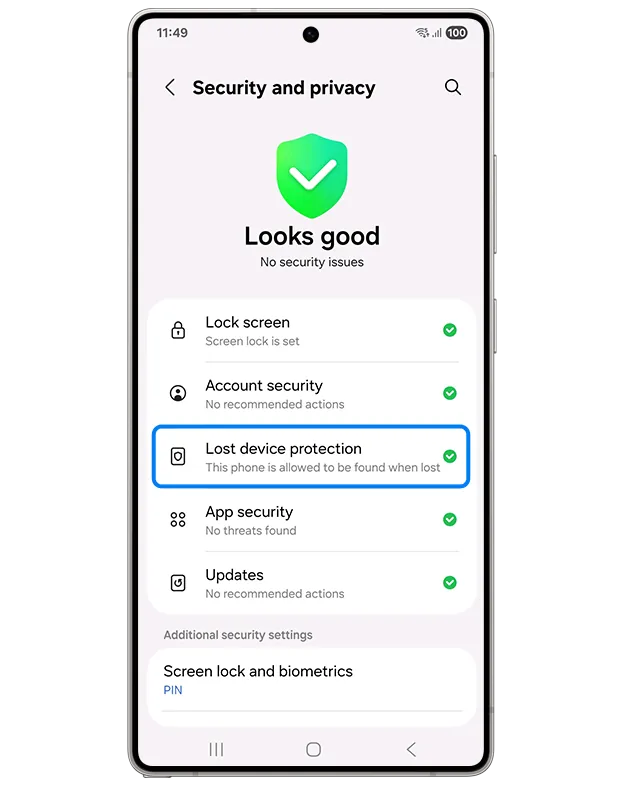
Open Samsung Theft protection
- Open Settings.
- Tap Security and privacy.
- Tap Lost device protection.
- Tap Theft protection.
On Samsung’s current One UI 7+ support path, that screen is where the theft-specific controls live.[1][2] If the phone is used for SmartThings, do this while you can still reach the device, your Samsung account, and your biometric settings. Waiting until the phone is already missing turns a ten-minute setup into account recovery.
Turn on Theft Detection Lock
In Theft protection, enable Theft Detection Lock. Samsung describes this as using machine learning to detect snatch-like motions and lock the screen.[1]
Treat this as one layer, not the layer. Google’s Android theft-protection help says Theft Detection Lock works while the screen is unlocked and may not trigger when the device has a stable Wi-Fi or Bluetooth connection.[4] That limitation matters at home because the SmartThings phone is often exactly that: unlocked, trusted, and connected to familiar networks or accessories. The feature is still worth enabling, but it should not be asked to carry the whole house.
Turn on Offline Device Lock
Next, enable Offline Device Lock. Samsung lists it as a theft-protection feature under the same One UI path.[1] Google’s Android help describes Offline Device Lock as a protection that can lock the device after it goes offline, with the condition that the phone must have been unlocked when it lost connectivity.[4]
This is useful for the moment after a phone leaves Wi-Fi, cellular data is interrupted, or a thief tries to isolate it. It does not replace remote recovery controls, because an offline phone may not be able to receive your next command until it reconnects.
Turn on Remote Lock and check the phone number
Enable Remote Lock, then confirm that the recovery phone number shown for the feature is a number you can still use if this Galaxy disappears. Remote Lock works through android.com/lock with a verified phone number, and Google says the device must be online to lock immediately; if it is offline, it locks automatically when it reconnects.[4]
There is a small wording mismatch worth preserving rather than smoothing over. Samsung India says Remote Lock can be used “up to twice a day,” while Google’s Android help says it can be used “twice in a 24-hour period.”[1][4] In practice, do not treat Remote Lock as something to test repeatedly for comfort. Verify that the number is right, know the android.com/lock path, and save the repeated attempts for the day you actually need them.
Identity Check is where the home decision happens
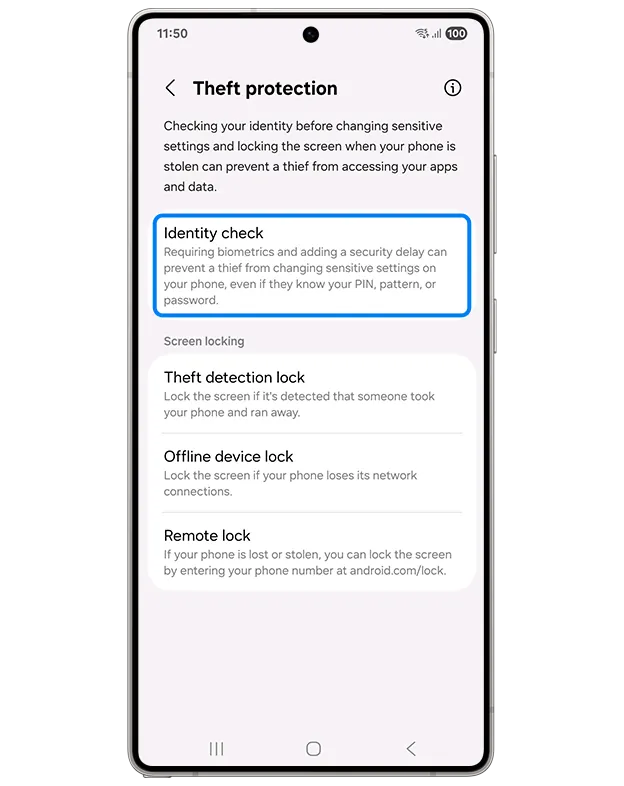
Identity Check is the setting to slow down for. Samsung lists three requirements for enabling it: you must be signed in to a Samsung account, have registered fingerprints, and configure Safe Places such as Home, Work, or Other.[1]
- From Theft protection, tap Identity Check.
- Confirm the Samsung account sign-in.
- Register fingerprints if the phone has none saved.
- Open Safe Places and decide whether to add Home.
- Return to Identity Check and enable it.
The Safe Places choice is the one setting in this recipe that deserves an actual household decision. Adding Home can reduce biometric prompts in the place where you use the phone most. That is convenient, especially if the phone sits on a kitchen counter, entry table, or charger and multiple household routines depend on fast access.
The same convenience cuts the other way. Home is also where the SmartThings phone is most likely to be unlocked, paired, trusted, and within reach of people who are not the account owner. If that device can open a smart lock, view a camera feed, or change Home Monitor state, “Home is safe” should not be an automatic answer. It should be a decision.
| Home Safe Place choice | When it makes sense | Smart-home consequence |
|---|---|---|
| Add Home as a Safe Place | The phone stays under the account owner’s control at home, and reducing extra biometric prompts is important for daily use | Identity Check is less intrusive where the phone normally lives |
| Do not add Home | The phone is shared casually, left unlocked in common areas, used near guests, or controls sensitive smart-home devices | Sensitive actions keep more biometric friction in the place where the control phone is most reachable |
| Add Work or Other, but not Home | You trust another location more than the home environment for this device’s access pattern | The phone can still benefit from Safe Places without relaxing behavior at the smart-home control point |
There is no universal right answer. A single-user phone that never leaves the owner’s pocket may reasonably include Home. A family control phone sitting near the front door, especially one signed in to the Samsung account that owns SmartThings locations and devices, is a poor candidate for automatic trust.
If your Galaxy is only a controller and not the hub itself, the risk is still real. A phone can be “just” the control surface and still be the logged-in path to locks, cameras, scenes, and household membership. We make that distinction in the Galaxy phone as SmartThings controller guide because it changes how much damage a missing phone can do without pretending the handset is a replacement hub.
Enable Samsung Find recovery controls under Lost device protection

Now back out of Theft protection, but stay in Lost device protection. On One UI 7, Samsung’s lost-device and remote-control settings are part of this area, and Samsung’s support pages describe Samsung Find and SmartThings Find as the tools used to locate, ring, lock, track, and erase Galaxy devices when the required account and remote controls are enabled.[5][6]
For a smart-home phone, this is not optional cleanup. Theft Detection Lock and Offline Device Lock are local reactions. Samsung Find is the recovery channel you use when the phone is no longer in your hand and you need to act from somewhere else.
- Allow this phone to be found: turn it on so the device can appear in Samsung’s finding tools.
- Send last location: turn it on so the phone can send its last known location when the battery gets low.
- Offline finding: turn it on so finding can still work through Samsung’s offline finding network when supported.
- Remote controls: confirm the phone can be located, rung, locked, tracked, or erased from Samsung Find or SmartThings Find.
Use a browser or another trusted device to confirm you can sign in to the Samsung account that owns the phone. This is the account path you will need if the phone with SmartThings is missing and you are trying to lock or erase it before someone explores the rest of the house from the app.
If your household uses more than one Galaxy to control the same SmartThings location, repeat this check on each phone. One secured owner phone does not fix a spouse’s older handset that can still unlock the same door or view the same camera.
Set up Google theft protection separately
Samsung’s Theft protection screen and Google’s Android theft-protection screen are not the same menu. On Android 15+, Google places its theft-protection controls at Settings > Google > All services > Theft protection.[4]
Galaxy owners can configure both. Do Samsung’s One UI path first if your goal is this checklist, then open the Google path and review its theft-detection, offline-lock, and remote-lock options separately. Do not assume one screen silently completed the other.
This matters most in a house where the phone is an access token for more than one ecosystem. A Galaxy may be signed in to Samsung, Google, SmartThings, a lock vendor, a camera vendor, and a password manager. Samsung Find gives you the Samsung recovery path. Google’s theft-protection settings add Android-side protections. They are adjacent controls, not interchangeable labels.
Model, carrier, and region notes
Samsung’s own support language warns that screens and settings can vary by device, software version, carrier, and region.[2] If your path is slightly different, trust the labels more than the exact screen order: Lost device protection, Theft protection, Identity Check, and Samsung Find controls are the important landmarks.
Carrier pages can help, but they should not be treated as universal instructions. For example, AT&T has a Galaxy S26 device-support page for Offline Device Lock, which is useful if you have that model on that carrier, but it is not a general Samsung-wide setup reference.[7]
Investigating: reported One UI 8.5 Identity Check expansion
Do not include One UI 8.5-only Identity Check behavior in your confirmed checklist yet. As of this walkthrough’s verification date, the reported expansion comes from an APK teardown, not from a public Samsung setup page. Android Authority reported on November 19, 2025 that teardown evidence pointed to Identity Check protections expanding to areas such as turning off Auto Blocker, unlocking Secure Folder, accessing Private albums, and changing USB connection settings.[8]
That is worth watching because several of those controls would matter on a stolen smart-home phone. It is not something to promise in a One UI 7+ setup recipe. Keep today’s confirmed work to the visible Samsung Theft protection toggles and Samsung Find controls on your actual device.
Completion check for a Galaxy smart-home control phone
- Theft Detection Lock is enabled under Settings > Security and privacy > Lost device protection > Theft protection.
- Offline Device Lock is enabled.
- Remote Lock is enabled, and the verified phone number is one you can still access if this Galaxy is missing.
- Identity Check is enabled with a Samsung account, registered fingerprints, and Safe Places configured.
- Home is either deliberately added as a Safe Place or deliberately withheld.
- Samsung Find controls are enabled: Allow this phone to be found, Send last location, Offline finding, and the ability to locate, ring, lock, track, or erase the device.
- Google theft protection has been reviewed separately at Settings > Google > All services > Theft protection.
- Other phones that can control the same SmartThings home have been checked too.
After a theft, the phone setup is only the first half of the cleanup. You may still need to revoke sessions, rotate passwords, remove trusted devices, and review who can reach locks, cameras, and Home Monitor. Keep that post-incident work in a separate runbook; our smart-home security and stalking-protection recipe is the adjacent checklist for cutting off account and device access.
On a phone that controls the home, theft protection is incomplete if it only locks the handset. The finished setup is the lock response plus the recovery channel: four Samsung theft layers, Samsung Find remote controls, a separate Google check, and a Home Safe Place choice you can defend later.
References
- Theft protection feature in Galaxy devices — Samsung India — https://www.samsung.com/in/support/mobile-devices/theft-protection-feature-in-galaxy-devices/
- How to use security settings on your phone — Samsung UK — Mar 10 2026 — https://www.samsung.com/uk/support/mobile-devices/how-to-use-security-settings/
- Samsung Encouraging Users to Activate Latest Anti-Theft Features — Samsung US Newsroom — Jun 28 2025 — https://news.samsung.com/us/samsung-encouraging-users-activate-latest-anti-theft-features-help-tackle-phone-theft
- Protect your personal data against theft — Google Android Help — https://support.google.com/android/answer/15146908?hl=en
- How to locate your lost Samsung Galaxy phone or tablet — Samsung US Support — https://www.samsung.com/us/support/answer/ANS10003600/
- Use SmartThings find to track, lock, or erase your devices — Samsung US Support — https://www.samsung.com/us/support/answer/ANS10002539/
- Offline Device Lock — AT&T Device Support — https://www.att.com/device-support/article/139927/samsung/galaxy-s26
- Samsung is preparing a big upgrade for Identity Check in One UI 8.5 — Android Authority — Nov 19 2025 — https://www.androidauthority.com/samsung-one-ui-8-5-identity-check-upgrade-3617235/