
How to Set Up an iPhone 17 Pro Smart Home Control Hub
A version-stamped, copyable setup for using the iPhone 17 Pro as your Apple Home control surface on iOS 26 — including which Matter and Thread accessories work without a hub, and which features still require a HomePod or Apple TV. Confirms what the phone can and can't do before you start, so you don't build a setup that fails later.
Before you scan the first code, split the phrase “iPhone 17 Pro smart home control hub setup” into two jobs. The iPhone 17 Pro can be the controller you hold, tap, speak to, and use for first-time setup. It is not the always-on Apple Home hub that keeps automations, remote access, Activity History, and Adaptive Lighting running when your phone leaves the house.
Version stamp: this setup is written for iPhone 17 Pro on iOS 26, current as of 2026-08-25. Apple’s iPhone 17 Pro specs list iOS 26, Thread, the Apple N1 wireless chip, Wi‑Fi 7, and Bluetooth 6; those make it a very strong Apple Home control surface, especially for a first Matter or Thread setup, but they do not turn the phone into a HomePod or Apple TV replacement.[1]
| Setup question | iPhone 17 Pro alone on iOS 26 | Needs HomePod or Apple TV? |
|---|---|---|
| Add and control eligible Matter accessories in Apple Home | Yes. Apple says Matter accessories can be added and controlled in the Home app without a home hub. | No, unless the accessory or feature also needs hub-backed behavior. |
| Control eligible Thread accessories without a hub | Expected yes. Apple says Thread accessories can be controlled without a home hub on “iPhone 15 Pro or later.” The iPhone 17 Pro fits that wording, though Apple’s support page does not explicitly name the 17 Pro. | Not for the supported hub-less control path; some Thread network layouts may still need a border router. |
| Use the phone as the daily control surface | Yes. Home app, Siri, widgets, and iOS 26 Control Center can all be part of the phone-side control path. | No for local phone control. |
| Remote access when you are away | No. | Yes. |
| Automations | No. | Yes. |
| Activity History | No. | Yes. |
| Adaptive Lighting | No. | Yes. |
| Use an iPad as the current Apple Home hub | No. | No. Apple says iPad is not supported as a home hub on the latest Apple Home architecture. |
That table is the setup decision. If you only want to add a Matter plug, a Thread sensor, or a small group of accessories you control from the phone while you are home, start with the iPhone. If the first thing you want is an automation, away-from-home control, Activity History, or Adaptive Lighting, put a HomePod mini, HomePod, or Apple TV into the plan now instead of discovering the missing hub later.[2][3]

Start with the Home, not the accessory
Do this on the iPhone 17 Pro that will belong to the person who actually manages the home. Borrowed phones and “I’ll just add it from mine for now” setups are where clean Apple Home installs start getting messy.
- Update the iPhone 17 Pro to the current iOS 26 release available to you.
- Open the Home app and confirm you are signed in with the Apple Account that should own the home.
- Create or select the correct Home. If this is a first setup, keep one Home unless you have a real second physical location.
- Add rooms before pairing accessories. Kitchen, Bedroom, Hallway, Office, and Garage are enough for most first installs.
- Decide now whether this is a phone-only starter setup or a hub-backed home. If you need automations or remote access today, set up the HomePod or Apple TV before you judge whether the accessory “works.”
Apple’s own Home setup flow is built around adding accessories from the Home app and assigning them into the home and room where they belong. The boring room assignment matters later: Control Center tiles, Siri commands, automations, and troubleshooting all become clearer when “Lamp” is not floating in a default room with three other lamps.[4]
Add the first Matter or HomeKit accessory
Open Home, tap Add, choose Add Accessory, and scan the code that came with the device. The code type matters more than the logo on the box.
| What you see | What it usually means | What to do |
|---|---|---|
| HomeKit QR code or 8-digit setup code | Classic Apple Home/HomeKit pairing path | Scan it in Home or enter the 8-digit code manually. |
| Matter QR code, 11-digit code, or 21-digit code | Matter pairing path | Scan or enter the Matter setup code in Home. |
| Accessory was already added to another app or platform | Previously paired Matter device | Use that app or platform to generate a new Matter pairing code, then add it to Apple Home. |
Apple distinguishes the HomeKit setup-code flow from Matter setup codes, and it also documents the extra step for a Matter accessory that has already been paired somewhere else: you may need a new pairing code from the app or ecosystem where the device is already connected.[2][4]
For a first setup, add one accessory and stop. Name it plainly, assign it to the correct room, and test it from the Home app before adding the second device. A plug named “Living Room Lamp” is less glamorous than “Cozy Corner,” but it will behave better with Siri, shared users, and future automations.
If the accessory is Thread
This is where the iPhone 17 Pro is genuinely interesting. Apple says Matter accessories can be added and controlled without a home hub, and that Thread accessories can be controlled without a home hub on “iPhone 15 Pro or later.” The iPhone 17 Pro qualifies by that “or later” wording, but the support language cited here does not explicitly list “iPhone 17 Pro” by name.[2]
So the practical reading is: for eligible Thread accessories on iOS 26, the iPhone 17 Pro should be treated as part of Apple’s supported hub-less Thread control path. Do not stretch that into “no one needs a Thread border router anymore.” Larger Thread networks, multi-controller setups, and some accessory states can still push you back toward a border-router path.
| Status | What you may see | What to do |
|---|---|---|
| Workaround — Thread Border Router Required | A Thread or Matter-over-Thread accessory does not respond reliably, or the setup path points you toward a border router even though the iPhone can control eligible Thread accessories hub-less. | Add or use a supported Thread border router path, then retest the accessory from Home. Apple’s troubleshooting path for nonresponding accessories is the right place to start before replacing the accessory. |
The status is cautious for a reason: the setup here follows Apple’s iOS 18-and-later support language and the iPhone 17 Pro’s place in the “iPhone 15 Pro or later” device class, not a separate hands-on reproduction claim.[2][5]
Put Apple Home where your thumb actually goes
After the first accessory works in the Home app, move daily control into iOS 26 Control Center. AppleInsider’s iOS 26 walkthrough shows the updated Control Center with a dedicated Home page by default, plus the ability to add individual Home Scene and Accessory controls through Add a Control and resize tiles.[6]
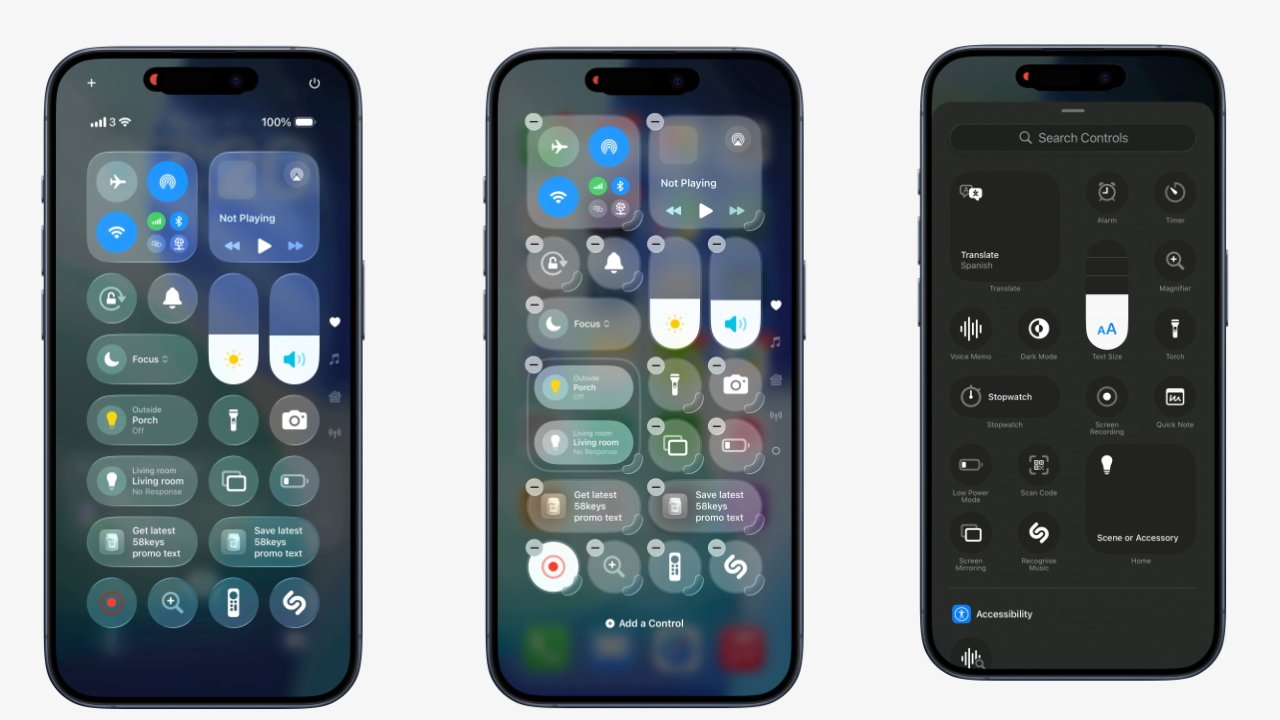
- Open Control Center on the iPhone 17 Pro.
- Go to the Home page.
- Add the accessory or scene you will use every day, not every accessory you own.
- Resize the important tile so it can be tapped quickly.
- Leave rarely used setup controls inside the Home app instead of turning Control Center into a junk drawer.
A good first Control Center page is usually small: one light, one lock or garage control if you use it constantly, one climate control, and one scene. If you have to read the tile labels every time, the page is already too busy.
Add a HomePod or Apple TV when the job changes
The phone-only setup is fine until you ask for hub work. Apple’s Home guidance ties remote control, automations, Activity History, and Adaptive Lighting to having a home hub, and Apple’s current home hub support identifies HomePod mini, HomePod, and Apple TV as the supported hub devices while stating that iPad is not supported as a home hub on the latest Apple Home architecture.[3][7]
That settles the old iPad question for this setup. If you are building on iOS 26 with the latest Apple Home architecture, do not plan around an iPad as the hub.
| You want | Buy or set up a hub now? | Why |
|---|---|---|
| Tap accessories from the iPhone while at home | Not necessarily | The iPhone 17 Pro can act as the controller for eligible accessories. |
| A light turns on at sunset | Yes | That is an automation. |
| Check or control devices while away | Yes | That is remote access. |
| Review supported accessory events later | Yes | That depends on Activity History support. |
| Use Adaptive Lighting with supported lights | Yes | Apple places Adaptive Lighting behind the home hub requirement. |
| Keep Thread accessories more stable across a growing home | Often yes | A Thread border-router path may still be required or preferable depending on the accessory and network. |
If you choose Apple TV as the hub and it later misbehaves after an update, use a targeted repair path instead of tearing out the whole home; this site’s Apple TV update troubleshooting guide is the better next stop at that point.
| Status | What you may see | What to do |
|---|---|---|
| Expected — Home Hub Required | Home reports that a feature needs a home hub, or automations, remote access, Activity History, or Adaptive Lighting are unavailable. | Set up a HomePod mini, HomePod, or Apple TV on the same Apple Home. Then check Home Settings and Apple’s home hub help path before blaming the accessory. |
Apple’s home hub help documentation is the fix path for a hub that is not appearing or not working as expected; use that before resetting accessories that were already paired correctly.[8]
Run the final verification pass
The last step is not “does the lamp turn on from the couch?” That only proves the iPhone can talk to the accessory in the easiest possible condition. Verify the setup according to the kind of home you built.
| Test | Phone-only starter setup | Hub-backed setup |
|---|---|---|
| Home app control | Accessory responds from the iPhone 17 Pro while you are home. | Accessory responds from the iPhone 17 Pro while you are home. |
| Control Center control | Your daily accessory or scene appears on the iOS 26 Home page and responds. | Your daily accessory or scene appears on the iOS 26 Home page and responds. |
| Siri name check | A plain command using the room and accessory name works. | A plain command using the room and accessory name works. |
| Remote access | Skip; this is outside the phone-only design. | Turn off local Wi‑Fi or leave the home network and confirm control still works. |
| Automation | Skip; this requires a hub. | Create one simple automation and confirm it runs without the phone being the active controller. |
| Activity History or Adaptive Lighting | Skip unless you add a hub. | Check only if your accessories support the feature and your hub is online. |
If you are still deciding how far to build, keep the distinction simple. The broader iPhone smart-home control recipe covers the general phone-as-controller path. For a stricter controller-versus-hub comparison across newer iPhones, the iPhone 18 Pro Max HomeKit hub explainer is useful because the same architectural mistake shows up there too: a powerful iPhone can control the home without being the always-on home hub.
The finished iOS 26 setup should look like this: the iPhone 17 Pro owns daily control, pairing, naming, rooms, Siri use, and the Control Center surface. Eligible Matter and Thread accessories can start without a hub. A HomePod or Apple TV enters the setup the moment you want the home to keep working through automations, remote access, Activity History, or Adaptive Lighting when the phone is no longer the thing actively controlling it.
References
- iPhone 17 Pro - Technical Specifications — Apple
- Add Matter accessories to Apple Home — Apple Support
- Intro to Home on iPhone — Apple Support
- Set up accessories in Home on iPhone — Apple Support
- If your smart home accessories aren't responding in the Home app — Apple Support
- Inside iOS 26 Control Center — fast access to the best iPhone features — AppleInsider
- Set up your HomePod, HomePod mini, Apple TV, or iPad as a home hub — Apple Support
- If you need help with your HomePod, Apple TV, or iPad as a home hub — Apple Support