
Apple TV Not Working After Update? Fix It by Symptom
remote unresponsive, black screen, boot loop, audio sync, Wi-Fi drops, app crashes
Last updated
| Status | Scope |
|---|---|
| Apple TV troubleshooting entry, current as of Q3 2026 | Covers Apple TV HD and Apple TV 4K symptoms after a tvOS update: remote unresponsive, black screen, boot loop, audio sync, Wi-Fi drops, and app crashes. |
| Source basis | Built from Apple Support recovery steps, with Digital Trends and Whizz-Experts used only where their sequences align with Apple’s guidance or fill an operational gap. |
| NestGrid verification status | Not yet hands-on Confirmed. Treat this as a source-checked troubleshooting guide, not an in-lab reproduction report. |
| Version note | The research set captures tvOS 26.5 as the latest Apple TV release noted here; if you are already on a later tvOS 27.x or newer point release, check Apple’s current update notes too.[1] |
Start with what changed after the update: the remote stopped responding, the screen went black, the Apple TV keeps looping at the logo, audio is late, Wi-Fi keeps dropping, or one app keeps crashing. That visible symptom matters more than guessing whether the update “broke HDMI” or “broke Bluetooth.”
Do this first: force restart, then unplug for 30 seconds
Before branching into anything more invasive, force restart the Apple TV. If you cannot restart it from the remote or Settings, unplug the Apple TV from power, wait 30 seconds, then plug it back in. Digital Trends says its testing found that a force restart or 30-second unplug resolves about 90% of post-update Apple TV issues; that is good first aid, not a license to ignore the symptom in front of you.[2]
If the Apple TV comes back normally, stop. Do not factory reset just because a guide told you to “finish the process.” If the same symptom returns, use the matching branch below.
Match the symptom before choosing the fix
| What you see after the update | Start here | Then try this | Stop here |
|---|---|---|---|
| Remote does nothing or responds late | Restart the remote, then charge or replace batteries depending on model | Re-pair the remote close to the Apple TV; use the tvOS 18+ Bluetooth RSSI check only if pairing is flaky | If no remote will pair and the Apple TV itself is otherwise working, contact Apple or use a temporary iPhone remote only to finish setup |
| Black screen or “no signal” | Reset video output/resolution from the remote | Reseat HDMI, try another TV input or cable, bypass the receiver or soundbar, then review Match Content | If the status light is on but there is still no HDMI signal after direct-to-TV testing, call Apple |
| Apple logo loop, recovery screen, or update never finishes | Power cycle once and confirm the model | Restore Apple TV HD through USB-C and Finder/iTunes if available | Apple TV 4K has no USB-C home restore path; persistent boot loops move to Apple service |
| Audio is late, early, missing, or changes after app switching | Restart and check whether the issue matches a known tvOS audio fix window | Run Wireless Audio Sync; then check audio format and output settings | If only one app is affected, treat it as an app issue; if all apps fail, continue with system/audio hardware checks |
| Wi-Fi drops or streaming buffers after the update | Forget and rejoin the network | Prefer 5 GHz, use DHCP reservation, adjust mesh band steering, or test Ethernet | If Ethernet works but Wi-Fi does not, stop blaming the app and isolate router/Wi-Fi behavior |
| One app crashes or will not open | Force close the app | Update it, then delete and reinstall it | If only that app fails, do not reset the Apple TV yet |
Remote unresponsive after update
A dead-looking remote is where bad troubleshooting wastes a lot of time. If the Apple TV is awake but the remote will not move the cursor, do not start with a factory reset. Start with the remote itself.
Restart the remote first
For Siri Remote or Apple TV Remote models that support the restart shortcut, hold the TV button and Volume Down for 5 seconds, wait for the status light on the Apple TV to turn off and on again, then release. Apple’s remote support flow also tells you to wait while the remote disconnects and reconnects before testing it again.[3]
If your remote uses a rechargeable battery, charge it before deciding it has failed. If you are using an older Apple Remote with a coin-cell battery, replace the battery. This is the boring step people skip, usually right before they spend 20 minutes re-pairing a remote that simply cannot stay powered.
Re-pair it close to the Apple TV
Bring the remote within about 3 inches of the Apple TV. For the pairing shortcut, hold Menu and Volume Up on remotes that use Menu; on newer remotes, use the equivalent Back/Menu control plus Volume Up when Apple’s on-screen prompt asks for pairing. Keep the remote pointed near the front of the Apple TV until the pairing message clears.[3]
If the remote works only when it is almost touching the box, move obvious interference out of the way: stacked devices, metal cabinets, and a soundbar sitting directly in front of the Apple TV. Do not use the Bluetooth signal check as a ritual step for every household. Use it when the symptom is specifically weak or inconsistent pairing.
On tvOS 18 and later, you can check the remote’s Bluetooth RSSI at Settings > Remotes > Remote when the Apple TV is reachable. That helps confirm a weak signal path, but it is not useful if the Apple TV is black-screened or stuck at the logo; in those cases, you are on the wrong branch.
Use the iPhone remote only as a bridge
If the Apple TV is otherwise fine, use the Apple TV Remote in Control Center on an iPhone or iPad to get into Settings, finish an update prompt, or check the paired remote status. Treat that as a temporary bridge, not proof that the physical remote is fixed.
Black screen, no signal, or wrong resolution
A post-update black screen is usually where people start swapping every cable in the room. Sometimes that is necessary. First, though, force the Apple TV to renegotiate a video mode the TV can display.
Reset the video output
If you can use the remote shortcut, hold Menu and Volume Down for 5 seconds to cycle or reset the Apple TV’s video output. Apple’s black-screen support path also points users through checking power, HDMI connection, and TV input before moving to service.[4]
Give the TV a moment after the shortcut. Some sets take a few seconds to re-lock onto an HDMI signal, and repeated button presses can make it harder to tell whether the reset worked.
Reseat HDMI, then simplify the path
- Unplug and firmly reseat the HDMI cable at both the Apple TV and the television.
- Try another HDMI input on the TV.
- Try another HDMI cable if one is available.
- If the Apple TV runs through an AV receiver, HDMI switch, capture box, or soundbar, bypass it and connect the Apple TV directly to the TV.
That bypass step is not HDMI theory; it is triage. If direct-to-TV works, the Apple TV is producing video and the failure is now somewhere in the middle device, cable run, or format negotiation.
When the picture returns, check Match Content
If the black screen appears only when a movie starts, when switching apps, or when playing HDR/Dolby Vision content, go to Settings > Video and Audio and review Match Content settings. Match Dynamic Range and Match Frame Rate can cause extra HDMI mode switches. They are useful features, but after an update they can expose a weak cable, receiver, or TV input setting.
If the Apple TV status light is on, the unit has been connected directly to the TV, a known-good HDMI cable and input have been tried, and there is still no HDMI signal, stop treating it like an app problem. That is the point where Apple’s black-screen service path becomes relevant.[4]
Boot loop, frozen Apple logo, or recovery screen
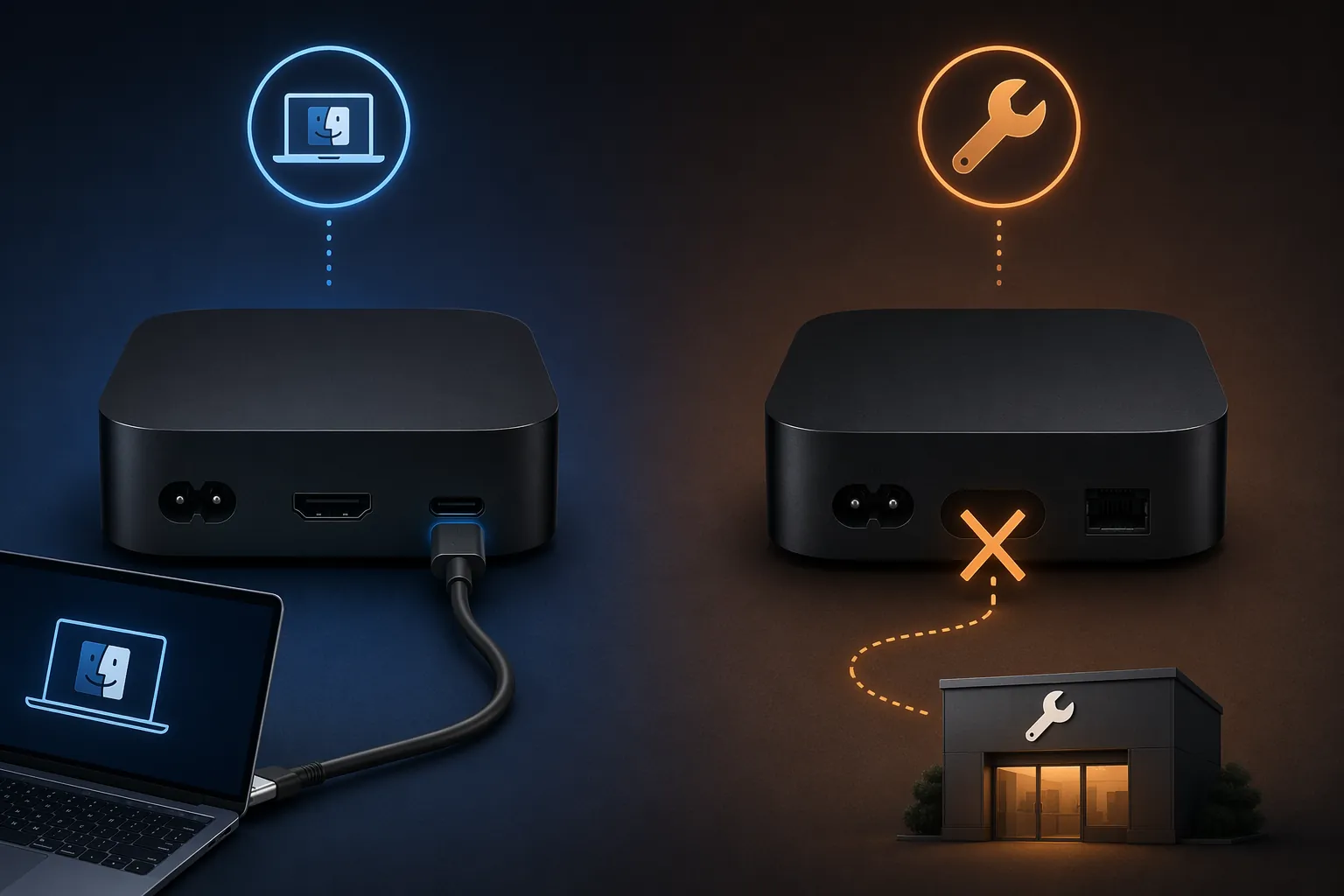
This is the branch where model discipline matters most. Apple TV HD and Apple TV 4K do not have the same home recovery options. A guide that tells every Apple TV owner to “plug it into a computer with USB-C” is wrong for Apple TV 4K owners.
Identify the model before restoring anything
| Model | Home restore path | What that means |
|---|---|---|
| Apple TV HD | Can be restored through USB-C and Finder or iTunes when the model and cable path support it | A computer restore is a valid escalation after a failed update or persistent boot loop. |
| Apple TV 4K | No USB-C port and no normal home-accessible recovery mode | A persistent boot loop usually moves to Apple service tools instead of another home restore attempt. |
Apple’s update support tells users to keep Apple TV connected to power during an update and to contact Apple Support if an update problem continues. Third-party repair guidance makes the same practical split: Apple TV HD can be recovered by computer in situations where USB-C restore is available, while Apple TV 4K does not offer that home recovery path.[1][5][6]
If it is Apple TV HD
- Power cycle once: unplug power, wait 30 seconds, reconnect.
- If the loop returns, disconnect HDMI and power.
- Connect the Apple TV HD to a Mac or PC using the appropriate USB-C cable.
- Use Finder on modern macOS, or iTunes where applicable, to restore the Apple TV.
- After restore, reconnect HDMI and power, then set it up again.
A restore erases the device. It is still reasonable on Apple TV HD because the recovery path exists. Do it after the simple restart fails, not before.
If it is Apple TV 4K
Power cycle once. Check that the power cable and HDMI path are not the real problem. If the Apple TV 4K keeps returning to the Apple logo, recovery screen, or failed-update state, do not keep hunting for a USB-C port that is not there. Persistent Apple TV 4K boot loops require Apple’s service path rather than a home computer restore.[5][6]
That is not giving up early. It is avoiding the hour where you repeat the same unplug sequence, swap working HDMI cables, and end up exactly where you started.
Audio out of sync, missing, or changing between apps
Audio problems after an update deserve a quick version check because Apple has shipped point releases that specifically addressed audio behavior. tvOS 26.0.1, released in October 2025, addressed a problem where audio could be out of sync on certain video streaming apps; tvOS 26.4 fixed audio format transition issues between Dolby Atmos and stereo.[1]
If you are already beyond those versions, do not assume the same bug is back. Just use the version note to decide whether updating is part of the fix path.
- Restart the Apple TV and the TV or receiver.
- Check Settings > System > Software Updates and install any available tvOS update.
- Run Wireless Audio Sync at Settings > Video and Audio > Calibration if the delay is with wireless speakers or AirPlay-style playback.
- Go to Settings > Video and Audio and test audio format/output settings, especially if the issue appears when switching between Dolby Atmos, surround, and stereo content.
- If there is no sound at all, follow Apple’s no-sound path: check volume, audio output selection, HDMI/receiver path, and TV or speaker settings.
Apple’s no-sound guidance focuses on output selection and the connected audio chain, which is the right place to look once a simple restart does not fix it.[7]
If audio is wrong in one streaming app only, move to the app-crash/app-reinstall branch before resetting the whole Apple TV. If audio is wrong everywhere, stay with system audio settings and the HDMI or receiver path.
Wi-Fi drops, buffering, or network errors after update
For Wi-Fi failures, the useful question is whether the Apple TV lost its network relationship or whether the router is moving it around badly after the update. Start with the Apple TV, then test the network path.
- Go to Settings > Network and confirm whether the Apple TV is connected to the expected Wi-Fi network.
- Forget the network, restart the Apple TV, then join the network again.
- If your router separates bands, prefer 5 GHz for the Apple TV when signal strength is solid.
- Set a DHCP reservation for the Apple TV in the router if the network keeps assigning or losing addresses.
- On mesh systems, test whether band steering or fast roaming is pushing the Apple TV between nodes or bands.
- If your model and room allow it, connect Ethernet and test the same streaming app again.
Apple’s Wi-Fi support path starts with confirming the network, checking the router and modem, restarting devices, and reconnecting to Wi-Fi. The extra router-side steps above are practical escalations for the cases where the Apple TV reconnects but keeps dropping during playback.[8][9]
The Ethernet test is the cleanest divider. If Ethernet is stable, the Apple TV and app are probably not the main failure. If Ethernet also fails, look back at the Apple TV software state, the app, or the broader internet connection.
One app crashes, freezes, or will not open
When one app breaks after an update, keep the fix small. A system reset is too blunt when Netflix, Hulu, YouTube, Disney+, or one local TV app is the only thing failing.
- Double-click the TV button to open the app switcher.
- Swipe up on the failing app to force close it.
- Reopen the app and test the same action that crashed.
- Open the App Store and install any available app update.
- Delete the app, reinstall it, and sign in again.
If multiple unrelated apps crash, or the Apple TV returns to the Home Screen while navigating Settings too, that is no longer an app-specific failure. Restart again, check for a tvOS update, and if the box becomes unstable across the system, use the boot-loop and service boundaries instead of reinstalling apps one by one.
When to stop troubleshooting and call Apple
There is a point where more home troubleshooting stops being careful and starts being noise. Stop and contact Apple Support if you hit any of these boundaries:
- The Apple TV status light is flashing and the unit will not recover normally.
- A recovery screen or failed-update state persists after a power cycle.
- An Apple TV 4K is stuck in a boot loop, because it has no USB-C home restore path.
- There is no status light at all after checking power.
- There is no HDMI signal after resetting video output, reseating HDMI, trying a direct-to-TV connection, and testing another cable or input.
- No remote will pair even after remote restart, charging or battery replacement, close-range pairing, and basic interference checks.
Those symptoms cross from “find the right setting” into recovery or hardware territory. At that point, the fastest fix is not another reset. It is getting the device onto the correct service path.
References
- Update your Apple TV — Apple Support
- Apple TV Not Working? 12 Common Problems and Expert-Verified Fixes (2026) — Digital Trends
- If your Siri Remote or Apple TV Remote isn't working — Apple Support
- If your Apple TV 4K or Apple TV HD isn't working, won't turn on, or shows a black screen — Apple Support
- Apple TV Firmware Update Failed? Here's How to Fix It — Whizz-Experts
- Apple TV Stuck on Logo Boot Loop — Whizz-Experts
- If your Apple TV has no sound — Apple Support
- If your Apple TV can't connect to Wi-Fi — Apple Support
- Apple TV Dropping Connection Since a Recent Update? — Whizz-Experts
Corroborating context
For protocol background on why this failure happens, see Compatibility & Protocols.
Not currently linked to a known regression. Background on the underlying protocol lives in Compatibility & Protocols.