
Apple TV App Not Loading Content? Fixes for Every Device
Content not loading or spinning indefinitely
Last updated
If the Apple TV app opens but a show or movie spins forever, lands on a black playback window, or throws “Problem Loading This Content,” do one thing before touching your TV settings: check whether Apple’s services are down. Yesterday, July 26, 2026, Apple TV and Apple Music had a reported disruption from about 3:30 PM to 6:05 PM PT, with Downdetector reports rising above 3,500 during the incident.[1][2] A separate Apple TV outage on Nov. 7, 2025, was reported with about 15,000 affected users, which is enough reminder that this error can be server-side, not living-room-side.[3]
Once an active outage is ruled out, the fastest fix is not a universal checklist. It is choosing the branch that matches the hardware in front of you.
| Device you are using | Start with this fix |
|---|---|
| Samsung TV or projector | Cold boot the TV, then use Samsung’s Smart Hub reset path if needed |
| PS5 or Xbox | Open Apple Music on the same console and sign in first to refresh the shared Apple ID token |
| LG WebOS TV | Toggle Personalized Advertising, then try skipping intro/recap if playback hangs after starting |
| Apple TV HD or Apple TV 4K box | Force-quit the TV app, then unplug the box for 30 seconds; update tvOS if a playback patch applies |
| Windows PC | Disable the GeForce Experience overlay if you get a black playback window |
| Android TV or Google TV | Clear app data, not only cache; use app-update rollback only as a deeper fallback |
| iPhone or iPad | Offload the Apple TV app, reinstall it, then re-authenticate your Apple ID |
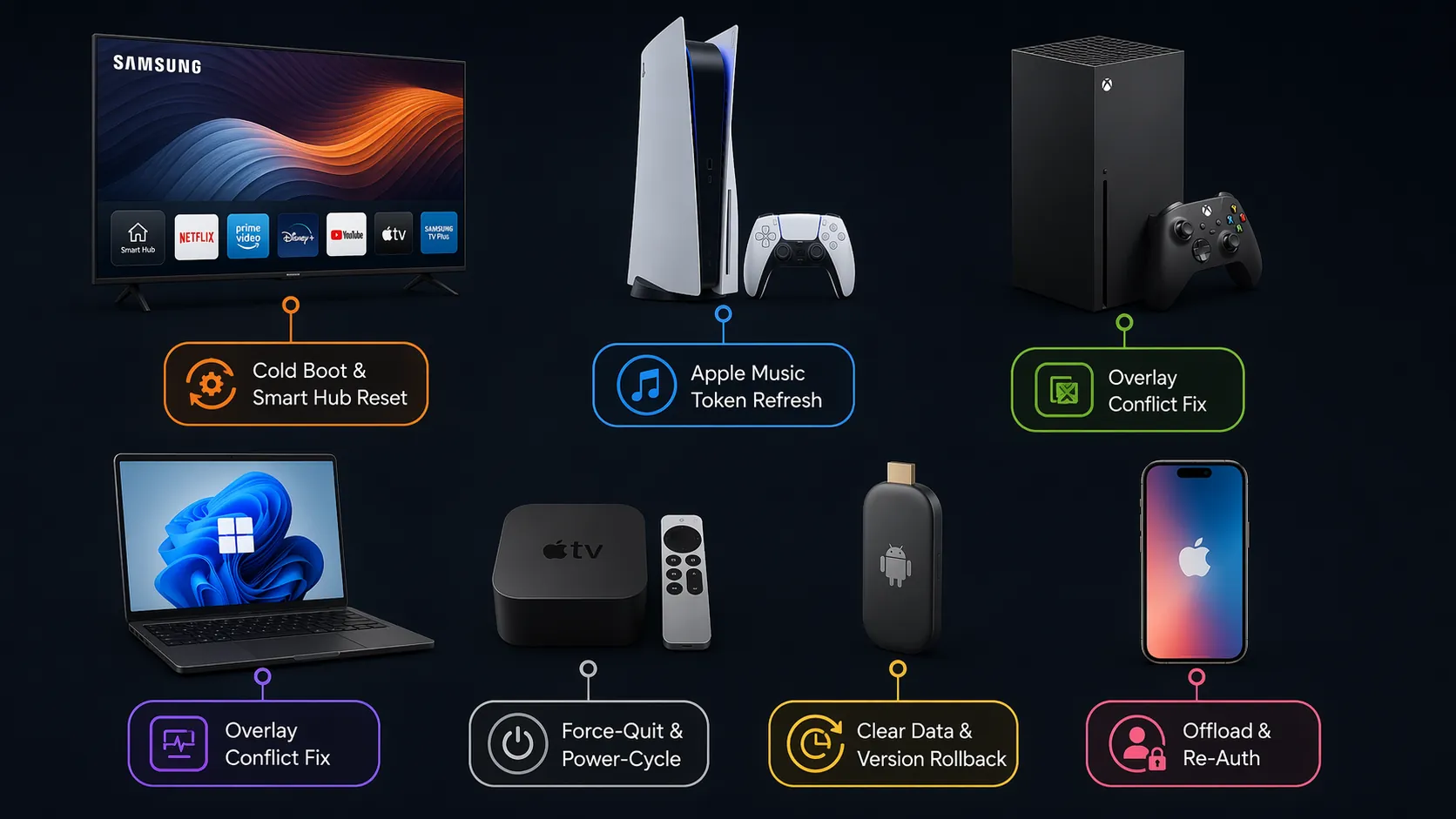
Samsung TVs: cold boot first, then reset Smart Hub
On Samsung TVs, “restart the TV” is too vague to be useful. Samsung’s own Apple TV app troubleshooting points to a cold boot, which is different from turning the screen off and back on. Hold the TV remote’s power button for 5–10 seconds, until the Samsung logo appears again, then reopen the Apple TV app.[4]
That matters because many Samsung sets keep parts of the Smart Hub environment alive during a normal standby cycle. A cold boot forces the TV software to reload instead of waking the same half-stuck app session.
- Cold boot the TV: hold the Samsung remote’s power button for 5–10 seconds, wait for the Samsung logo, then launch Apple TV again.[4]
- Check the TV firmware. Samsung’s support page specifically calls out firmware versions 1065.0, 1061.2, and 1251.0 across 2018–2021 models, so this is one platform where the firmware branch is not just filler advice.[4]
- If Apple TV still opens but content will not load, reset Smart Hub from the TV settings. This signs apps out and resets Smart Hub state, so expect to sign back into streaming apps afterward.[4]
Use the Smart Hub reset only after the cold boot and firmware check. It is more disruptive, and it is pointless to erase app sign-ins if the TV only needed a true restart.
PS5 and Xbox: refresh the Apple ID token through Apple Music
On PlayStation and Xbox, one of the least obvious fixes is also the one worth trying early: open the Apple Music app on the same console, sign in with the same Apple ID, then return to Apple TV. MacObserver describes this as a way to force a shared Apple ID authentication token to refresh before the Apple TV app validates playback rights.[5]
This is not magic, and it is not a claim that every console playback failure is an Apple Music problem. The practical point is narrower: on consoles where Apple’s apps share account state, a fresh successful sign-in in Apple Music can make the TV app stop behaving as if your playback entitlement is missing or stale.
- Install or open Apple Music on the PS5 or Xbox.
- Sign in with the same Apple ID used for Apple TV+ or Apple TV purchases.
- Once Apple Music accepts the account, close it and reopen the Apple TV app.
- If the Apple TV app still spins, fully quit the Apple TV app from the console interface instead of only backing out to the home screen.
- Only after that, reinstall the Apple TV app or restart the console.
Apple has been moving toward reducing this kind of repeated sign-in friction. In October 2025, 9to5Mac reported on tvOS 26’s Automatic Sign-In API, which is meant to let apps authenticate more smoothly across Apple TV environments, but third-party adoption is still a rollout story rather than a guaranteed fix for the console in front of you today.[6]
LG WebOS: treat the privacy toggle and intro skip as workarounds
LG WebOS deserves its own branch because the useful fixes do not sound like normal streaming-app maintenance. MacObserver’s guide points to toggling the “Personalized Advertising” privacy setting as a way to clear stale session data, and also describes fast-forwarding past the Apple TV+ intro or recap when a spinner appears after video has technically started.[7]
Handle both as workaround-grade fixes. They are worth trying because they target known failure points — stale app/session state and pre-roll playback behavior — but they are not universal cures for every LG model or every WebOS version.
- Open the LG TV settings and look under privacy or advertising controls for “Personalized Advertising.” Toggle it, then relaunch Apple TV.
- If the video begins and then stalls around an intro, recap, or pre-roll moment, try fast-forwarding past that segment.[7]
- If neither workaround changes behavior, restart the TV fully and reinstall or reset the Apple TV app using the LG app-management tools available on your model.
The key is not to spend half an hour changing router settings before trying the LG-specific state reset. If the app loads menus but fails at the handoff into playback, the TV’s app session is the first suspect.
Apple TV HD and Apple TV 4K: force-quit, power-cycle, then check tvOS
On Apple TV hardware, separate three actions that get blurred together: force-quitting the app, restarting the box, and unplugging it long enough to clear a stuck runtime state. Apple’s support path for streaming problems includes checking service availability, restarting, updating, and testing the network rather than assuming one app reinstall fixes everything.[8]
- Force-quit the Apple TV app: double-press the TV button on the Siri Remote, highlight the Apple TV app, then swipe up to close it.
- Reopen the app and try the same title again. If only one title fails, test another title before changing device settings.
- Power-cycle the Apple TV box by unplugging it from power for 30 seconds, then plug it back in.[8]
- Check for a tvOS update. Apple’s software-update notes say tvOS 18.3.1 fixed a playback issue on Apple TV 4K, 3rd generation; that does not mean every current spinner is an 18.3.1 problem, but it does make updating relevant when playback itself is failing.[9]
- If everything else on the network works but Apple TV still fails at playback, try a DNS change such as 8.8.8.8 or 1.1.1.1 as a narrower network-routing test, then undo it if it does not help.[10]
Do not confuse force-quitting with a power cycle. Force-quitting throws away the app’s current session. Unplugging the box makes the operating system and network stack start cleanly. They solve different classes of “stuck.”
Windows: look for overlay and DRM conflicts before doing PC housekeeping
On Windows, a black Apple TV playback window can be caused by a conflict between protected video playback and an overlay layer. MacObserver specifically calls out disabling the GeForce Experience overlay because the DRM system can object to the screen-recording or overlay component sitting on top of playback.[5]
- Disable the NVIDIA GeForce Experience overlay if it is enabled.
- Close and reopen the Apple TV app or browser session.
- If the Windows app continues to fail, try the iTunes fallback for purchased or rented Apple video where applicable.[7]
- Only then move to broader steps such as updating graphics drivers or reinstalling the Apple TV app.
This is one of those places where “clear cache” advice misses the handoff that is actually failing. If the app draws the interface but the protected video surface stays black, suspect the playback layer before you spend time cleaning unrelated Windows temporary files.
Android TV and Google TV: clear data, not just cache
On Android TV and Google TV devices, the important distinction is cache versus data. Clearing cache removes temporary files. Clearing data resets the app’s local state more aggressively and forces a fresh sign-in, which is why Asurion’s Apple TV app troubleshooting uses it for content-loading failures.[11]
The exact menu labels vary by TV brand and launcher, but the path is usually in Settings, then Apps, then Apple TV, then Storage or Storage & cache.
- Force stop the Apple TV app.
- Clear cache once if you want the least disruptive attempt.
- If the same title still will not load, clear data and sign in again.[11]
- If the device allows app-update rollback, uninstall Apple TV app updates as a deeper fallback. Whizz-Experts describes rolling back to version 13.5 when newer app behavior is the suspected trigger.[10]
If you are applying this to a Fire Stick, treat it as Android-style app management only where the menus and options actually match. Fire TV devices running Fire OS have their own settings language and update behavior, and the sourced fixes here do not support pretending every Fire TV issue is the same as a Google TV issue.
iPhone and iPad: offload the app, then re-authenticate
On iPhone and iPad, the cleanup path is familiar enough to keep short. Asurion recommends offloading the Apple TV app through Settings > General > iPhone Storage > Apple TV > Offload App, then reinstalling it.[11]
- Offload the Apple TV app rather than immediately deleting everything.
- Reinstall the app from the App Store.
- Sign out of the Apple ID used for Apple TV, then sign back in if the app still cannot validate playback.[11]
- Check iOS or iPadOS updates if the issue persists across multiple titles and networks.
Offloading is less destructive than deleting the app outright because it removes the app while preserving some documents and data. If the failure is tied to account validation, the sign-out/sign-in step matters more than repeatedly closing the app from the app switcher.
What about Sony TVs, Roku, and unsupported branches?
The sourced fixes here do not provide a verified, platform-specific path for Sony TVs or Roku devices. That does not mean those devices cannot have the same symptom. It means this guide should not invent a Sony or Roku sequence just to make the platform list feel complete.
For unsupported branches, use only the safe generic order: check Apple service status, fully restart the device, update the device software, update or reinstall the Apple TV app if the platform allows it, then contact Apple Support or the device maker with the exact model, software version, and error wording.
When to stop troubleshooting locally
Stop changing local settings if Apple System Status or major outage reports show an active Apple TV disruption. During an outage window, a Smart Hub reset, console reinstall, or DNS change mostly creates extra sign-in work for later.
If services are normal and the platform-specific fix fails after a clean app reset, reinstall, and software update, the remaining cause may be account entitlement, DRM validation, a device firmware bug, or a service-side playback issue. At that point, the useful support ticket is specific: device model, OS or firmware version, Apple TV app version if visible, the title that fails, whether other titles play, and whether the same Apple ID works on another device.
The person holding the remote should not have to perform a Samsung Smart Hub reset for a PS5 token problem, or disable a Windows overlay for an LG pre-roll stall. The fastest fix is the one that matches the failure point on the device actually in the room.
References
- PSA: Apple TV, Apple Music, and more are currently down for some users [Update: Fixed] — 9to5Mac, July 26, 2026
- Apple TV app not working. Apple TV outage. Why is Apple TV down? — Asbury Park Press, July 26, 2026
- Apple TV down: How to solve problem loading this content error amid outage? — Hindustan Times
- Apple TV app is not working on my Samsung TV or projector — Samsung Support
- Apple TV App Stuck Loading? Here's How to Kill the Spinning Wheel (2026 Guide) — MacObserver
- tvOS 26 could make Apple TV 4K's biggest problem a thing of the past — 9to5Mac, October 17, 2025
- Fix Apple TV Problem Loading This Content Error: 6 Solutions — MacObserver
- If you can't watch or stream movies, TV shows, or sports in the Apple TV app — Apple Support
- About Apple TV 4K and Apple TV HD software updates — Apple Support
- Apple TV Apps Refusing to Load or Open? Here's the Fix — Whizz-Experts
- How to fix the Apple TV app not loading content — Asurion
Corroborating context
For protocol background on why this failure happens, see Compatibility & Protocols.
Not currently linked to a known regression. Background on the underlying protocol lives in Compatibility & Protocols.