
Why Restarting Your Apple TV Won't Fix the Outage
Apple TV+ login, playback, or loading errors during service outage; restart does not resolve.
Last updated
If you restarted your Apple TV and it still will not load Apple TV+, the next useful move is not another restart. The first question is whether the failure is happening inside your living room or upstream in Apple’s service chain. A device problem usually leaves clues that stay local: no HDMI signal, a frozen box, a dead remote, one TV that will not display anything. A service problem looks different: the app opens but will not sign in, playback throws “Problem loading this content” or “Unable to Play,” videos fail across devices, or Apple TV+ breaks while other streaming apps still work.
That distinction matters because the July 26, 2026 Apple service incident was not the kind of failure a couch-side power cycle could repair. 9to5Mac reported that Apple TV, Apple Music, and other Apple services were down for some users, with the update later marking the issue fixed around 6:15 p.m. PT.[1] During a failure like that, restarting the Apple TV only reloads a client that still has to ask Apple’s systems for login, entitlement, playback, artwork, catalog, or stream delivery responses. If those responses are missing or degraded, the box can restart perfectly and still land on the same error.
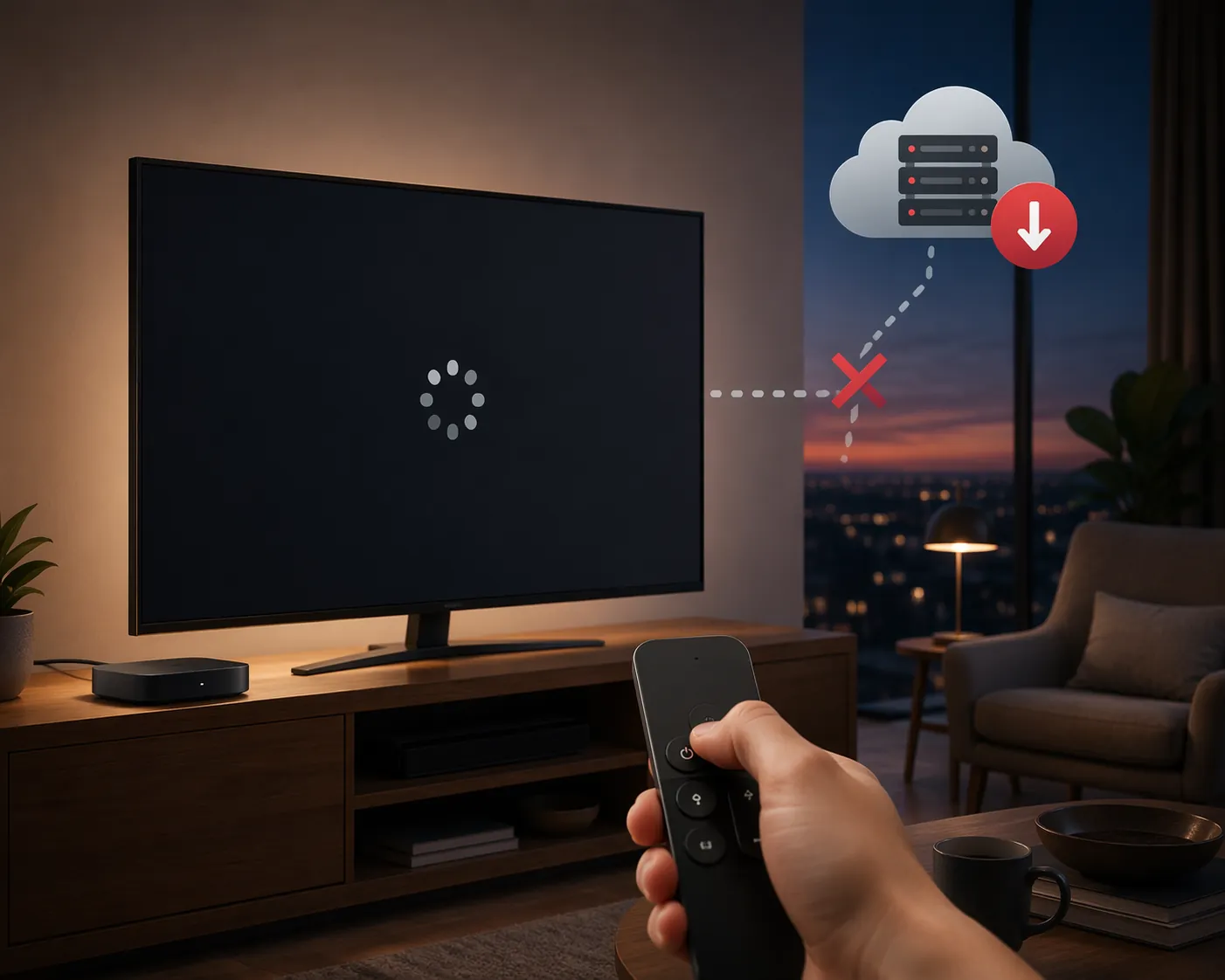
Why the restart loop fails during an Apple TV outage
A restart is useful when the Apple TV app is stuck, the device has stale local state, or the network stack needs to reconnect. It is close to useless when the failing step is an authentication handshake, a playback-rights check, a content-delivery path, or a server response the app needs before it can continue. Those are likely explanations for restart-resistant Apple TV+ failures during outages, not confirmed root causes for the July 26 incident, because Apple has not provided a public technical post-mortem in the cited outage coverage.
The symptoms are the giveaway. Hindustan Times linked outage conditions with Apple TV errors such as “Problem loading this content” and “Unable to Play,” which are exactly the kind of messages people see after the device has already booted and the app is trying to fetch or validate something beyond the local box.[2] Downdetector’s Apple TV+ page also gives a useful symptom map: at the time checked for this article, reports were roughly split among 52% login issues, 25% app problems, and 20% video streaming problems, a snapshot that points toward service-facing failure modes rather than one universal hardware defect.[3]
Do not treat those Downdetector percentages as a permanent diagnostic chart. They move as users report. Their value is in the pattern: if many people are reporting login, app-loading, and video-streaming failures at the same time, your Apple TV box is probably not the only thing misbehaving.
Confirm the outage before you keep fixing the wrong thing
Use three signals, in this order: Apple’s official status, public outage reports, and other users’ live reports. None of them is perfect alone. Together, they usually tell you whether to wait, test your network, or move into device troubleshooting.
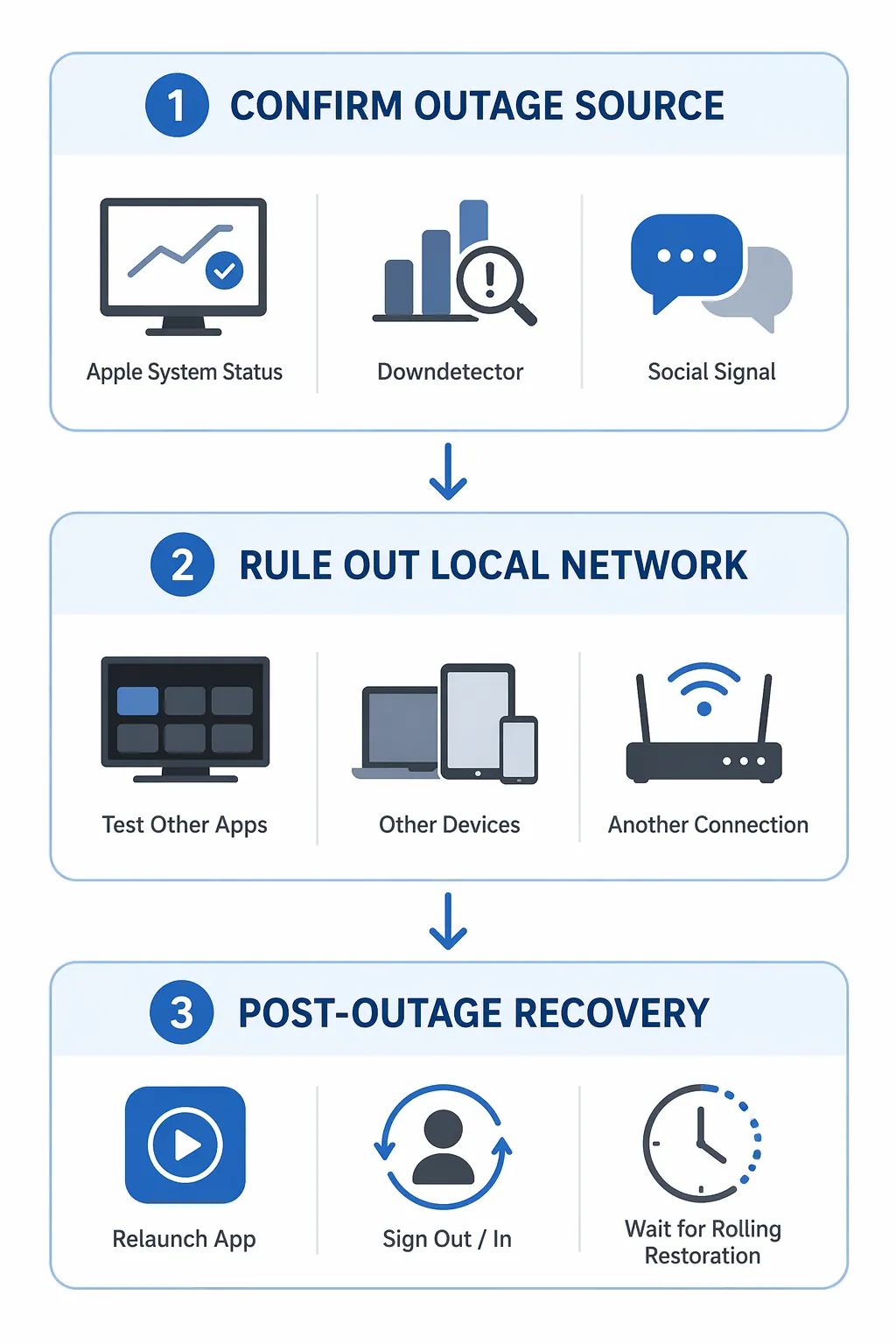
1. Check Apple System Status, but do not stop there
Apple System Status is the baseline because it is Apple’s own service board. If Apple TV+ or related media services show an active issue, you have your answer: repeated restarts are not a fix. Leave the device alone for a bit, keep the page open, and come back when Apple marks the service restored.
The catch is timing. During the January 20, 2026 outage, VERTU described lingering “ghosting effects” after Apple marked services resolved, with degradation persisting for some users while systems came back in stages.[4] That is the part many quick guides skip: a green status tile can mean the central incident is resolved without meaning every account, route, region, or cached app session has recovered at the same second.
2. Compare it with Downdetector
Downdetector is not proof of an Apple outage; it is a crowd signal. It becomes useful when the report curve rises at the same time your Apple TV+ errors begin and when the reported problem types match your symptom. Login spikes matter if you cannot sign in. Video-streaming spikes matter if the app opens but playback fails. App-problem spikes matter if the Apple TV app itself hangs or refuses to load.
If Apple System Status is still green but Downdetector is climbing fast, wait a few minutes before doing destructive local fixes such as signing out everywhere, resetting the Apple TV, or changing router settings. Status pages can trail user-visible symptoms, and a short delay is not a reason to turn a likely service incident into a local rebuild project.
3. Look for social confirmation, not just noise
Social posts are most helpful when they name the same service, the same error, and the same time window. “Apple TV down?” is weak evidence. “Apple TV+ says Unable to Play on Roku and iPhone too” is more useful because it moves the problem away from one Apple TV box. Give more weight to reports that mention multiple devices, multiple networks, or the exact error text you are seeing.
If all three signals line up—Apple status warning, Downdetector spike, and matching live reports—the fix is not another restart. The fix is to stop changing your setup until Apple’s service path recovers.
Run the local-network branch only after the outage check
There is still one important trap: a real Apple outage can overlap with a local problem. Your ISP can be unstable, your Wi-Fi can be weak, or one Apple TV box can have a separate tvOS playback issue. The way out is not a longer checklist. It is a cross-check.
| Test | What it tells you | What to do next |
|---|---|---|
| Open another streaming app on the same Apple TV | If Netflix, YouTube, Disney+, or another app streams normally, your TV, HDMI path, and basic internet connection are probably working. | Keep focusing on Apple TV+ service status and app/session recovery. |
| Open Apple TV+ on another device on the same Wi-Fi | If Apple TV+ also fails on an iPhone, iPad, Mac, smart TV, or browser, the Apple TV box is unlikely to be the root problem. | Treat it as service-side or account/session-related until evidence changes. |
| Try Apple TV+ on a different connection if available | If it works on cellular or another network but not your home network, your router, DNS path, ISP route, or home Wi-Fi may be involved. | Restart network gear once, then move into network troubleshooting rather than Apple TV hardware troubleshooting. |
| Try a different Apple ID only if practical and low-risk | If one account fails and another works, the issue may be account, entitlement, region, billing, or session related. | Use Apple’s sign-out/sign-in path and account checks instead of resetting the box. |
Apple’s own streaming support starts with the basics that matter once you have reason to suspect a local path: check your internet connection, confirm enough bandwidth, and try signing out and back in. Apple says 25 Mbps or faster is recommended for 4K streaming.[5] That number is not an outage test by itself. It only becomes relevant when Apple TV+ is failing for you while other users and Apple’s status signals do not point to a broader incident.
A quick network branch is enough for most people:
- If every streaming app fails on the Apple TV, restart the router and modem once, then test again.
- If other apps work but Apple TV+ fails everywhere, stop changing network settings and watch the outage signals.
- If Apple TV+ works on your phone using cellular but not on home Wi-Fi, the outage may not be your only problem; your home route to Apple’s services may be failing.
- If Apple TV+ works on every other device but not on the Apple TV box, move to app, session, tvOS, or hardware checks.
This same status-first habit applies beyond Apple TV. NestGrid uses the same dated verification approach in its AT&T outage fix guide for smart-home devices: confirm the upstream condition first, then decide which local fixes are worth touching.
When it is actually the Apple TV box
Device troubleshooting belongs here, after the outage and network checks have failed to explain the problem. If the Apple TV does not show a picture, sits on a black screen, will not wake, or never gets far enough to open the app, you are no longer diagnosing a service outage. Apple’s black-screen and “not working” guidance covers the hardware-level path, including checking power, HDMI, input selection, and display connection.[6]
Generic Apple TV problem guides also point to the same non-outage territory: HDMI handshake failures, remote pairing trouble, audio problems, app crashes, and device responsiveness issues.[7] Those fixes are real, but they are not the answer to a same-hour Apple TV+ login or playback failure that is also appearing on phones, browsers, and other homes.
There is one gray area worth leaving open. A tvOS playback bug, app-version problem, or stale session can make one Apple TV keep failing after a wider outage improves. That does not mean the original outage was fake. It means your recovery path has shifted from “wait for Apple’s service” to “clear the local state that survived the outage.”
What to do after Apple marks the outage resolved
Do not assume “resolved” means your first tap will work. The January 20, 2026 Apple TV and App Store outage was also reported by MacRumors, and the broader January coverage is a useful reminder that public resolution and user-visible recovery can be slightly out of sync.[8][4] Services may come back by region, cache, account path, CDN route, or app session. That is why the best post-outage steps are small and reversible.
Start with the least disruptive action: fully close and relaunch the Apple TV app. On an Apple TV box, switch away from the app, force close it if needed, and open it again. On a smart TV, streaming stick, console, phone, tablet, or browser, quit the app or tab and reload. You are not trying to fix Apple’s servers anymore; you are trying to make the client ask for a fresh session instead of reusing the failed one.
Then retry one known-good title. Pick something you have already been able to watch before, not a new purchase, new channel subscription, or one-off live event. If a previously working Apple TV+ episode loads, the core playback path is back. If only one title fails, you may be looking at a catalog or entitlement issue rather than a continuing platform-wide outage.
If the app still asks you to sign in, loops authentication, or says you do not have access to content you normally can watch, use Apple’s sign-out and sign-back-in step from its streaming support guidance.[5] This is one of the few post-outage actions that makes sense because a failed login or entitlement check can leave a stale token behind. It is more targeted than resetting the Apple TV.
- Relaunch the Apple TV app.
- Retry a title that worked before the outage.
- If authentication still fails, sign out of your Apple Account in the Apple TV app and sign back in.
- If the app still behaves oddly, restart the Apple TV once after the service is restored, not repeatedly during the outage.
- If only one device remains broken, update the app or tvOS where applicable and continue with device-specific troubleshooting.
On platforms that allow it, clearing app cache or removing and reinstalling the Apple TV app can also clear stale app state. On Apple TV hardware, you usually work through relaunching, updating, signing out and in, or deleting and reinstalling the app where available. Save full device reset for the narrow case where the Apple TV box itself is unstable and the outage has clearly ended.
A fast classification for today
By this point, the problem should fall into one of three buckets.
| What you see | Most likely bucket | Action worth taking now |
|---|---|---|
| Apple TV+ fails on multiple devices, Downdetector is spiking, and Apple or social reports show similar errors | Server-side Apple service issue | Stop restarting. Wait for restoration, then relaunch the app and refresh your session. |
| Apple TV+ fails only on your home network but works on another connection | Local network, ISP route, DNS, or Wi-Fi issue | Restart network gear once, test bandwidth, and troubleshoot the home connection. |
| Only one Apple TV box fails while Apple TV+ works elsewhere | Device, app, tvOS, HDMI, or session issue | Use app relaunch, sign-out/sign-in, update, HDMI/display checks, or Apple’s hardware path depending on the symptom. |
If you are mainly trying to watch a specific app or channel inside the Apple TV ecosystem, also separate the Apple TV app from the individual service you are launching. A channel guide such as NestGrid’s The Dink Free on Apple TV is useful when the platform is healthy; during an Apple service outage, the same app path may fail before the channel ever gets a fair test.
The only restart that earns its keep is the one you do after the service has recovered or after your tests point back to the local box. Before that, it is just a ritual with a progress bar.
References
- Apple TV, Apple Music, and more are currently down for some users [Update: Fixed], 9to5Mac, July 26, 2026
- Apple TV down: how to solve 'problem loading this content' error amid outage, Hindustan Times
- Apple TV+, Downdetector
- Apple TV and Apple Store Outage: Everything You Need to Know January 2026, VERTU
- If you can't watch or stream in the Apple TV app, Apple Support
- If your Apple TV doesn't turn on or shows a black screen, Apple Support
- Apple TV Not Working? 12 Common Problems, 2026, Digital Trends
- App Store and Apple TV Outage, January 2026, MacRumors, January 20, 2026
Corroborating context
For protocol background on why this failure happens, see Compatibility & Protocols.
Not currently linked to a known regression. Background on the underlying protocol lives in Compatibility & Protocols.