
How to Set Up Smart Home Control on Google Pixel 11 Pro
A status-labeled setup walkthrough for the Pixel 11 Pro: enabling Google Home device controls, connecting Matter devices by QR code, adding the home panel to the lock screen and Quick Settings, and turning on the Thread toggle. Each step carries a verification status (Confirmed / Workaround / Investigating) with the app and Android build it was reproduced on, so you can tell which parts are verified on the Android 17 launch build and which are carry-over assumptions.
For Google Pixel 11 Pro smart home control setup, do not treat “Google Home works on Pixel” as one switch. On this phone, the useful setup breaks into four separate jobs: turn on Home controls, connect or migrate devices, put the home panel somewhere you can reach it, and enable Thread only if your Matter setup needs it. The Pixel 11 Pro launched on Aug. 20, 2026; on Aug. 25, that leaves only five days for launch-build verification, so this guide labels each path by what is actually supported by the available evidence rather than pretending every menu has been reproduced on every retail unit. [1]
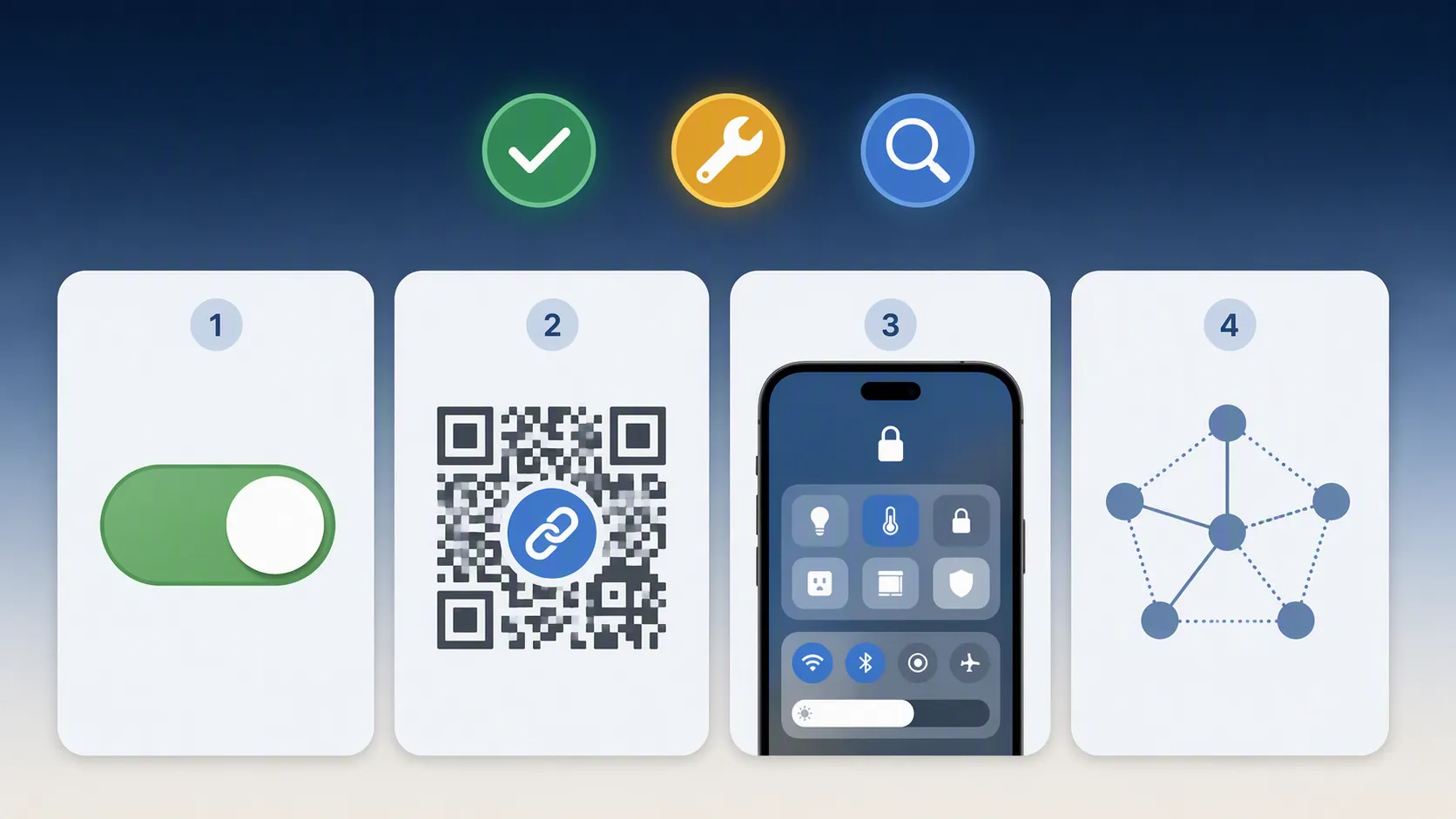
Status labels used in this walkthrough
A setup step gets a Confirmed label only if it was reproduced on a Pixel 11 Pro running the Android 17 launch build, with the Google Home or Settings version named, on the verification date shown. Google’s Pixel Help page gives the generic Pixel path for Android 11 and later, including the home controls access path and the Home app Favorites sync, but that is not the same as Pixel 11 Pro launch-build proof. [2]
A Workaround label means the path is usable because it comes from adjacent Google documentation or from a generally available Android/Home behavior, but it has not been independently reproduced here on the Pixel 11 Pro launch build. Investigating means the phone-specific behavior is still not pinned down; do not assume your unit is defective just because that panel or toggle is missing.
| Setup job | What you are trying to make work | Status as of Aug. 25, 2026 |
|---|---|---|
| Enable Home controls | Allow Pixel’s device controls surface to show Google Home devices | Workaround — generic Pixel Android 11+ path documented, not Pixel 11 Pro Android 17 launch-build confirmed |
| Connect devices | Add existing Google Home devices or commission a new Matter device by QR code | Workaround — use Google Home’s in-app add flow; Pixel 11 Pro-specific commissioning behavior remains unconfirmed |
| Place the home panel | Reach controls from lock screen and Quick Settings, with Favorites synced to the Home app | Workaround / Investigating — documented Pixel behavior, but panel availability can depend on app version or rollout |
| Enable Thread | Expose Android’s Thread setting for Matter-over-Thread device setup | Workaround / Investigating — Android Thread path documented; Pixel 11 Pro toggle appearance still needs launch-build reproduction |
1. Enable Google Home controls
Status: Workaround. Verification date: Aug. 25, 2026. Verification basis: not reproduced on Pixel 11 Pro Android 17 launch build; based on Google’s generic Pixel Android 11+ help path.
Start here because the Pixel home-control surface cannot help you until Android is allowed to show Google Home devices. Google’s documented Pixel path is: Settings > Apps & notifications > Home. From there, choose the Home app or device controls provider if Android asks which service should supply the controls. [2]
- Open Settings on the Pixel 11 Pro.
- Go to Apps & notifications > Home. If Android 17 has renamed or moved the menu on your unit, use Settings search for Home controls or Device controls instead of digging through every Settings category.
- Select Google Home if Android offers a provider choice.
- Open the Google Home app once, confirm that you are signed into the Google Account that owns or has access to your home, then return to the Pixel controls surface.
What should appear if it worked: the Pixel should be able to show a home-control panel supplied by Google Home, with device tiles drawn from the same home you see inside the Google Home app. Google’s help page also says the home panel and the Home app Favorites tab sync in both directions, so changing Favorites in one place should affect the other. [2]
If you do not see the controls provider, do not immediately blame the Pixel 11 Pro hardware. First update Google Home, open the Home app directly, and confirm that the account and home are correct. The home panel has previously arrived on Pixel phones through a server-side rollout tied to Google Home v3.3 in July 2023, which is the useful warning here: a missing panel can be app-version or rollout behavior, not a broken phone. [3]
2. Connect your devices before judging the panel
Status: Workaround. Verification date: Aug. 25, 2026. Verification basis: not reproduced on Pixel 11 Pro Android 17 launch build; use the Google Home app flow and verify by tile behavior.
The panel is only a control surface. It does not prove that your devices were added correctly, and it cannot rescue a Matter accessory that is not in pairing mode or attached to the wrong home. Before rearranging lock-screen shortcuts, make the Google Home app show the devices you expect.
For devices already in Google Home
- Open Google Home on the Pixel 11 Pro.
- Use the same Google Account you used on the older phone or tablet.
- Confirm that the correct home name appears at the top of the app.
- Open a device tile inside Google Home and test a harmless action, such as toggling a light or checking a thermostat screen.
What should appear if it worked: the device responds inside the Google Home app first, then appears in the Pixel home panel if it is included in Favorites or otherwise exposed to the panel. If the app sees the device but the panel does not, the failure is probably in panel exposure or Favorites sync, not in the device connection itself.
For a new Matter device with a QR code
- Put the Matter accessory into its setup or pairing mode.
- Open Google Home on the Pixel 11 Pro.
- Use the app’s add-device flow for a new device.
- When the Matter setup screen asks for the code, scan the Matter QR code on the device, card, or manual.
- Assign the device to the correct home and room.
- After setup finishes, open the new device tile in Google Home and test one basic command.
What should appear if it worked: Google Home should finish commissioning, create a tile for the accessory, and allow at least one normal command from the Pixel. Only after that should you expect the same device to be useful from the Pixel’s home panel.
If QR-code commissioning fails, separate the likely causes. A camera permission problem, a device that has already been commissioned and needs a reset, a mismatched home/account, and missing Thread infrastructure can all look like “the Pixel did not add my device.” For a Wi-Fi Matter device, Thread is not the first suspect. For a Matter-over-Thread device, skip ahead to the Thread section before resetting everything.
3. Put the home panel where it is reachable
Status: Workaround / Investigating. Verification date: Aug. 25, 2026. Verification basis: not reproduced on Pixel 11 Pro Android 17 launch build; generic Pixel help supports lock-screen and Quick Settings access.
Once Google Home has working device tiles, make the controls reachable from two places: the lock screen for quick access and Quick Settings for access while the phone is unlocked. Google’s Pixel Help page describes controlling smart devices from the Pixel device controls area and says the home panel syncs with the Favorites tab in the Google Home app. [2]
- Lock screen check: lock the Pixel, wake the screen, and look for the Home or device controls entry. If Android asks you to unlock before controlling sensitive devices, treat that as expected security behavior rather than a setup failure.
- Quick Settings check: swipe down from the top of the screen and look for a Home or device controls tile. If it is not visible, edit Quick Settings and look for a tile you can drag into the active area.
- Favorites check: open Google Home, adjust the Favorites tab, then return to the Pixel home panel and see whether the same change appears there.
What should appear if it worked: the same high-priority devices you selected in Google Home Favorites should be reachable from the Pixel panel without opening the full Home app. If the Home app Favorites change but the panel stays stale, force-close and reopen Google Home, then check for an app update before assuming Android 17 changed the feature.
The most useful failure clue is where the device disappears. If it is missing from Google Home, fix device setup. If it is present in Google Home but absent from Favorites, fix Favorites. If it is present in Favorites but absent from the Pixel panel, suspect the panel, app version, or rollout state.
4. Enable Thread only for setups that need it
Status: Workaround / Investigating. Verification date: Aug. 25, 2026. Verification basis: Android Thread path documented; Pixel 11 Pro Android 17 launch-build toggle presence not independently reproduced.
Thread is the part of this setup most likely to be misread. The Pixel 11 Pro having Thread radio support matters because Android can expose Thread-related setup and credential behavior on compatible hardware, and the model is also listed with UWB support in available spec coverage. [5][6] That does not make the phone your Thread border router.
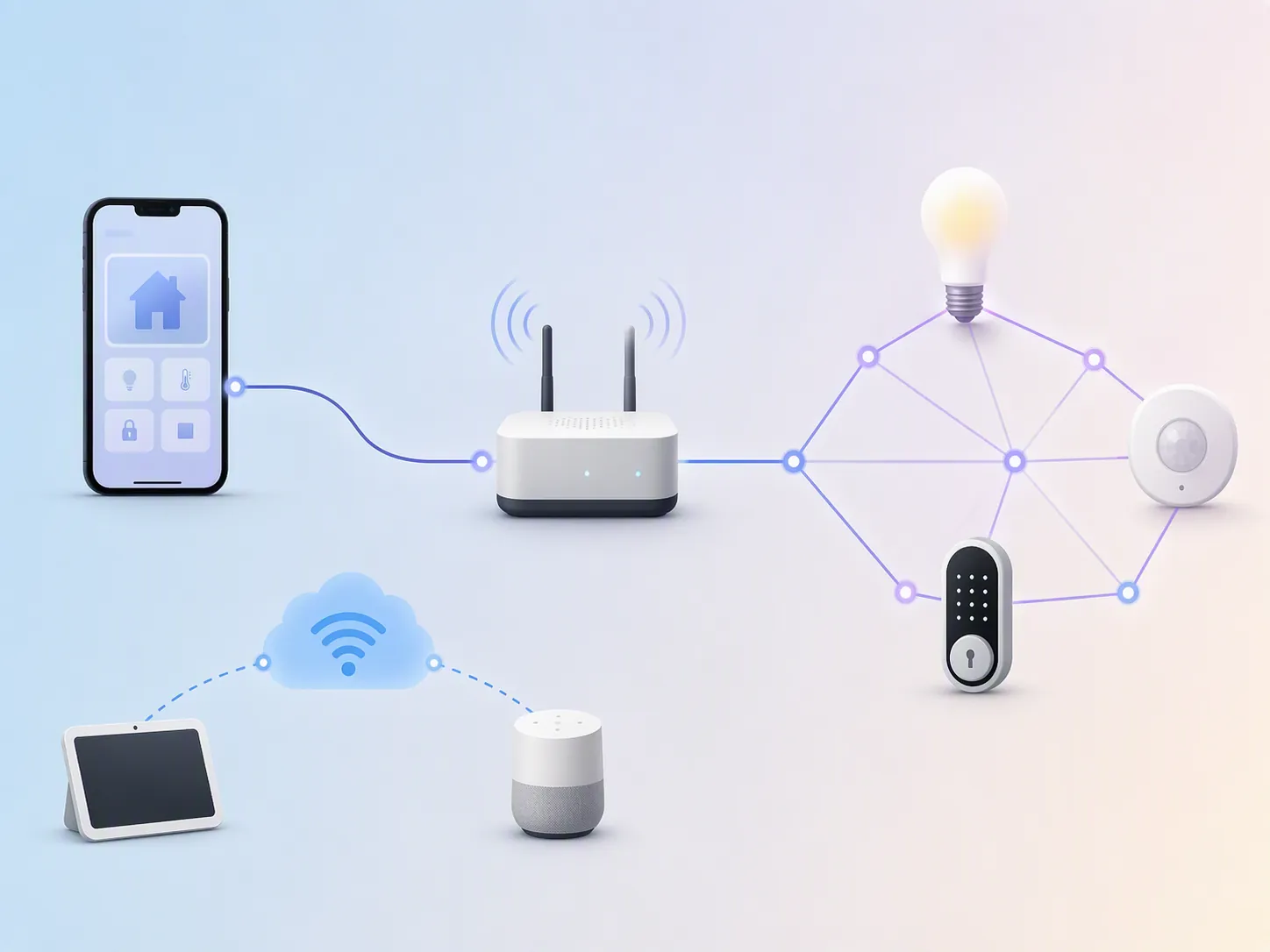
Use the Thread setting when you are adding or managing Thread smart-home devices, especially Matter-over-Thread accessories such as sensors, locks, or bulbs that do not join Wi-Fi directly. Google’s Android Help path is: Settings > Connected devices > Connection preferences > Thread. The same help page says Thread credentials are created when you connect Thread smart-home devices and are stored in your Google Account; it also describes Android devices joining an existing Thread network without a dedicated border router. [4]
- Open Settings on the Pixel 11 Pro.
- Go to Connected devices > Connection preferences > Thread.
- Turn on Thread if the toggle is present and you are setting up Thread smart-home devices.
- Return to Google Home and retry Matter-over-Thread commissioning from the add-device flow.
What should appear if it worked: the Thread setting should remain enabled, and Matter-over-Thread setup should get past the point where the app is looking for a usable Thread path or credentials. That is still not the same as proving the Pixel is acting as a border router. The phone can participate in setup and control; your home may still need the right Thread-capable smart-home infrastructure for reliable operation.
If the Thread toggle is missing, keep the failure narrow. The available Pixel 11 Pro spec material supports Thread radio availability, but this guide has not reproduced the Android 17 launch-build Settings screen on a retail unit. Check for Android system updates and Google Play system updates, then retry the exact Settings path. If the menu still does not exist, mark Thread on your unit as Investigating rather than resetting your whole Google Home.
How to verify your own Pixel 11 Pro setup
Do the audit in the same order every time. It prevents one missing server-side panel from being mistaken for a Matter problem, and it prevents a Thread accessory failure from being blamed on the lock screen.
| Check | Pass condition | If it fails, suspect first |
|---|---|---|
| Google Home app | The device tile appears and responds inside the Google Home app | Wrong account, wrong home, device not paired, accessory not in setup mode |
| Pixel home controls provider | Android offers Google Home as the controls source or shows Google Home-backed controls | Settings path changed, provider not enabled, Home app not initialized |
| Favorites / home panel | Favorites in Google Home and the Pixel panel match after refresh | Favorites sync, Google Home version, server-side rollout |
| Lock screen | Home controls are reachable after waking the locked phone, with unlock required where Android demands it | Lock-screen shortcut or security setting, not necessarily device pairing |
| Quick Settings | A Home or device controls tile is visible or can be added through tile editing | Tile placement, panel rollout, app version |
| Thread | Thread setting exists and remains enabled; Matter-over-Thread setup progresses | Missing Thread menu, no usable Thread network, missing Matter-over-Thread infrastructure |
When all six checks pass, your Pixel 11 Pro is set up for ordinary smart-home control: Google Home owns the devices, the Pixel panel exposes the controls, lock screen and Quick Settings give you access, and Thread is ready for the Matter devices that actually use it. If only the Thread row fails, Wi-Fi Matter devices and existing cloud-connected devices may still work normally. If only the panel rows fail, keep using the Google Home app while watching for Home app, Android, or rollout changes.
References
- Google Pixel 11 series launch coverage, Android Authority
- Control smart devices with your Pixel device, Google Pixel Phone Help
- Google Home's new home panel is finally rolling out for Pixel phones, Android Police, Jul 2023
- Connect Thread smart home devices with your Android device, Google Android Help
- Pixel 11 Pro, Wikipedia
- Google Pixel 11 vs 11 Pro: 5 key differences, Tech Advisor