
Fix HomeKit 'No Response' After iOS 27 Update
HomeKit devices show No Response in Apple Home after iOS 27 update
Last updated
Status: Troubleshooting guide, verified August 3, 2026. Affected ecosystem: Apple Home / HomeKit. Likely trigger: an iPhone update, and for iOS 27 specifically, most readers are probably on the public beta rather than the final release, which is still expected later in 2026.
If you opened the Home app after updating and half the tiles now say “No Response,” do not reset accessories yet. Do not delete the lock, camera, bridge, or Thread bulb just because Apple Home is unhappy. A device that still works in its manufacturer app is often not dead; HomeKit may have lost the path through the active hub, the local network, iCloud account state, Thread, or the Home architecture layer.
Apple’s current support path, published March 3, 2026, starts by separating the outage into three scopes: one accessory, accessories from several manufacturers, or all accessories at once. That split matters because the right first move is different in each case.[1]
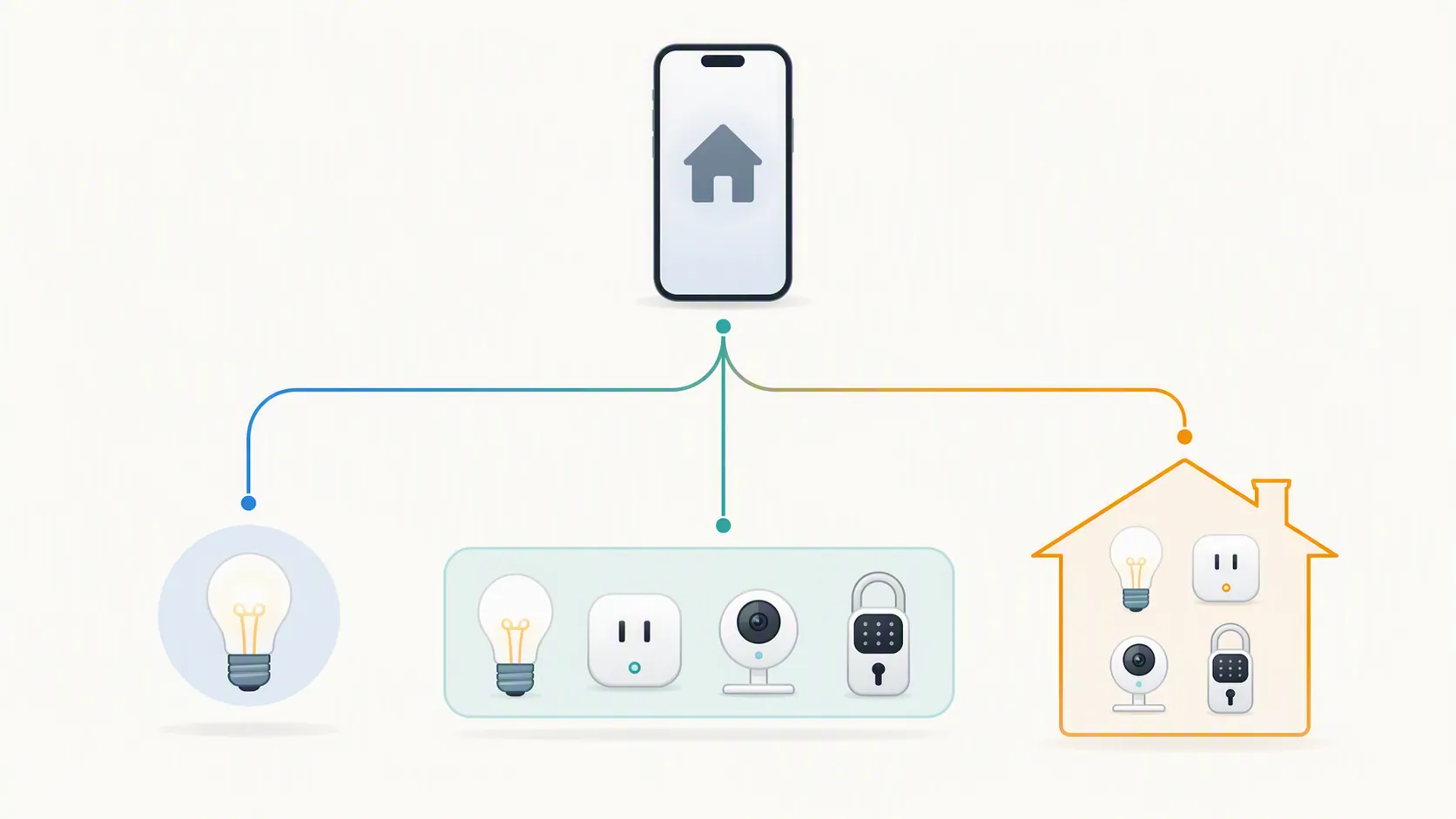
Start by sorting the failure, not by resetting devices
| What you see after the update | Start here | Status |
|---|---|---|
| One accessory says No Response | iPhone connection checks, accessory power, manufacturer app firmware, then remove/re-add only if needed | Confirmed — Apple support path, verified August 3, 2026 |
| Several accessories from different brands fail | Active hub, bridges, modem/router, VPN or security software, then Thread power cycle if relevant | Confirmed — Apple support path, verified August 3, 2026 |
| Everything in the home fails at once | Home hub status, old Home architecture checkpoint, account requirements, then whole-hub power cycle | Confirmed / Workaround mix — see labels below |
| Manufacturer app works but Apple Home does not | Treat the accessory as probably reachable; diagnose Home hub, account, local discovery, or bridge path | Investigating — useful diagnostic, not proof of one cause |
There is one extra checkpoint before the ladder: if the Home app says the home is no longer supported, check whether the home is still on Apple’s old Home architecture. Apple ended support for the old Home architecture on February 10, 2026, and says users need to update to the new architecture to continue using the Home app after that cutoff.[2][3]
That case can feel like a failed iOS update because the timing is similar: the phone updates, Home opens, and suddenly the house looks broken. It is not the same failure as a single bulb dropping offline. If you see the unsupported-architecture message, solve that before chasing Wi-Fi, Thread, or accessory resets.
If one HomeKit accessory is not responding
Status: Confirmed. Verified August 3, 2026. This is the least dramatic branch, and it deserves the least destructive fix pass.
- Make sure Bluetooth is on for the iPhone, iPad, or Mac you are using with Home. Apple puts this first in its one-accessory path.[1]
- Restart the accessory. For a plug or lamp, power-cycle it. For a battery sensor, confirm the battery is not simply low or disconnected.
- Open the manufacturer app and check whether the accessory has a firmware update. Apple specifically points users to the accessory maker’s app for updates in this branch.[1]
- If it is a bridged accessory, restart the bridge before touching the child device.
- Only after those checks, remove and re-add the accessory if it still does not respond in Home.
A single failed accessory is the one place where remove/re-add may become reasonable fairly quickly. Even then, it should come after power, firmware, bridge, and basic connection checks. Removing a smart plug is annoying; removing a lock, camera, or bridge can turn into an evening.
If several brands fail, find the active hub first
Status: Confirmed for hub checking and restarting. Verified August 3, 2026. If a few devices from different manufacturers all fail after the update, the odds shift away from individual accessory failure. Look for the part of the home that is coordinating them.
Open Home, tap the More button, go to Home Settings, then Home Hubs & Bridges. Find which Apple TV or HomePod is marked Connected. Itsyhome’s July 2, 2026 hub guide makes the practical point plainly: when no hub is connected, automations stop, remote access fails, and HomeKit Secure Video can stop working.[4]
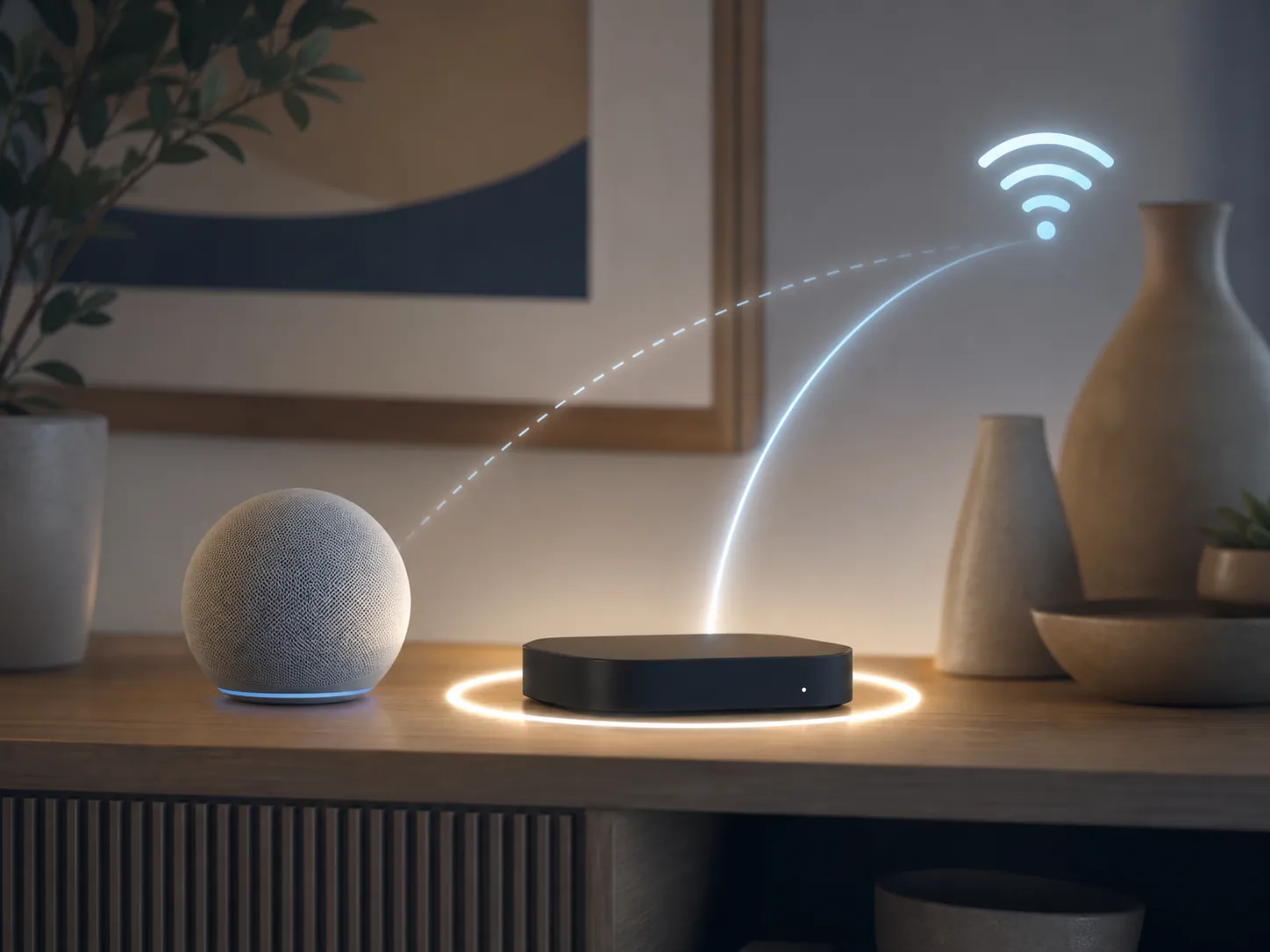
Restart the Connected hub, not just the phone in your hand. If the Connected hub is an Apple TV, restart it from Settings or unplug it briefly. If it is a HomePod or HomePod mini, restart it from the Home app or power-cycle it. Then give the Home app a moment to repopulate status before declaring the step failed.
Also restart any third-party bridge that owns the failing accessories. Apple’s support ladder tells users to restart bridges and all home hubs when accessories from several manufacturers are not responding.[1]
What to verify on the hub
- The hub shows Connected in Home Settings > Home Hubs & Bridges.
- The hub is on the latest available software.
- The person setting up or adding hubs is the owner of the Home.
- On Apple TV, the signed-in user is set as the default user.
- Two-factor authentication and iCloud Keychain are enabled for the relevant Apple Account.
Those checks are not folklore. Apple’s home hub setup guidance ties home hub reliability to the Home owner, Apple TV default user, latest software, two-factor authentication, and iCloud Keychain requirements.[5]
There is one awkward wrinkle: Apple’s current hub documentation refers to selecting a preferred home hub, while real-world hub behavior is not always that obedient. If Home insists on moving control back to a weaker or recently updated hub, the reliable move is often to reboot the current Connected hub and watch which device takes over.
Status: Workaround. Verified August 3, 2026. If hub election appears stuck, Itsyhome recommends unplugging all home hubs at the same time for about 30 seconds, then powering them back on so the home elects a hub again.[4] Treat this as a hub-election workaround, not as proof that every accessory needs to be rebuilt.
Restart the network path when multiple manufacturers are failing
Status: Confirmed. Verified August 3, 2026. Apple’s several-manufacturer path includes restarting the modem and router, restarting the iPhone or iPad, and checking VPN or other third-party security software.[1]
- Restart the modem and router. Wait until the network is fully back before judging HomeKit.
- Restart the iPhone or iPad that was updated.
- Temporarily disable VPN apps, DNS filters, firewalls, or third-party security tools that can affect local network discovery.
- If you use a mesh network, confirm the active hub and bridges are not isolated on a guest network or blocked from local device discovery.
Apple’s VPN and security software guidance is broader than HomeKit, but it is relevant here because HomeKit depends on local reachability and network discovery. Apple warns that VPN and third-party security software can filter or monitor network traffic in ways that interfere with connectivity.[6]
This is also where mixed networks deserve a boring but useful inspection. A HomePod on one segment, an Apple TV on Ethernet, a bridge on another subnet, and accessories behind a mesh isolation setting can look like a HomeKit outage even when the internet is fine. If your home internet setup is unusual, the network pass matters more than another round of accessory resets; the same theme shows up in broader smart-home network checks such as Starlink smart home compatibility, where local access and away-from-home access can fail for different reasons.
Use Apple’s Thread power-cycle timing, then wait
Status: Confirmed for Apple’s timing. Verified August 3, 2026. For third-party Thread accessories, Apple gives a very specific sequence: power them off for five minutes, power them back on, then wait ten minutes for the Thread network to stabilize.[1]
That waiting period is easy to skip because the Home app invites impatient tapping. Do not. Thread devices may not all return at the same second, especially after a hub reboot or update. The useful test is not whether a bulb responds instantly after power returns; it is whether the Thread accessories settle, stay reachable, and stop dropping back to No Response after the ten-minute stabilization window.
If you are trying to work out whether your Apple TV or HomePod model can act as the right kind of hub for your Thread setup, see NestGrid’s compatibility note on which Apple devices qualify as HomeKit home hubs. The immediate fix ladder still stays the same: hub status first, then Thread power timing, then patience before destructive steps.
If the manufacturer app works but Home does not
Status: Investigating. Verified August 3, 2026. This is a diagnostic clue, not a final diagnosis.
| What works | What it suggests | What to check next |
|---|---|---|
| Manufacturer app controls the device, Home says No Response | The accessory may still be reachable through the vendor cloud or its own local path | Active Home hub, bridge, iCloud account state, local discovery |
| Home works locally but fails away from home | The hub or remote-access path may be the weak point | Connected hub, Apple Account requirements, router/VPN |
| Bridge app works, all child devices fail in Home | The bridge-to-HomeKit path may be failing | Restart bridge, restart active hub, check firmware |
| One device fails everywhere | The accessory itself may actually be offline | Power, battery, firmware, then remove/re-add if needed |
A MacRumors forum thread about all Home accessories showing as not responding includes the familiar pattern where the Home app reports failure while other control paths still appear to work, along with reports involving phantom hubs and mDNS across subnets.[7] Useful, yes. Conclusive, no. A forum thread can identify the shape of a failure, but it cannot turn one network’s fix into a universal rule.
Account-state fixes belong near the end
Status: Workaround for iCloud sign-out/sign-in reports. Verified August 3, 2026. Account state can break HomeKit in ways that look absurdly physical: lights stop responding, cameras disappear, automations stall. That does not mean iCloud sign-out should be the first move.
Before signing out of iCloud, confirm the official account requirements: the Home owner is using the right Apple Account, two-factor authentication is enabled, iCloud Keychain is on, and the Apple TV default user is correct where an Apple TV is acting as a hub.[5] Those checks are less disruptive than signing out and back in across a home full of Apple services.
Community reports of iCloud sign-out/sign-in fixing HomeKit after updates should stay in the workaround tier unless you can tie the recovery to a specific account-state problem. If you try it, do it after the hub, bridge, router, VPN, architecture, and Thread passes—not before.
Where iOS 27 beta issues fit
Status: Investigating. Verified August 3, 2026. Because iOS 27 is still beta-era as of today, some “after iOS 27 update” reports may be genuine beta regressions rather than ordinary post-update hub confusion. Keep those separate.
If your symptoms match beta-specific patterns such as hub flapping on tvOS 27, Thread instability during the Thread 1.4 transition, or camera notification regressions, use the sibling Update Watch entry: How to Fix HomeKit Devices Not Working After iOS 27 Update. This page is the broader Apple-ordered ladder; the Update Watch page is where beta-specific behavior belongs.
The same caution applies to beta-hub warnings, Thread channel advice, and one-off Reddit fixes. They may be useful while a beta is moving, but they should not outrank Apple’s published order unless the failure pattern is clearly the same. For a wider update-era checklist mindset, see Should You Skip iPhone 18 Pro Max, which uses the same dated, status-labeled approach to smart-home regressions.
How to know the fix actually worked
A real fix leaves evidence. The Home app tiles return to normal response, the active hub shows Connected, automations run without manual babysitting, remote access works when you leave Wi-Fi, and HomeKit Secure Video recovers where cameras are involved. For Thread accessories, judge only after Apple’s five-minute power-off and ten-minute stabilization sequence has had time to finish.[1]
A placebo fix looks different. You reboot the phone, one tile wakes up, and five minutes later the same room is back to No Response. Or the Home app works while you are standing next to the router but fails again through the hub path. When that happens, keep moving through the ladder instead of repeating the same easy restart until it feels like progress.
Remove and re-add is the last resort, not the opening move. Use it when Apple’s ordered checks, hub diagnosis, bridge restart, router/VPN pass, Thread timing, architecture checkpoint, and account requirements have all failed. After an iOS 27-era update, the accessory is often the visible victim, not the failed component.
References
- If your smart home accessory won't respond in the Home app — Apple Support, March 3, 2026
- Update to the new Home architecture — Apple Support
- Apple Home App Update Now Required — MacRumors, February 11, 2026
- HomeKit Hub Not Connected? Here’s How to Fix It — Itsyhome, July 2, 2026
- Set up your HomePod, HomePod mini, Apple TV, or iPad as a home hub — Apple Support
- Check VPN (Virtual Private Network) and third-party software to help resolve network connectivity issues — Apple Support
- Home app shows all accessories as not responding — MacRumors Forums
Corroborating context
For protocol background on why this failure happens, see Compatibility & Protocols.
Not currently linked to a known regression. Background on the underlying protocol lives in Compatibility & Protocols.