
Fix HomeKit Devices Not Responding After iOS 26.6
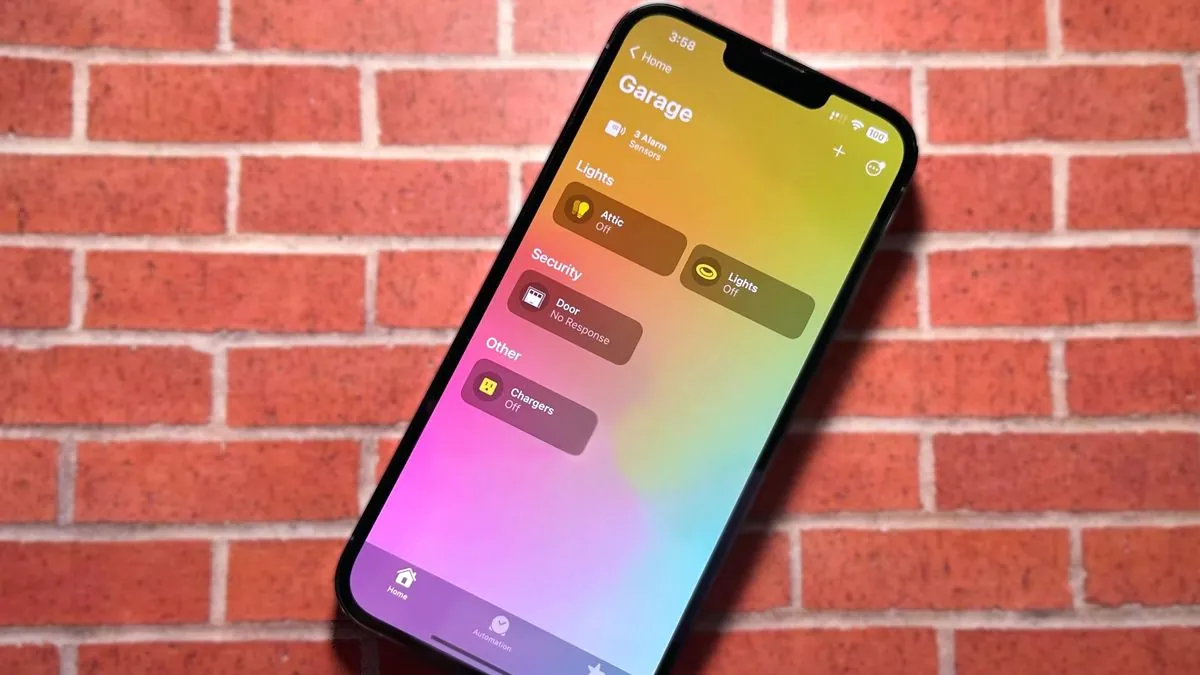
HomeKit accessories showing 'No Response' after iOS 26.6 update
Last updated
If your Home app filled with “No Response” tiles after installing iOS 26.6, do not start by deleting accessories. Do not remove the Home. Do not reset every plug, bulb, lock, and sensor just because the phone update happened first.
As of July 28, 2026, iOS 26.6 is still best treated as a maintenance update, not as a confirmed HomeKit-breaking release. It shipped on July 27, 2026, and the release-note coverage available so far does not list a HomeKit fix or a HomeKit regression item; 9to5Mac also reported the public build as matching the RC, which matters because early RC stability reports were not pointing at a broad Home collapse.[1][2] That does not make your dead tiles imaginary. It means the first suspect should be the shared chain HomeKit depends on: the active hub, iCloud Home sync, local network discovery, and, for Thread devices, the border routers.
Start With The Shared Failure Point
When multiple accessories fail at once after an update, the phone is rarely the cleanest first target. The Home app on the iPhone is often just where the failure becomes visible. Your Home hub is the device keeping the home available, relaying automations, coordinating remote access, and holding together pieces that your phone only talks to part of the time.
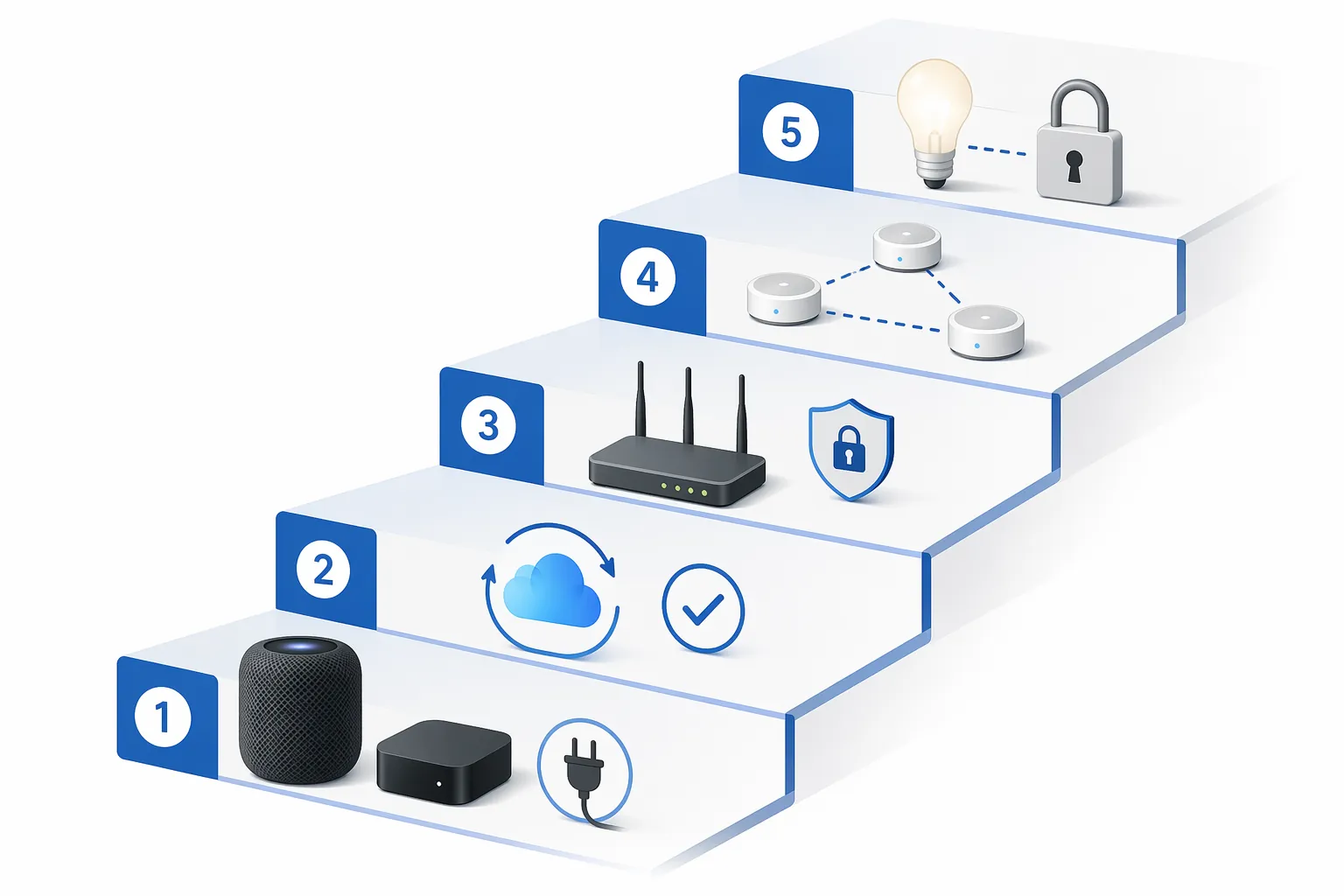
Use this order before touching any accessory pairing button:
| Order | What To Check | Why It Comes First |
|---|---|---|
| 1 | Power-cycle the active Home hub for 30–60 seconds | It tests the safest shared fix before changing the Home database. |
| 2 | Verify iCloud Home, iCloud Keychain, and two-factor authentication | Apple’s current Home architecture depends on account sync being intact. |
| 3 | Remove local network blockers | HomeKit discovery relies on the phone, hub, and accessories seeing each other on the local network. |
| 4 | Restart Thread border routers sequentially | Thread accessories can remain stuck if several border routers restart or renegotiate badly. |
| 5 | Re-pair only the accessories still failing | This is the highest-blast-radius step, so it belongs last. |
Power-Cycle The Home Hub, Not The Whole House
Find the HomePod, HomePod mini, or Apple TV currently acting as the Home hub. In the Home app, go to Home Settings, then Home Hubs & Bridges, and look for the hub marked as connected. If you have several hubs, start with the connected one rather than unplugging everything in a panic.
- Unplug the active Home hub from power.
- Wait 30–60 seconds.
- Plug it back in.
- Wait several minutes before judging the Home app.
- Force quit and reopen the Home app on the iPhone only after the hub is back online.
Apple’s own “No Response” troubleshooting puts restarting the Home hub near the top of the official path, along with checking iCloud and network conditions.[3] That ordering is right. It is reversible, it does not erase rooms or scenes, and it tests the one device that can make unrelated accessories look broken at the same time.
The practical reason is simple: after a system update, the phone may reconnect to iCloud, Wi-Fi, and Home data before the hub has cleanly refreshed its own local discovery sessions. A stuck hub can leave Wi-Fi plugs, bridges, and Thread devices all reporting the same symptom even though the accessories themselves never lost power.
This is also why buying a faster iPhone is not a HomeKit repair strategy. If the Apple TV or HomePod is the stale part of the chain, the most powerful phone in the room will still show the same gray tiles. I have the longer version of that argument in Tested: iPhone 18 Pro Won’t Fix Your HomeKit Hub Problem, but the short version for tonight is: restart the hub before blaming the handset.
If the Home app starts recovering room by room after the hub comes back, leave it alone for a few minutes. Do not keep toggling Wi-Fi, rebooting the phone, and opening accessory vendor apps while the Home database is catching up. Let the hub settle, then test one light or plug from each affected room.
Check The iCloud Pieces Apple Now Requires
If the hub restart does not clear the “No Response” state, move to the account layer. This is the step people skip because it feels unrelated to a lamp in the hallway. It is not unrelated. In Apple’s current Home architecture, the Home data, access permissions, and secure keys depend on iCloud services being available and correctly enabled.
Apple’s Home architecture requirements include two-factor authentication for the Apple Account and iCloud Keychain being turned on.[4] Those are not cosmetic security settings. If either side is wrong, Home can look partly present but behave as if the accessories, hub, or shared users have fallen out of sync.
- On the iPhone, open Settings, tap your name, then iCloud, and confirm Home is enabled.
- In iCloud settings, confirm Passwords and Keychain is on.
- In Sign-In & Security, confirm two-factor authentication is active for the Apple Account used for the Home.
- If you have a home owner and invited residents, check the owner’s device first. The owner account is the one I care about before chasing every family member’s phone.
- If iCloud asks for updated terms, a password re-entry, or device approval after the iOS update, finish that before testing Home again.
Apple also moved users toward the newer Home architecture over the iOS 26 cycle, with reporting in February 2026 describing the migration deadline and forced-migration context.[5][6] That does not prove iOS 26.6 broke your accessories. It does explain why an iCloud or Keychain mismatch after an otherwise normal update can suddenly matter more than it did in an older Home setup.
After correcting any iCloud setting, restart the Home hub again. This second hub restart is not busywork. If the hub came back while the account state was still half-signed-in or Keychain was unavailable, it may need a clean pass after the account layer is healthy.
Take The Network Blockers Out Of The Test
Once the hub and iCloud checks are clean, make the local network boring. HomeKit does not need you to become a router hobbyist tonight, but it does need the iPhone, hub, bridges, and accessories to discover each other. Third-party iOS 26.x troubleshooting guides commonly follow the same broad order: hub first, then iCloud, then network conditions.[7]
- Connect the iPhone to the same home Wi-Fi/LAN used by the Home hub.
- Turn off VPN while testing Home.
- Turn off iCloud Private Relay during the test if it is enabled.
- Avoid guest Wi-Fi and extender networks that isolate clients from the main LAN.
- If your router has client isolation, AP isolation, or similar guest-network isolation enabled on the network used by HomeKit devices, turn it off for that network.
- If you manage advanced router settings, make sure Bonjour/multicast traffic is not being blocked between wireless clients and the hub.
Do one clean test after those changes: restart the Home hub, keep the iPhone on the main Wi-Fi, reopen Home, and wait. If you changed three router settings and then immediately reset five bulbs, you will not know which action fixed the home, and you may create a second problem while solving the first.
If Thread Devices Are The Ones Still Failing
If Wi-Fi accessories have recovered but Thread accessories still show “No Response,” narrow the work to Thread border routers. This usually means HomePod mini, HomePod, or compatible Apple TV 4K models in the home. If you are unsure which Apple TV models can act as useful smart-home hubs or Thread border routers, start with Which Apple TV 4K Model Works as a Smart Home Hub? before replacing hardware.
Apple’s simpler accessory troubleshooting includes disconnecting an accessory from power and reconnecting it after several minutes.[3] The more specific border-router sequencing below comes from third-party Thread troubleshooting, including HomeKit Authority and LinkdHOME, which describe cases where the mesh remains confused after border routers restart or renegotiate in a bad order.[8][9] Treat it as a narrower recovery branch, not as Apple’s official first step.
- Make a quick list of every Thread border router in the home: HomePod mini, HomePod, and compatible Apple TV 4K units.
- Unplug only one border router.
- Wait 30–60 seconds, then plug it back in.
- Wait about two minutes before touching the next border router.
- Repeat one at a time until every border router has restarted.
- After the final two-minute wait, reopen Home and test the remaining Thread accessories.
The two-minute pause is the part people rush. If several border routers come back at once, you may not get the clean election and route rebuilding you were trying to force. One at a time is slower at the kitchen counter, but it is still faster than rebuilding rooms and automations from scratch.
This is also where hub quality starts to matter. If one aging or poorly placed hub repeatedly becomes the active hub and the home degrades whenever it does, that is a hub-selection problem rather than an iOS 26.6 diagnosis. For that decision, see Should You Buy the Apple TV 4K Smart Home Hub Now or Wait?. Do not turn that into tonight’s project unless the recovery ladder keeps pointing back to the same weak hub.
Leave HomeBridge And Home Assistant For A Different Diagnosis
If your failed accessories enter Apple Home through HomeBridge, Home Assistant, or another bridge layer, the symptom can look identical while the failure point is different. A plug that says “No Response” through a HomeBridge plugin may be failing at the plugin, token, container, bridge advertisement, or host network layer before Apple Home ever gets a clean accessory state.
For this iOS 26.6 recovery ladder, do not mix those paths. First prove whether native HomeKit and Matter accessories recover through the hub, iCloud, network, and Thread checks. If only bridge-imported accessories remain dead, troubleshoot the bridge separately.
Re-Pair Only What Is Still Broken
Accessory re-pairing is the last move, not the opening move. It can fix a device whose local credentials or Home assignment are genuinely corrupted, but it can also break scenes, automations, room assignments, button mappings, and shared-user expectations. That is a lot of collateral damage for a problem that may have been sitting in the hub all along.
- Before removing anything, write down the room, accessory name, scenes, automations, and any buttons or sensors tied to it.
- Re-pair one failed accessory, then test it before touching the next one.
- Do not remove the entire Home unless Apple Support or the accessory vendor has narrowed the failure to a corrupted Home database.
- If a bridge has many child accessories, check the bridge vendor’s reset path before deleting the bridge from Home.
The right fix for HomeKit devices not responding after the iOS 26.6 update is not a dramatic rebuild. It is a controlled ladder: hub, iCloud, network, Thread, then individual accessories. As of Q3 2026, with iOS 26.6 released on July 27 and no listed HomeKit release-note item, this is a recovery path for the observed “No Response” symptom, not proof of a new iOS regression.
References
- iOS 26.6 release notes, Neowin, July 27, 2026
- iOS 26.6 now available, 9to5Mac, July 27, 2026
- If your smart home accessories aren't responding in the Home app, Apple Support, March 3, 2026
- Upgrade to the new Home architecture, Apple Support, February 12, 2026
- Apple sets deadline for Home architecture upgrade, Forbes, February 2026
- Apple Home architecture migration deadline, MacRumors, February 2026
- HomeKit not responding after iOS 26 update, Whizz-Experts
- Thread troubleshooting guide, HomeKit Authority
- Thread network troubleshooting, LinkdHOME
Corroborating context
For protocol background on why this failure happens, see Compatibility & Protocols.
Not currently linked to a known regression. Background on the underlying protocol lives in Compatibility & Protocols.