Apple HomeKit Hub Not Working? A Systematic Troubleshooting Guide
Hub offline, stuck on Standby, or causing 'No Response' errors
Last updated
When an Apple HomeKit hub stops behaving, the first useful question is not whether to delete the home. It is what kind of failure the Home app is showing. An offline hub, a house full of accessories marked “No Response,” broken remote access, and every hub sitting on Standby can look similar from the couch, but they point to different layers.
| What you see | Most likely layer to check first | What not to do yet |
|---|---|---|
| One hub says Standby, another says Connected | Usually normal hub election | Do not reset the Standby hub just because it is not active |
| Every hub says Standby or none will become Connected | Home hub election or Apple TV hub-role state | Do not delete the home |
| Hub is offline and remote access fails | Hub power, network, Apple ID, or home architecture | Do not remove accessories |
| Accessories show No Response while the hub is online | Network, bridge, accessory radio, or accessory-specific failure | Do not assume the hub is the only problem |
| Everything became unreliable after early 2026 architecture changes | Home architecture and valid hub device requirements | Do not keep troubleshooting as if an iPad can still act as the hub |
Start With The Hub Status HomeKit Is Actually Reporting
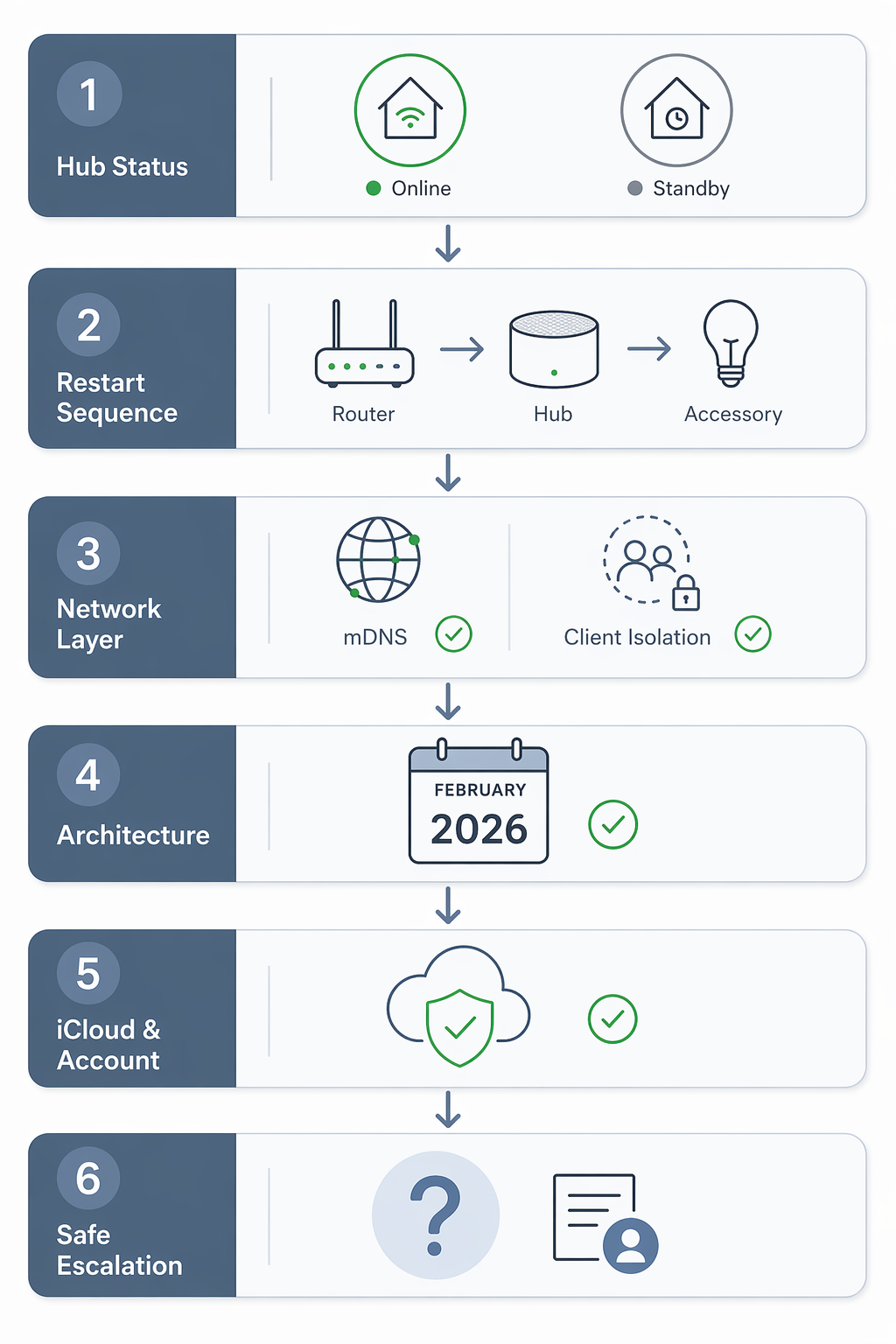
Open the Home app, go to Home Settings, then Home Hubs & Bridges. The status there matters more than the general mood of the house. A HomePod, HomePod mini, or Apple TV can act as a HomeKit home hub; Apple’s setup requirements also include using the same Apple Account for iCloud and the home, turning on iCloud Keychain, using two-factor authentication, and running the newer Home architecture where required. [1]
A bridge is different. A Lutron Caséta bridge, Aqara hub, or similar device may connect accessories into Apple Home, but it is not the Apple home hub that provides remote access, automation execution, or Matter controller duties. If that distinction is the part that feels muddy, the deeper bridge-versus-hub discussion in the Lutron Caséta hub guide is a useful side exit; for this fix path, stay focused on the Apple hub list first.
If one hub says Connected and the others say Standby, that is not automatically broken. HomeKit normally chooses one active hub and leaves other eligible hubs available for failover. The problem begins when the selected hub is a poor network citizen, when failover keeps landing on the wrong device, or when no hub will become Connected at all.
Read Standby Carefully
Standby means the device is available but not currently the active hub. In a healthy multi-hub home, that is boring. In a broken home, Standby becomes interesting when every hub is stuck there, automations stop firing, or the home behaves as if no coordinator is awake.
The field-tested sequence for the all-Standby failure mode is deliberately narrower than a full rebuild. Stacey on IoT documents a practical fix path that includes restarting the home network and hubs, and, where an Apple TV is involved, disabling and re-enabling its Home Hub role so HomeKit is forced to re-evaluate the device instead of leaving it in a stale state. [2]
- Confirm whether any hub says Connected. If one does, treat Standby as normal until another symptom proves otherwise.
- If all hubs are stuck on Standby, restart the network first, then the Apple hubs.
- On Apple TV, check the Home Hub setting and toggle it off and back on if the device will not re-enter the hub pool cleanly.
- Return to Home Hubs & Bridges and wait for a single active Connected hub before judging accessory behavior.
That toggle is not a magic ritual. It is a controlled way to disturb the hub election layer without disturbing paired locks, lights, sensors, bridges, rooms, scenes, and automations.
Use A Safe Restart Order Before Changing The Home
The restart order should move from the shared layer to the dependent layer: router first, then Apple hub, then bridge or accessory. Restarting a bulb before the Wi-Fi or mDNS layer has recovered mostly creates noise. Restarting the router after every accessory has already been power-cycled makes the evening longer than it needs to be.
In practice, this router-hub-accessory order clears many transient failures. Treat the often-repeated “about 80%” figure as a troubleshooting rule of thumb from synthesized field practice, not as an Apple-published success rate or a controlled measurement. The point is not the percentage; the point is that the order preserves the home while clearing stale network and hub state.
- Restart the router or mesh system and wait until the internet and local Wi-Fi are actually back.
- Restart the active Apple hub. If the active hub is unclear, restart all HomePods and Apple TVs, one at a time if the household can tolerate the delay.
- Restart bridges such as Lutron, Aqara, or Hue only after the Apple hub has returned.
- Restart individual accessories last, and only the ones still failing.
After the restart sequence, check two things separately: whether a hub is Connected, and whether accessories respond locally while your phone is on the same Wi-Fi. If local control works but remote access fails, the hub or account layer is still suspect. If local control also fails across many accessories, move outward to the network.
The Network Layer Is Where Many “HomeKit” Failures Actually Live
HomeKit depends on local discovery and local reachability. A router can have internet access, pass a speed test, and still be hostile to the traffic a hub and accessories need. That is why a smart home can look broken right after a router replacement, mesh firmware update, new IoT SSID, or security setting change.
Apple’s own accessory troubleshooting starts with the plain checks: make sure the accessory is powered on, nearby when relevant, updated, and reachable, then restart the accessory and the home hub if needed. For Matter accessories, Apple also points users back to the manufacturer’s app and the device’s pairing or reset instructions when the accessory itself is not responding. [3]
For hub-wide failures, the router settings deserve a more careful pass before touching the home database.
| Router or Wi-Fi setting | Why it can break HomeKit | Practical check |
|---|---|---|
| Client isolation or AP isolation | Devices on the same Wi-Fi cannot see one another | Disable it for the network used by hubs and HomeKit accessories |
| IoT SSID separated from the main LAN | The phone, hub, bridges, and accessories may be placed on different network segments | Put the Apple hub and accessories on a network where local discovery is allowed |
| mDNS or Bonjour filtering | HomeKit discovery depends on local service discovery | Enable multicast DNS or Bonjour forwarding where the router exposes that control |
| WPA3-only mode | Some accessories and bridges expect WPA2 or mixed compatibility | Use WPA2/WPA3 mixed mode when older accessories disappear after a Wi-Fi change |
| Aggressive mesh steering or fast roaming | Stationary hubs or accessories can be pushed between nodes or bands at bad times | Test with steering features reduced, or place the hub near a stable node |
The cleanest test is not always the prettiest permanent network design. Temporarily put the iPhone, active Apple hub, and one failing accessory or bridge on the same simple Wi-Fi segment. If the home starts responding there, the HomeKit database was probably not the thing that needed surgery.
Wired Apple TV 4K often makes this easier because it removes one Wi-Fi variable from the active hub. Stacey on IoT’s hub comparison favors Apple TV 4K with Ethernet as the most reliable HomeKit hub choice, while still treating HomePod mini as an accessible entry point and useful Thread border router. [4] That is a reliability bias, not a law. A well-placed HomePod mini on a stable network is better than an Apple TV wired into a confused VLAN arrangement.
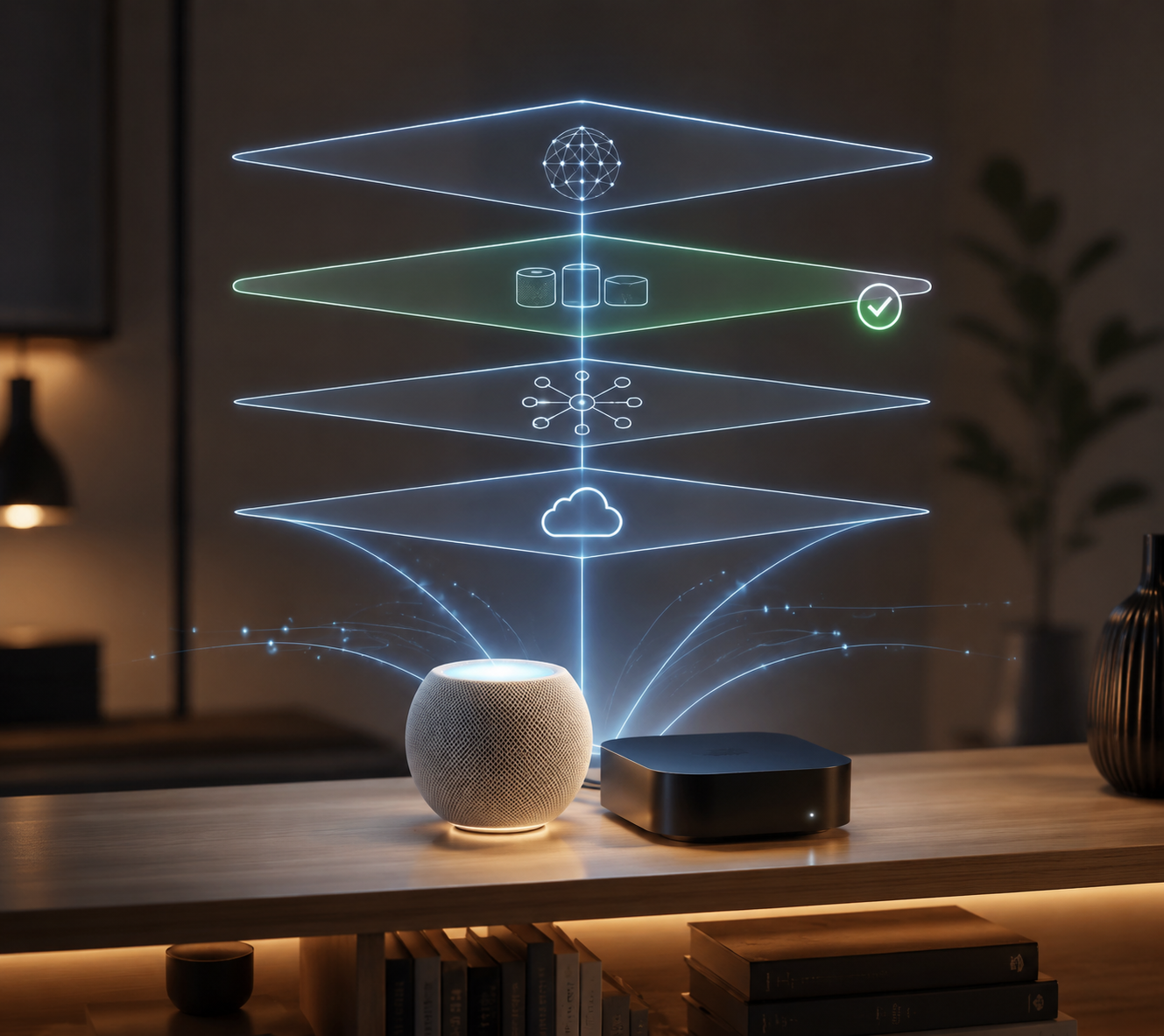
If the failure is tied to radios rather than HomeKit itself, separate that diagnosis too. Thread, Matter over Wi-Fi, Zigbee bridges, and Z-Wave controllers do not fail in the same way. The broader protocol compatibility guide is the better place to sort out which hardware speaks which radio; here, the immediate test is whether the Apple hub and the accessory path can discover each other locally.
If The Wrong Hub Keeps Winning, Take Control Of Hub Selection
Multi-hub homes can fail in a particularly annoying way: HomeKit technically has a Connected hub, but it chooses the weakest candidate. The active hub might be a HomePod at the edge of Wi-Fi while an Ethernet Apple TV sits idle on Standby. From the Home app’s point of view, there is a hub. From the household’s point of view, automations are late and remote control is unreliable.
On iOS 18 and later, Apple added a manual preferred hub control. Matter Alpha’s walkthrough describes setting a preferred Apple Home hub from Home Settings by turning off automatic selection and choosing the desired hub from the available list. [5]
Use that control after the network has been made sane, not before. Preferred hub selection cannot rescue a hub that is on the wrong network, signed into the wrong account, or blocked by router isolation. It can, however, stop the home from repeatedly failing over to a less stable device once the basics are clean.
- Prefer the hub with the most stable network path.
- Avoid choosing a hub that frequently loses power or moves between Wi-Fi nodes.
- Do not remove other hubs just to force the choice unless one is genuinely obsolete or misconfigured.
Check The February 2026 Architecture Problem Before Chasing Accessories
The old assumption that an iPad can serve as the HomeKit hub is no longer safe. Forbes reported the February 10, 2026 Apple Home architecture cutoff and the need to update homes so devices do not go offline; it also highlighted the practical consequence that iPads are no longer valid home hubs under the updated architecture requirements. [6]
Apple’s own hub setup page now points to the new Home architecture as part of the supported setup path for HomePod, HomePod mini, and Apple TV hubs. [1] The important troubleshooting consequence is simple: if the home still depends on an iPad, or if the household skipped the architecture update and is interpreting every failure through pre-2026 habits, the diagnosis starts from a false map.
Do not overstate this. A missed or delayed architecture transition does not prove that every accessory failure has the same cause. It does mean the home should be brought onto a supported hub foundation before spending hours re-pairing downstream devices. For purchase and architecture context beyond this repair sequence, the HomeKit buyer’s guide covers hub selection as the first reliability decision.
Then Rule Out Apple ID And iCloud Drift
Account drift is less visible than a dead router, so it is easy to check too late. Apple’s requirements are not decorative: the home hub needs to be signed in with the same Apple Account used for the home, iCloud Keychain needs to be enabled, and two-factor authentication needs to be on. [1]
This is especially worth checking after a family member replaces a phone, changes an Apple Account password, signs an Apple TV into a different media account, or removes and re-adds someone to the home. Apple TV can make this confusing because media purchases, profiles, and iCloud/Home identity can feel like the same thing from the sofa. For HomeKit, the hub’s iCloud identity is the part that matters.
- Confirm the Apple TV or HomePod is assigned to the correct home.
- Confirm the primary home owner still has iCloud Keychain and two-factor authentication enabled.
- Check whether invited residents lost access only remotely or also while local.
- After account changes, restart the hub before judging automations.
If only one resident is affected, resist turning that into a whole-home repair. Remove and re-invite that resident only after checking the hub and owner account state. If everyone is affected, the active hub, network, or architecture layer is still more likely than a single user permission.
When “No Response” Is Not A Hub Failure
A room full of “No Response” accessories can be caused by a hub problem. One smart plug showing “No Response” while everything else works usually is not. Apple’s accessory guidance sends the diagnosis toward power, proximity, updates, manufacturer apps, and accessory restart or reset steps when the device itself is unreachable. [3]
Use the blast radius. If every device behind one bridge disappears, inspect that bridge and its wired or wireless path. If every Thread device disappears but Wi-Fi plugs still respond, inspect the Thread border router path. If one outlet fails and its manufacturer app also cannot see it, that is an accessory repair, not a HomeKit hub rebuild. Readers comparing plug behavior specifically can use the HomeKit smart plug comparison after the hub layer has been cleared.
For Zigbee-based systems exposed to Apple Home through a bridge, HomeKit may be only the front door. The separate Zigbee smart home hub troubleshooting guide is the more relevant path when the bridge’s own mesh is the failing layer.
Escalate Without Wiping The Home
By this point, the failure should have a narrower shape. A healthy network with no Connected hub points back to hub eligibility, account state, or the Standby bug. A Connected hub with broken local discovery points to router segmentation or multicast filtering. A single bridge or accessory group points downstream. That is enough information to escalate cleanly.
- Update iOS, iPadOS, tvOS, HomePod software, and accessory firmware before removing anything.
- If using Apple TV, toggle the Home Hub role only for the affected Apple TV, then recheck hub status.
- If one accessory is still dead, remove and re-add that accessory only after its manufacturer app also confirms trouble.
- If one bridge is dead, repair the bridge path before touching every child device.
- Contact Apple Support with the active hub status, architecture state, account checks, and router findings already written down.
Factory resetting the home is the last tool, not the next tool. It is justified when the home database itself is demonstrably corrupt or Apple Support has walked through the supported checks and reached that point. It is not justified because a router update blocked mDNS or because an old iPad assumption survived past February 2026.
HomeKit hub failures are usually less mysterious after the layers are separated. The expensive part is resetting before knowing whether the failed layer was hub election, local network discovery, architecture support, iCloud identity, or a single accessory path. If the answer leads beyond repair into whether Apple Home is still the right platform for the household, that belongs in a broader smart home platform comparison. It does not belong in the middle of a recoverable outage.
References
- Set up your HomePod, HomePod mini, or Apple TV as a home hub, Apple Support
- How to fix an Apple HomeKit hub stuck in Standby mode, Stacey on IoT
- If your HomeKit or Matter accessory isn't responding in the Home app, Apple Support
- What's the best HomeKit hub for a smart home?, Stacey on IoT
- How to Set Your Preferred Apple Home Hub, Matter Alpha
- Your Apple Home Needs To Be Updated To Stop Your Smart Home Devices Going Offline, Forbes, February 10, 2026
Corroborating context
For protocol background on why this failure happens, see Compatibility & Protocols.
Not currently linked to a known regression. Background on the underlying protocol lives in Compatibility & Protocols.