
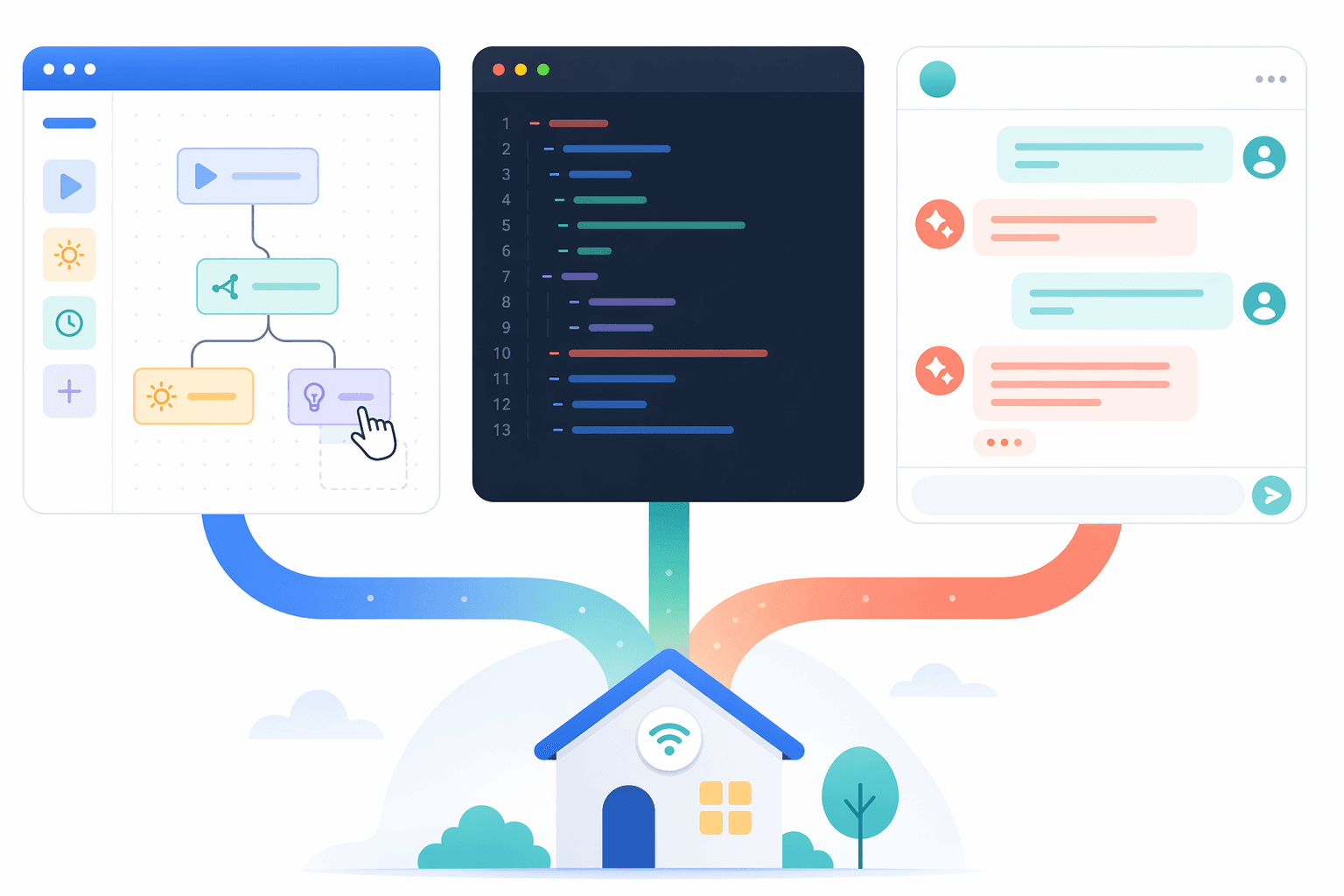
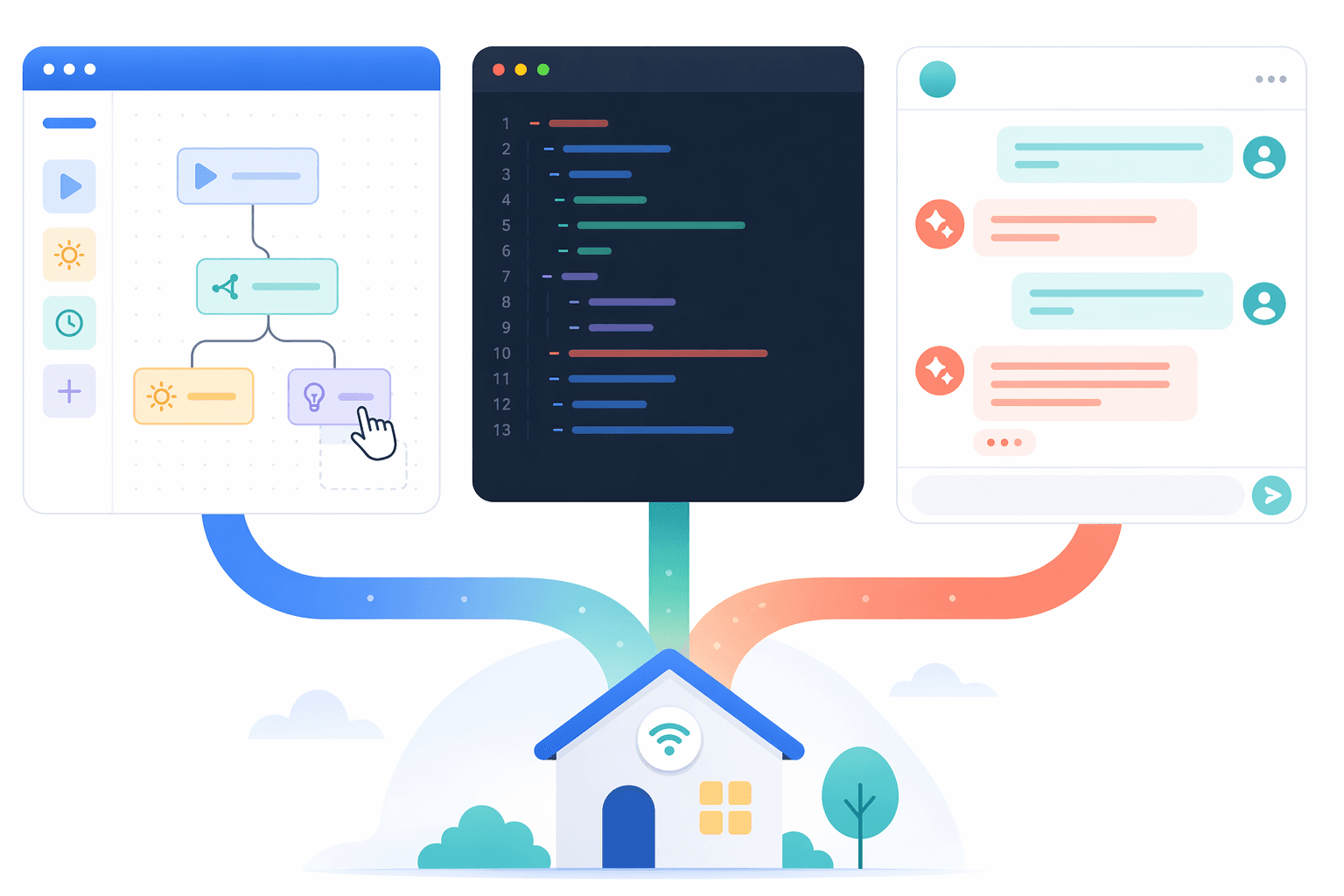
If you opened Google Home after the Spring 2026 update and felt as if the automation menu had quietly multiplied, you are not imagining it. Google Home now gives you three practical ways to build a home automation: the visual editor in the app, the YAML-based script editor on the web, and the Gemini-powered Help Me Create flow. The best choice is not simply “beginner, intermediate, expert.” It depends on what you are trying to automate, whether you want to pay for Premium-only intelligence, and how much logic you are willing to maintain when something stops behaving.
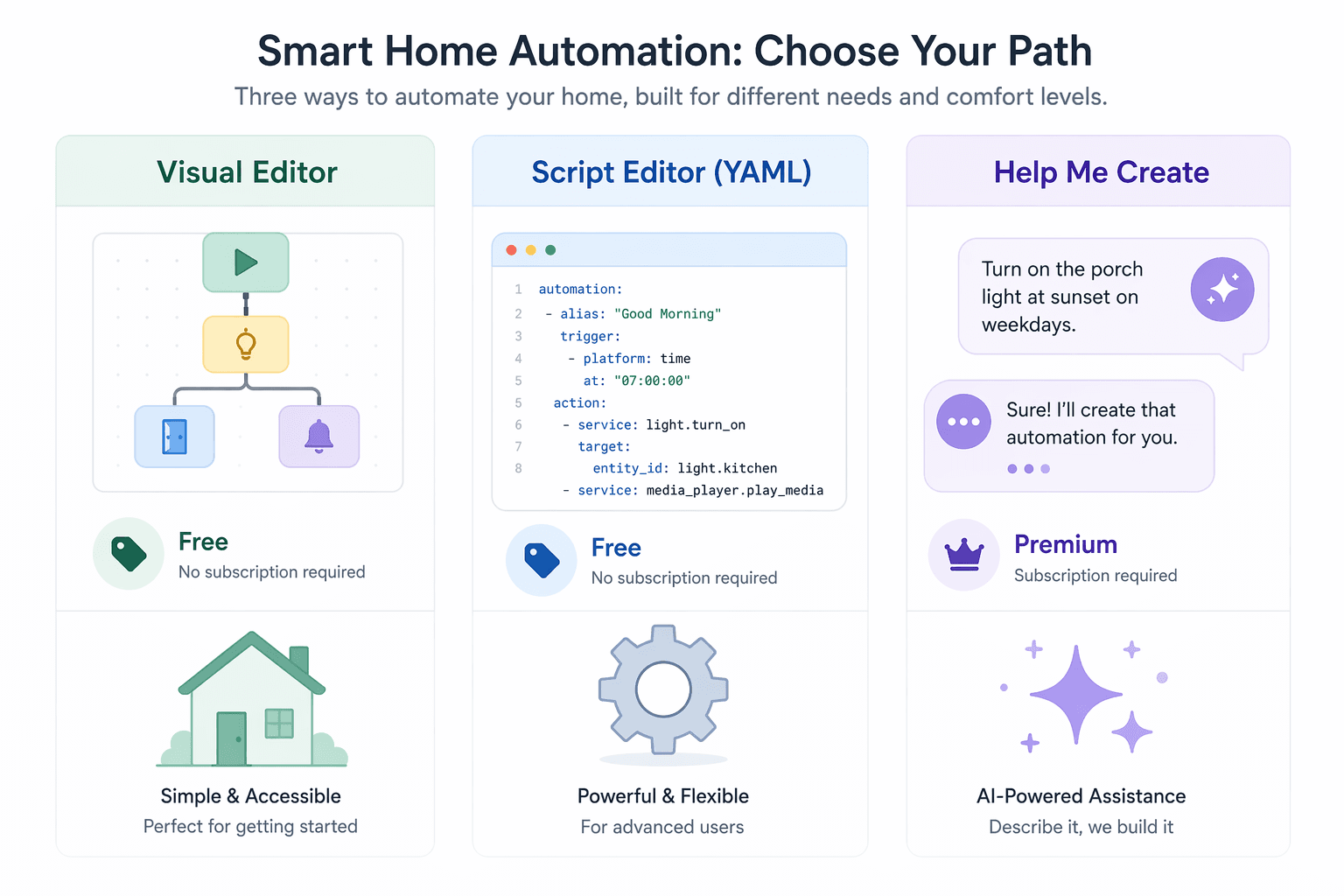
The short version: start with the visual editor unless you hit a real limitation. Move to the script editor when you need logic the app cannot express cleanly. Use Help Me Create when natural-language convenience, camera intelligence, or other Google Home Premium features are worth the subscription requirement.
The decision table most Google Home users actually need
Google’s automation expansion matters because the visual editor is no longer just a place for a few basic household routines. Google’s support documentation now lists a much broader set of supported starters, conditions, and actions, including motion detection, presence, media playback state, device state changes, temperature, humidity, robot vacuum dock state, switch press patterns, and camera-related events such as familiar or unfamiliar face detection where supported and eligible.[1] Google’s Spring 2026 community posts frame this as part of a larger Home update, with expanded automation capabilities rolling out from late 2024 into May 2026.[2][3]
| Path | Cost | Skill requirement | Best fit | What it handles well | Main limitation |
|---|---|---|---|---|---|
| Visual editor | No extra cost for the editor itself | Low to moderate | Most household automations | Time, presence, device state, sensor, media, camera, and everyday condition-based routines | Limited compared with YAML for complex logic, suppression timers, long delay chains, and detailed debugging |
| Script editor (YAML) | No extra cost for the editor itself | Moderate to high | Automations where the logic matters more than the interface | Complex conditions, AND/OR logic, suppressFor timers, multi-action delay chains, and execution logs | Requires comfort with YAML-style structure and more deliberate maintenance |
| Help Me Create | Requires Google Home Premium | Low | Fast natural-language builds and Premium-connected intelligence | Turning plain-language requests into automations, especially when convenience is more valuable than inspecting every rule first | Premium requirement, availability limits, and not every automation trait is supported in Help Me Create |
That table is the whole argument in miniature. The visual editor is now the sensible default for most Google Home automation work. YAML is not obsolete; it is the place to go when you know exactly why the app is too shallow. Help Me Create is not magic dust sprinkled over the whole platform; it is a paid convenience layer with real appeal and real boundaries.
Start in the visual editor, because it now covers more real life
For years, the irritating Google Home question was not “Can I dream up a good automation?” It was “Can I build the obvious version of this without opening a different tool?” After the 2026 expansion, the answer is more often yes.
The visual editor is where most people should build first because it keeps the logic visible. You pick a starter, add conditions, choose actions, and leave yourself something you can understand later. That matters when a hallway light suddenly starts behaving oddly after a sensor battery dies, a device is renamed, or someone changes a household presence setting.
The new starters and conditions are the reason this recommendation has changed. Google’s supported automation list now includes everyday triggers that used to push people toward workarounds: motion detection, device state, appliance state such as run or stop, media playback state, humidity, temperature, presence, switch press patterns, robot vacuum dock state, and more.[1] Familiar face and unfamiliar face detection also appear in Google’s automation support materials, but familiar face features are tied to Google Home Premium and eligible camera support, so they should not be treated as universally available free triggers.[1]
This makes the app editor good enough for a lot of automations people actually want:
- Turn on entry lights when motion is detected, but only during evening hours.
- Lower the thermostat when everyone is away.
- Pause or adjust lights when media starts playing.
- Start a cleaning routine when the robot vacuum is docked and the home is empty.
- Use temperature or humidity changes to trigger fans, plugs, or notifications.
If that is the level of automation you are building, the app has a quiet advantage over YAML and AI: the household can see what is happening. A spouse, roommate, or future version of you does not need to remember why a block of code suppresses a motion trigger for 17 minutes. They can open the automation, read the conditions, and usually spot the problem.
The visual editor is also the easiest place to learn the platform’s vocabulary. Google Home automations are built from starters, conditions, and actions. Once you understand those three pieces in the app, the script editor becomes less mysterious because YAML is mostly a more expressive way to arrange the same kind of thinking.
If you choose this path and want recipe-level examples rather than a tool comparison, start with Google Home automations with conditions, presence, and media triggers or browse 10 Google Home automation recipes to use in 2026. Those are better next steps than learning YAML before you have a problem YAML actually solves.
Where the visual editor still asks too much patience
The visual editor is not the right place to prove how clever an automation can be. If you need an automation to wait, branch, suppress repeat triggers, evaluate several conditions in a precise order, or leave a useful error trail, the app can start to feel like building furniture with oven mitts on.
A practical test: if you can explain your automation as “when this happens, and these normal conditions are true, do these things,” try the visual editor. If you explain it as “when this happens, unless it happened recently, then wait, check two different states, do one of several branches, and tell me why it failed,” go straight to the script editor.
Use the script editor when the logic needs to be explicit
The Google Home script editor lives at home.google.com/automations and uses YAML for advanced automations. Google describes it as a way to create more advanced home automations than the basic editor, with access to additional starters, conditions, actions, and validation tools.[4] It also includes a generative AI feature that can draft a script from a natural-language description, though that should be treated as a drafting aid rather than a guarantee that the finished automation is correct.[4]
The reason to learn YAML is not prestige. It is control. Google’s documentation and example scripts show patterns that are difficult or impossible to represent cleanly in the visual editor: suppressing repeated triggers for a set duration, inserting delays between actions, using more complex conditional expressions, and checking execution logs when an automation fails.[4][5]
The features that make YAML worth the trouble
The first genuinely useful script-editor concept is suppression. A motion automation without a cooldown can retrigger constantly: someone walks through the hallway, turns back for keys, opens a closet, and the lights keep restarting the same behavior. Google’s example scripted automations include use of suppressFor, which prevents a starter from retriggering for a specified duration.[5] That is a small piece of logic with a large quality-of-life effect.
The second is delay chaining. Some routines are not one action; they are a sequence. Turn on a light, wait, change brightness, wait again, then turn it off. Or announce something, delay long enough for people to move, and then lock up. The script editor’s YAML examples show automations that can sequence actions with delays, which makes it better suited to routines that unfold over time instead of firing once.[5]
The third is conditional structure. A visual editor can be perfectly fine for “only after sunset” or “only when someone is home.” YAML becomes more attractive when you need several conditions to work together, especially when the difference between AND and OR changes the household experience. A thermostat routine that behaves differently when everyone is away, a window is open, and the outdoor temperature crosses a threshold is not the same thing as a lamp routine with one time window.
The fourth is logs. This is the unglamorous feature that matters after the fun part is over. Google’s script editor documentation describes execution history and error details for troubleshooting automations.[4] When a routine fails because a device is unavailable, a condition did not evaluate the way you expected, or a YAML line is invalid, logs are what keep you from guessing.
# Simplified illustrative pattern, not a copied Google example
metadata:
  name: Hallway motion with cooldown
  description: Turn on a hallway light after dark without retriggering constantly.
automations:
  - starters:
      - type: device.event.MotionDetection
        device: Hallway Sensor
        suppressFor: 10min
    condition:
      type: time.between
      after: sunset
      before: sunrise
    actions:
      - type: device.command.OnOff
        devices: Hallway Light
        on: true
That example is deliberately simplified and hypothetical, but it shows why the script editor exists. The key part is not that YAML looks technical; it is that the cooldown is visible and durable. Six months later, you can still see why the hallway light does not keep firing every time the sensor catches another movement.
Device support still deserves caution. Google’s developer materials note that supported traits and device behavior can vary, including across Matter device types.[5] Do not assume that every Matter device exposes every automation capability in every editor. If a device trait is central to your plan, verify that Google Home can actually use that trait as a starter, condition, or action before you design the whole routine around it.
Use Help Me Create when convenience is worth the Premium dependency
Help Me Create is the most approachable path: describe the automation you want in natural language, and Google Home helps generate it. Google’s support page for managing smart home automations describes Help Me Create as part of the automation creation experience and ties it to Google Home Premium.[6] That Premium requirement is the first decision point. If you do not want another subscription involved in your lights and locks, Help Me Create is not the default path.
Pricing should be checked in your region at the moment you subscribe. The available research materials confirm the Premium requirement, but they do not provide a publication-safe universal price. Google’s feature availability and subscription packaging can also vary by market, so any automation plan that depends on Help Me Create should begin by confirming that your account, home, devices, and region support it.[6]
Where Help Me Create makes sense is after-work automation building: the kind of request where you know what you want but do not want to assemble it piece by piece. “At bedtime, lock the doors, turn off the downstairs lights, and set the thermostat” is a good natural-language candidate. So is a camera-adjacent request if your cameras, subscription, and region support the necessary Premium intelligence.
The trap is treating natural language as a substitute for reviewing the result. Help Me Create may reduce the friction of getting started, but the automation still has consequences in the house. A lock action, a thermostat change, or a camera-triggered routine deserves inspection before it becomes part of daily life.
There are also editor-specific gaps. Google’s supported automation documentation marks some traits as not yet supported in Ask Home or Help Me Create.[1] That means a trait can exist in the broader automation system without being available through the conversational path. If Help Me Create cannot build the routine you describe, the answer may not be that you phrased it badly; it may be that the relevant trait belongs in the visual editor or script editor for now.
What changed in Spring 2026, without turning this into a news recap
The Spring 2026 update matters because it shifts where normal users should start. Google’s official community announcement describes a broader Home update with Gemini-related improvements, camera enhancements, and expanded smart home capability.[2] A companion Google Nest Community post focused on doing more with home automations highlights the enlarged set of starters, conditions, and actions available for building routines.[3]
The important practical change is that the app editor now reaches into more household states. Motion, presence, media state, appliance state, environmental readings, and device-specific states give ordinary automations more context.[1] That does not make every automation simple, but it does mean many routines that once required YAML or a third-party platform can now be built where the rest of the household expects to find them.
Google’s own examples from Googlers are useful here because they show the kind of lived-in automation thinking that goes beyond novelty: household routines built around lights, comfort, reminders, and recurring moments rather than abstract platform features.[7] The lesson is not that every example should be copied. It is that good Google Home automation usually starts with a repeated annoyance, not with a feature list.
Match the automation ambition to the right builder
A tool comparison is only useful if it maps to the thing you are actually trying to build. Here is how I would choose in the common cases.
| Automation ambition | Best starting path | Why |
|---|---|---|
| Simple household routine: bedtime, morning, leaving home, arriving home | Visual editor | The logic is usually readable, easy to adjust, and does not need YAML unless you add branching or long delays. |
| Sensor or presence routine: motion lights, everyone-away thermostat changes, media-aware lighting | Visual editor first | The expanded starters and conditions now cover many of these directly, with less maintenance than YAML. |
| Camera-intelligence routine involving familiar faces or advanced detection | Help Me Create or visual editor, depending on support | Premium-linked features may be involved, and availability depends on the device, subscription, and region. |
| Complex chain: cooldowns, delayed sequences, multiple conditional branches, troubleshooting needs | Script editor | YAML gives you suppressFor, delay chains, more explicit conditional logic, and execution logs. |
| Fast one-off automation you do not want to assemble manually | Help Me Create | Natural language can save setup time, provided you are comfortable with the Premium requirement and review the output. |
| Platform experiment involving Matter devices or unusual device traits | Verify support first, then choose | Matter and device-trait support can vary, so the editor choice comes after confirming what Google Home can actually see. |
Simple routines: keep them visible
For the everyday stuff, resist the temptation to overbuild. A bedtime routine that turns off lights, locks a door, and adjusts the thermostat belongs in the visual editor unless there is a specific piece of logic it cannot express. The automation should be boring. Boring is good when the automation controls things people use every night.
If you are new enough that even the visual editor feels like too much, start with broader examples in The Beginner’s Smart Home Automation Cookbook before worrying about YAML or Premium features.
Sensor, presence, and media automations: try the app before assuming you need code
This is where the Spring 2026 expansion earns its keep. A motion sensor can now be part of a more useful routine. Presence can distinguish between someone being home and everyone being away. Media playback state can become automation context rather than something you handle manually.[1]
A living room automation might dim lights when media starts playing in the evening. A laundry reminder might depend on appliance state. A humidity-triggered bathroom fan routine might only run during certain hours. None of those are exotic power-user ideas; they are normal household automations that become much easier when the platform exposes the right starters and conditions.
Complex chains: switch before the visual editor becomes a maze
The moment you start stacking workaround on workaround, move to YAML. A complex visual automation can be worse than a script because it looks friendly while hiding the logic you actually need to reason about. In YAML, a delay is a delay. A suppression window is a suppression window. A condition is written where you can inspect it.
This is especially true for automations with consequences. If a routine controls locks, cameras, heating, cooling, or anything that changes how the household feels, you want a clear explanation of why it ran. The script editor’s execution history and error details are not decoration; they are part of making an advanced automation maintainable.[4]
Premium and camera-driven requests: check eligibility before you design around them
Camera intelligence is where the decision can get muddy because the feature you want may depend on both hardware and subscription status. Familiar face detection is the obvious example: it can be an automation starter where supported, but it is also tied to Google Home Premium.[1][6] Help Me Create may be attractive here, but only after you confirm that the relevant camera, account, home, and region support the feature.
If your broader question is whether your hardware is holding you back, step out of the automation editor for a moment and compare devices in the Google Home and Nest device lineup for 2026. If you are still deciding whether Google Home is the right automation platform at all, the broader smart home platforms comparison is the better detour.
A practical rule for choosing among the three
Choose the visual editor when the automation can remain readable in the app. That should now cover most Google Home automation needs: lights, plugs, thermostats, simple security-adjacent routines, presence, media state, common sensors, and many device-state triggers.
Choose the script editor when the automation needs structure the app cannot show cleanly: cooldowns, long sequences, precise branching, multiple condition groups, or troubleshooting logs. YAML is worth learning when it prevents your smart home from becoming a pile of invisible exceptions.
Choose Help Me Create when you value speed enough to accept the Google Home Premium dependency, and when the traits you need are actually supported through that path. Let Gemini reduce setup friction; do not let it become the only place where your household logic exists.
That is the healthier 2026 default: visual editor first, YAML as the deliberate upgrade path, Help Me Create as paid convenience rather than the center of the system.
References
- Supported automation starters, conditions & actions — Google Home Help
- Google Home Update (Spring 2026): Home sweet home is now more helpful — Google Nest Community
- Doing More with Home Automations — Google Nest Community
- Create advanced home automations with the script editor — Google Home Help
- Example scripted automations — Google Home Developers
- Manage smart home automations in Google Home — Google Home Help
- 6 Googlers' favorite Google Home automations — Google
Implementation Notes
Share platform-specific tips, report that a recipe no longer works after a platform update, or contribute variations for different device combinations.
Comments
Join the discussion with an anonymous comment.