
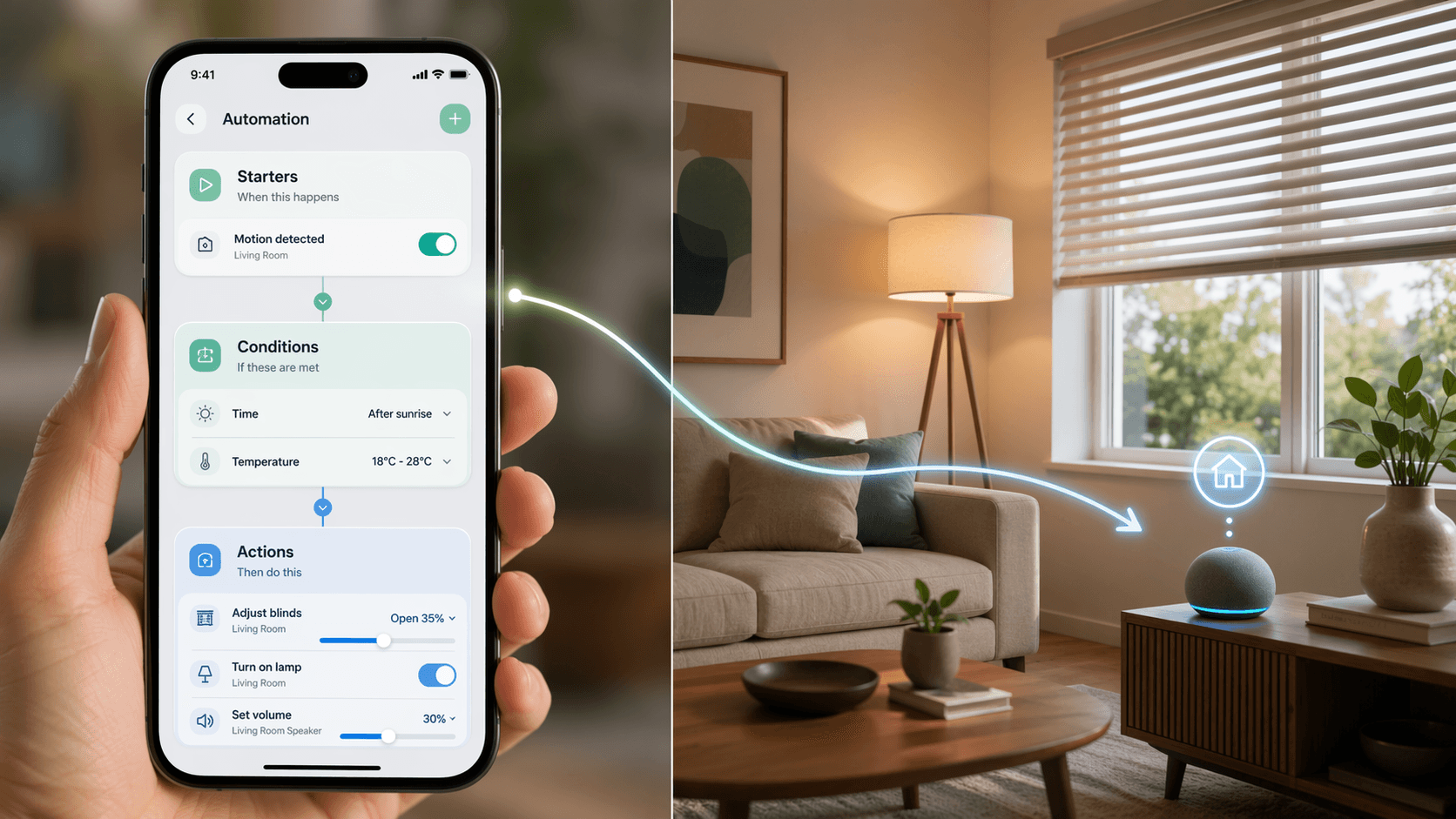
Last night the lights didn't dim at 10 PM. No error message. No log entry. Just darkness that was supposed to be a soft 50%.
That is the reality of Google Home automation before 2026. You set up a routine, you trust it, and eventually you notice it never actually ran. But you cannot prove it. You cannot see why.
I spent years in that blind spot. Then I read an Android Police reporter who said half of his automations were not doing what they were supposed to, and he had no way to diagnose them. That matched my experience exactly. A 52% of DIY smart home installers report setup or connectivity issues, according to Parks Associates. The biggest barrier to trust was not device quality — it was silence.
The 2026 update finally gave us a way to break that silence: an activity log and a conditions layer.
The activity log lives in the Google Home app under Activity. It shows you the time each routine ran, the routine name, and what starter triggered it. If a routine did not run, the entry simply does not appear. That is your first clue: no entry means the condition blocked it or the trigger never fired.
The conditions layer lives inside the automation editor. You can add conditions like or . These are evaluated after the trigger but before the actions. If the condition fails, the routine is cancelled silently — and the activity log shows nothing.
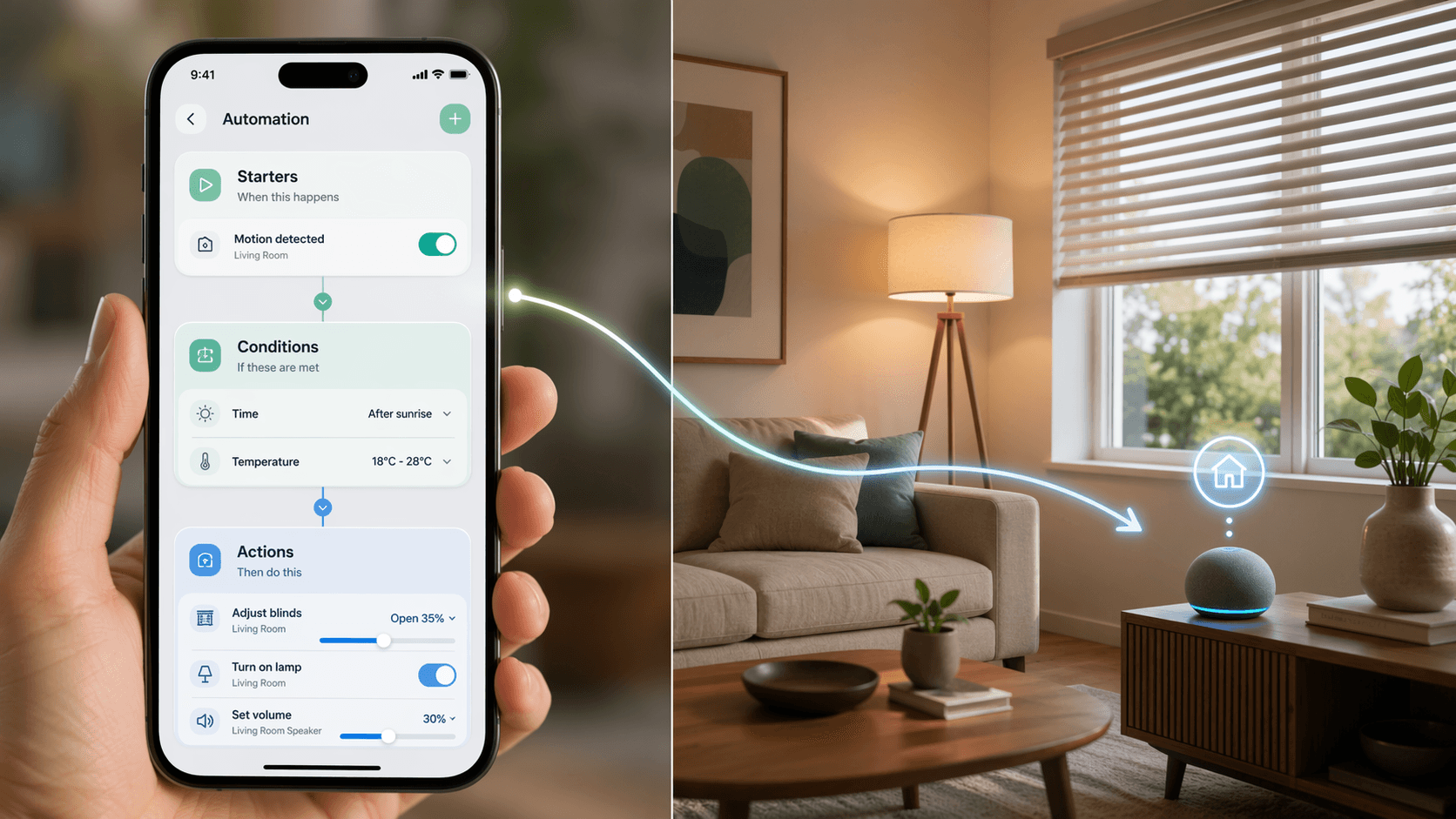
For me, these two tools turned a guessing game into a diagnosable system. Here is what I found when I started using them.
Routines running when nobody is home
I checked the activity log at 10:15 PM. My wind-down routine had run at 10:00 PM. But I was three states away. The lights turned on, the thermostat changed, and nobody was home to benefit.
The fix was a presence condition. In the automation editor, under Conditions, I added . Google Home uses your phone's connection to home Wi‑Fi or its geofence to determine presence. Now the routine only fires when I am actually there.
Phone presence is not foolproof, though. Battery-saving modes on Android and iOS can kill location services. If your routine fails to run even with the presence condition, test it with a manual trigger first. If the condition works, the activity log will show no entry because the condition blocked it — that is your confirmation.
Morning routines firing on weekends
A time-based trigger ignores what day it is. My sunrise routine used to fire at 7:00 AM every single Saturday. The activity log confirmed it ran. But I only wanted it Monday through Friday.
The conditions layer lets you restrict by day. I added a condition that says or pick specific days. The routine still triggers, but the condition evaluates before any action. If it is Saturday, the condition fails, the routine cancels, and the activity log shows nothing. That can be confusing — but now you know why.
If you use the script editor, the condition looks like this:
conditions:
  - type: schedule
    interval: "1-5"  # Monday to Friday
Lights turning on instead of dimming
My wind-down routine was supposed to dim the living room lights to 50%. But instead of dimming, they turned on at 50% — which felt like full brightness because the room was dark. The activity log showed the routine ran. So what went wrong?
The problem is that the lights were off when the routine fired. Google Home's action actually turns the light on to that brightness level. If the light is already off, it powers on — and 50% in a dark room looks like a lot.
I added a condition: . In the conditions layer, you can reference a device state. Pick a bulb or a whole room. Now the routine runs only when there is actually something to dim.
Two automations fighting over the same device
Sometimes an automation works, but the result is wrong. The thermostat keeps switching modes. The lights flicker between two colors. The activity log reveals two or three routines firing within seconds of each other.
This is not a bug — it is a conflict. You have overlapping triggers. One routine fires at sunset, another fires at 8:00 PM, and both control the same lights.
Open the Activity feed and note the timestamps of each routine that controls the same device. Then list all your automations (in the Home app, tap Automations). Look for routines that share a device or an action. Decide which one should win. Then either disable the redundant one or merge them into a single routine with combined conditions.
For example, if you have a sunset routine that turns on the porch light and a separate 8 PM routine that also turns it on, merge them: trigger at sunset or 8:00 PM (whichever is earlier), then add a condition that skips if the light is already on.
Script editor YAML errors
If you use the script editor for advanced automations, you have probably seen the red validation error. The routine refuses to activate, and the error message is often cryptic.
The most common mistakes: device name format (use , no quotes), unsupported traits (a basic smart plug may not support brightness), and indentation (two spaces per level, no tabs). The Validate button catches these.
Before saving, click the button. The script editor will not activate a script with errors. I have caught more than one missing action this way.
# Before (incorrect device name)
  lights.on:
    dev_name: "Living Room"

# After (correct format)
  lights.on:
    dev_name: "Living Room Light - Living Room"
Do not trust the AI-generated scripts blindly. The experimental generative feature can draft a script from a description, but it often gets device names or traits wrong. Always validate and test.
A quick maintenance habit
Check the activity log weekly for unexpected entries — if a routine ran at a time you were away, add a presence condition. Add a presence condition to every schedule-based routine that does not need to run when nobody is home. Add day conditions where needed. Use device state conditions to avoid unwanted toggles. And always validate YAML before saving.
The 2026 tools genuinely make automation reliability achievable, but they do not make it automatic. You still have to think through the logic. The activity log and conditions layer finally give you the visibility to do that.
Once your automations are fixed and running reliably, you might want some fresh ideas. Our 10 Google Home Automation Recipes to Use in 2026 covers morning, bedtime, away, and more — all built with the same conditions and presence tools you just used to fix your own.
Implementation Notes
Share platform-specific tips, report that a recipe no longer works after a platform update, or contribute variations for different device combinations.
Comments
Join the discussion with an anonymous comment.