
Stop Using Google Home Like It’s 2018
If your automation list still reads like a 2018 list of time-based lights-on commands, you are not alone. The old Routines editor was a simple if-this-then-that chain with no conditions, no device state triggers, and no way to react to what actually happens in your home. The new Automation editor — rolled out to all users by May 2026 — changes that entirely. It adds a conditions section with presence and device state checks, renames 'Routines' to 'Automations', and introduces more than 20 new starter conditions and actions released between January and March 2026.
The promise is a home that reacts to your media playing, your washer finishing, your humidity level, or a multi-press on a switch. The reality is that many of these triggers work only with specific devices, and some require a Google Home Premium subscription or enrollment in the Public Preview program. I have tested most of them with common hardware. The recipes that follow are the ones that actually hold up — and I am going to tell you where they break.
What You Actually Got with the 2026 Update
The table below summarizes the new starters, conditions, and actions that landed in Google Home through early 2026. Each recipe later in the article uses at least one of these. Pay attention to the device compatibility notes — not every trigger works with every brand.
| Release Month | New Starters / Conditions | New Actions | Compatibility Notes |
|---|---|---|---|
| January 22, 2026 | Media playback state (playing, paused, buffered), brightness level, smart appliance state, switch press patterns (multi-press, long press) | Turn specific device on/off, arm security system, open/close blinds, vacuum pause/resume/dock, stop light effects | Arm/disarm: no disarm action yet; blinds: compatible brands via Matter |
| February 2, 2026 | Humidity, vacuum docking status, battery status, switch press (binary state) | RGB color control, color temperature lighting | RGB requires smart bulb that exposes color channels (Hue, Kasa, etc.) |
| March 17, 2026 | Oven state, device plugged-in status, docked status | Weather announcement, light effects (wake, pulse, sleep) | Oven state limited to LG, GE; light effects works with compatible bulbs |
| May 2026 | Gemini-powered camera visual events (package, vehicle, animal) – Public Preview | – | Requires Google Home Premium ($10/mo), Public Preview enrollment, U.S. only |
Which Triggers Actually Work — and Which Ones Will Test Your Patience
I have grouped the recipes by the kind of trigger they rely on. Sensor-based automations (motion, contact) are the most reliable. Media playback and appliance state triggers work — if you own the right hardware. Camera events are still in preview and require a subscription. Start with the motion hallway recipe if you are new.
Light Effects: Wake and Sleep
The March 17 light effects update adds a 'wake' effect that gradually brightens a smart bulb over 15 minutes — no separate dimmer steps needed. The 'sleep' effect does the reverse over ten minutes. These are straightforward and work on most Matter-certified bulbs and several Wi-Fi bulbs (Cync, TP-Link Kasa). Test yours with a manual command before automating.
Gradual Sunrise Wake-Up: Trigger at 6:45 AM, condition weekdays only. Set bedroom bulb to warm amber (RGB: 255, 200, 100 if your app supports hex), apply 'wake' effect. If you have compatible smart blinds (IKEA, Lutron via Matter), add an 'open blinds' action. Optional: start the coffee machine via a smart plug with a 5-minute delay after the bulb begins.
Bedtime: Trigger at 10 PM or voice 'Goodnight'. Set bedroom bulb to warm white and apply 'sleep' effect. Lock all smart locks (Yale, Schlage via Matter). Set thermostat to 65°F. Turn off living room TV and lights.
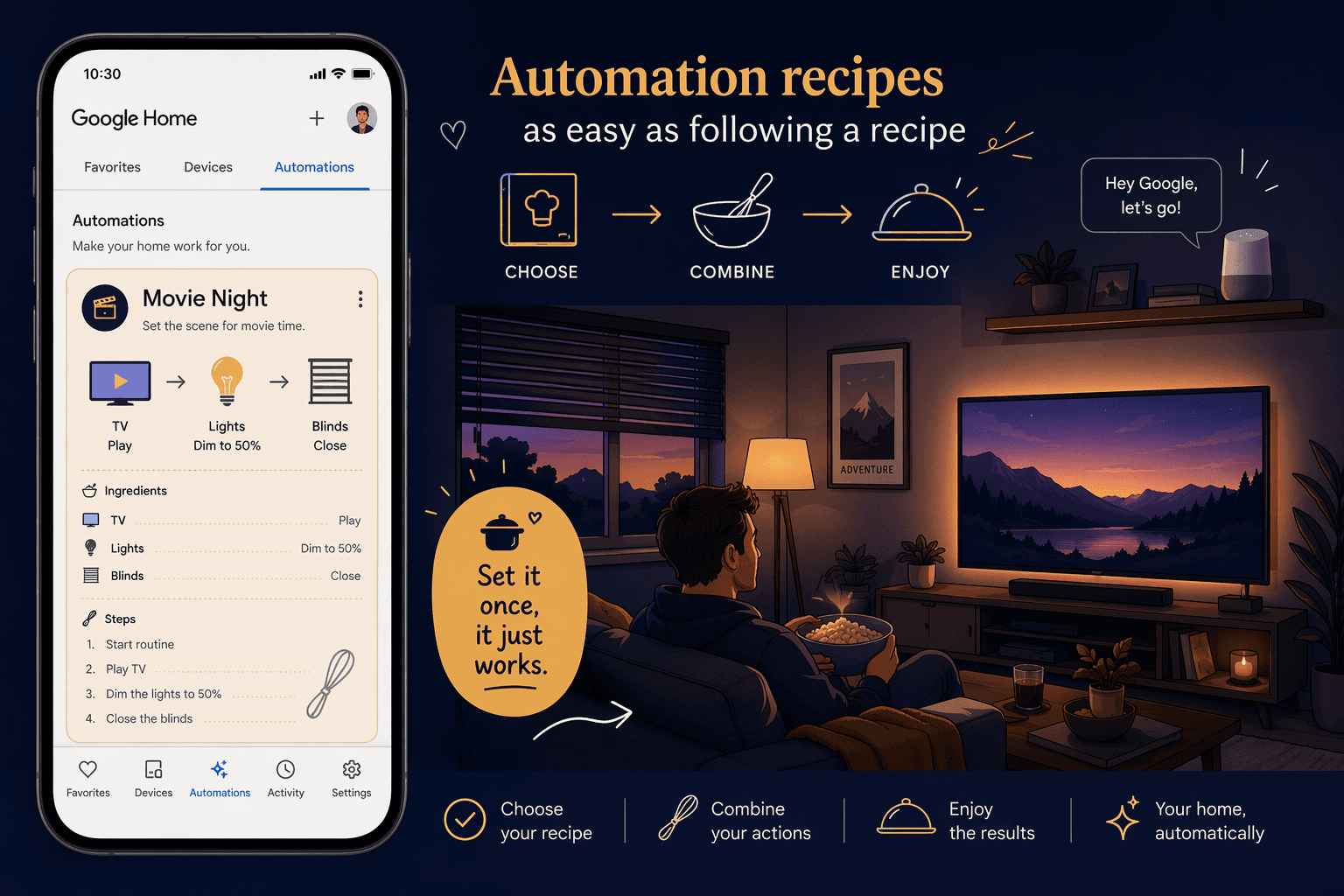
Media Playback: Movie Night That Runs Itself
The media playback state starter — added January 22 — is one of the most genuinely useful new triggers. Instead of saying 'Hey Google, movie time,' the automation runs automatically when your TV starts playing content. It works with Chromecast with Google TV, and some Sony and LG smart TVs. If your TV does not expose playback state, fall back to a voice command trigger ('Movie Night') — but that is less reliable.
- Trigger: Media device playback state changes to 'playing'.
- Condition: After sunset.
- Actions: Dim living room lights to 50%, set color temperature to warm (2700K). Close blinds (if compatible). Optionally pause the robot vacuum if it is running (use the 'pause vacuum' action).
Appliance Alerts: Washer Done, Oven Ready
The smart appliance state starter from January 2026 is strong — if you have a compatible washer or dryer. LG ThinQ and GE appliances work; others may not expose the 'stop' state at all. The same goes for the oven state trigger added March 17 (limited to LG, GE). For washer alert: trigger on state change to 'stop', send notification, flash a kitchen smart bulb with 'pulse' effect for 10 seconds. If your washer is not smart, use a power‑monitoring smart plug to detect when power drops below 10W for two minutes — that usually means the cycle ended. Not as elegant, but it works.
Presence and Security Sequences: Leave, Arrive, Arm
The January 2026 update added vacuum dock and security arm actions. These are reliable for leaving routines. Note: there is no disarm action yet, so do not use a voice trigger for the return — use presence or a manual schedule. I do not trust voice‑triggered security arming to disarm reliably.
Leave for Work: Trigger at time (e.g., 8:15 AM) or 'when the last person leaves'. Turn off all lights, set thermostat to Eco mode, command vacuum to dock (works with Roomba j-series, Roborock S8 via Matter), arm security system (compatible with ADT, Ring via Matter).
After-Dark Arrival: Trigger on door unlock (Yale, Schlage Matter lock), condition after sunset. Turn on entry and living room lights to 100% (warm white), set thermostat to home mode (e.g., 70°F).
Guest Welcome: Doorbell pressed (Nest Doorbell or compatible via Matter), condition between sunset and sunrise. Turn on porch light to 100%, send notification to phone.
Sensor-Based Routines: The Hands-Off Standard
Sensor‑triggered automations remain the most reliable hands‑off patterns, even after all the Gemini additions. Start here if you are new.
Motion-Triggered Hallway: Trigger on motion detected (Aqara, Hue motion sensor via Matter). Turn on hallway light to 80% brightness. Wait 5 minutes (use the condition timer). If no motion detected during that period, turn off light. No new 2026 trigger needed, but it demonstrates the reliability advantage over voice or camera triggers.
Premium-Only: Camera Event Triggers
The flashiest recipe is the package delivery alert using Gemini‑powered visual event trigger for package delivery. It is in Public Preview and requires Premium ($10/mo, U.S. only). Prerequisites: Nest Cam or compatible camera, enrolled in Public Preview. Without these, the camera trigger will not appear in the starter list. The fallback using a contact sensor on the mailbox lid is more reliable.
- Trigger: Camera detects 'package delivered'.
- Actions: Send notification, flash porch light with 'pulse' effect for ten seconds.
- Fallback: Contact sensor on mailbox lid — trigger on 'opened' between 9 AM and 5 PM.
Away Simulation: Vacuum Dock Adds Realism
The away simulation previously meant random light schedules, which fooled nobody. The new vacuum dock action adds a realistic signal: a vacuum returning to its base looks like someone is home. Trigger at schedule (e.g., 6 PM) or when the last person leaves (presence condition). Command vacuum to dock, use Script Editor to create a random light on/off pattern (sample YAML below), optionally arm security system.
automations:
  - name: "Away Simulation Lights"
    starters:
      - type: "time.schedule"
        at: "18:00"
    condition:
      type: "presence"
      is: "home"
      op: "not"
    actions:
      - type: "device.command.ondoff"
        devices: living_room_lamp
        on: true
      - type: "delay"
        duration: 45
      - type: "device.command.ondoff"
        devices: living_room_lamp
        on: false
      - type: "delay"
        duration: 30
      ... repeat as needed
What You Need: Device Checklist
Not every recipe requires every device. The table below shows what you need for each. Everything listed is available through Matter or common Wi‑Fi protocols. If you are starting from scratch, consult our Best Smart Home Devices 2026 buyer's guide for recommendations on lights, plugs, locks, and vacuums.
| Recipe | Minimum Devices Required | Optional but Helpful |
|---|---|---|
| 1. Sunrise Wake-Up | Smart bulb with RGB/wake effect | Smart blinds, smart plug for coffee |
| 2. Leave for Work | Thermostat, smart plug or light switch | Robot vacuum, Matter‑compatible security system |
| 3. Package Alert | Nest Cam or compatible camera, porch light bulb | Contact sensor (fallback) |
| 4. Movie Night | Chromecast/Google TV, smart bulb | Smart blinds, robot vacuum |
| 5. Bedtime | Smart bulb with sleep effect, Matter lock | Thermostat |
| 6. Motion Hallway | Motion sensor (Aqara/Hue), smart bulb | – |
| 7. Washer Alert | Smart washer (LG/GE) or power‑monitoring plug | Smart bulb for flash |
| 8. After‑Dark Arrival | Matter lock, smart bulb | Thermostat |
| 9. Guest Welcome | Nest Doorbell or compatible doorbell | Porch light |
| 10. Away Simulation | Robot vacuum (for dock action) | Smart lights, security system |
Common Failures in 2026 Automations
The 2026 updates introduced new failure modes. Here is what to check when an automation does not run as expected:
- Check the Activity feed in the Google Home app. It shows when and why an automation started or failed.
- For scripted automations, use the Validate button in Script Editor to catch syntax errors before saving.
- Test each action manually — say the command or tap the device in the app to isolate the issue.
- The new automation editor applies only to household automations. Personal Routines still use the old interface and cannot use device state conditions.
- If you use an iPhone or iPad, you cannot create new scripted automations in the app. Use home.google.com/automations on a desktop browser.
- For camera‑based triggers, verify you are enrolled in Public Preview and have an active Premium subscription.
- If a condition uses presence, ensure the home/away status is accurate — it can lag several minutes.
Most failures come from device incompatibility or missing conditions. Start with the motion hallway recipe and build up. Sensor‑based automations almost always work; camera and appliance triggers are the ones that will test your patience.
Implementation Notes
Share platform-specific tips, report that a recipe no longer works after a platform update, or contribute variations for different device combinations.
Comments
Join the discussion with an anonymous comment.