
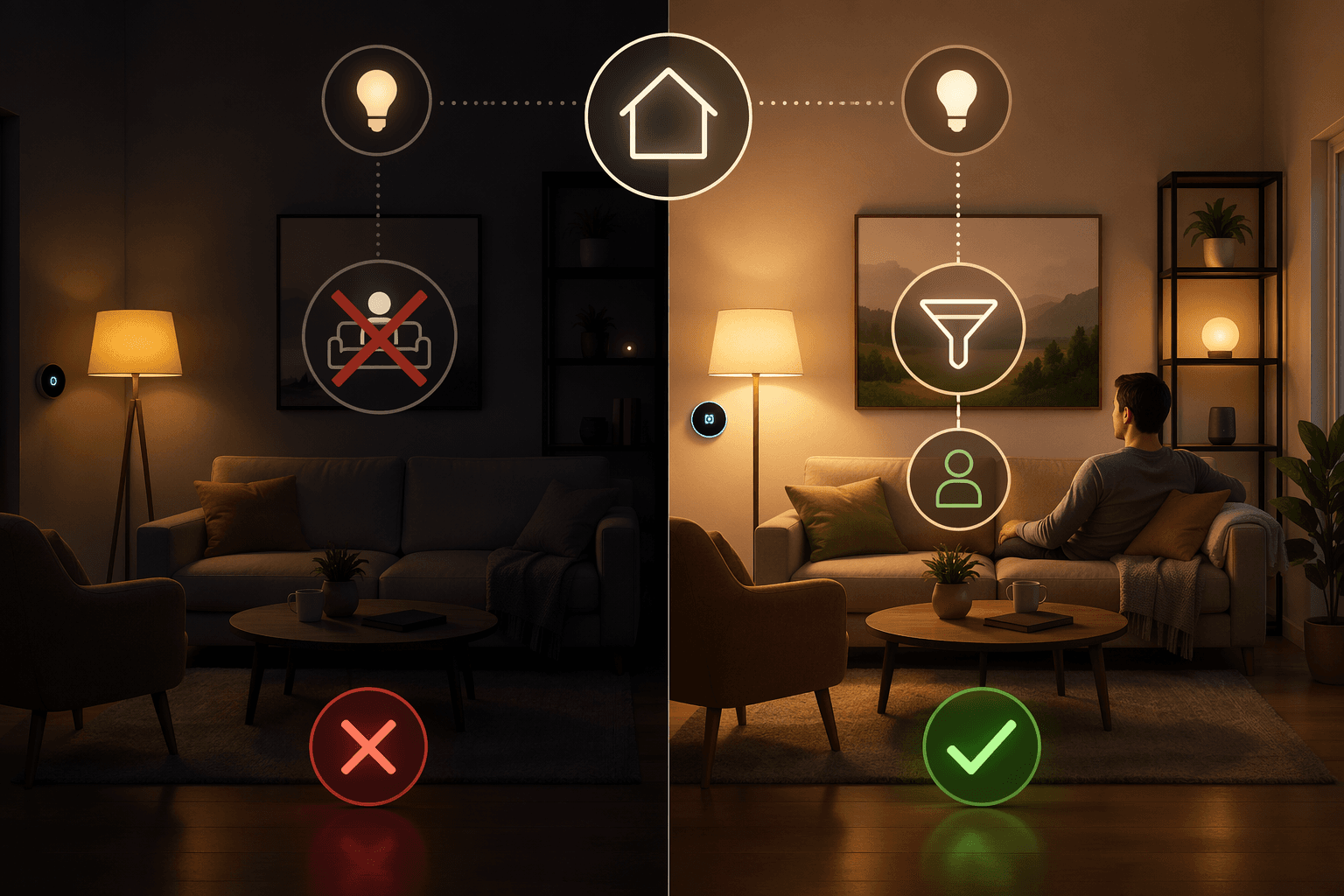
The most suspicious smart home failure is not the one where nothing happens. It is the one where Google Home does exactly what you asked, at exactly the wrong time: the evening lamps turn on in an empty house, the morning routine starts while everyone is away, or a wind-down scene runs even though the room is already dark.
That kind of failure usually gets blamed on the bulb, plug, speaker, hub, or Google Home itself. Sometimes hardware really is the problem. A device can be offline, misconfigured, or missing the automation trait you expected. If you are still at that stage, it is worth checking basic setup and compatible Google/Nest hardware before rebuilding every routine. But when the device works manually and the automation still behaves badly, the more likely diagnosis is simpler: the rule did not include enough logic.
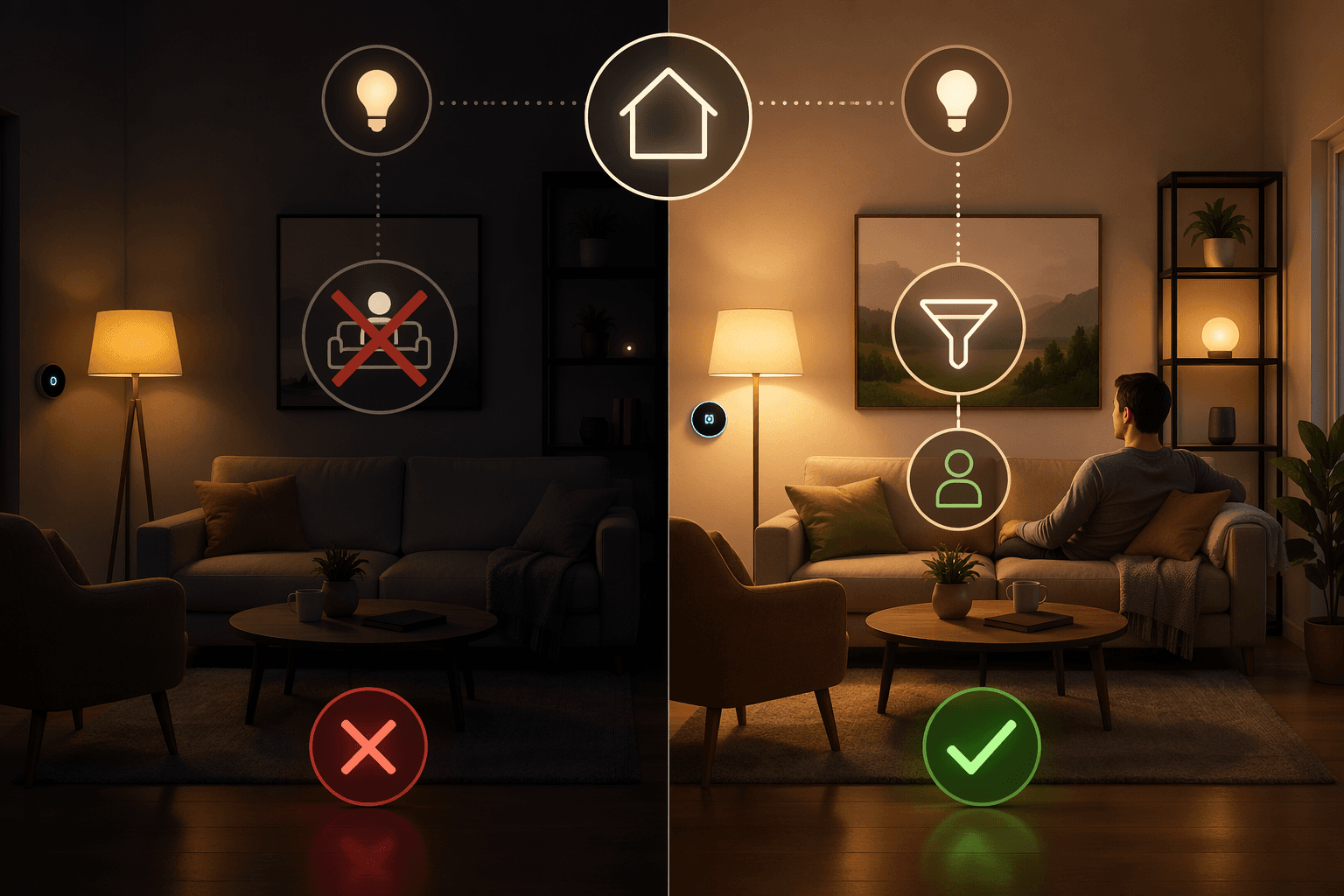
Google does not promise that automations are a safety system. Its own help page says automations “may not always work” and that Google “isn’t responsible for harm or losses” from their use.[1] That warning is not a reason to give up on Google Home automation. It is a reason to stop treating a starter as a complete rule.
The 2026 automation editor matters because it makes conditions visible and approachable. In one Android Police account, the author described discovering that “half my automations weren’t really doing what they were supposed to,” then rebuilt them with the new editor and called the activity log “a huge improvement” over the old black-box experience.[2] That is the right way to judge the update: not by whether it looks cleaner, but by whether it lets a normal user see what ran, what failed, and what condition was missing.
The missing piece is usually a condition
A starter answers one question: what begins the automation? A condition answers the question that usually decides whether the automation should run at all.
| Broken behavior | What the old rule probably said | What the fixed rule needs |
|---|---|---|
| Evening lights turn on when nobody is home | At sunset, turn on living room lights | At sunset, only if someone is home |
| Morning routine runs during vacation | At 7:00 AM, start the morning routine | At 7:00 AM, only if a household phone is on the home Wi-Fi |
| Wind-down scene runs when lights are already off | At bedtime, turn off lights and plugs | At bedtime, only if the relevant lights or plugs are on |
| Movie or music routine does not react to playback | When I say a phrase, dim lights | When media playback starts, adjust the room |
| Vacation setup stays behind after the trip | Manually remember to disable vacation mode | Use a one-time automation for the end date |
The new editor is useful because these fixes are no longer reserved for people willing to write YAML. Google’s supported starters, conditions, and actions matrix documents condition types such as home presence, device state, and media state, while also showing that support still varies by device and feature.[3][4]
Failure pattern 1: lights run even when the house is empty
This is the classic false positive: a sunset routine turns on lamps every evening whether anyone is home or not. The bulb obeyed. The plug obeyed. Google Home obeyed. The automation was just too literal.
The better version is not “replace the bulb.” It is: when sunset occurs, turn on the entryway and living room lights only if someone is home. In the visual editor, that means keeping the time or sunset starter, then adding a presence condition before the lighting action.
Presence is the highest-impact condition because it adds household context. Google’s presence sensing setup uses phone location and Home/Away behavior in the Google Home app, so this fix depends on the right phones being included and location permissions being enabled.[3] If a household member has location access disabled, carries a different phone, or is not part of the home setup, the automation may still make the wrong call.
That privacy tradeoff is real. If you are deciding whether phone-location presence belongs in your home, compare it with other platform approaches rather than pretending it is just a toggle; our smart home platform privacy comparison is the better exit for that decision. Operationally, though, the rule should be judged very plainly: if nobody is home, the lights should not turn on unless you intentionally built a security-looking routine.
- Before: Starter — sunset. Action — turn on living room lights.
- After: Starter — sunset. Condition — someone is home. Action — turn on living room lights.
- Verification: check the activity log after sunset and confirm whether the routine ran, skipped, or failed at a specific action.
Failure pattern 2: the morning routine does not know you are on vacation
A 7:00 AM routine is not aware that the house is in vacation mode unless you give it a way to know. Time-based automations are especially easy to overtrust because they feel precise. They are precise; they are just incomplete.
For a morning routine, phone-on-home-Wi-Fi is often a cleaner condition than broad presence. If the routine opens blinds, starts music, turns on the coffee plug, or announces the weather, the useful question is not merely “does Google think someone is home?” It is closer to “is a household phone actually connected to the home network when this routine starts?”
That condition will not fit every household. Someone may leave a phone behind. A phone may use cellular instead of Wi-Fi. Guests and secondary devices complicate the signal. But it is still better than a timer pretending vacations do not exist.
- Before: Starter — 7:00 AM every weekday. Actions — turn on kitchen lights, start speaker, announce commute.
- After: Starter — 7:00 AM every weekday. Condition — household phone is connected to home Wi-Fi. Actions — turn on kitchen lights, start speaker, announce commute.
- Vacation test: the next morning you are away, the activity log should show the automation did not proceed because the condition was not met.
If the devices themselves are not reliably online, do not hide that under condition logic. A flaky plug or light still needs setup work; start with a basic first smart home setup pass before assuming the automation editor can compensate for a weak foundation.
Failure pattern 3: the routine runs even though the device state already makes it unnecessary
Some automations fail by doing redundant work. A wind-down routine turns off lights that are already off, toggles a plug that was never on, or sends a command that creates delay without changing the room.
Device-state conditions are the tidy fix. Instead of “at 11:00 PM, turn off the bedroom lamp,” use “at 11:00 PM, if the bedroom lamp is on, turn it off.” For smart lights and smart plugs, that small condition reduces needless commands and makes the activity log easier to read because a skipped automation is no longer mysterious.
This is also where third-party device compatibility shows up. A device may work by voice command without exposing every starter, condition, or action Google Home can use in automations. Google’s matrix is the reference point, but individual device traits still decide what you can actually select in the editor.[4]
Failure pattern 4: media automations need playback state, not a phrase you remember sometimes
A movie-night or music routine is fragile when it depends on a spoken phrase. People forget the phrase, say it differently, or start playback from an app instead. The better trigger is the media state itself.
Media playback state became a documented automation capability in 2026 coverage around Google Home’s expanded automation tools, with Android Police reporting the January 12, 2026 addition and attributing the announcement to Google Home CPO Anish Kattukaran.[5] In practical terms, this lets a room respond when media starts instead of waiting for someone to remember the right command.
- Before: Starter — “Hey Google, movie time.” Action — dim living room lights.
- After: Starter — media playback starts on the living room device. Condition — optional time window or room state. Action — dim living room lights.
Do not overbuild this one. If the room should dim whenever playback starts in the evening, keep the rule readable. If it should only happen for certain people, devices, rooms, and hours, that is a sign you may be approaching script-editor territory.
Failure pattern 5: vacation mode needs an ending
Vacation automations often fail in the opposite direction: they are easy to start and annoying to clean up. A few lights turn on at night, a plug follows an away schedule, or notifications change while the house is empty. Then everyone comes home and someone has to remember what was changed.
Google’s supported automation capabilities include one-time automations, added in September 2025 according to the documented capability timeline.[4] That makes them a good fit for cleanup: on the return date, disable or reverse the temporary behavior instead of leaving a vacation routine to run until someone notices.
- Use the recurring vacation routine only for the days it is needed.
- Create a one-time automation for the return day to restore the normal scene or stop the temporary behavior.
- After you return, check the activity log once instead of relying on memory.
Use the activity log before you rewrite everything
The activity log is the part of the 2026 experience that changes the repair process. Before, a failed automation often left you guessing: did the starter fire, did the condition block it, did one action fail, or was the device offline? Android Police specifically singled out the new activity log as “a huge improvement” because it shows which actions ran and which failed.[2]
Use it like a repair bench, not a blame report. Open the automation after a bad run and look for the first point where reality diverged from the rule. If the starter never happened, you chose the wrong starter or the triggering device did not expose the state you expected. If the starter happened and the action ran at the wrong time, you are missing a condition. If the condition blocked the automation when it should not have, the condition source is probably wrong: presence permissions, Wi-Fi state, device state, or household membership.
A quick condition chooser
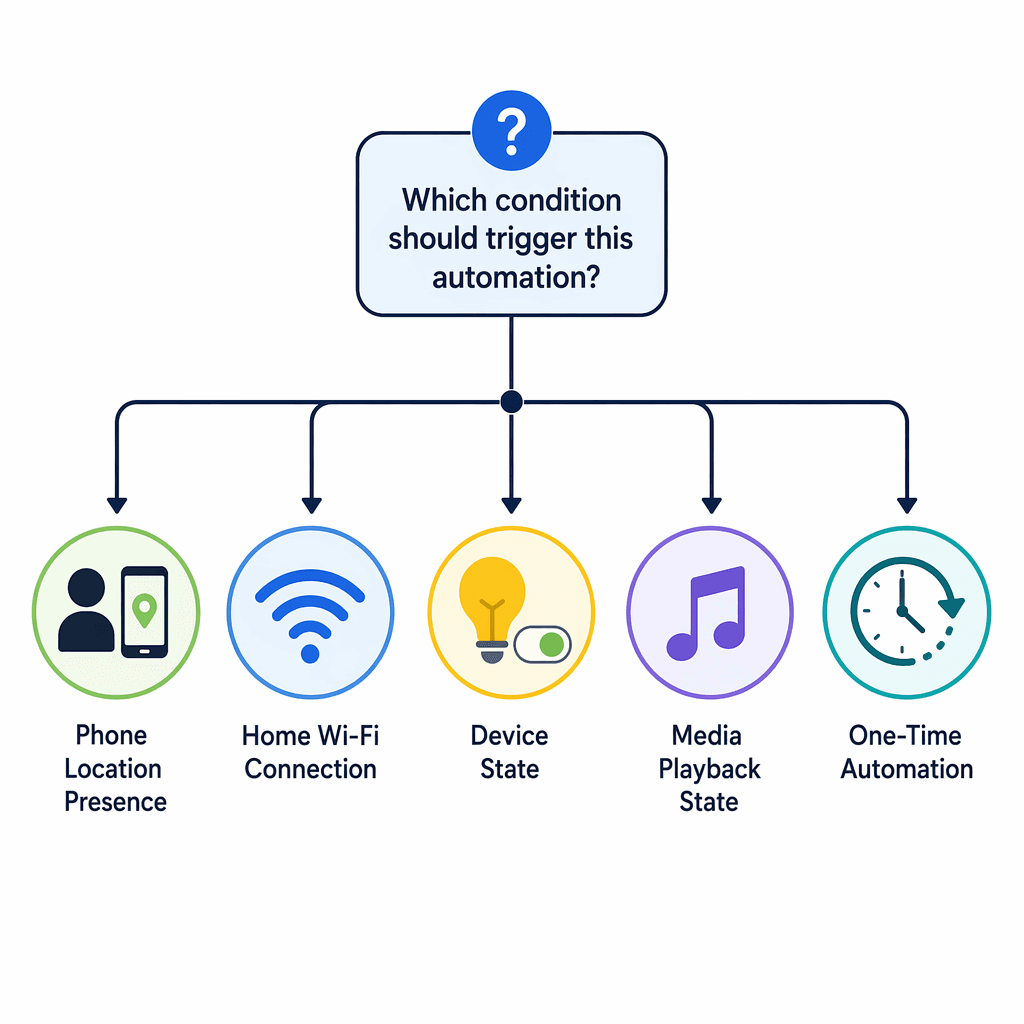
When an automation misfires, do not start by browsing every possible starter and action. Start with the wrong assumption the rule made.
| The automation assumed... | Use this logic first | Best fit |
|---|---|---|
| Someone was home | Presence condition | Evening lights, comfort scenes, arrival routines |
| The normal household day was happening | Phone-on-home-Wi-Fi condition | Morning routines, school/workday routines, vacation avoidance |
| A device needed a command | Device-state condition | Lights, plugs, locks, simple on/off cleanup |
| Entertainment had started | Media-playback-state starter | Movie lights, music scenes, room ambience |
| A temporary routine would be remembered later | One-time automation | Vacation cleanup, one-off schedule changes |
This decision tree is intentionally plain. A reliable rule you can explain is better than a clever routine nobody in the house can debug.
Where the visual editor still stops
The visual editor should be the first stop for these five patterns. It is easier to inspect, easier to explain to another person in the home, and less likely to break because of a naming mistake. But it is not the whole automation system.
Escalate to the script editor when the rule genuinely needs stacked AND/OR logic, multiple conditions that the visual editor cannot express, or a more complex sequence than the visual flow allows. Google’s script editor documentation covers the YAML-based approach, and it is also where naming discipline becomes more important: device names commonly need to match the expected “Device Name - Room Name” style, or the script may fail before the logic even gets a fair test.[6]
There are also feature boundaries that conditions cannot wish away. The newer editor still has limitations around some thermostat controls and camera power toggling, and some starters or actions are not yet supported in Ask Home or Help me create as of June 2026. Familiar face detection and Help me create are also tied to Google Home Premium, so not every household will see the same available controls.[4]
A fixed automation should pass a simple explanation test: what starts it, what condition must be true, what action runs, and what the activity log shows afterward. If you can answer those four things, you are no longer guessing whether Google Home failed. You are debugging a rule you can control.
References
- Automations in Google Home app, Google Nest Help
- I spent an afternoon building custom Google Home routines and finally fixed my broken smart automation setup, Android Police, June 2026
- Set up Home & Away Routines, Google Nest Help
- Starters, conditions, and actions, Google Home Developers
- Google Home just unlocked a whole new level of automation, Android Police, January 12, 2026
- Create advanced home automations with the script editor, Google Nest Help
Implementation Notes
Share platform-specific tips, report that a recipe no longer works after a platform update, or contribute variations for different device combinations.
Comments
Join the discussion with an anonymous comment.