
Why Your Smart Security Sensors Drain Batteries and Trigger False Alarms
Rapid battery drain and false alarms in security sensors
Last updated
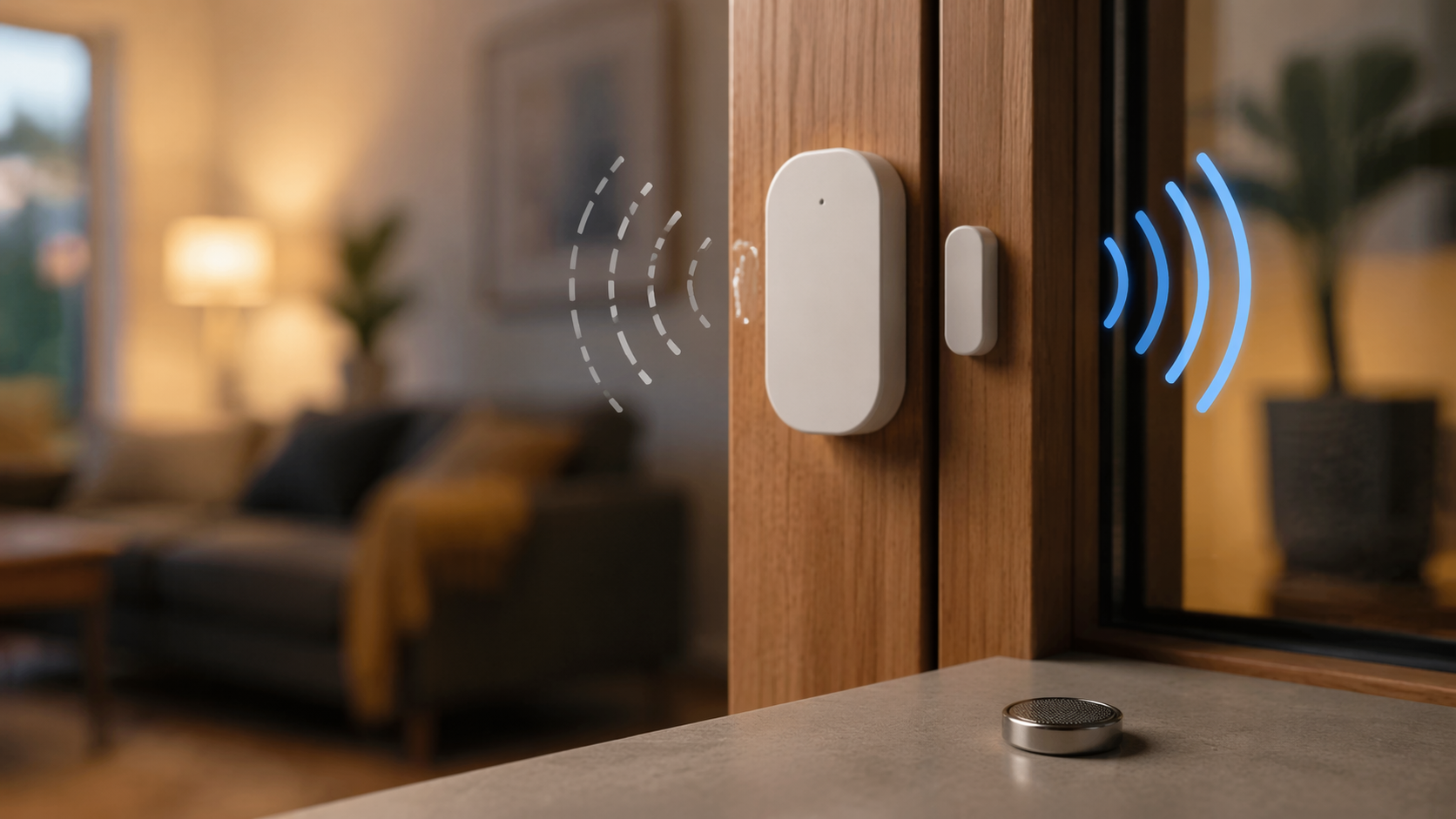
A door sensor that kills a coin cell in two weeks is usually not asking for a third brand of battery. A motion alert that fires when the room looks empty is usually not proof that the system is haunted. In a smart home security setup, those two symptoms often point to two ordinary problems: the sensor is struggling to talk to the hub, or it is mounted where normal heat, light, vibration, or pet movement looks like an event.
Start with that assumption before you start replacing hardware. Small wireless sensors are built around tiny batteries and short radio messages. When the radio path is weak, a Z-Wave, Zigbee, or Wi-Fi sensor may have to retransmit instead of sending one clean update. When a motion sensor is aimed at an HVAC wash, a sunny window, or the wrong pet path, it reports exactly what it thinks it saw. The fix is not glamorous, but it is repeatable: confirm the symptom, check signal, correct placement, verify the battery and environment, refresh the mesh route if your system supports it, and only then blame the sensor or hub.
First, separate the symptom without separating the system
Write down what is actually happening before changing anything else. “Bad sensor” is too broad to troubleshoot. “Front door contact sensor drops from 100 percent to low battery in under a month” is useful. So is “living room motion sensor alarms in the afternoon when the HVAC runs” or “garage entry sensor loses battery faster in winter.”
| Symptom | Most likely first check | Why it matters |
|---|---|---|
| Battery drains in days or weeks | Signal path between sensor, hub, and mesh devices | Weak radio paths can make small sensors retransmit and burn through batteries faster than expected. |
| Motion alerts with nothing obvious on camera | Sensor angle, height, heat sources, sunlight, vents, and pet path | Passive infrared motion sensors react to heat movement, not just visible people. |
| Door or window reports open or closed incorrectly | Magnet alignment, gap, adhesive, frame movement, and mounting stability | A contact sensor can only report cleanly if both pieces stay aligned. |
| Outdoor or garage sensor dies quickly | Battery chemistry, temperature, and signal through exterior walls | Cold spaces and dense barriers punish weak batteries and weak radios at the same time. |
The order matters. If a door sensor is far from the hub and mounted on a metal frame, replacing the battery first may buy a few days and hide the real cause. If a motion sensor watches a heat register, deleting it from the app and pairing it again just teaches the same badly placed sensor to make the same decision.
Check signal quality before touching the battery drawer again
Weak signal is the battery killer people miss because the sensor still appears to work. It may open and close in the app, but only after retries. Every retry costs power. Vesternet’s smart-home troubleshooting guidance identifies weak Z-Wave, Zigbee, and Wi-Fi signal as a common cause of battery-powered devices draining quickly, and recommends keeping mesh devices roughly 15 to 20 feet apart where possible for reliable routing [1].
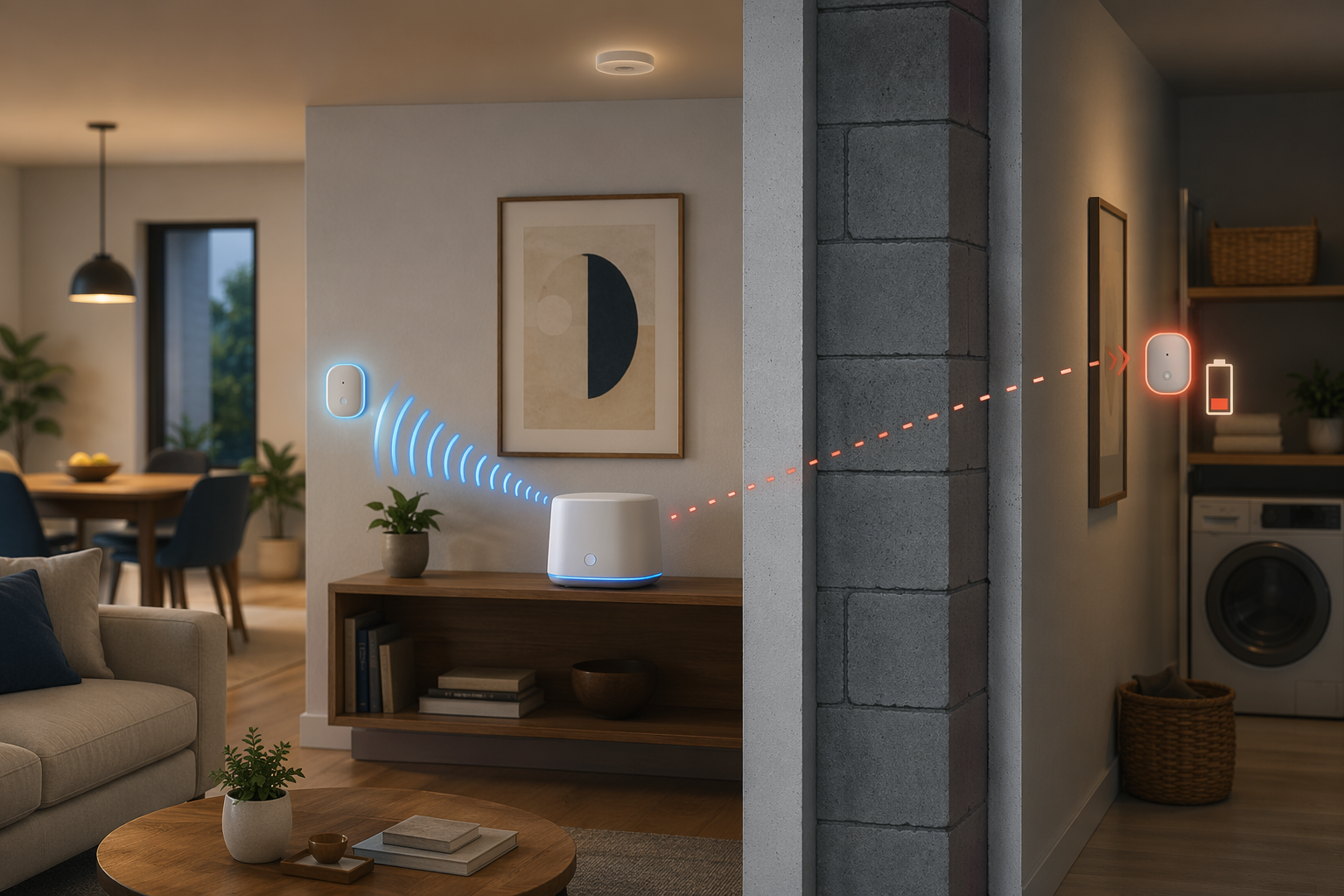
That spacing is not a magic tape-measure rule. Walls, tile, brick, appliances, mirrors, metal doors, and a hub shoved behind a TV cabinet can make a short distance behave like a long one. A sensor twenty feet away through open air may be fine; a sensor eight feet away through a refrigerator, masonry wall, or metal garage door may not be.
What to inspect physically
- Move the hub out from behind televisions, metal racks, network cabinets, aquariums, and large appliances. A hub on a shelf in open air is boring in the best way.
- Look at the path between the sensor and its next hop, not just the distance to the hub. Z-Wave and Zigbee devices often route through mains-powered mesh devices, so the nearest useful repeater may be a smart plug, switch, or outlet.
- Check whether the problem sensor sits at the edge of the home: garage entry, back door, basement window, detached room, or exterior-facing wall. Edge sensors are the ones that quietly punish batteries.
- If your app exposes signal strength, route quality, link quality, RSSI, or last-hop information, compare the failing sensor with a nearby sensor that behaves normally. You do not need perfect numbers; you need to see whether one location is obviously worse.
- If you recently moved the hub, added a mesh device, removed a smart plug, or changed Wi-Fi equipment, treat the timing as evidence. A sensor that began draining after a layout change may be routing through a worse path.
For Z-Wave or Zigbee systems, a mains-powered repeater between the hub and the weak sensor can do more than another new coin cell. The repeater should sit where it can hear both sides, not right next to the failing sensor at the edge of coverage. If you need a refresher on why some systems behave differently with and without a hub, the guide to when you need a smart home hub is the better place to sort out topology before buying more sensors.
When a network heal makes sense
On Z-Wave and some Zigbee controller setups, the network may not immediately choose the best route after you move devices or add repeaters. A network heal asks the mesh to rebuild or optimize routes. Vesternet recommends a monthly network heal for Z-Wave and Zigbee controllers to optimize routing paths and improve battery life [1].
Run the heal after the physical layout is sensible. Healing a mesh while the hub is still on the floor behind a cabinet just lets the system carefully memorize a bad arrangement. Put the hub in the open, add or reposition any mains-powered repeater, wait for devices to settle if your platform requires it, then run the heal from the controller interface. If your platform does not expose that feature, do not invent one; focus on hub placement, repeater placement, and firmware updates.
Fix placement by sensor behavior, not by brand loyalty
Placement advice gets mushy when every sensor is treated the same. A contact sensor, a PIR motion sensor, and a glass-break sensor are listening for different things. The right test is not “does it look neat?” It is “can this sensor observe the event it is meant to observe without staring at normal household noise?”
Door and window sensors: alignment beats force
A door/window sensor usually has two pieces: the radio body and the magnet. When the door closes, those pieces need to land in the sensor’s expected range. If the magnet is barely close enough on a calm day, seasonal swelling, a slammed door, a loose hinge, or adhesive creep can push it in and out of range. The result can look like false open alerts, missed closes, or extra reporting that wastes power.
- Close the door slowly and watch whether the app changes state cleanly once, not repeatedly.
- Check that the magnet and sensor are parallel and not twisted away from each other.
- Replace tired adhesive with a stable mount rather than pressing the same failing tape back into place.
- Avoid mounting directly on metal when the manufacturer offers a spacer or alternate placement. Metal can affect both alignment and radio performance.
- For doors that flex or rattle, mount where the gap is most consistent, not simply where the sensor is least visible.
If the battery drain belongs to one entry sensor and the others are fine, compare its mounting and signal path against a known-good door. That comparison is often faster than reading another battery review.
Motion sensors: aim away from heat movement
Most household motion sensors are not tiny cameras deciding whether a person is present. Many are passive infrared sensors watching for changes in heat across zones. A warm air plume from a vent, direct sun moving across the floor, a fireplace, a space heater, or a pet jumping onto furniture can produce a pattern the sensor treats as motion.
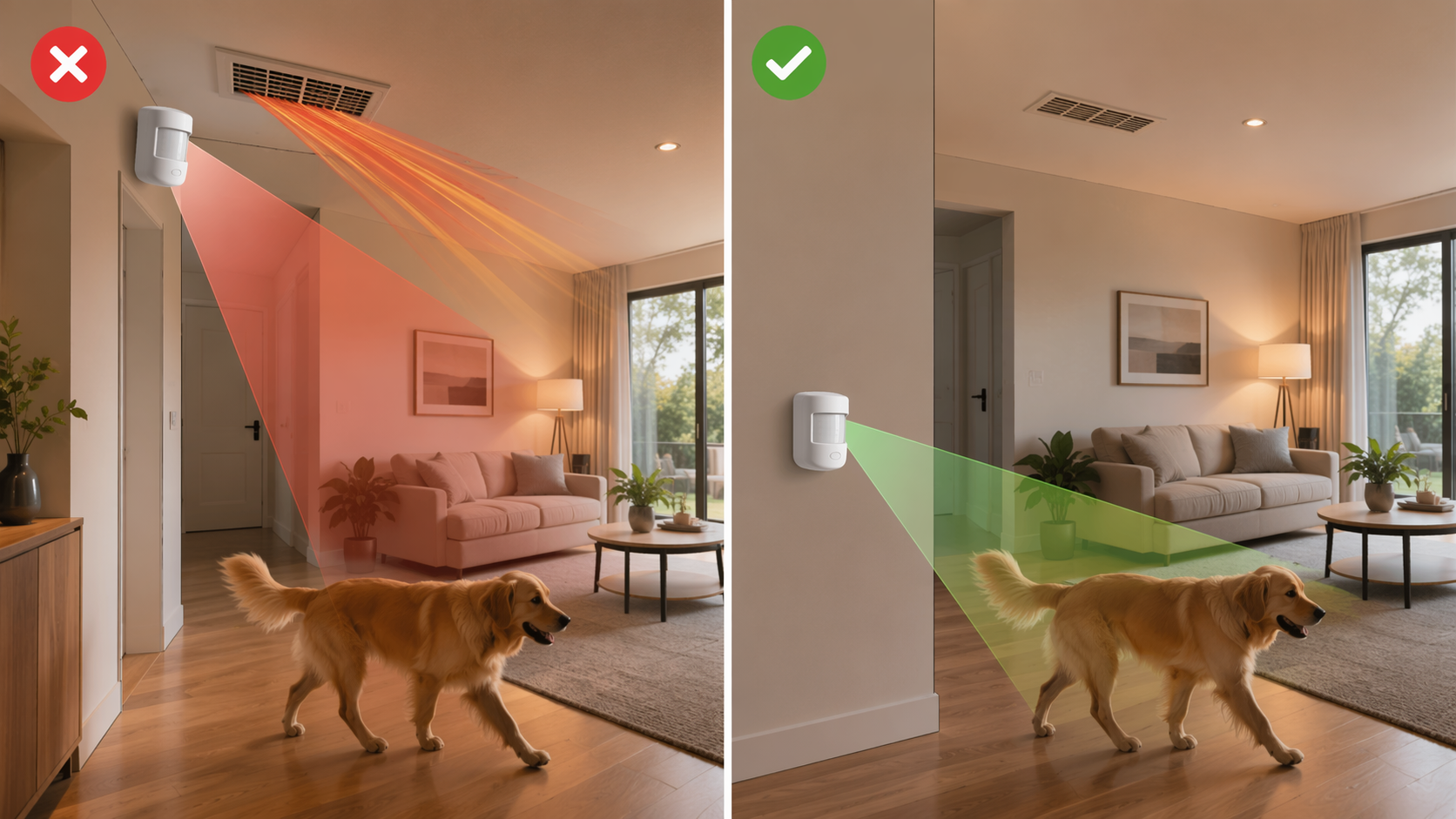
The practical check is simple: stand where the sensor is mounted and look at what it sees. If its view includes a supply vent, return vent, bright window, glass door, radiator, fireplace, stove, or a sofa where the dog climbs into the detection zone, the sensor is getting more information than you want it to have.
- Do not aim a motion sensor directly at HVAC vents, sunny windows, fireplaces, or heat-producing appliances.
- Avoid pointing it at stairs or furniture that lets pets rise into the sensor’s detection field.
- Use the manufacturer’s recommended mounting height and angle instead of copying another room by eye.
- After moving it, arm the system in the mode that normally causes trouble and test the room during the same time of day or HVAC condition that produced the false alert.
Pet immunity deserves its own check because the label can be misleading. SafeHome.org cites SimpliSafe guidance that recommends mounting certain motion sensors upside down at a height of at least 4 feet for pet immunity up to 60 pounds, while some models support pets up to 85 pounds [2]. Those numbers are not universal promises across every sensor. A large dog, a cat on a bookshelf, or a pet that moves close to the sensor can still defeat a placement that looks correct on paper.
If pets are part of the household, test with the pets doing their normal annoying things, not with a quiet empty room. Let the dog walk the usual path. Let the cat reach the window perch. The point is not to prove the sensor works in a brochure layout; it is to prove it behaves in your room.
Glass-break sensors: keep them out of noisy corners
Glass-break sensors vary by model, but the same placement logic applies: they should monitor the glass they are assigned to without sitting next to routine noise sources. Kitchens, media rooms, laundry rooms, and echo-heavy spaces can create confusing sound patterns. If a glass-break sensor false-alarms, look first at what changed nearby: a speaker location, a dog crate, a clattering blind, a renovation, or a sensor moved closer to a hard corner.
Do not bury the sensor behind curtains or furniture, but do not mount it where every sharp household sound becomes its main input. If the manufacturer provides a test mode or tester procedure, use that rather than improvising with random loud noises.
Battery choice matters after signal and placement are sane
Batteries still matter. They just should not be the first explanation when one sensor is burning through cells while its neighbors behave. Battery life varies by brand, protocol, temperature, reporting frequency, and how hard the radio has to work. A door/window sensor that should last in the rough range of 12 to 18 months but dies in weeks is waving you back toward signal and mounting before chemistry.
Once the physical issues are corrected, use decent batteries from a reliable source. Cheap coin cells are fine for a drawer calculator; they are a bad diagnostic tool when you are trying to decide whether a security sensor is unreliable. Also check expiration dates and packaging. A “new” cell from a mixed drawer may already be half-used.
Cold spaces need more care. Vesternet notes that extreme cold significantly reduces battery life in outdoor sensors and that lithium cells outperform alkaline batteries in outdoor and garage installations [1]. That does not mean every indoor sensor needs premium lithium cells. It means the garage tilt sensor, shed contact sensor, or exterior-facing entry sensor should not be judged using the same battery assumptions as a hallway sensor.
| Location | Battery decision | Reason |
|---|---|---|
| Conditioned indoor room | Use the manufacturer-specified size and chemistry from a reliable brand | Stable temperature makes signal and reporting frequency the bigger variables. |
| Garage, shed, or cold entry | Prefer lithium where the sensor supports it | Cold reduces battery performance, and lithium generally handles those spaces better. |
| Sensor with repeated low-battery alerts after replacement | Stop swapping cells and inspect signal, route, mounting, and firmware | Multiple fast failures point away from a simple bad battery. |
| High-traffic door or busy motion zone | Expect shorter life than a rarely used sensor | Frequent state changes mean more reports. |
Use maintenance to catch drift before it becomes a 2 a.m. problem
Good placement can drift. Adhesive loosens. A couch moves. A child points a fan at a sensor. A hub gets tucked away during cleaning and never comes back out. Hive recommends checking motion sensors every 90 days and having the overall system professionally inspected once per year [3]. Even if you maintain your own system, that cadence is a useful reminder: sensors are installed in rooms that keep changing.
- Every few months, walk past motion sensors in armed test mode and confirm they catch people without reacting to pets, vents, or sunlight.
- Open and close each protected door or window and watch for a clean state change.
- Look for sensors hanging by tired adhesive or magnets that have shifted.
- Check battery reports for one sensor that is dropping much faster than the rest.
- After moving hubs, routers, smart plugs, or large furniture, retest the sensors at the edges of the home.
This is not about pampering gadgets. It is about avoiding the household spiral where one person hears the chirp, another person buys batteries, someone deletes the sensor from the app, and everyone loses confidence in a system that mostly needed a better radio path or a less foolish angle.
When replacement is reasonable
Sometimes the sensor really is failing. Contacts crack, battery terminals loosen, tamper switches stick, and old motion sensors age out. Replacement is also not ruinous in many DIY systems: SafeHome.org places door and window sensors around $15 to $20 per unit and motion sensors around $30 to $100, with pricing varying by system and model [2].
The point is to earn that replacement. A new sensor installed in the same weak-signal corner or aimed at the same heat source can reproduce the same failure and make the whole smart home security setup look worse than it is.
Replace the sensor after these checks pass:
- The hub or mesh node is placed in open air, and the sensor has a plausible route.
- Nearby mains-powered mesh devices or repeaters have been added or repositioned where appropriate.
- A Z-Wave or Zigbee network heal has been run if your controller supports it.
- The sensor is mounted securely, aligned correctly, and aimed away from environmental triggers.
- The battery is the correct type, fresh, and suitable for the temperature.
- The same problem follows that individual sensor, not the location.
That last test is useful when you can do it safely: swap a suspect contact sensor with a known-good one from a similar door or window. If the failure stays with the location, keep working on signal and mounting. If the failure follows the sensor, replacement becomes a much cleaner decision.
If the sensor checks pass, look upstream
A sensor can report correctly and still be blamed for a controller problem. If signal is strong, placement is correct, batteries are appropriate, and routing has been refreshed, the remaining issue may live in the hub, firmware, automation rules, alarm mode settings, or platform integration. A hub that fails to acknowledge a state change, a stale automation, or a cloud delay can all make a good sensor look guilty.
At that point, update hub firmware, review recent platform changes, disable suspect automations temporarily, and check whether the alert appears in the sensor history before it appears in the alarm history. If the raw sensor event is clean but the alarm behavior is wrong, move into the broader smart home security troubleshooting path rather than continuing to feed the battery drawer.
For recurring nuisance alarms after placement fixes, the companion guide to smart home security false alarms can help sort alarm rules, arming modes, and non-sensor causes. But do the physical checks first. Strong signal, sane placement, correct batteries, and updated routing give you a defensible next action instead of another evening of guessing.
References
- Troubleshooting Common Smart Home Issues: A Comprehensive Guide, Vesternet, 2025.
- Burglar Alarms Going Off Randomly? Here's How To Fix It, SafeHome.org, 2026.
- Common Problems With Home Security Systems, Hive.
Corroborating context
For protocol background on why this failure happens, see Compatibility & Protocols.
Not currently linked to a known regression. Background on the underlying protocol lives in Compatibility & Protocols.