How to Troubleshoot Smart Home Security Devices
Device offline, unresponsive, or false alerts
Last updated
When smart home security devices fail, the scene is usually less dramatic than the feeling: a porch camera says offline, a smart lock ignores the app, a sensor reports activity that never happened, or an alarm feature quietly disappears from the screen. Before replacing hardware or opening a support ticket, run the same diagnostic order every time: reboot fully, confirm power, verify Wi-Fi, update firmware, then review app settings and subscription status.
The Order Matters More Than The Brand
Brand-specific help pages have their place, but they are a poor first stop when you do not yet know what kind of problem you have. A camera that drops offline may have lost Wi-Fi, but it may also be underpowered, stuck after an update, blocked by an app permission, or limited by a plan change. A lock that will not respond may have dead batteries, but it may also be connected to the wrong hub, sitting too far from its bridge, or waiting on a firmware update. The job is not to guess correctly on the first try. The job is to remove possibilities without making the house less secure.
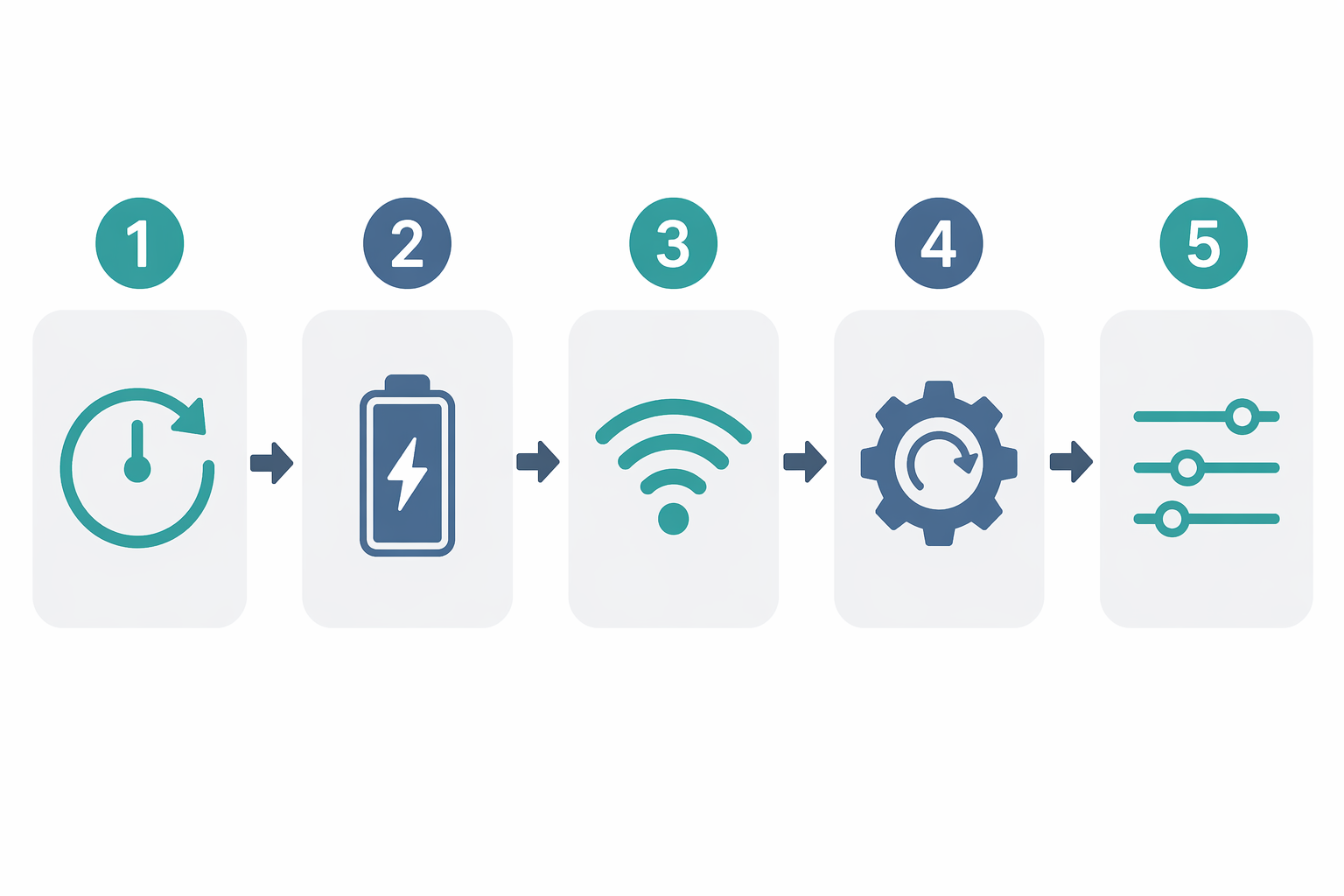
| Step | What To Check | What It Tells You |
|---|---|---|
| 1 | Full reboot | Whether the device, hub, app, or router is stuck in a temporary bad state |
| 2 | Battery or power | Whether the device has enough stable power to connect, record, lock, or report correctly |
| 3 | Wi-Fi band and connection | Whether the device can actually reach the network it expects |
| 4 | Firmware update | Whether old device software is causing crashes, missed events, or compatibility trouble |
| 5 | App settings and subscription | Whether the feature is disabled, misconfigured, or no longer included |
Do A Real Reboot, Not A Gesture Toward One
A reboot is useful only if it actually clears the device’s working state. For a plug-in camera or alarm hub, unplug the power cable, wait briefly, then reconnect it and let the device finish its startup cycle before judging the result. For a battery camera, door sensor, keypad, or lock, remove and reseat the battery if the design allows it. If the device depends on a bridge, base station, chime module, or alarm panel, reboot that piece too. The accessory may look like the problem when the hub is the part that stopped communicating.
Do not factory reset at this stage unless the manufacturer’s instructions specifically require it. A factory reset can erase pairings, automations, codes, zones, or alarm settings. A power cycle is the safer first move because it is reversible: if the device comes back, nothing has been lost; if it does not, the result still narrows the diagnosis.
Check Power Before You Chase Software
Power problems do not always announce themselves cleanly. A smart lock may still light up but fail to move the deadbolt. A camera may connect long enough to show a thumbnail and then drop. A contact sensor may report open and closed states late, or not at all. Low battery warnings are helpful when they appear, but they are not the only sign worth trusting.
Replace batteries with the type the manufacturer recommends, not whatever is closest in the drawer. Recharge battery cameras long enough to rule out a shallow charge. For wired cameras and panels, check the outlet, cable, adapter, and any transformer or low-voltage connection involved. If a device works when plugged into a different outlet or with a known-good cable, the device may not be the failed part.
When Cameras Go Offline, Look At The Network Path
Security cameras make Wi-Fi problems visible because they ask more of the network than a small sensor does. They need enough signal to stay connected, enough bandwidth to upload video, and enough stability to recover after a router restart. Start close to the camera: confirm that it has power, that its status light or app state has changed after reboot, and that other devices on the same part of the house still have internet access.
Then check the Wi-Fi band. Many smart home security devices are designed for 2.4 GHz Wi-Fi, while some phones and routers prefer or steer devices toward 5 GHz or a combined network name. If the app fails during setup, the camera repeatedly drops, or the device only works near the router, separate the bands temporarily if your router allows it, connect the device to the supported band, and move it back to its normal location only after it has stayed online.
For an outdoor camera, also account for distance and barriers. Brick, metal doors, exterior walls, garages, and porch placement can weaken a signal that looked fine when the camera was tested indoors. If moving the camera a few feet or testing it closer to the router changes the result, the issue is probably placement or coverage rather than a dead camera.
When A Smart Lock Stops Responding
Treat locks more cautiously than cameras because a bad troubleshooting move can affect access to the house. First, make sure the door opens, closes, and latches smoothly by hand. If the deadbolt rubs against the strike plate, the motor may struggle even when the electronics are fine. A lock that works with the door open but fails when the door is closed is often fighting alignment, not the app.
After that, check batteries, then the connection path. Some locks talk directly to Wi-Fi, while others rely on Bluetooth, a bridge, a hub, or an alarm panel. Stand near the lock and test local control from the keypad or thumb turn before testing remote control from the app. If local operation works but app control does not, the lock mechanism is likely not the first suspect. Look at the bridge, hub, Wi-Fi connection, permissions, and whether the app is showing the lock as reachable.
When Sensors Cry Wolf
False alerts from contact sensors and motion sensors are maddening because they make the whole system harder to trust. Start with the physical installation. A door or window sensor can drift out of alignment as a frame swells, adhesive weakens, or a magnet shifts. A motion sensor can face a heat source, moving curtain, pet path, reflective surface, or busy window. Before changing app rules, inspect the device the way you would inspect a loose hinge: is it still where it was supposed to be?
Then check battery level and event history. If the sensor reports multiple open-close events in quick succession, the problem may be a loose mount or borderline alignment. If it stops reporting for long stretches and then catches up, power or connection is more likely. For alarm sensors, avoid deleting zones or disabling protection as a first move. Temporarily bypassing a zone may be appropriate while you diagnose, but permanent changes should wait until you know whether the sensor, placement, battery, or hub is responsible.
Firmware And App Settings Are The Narrowing Layer
Once the device has rebooted, has stable power, and can reach the right network, check firmware. Updates can fix connection bugs, improve compatibility with routers or hubs, and restore features that failed after an app or platform change. Let updates complete before testing again. Interrupting an update because the app appears quiet for a minute can create a worse problem than the one you started with.
After firmware, review settings with the exact symptom in mind. If a camera records but does not notify you, look at notification permissions, motion zones, schedules, privacy modes, and do-not-disturb settings. If a lock works for one person but not another, check user access, codes, guest schedules, and phone permissions. If a sensor alerts at the wrong time, check arm modes, automation rules, and whether the sensor is assigned to the right room, zone, or alarm behavior.
Some Failures Are Actually Plan Limits
A modern security device can be physically healthy and still fail to do the thing you bought it for. Cloud recording, familiar-face alerts, package detection, extended video history, cellular backup, professional monitoring, and advanced notification features may depend on a paid plan. If a feature vanishes after a trial ends, a card expires, an account changes, or an app is updated, treat subscription status as part of troubleshooting rather than as an afterthought.
The distinction matters. “The camera is broken” leads toward replacement. “The camera shows live view but no longer stores clips” points toward recording settings, cloud plan status, storage limits, or account permissions. “The alarm no longer dispatches help” is a different and more urgent category than “the keypad battery is low.” Check what still works locally, what works only in the app, and what depends on a service.
When It Is Reasonable To Escalate
Support or replacement becomes reasonable after the boring checks have been completed, not before. Write down what you tested: rebooted the device and hub, replaced or recharged batteries, verified the outlet or cable, confirmed the supported Wi-Fi band, tested closer to the router, installed firmware updates, reviewed permissions and schedules, and checked whether the missing feature requires a plan. That record saves time because it prevents support from sending you back through the same first steps.
Escalate faster if a lock cannot be operated safely, an alarm panel cannot arm or disarm correctly, smoke or CO monitoring is involved, wiring appears damaged, or a device becomes hot, swollen, cracked, or wet inside. For ordinary offline cameras, sleepy sensors, and app features that stop behaving, the structured path is usually enough to tell you whether you have a device problem, a network problem, a power problem, a settings problem, or a service problem. Once those are separated, the next decision is no longer a guess.
Corroborating context
For protocol background on why this failure happens, see Compatibility & Protocols.
Not currently linked to a known regression. Background on the underlying protocol lives in Compatibility & Protocols.