Three weeks before the 2026 Perseids peak, the useful smart-home question is not whether your backyard can look dramatic. It is whether one command can make the yard dark, safe, quiet, and comfortable before anyone loses patience and wanders back inside. For this year’s shower, the timing is worth the small setup: the Perseids peak on Aug. 12–13, with the peak reference at 14:53 UTC on Aug. 13, which puts North America’s practical viewing window from the evening of Aug. 12 into the pre-dawn hours of Aug. 13. A new moon on the same dates removes moonlight interference, creating unusually dark conditions for the shower’s peak; under ideal dark-sky conditions, the Perseids can produce up to 100 meteors per hour, though backyard results will depend on clouds, light pollution, and patience.[1]
The scene to build is simple: say “Stargazing Mode,” and your outdoor color bulbs drop to deep red at 1–5%, landscape lights shut off through weather-rated outdoor plugs, the thermostat starts pre-cooling around 10 PM, a speaker queues low ambient audio, and phone notifications go quiet. The less anyone has to open apps in the yard, the better the sky gets.
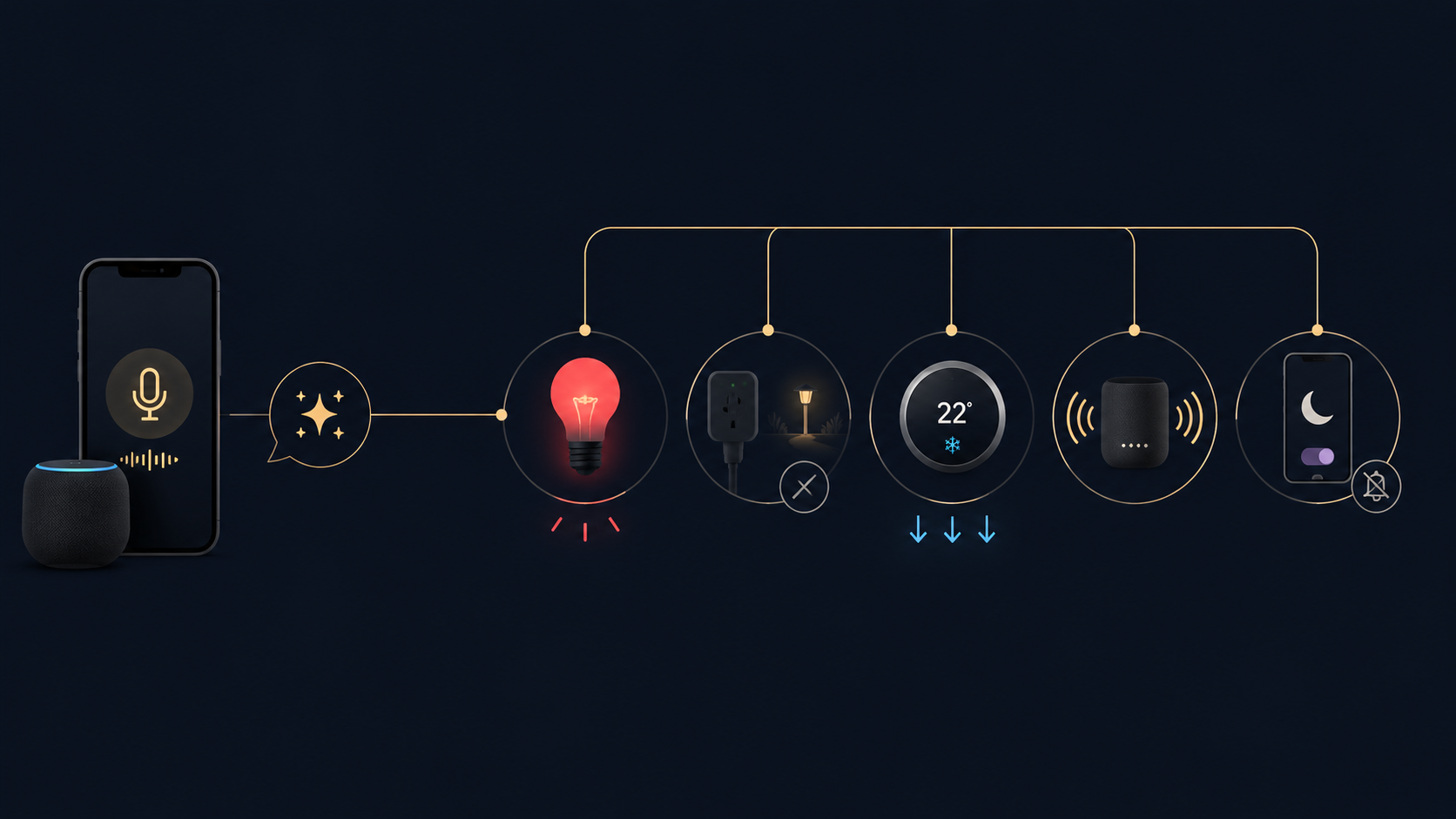
What Stargazing Mode Should Do
Before opening Alexa, Google Home, or Apple Home, decide what the routine is allowed to control. Meteor-night automations should be boringly reliable: fewer devices, known states, no clever dependency that leaves the path dark before everyone is seated.
| Part of the scene | Target setting | Why it matters |
|---|---|---|
| Outdoor color bulbs | Deep red, 1–5% brightness | Lets people move without flooding the yard with white light |
| Landscape or decorative lights | Off, only where safe | Removes glare and preserves contrast in the sky |
| Outdoor smart plugs | Off at routine start or by schedule | Cuts nonessential wired lights without walking around the yard |
| Smart thermostat | Pre-cool around 10 PM | Makes stepping back inside comfortable without adjusting the app outside |
| Speaker | Low-volume ambient audio or silence | Adds comfort without competing with the night |
| Phone settings | Do Not Disturb before viewing | Prevents bright lock screens and notification sounds |
If you are still building out the yard, start with lighting placement rather than platform tricks. A basic outdoor smart lights setup matters more here than a fancy automation name. The bulbs should help people find chairs, steps, gates, and drink tables, not illuminate the whole lawn.
Set the Red-Light Scene First
Lighting is the part to get right. Human dark adaptation depends partly on rhodopsin in the retina, which can take about 20–40 minutes to regenerate after white-light exposure.[2] That is why a single bright porch light, phone screen, or “helpful” floodlight can cost more than a moment. It can reset the very adjustment everyone came outside to use.
Red light is useful because wavelengths around 620–700 nm are less disruptive to rhodopsin than white light, which is why astronomers often use dim red illumination at observing sites.[3] The word “dim” is doing real work. A bright red patio can still feel harsh, and a smart bulb’s red setting is not automatically equivalent to a purpose-built astronomy flashlight.
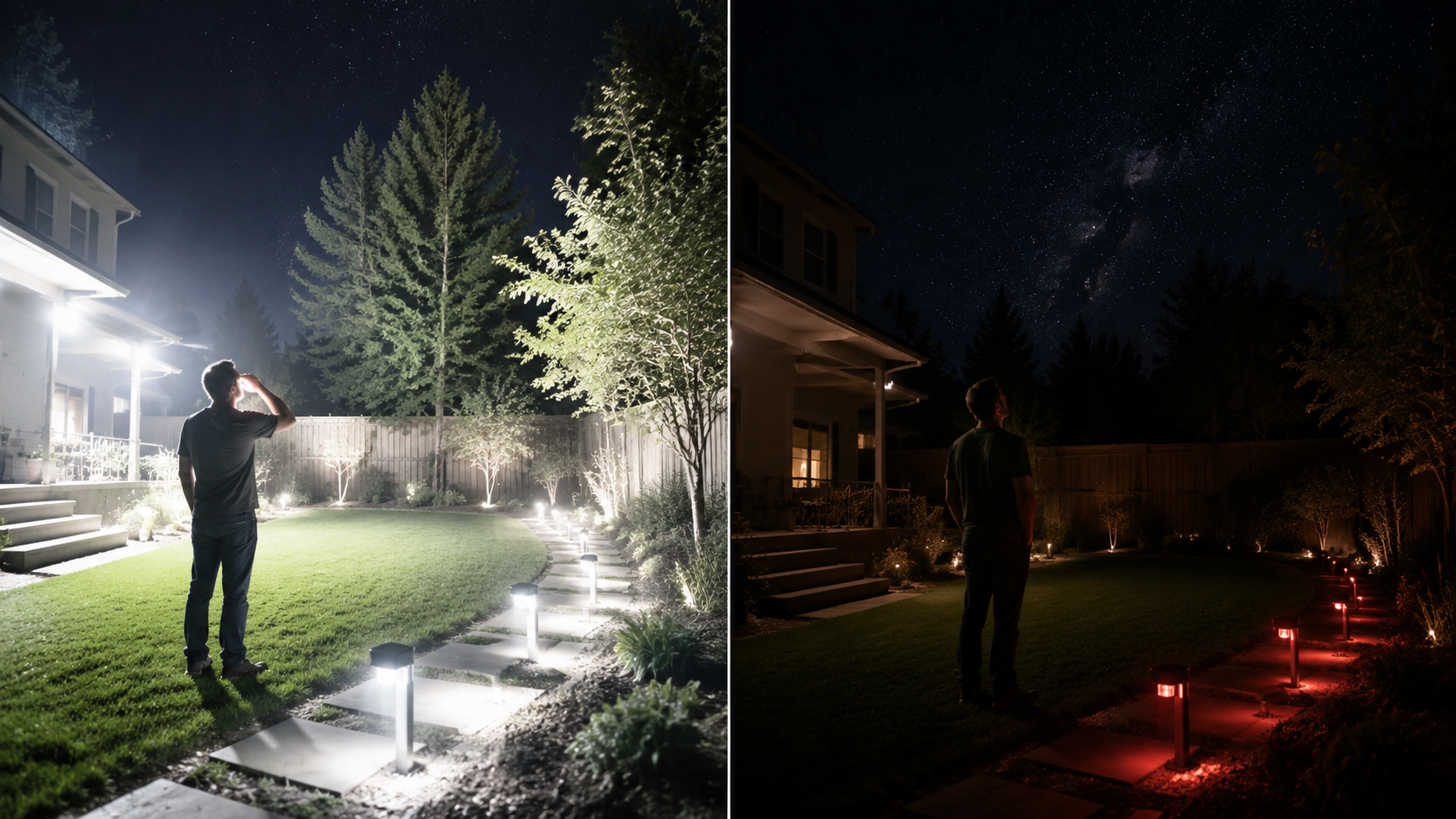
In Philips Hue, GE Cync, or another color-bulb app, create a scene named “Stargazing” before you build the larger routine. Set every outdoor color bulb to the deepest red available and pull brightness down to 1–5%. If a bulb cannot hold a convincing red at low brightness, remove it from the scene or turn it off. Some bulbs slide toward pink, orange, or dim warm white; that may look cozy in the app and still be wrong for a meteor night.
Run this test after dark, not at the kitchen counter. Stand where people will actually walk. Can you see the step edge, chair legs, and doorway? Can you look away from the bulb and still see stars after a few minutes? If the answer is no, change the bulb position or reduce the number of active lights. If you need help with Hue-specific grouping, start with a Philips Hue setup guide and keep the meteor scene separate from your everyday patio scene.
Do Not Turn Off Safety
The goal is a darker yard, not a surprise hazard. Keep enough low red light for stairs, uneven paths, pool edges, cords, and gates. If a security light covers an entry point or a side yard people may use, do not blindly disable it for hours. Put it on a shorter timer, aim it away from the viewing area, or leave that zone out of the routine.
Use Outdoor Plugs to Cut the Lights That Bulbs Cannot Control
Many yards have lights that do not live in a smart-bulb ecosystem: string lights, low-voltage transformers, small fountains with LEDs, decorative stakes, or plug-in path lights. Put only appropriate loads on a weather-rated outdoor smart plug, then include that plug in Stargazing Mode.
Outdoor plugs are not interchangeable with spare indoor plugs. Models sold for exterior use are built for weather exposure; CNET’s 2026 outdoor smart plug guide lists the TP-Link Kasa EP40 as an outdoor option at about $25 with an IP64 rating, but prices and availability can vary by retailer and region.[4] If you need to buy one, compare outdoor-rated options through an outdoor smart plug guide rather than repurposing an indoor plug near an exterior outlet.
- Plug decorative or landscape lighting into a weather-rated outdoor smart plug.
- Name it clearly, such as “Backyard Landscape Lights” or “Pergola String Lights.”
- Set it to turn off when Stargazing Mode starts.
- Add a backup schedule that turns it off by 11 PM on Aug. 12 if you might forget the voice command.
- Add a restore schedule for the next morning if those lights are normally part of your household routine.
One more rehearsal rule: watch the plug switch off from the yard. You are checking more than connectivity. You are checking whether the wrong outlet controls something important, whether a transformer hums or resets oddly, and whether the yard still has safe edges once the decorative lighting disappears.
Add Comfort Without Letting It Take Over
Thermostat and audio settings are comfort layers. They should make it easier to stay outside, then get out of the way.
For a Nest, Ecobee, or similar smart thermostat, create a temporary pre-cool action around 10 PM. The exact temperature depends on your house, climate, and energy preferences; the useful move is to cool before everyone heads outside, so no one has to open a bright thermostat screen or phone app during peak viewing. If you are comparing devices or trying to understand which thermostat features matter for automations, use a smart thermostat comparison before making a purchase just for one night.
For audio, choose restraint. A low ambient track on an outdoor speaker can make the backyard feel settled while people wait between meteors. Keep the volume low enough that people can talk softly and still hear night sounds. If your speaker has a startup chime or announces the connection loudly, test that too; few things feel less like stargazing than a speaker declaring itself awake at full volume.
Build the Routine in Your Smart-Home App
Once the lighting and plugs behave correctly on their own, assemble them into one scene. Do not troubleshoot bulb color, outlet naming, thermostat permissions, and speaker volume for the first time at 11:30 PM on Aug. 12. Build the routine now, run it once on an ordinary night, and make the fixes while nobody is waiting for meteors.
Alexa
- Open the Alexa app and go to More, then Routines.
- Create a new routine named “Stargazing Mode.”
- Set the voice trigger to “Alexa, start stargazing.”
- Add your outdoor color-bulb scene and set it to deep red at 1–5% if the scene does not already store brightness.
- Add outdoor smart plugs and set nonessential landscape or decorative lights to off.
- Add the thermostat action, then the speaker action at low volume.
- Save, then test the phrase while standing outside where you will watch.
If Alexa does not see one of your bulbs, check whether it is exposed through the manufacturer skill and grouped correctly. For bulb compatibility basics, an Alexa light bulbs guide is more useful than rebuilding the whole routine from scratch.
Google Home
- Open Google Home and go to Automations.
- Create a Household automation if everyone may trigger it, or a Personal automation if it should stay tied to your account.
- Use a starter phrase such as “Hey Google, stargazing mode.”
- Add actions for the red outdoor lights, off commands for outdoor plugs, thermostat pre-cooling, and low speaker volume.
- If available in your setup, add a time condition so the automation only runs during the evening window.
- Test from the yard and confirm the devices respond in the order you expect.
Google Home automations can become messy when device groups are named too similarly. If “patio lights,” “backyard lights,” and “outside lights” all mean different things in your home, rename before meteor night. For more examples of reliable Google routines, see Google Home automations that work in 2026.
Apple Home
- Open the Home app and create a new Scene named “Stargazing Mode.”
- Add compatible Hue bulbs, outdoor plugs, and thermostat controls.
- Set the outdoor bulbs to deep red and 1–5% brightness.
- Set decorative or landscape plugs to off, leaving any safety-critical lighting out of the scene.
- Use Shortcuts if you want the scene to also start audio or coordinate phone focus settings.
- Add the scene to Favorites so it can be triggered with one tap if Siri is not convenient outside.
Apple Home is especially tidy when the scene itself handles the house and a Shortcut handles personal-device behavior. That split is fine. A meteor-night setup does not need to be elegant inside the app; it needs to be dependable when someone is holding a blanket and trying not to wake the whole patio with a screen.
Silence the Screens Before You Step Outside
Do Not Disturb is the least glamorous part of the setup and one of the most useful. A phone lighting up every few minutes can undo careful bulb work. Set a Focus or Do Not Disturb schedule for the viewing window, or attach it to your Apple Shortcut if your household uses iPhones. On Android, set the mode manually before going out if your Google Home routine does not control it cleanly.
Also lower screen brightness and disable always-on displays for the night. If someone needs a phone for camera controls, have them switch to the dimmest practical setting before everyone’s eyes adapt. This is not about banning phones; it is about preventing one unlock gesture from becoming the brightest object in the yard.
Rehearse It Once Like It Is Already Peak Night
A full test run should happen after dark, preferably on the same evening schedule you expect to use for the Perseids. Trigger the command from the door or patio, then resist the urge to stand there with the app open. Walk the route, sit down, look up, and notice what still feels too bright, too loud, or too fiddly.
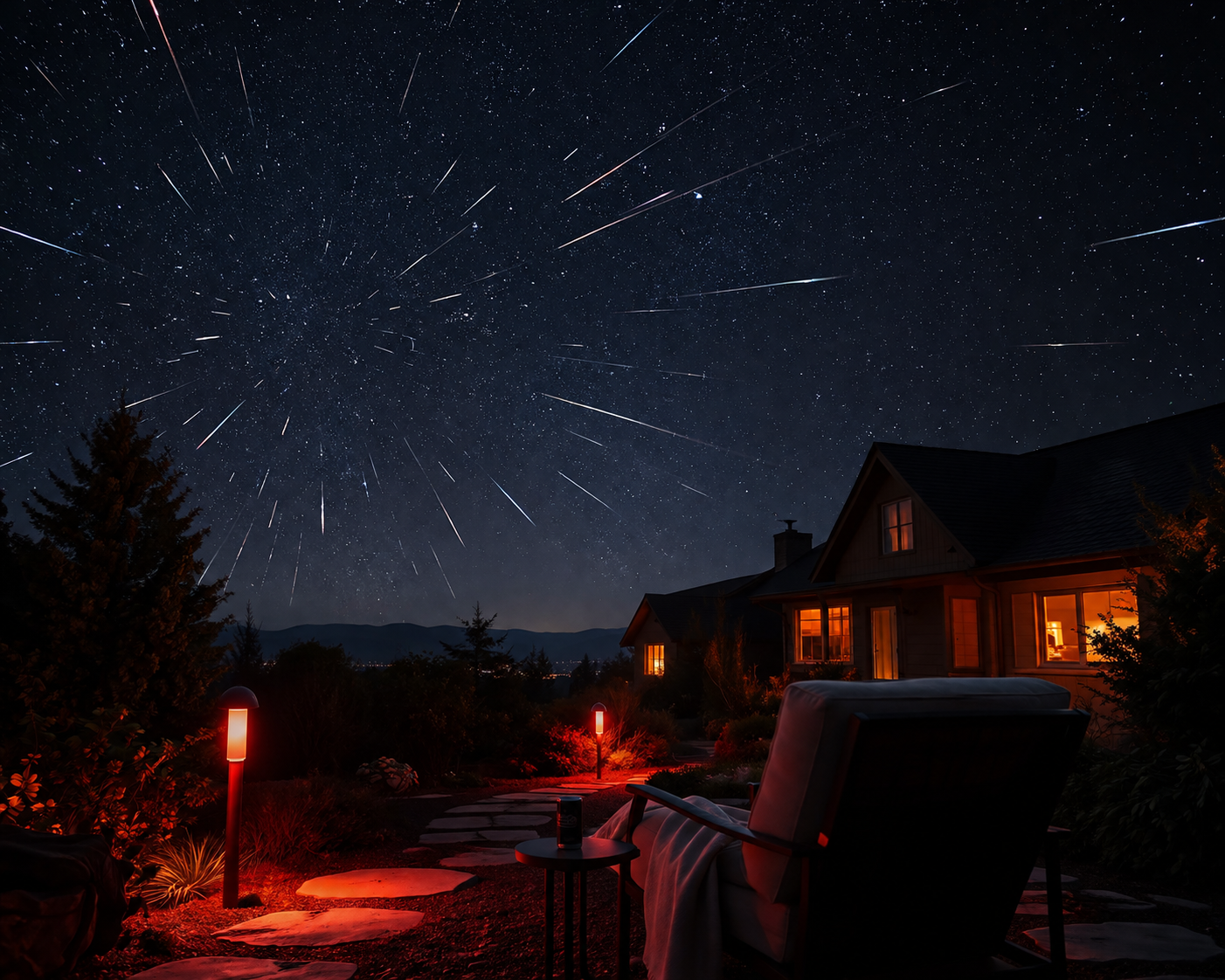
- Confirm every active outdoor bulb is red, not pinkish white, orange-white, or brighter than expected.
- Confirm nonessential landscape and decorative lights turn off without creating a trip hazard.
- Confirm outdoor plugs are weather-rated and connected to the intended devices.
- Confirm the thermostat starts pre-cooling before people go outside.
- Confirm audio starts low, or decide silence is better.
- Confirm Do Not Disturb is on and phone screens are dimmed before viewing begins.
On Aug. 12, run the routine once, do the safety glance, and stop managing the house. The 2026 Perseids are already giving you the rare part: a peak aligned with a new moon and a long North American viewing window. The smart home’s job is just to make the backyard disappear enough for people to stay outside and look up.
References
- Perseid meteor shower 2026: All you need to know — EarthSky
- Dark Adaptation of the Human Eye and the Value of Red Flashlights — National Park Service
- The reason why astronomers use red lights on observation sites — Stellarium Labs
- Best Outdoor Smart Plugs for 2026: Ready for Any Weather — CNET
Community Tips
Share platform-specific variations, steps that have changed after app updates, or tips that helped your installation succeed.
Comments
Join the discussion with an anonymous comment.