
Old Google Home routines often failed in the most annoying way: not dramatically, just quietly. A light came on when nobody needed it. A thermostat changed because the clock said so, even though the house was empty. A routine that worked on Sunday ignored some small condition on Monday, and the only way to diagnose it was to stare at the app afterward and guess.
The useful change in 2026 is that Google Home automation can now care about context. Native conditions, broader starters, presence sensing, media playback triggers, appliance states, and the activity log make it possible to build routines that survive normal household behavior. Android Police’s June 2026 rebuild is the right kind of evidence here: not a launch-stage feature tour, but someone spending an afternoon repairing routines that had been broken or too brittle for years, then using the new conditions layer and activity log to see why things fired or did not fire. [1]
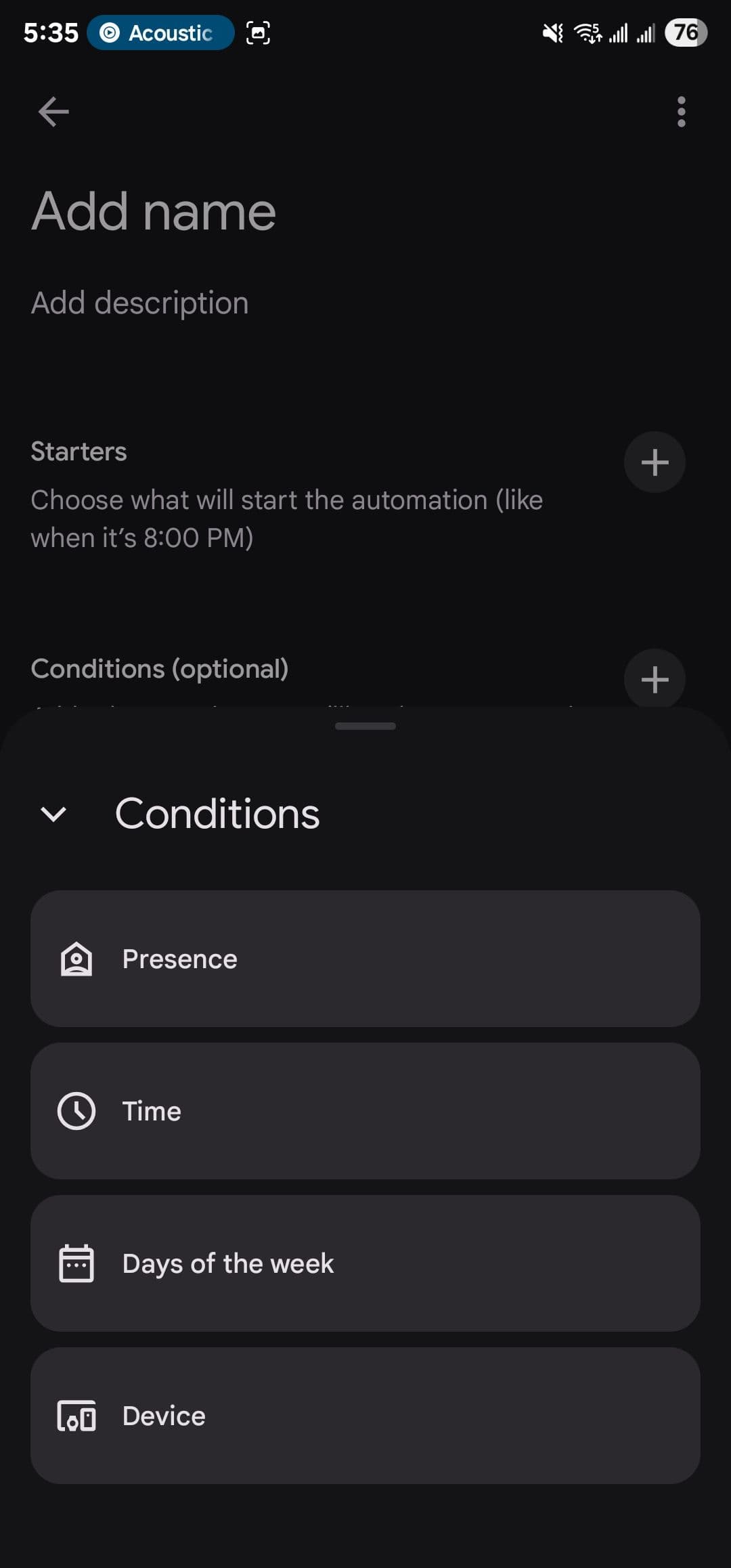
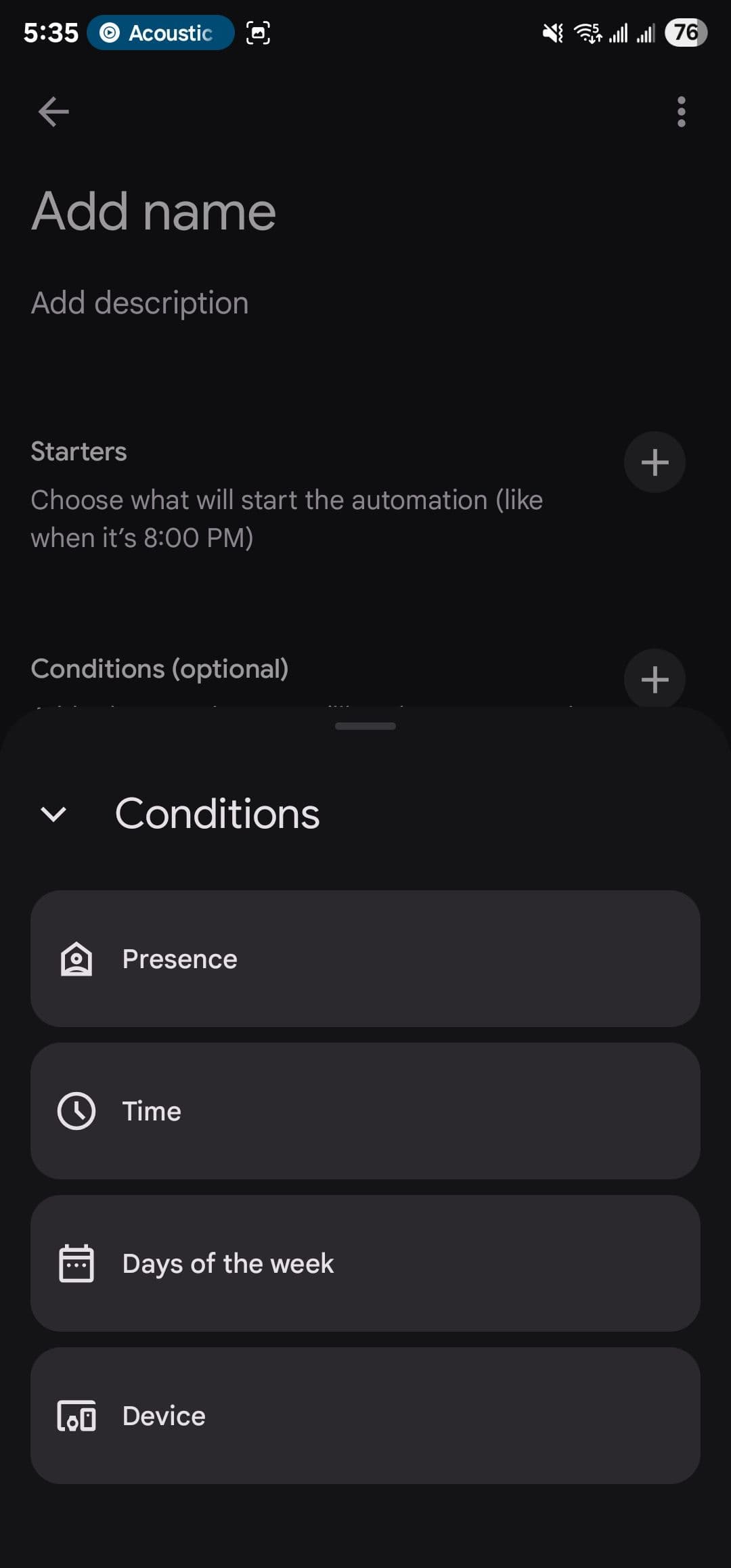
Before building anything, keep four rules close. First, check whether your devices expose the needed starter, condition, or action in Google Home; Google’s support page is the practical authority for what the editor can use. [2] Second, use Household automations when a device state starts the routine, because that distinction matters for shared home behavior and device-based triggers. [3] Third, assume presence sensing is useful but not room-level truth; it depends on signals such as phones, Wi-Fi, and supported Nest devices. Fourth, when something does not fire, check the activity log before rebuilding the whole routine.
The Recipes Worth Building First
These recipes are written for existing Google-compatible homes: lights, plugs, thermostats, speakers, cameras, sensors, washers, dryers, fans, and security systems you may already own. The labels below say whether the recipe should work in the visual editor or is better suited to the script editor at home.google.com.
1. Warm Welcome When Someone Actually Arrives
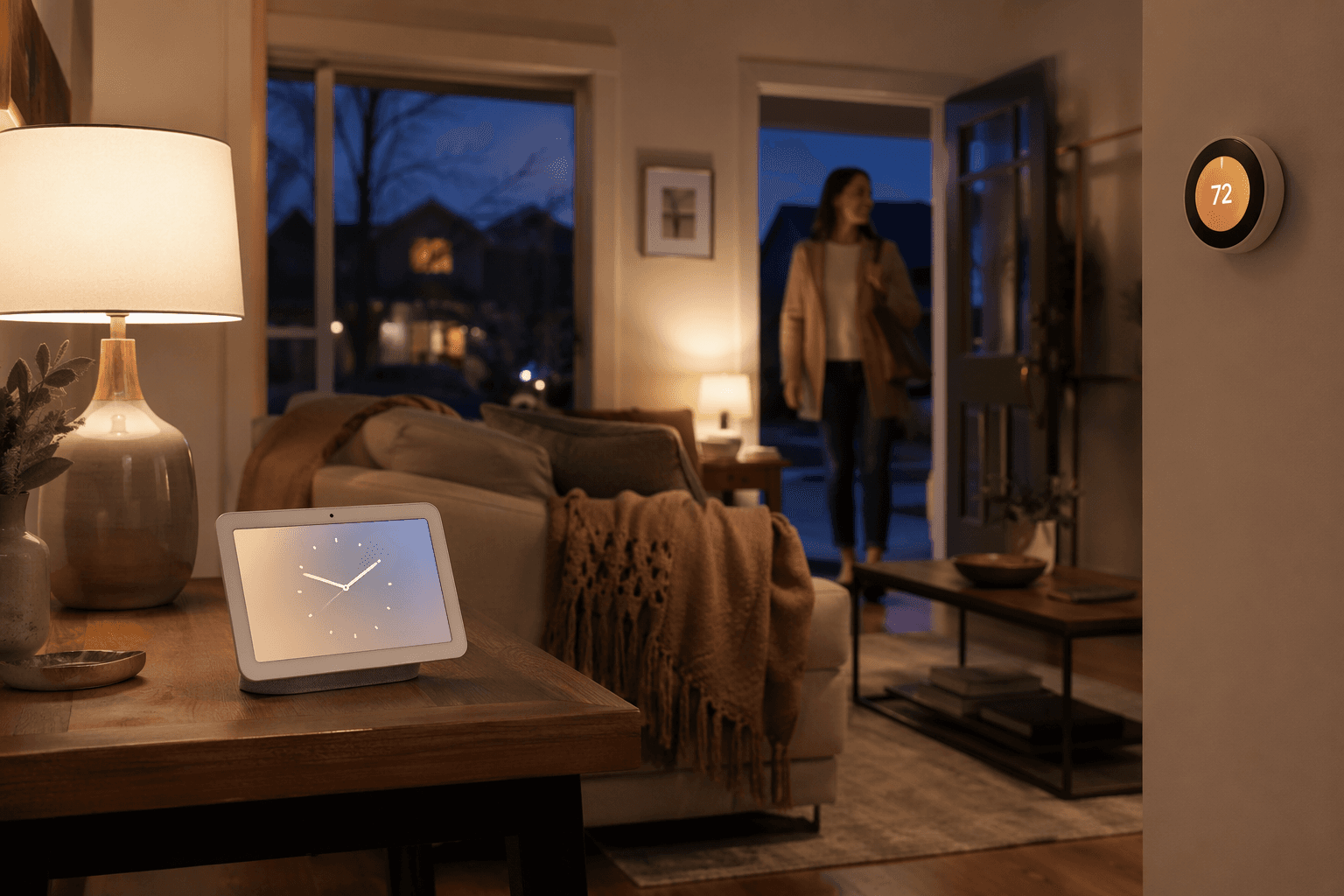
- What it does: Turns on entry or living-room lights and sets a comfortable thermostat target when the household arrives home after being away.
- Devices needed: Google Home presence sensing, smart lights or smart plugs, and a compatible thermostat.
- Starter: Household presence changes to Home.
- Condition: Only after sunset, or only when the thermostat is outside your comfort range.
- Action: Turn on selected lights, set thermostat mode or temperature, and optionally announce “Welcome home” on a speaker.
- Editor: Visual editor for the basic version; script editor if you want different actions for weekdays and weekends.
- Pro tip: Do not attach every lamp in the house. Start with the entry light and one room people actually walk into.
This is close to the “warm welcome” pattern Google highlighted from its own Googler automations, and it is one of the better uses of presence because the consequence is low-risk: a light and a thermostat setting, not a door lock or alarm state. [4]
2. Away Mode That Waits Until the House Is Really Empty
- What it does: Turns off lights, adjusts the thermostat, and arms compatible security equipment only after everyone has left.
- Devices needed: Presence sensing, smart lights, thermostat, and a compatible security system or camera setup.
- Starter: Household presence changes to Away.
- Condition: No one is home, and optionally only during a chosen time window.
- Action: Turn off selected lights, set thermostat to eco or away mode, arm the security system if supported, and pause unnecessary plugs.
- Editor: Visual editor for simple away actions; script editor if you want delays or exceptions.
- Pro tip: Leave one or two safety lights out of the routine until you trust it. Presence sensing is not a dedicated occupancy sensor.
Google’s 2026 automation additions include security-system arming as part of the broader starter and action expansion, but compatibility is still device-specific. [5][6] That matters because “away” is where a flaky routine becomes more than irritating. If your alarm, lock, or camera action is not exposed in Google Home, do not paper over it with a voice command workaround and assume the same reliability.
3. Washer-Finished Alert That Reaches the Room You Use
- What it does: Flashes or changes the color of a light when a compatible washer finishes, so laundry does not sit forgotten behind a closed door.
- Devices needed: Compatible smart washer, smart light or smart bulb, and optionally a speaker.
- Starter: Washer status changes to finished or cycle complete.
- Condition: Only when someone is home, and only during waking hours.
- Action: Pulse a kitchen or living-room light, change it to a chosen color, and optionally announce that the washer is done.
- Editor: Visual editor if your washer exposes the finished state; script editor if you want the alert to repeat after a delay.
- Pro tip: Put the alert where people already gather, not where the appliance is. The point is to reduce checking.
The Nest Community team used this exact style of example: appliance state as the trigger, light behavior as the household-visible alert. [5] The 2026 expansion also calls out appliance status starters, but the supported set is selective: washers, dryers, and coffee machines are in scope, while smart ovens and robot mops are not included in the same way. [6]
4. Dryer Reminder That Does Not Nag at Midnight
- What it does: Sends a visible or spoken reminder when a dryer finishes, but suppresses the alert overnight.
- Devices needed: Compatible smart dryer, Google speaker or smart display, and optionally a smart light.
- Starter: Dryer status changes to complete.
- Condition: Only between morning and evening, and only if household presence is Home.
- Action: Announce the dryer is finished, turn a utility-room light on, or change a nearby lamp color.
- Editor: Visual editor for one alert; script editor for repeated reminders.
- Pro tip: Repeated reminders should be restrained. A second alert after a reasonable delay is useful; a light that keeps cycling all evening becomes another thing to manage.
5. Movie Night From Media Playback
- What it does: Dims the lights and adjusts the room when playback starts on a chosen TV or streaming device.
- Devices needed: Compatible TV, Chromecast, or media device; smart lights; optional blinds or thermostat.
- Starter: Media playback starts on the selected device.
- Condition: Only after sunset, or only when the living-room lights are already on.
- Action: Dim lights, set them to a warmer color, close compatible shades, and optionally lower speaker volume elsewhere.
- Editor: Visual editor for simple light changes; script editor if you want a pause or stop event to restore the room.
- Pro tip: Do not trigger movie mode from every media device. Tie it to the TV or streamer that actually means “we are watching something.”
Nest Community’s movie-night example and the 2026 media playback starters point to the same practical gain: the routine no longer has to begin with someone remembering a voice command. [5][6] The condition is what keeps it from becoming ridiculous. A TV starting at noon should not necessarily dim the whole room.
6. Pause-the-Movie Lighting
- What it does: Brings one low light up when playback pauses, then returns the room to movie lighting when playback resumes.
- Devices needed: Compatible media device and dimmable smart light.
- Starter: Media playback pauses.
- Condition: Only when movie-night lighting is active, or only during evening hours.
- Action: Raise one lamp to a low brightness; on playback resume, dim it again.
- Editor: Script editor is the cleaner choice because it can pair pause and resume behavior more deliberately.
- Pro tip: Use one lamp, not every ceiling light. This is a convenience automation, not a scene reset.
7. Bathroom Humidity Fan
- What it does: Turns on a fan when humidity rises and turns it off later, instead of depending on someone to hit the switch after a shower.
- Devices needed: Compatible humidity sensor and a fan connected through a supported smart switch or plug rated for that load.
- Starter: Humidity sensor reports humidity above your chosen threshold.
- Condition: Only if the fan is currently off.
- Action: Turn on the fan, then turn it off after a set delay or when humidity drops.
- Editor: Visual editor if the sensor and fan actions are exposed; script editor if you want cleaner delay and shutoff logic.
- Pro tip: Choose a threshold that reflects your room, not a number copied from someone else’s house. Watch the activity log for a few showers before tightening the rule.
Nest Community used humidity-triggered ventilation as one of its examples, and this is where the new editor feels less like a novelty and more like a repair. [5] A clock-based fan routine can only guess. A sensor-driven one can respond to the condition that actually matters.
8. Nighttime Door Check
- What it does: Checks door or lock states at night and alerts the household if something is still open or unlocked.
- Devices needed: Compatible door sensors, smart locks, Google speaker or display, and optionally bedroom lights.
- Starter: A scheduled bedtime check, or a phrase such as “Good night.”
- Condition: Door is open, lock is unlocked, or security system is not armed.
- Action: Announce the issue, turn on a hallway light, or arm a compatible security system when supported.
- Editor: Visual editor for a basic scheduled check; script editor for multiple doors with different responses.
- Pro tip: Alert first before auto-locking everything. A household with pets, guests, or late arrivals may need the warning more than the forced action.
Google’s own automation examples include a nighttime door check, and the 2026 starter/action set gives this kind of routine more useful security vocabulary. [4][6] The important part is the condition. A generic “good night” routine that always runs the same actions is easy; one that only complains when something is wrong is the one people keep.
9. Morning Coffee and Lights Without a Full Wake-Up Scene
- What it does: Turns on a kitchen light and starts or prepares a compatible coffee machine when the first person is up.
- Devices needed: Compatible coffee machine, kitchen light, and either presence sensing, motion sensing, or a morning starter you trust.
- Starter: Motion in the kitchen, household presence at home during the morning, or a scheduled wake time.
- Condition: Only during your normal morning window, and only if the coffee machine is ready or supported for the intended action.
- Action: Turn on a kitchen light, start a compatible coffee action, and optionally play a low-volume morning playlist.
- Editor: Visual editor for lights and simple appliance actions; script editor for household-specific branching.
- Pro tip: Be conservative with sound. A quiet light is usually welcome; audio before everyone is awake is how an automation gets disabled.
Coffee machines are among the appliance categories called out in the 2026 automation update, but the same caveat applies as with laundry: exposed states and actions depend on the device. [6]
10. Camera-Based Package or Person Alert, With a Premium Caveat
- What it does: Uses a supported camera event to trigger a light, announcement, or notification when something important happens near the door.
- Devices needed: Compatible Google Home camera or doorbell, speaker or smart display, and optionally porch or entry lights.
- Starter: Camera detects a supported event, such as a person or package, where available.
- Condition: Only during chosen hours, or only when household presence is Away.
- Action: Turn on porch light, announce on a speaker, or send a notification.
- Editor: Visual editor for supported camera starters; Gemini-based camera scene understanding and Help Me Create should be treated as Early Access and Premium-dependent.
- Pro tip: Use this for narrow, high-value alerts. A camera event that announces every passing person will train the household to ignore it.
This is the one recipe here that deserves the most restraint. It can be useful, but it is also the easiest to oversell because camera intelligence, subscription access, and device support vary. Build the plain supported version first, then decide whether the Premium-only layer would remove a real annoyance.
Which Editor to Use
| Use this path | Best for | Avoid it when |
|---|---|---|
| Visual editor | Simple presence, schedule, appliance, light, and media routines that Google Home exposes directly | You need repeated delays, branching, or tightly paired start/stop behavior |
| Script editor | Multi-step logic, suppressing repeated triggers, more explicit conditions, and advanced household behavior | You are not ready to troubleshoot YAML or test one change at a time |
| Help Me Create / Gemini features | Experimenting with natural-language creation or richer camera-based starters where available | You need a recipe that works for every Google Home user without Early Access or Premium requirements |
The visual editor is good enough for more of these recipes than it used to be because starters, conditions, and actions are now first-class parts of the setup. [2] The script editor is still where you go when the routine needs to behave less like a single command and more like a small set of rules.
Debug Before You Add More
When a Google Home automation fails, resist the urge to add another starter or duplicate the routine. Check the activity log first. Android Police’s rebuild leaned on that log to understand what had actually happened, which is more useful than guessing whether a device, condition, or household state was responsible. [1]
The log is not a complete event-history system, and it will not make every unsupported device state appear. It does, however, answer the first debugging question: did the automation start, did a condition block it, or did the expected device action fail to happen?
- If it never started, check whether the starter is available for that exact device and whether the automation is Household or Personal.
- If it started but did nothing, simplify the condition until you can see which rule is blocking it.
- If the wrong device responded, rename rooms and devices clearly before blaming the automation.
- If it fires too often, add a condition before adding more actions.
Start with two or three low-risk routines: arrival lights, washer alerts, and movie-night lighting are good candidates. They are visible, easy to test, and easy to disable. Once those behave for a week, build the routines that touch comfort, security, and noise. A reliable Google Home automation setup is not the one with the longest list of tricks. It is the one that removes a daily check, wait, or reminder without creating a new job for someone else in the house.
References
- I spent an afternoon building custom Google Home routines and finally fixed my broken smart automation setup, Android Police, June 2026
- Manage smart home automations in Google Home, Google Help
- Use 'Household' Automations to Make Your Google Home Even Smarter, Lifehacker
- 6 Googlers' favorite Google Home automations, Google Blog, May 2025
- Doing More with Home Automations, Google Nest Community, May 2026
- Google Home Unlocks 20 New Automations in 2026 Update, Gadget Hacks, January 2026
Implementation Notes
Share platform-specific tips, report that a recipe no longer works after a platform update, or contribute variations for different device combinations.
Comments
Join the discussion with an anonymous comment.