
How to Choose a Smart Home Battery Backup for Power Outages
A practical guide to keeping your smart home hub, router, and modem running during blackouts. Breaks down three clear tiers from a $15 micro-UPS to whole-home battery systems, with setup steps and hardware recommendations.
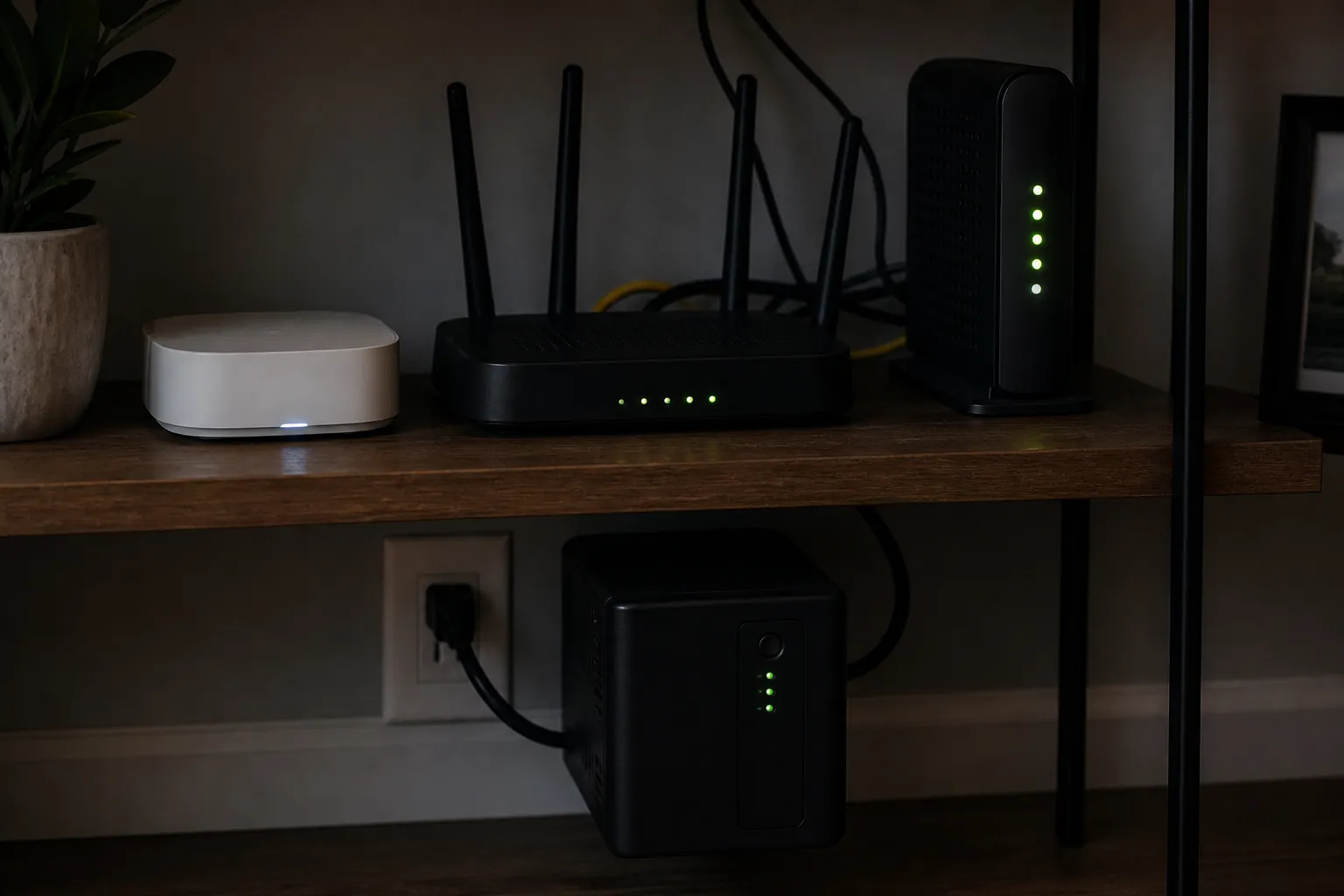
The annoying version of a blackout is not always the refrigerator warming up or the lights going out. For a smart home, it is often the little shelf in the closet going dark first: hub, router, modem, maybe a Home Assistant box, all dead at the same time. The automations that would be useful during an outage—battery alerts, leak shutoffs, temperature safeguards, security routines—turn into decorations because the devices that coordinate them have no power.
Choosing a smart home battery backup for a power outage is easier once the job is split into three different jobs: keep the hub alive, keep the hub plus network alive, or keep the house alive. Those are not budget levels of the same purchase. They solve different failures.
Pick the Tier by What Must Stay Awake
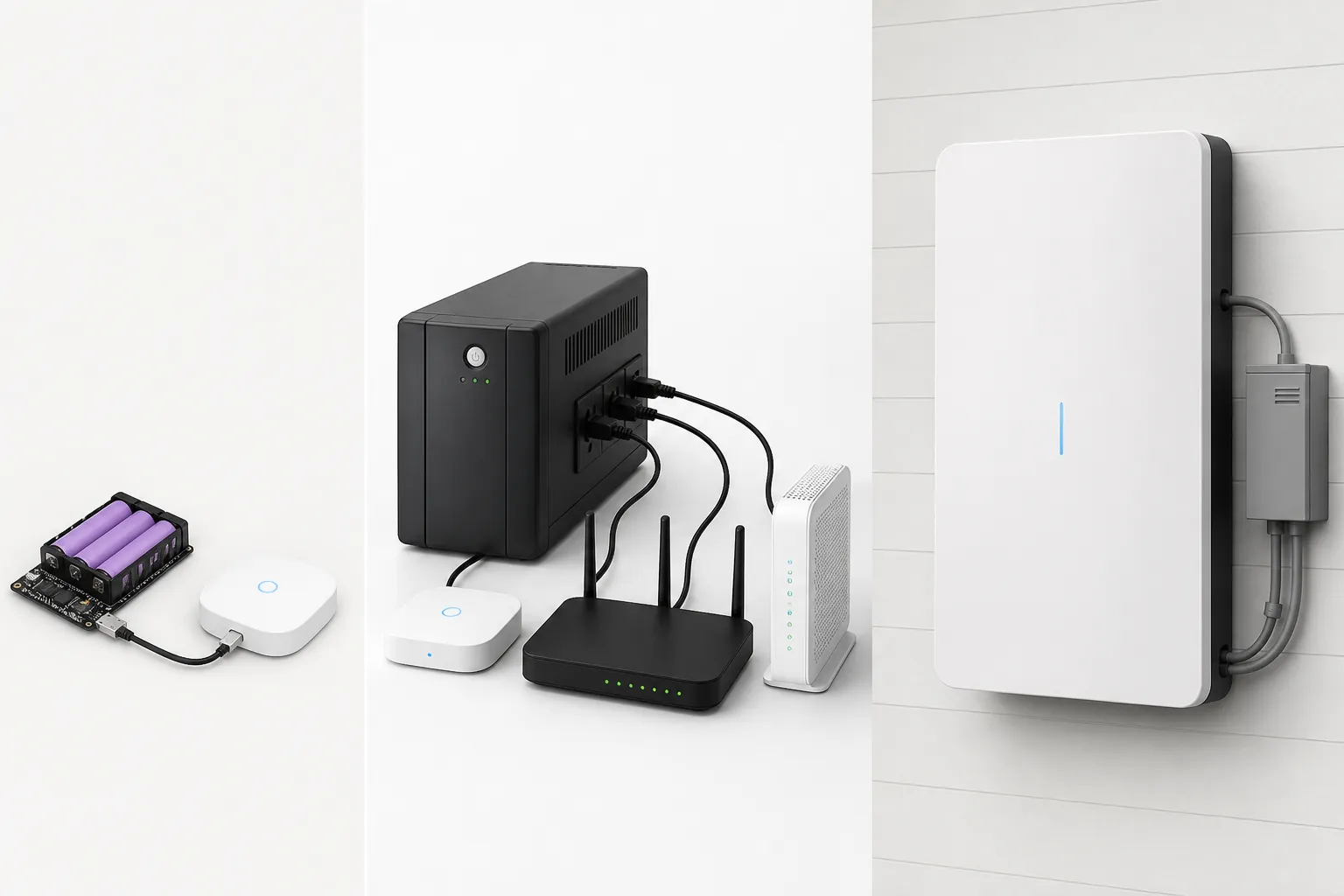
| Tier | Use it when | Typical gear | What it does not solve |
|---|---|---|---|
| Tier 1: micro-UPS for one hub | Your local Zigbee/Z-Wave hub is the main thing you need alive | 18650 battery shield or small DC/USB backup for Hubitat, SmartThings, or similar low-draw hub | Internet access, modem/router uptime, cloud device control |
| Tier 2: desktop UPS for hub + router + modem | You want local control and internet/network gear to survive a short outage | CyberPower LE1000DG, CyberPower CP1350AVRLCD3, or a narrower mini-UPS where voltage fits | Large appliances, HVAC, long multi-day outages |
| Tier 3: whole-home battery | You want circuits, appliances, solar integration, HVAC support, or multi-day coverage | Tesla Powerwall 3, EcoFlow Delta Pro Ultra with Smart Home Panel 2, Anker Solix X1 | A cheap, quick network-shelf fix |
Most smart-home continuity problems live in Tier 1 or Tier 2. Whole-home batteries are impressive, and sometimes exactly right, but they are not the natural next step when the actual failure is a 5V hub and a 12V modem losing power.
Tier 1: Keep a Single Hub Alive
A single smart-home hub can be a surprisingly small load. In one Hubitat Community test, a Hubitat C7 averaged about 1.6W, and the tested battery setup delivered more than 7 hours of runtime using an 18650-based backup arrangement.[1] That is the kind of number that changes the purchase: a micro-UPS is not automatically a gimmick if the device it is powering really is sipping power.
This tier is for a hub that can keep local automations running without needing the router or modem. A Hubitat hub handling local Zigbee and Z-Wave rules is the cleanest example. A SmartThings or Home Assistant setup may also benefit, but only if the automations you care about can still execute locally and the box has the right input voltage.
- Buy: a small DC/USB micro-UPS or 18650 battery shield that matches the hub’s input voltage and connector.
- Plug in: only the hub, not the router, not a switch, not a Raspberry Pi plus accessories unless the backup is sized for that load.
- Check first: whether the hub uses 5V USB, 12V barrel, or another adapter rating printed on the power brick.
- Avoid: no-name cells with exaggerated mAh ratings; the Hubitat test itself notes that 18650 cell quality matters.[1]
The limitation is obvious but important: Tier 1 may keep rules running, but it does not keep the internet running. If your lock routine depends on a cloud API, your camera needs Wi-Fi plus internet, or your notification path goes through a dead router, the hub being awake is only part of the chain.
How to Set Up a Hub-Only Backup
- Read the hub’s existing power adapter and write down voltage, amperage, connector type, and polarity if it uses a barrel plug.
- Buy a backup that outputs the same voltage and can supply at least the adapter’s required current.
- Charge the backup fully before trusting any runtime estimate.
- Move only the hub to the backup output, then pull wall power from the backup input.
- Confirm the hub stays online, local automations still run, and the hub does not reboot when power transfers.
- Restore wall power and confirm the hub returns to normal charging or pass-through behavior.
Do that test before the weather alert, not after. The most useful spec is not the number printed on the battery case; it is whether your actual hub rides through a real unplug test without rebooting.
Tier 2: Put the Hub, Router, and Modem on One UPS
Tier 2 is the default answer for most homes. It keeps the smart-home brain alive and preserves the network path it usually depends on. The shopping target is not “a UPS with a big number on the box.” It is a UPS that can run your hub, router, and modem at their combined wattage for the outage length you care about.
Wirecutter’s 2026 UPS testing is useful here because it gives runtime at a 20W load: the CyberPower LE1000DG kept that load running for 3 hours, while the CyberPower CP1350AVRLCD3 kept it running for 4.5 hours.[2] A 20W planning load is much more useful than a vague “hours of backup” claim because a router-plus-modem shelf can easily use enough power to collapse optimistic estimates.
The CyberPower LE1000DG is the more proportional pick when the shelf is modest and the goal is a few hours of uptime. The CP1350AVRLCD3 gives more runtime headroom and a display, which is useful when you want to see load and estimated runtime without guessing. Wirecutter measured the LE1000DG with a 4 ms transfer time, which is fast enough for typical networking equipment in this use case.[2]
| Reference UPS | Why it fits this job | Measured runtime context |
|---|---|---|
| CyberPower LE1000DG | Good fit for a hub, router, and modem shelf where cost and size matter | 3 hours at a 20W load in Wirecutter testing |
| CyberPower CP1350AVRLCD3 | Better when you want more runtime headroom and an onboard display | 4.5 hours at a 20W load in Wirecutter testing |
Runtime still depends on your actual devices and battery age. A fiber ONT, mesh node, PoE switch, mini PC, and external drive are not the same load as a basic modem and router. The UPS does not care that all of those are “network gear”; it only sees watts.
What to Plug Into the UPS
- Plug in: smart-home hub, router, modem, fiber ONT if it is separate and required for service.
- Maybe plug in: a small network switch if the hub or Home Assistant box needs wired Ethernet through it.
- Do not plug in: monitor, desktop PC, printer, NAS, speaker amplifier, space heater, lamp, or anything added just because there is an open outlet.
- Label: each wall wart and UPS outlet so the shelf can be rebuilt without detective work after a battery replacement.
If your Home Assistant system runs on a Raspberry Pi, Home Assistant Yellow, or a low-power mini PC, include it in the load calculation. If it runs on a larger server with disks and extra services, it may deserve its own shutdown plan instead of quietly stealing runtime from the modem and hub.
A Narrower Alternative: Mini-UPS for Low-Voltage Gear
The Konnected mini-UPS sits between the improvised hub battery and the desktop UPS. Konnected describes it as a 7800 mAh backup with an 8–14 hour runtime for alarm-panel-style loads, and notes that it can power SmartThings or Hubitat hubs via 5V USB or Home Assistant Yellow via 12V DC.[3]
That makes it useful where the wiring problem is low-voltage DC, not a row of AC adapters. It is not a drop-in replacement for a desktop UPS if your modem and router both need standard AC outlets. It is a neat answer when the devices match its outputs and the shelf does not need more outlets.
Tier 2 Setup Sequence
- Identify every adapter on the network shelf before buying anything: hub, router, modem, ONT, switch, Home Assistant box.
- Decide what is actually required for your automations. If the hub talks by Ethernet through a switch, the switch is required. If a mesh satellite is only for upstairs streaming, it is not.
- Choose a UPS using a realistic load target. If you do not have a watt meter, plan conservatively around a hub-plus-router-plus-modem load rather than trusting a best-case runtime chart.
- Charge the UPS fully, then move only the required devices onto battery-backed outlets.
- Pull wall power to the UPS. Watch whether the modem, router, hub, and Home Assistant instance stay online without rebooting.
- Leave the test running long enough to learn a real runtime, then restore power and verify every device reconnects in the right order.
If recovery is messy after the test, fix that before the next outage. The order matters: modem or ONT first, router next, switches and hubs after that. For a fuller recovery sequence, use How to Restore Your Smart Home After a Storm Power Outage as the companion checklist.
Local Devices Survive Differently Than Cloud Devices
Backup power does not make every smart device equally useful. Zigbee and Z-Wave devices can keep participating in local automations if the hub has power and the devices themselves still have power or batteries. Cloud-dependent Wi-Fi devices may still fail if the internet path is down or the vendor service is unreachable.
There is also a recovery risk. A SmartThings Community thread from 2026 describes Zigbee and Z-Wave devices going offline shortly after power was restored from a planned outage, which is a case report rather than a frequency estimate, but it is enough to justify testing recovery instead of only testing runtime.[4]
For a device-by-device view of what usually stays useful and what goes dark, keep What Your Smart Home Devices Do When the Power Goes Out nearby. If the outage is heat-related and the UPS has limited runtime, Survival Mode Automations for Heat Wave Blackouts is the more specific recipe.
Tier 3: Whole-Home Batteries Are for a Bigger Goal
Whole-home battery systems make sense when the goal has expanded beyond keeping automations alive. If you want backed-up circuits, appliances, solar charging, HVAC support, or multi-day coverage, a network-shelf UPS is the wrong tool.
The scale is completely different. ZDNET’s 2026 home battery comparison lists Tesla Powerwall 3 at 13.5 kWh and 11.5 kW, with a price context around $12,000, and EcoFlow Delta Pro Ultra configurations at 6–90 kWh with Smart Home Panel 2 support and a price context around $7,500.[7] Treehouse describes Anker Solix X1 as a modular system from 5–180 kWh and cites pricing around $650 per kWh.[8]
Those numbers are early-2026 comparison figures, not a quote for your house. Installed cost changes with installer, region, electrical work, battery count, backup panel choices, solar integration, permits, and incentives. That is why this tier should not be treated as the premium version of a UPS. It is a home-energy project.
If you are already planning that project, include the smart-home shelf in the backed-up circuit plan. If you are not, do not let a whole-home battery distract from the cheaper failure sitting in front of you: the modem, router, and hub need a few clean hours, not necessarily a house-sized energy system.
Do Not Just Keep It Alive; Make It Shut Down and Recover Cleanly
A UPS buys time. It does not automatically make a smart home resilient. James Ridgway’s home-automation resilience writeup treats the outage as a sequence: detect power loss, preserve the important services, avoid dirty shutdowns where possible, and verify recovery when power returns.[5] That is the right shape for a serious setup.
Home Assistant users can go further by reading UPS state over NUT and triggering automations when the UPS goes on battery or reaches a low-battery threshold. Daniel Rosehill’s Home Assistant power-outage automation repository provides YAML examples for that pattern.[6]
- Notify early: send an alert when the UPS switches to battery.
- Shed load: turn off nonessential dashboards, displays, or accessory devices if they are on backup.
- Protect storage: shut down a Home Assistant server or NAS before the UPS is empty.
- Recover in order: bring modem or ONT, router, switches, hubs, and automations back in a predictable sequence.
For pre-outage prep beyond this battery recipe, pair it with Build a Smart Home That Survives Power Outages. The main thing is to test the unpleasant part: pull power, wait, restore power, and see whether the system comes back without hand-holding.
The Practical Buy List
- Buy Tier 1 if one low-draw hub is the dependency and your most important automations are local.
- Buy Tier 2 if the hub, router, and modem all need to stay up; this is the best fit for most smart homes.
- Use a mini-UPS when the voltage outputs match your low-voltage gear and you do not need multiple AC outlets.
- Consider Tier 3 only when the goal includes backed-up circuits, appliances, HVAC, solar, or long-duration home power.
- Test by pulling wall power before the next storm, then fix the devices that fail to stay online or recover cleanly.
Buy the smallest tier that protects the devices your automations actually depend on. For many homes, that is a micro-UPS for the hub or a $140–$200 desktop UPS for the hub, router, and modem—not a multi-thousand-dollar battery system.
References
- How To: Hubitat Battery Backup Solution plus Automatic Shutdown after a power Failure, Hubitat Community, Nov. 2020
- The 3 Best Uninterruptible Power Supplies (UPS) of 2026, Wirecutter / The New York Times, 2026
- Power Up Your Smart Home with Backup Battery, Konnected
- All Zigbee and Z-Wave devices offline shortly after power restored from a planned power outage, SmartThings Community
- Surviving A Power Cut: Home Automation Resilience, James Ridgway
- Home-Assistant-Power-Outage-Automation, GitHub
- The best home battery and backup systems of 2026, ZDNET, 2026
- Battery Backup Systems for Home Power Outages: How to Choose, Treehouse