
How to Restore Your Smart Home After a Storm Power Outage
Learn the exact step-by-step sequence to restore your smart home after a storm power outage — from waiting for voltage stabilization to re-interviewing Z-Wave nodes — so you avoid lost pairings and hours of debugging.
Power is back, the hallway lights are half awake, and the smart-home app is confidently wrong. Before you tap repair, remove, reset, or rediscover anything, follow this recovery sequence: stabilize power, restore the network, start the hub, let the mesh rebuild, then touch individual devices only when the system has had a fair chance to recover.
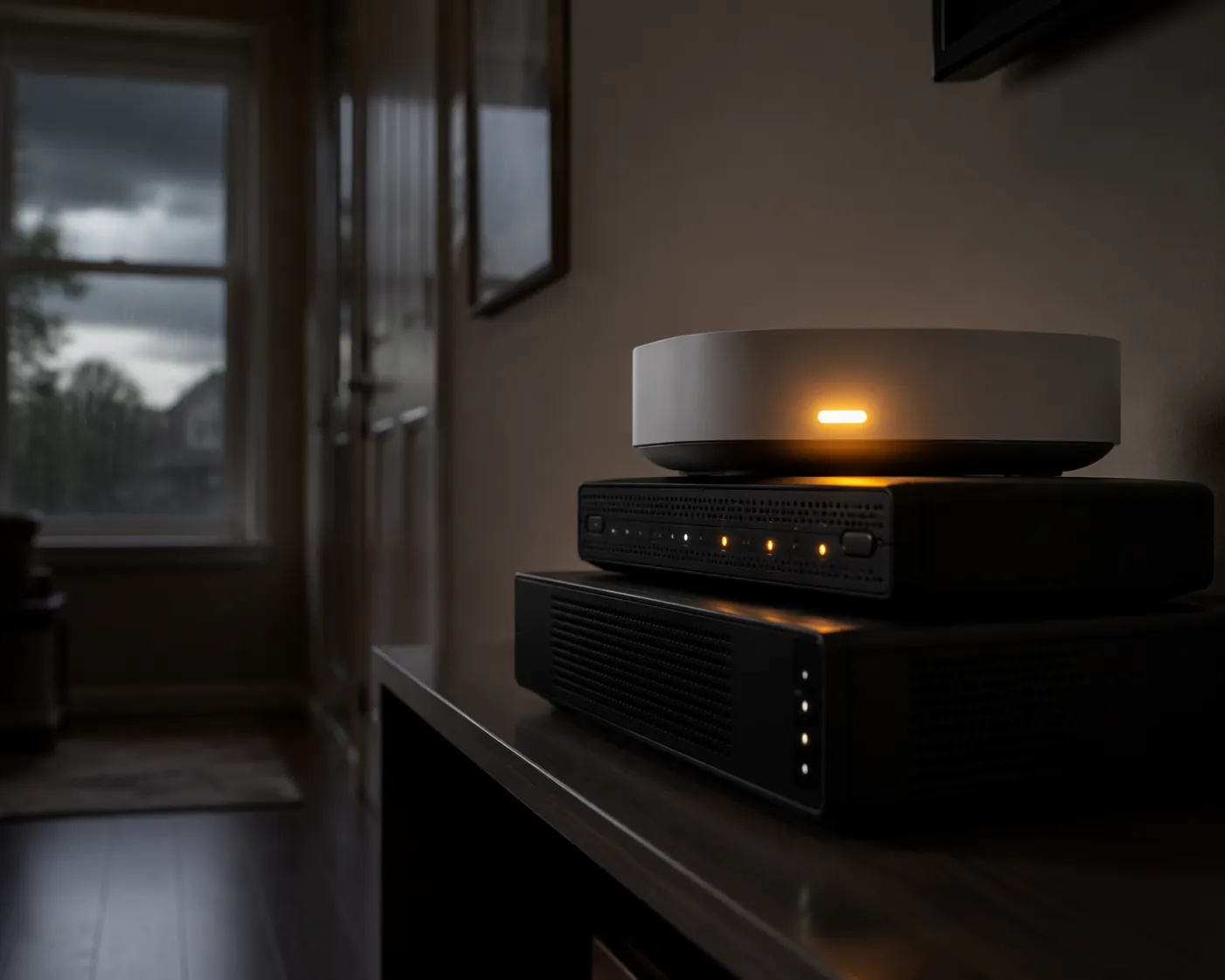
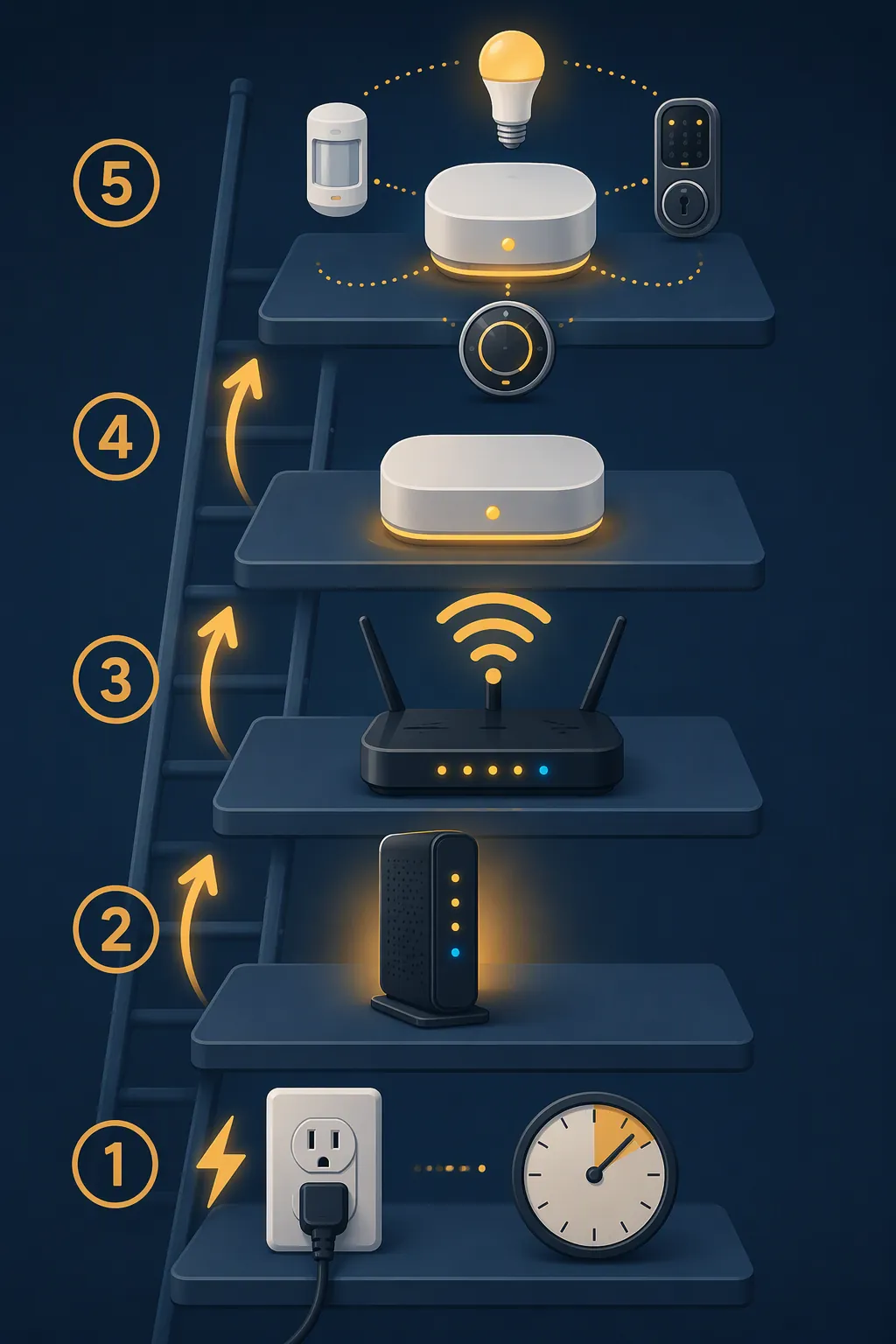
The Copyable Recovery Order
- Wait about 5–10 minutes after utility power appears stable before restarting sensitive gear.
- Power the modem first and wait until its connection lights settle.
- Power the router next and confirm Wi-Fi and internet are actually usable.
- Power the smart-home hub only after the network is stable.
- Wait at least 30 minutes before judging mesh devices, especially Zigbee and Z-Wave devices.
- Check critical functions: locks, thermostat, security routines, leak sensors, smoke or CO integrations, and garage access.
- Repair in order: mains-powered repeaters first, then battery sensors, then stubborn Z-Wave nodes.
- Use re-interview, refresh, heal, or controlled repair before any factory reset.
The 5–10 minute pause is not a law of physics, and it is not equally documented by every platform vendor. It is a low-risk field practice that appears across outage-recovery guidance and community troubleshooting: let voltage and network gear stop flapping before asking a hub to rebuild a device graph it depends on.[1][2]
Do Not Let the Hub Wake Up First
A smart-home hub that boots before the modem and router are ready can land in the worst possible middle state: it is powered, its local radios may be alive, but cloud links, integrations, time sync, DNS, or controller services may not be ready. That is when apps start showing devices as missing, offline, unavailable, or “gone” even though the devices themselves may still be paired.
The clean sequence is boring on purpose. Bring up the modem. Wait for its upstream connection to settle. Bring up the router. Join Wi-Fi from a phone or laptop and load a normal webpage, not just the router’s admin page. If the internet is still cycling, leave the hub alone.
Only then should the hub power on. HomeTechHacker’s outage preparation guidance treats network and hub recovery order as part of keeping the smart home recoverable, alongside surge protection and backup power planning.[2] Whizz-Experts also places hub reconnection after the network layer, with special attention to cases where a hub fails to reconnect to the expected Wi-Fi band after an outage.[1] The page carries an AI-generated-content disclaimer, so it should not be treated as platform authority, but the order matches the broader field pattern.
This is especially important if your hub uses Wi-Fi rather than Ethernet. After an outage, some routers bring radios up before internet service is working; others restore 2.4 GHz and 5 GHz behavior differently depending on firmware and band-steering settings. A hub that previously used 2.4 GHz may appear powered and reachable for a moment, then fail cloud sync or device control because the network underneath it is still negotiating.
| Stage | What You Are Waiting For | What Not To Do Yet |
|---|---|---|
| Utility power | Lights stop flickering and major appliances are not cycling | Do not plug everything back in immediately |
| Modem | Connection or online light is stable | Do not judge the smart-home hub |
| Router | Wi-Fi works and a phone can reach the internet | Do not start device repairs |
| Hub | Hub app shows the controller online | Do not reset missing devices |
| Mesh | Repeaters and end devices have had time to rejoin | Do not factory-reset nodes that may still be paired |
Give the Mesh Time Before You Believe the App
Once the hub is online, the smart home is not restored yet. Zigbee and Z-Wave networks are not just lists of devices; they are routes, repeaters, sleepy battery endpoints, and controller records. After a storm outage, the app may be looking at a map that is still being redrawn.
A practical waiting window is 30 minutes or more before you declare the mesh broken. That window is a conservative operating habit, not a vendor guarantee. It gives mains-powered switches, outlets, plugs, bulbs that act as repeaters, and other always-powered devices time to come back before battery sensors try to report through them.
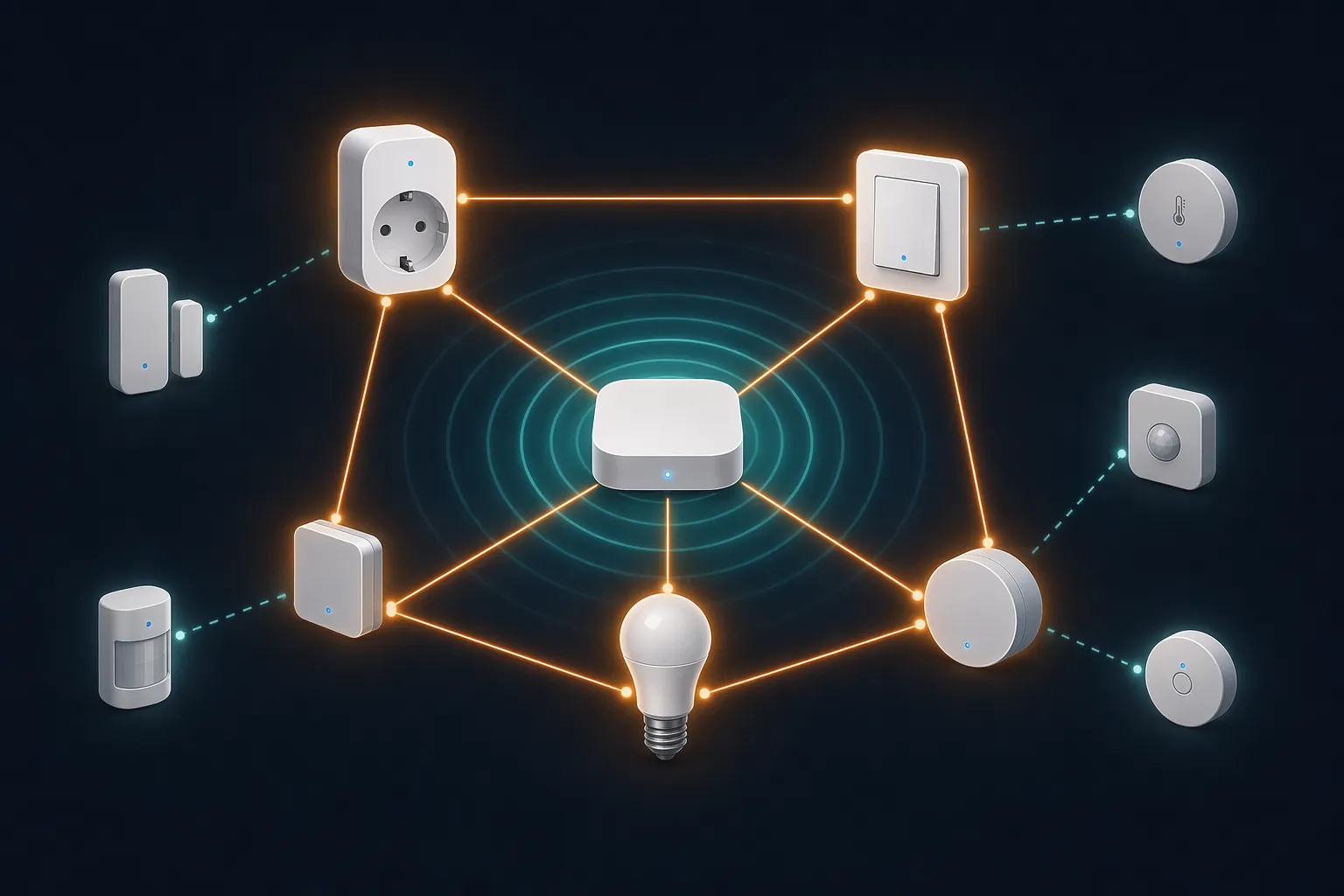
For Zigbee, the first devices worth checking are the powered backbone devices: smart plugs, in-wall switches, wired modules, and other mains-powered nodes. Americas Generators’ outage guide describes the practical reason: these devices help rebuild the mesh routes that battery-powered sensors depend on, while sensors may report only on their own heartbeat schedule.[3]
That matters because a door sensor marked offline ten minutes after the hub returns may not be failed. It may be waiting to wake, or it may be trying to reach a repeater that has not fully rejoined. If you reset the sensor at that point, you may turn a temporary routing delay into a real pairing job.
A Better Zigbee Check
- Confirm the hub is online and stable.
- Check powered Zigbee repeaters before battery sensors.
- Toggle one nearby powered switch or plug from the app.
- Wait for battery sensors to report naturally before removing or resetting them.
- If a battery sensor stays offline, wake it using its normal button or magnet action before re-pairing.
This order protects the pairing record. A battery sensor that wakes and reports after the mesh backbone returns is still your device, still in its automation history, and still named correctly. That is a better outcome than discovering it as a new sensor and rebuilding every routine that used the old one.
When Z-Wave Says “Dead” but the Device Still Talks
Z-Wave deserves its own pause because one post-outage pattern is particularly easy to mishandle: the controller marks a node as dead, but the device still reports manual state changes. In a Home Assistant Community thread after a power outage, users described Z-Wave devices shown as dead while manual changes still appeared, and a per-device re-interview resolved the state without factory-resetting the device.[4]
That is not proof that every Z-Wave controller will behave the same way. Home Assistant with a particular Z-Wave stack, SmartThings, Hubitat, Zooz-based setups, and other controllers can expose different labels and repair tools. The useful lesson is narrower and safer: if a node is marked dead but still reports something, do not reset it first. Treat it as a controller-state or interview problem until proven otherwise.
Use the least destructive option your controller provides. Depending on the platform, that may be re-interview, refresh, heal, ping, repair route, or replace failed node. The wording matters less than the discipline: preserve the existing node ID and pairing if the device is still communicating.
| What You See | Likely Meaning | First Action |
|---|---|---|
| Marked dead, but manual presses report in the app | Controller record may be stale | Re-interview or refresh the node |
| Marked dead and never reports, even after nearby repeaters return | Route, power, or device issue is more plausible | Check power and run a targeted repair |
| Battery Z-Wave sensor offline shortly after outage | It may not have woken yet | Wake it normally before re-pairing |
| Multiple powered Z-Wave devices offline in one area | A repeater or circuit may still be down | Check the mains-powered devices first |
| One device failed after all other routes recover | Device-specific repair may be needed | Use controller repair tools before factory reset |
The factory reset button is last because it destroys context. It can remove the very evidence you need: whether the node was still reporting, whether routes were recovering, and whether automations were still attached to the original device record.
SmartThings and Other Cloud-Heavy Setups Need Extra Patience
SmartThings-style setups can make a partial recovery look worse than it is because local radio status, hub cloud status, app display, and automation execution may not settle at the same moment. A SmartThings Community outage thread describes a half-recovered situation where devices appeared gone after an outage when the hub came back before the rest of the environment was stable.[5] Source access is limited, so that should be read as a documented user pattern rather than a universal SmartThings protocol rule.
The response is still the same: network first, hub second, mesh wait third, device repair fourth. If the app is stale, close and reopen it after the hub has had time to settle. Check from a second device if possible. If the hub dashboard says online but all controls fail, verify the router and internet again before assuming the hub database is damaged.
For an ISP-specific outage where utility power returns but broadband does not, use a separate recovery ladder like Recover Your Smart Home After a Spectrum Fiber Line Cut. A local hub may still run some automations, but cloud-dependent controls will keep looking broken until the service path is restored.
Verify the Things That Matter Before Chasing Every Sensor
After the hub and mesh have had time to rebuild, stop looking at the device list as a scoreboard. Verify the functions that affect the house first.
- Locks: confirm app control, keypad behavior, and physical key access.
- Thermostat: confirm mode, setpoint, schedule, and HVAC response.
- Security routines: confirm arm/disarm status, entry sensors, sirens, cameras, and notification paths.
- Garage: confirm smart control only after checking that the manual release and physical access path are understood.
- Safety sensors: confirm leak, smoke, CO, and freezer alerts where applicable.
Physical access deserves a quick check because smart recovery is not the same thing as household recovery. WRAL’s consumer outage guidance emphasizes basics such as knowing where physical keys are and how to operate a garage door manually during power failures.[6] That advice belongs here, near verification, because it is the backstop if the smart layer remains unreliable.
Once the critical functions work, make a short list of lingering devices instead of repairing everything in bulk. Name, room, protocol, power type, and symptom are enough: “Hall motion, Zigbee battery, offline,” or “Mudroom switch, Z-Wave powered, dead but reports.” That list tells you what to touch next and prevents the usual post-storm blur where every device gets the same treatment whether it needs it or not.
Lights May Come Back Wrong Even When the Network Is Fine
Smart lights are a separate annoyance. A bulb that turns on at full brightness after power returns is not necessarily offline, unpaired, or broken. Many smart-light systems have configurable power-on behavior, and PCMag’s guide to reviving smart-light settings after an outage specifically discusses restoring those settings for Hue and other lights after power loss.[7]
Handle lighting after the network and hub are stable. If the lights respond in the app but came back too bright, too warm, or in the wrong room scene, adjust power-on behavior and scenes. If they do not respond at all, then treat them like mesh devices: powered repeaters first, battery devices later, destructive resets last.
What To Prepare Before the Next Storm
Preparation is not the center of this recovery recipe, but a few choices make the next outage less chaotic. Put the modem, router, and hub on surge protection. If you use a UPS, size it for the network stack you actually need during a short outage, not for every smart device in the house. Runtime varies with power draw and battery age, so treat product estimates as planning inputs rather than promises.
For a fuller pre-storm buildout, use Build a Smart Home That Survives Power Outages. For device-by-device outage behavior, keep What Your Smart Home Devices Do When the Power Goes Out nearby. If your area has recurring long outages, Power Outage Duration by Region: How to Size Your Smart Home Backup is the better place to think about UPS or power-station sizing.
If you maintain both Zigbee and Z-Wave, a per-protocol prep checklist also helps: label repeaters, document battery sensor locations, and know where your controller hides re-interview or repair tools before the next storm. Smart Home Storm Preparation Tips for Every Protocol covers that side of the work.
Stop When the House Is Restored
A clean post-storm restoration does not mean every sensor is perfect before anyone goes to bed. It means the network is stable, the hub is online, the mesh has had time to rebuild, locks and thermostat work, security routines are verified, and the remaining failures are isolated enough to repair without guessing.
The devices still misbehaving after that deserve targeted work. A Zigbee battery sensor may need to be awakened. A Z-Wave node that reports while marked dead may need a re-interview. A powered repeater may need its circuit checked. Factory reset stays at the end of the bench, not in your hand while the router is still booting.
References
- Smart Hub Not Syncing After Power Outage? Here's the Fix, Whizz-Experts, https://whizz-experts.com/support/smart-devices/smart-hub-not-syncing-after-power-outage/
- Preparing Your Smarthome for Outages, HomeTechHacker, https://hometechhacker.com/preparing-your-smarthome-for-outages/
- Surviving a Smart Home Power Outage, Americas Generators, https://americasgenerators.com/surviving-a-smart-home-power-outage/
- After power outage many zwave devices are marked dead but, Home Assistant Community, https://community.home-assistant.io/t/after-power-outage-many-zwave-devices-are-marked-dead-but/473048
- Half of my devices gone after power outage, SmartThings Community, https://community.smartthings.com/t/half-of-my-devices-gone-after-power-outage/188683
- Prepare for outages: Essential tips to keep your smart home running during power failures, WRAL, https://www.wral.com/consumer/5onyourside/prepare-outages-essential-tips-smart-home-power-failures-jan-2026/
- How to Revive Your Smart Light Settings After a Power Outage, PCMag, https://www.pcmag.com/how-to/how-to-revive-your-smart-light-settings-after-a-power-outage