Yes, you can reliably use Matter and Home Assistant in Q3 2026 for ordinary plugs, lights, sensors, switches, and a growing set of newer device types. The catch is not usually the Matter logo on the box. The catch is whether your Home Assistant host, router, Thread border router, and phone are all in the right place on the network before you scan the first QR code.
Home Assistant’s Matter support has crossed the line from “interesting project” to “reasonable daily-driver choice.” Matter is enabled in 38% of Home Assistant instances and ranks 12th among integrations, although that measures enabled integrations rather than confirmed active Matter devices in every home.[1] Home Assistant also became the first open-source project certified by the Connectivity Standards Alliance as a Matter controller in March 2025.[2] Those are good reasons to stop treating Matter as experimental. They are not reasons to skip the boring checks.
Before You Buy or Pair Anything
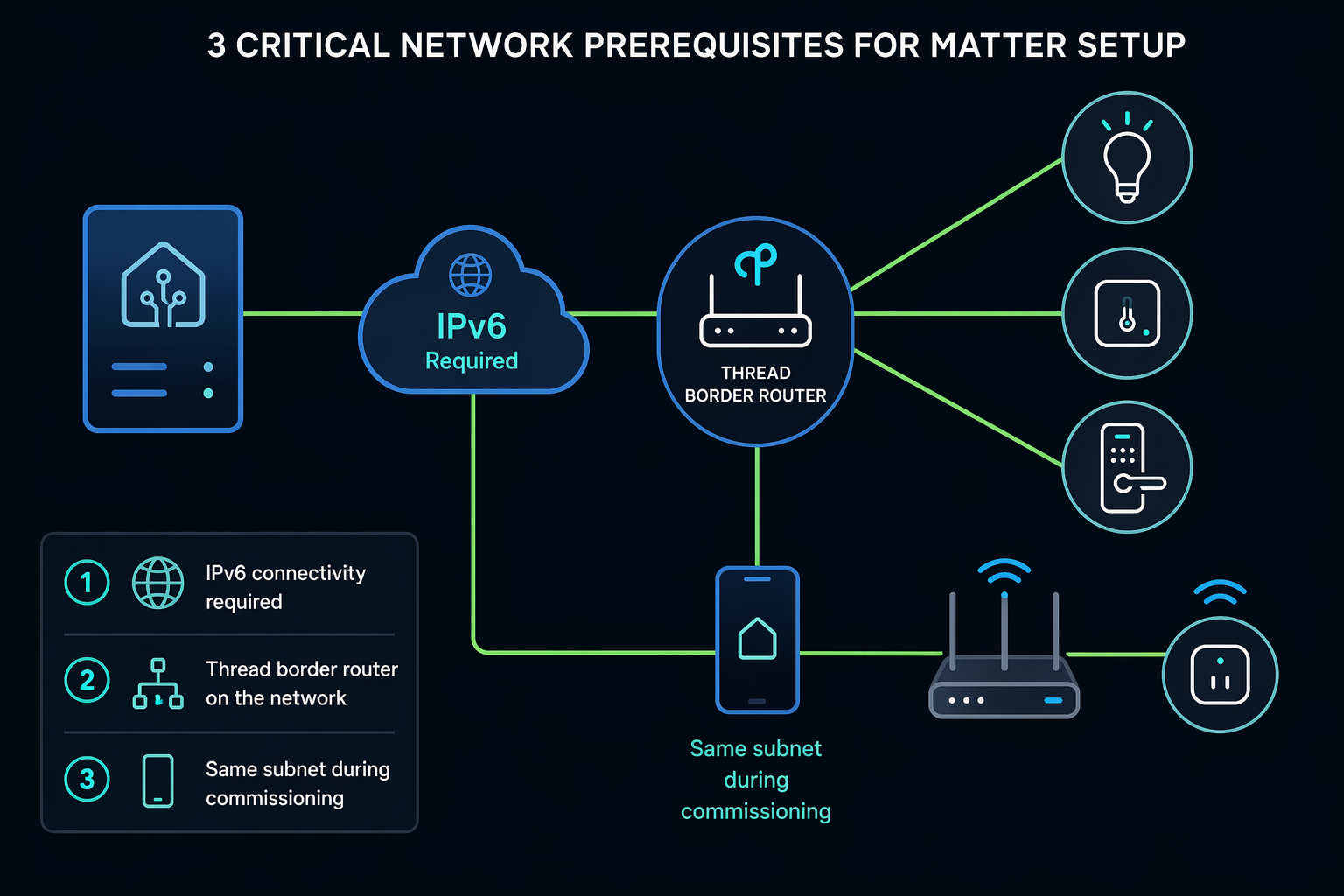
A Matter setup in Home Assistant usually fails early for one of three reasons: IPv6 is not actually working, a Thread device has no usable Thread border router, or the phone running the Home Assistant Companion app is isolated from the border router during commissioning. If you check only one section of this guide before opening a device box, make it this one.
| Check | What must be true | Why it matters |
|---|---|---|
| Home Assistant host | Home Assistant is up to date, the Matter integration can run, and the system has enough memory for Matter Server 9.0 | The Matter Server is the local controller service Home Assistant uses to commission and manage devices |
| IPv6 | IPv6 works beyond link-local addresses on the Home Assistant host and the commissioning path | Matter commissioning depends on IPv6 discovery and communication |
| Device transport | You know whether the device is Matter over Wi-Fi, Matter over Thread, or a bridge exposing devices through Matter | Wi-Fi devices join your Wi-Fi; Thread devices need a Thread mesh and border router |
| Thread border router | Thread devices have a compatible border router, such as HomePod mini, Nest Hub 2nd Gen, Echo 4th Gen, or a ZBT-1/ZBT-2 running OpenThread Border Router | A Thread device cannot join Home Assistant directly through ordinary Wi-Fi |
| Commissioning phone | The phone with the Home Assistant Companion app is on the same subnet or VLAN path as the border router during setup | Many failed pairings are network isolation problems, not bad devices |
1. Confirm Home Assistant and Hardware Readiness
Start with the machine running Home Assistant. If it is already struggling with database writes, camera streams, or too many add-ons, do not add Matter and then blame the protocol for slow reactions. Matter Server 9.0 has been reported with a practical 4 GB RAM baseline, matching the Home Assistant Green class of hardware, and that is a sensible floor for a new setup.[5]
Update Home Assistant before commissioning new devices. Matter Server 9.0, released in June 2026, replaced the previous Python/C++ SDK foundation with a matter.js and TypeScript backbone, added Thread network visualization, Wi-Fi network mapping, support for Matter 1.5.1 devices, and stricter handling of uncertified development certificates.[1] This is one of the rare updates where “update first” is not tidy advice; it changes the tools you have when something goes wrong.
2. Make IPv6 Real, Not Merely Present
Matter uses IPv6. That does not mean your ISP must give every smart plug a public address, and it does not mean you need to become an IPv6 routing specialist before buying a contact sensor. It does mean IPv6 must be functional on the local path used for commissioning and control. A setup that only shows link-local IPv6 addresses is not the same as a working Matter-ready network; commissioning can require IPv6 with global scope rather than link-local-only behavior.[4]
Check this before pairing: the Home Assistant host should have IPv6 enabled, the router should not be blocking local IPv6 discovery, and any VLAN or IoT network rules should allow the phone, Home Assistant, and border router to discover and talk to one another during setup. Homes with carefully segmented networks are the ones most likely to look correct on paper while the device keeps blinking on the counter.
If you are already tuning IoT isolation, router multicast behavior, or smart-home SSIDs, use a router guide as a network-side companion rather than as a substitute for this setup path. The practical question is whether your smart-home network permits the discovery Matter needs; a high-end router does not help if the rules separate the commissioning phone from the thing doing the commissioning. For broader network planning, see smart-home router guidance.
3. Identify Whether the Device Is Wi-Fi, Thread, or a Bridge
The Matter badge tells you the application layer. It does not tell you whether the device talks over Wi-Fi, Ethernet, Thread, or through a bridge. That distinction decides what hardware you need.
- Matter over Wi-Fi: the device joins your Wi-Fi network and Home Assistant controls it through Matter over the IP network.
- Matter over Thread: the device joins a low-power Thread mesh and needs a Thread border router to reach Home Assistant.
- Matter bridge: a hub, such as a lighting or sensor bridge, exposes other devices to Home Assistant through Matter.
For Matter over Thread, a Thread border router is mandatory. Common options include HomePod mini, Nest Hub 2nd Gen, Echo 4th Gen, and Home Assistant’s ZBT-1 or ZBT-2 dongles when used with the OpenThread Border Router app.[3][5] If you are choosing hardware specifically for this role, compare the options in a Thread border router selection guide before buying. If the word “Nest” is creating confusion, separate Nest devices that act as controllers or border routers from ordinary Matter devices using this Nest Matter controller explainer.
Install or Update the Matter Integration
In Home Assistant, Matter is handled through the Matter integration and the Matter Server that runs behind it. On Home Assistant OS and supervised-style setups, the integration can manage the server path more directly; on more customized installations, pay closer attention to the official integration requirements and how the server is deployed.[3]
- Update Home Assistant Core and the operating system or container stack you use.
- Open Settings, then Devices & services.
- Add or open the Matter integration.
- Confirm the Matter Server is running and updated to the current release available for your Home Assistant version.
- If you use Thread, confirm your Thread border router is visible and ready before starting device commissioning.
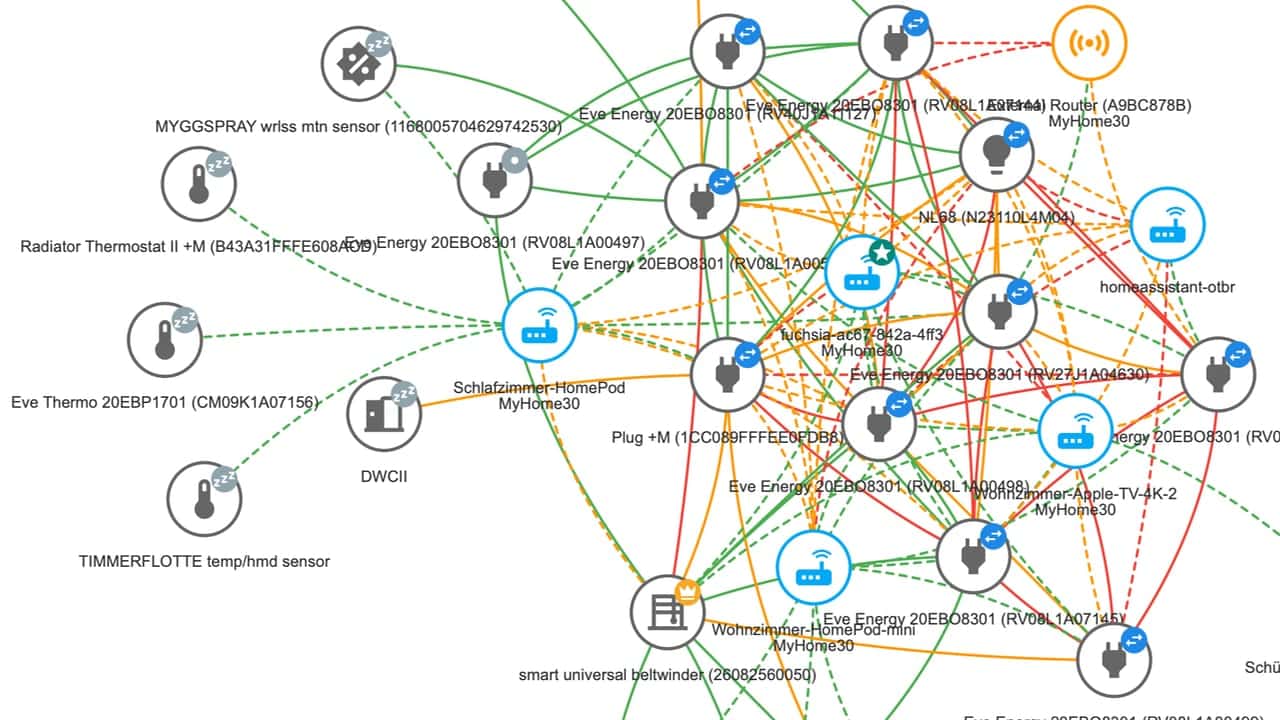
Matter Server 9.0’s most useful change for real homes is not a spec headline. It is visibility. The new Thread visualization shows the network as a topology with color-coded link quality indicators and device role icons, while Wi-Fi mapping helps show how Wi-Fi Matter devices are attached.[1][5] That is much better than staring at a device list and wondering whether a sensor is asleep, stranded, or simply out of range.
Commission the Device Through the Home Assistant Companion App
For most users, the cleanest path is to commission the device from the Home Assistant Companion app on iOS or Android. Have the device powered, nearby, and in pairing mode. Keep the phone on the same Wi-Fi network or same routed local segment as the relevant Thread border router. If your home has a main LAN, an IoT VLAN, a guest network, and a “smart devices” SSID, “same network” means more than the SSID name on the phone.
- Open the Home Assistant Companion app while connected to the local network.
- Go to the device or integration flow for adding a Matter device.
- Scan the Matter QR code or enter the setup code printed on the device or card.
- Choose Home Assistant as the controller when prompted.
- Wait for the device to join its transport network: Wi-Fi for Wi-Fi devices, Thread for Thread devices.
- Name the device, assign it to an area, and test the simplest entity before building automations.
Do the first test close to the infrastructure. For a Thread contact sensor, pair it near the border router, verify it appears in Home Assistant, then move it to the door. For a Wi-Fi plug, pair it where Wi-Fi is known to be decent, not in the far corner behind an appliance. You are trying to separate commissioning problems from range problems.
After the device appears, use Home Assistant before anything else. Toggle the plug. Open and close the contact sensor. Watch the entity state change. If the device exposes battery, signal, or diagnostic entities, glance at them, but do not overbuild the dashboard yet. A device that cannot survive the first five minutes does not need a beautiful automation.
When the Device Will Not Add
The first failure state is usually not mysterious. The app times out, the device says it cannot be added, or Home Assistant never sees it after the QR code scan. Work from the network outward instead of factory-resetting the device five times in a row.
| Symptom | Likely first check | What to do next |
|---|---|---|
| Pairing starts, then times out | Phone, Home Assistant, and border router may not be able to discover each other | Move the phone to the same subnet/VLAN path as the border router and retry |
| Thread device is found but will not join | No usable Thread border router or Thread credentials are not available | Confirm the border router is online and supported by your Home Assistant setup |
| Wi-Fi Matter device fails after network selection | The device may be on an isolated SSID or weak Wi-Fi | Use the normal IoT SSID only if local discovery and IPv6 are allowed |
| Device adds, then becomes unavailable | Range, Thread mesh quality, router multicast behavior, or IPv6 instability | Check Matter Server topology, border router placement, and router settings |
| Everything works in Apple, Google, or Alexa but not Home Assistant | The device may already be on another fabric, or Home Assistant is not receiving the sharing code correctly | Stabilize one controller first, then add Home Assistant through the device’s multi-admin sharing flow |
VLAN-heavy homes deserve special suspicion. A phone on the main LAN, a border router on the IoT VLAN, and Home Assistant in a server VLAN may all reach the internet perfectly while local commissioning still fails. Matter commissioning needs local discovery and IPv6 behavior that ordinary cloud-controlled devices often avoid. If your router has client isolation, guest-network isolation, aggressive multicast filtering, or IGMP snooping settings, those are worth checking before assuming the Matter integration is broken. For broader symptoms across many devices, see connected-device network troubleshooting.
If a Thread device adds and later drops, open the Matter Server 9.0 topology view before moving hardware randomly. Green, orange, and red link indicators are more useful than a vague feeling that “Thread is flaky.” A red or weak path near the final device location points toward mesh placement, powered Thread routers, or the border router position rather than a Home Assistant entity problem.[1][5]
Use Multi-Fabric After the First Controller Is Stable
Matter’s multi-fabric support is genuinely useful, but it is best treated as step two. A single Matter device can join up to five controllers, such as Home Assistant, Apple Home, Google Home, Alexa, and SmartThings, with separate cryptographic bindings for each fabric.[3] That lets Home Assistant run automations while a family member still uses a familiar voice assistant or app.
Pick the first controller deliberately. If Home Assistant is where automations and history live, add the device there first, confirm it behaves, then share it outward. If the device is already stable in Apple Home or Google Home, use that ecosystem’s sharing flow to add Home Assistant as another controller. Avoid building a five-controller test before you know whether the device survives a reboot and reports state correctly in the system you actually rely on.
Matter Bridges Are Useful, With Trade-Offs
Matter bridges can expose existing non-Matter devices to Home Assistant through Matter. Examples include Aqara M2, SwitchBot Hub 2, and Philips Hue Bridge, which can bring supported child devices into a Matter controller without replacing every sensor or bulb.[1][5] This is convenient when you already own a hub and want a cleaner cross-platform control path.
The trade-off is that a bridge is another translation layer. Some advanced features may not appear through Matter, and latency can be different from native Zigbee, Z-Wave, or vendor integrations. If Home Assistant already has a mature local integration for a device family, do not assume the Matter bridge path is automatically better. Use it where it simplifies ownership, not where it hides capabilities you depend on.
Newer Matter Device Types: Buy Carefully
Matter Server 9.0 adds support for Matter 1.5.1 device categories including cameras, doorbells, and closures.[1] That is important for where Home Assistant is going, but it does not mean every camera or doorbell setup is equally polished across every ecosystem today. Specification support, controller support, and a device’s actual firmware behavior are three different things.
For plugs, switches, lights, and basic sensors, Matter buying decisions are now more straightforward. For cameras, doorbells, locks, blinds, and closures, verify the exact model and the exact feature you need. If you are shopping now, use a current Matter-ready device buying guide rather than relying on the Matter logo alone. For blinds specifically, the implications of closure support are covered in Matter closure support for smart blinds.
Matter 1.6, published in June 2026, adds NFC-based commissioning and Joint Fabric for multi-admin co-management.[6] Those are promising quality-of-life changes, especially for homes with several controllers, but they depend on controller, device, and firmware adoption. Do not buy a device today assuming every Matter 1.6 convenience is already present in the path from your phone to Home Assistant.
A Practical Setup Order
If you want the least painful route, use this order and resist the temptation to skip ahead.
- Update Home Assistant and confirm the Matter integration and Matter Server are available.
- Confirm the host has enough resources, with 4 GB RAM as a practical baseline for Matter Server 9.0-era setups.
- Verify IPv6 works locally and is not limited to unusable discovery fragments.
- Read the device label or documentation to identify Wi-Fi, Thread, or bridge-based Matter.
- For Thread devices, make sure a compatible Thread border router is online before pairing.
- Put the phone running the Companion app on the same local network path as the border router during commissioning.
- Commission the device into Home Assistant and test one basic function.
- Only after it is stable, add other controllers through multi-fabric or expose related devices through bridges.
Home Assistant is now a credible Matter controller, and Matter Server 9.0 makes the experience far easier to inspect when something goes wrong. The reliable installs are still won before the QR code scan: IPv6 working, the right Thread border router in place, and the commissioning phone on the same local path as the hardware that has to bring the device home.
References
- The Matter upgrade you've been waiting for, Home Assistant, June 23, 2026
- Home Assistant officially Matters, Home Assistant, March 10, 2025
- Matter, Home Assistant
- Unable to Add Matter Devices? Here's Why You Need IPv6, frigi.ch
- Home Assistant's New Matter Server Is a Game-Changer, matter-smarthome.de
- Matter and Thread Explained: What Works in 2026, Data Wire Solutions
Updates & Corrections
Protocol specifications and platform features change rapidly — especially with Matter version evolution. Report version changes, certification count updates, or platform policy changes that have occurred since the last editorial review.
Comments
Join the discussion with an anonymous comment.