
Connected Devices Slowing Wi-Fi? Here's the Fix
Wi-Fi slowdown after adding smart home devices
Last updated
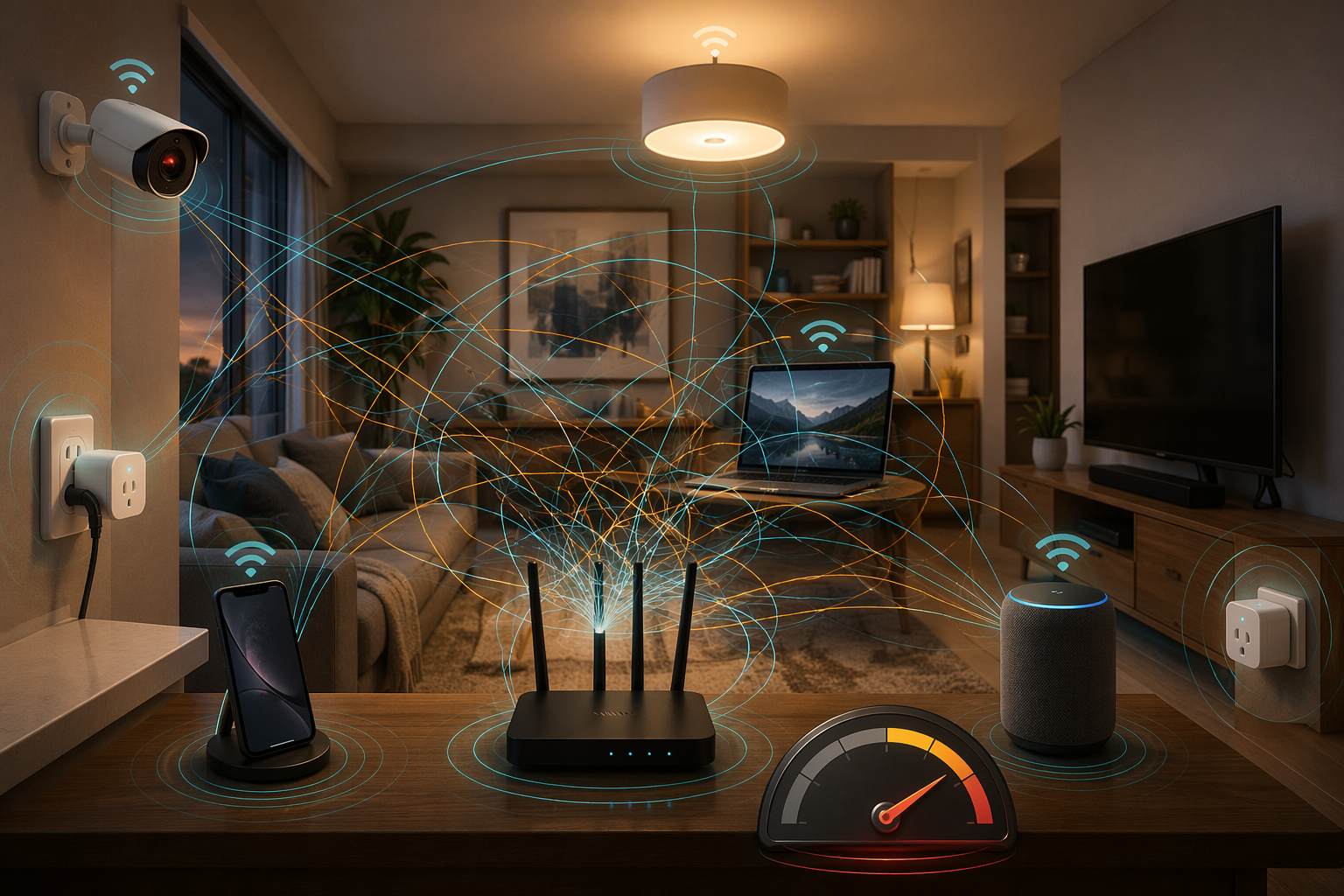
The first bad sign is usually not the smart plug. It is the laptop freezing during a video call after the house picked up two cameras, a few bulbs, a smart speaker, and a TV that now streams everything. The router still shows full bars, so the complaint becomes vague: “the internet is broken.”
If connected devices are slowing Wi-Fi, start with the boring correction: device count is only a clue. The median Verizon home internet customer household had 18 connected devices in Verizon’s 2024 report, but that does not mean 18 is a danger line for every home.[1] A house with 25 sleepy sensors can feel fine. A house with three always-uploading cameras, a slow 2.4 GHz band, and an aging router can feel awful with fewer devices.
Use this order before buying anything:
| Step | What to check or change | Why it matters |
|---|---|---|
| 1 | Compare wired and wireless speed; check the router’s connected-device list | Separates an ISP problem from a Wi-Fi problem |
| 2 | Split 2.4 GHz and 5 GHz into separate network names | Keeps slow IoT traffic away from laptops, TVs, phones, and consoles |
| 3 | Reduce camera upload demand | Stops cameras from quietly filling the upstream pipe |
| 4 | Tune QoS, media prioritization, and airtime fairness | Gives calls and streaming a better chance when the network is busy |
| 5 | Segment smart-home gear if your ecosystem supports it | Limits noisy or risky IoT traffic without breaking device discovery |
| 6 | Upgrade only when the evidence points to the router or device mix | Avoids replacing working hardware out of frustration |
First, prove where the slowdown lives
Run one speed test from a computer connected to the router with Ethernet, then run another from the same room over Wi-Fi. Do this when the house is acting normal, and again when the complaint happens. If the wired test is also poor, do not waste an evening renaming Wi-Fi bands; the issue may be the ISP connection, modem, line quality, or a service outage.
Then open the router app or admin page and look for three things: total connected devices, which devices are on 2.4 GHz versus 5 GHz, and whether any device is moving a lot of data. Router apps vary, but most modern ones show a device list and some version of real-time traffic or monthly usage.
Do not panic if the count looks high. A thermostat, plug, and bulb may send tiny bursts of traffic. The more useful question is which devices are awake, which band they are using, and whether anything is uploading continuously.
Split the bands before you replace the router
Many routers ship with one combined Wi-Fi name for both 2.4 GHz and 5 GHz. That can be convenient, but it also hides where devices actually land. When a smart home starts feeling sticky, separate the bands into two names: something like Home-2.4 and Home-5. Then put the right devices in the right place.
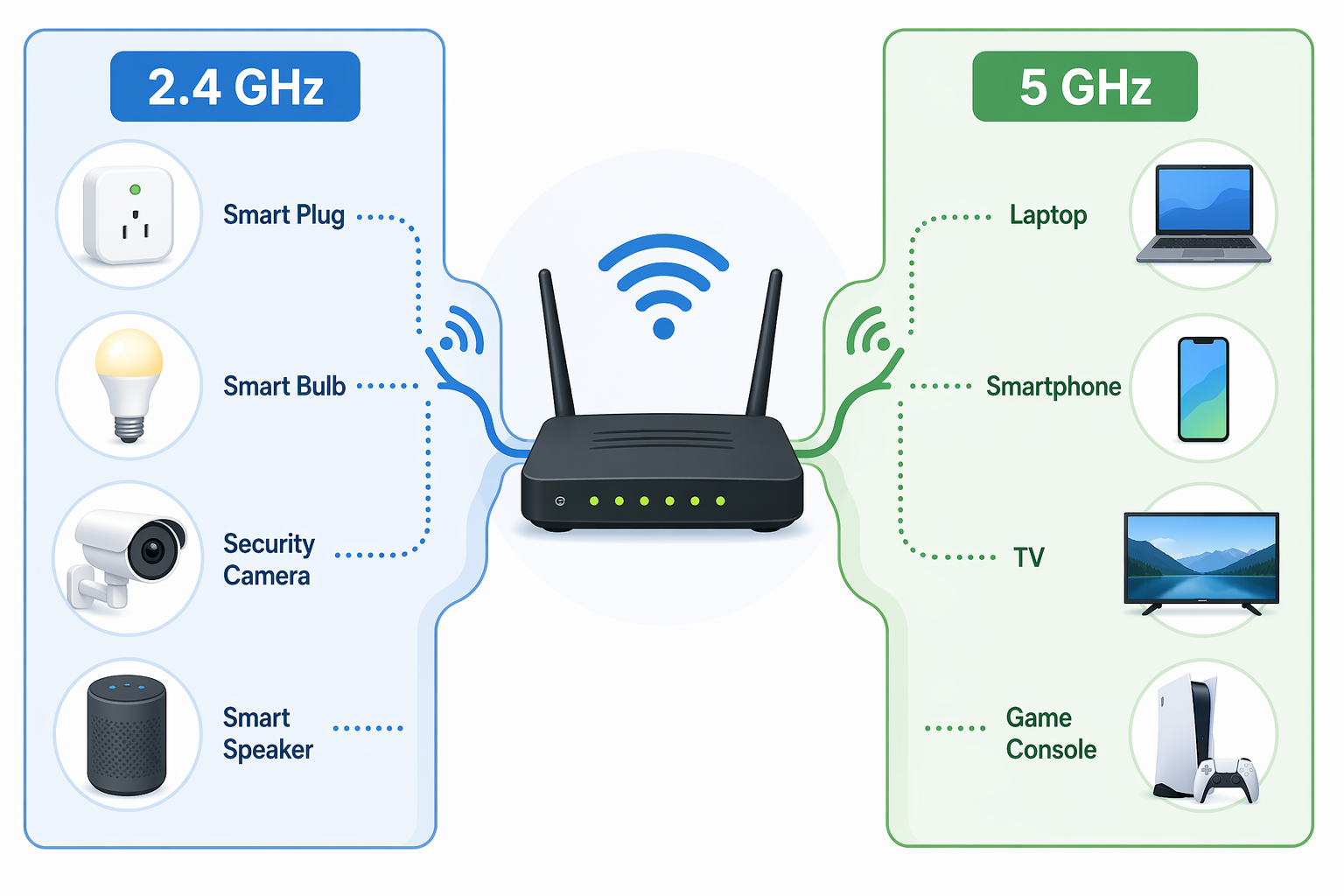
- Keep most smart bulbs, plugs, basic sensors, and many smart speakers on 2.4 GHz.
- Move laptops, phones, tablets, streaming boxes, TVs, and game consoles to 5 GHz where the signal is strong enough.
- If a camera supports both bands and sits near the router, test it on 5 GHz; if it is far away, 2.4 GHz may still be more stable.
- After moving devices, reboot only the devices that refuse to reconnect; do not factory-reset the whole house unless you have to.
This helps because 2.4 GHz is crowded and slower, but it reaches farther. It is fine for small IoT messages. It is not where a work laptop, 4K streaming box, and game console should fight for space if 5 GHz is available. Practical smart-home troubleshooting guides commonly start here because band separation is reversible and costs nothing.[2]
Give the change a real test. Move the high-bandwidth devices first, then watch the home for a day or two. If video calls and streaming recover, the fix was not magic; you stopped making fast devices share the slowest, busiest lane.
Put cameras on a data diet
Security cameras are where “too many devices” advice usually gets lazy. A camera is not just another gadget on the list. A single 1080p camera that uploads continuously can use about 2–5 Mbps of upload bandwidth and 50–500 GB per month.[3] Ookla’s Speedtest Global Index showed a median U.S. upload speed of 9.40 Mbps, so several continuously uploading cameras can crowd out calls, cloud backups, gaming, and file sync very quickly.[4]
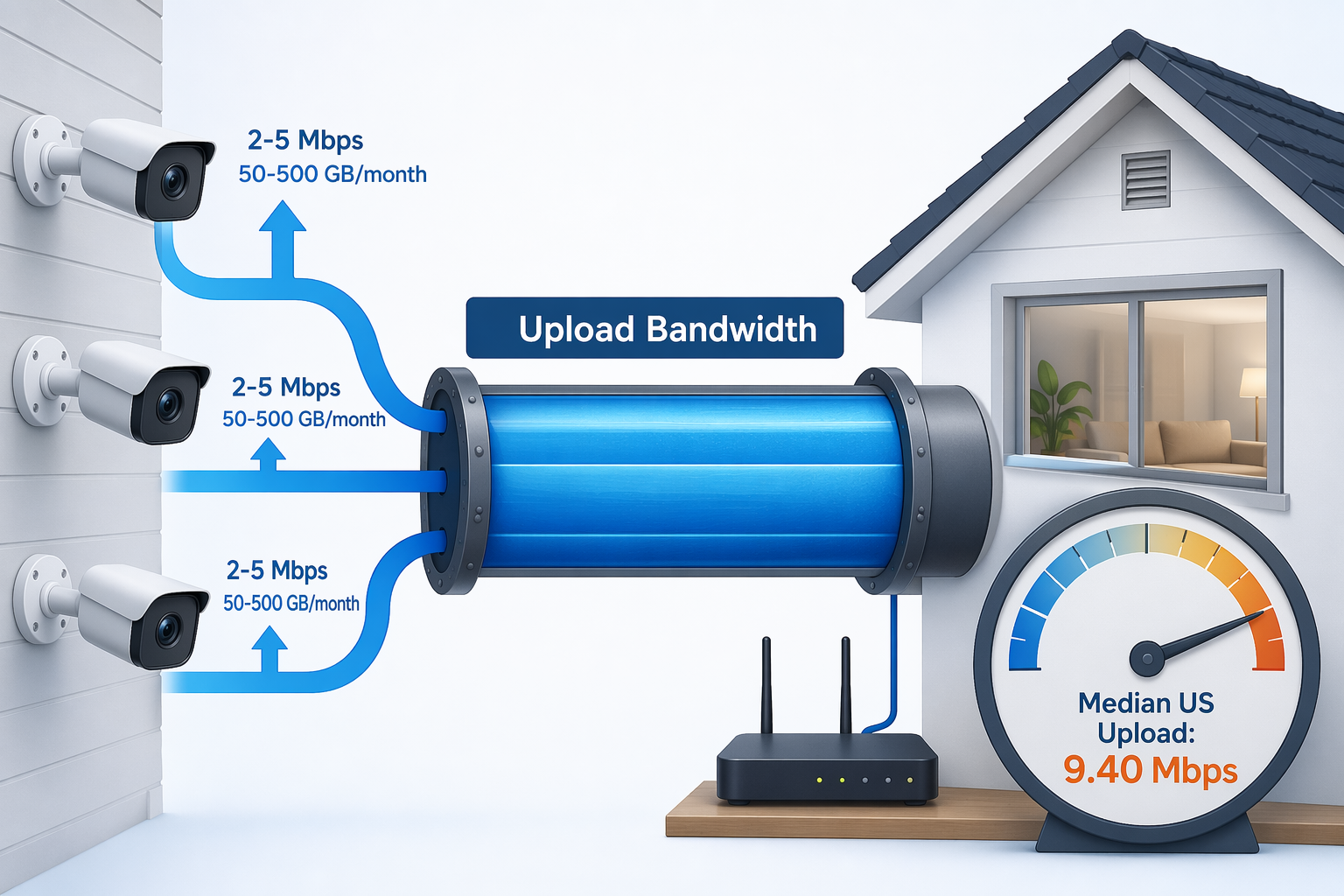
That is why the house can feel slow even when download speed looks fine. Most people notice download numbers because streaming and browsing depend on them. Cameras punish the other direction. Once upload is full, ordinary tasks also suffer because devices still need to send requests, acknowledgments, audio, video-call data, and cloud sync traffic upstream.
Start with the camera app, not the router. Look for these settings:
- Recording mode: switch from continuous recording to motion-triggered recording where security needs allow.
- Resolution: test 720p or a lower 1080p quality setting on cameras that do not need maximum detail.
- Frame rate: reduce it for driveways, side yards, and utility areas where smooth motion matters less.
- Cloud upload: disable redundant cloud recording if a local recorder or local storage already covers the purpose.
- Activity zones: narrow the area so trees, streets, pets, or shadows do not trigger constant clips.
The useful test is simple: change one camera setting, then check whether upload usage drops in the router app and whether video calls improve. If you want a more privacy-focused camera layout while reducing cloud dependence, a privacy-first smart-home camera setup is a better long-term path than trying to overpower every camera stream with a new router.
Tune QoS and airtime settings carefully
Low-bandwidth smart-home devices can still make Wi-Fi feel bad because Wi-Fi is shared radio time. A slow device does not need to download much to be annoying. If it talks slowly, retries often, or sits at the edge of coverage, it can occupy airtime that faster devices are waiting to use. Airtime fairness exists to reduce that problem, but router behavior and labels vary by brand and firmware.[5]
In your router settings, look for names such as QoS, Quality of Service, device priority, media prioritization, airtime fairness, ATM, OFDMA, or scheduling. The exact labels are messy. The goal is not to turn on every smart-sounding feature. The goal is to make the router favor the traffic that humans notice immediately.
- Prioritize work laptops, video-call devices, streaming boxes, and game consoles over bulbs, plugs, and low-priority cameras.
- If the router has adaptive QoS, set the correct upload and download speeds manually if auto-detection is wrong.
- If airtime fairness is enabled and some older IoT devices drop offline, test with it disabled; if slow clients are dragging everything down, test with it enabled.
- Change one setting at a time and leave yourself a note so you can reverse it.
This is also where Wi-Fi 6 marketing needs a leash. Wi-Fi 6 features such as OFDMA can help routers coordinate many small transmissions more efficiently, but they do not erase bad placement, saturated upload, old clients, or every IoT compatibility problem. Independent troubleshooting accounts still find airtime and scheduling limits even on newer equipment.[6]
Segment smart-home gear only if it will not break your setup
A separate IoT network can be useful. It keeps bulbs, plugs, cameras, and speakers away from work machines and personal devices, and it can make the device list easier to read. For many households, the practical version is a dedicated IoT SSID or a guest network with a clear name.
The catch is discovery. Some smart-home systems expect phones, hubs, speakers, and accessories to find each other on the same local network. Strict guest-network isolation or VLAN separation can interfere with HomeKit, Matter, Thread border routers, casting, speaker grouping, or local control unless the router is configured to allow the right traffic.
If you use Matter devices, check compatibility before isolating everything; the Matter devices buyer’s guide is a useful place to sanity-check how your ecosystem expects devices to communicate. If your router only offers a basic guest network with “guests cannot see local devices” turned on, test with one non-critical smart plug or bulb before moving the whole house.
Upgrade when the evidence points past settings
There is a point where settings stop being the responsible answer. Many Wi-Fi 5 routers start to struggle around 15–20 active devices, while stronger Wi-Fi 6 routers are commonly expected to handle roughly 30–50 active devices, depending on model, firmware, placement, and what those devices are doing.[6] Treat those as expectations, not law. A cheap Wi-Fi 6 router in a bad spot is still a bad setup.
An upgrade makes sense when one of these is true:
- Wired speed is fine, but Wi-Fi remains poor after band separation and camera upload reduction.
- The router routinely shows high CPU, memory pressure, dropped clients, or unexplained reboots.
- The home has outgrown one router’s coverage area and devices cling to weak signals at the edges.
- You need better controls for QoS, device priority, guest networks, or IoT segmentation.
- Cameras still saturate upload even after reducing quality, which may point to the internet plan as much as the router.
For a larger home, a well-placed mesh system can be more useful than a single expensive router shoved into the same bad corner. For a dense smart home, moving some accessories off Wi-Fi can be cleaner. Zigbee, Z-Wave, and Thread devices use their own low-power networks instead of adding every bulb and sensor to the Wi-Fi client list. If Thread is part of the plan, choose a reliable Thread border router and check whether the devices you are buying actually support the ecosystem you use.
Local-control devices are also worth considering when cloud chatter is part of the mess. They will not magically fix a weak router, but they can reduce dependency on outside services and make automations less vulnerable to internet hiccups. The local control smart-home devices guide is the more useful shopping list if the goal is fewer Wi-Fi clients, not just a newer router box.
If the first four steps restore performance, keep the router and document what changed. If upload stays full because of cameras, fix the camera plan or the upload tier. If an older router keeps choking once the active-device count climbs, replace it with that reason in mind. That is a better decision than buying hardware because the house got annoying.
References
- Verizon Home Internet customers average 20 connected devices per household, Verizon, 2024
- Is your smart home slowing down your internet?, Techlicious
- How Much Data Do Security Cameras Use?, Techlicious
- Speedtest Global Index, Ookla
- Airtime Fairness and IoT: Why Your Smart Wi-Fi Devices Might Not Work Well Together, Dong Knows
- Airtime, not interference, caused my Wi-Fi woes, XDA Developers
Corroborating context
For protocol background on why this failure happens, see Compatibility & Protocols.
Not currently linked to a known regression. Background on the underlying protocol lives in Compatibility & Protocols.