
What the 2026 update actually changes — and what it doesn’t
If you last touched Google Home automations in 2024, you know the old ceiling: “Good Morning” reads the weather and turns on a few lights; “Good Night” locks the door and sets the thermostat. That was it. The January 2026 update added roughly 20 new automation elements — starters and actions that reach into appliances, media playback, security systems, blinds, robot vacuums, and even what your camera sees. The gap between what the platform can now do and what most owners have running is wide — and that gap is not just about awareness. It’s about hardware compatibility, subscription costs, and the fact that the 50,000+ devices Google counts include plenty that can only turn on and off.
Google claims over 50,000 compatible devices. That number includes everything from $10 plugs to whole-home systems. But the number that matters more is how many actually support the new triggers — appliance status, TV playback state, camera events. That subset is smaller, and the recipes below make it clear where you need specific hardware, where you need a subscription, and where the feature is still in Public Preview. If you’re entirely new to building automations, start with the broader 2026 introduction guide first.
Morning routine: one automation that actually saves time
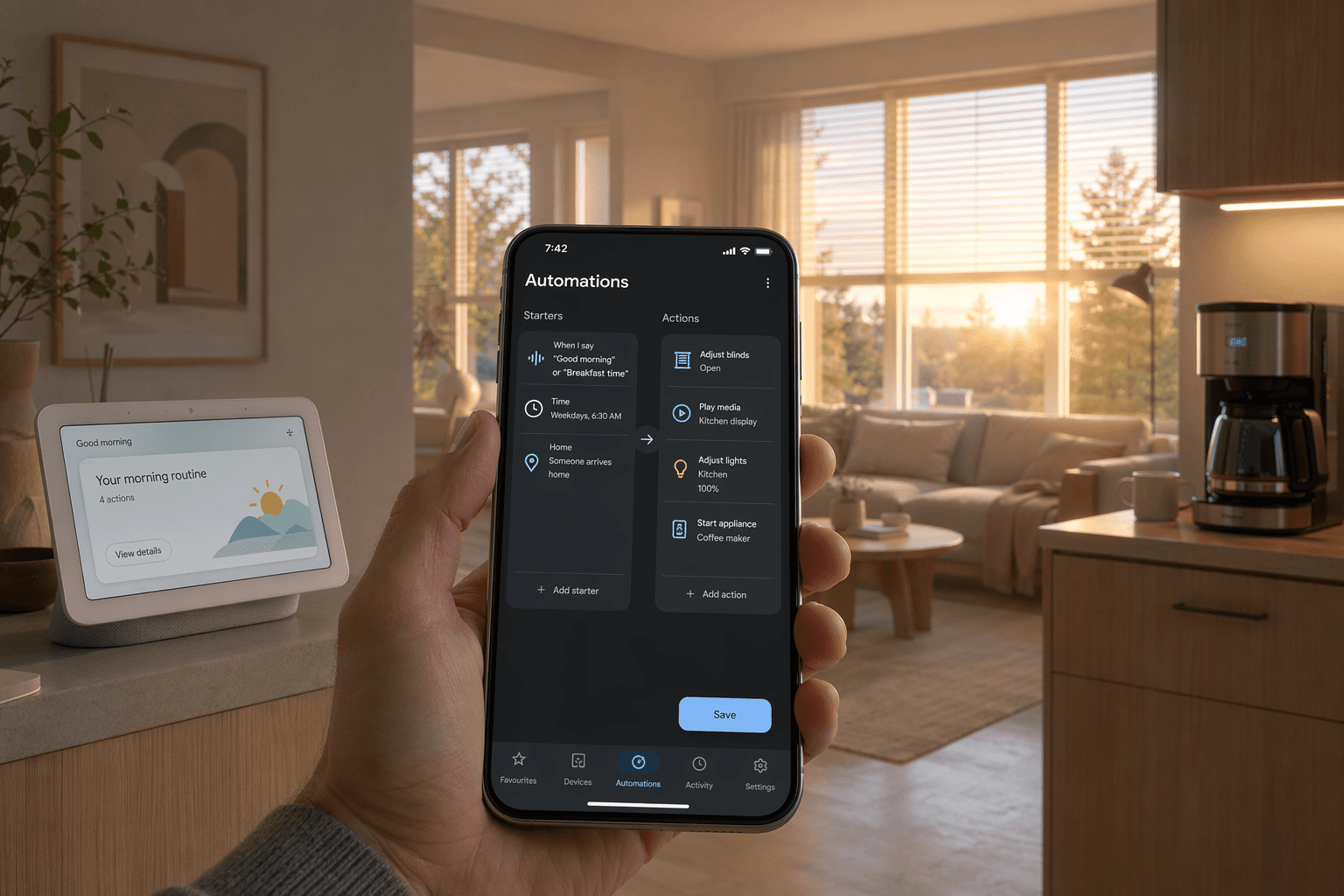
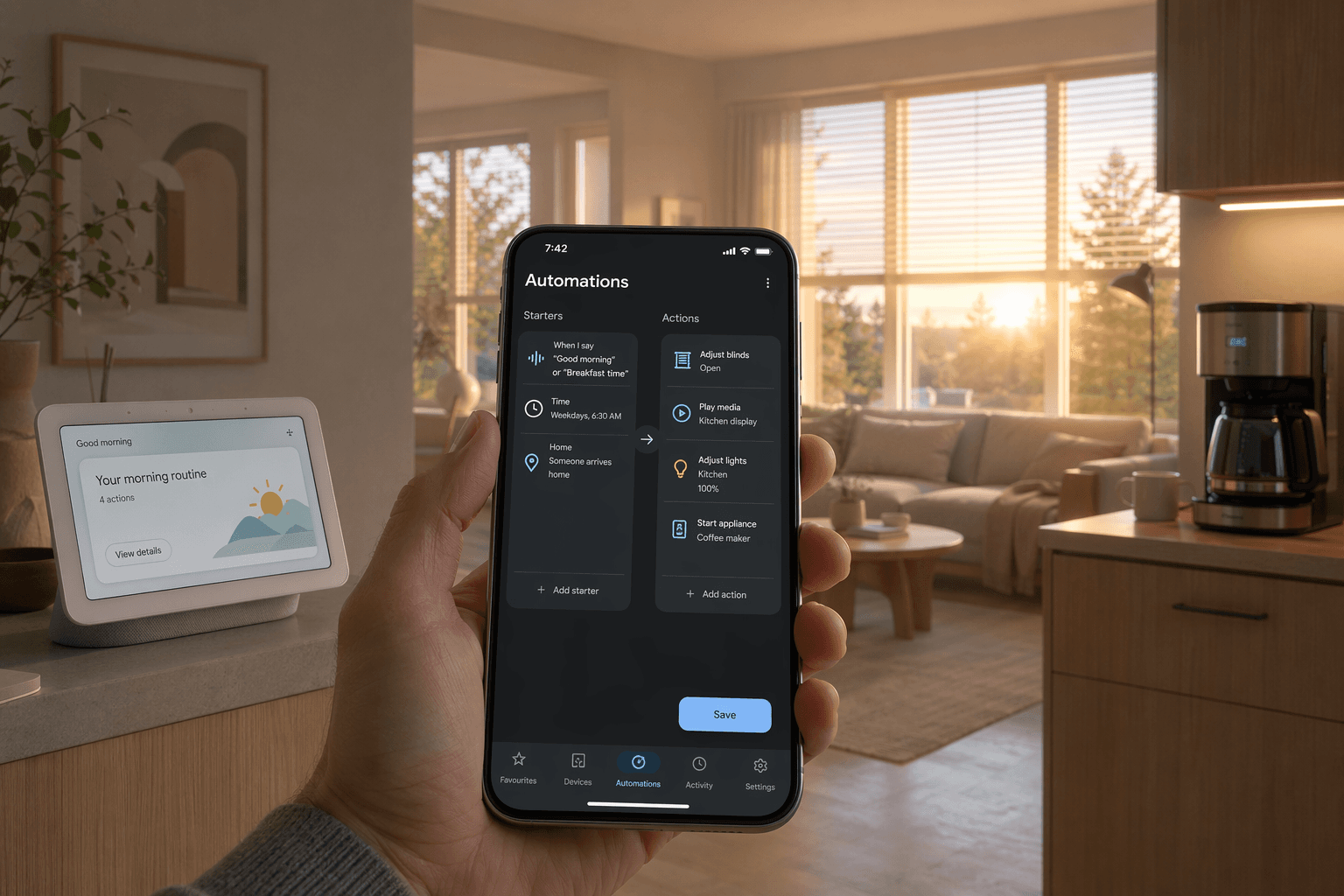
The most obvious upgrade is the new action set. Before January, you could not ask Google Home to open your blinds, start a coffee machine, or dock a robot vacuum. Now you can. Here’s a recipe that strings together a real morning sequence:
- Trigger: time-based (weekdays at 7:00 AM) or a smart button press.
- Actions: open smart blinds, set Nest thermostat to 69°F (or your morning temp), turn on kitchen lights to 80%, start the coffee machine.
- YAML snippet for the script editor:
starters:
  - type: assistant.event.OkGoogle
    eventData: query
    is: "Good morning"
actions:
  - type: device.commands.OpenClose
    devices: living_room_blinds
    openPercent: 100
  - type: device.commands.ThermostatTemperatureSetpoint
    devices: thermostat
    temperature: 69
  - type: device.commands.OnOff
    devices: kitchen_lights
    on: true
  - type: device.commands.OnOff
    devices: coffee_machine
    on: true
The coffee machine action depends on a device that explicitly supports Google Home — models from Smarter or Keurig with Google Home integration work; cheap Wi-Fi plugs that just toggle power do not count as a “coffee machine” starter. Check compatibility before buying. If you do not have a compatible coffee maker, skip that action — the rest still works.
This recipe alone saves more time than any old routine. You no longer walk into a dark kitchen and wait for the coffee to brew. But the real power is in the triggers that notice what is happening, not just what time it is.
Triggers that watch what you’re doing: TV playback and appliance status
The January 2026 update introduced starters based on media playback state and appliance status. These are the kind of events you never had a good trigger for before — and they’re the ones that feel genuinely smart when they work.
Movie night
Use a voice command or the TV’s playback state: when the living room TV starts playing (and it is after sunset), dim the lights to 10%, close the blinds, and set the thermostat to 68°F. The official Google Developers example includes a YAML snippet for this exact scenario.
starters:
  - type: device.state.MediaPlayback
    device: living_room_tv
    state: playing
  - type: time.between
    after: sunset
actions:
  - type: device.commands.OnOff
    devices: living_room_lights
    on: false
  - type: device.commands.OpenClose
    devices: living_room_blinds
    openPercent: 0
The TV needs to support Google Home integration — Android TV, Google TV, or a compatible smart TV. Chromecast with Google TV works. The automation does not require a voice command; it runs whenever the TV starts playing. That is the kind of friction-killer that old routines could not touch.
Washer/dryer alert
Another new starter: appliance status. When a washer or dryer stops, you can have Google Home announce it on speakers and flash a smart light. The YAML:
starters:
  - type: device.state.ApplianceStatus
    device: laundry_washer
    state: stopped
actions:
  - type: assistant.commands.Announcement
    announcement: "The washing machine has finished."
  - type: device.commands.OnOff
    devices: laundry_light
    on: false
    then:
      - type: device.commands.OnOff
        devices: laundry_light
        on: true
      - type: device.commands.Wait
        seconds: 2
      - type: device.commands.OnOff
        devices: laundry_light
        on: false
Compatibility caveat: this works with LG ThinQ, Samsung SmartThings, and a few other brands that expose appliance status to Google Home. Most dumb washers on a smart plug will not show “stopped” as a distinct state. If your washer is not compatible, skip this recipe.
The same triggers can be used for other appliances — a coffee machine finishing, a dishwasher cycle done. The market is still growing; expect more devices to appear through 2027.
Camera triggers: cool demo, but not for security
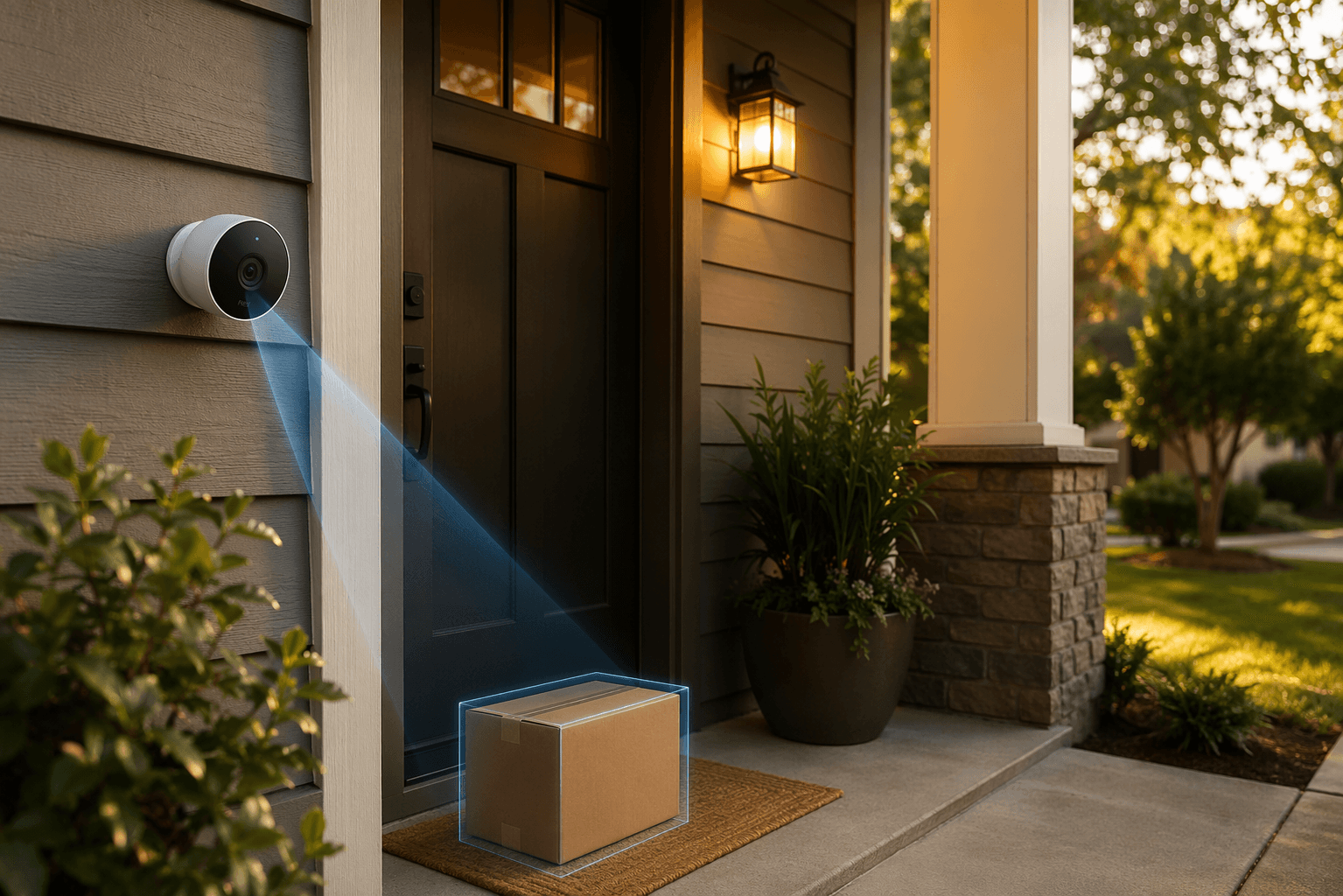
In May 2026, Google introduced Gemini-powered camera visual triggers. You can now write automations like “if the camera sees a package at the front door, turn on the porch light and send a notification” or “if the camera sees a raccoon near the trash bins, turn on the floodlights and make an announcement.” These are genuinely cool. But the asterisks are big — and I wouldn’t build a security system around them.
- You need a Google Home Premium Advanced plan — $20 per month or $200 per year.
- It works only with Nest cameras or select third-party Gemini Built-In cameras.
- It is a Public Preview — US English only, and the feature may still change.
- The camera needs a few seconds to process the scene. Google explicitly states that this is not for real-time security or safety alerts.
The package delivery recipe is the safest use case. Here is the YAML from Google’s developer docs:
starters:
  - type: device.event.PackageDelivered
    device: front_door_camera
actions:
  - type: assistant.commands.Notification
    title: "Package delivered"
    body: "A package has been left at the front door."
  - type: device.commands.OnOff
    devices: porch_light
    on: true
The raccoon recipe uses a natural language trigger like “raccoon near trash bins.” The generation of that YAML is handled by the "help me script" AI — you describe the scene in plain English, and it writes the code. But note: that AI was launched in late 2023 and may not yet generate accurate code for the newest camera triggers. Test every automation before relying on it.
The 50,000 devices number — what it actually means for you
It is true that Google Home supports over 50,000 devices. But that number counts every model that can be added to the app, including many that only respond to basic on/off commands. The advanced triggers in this guide — TV playback state, appliance status, camera visual events, robot vacuum dock/pause/resume — require devices that expose those specific capabilities. A cheap Wi-Fi plug will not tell you when your laundry is done. A non-Google TV will not report its playback state.
Three real barriers stand between you and these recipes:
- The appliance status trigger works with LG ThinQ, Samsung, and a few others — not every Wi-Fi-enabled washer. The camera visual triggers require Nest or Gemini Built-In cameras. The TV playback trigger works with Android TV/Google TV. Check your devices against Google’s compatibility list before modeling a recipe.
- Camera visual triggers cost $20/month or $200/year on top of your existing internet and any camera subscription. That is a significant ongoing expense. See the full subscription cost comparison for context.
- Most of the YAML snippets above use the script editor. Google Home’s app-based automation builder (formerly Routines, now called Automations) can handle simpler recipes, but for the new triggers you almost certainly need the script editor. The "help me script" AI can help, but it is not bulletproof for the newest starters.
These barriers are not dealbreakers, but they are real. Going in with your eyes open prevents the kind of disappointment that leaves a smart home drawer full of unused gadgets.
Where to start — and what to skip for now
The 2026 update makes Google Home capable of automations that genuinely save time and reduce friction. The morning routine, the movie night dimming, the washer alert — these are not gimmicks. They address real household moments that previously required manual steps. I have been running several of them for two months, and they have held up.
But I would not jump into camera visual triggers first. Start with the free, new-trigger recipes: morning wake-up, movie night, washer alert, goodbye mode (arm security + turn off lights + set thermostat to eco when the last person leaves), bedtime wind-down (gradual dimming + thermostat set + sleep sounds), and vacuum-on-leave (when presence sensors say no one is home, dock the vacuum if not already docked). Those six do not require a subscription, and they work with common devices you may already own.
The other six — package delivery, raccoon alert, kid homework mode (when kid’s device connects to Wi-Fi, turn on desk lamp and pause other devices), morning coffee, arrive home (unlock door + lights + thermostat), and the full goodbye sequence — require either a subscription, specific hardware, or both. They are still worth building, but only after you have proven the core automations are reliable.
Before you start, run through this checklist:
- Update the Google Home app to version 4.6.55.1 or later (the Automations rename happened in May 2026).
- Verify that each device in a recipe supports the specific trigger or action you need — check the manufacturer’s integration page.
- If you plan to use the script editor, go to home.google.com/automations and test with a simple automation first.
- Set up one recipe at a time. Run it for a week before adding the next.
Even well-designed automations can fail silently. Connectivity drops, condition edge cases (what if two people leave at different times?), and race conditions can cause a recipe to not fire or to fire incorrectly. When that happens — and it will — the troubleshooting guide for silent failures will walk you through the new activity log and conditions layer. Do not give up on a recipe the first time it skips.
The Google Home of 2026 can handle smart automations that actually feel smart. The knowledge gap is real, but it is closing. Start with the free ones. The rest can wait until you’ve proven the core works.
If you are still deciding which ecosystem to commit to, the ecosystem comparison guide will help you weigh Google Home against Alexa and HomeKit.
Implementation Notes
Share platform-specific tips, report that a recipe no longer works after a platform update, or contribute variations for different device combinations.
Comments
Join the discussion with an anonymous comment.