Amazon Smart Plug Troubleshooting: Fix Common Setup and Connectivity Issues
Setup, connectivity, and voice command failures
Last updated
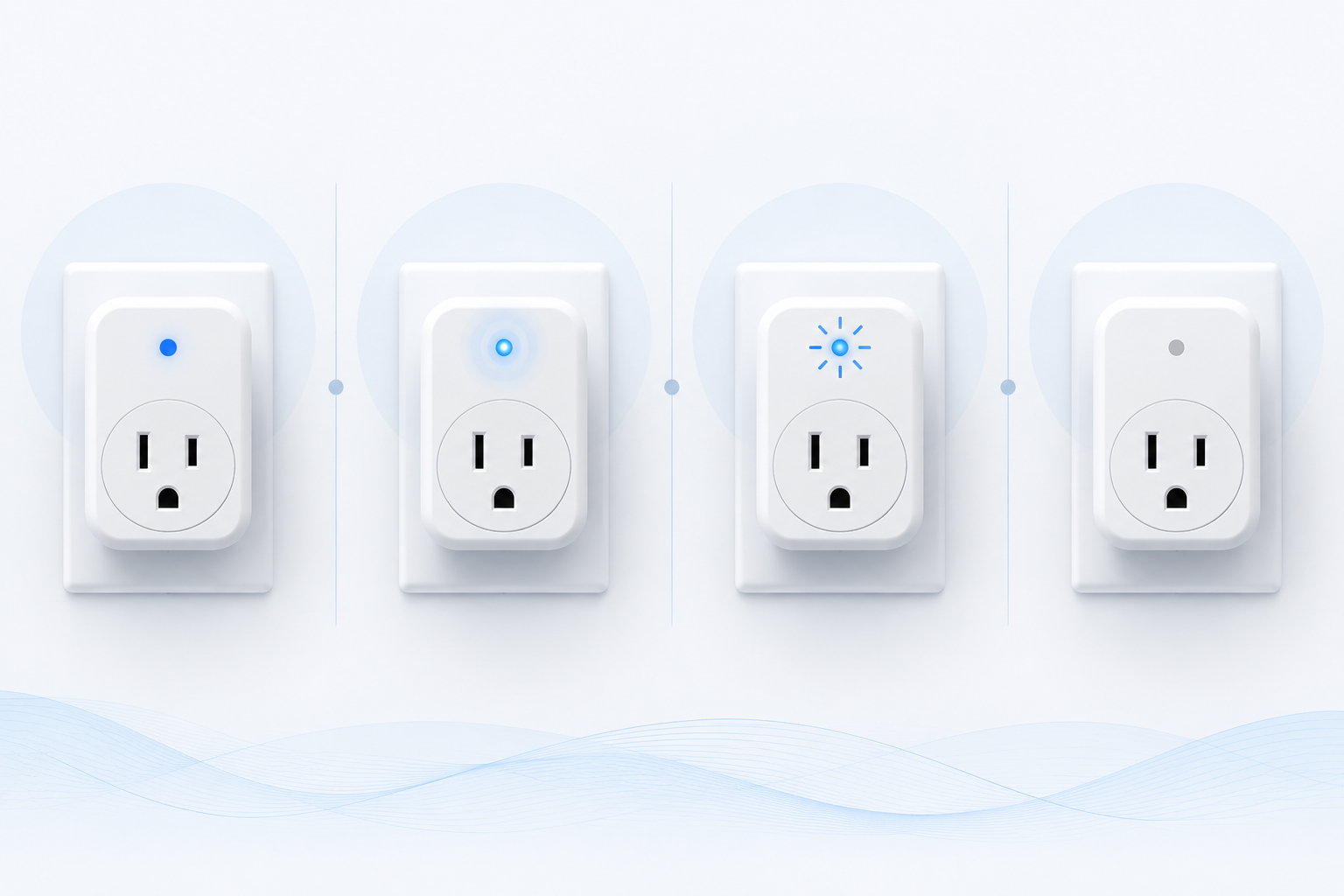
When an Amazon Smart Plug stops working, the first useful question is not whether the plug is bad. It is what state the plug is actually in. The same small LED has to carry too much meaning: power, setup mode, Wi-Fi provisioning, reset state, and sometimes nothing more dramatic than whether the controlled device is switched on in the Alexa app.
Start with the light. It will usually tell you whether to fix power, setup, Wi-Fi, Alexa discovery, or the device name before you erase the plug and start over.
| What the LED is doing | Likely state | Next step |
|---|---|---|
| Solid blue | Plug is powered, connected, and on | If Alexa still will not control it, check the device name, duplicate devices, and the appliance plugged into it. |
| Slow blinking blue | Setup or pairing mode | Open the Alexa app and run discovery again, but confirm the phone is using the right 2.4 GHz Wi-Fi first. |
| Rapid blinking blue | Trying to provision or join Wi-Fi | Check for 5 GHz network selection, mesh network confusion, distance during setup, or a stalled app setup session. |
| Red during a button hold | Factory reset sequence is being triggered | Keep holding only if you intend to reset. Amazon’s reset procedure uses a 12-second side-button hold until the LED turns red, then a blue confirmation after release.[1] |
| Off | No visible power, plug switched off in app, or no active output | Confirm the wall outlet works, press the side button once, and check whether Alexa shows the plug as offline or simply off. |
Work Through the Failure in the Least Destructive Order
Factory reset is useful, but it is not a first move. A reset wipes setup state, so it should come after the checks that do not cost you a working configuration: outlet power, LED state, Wi-Fi band, Alexa app discovery, a clean power cycle, setup distance, and device naming.
- Confirm the outlet and plug are actually powered.
- Read the LED state before opening the Alexa app.
- Make sure setup is happening on 2.4 GHz Wi-Fi, not 5 GHz.
- Retry discovery in the Alexa app after clearing any stalled setup attempt.
- Power-cycle the plug, then the router or modem if discovery still fails.
- Move the plug closer to the paired Echo device or router during setup.
- Fix names and duplicate devices if voice commands are the only failure.
- Factory reset only after the non-destructive checks are exhausted.
If Setup Fails or the Plug Keeps Blinking Blue
A blue-blinking plug is usually not dead. It is usually waiting, pairing, or trying and failing to join the network. The most common setup trap is Wi-Fi band selection: Amazon Smart Plug setup requires a 2.4 GHz network and does not support 5 GHz Wi-Fi.[2]
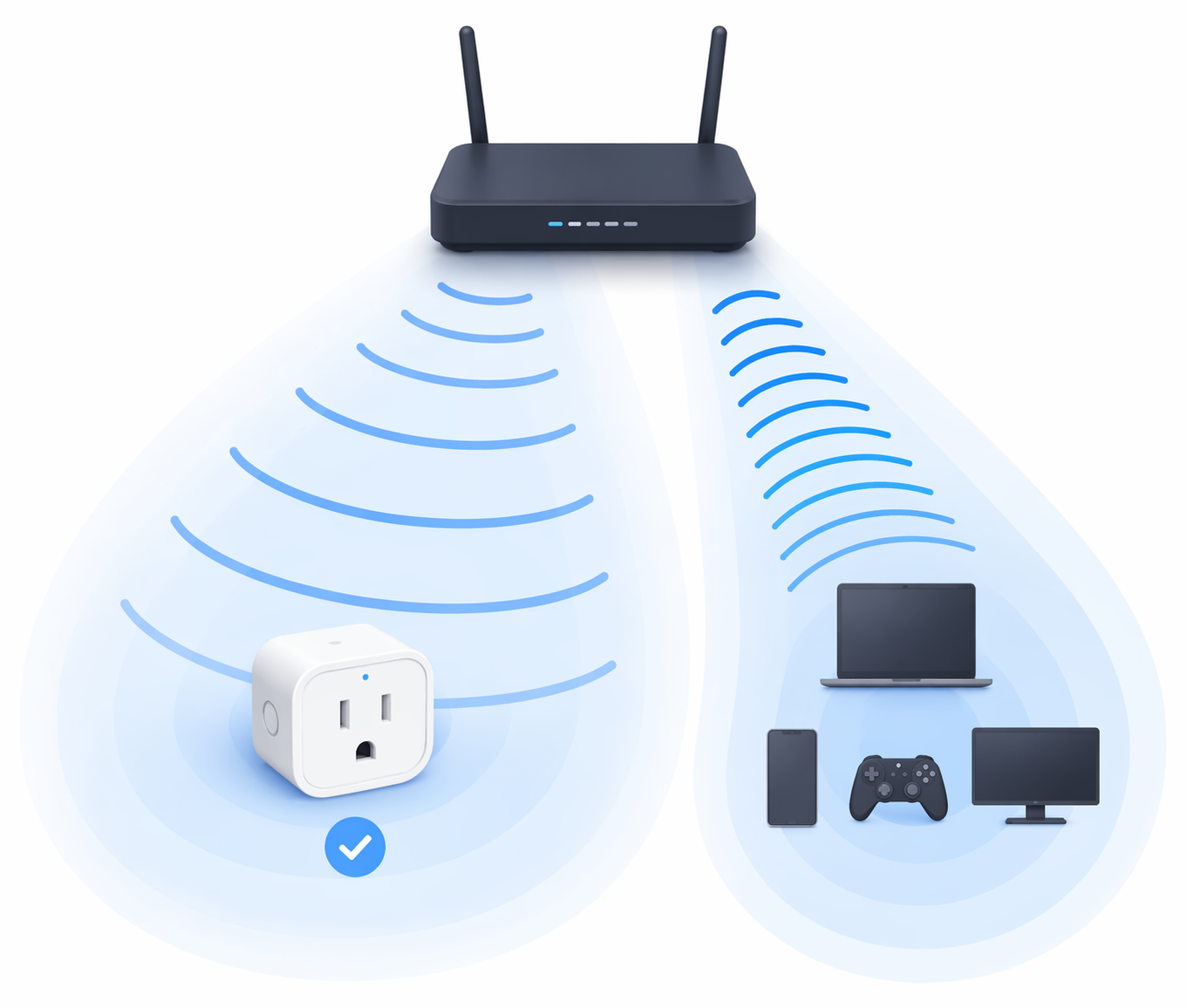
That matters because many phones prefer 5 GHz when both bands are available. Some routers also use one shared network name for both bands. That is convenient after everything is configured, but it can make setup look haunted: the Alexa app sees a network name, the phone has a strong connection, the plug blinks as if it is trying, and the final join never completes.
Before retrying setup, check the router or Wi-Fi app and confirm that a 2.4 GHz network is available. If the router broadcasts separate names, choose the 2.4 GHz name for setup. If the router uses one combined name, temporarily separating the bands or using the router’s IoT or 2.4 GHz-only option can remove the ambiguity. The point is not to redesign the home network; it is to give the plug a network it can actually join.
Then clean up the Alexa app side. Open the Alexa app, go to Devices, and look for a partially added plug. If a failed setup left behind a device entry, remove it before trying again. Start discovery fresh and keep the phone nearby until the app finishes. Amazon’s setup flow is handled through Alexa device discovery, so a stale attempt in the app can look like a plug problem even when the plug is still waiting in setup mode.[3]
If setup still hangs, unplug the Amazon Smart Plug from the wall for 30 seconds, plug it back in, and wait for the LED to settle before reopening discovery. This is not a magic pause; it clears a stalled local state without deleting the device. If several smart-home devices are also acting strange, power-cycle the modem and router as well: unplug them for 30 seconds, restore power, wait for Wi-Fi to fully return, and then retry discovery.
Distance is worth checking during setup, but treat it as a proximity check rather than a formal range promise. Forum-derived Amazon support guidance commonly points to keeping the plug within about 30 ft, or 9 m, of the paired Echo device during setup and normal use. Walls, cabinets, metal-backed furniture, and crowded power strips can matter more than the raw number, so move the plug temporarily to a nearby open outlet and configure it there before returning it to its final location.
If the Plug Shows Offline or Ignores the App
Offline behavior needs one split decision: is the plug disconnected from Alexa, or is it not responding to power and button input at all? Those are different problems. A disconnected plug may still show an LED, respond to the side button, or power the connected lamp manually. A plug with no LED, no click, and no side-button response is no longer mainly an Alexa problem.
First, test the outlet with something simple, such as a lamp or phone charger. Then plug the Amazon Smart Plug directly into the wall, not into a switched power strip, dimmer outlet, or loose extension cord. Press the side button once. If the connected appliance turns on or off, the plug has power and the local relay is responding. Now you can focus on the app connection.
For a plug that has power but appears offline in Alexa, remove it from the outlet for 30 seconds and plug it back in. Wait before tapping through the app; the plug needs time to rejoin Wi-Fi and report its state. Amazon’s help material for stopped-working devices points users back through power, connection, and Alexa app checks rather than treating offline status as immediate hardware failure.[4]
If the plug returns online after the 30-second power cycle, stop there. Do not reset it just because the app scared you for a minute. If it drops offline again later, look at what changed around it: a router replacement, a new mesh node, a renamed Wi-Fi network, a moved power strip, or a room where the signal is weak. Repeating the same Alexa discovery attempt will not fix a plug that is being asked to remember a network that no longer exists.
If several devices are offline, restart the network instead of picking on the plug. Power down the modem and router for 30 seconds, restore them, and wait until normal Wi-Fi service returns. Then check whether the plug comes back before deleting anything from Alexa. This is especially useful in homes where the plug was working yesterday and nothing about the plug itself was touched.
If Alexa Discovers the Plug but Voice Commands Fail
When the app can control the plug but Alexa voice commands fail, the problem is often naming rather than connectivity. Default names like “First Plug” are easy to forget. Reused names like “Lamp” are worse because Alexa may have several lamps, a room named Lamp, or an old duplicate device still sitting in the account.
Open the Alexa app, find the plug under Devices, and rename it to something unique and easy to say. A single compound name such as “DeskLamp,” “Fan,” or “Coffee” usually works better than a phrase that overlaps with a room, group, or another device. After renaming, say the exact new name once: “Alexa, turn on DeskLamp.” If that works, the plug was not offline; Alexa was routing the command badly.
Also remove duplicates. Failed setup attempts can leave old device entries behind, and Alexa may keep trying to control the stale one. If you see two plugs with similar names, test them from the app, delete the dead entry, and keep the one that actually toggles the outlet.
Factory Reset, When the Earlier Checks Have Failed
Reset the plug when you need to clear a failed provisioning history, prepare a second-hand plug for a new account, recover from repeated setup loops, or remove a configuration that no longer matches the home network. This is the clean break, not the first diagnostic tap.
Amazon’s official reset procedure is specific: press and hold the button on the side of the Amazon Smart Plug for 12 seconds. When the LED turns red, release the button. The LED then turns blue to confirm that the plug has reset.[1]
After reset, remove any old copy of the plug from the Alexa app before setting it up again. Then repeat setup on 2.4 GHz Wi-Fi, close to the router or paired Echo device, and give the plug a unique name immediately after discovery. A reset followed by the same 5 GHz or duplicate-name setup mistake is just extra work with the same ending.
When Replacement Makes More Sense Than Another Retry
There is a point where another app-side fix is just wasting time. If the plug will not power on in a known-good outlet, will not respond to the side button, cannot enter the 12-second reset sequence, or stopped working immediately after a surge, the remaining evidence points away from Wi-Fi and toward hardware failure.
If you are still deciding whether this model fits the outlet, appliance, and Alexa setup you have, use the Amazon Smart Plug device profile for specs and limitations. If the plug has crossed the hardware-failure line, move on to a replacement decision with the best smart plugs for Alexa rather than rebuilding the same failed setup again.
Most Amazon Smart Plug problems do not reach that point. They cluster around 2.4 GHz Wi-Fi mismatch, provisioning timeouts, stale connection state, and Alexa naming conflicts. Work through those in order, and the plug either comes back cleanly or gives you enough evidence to stop troubleshooting.
References
- Reset Your Amazon Smart Plug, Amazon Help
- Alexa Can't Discover Your Amazon Smart Plug, Amazon Help
- How to Set Up Amazon Smart Plug with Alexa, Amazon Help
- Amazon Smart Plug Stopped Working, Amazon Help
Corroborating context
For protocol background on why this failure happens, see Compatibility & Protocols.
Not currently linked to a known regression. Background on the underlying protocol lives in Compatibility & Protocols.